Fix Galaxy S10 Not Charging: 7 Proven Methods (2026)
Fix Galaxy S10 and S10+ not charging with practical steps for USB-C port cleaning, moisture alerts, cable swaps, Safe Mode, and cache repair.
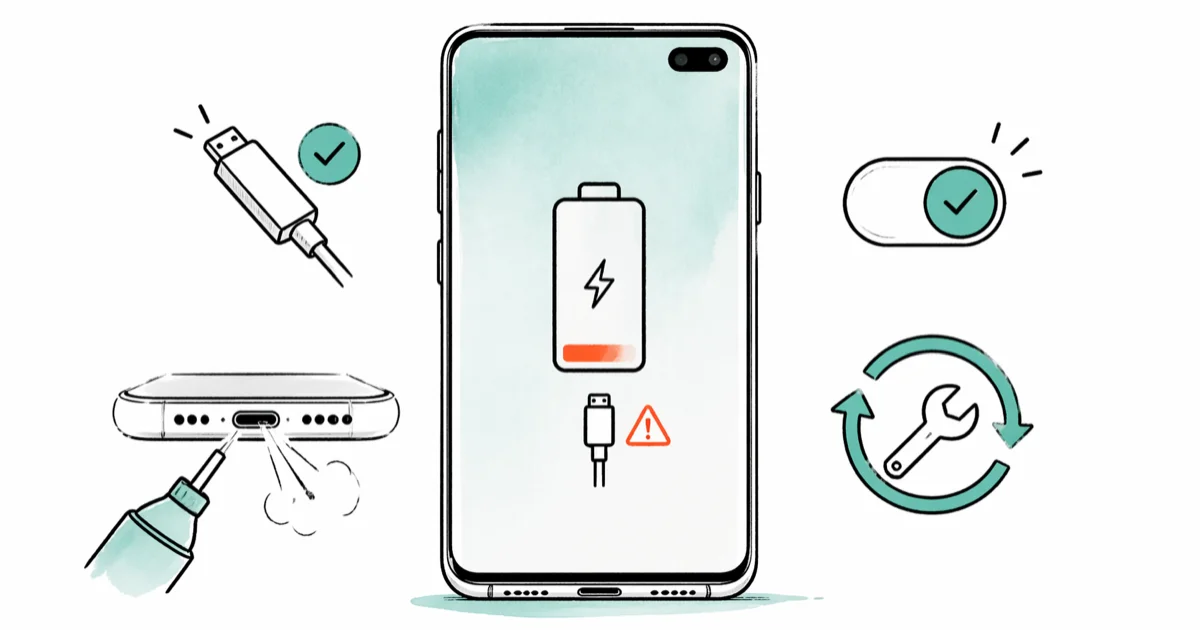
Quick AnswerIf your Galaxy S10 won't charge, power it off, clean the USB-C port with compressed air, and test a different Samsung-certified cable. Lint, moisture alerts, and non-PD cables block most charging attempts on the S10 and S10+.
Your Galaxy S10 or S10+ stopped charging. You need it working before the next meeting.
Three root causes explain most Galaxy S10 charging failures: lint-packed ports, moisture alerts, and cable or adapter problems. Start with the hardware checks before moving into software fixes.
- The S10 caps at 15W wired PD and 15W Qi wireless
- USB-C port lint is the top blocker; flashlight plus wooden toothpick
- Humid rooms trigger false moisture alerts; clear the USB cache first
- Safe Mode isolates battery apps that override the charging controller
- A 15W Qi pad keeps the S10 alive while you repair a damaged port
#Why Is Your Galaxy S10 Not Charging?
The Galaxy S10’s USB-C port collects pocket lint, dust, and humidity over a year of daily use. That millimeter of packed debris is enough to break contact.
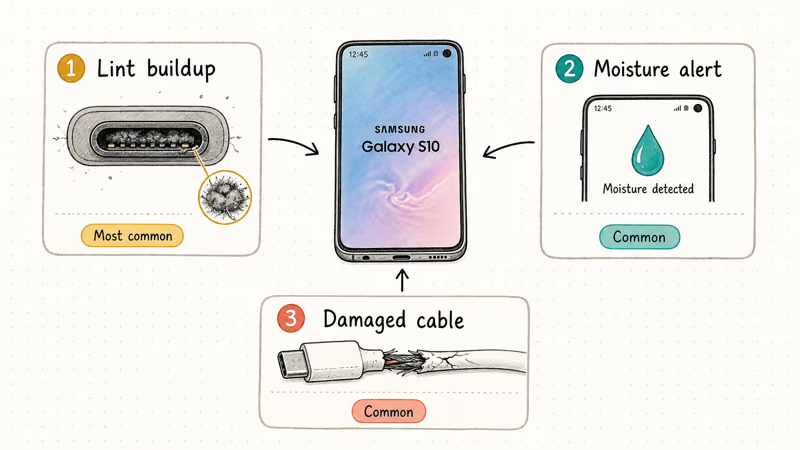
Lint buildup is common because pocket debris stops the plug from seating fully.
Moisture detection blocks wired charging the moment the sensor sees any water reading. According to Samsung’s water drop icon troubleshooting guide, charging won’t start if moisture exceeds the safety threshold “to protect your phone from damage and corrosion.” Samsung also states that “exposure to environments with high humidity may also trigger a water drop icon,” which is why bathroom and kitchen charging often fails on a dry phone.
Damaged cables and adapters finish the top three. The Galaxy S10’s official spec, according to GSMArena’s S10 listing, is 15W wired PD 2.0 with a 3,400 mAh battery, so older Micro-USB kits with a USB-C adapter tip deliver inconsistent power the S10 rejects. Software glitches, rogue apps, and battery calibration issues account for the rest.
#Hardware and Port-Level Fixes First
#Method 1: Clean the USB-C Port
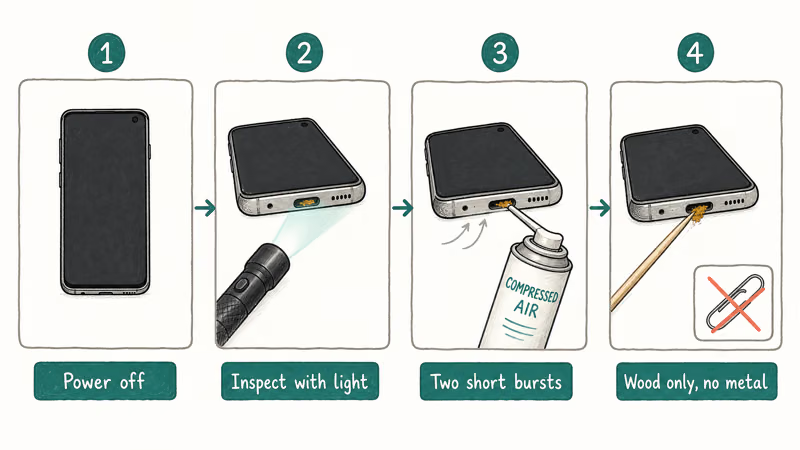
This is the first move because compacted pocket lint blocks the cable pins from touching the charging contacts inside the port.
Power the S10 off and shine a flashlight into the USB-C opening. Fire two to three short bursts of compressed air, then work a wooden toothpick along the inside wall to dislodge packed debris. Plug the charger back in and wait 10 seconds.
Never use metal inside the port. A wooden or plastic pick removes lint without bending the contact pins or shorting the moisture sensor. Samsung’s UK support team recommends using “a soft brush” to clear the port and warns that “damaged or corroded ports or cables may cause slow charging or heat generation.” If the port looks wet or shows white corrosion, see our guide on how to get water out of a charging port before plugging anything in.
#Method 2: Swap the Cable and Adapter
Cable failure is the second most common trigger. USB-C cables fray internally near the connector where repeated bending weakens the wires, and generic cables often skip the PD resistor the S10 requires.
Borrow a known-good Samsung USB-C cable and pair it with the original wall adapter or any brick rated 15W or higher over USB-PD. If you’re buying a replacement, choose a USB-IF certified cable that explicitly lists USB Power Delivery support rather than a generic bargain-bin lead. Plug into a different wall outlet to rule out dead sockets, then try again.
Samsung’s Adaptive Fast Charging expects a PD 2.0 handshake, and cheap cables can fall back to 5W trickle or fail the negotiation entirely. Samsung states on its charging support page that “fast charging is not supported when using a normal charger” and recommends the in-box brick for stable results.
#Moisture Alerts and Environmental Triggers
#Method 3: Clear the Moisture Detection Alert
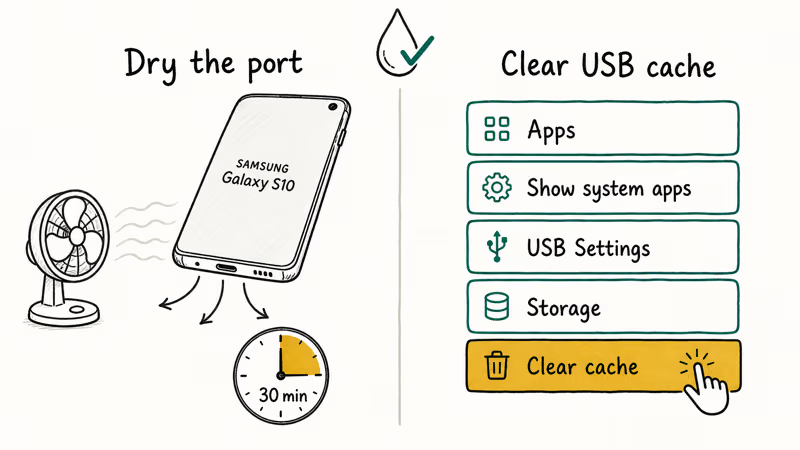
Humidity, sweaty pockets, or residue on the cable tip all trigger the S10’s moisture sensor. Samsung’s fix is counterintuitive but works.
Unplug the phone, wipe the port with a dry lint-free cloth, then gently shake the device five to ten times with the port facing downwards. Leave it on a dry surface for 30 minutes near a running fan. If the alert persists on a dry phone, Samsung’s water drop troubleshooting page recommends clearing the USB cache: go to Settings > Apps, tap the filter icon and enable Show system apps, open USB Settings, tap Storage, then Clear cache.
Wireless charging keeps the phone alive while you wait. The S10 accepts 15W Qi, so any certified Qi pad will charge overnight without touching the USB-C port. If your Samsung tablet battery won’t charge either, the cable is likely the shared problem. For the recurring S8 version of this error, see our moisture detected on S8 guide.
#Software Fixes When the Hardware Checks Out
#Method 4: Force Restart Your Galaxy S10
A frozen charging controller sometimes prevents the phone from recognizing the charger even after the port and cable check out. A force restart resets the controller without touching user data.
Press and hold Volume Down + Power for about 10 seconds until the screen goes black, then release when the Samsung logo appears. Wait 60 to 90 seconds for the boot to finish, then connect the charger.
This is the right move when the phone was charging normally yesterday and stopped overnight. Google’s Android Help confirms that holding the power button “for 5-7 seconds” reboots the phone, and Samsung’s troubleshooting page states “press and hold the Power and Volume Down keys until the device restarts” as the standard reset. If your Galaxy S10 won’t turn on at all, hold the same combination for at least 20 seconds.
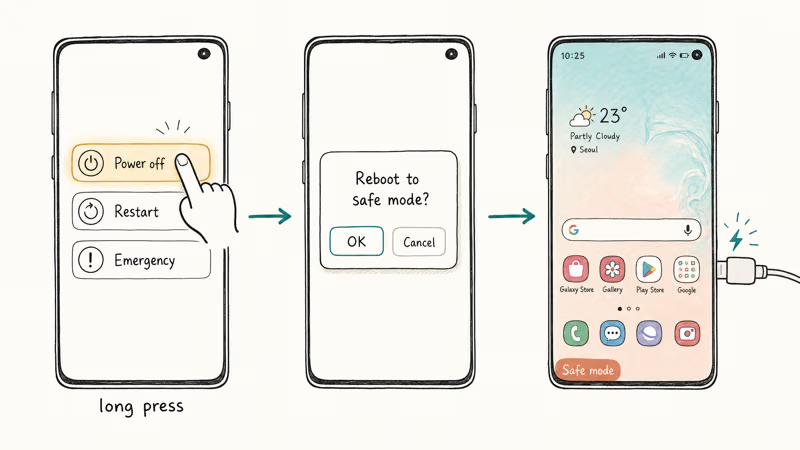
#Method 5: Charge in Safe Mode
Safe Mode loads the phone with zero third-party apps running. If the S10 charges in Safe Mode but not in normal mode, a downloaded app is interfering with the charging controller.
Hold the Power button, then long-press Power off when the menu appears until you see the Safe Mode prompt. Tap OK and wait for the phone to restart with “Safe mode” visible in the bottom-left corner, then plug in the charger.
Battery monitoring utilities, aftermarket fast-charge managers, and some antivirus apps take control of USB power delivery and can block Samsung’s own charging service. If charging works in Safe Mode, uninstall recently added battery-related apps one at a time, then restart normally to exit Safe Mode.
#Method 6: Wipe the Cache Partition
Corrupted system cache can affect how the charging service communicates with the battery controller. Wiping the cache partition rebuilds those temporary files without deleting personal data.
Power off the Galaxy S10, then hold Volume Up + Bixby + Power until the recovery screen appears. Use Volume Down to highlight Wipe cache partition, press Power to confirm, and select Reboot system now.
This can clear charging issues that appear after a One UI security patch because the cache wipe forces a fresh write of charging-controller state. If other post-update issues are hitting the phone, see our firmware upgrade troubleshooting guide.
#Last-Resort Software Recovery
#Method 7: Factory Reset
A factory reset eliminates every software-level cause of the charging failure. Only run it after confirming the port, cable, adapter, and cache wipe all check out.
Back up to Samsung Cloud or Google Drive first, then go to Settings > General Management > Reset > Factory Data Reset and confirm. The reset takes about 10 minutes on an S10. Test charging before reinstalling apps to confirm the fix held.
Skip this step if the phone never charged after a water incident or physical drop. Those cases are hardware, not software. For post-reset recovery, see our guide on recovering contacts after a factory reset.
#When Should You Pay for Samsung Repair?
Book a service appointment if any of the following apply:
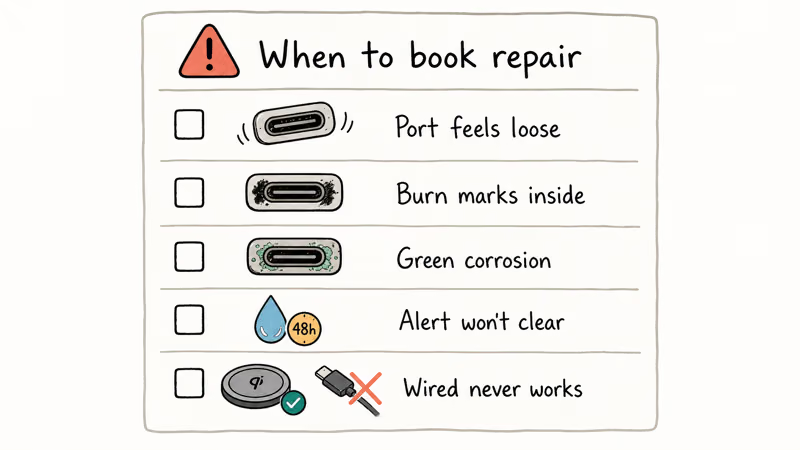
- The USB-C port feels loose, wobbles, or sits crooked
- You see black burn marks or green corrosion inside the port
- The moisture alert refuses to clear after 48 hours of drying
- Wireless charging works at 15W Qi but wired charging never does
- Steps 1-7 above all failed
Samsung authorized centers can replace the USB-C port assembly, with pricing and turnaround depending on repair center and warranty status. Samsung’s repair portal lets you schedule an appointment or mail the device in.
Port replacement is worth it on an otherwise healthy S10. The phone still gets security patches and mirrors to modern TVs, as our Samsung S10 screen mirroring guide covers.
#Bottom Line
Start with compressed air and a wooden toothpick on the USB-C port, since that one step fixes Galaxy S10 charging more often than every software trick combined. If the port is spotless, swap to a Samsung USB-PD cable. Moisture alerts on a dry phone call for the USB cache clear inside Settings, not a pile of rice. Save factory reset for last.
#Frequently Asked Questions
Why does my Galaxy S10 say moisture detected when it’s dry?
Humidity, residue on the cable tip, or corrosion on the moisture sensor pins all trigger the alert on a bone-dry phone. Run compressed air through the port, shake the phone downwards five to ten times, and dry it near a fan for 30 minutes. If the alert still appears, clear the USB cache through Settings > Apps > Show system apps > USB Settings > Storage.
Can I use wireless charging if the USB-C port doesn’t work?
Yes. The Galaxy S10 accepts 15W Qi wireless charging on any certified pad, and wireless bypasses the USB-C port entirely. A full charge on a 15W stand takes a few hours, slower than wired, which is fine for overnight charging on a Samsung Wireless Charger Duo.
Does fast charging damage the Galaxy S10 battery?
No. Samsung’s charging controller throttles current and monitors temperature automatically to protect long-term battery health.
Why does my Galaxy S10 charge slowly with a third-party cable?
Most generic cables skip the PD resistor. The S10 falls back to 5W trickle instead of 15W, so a top-up that should take 90 minutes drags past four hours. Use a USB-PD cable labeled for Samsung fast charging.
Should I replace my Galaxy S10 battery if it won’t charge?
Battery replacement is rarely the fix. A dying battery shows up as rapid drain after a full charge, not as a refusal to charge at all. Focus on port, cable, and software steps first, then revisit battery replacement only if the phone charges to 100% and dies within two hours.
How do I check my Galaxy S10’s battery health?
Open Samsung Members. Go to Get Help > Interactive Checks > Battery for the built-in diagnostic.
Can a software update fix Galaxy S10 charging issues?
Yes. Samsung has pushed One UI security patches that directly addressed charging-controller bugs on older Galaxy devices. Go to Settings > Software Update > Download and Install and accept any pending update.
Is Galaxy S10 fast charging worth the upgrade over the stock charger?
Only marginally. The S10 caps at 15W wired regardless of adapter, so a 25W or 45W Samsung Super Fast Charging brick won’t push the S10 past the in-box 15W rate. Save the premium brick for a newer Galaxy that supports 25W+.

Pixel 11 vs Pixel 10: What Changed and Who Should Upgrade
Pixel 11 vs Pixel 10: same screen and camera resolution, new Tensor G6, 25W wireless, and Gemini Intelligence. Here is who should actually upgrade.

Verizon Not Receiving Texts? How to Fix It in 9 Steps
Verizon not receiving texts? Fix it in 9 steps: check Message Blocking in My Verizon, reset network settings, deregister iMessage, and call support.

Pixel Battery Drain: What Google's July Fix Really Covers
Google marked the Pixel idle battery drain bug fixed in July, but only some phones got the patch. Here is who is covered, who is not, and what to try.

iPhone Stuck on EDGE? How to Get 5G or LTE Back (2026)
iPhone stuck on EDGE with crawling data? Here's why the E icon appears, which settings force 5G or LTE back, and when the problem is your carrier.