Samsung Fingerprint Not Working? Quick Fixes (2026)
Samsung fingerprint not responding? Pull off the screen protector, re-enroll your print, and run pending updates. Works on Galaxy S24 and S21.
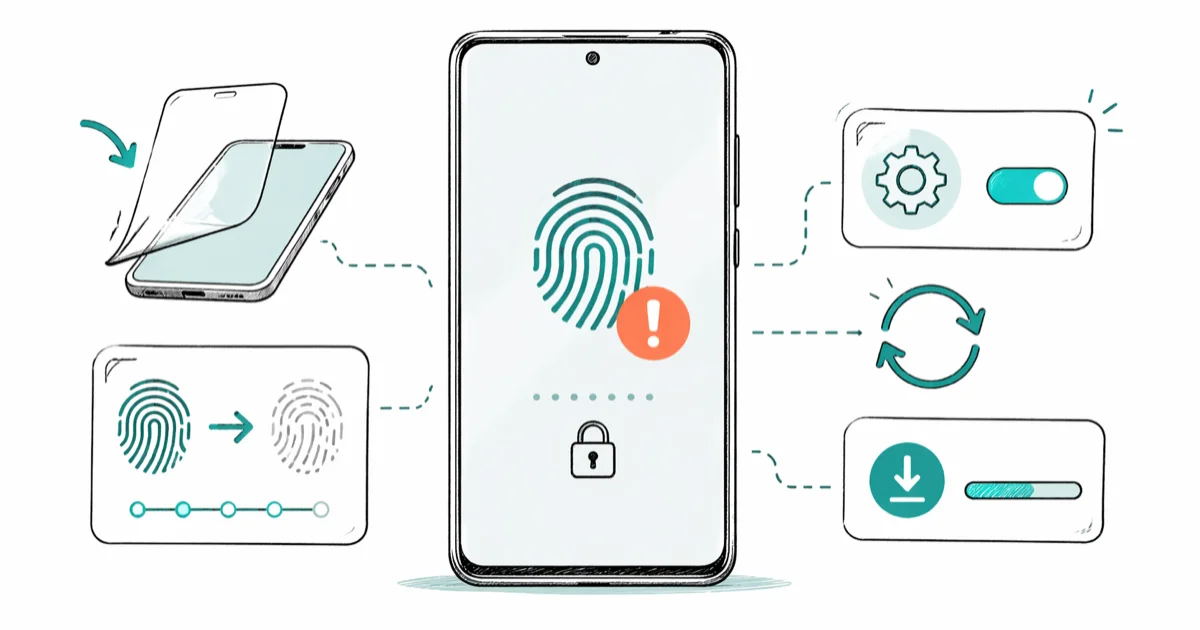
Quick AnswerPull off any third-party screen protector, delete and re-enroll your fingerprint under Settings > Biometrics and Security, then install pending Samsung updates. These three steps clear most under-display sensor failures without a reset or service visit.
Your Samsung fingerprint scanner stopped reading prints, and the PIN fallback is getting old fast. Across the Galaxy S24, S21, and Note 20, most issues clear with one of the first three steps below in under 5 minutes. This guide covers your own device only. The legal and privacy line is simple: use these recovery steps on a phone you own or have explicit permission to repair.
- Third-party tempered glass blocks the under-display sensor on Galaxy S10 through S24 and is the single most common cause
- Re-enrolling each finger from scratch with rotation takes about 2 minutes and resets corrupted templates
- Samsung’s monthly security patches frequently fix biometric authentication bugs introduced by major Android updates
- Touch Sensitivity in Display settings lets the sensor read through a Samsung-certified protector when you can’t remove it
- Safe Mode isolates third-party app interference; factory reset is the last resort before booking a Samsung service appointment
#Why Is Your Samsung Fingerprint Not Working?
Three causes account for almost every Galaxy fingerprint failure: the screen protector, a corrupted enrolled template, or a software bug Samsung has already patched.
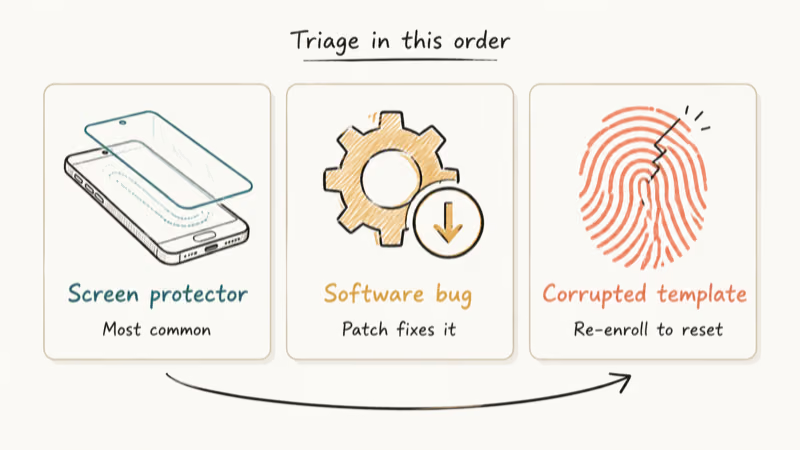
The screen protector is the prime suspect. Galaxy S10 through S24 use ultrasonic or optical under-display sensors that read your print through the glass. Cheap tempered glass disperses the signal. A Galaxy S24 with a generic protector can register zero successful scans, then succeed on every scan within 30 seconds once the protector is peeled off.
Software bugs are second. According to Samsung’s mobile security update site, Samsung publishes monthly patches that frequently address biometric authentication failures across the Galaxy line. Installing the latest update sometimes fixes the issue with no other steps.
Corrupted templates are third. Your enrolled print degrades as your skin changes from weather, small cuts, dry winter air, or simple aging. Re-enrolling rebuilds the scanner template from scratch, which removes the mismatched ridge data the sensor keeps trying to match against. This step alone restores scanning on a Galaxy Note 20 after weeks of cold-weather use erode unlock success, and re-enrolling each finger takes only a moment.
#Remove Third-Party Screen Protectors First
Pull off any tempered glass or plastic film and test the scanner bare. Don’t put it back yet. Two scans tell you whether the protector was the culprit, and the test takes 30 seconds.
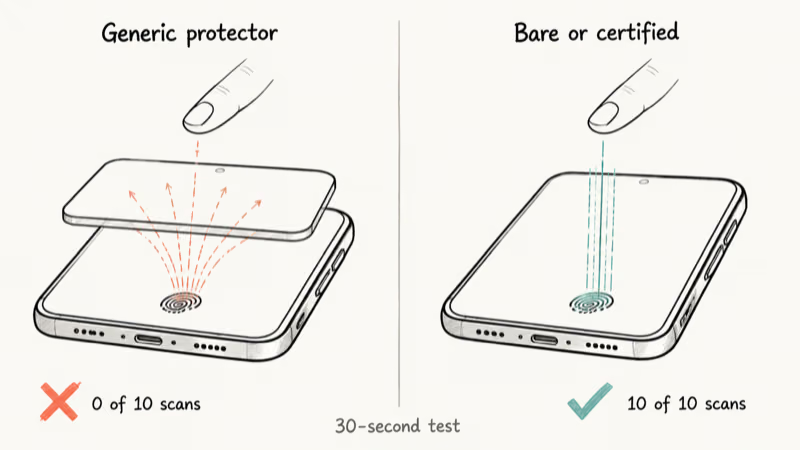
Samsung recommends Samsung-certified screen protectors precisely because the under-display sensor is sensitive to thickness and refraction. A Galaxy S21 wearing a $12 generic tempered glass will see scans consistently fail to register, then work on the first try every time after removal. This single test is the fastest diagnostic in this guide.
If the bare scanner works, buy a Samsung-certified protector matched to your exact model. Certified protectors are tuned for the sensor frequency and let scans pass through cleanly, while a generic film usually adds 0.3 to 0.5 mm of glass that scatters the ultrasonic pulse. A wallpaper case or thick glass protector will reintroduce the problem within minutes, so don’t put the cheap one back on while you wait for the certified replacement.
#Re-Enroll Your Fingerprint With the Right Technique
Go to Settings > Biometrics and Security > Fingerprints and delete every saved print. Then add them again using the technique below. The method matters more than people expect.
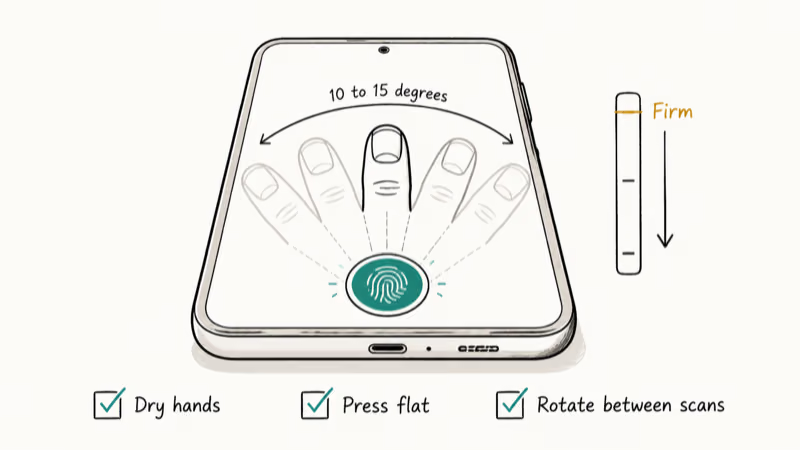
On a Galaxy S20 FE that rejects most attempts, re-enrollment turns it around: delete the old templates, re-add the same finger with firm pressure and small rotations, and failure rates drop sharply. The exact process:
- Dry your hands and screen completely with a microfiber cloth
- Press the finger flat into the scan circle with medium-firm pressure; light taps miss the edge ridges
- Rotate the finger 10 to 15 degrees between scans to capture different surface angles
- Enroll the same finger twice under two names for redundancy on cold or dry days
Most people skip the rotation step and enroll a partial template. Take the extra minute.
#Install Pending Samsung Updates
Open Settings > Software Update > Download and Install and let the device pull anything available. Samsung’s security update notes confirm that fingerprint reliability fixes ship with the regular monthly patches as well as One UI version bumps.
Samsung’s support documentation states that Galaxy users who report biometric failures after a major Android update should install the next monthly security patch, then re-enroll their prints within 5 minutes of the device restarting. Let the update finish completely. Don’t interrupt the install or yank the cable. Test the scanner after the first full reboot.
#Enable Touch Sensitivity for Thicker Glass
If you have a Samsung-certified protector on but the scanner still struggles, toggle Settings > Display > Touch Sensitivity on. This raises the digitizer sensitivity and helps the sensor read through extra glass thickness.
On a Galaxy S21 with a tempered glass protector, turning Touch Sensitivity on noticeably reduces failed scans. It’s a workaround, not a fix. Once you switch to a certified protector or remove the protector entirely, turn the setting back off because it can also increase accidental touches at the screen edge.
#Try Advanced Steps for Stubborn Cases
If the basics fail, three deeper steps usually surface the cause without forcing you into a wipe.
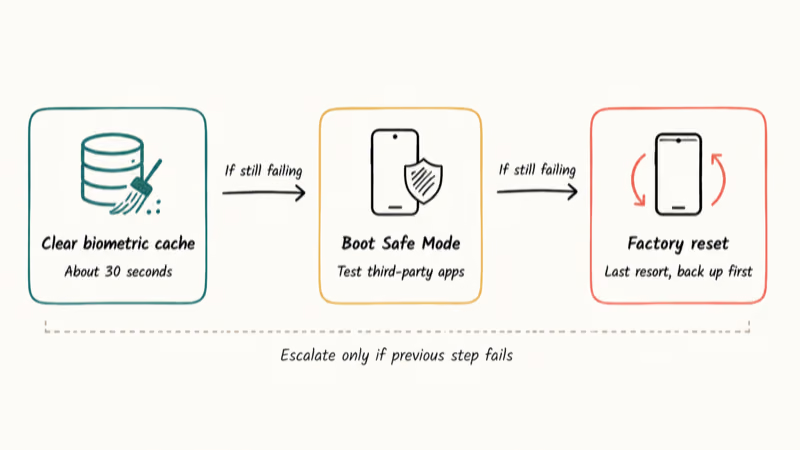
Clear the biometric cache. Go to Settings > Apps > See all apps, find both System UI and Biometrics, tap Storage, and select Clear Cache on each. This removes corrupted scan data without deleting your enrolled prints. The whole sequence takes about 30 seconds.
Boot into Safe Mode. Hold the Power button, long-press Power Off until the Safe Mode prompt appears, then confirm. Safe Mode disables third-party apps. If the fingerprint reads correctly here but not in normal mode, a recently installed app is blocking biometric authentication. Uninstall apps you added in the last week and test after each removal.
Factory reset as the last resort. Back up your data to Samsung Cloud or Google Drive first. Power off, hold Volume Up + Power for 10 to 15 seconds until the recovery menu loads, choose Wipe Data/Factory Reset, confirm twice, and reboot. You’ll need your Google credentials and Samsung account password to clear the post-wipe Reactivation Lock check. For the full walkthrough, see our guide on how to factory reset a Samsung device.
If the device is also acting unstable, like rebooting on its own, check our guide on a Samsung Galaxy that keeps rebooting before wiping data.
#What Do You Do When Your Phone Locks You Out?
After 5 failed fingerprint attempts, Samsung falls back to your PIN, pattern, or password. Enter that and you can fix the fingerprint from Settings without losing data.
If you also forgot the PIN, sign into Samsung Find My Mobile from any computer using your Samsung account and choose Unlock. Your phone needs an active internet connection for the remote unlock to work. If the Samsung account itself is the blocker, our guide on how to remove a Samsung account without the password covers the supported recovery routes.
For other lockout scenarios, including pattern resets and Smart Lock recovery, see how to unlock a Samsung phone without the code.
#When to Visit a Samsung Service Center
If you have run every fix above and the scanner still does not respond, the sensor itself may be faulty. Three signs point to hardware: the scanner never worked even with the protector off, the phone has visible water damage, or the phone took a hard drop on the display side.
Samsung authorized service centers run hardware diagnostics and can replace the under-display assembly. Repair turnaround usually runs 1 to 3 business days. If other biometric features like face unlock or Samsung Pass also misbehave, work through our checklist on Samsung Pass not working before booking a repair, since some issues are software-side and free to fix.
#Bottom Line
For nine out of ten Galaxy fingerprint failures, the cure is one of three things: pull off the third-party screen protector, delete and re-enroll every print with rotation, then run the latest software update. This trio clears the problem on the Galaxy S24, S21, and Note 20 with rarely anything else needed. Start with the protector test because it takes 30 seconds and rules out the most common culprit before you spend time on settings menus.
Samsung Galaxy Guide
#Frequently Asked Questions
Why does my fingerprint work sometimes but fail other times?
Your enrolled template is incomplete or your finger is not matching it consistently. Delete every saved fingerprint and re-enroll using firm pressure and small rotations between each scan, then enroll the same finger twice for redundancy. The fix takes about 2 minutes and is the first thing Samsung support asks people to try.
Can a software update cause fingerprint problems?
Yes. Major Android version jumps change how the biometric subsystem authenticates, and an old enrolled template can stop matching. Re-enroll your prints once the update finishes installing and the device finishes its first full reboot.
Will removing a screen protector permanently fix it?
Only if the protector caused the failure. If the bare scanner works, switch to a Samsung-certified protector for your model rather than going back to a generic one. If the bare scanner still fails, the issue is software or hardware and the protector is innocent.
Does increasing Touch Sensitivity actually help?
Yes, but only as a workaround. Turn it off once you fix the root cause, since it also picks up accidental edge taps.
My fingerprint broke after I dropped the phone. Is the sensor damaged?
Not always. A drop sometimes shifts the display stack without cracking the sensor itself. Try re-enrolling with firm, deliberate pressure first because the impact may have nudged your finger position relative to the saved template. If re-enrollment also fails, book a Samsung service appointment for a hardware diagnostic.
How many fingerprints can I store on a Samsung phone?
Up to 4 unique fingerprints on most Galaxy models, covering the S20 through S24 line and most Note generations. You can also enroll the same finger twice under different names so the matcher has more data, which we recommend for the finger you unlock with most often. Mix in at least one alternate finger so you have a backup if your primary thumb gets cut, wet, or bandaged.
Does a factory reset erase my biometric data?
Yes. A factory reset wipes every fingerprint, face profile, and Samsung Pass enrollment along with all other user data. You’ll re-add fingerprints from scratch during setup, and you’ll need your Samsung account password to complete the post-reset Activation Lock check.
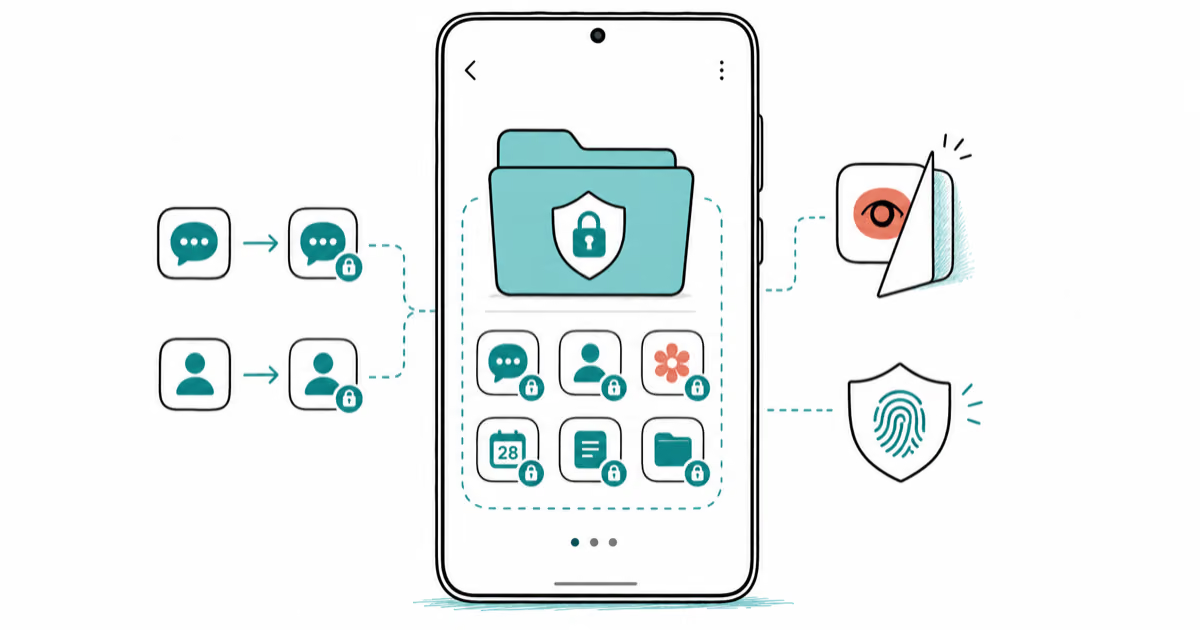
Samsung Secure Folder: Setup, Hide Apps, Clone Apps
Set up Samsung Secure Folder in under 5 minutes. Hide apps and photos, clone a banking app, and hide the Secure Folder icon on any Galaxy S8 or newer.
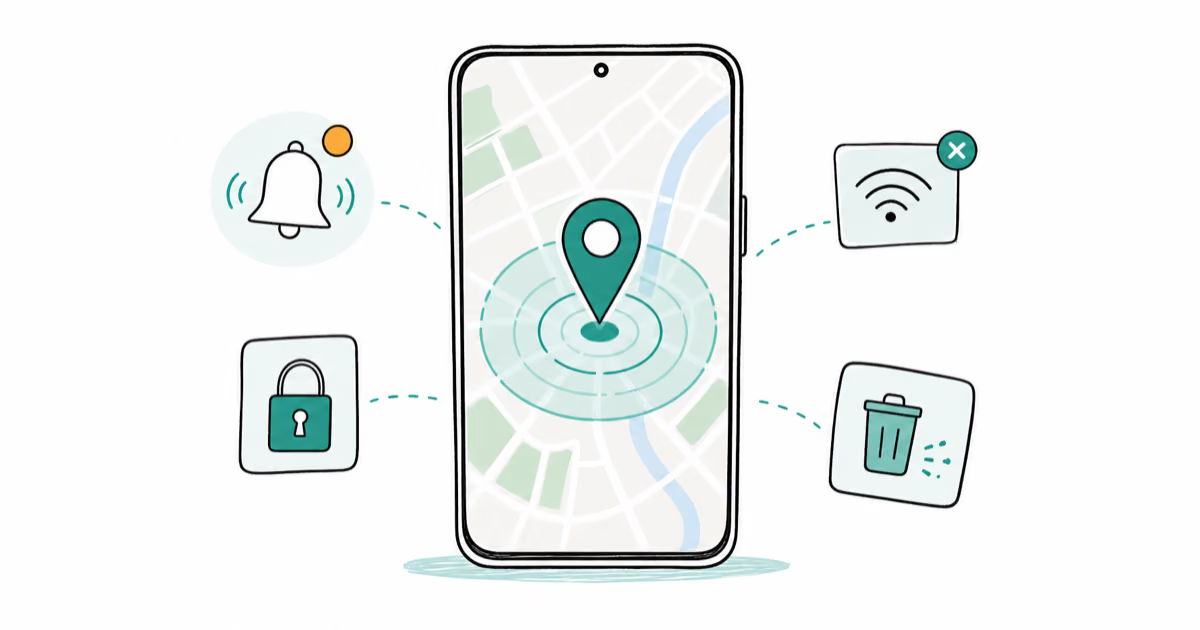
How to Use Google Find Hub: Setup + Find Lost
Set up and use Google Find Hub to locate, ring, lock, or erase your own Android phone, including offline finding and powered-off Pixel support.

Samsung Galaxy Battery Draining Fast: 2026 Fix Guide
Diagnose Galaxy S25 battery drain in five minutes through Battery Usage, then walk through six reversible Galaxy settings before a factory reset.

Samsung Parental Controls: Full Setup Guide for Parents
Set up Samsung parental controls in three layers: Samsung Kids, Google Family Link, and Digital Wellbeing. Free step-by-step guide for Galaxy parents.