Samsung Reset Codes: What They Do and How to Use Them
Samsung secret codes let you check IMEI, run diagnostics, and reset your phone from the dialer. Here are the most useful codes and how to use them safely.
Quick AnswerType *#06# in the Samsung dialer to show your IMEI, or *#0*# to open the hardware diagnostic screen. Reset codes like *2767*3855# wipe all data on older Samsung models, so back up first.
Samsung reset codes are short keypad sequences that trigger hidden diagnostic and recovery functions on Galaxy phones. Some show your IMEI in a single tap. Others wipe the device entirely with no confirmation prompt, which makes knowing the difference essential before you type anything.
Use these codes only on your own Samsung device, or one you have explicit permission to repair. Never use diagnostic or reset paths to access another person’s data or account.
- Typing
*#06#in the dialer shows your IMEI in 1 tap with no menus or confirmation needed - The
*#0*#code opens an 8-test hardware diagnostic screen covering display, sensors, speakers, and camera - Reset codes like
*2767*3855#wipe all data and skip the confirmation step on older Samsung models - Most diagnostic codes are read-only; only the
*2767*family and*#7780#change device state - One UI 4 (released October 2021) consolidated 12+ legacy codes into
Settings>Device Care>Diagnostics
#What Are Samsung Secret Codes and How Do They Work?
Samsung secret codes are character sequences typed into the Phone app dialer that trigger hidden system functions. They go by several names: USSD codes, MMI codes, or service codes. Unlike normal phone numbers, these codes never place a call. They execute the moment you finish typing the closing #.
Wikipedia’s USSD entry states that the protocol carries up to 182 characters per request, which is why long Samsung diagnostic strings like *#12580*369# fit easily. The dialer interprets any sequence ending in # as a service code rather than a phone number, and the protocol has shipped on every Samsung Galaxy since the original 2010 model.
Two categories matter for everyday use. Read-only codes display information without modifying anything. Write codes change settings, reset preferences, or wipe data, and they always need a backup first.
Most codes work across the Galaxy S, Note, and A series. A smaller subset is model-specific or carrier-specific. If a code shows no response on your phone, it’s not supported on your model or your One UI version.
#Safe Samsung Diagnostic Codes to Know
These five codes retrieve information only. None change settings or delete data, and they all execute instantly without a call button press.
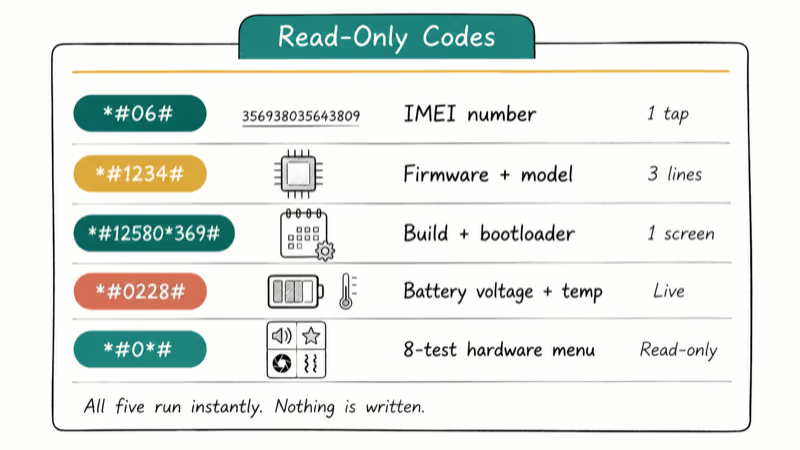
*#06# shows your IMEI number the instant you finish typing. No menus, no confirmation, no call. Insurance claims and carrier unlocks both need this number, so it’s the most useful Samsung code in daily life. Wikipedia’s IMEI reference confirms that an IMEI is exactly 15 digits long and gets assigned at manufacturing under the 3GPP TS 23.003 standard.
*#1234# shows the firmware version and device model in 3 lines of text. Useful for confirming a software update went through.
*#12580*369# shows software and hardware details on one screen: manufacturing date, baseband version, bootloader status, and serial number.
*#0228# opens battery diagnostics. It displays current voltage (4.1-4.2V on a full charge), temperature in Celsius, and charge percentage. The reported voltage drops as the charge percentage falls, so it doubles as a quick health check on an aging battery.
*#0*# is the most useful diagnostic code. It opens an LCD and hardware test menu with 8 separate tests: display colors, touch input, vibration, speaker output, microphone, camera, sensors, and LED.
Samsung’s authorized service centers run this same diagnostic interface. That is why every option is read-only and nothing is written to storage while the menu is open, so the screen loads almost instantly and you can run it on any Galaxy model without risk to your data or settings.
*#*#4636#*#* shows phone information, battery stats, usage history, and network details across 5 tabs. On One UI 3 and earlier, the screen also includes radio toggles, so stick to reading and avoid changing any settings unless you know exactly what they control.
#Using Samsung Secret Codes From the Dialer
Open the Phone app. Tap the Keypad tab. Type the code including every asterisk and hash symbol. Most codes trigger the moment you type the closing # without pressing call.
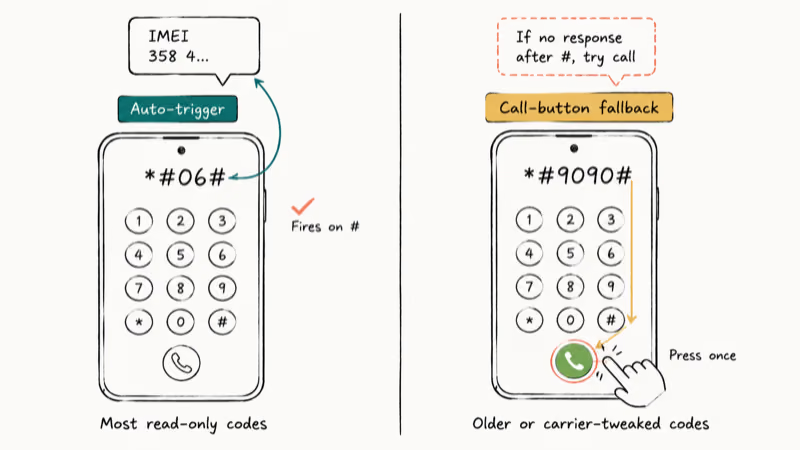
A few older codes still need the call button to fire. If a code produces no response after you finish typing the closing #, press the green call button once and watch for a screen change. If nothing happens after that, the code isn’t supported on your specific model or your current One UI version, and there’s no way to force it to run without root access or a service-mode flash.
Read-only codes are quick. Most complete almost instantly once you finish the sequence, and none of them affect stored data, settings, or installed apps.
#Running the *#0*# Hardware Diagnostic Test
Type *#0*# in the dialer. The test menu opens automatically.
Tap Red, Green, or Blue to test each display color. Tap Touch and drag across the grid to verify the digitizer. Tap Speaker to play a tone. Press Back between tests to return to the main menu, then navigate Back to exit.
The full sweep takes under 3 minutes.
#What Do Samsung Reset Codes Wipe From Your Phone?
Reset codes clear data at different depths, and none of them are safe to run without a backup. Here’s what each one removes.
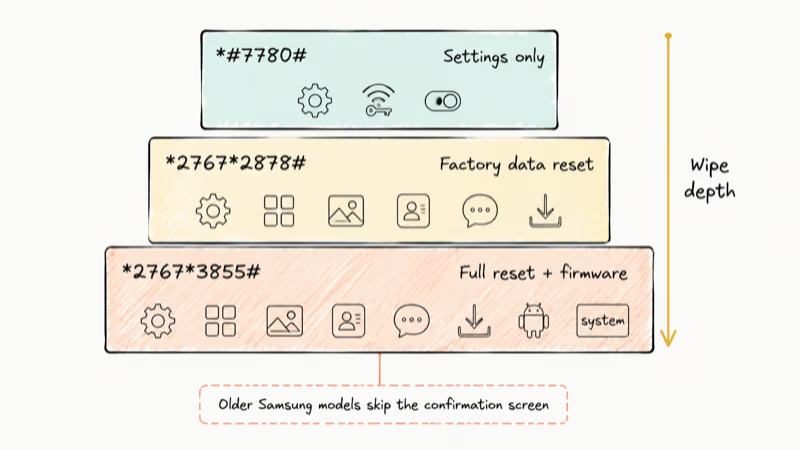
*2767*2878# wipes user data and resets to factory defaults while preserving the firmware version. Behaviorally similar to Settings > General Management > Reset > Factory Data Reset.
*2767*3855# does a full factory reset including firmware reinstallation. More thorough than the Settings path because it rebuilds the system partition. Reserve this code for situations where corrupted software has made the normal Settings menu inaccessible, such as bootloops or hang screens during setup.
*#7780# resets settings to defaults but doesn’t delete files, photos, or installed apps.
These codes all require pressing the call button after typing. On older Samsung hardware (Galaxy S6 era and earlier), they begin wiping immediately without any confirmation screen.
#Backing Up Before You Run a Reset Code
Back up everything first. Older Samsung devices don’t show a confirmation screen before a reset code starts wiping. They just wipe.
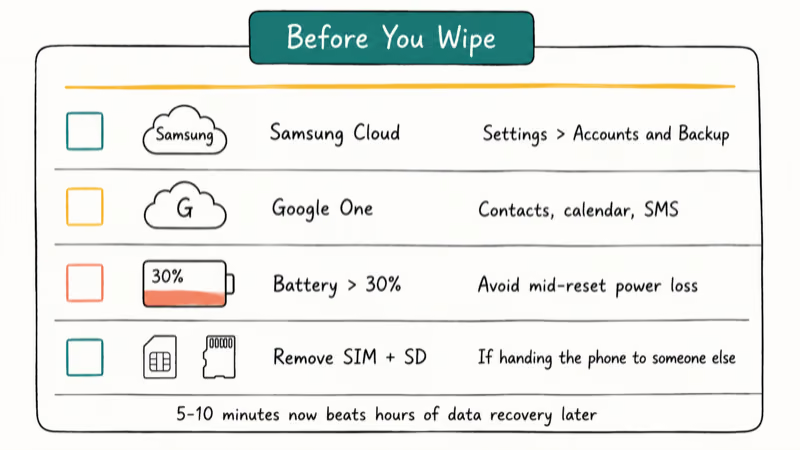
A backup takes 5-10 minutes. Losing 3 years of photos takes a long time to forget.
Use Settings > Accounts and Backup > Back Up Data for Samsung Cloud backup, or Settings > Google > Backup for Google One sync of contacts, calendar, and SMS. Keep the battery above 30% so a power loss mid-reset doesn’t leave you with an unbootable device. A reset interrupted by battery death is one of the hardest scenarios to recover without professional flashing tools.
Remove your SIM and SD card if you’re handing the device to someone else after the reset. Factory resets don’t automatically wipe SD card content.
If you’re resetting because you forgot your PIN, check our forgot Samsung Galaxy password guide first. Recovery options exist that don’t destroy your data, and dialer codes should be a last resort.
After any reset, the device boots into Factory Reset Protection. You’ll need the Google account that was linked before the wipe. There is no path around this without those original credentials. See our Samsung FRP tool guide if you’ve legitimately lost access.
For reset codes on non-Samsung Android phones, see our Android factory reset code reference, which covers similar dialer patterns on Pixel, OnePlus, and Xiaomi devices.
#Common Reasons Samsung Codes Stop Working
Three causes cover almost every “code doesn’t respond” situation.
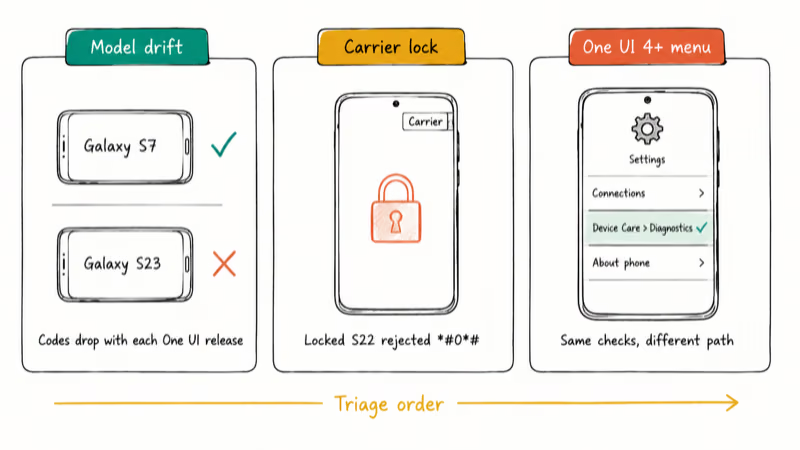
Model differences. Codes active on Galaxy S7 may be removed from Galaxy S23, since Samsung adjusts the enabled service-code list with each major One UI release. A code like *#9090# can work on an older Galaxy A-series phone yet return no response on a newer Galaxy S23 running One UI 5.1, and many legacy Galaxy S5-era codes no longer produce output on current flagships.
Carrier locks. Some US carriers disable diagnostic codes on locked devices to prevent firmware tampering. A carrier-branded Galaxy unit can reject *#0*# while an unlocked international model of the same phone accepts it right away. Unlock the device first to restore code access.
One UI 4+ menu consolidation. Samsung announced One UI 4 in October 2021 and moved many on-device hardware checks into the Samsung Members app under Support. If a code fails on a 2022-or-newer Galaxy phone, check there first. The app runs the same hardware checks behind a more discoverable interface.
For lock screen recovery, see how to unlock Samsung phone lock password. For black-screen issues, see Samsung black screen.
#Bottom Line
The three Samsung codes worth memorizing are *#06# for IMEI, *#0*# for hardware diagnostics, and *#1234# for firmware version. All three are read-only and safe to run anywhere. Treat reset codes like *2767*3855# as a last-resort recovery tool, since they wipe data without warning on older Galaxy models. When the Settings menu still works, use the standard Factory Data Reset path instead.
Samsung Galaxy Guide
#Frequently Asked Questions
Will typing a Samsung code accidentally delete my data?
Read-only codes like *#06# and *#0*# don’t change anything. They display information and exit when you press Back. Reset codes like *2767*3855# wipe data, sometimes without any confirmation prompt on older Samsung models. Always confirm what a code does before entering it.
Do Samsung codes work on all Galaxy models?
Most information codes work across the Galaxy S, Note, and A series. Reset and certain diagnostic codes are model-specific or tied to a particular One UI version. If a code doesn’t trigger automatically and the call button produces no result, it’s not enabled on your device.
Why isn’t my Samsung code working?
Three reasons cover most cases: the code isn’t supported on your One UI version, your carrier disabled it on a locked device, or you’ve mistyped a character. Asterisks are easy to miss in dim light, so retype carefully. If the code still fails, open Settings > Device Care > Diagnostics, where Samsung moved many former code functions in recent One UI releases.
Can Samsung codes bypass the lock screen?
No. Accessing the dialer requires an unlocked device, since the full Phone app is gated behind your PIN, pattern, or biometric. The lock screen offers a restricted emergency dialer that doesn’t execute diagnostic codes. See our lock screen recovery guide if you’ve forgotten your credentials.
Is the *#0*# diagnostic test safe to run?
Completely safe. Nothing is written to storage and no settings change during the test. Samsung technicians use the exact same screen at authorized service centers, and every option in the menu is read-only.
What does the *#4636# code show?
The full sequence is *#*#4636#*#*. It displays phone details, battery statistics, usage history, and network information across multiple tabs. On some One UI versions, the screen includes network toggles that change radio behavior, so stick to reading the displayed information and avoid flipping any switches unless you understand what each one controls.
Do reset codes bypass Factory Reset Protection?
No. Factory Reset Protection activates on the next boot after any reset, regardless of how the reset was triggered. You’ll need the Google account that was linked to the device before the wipe. There’s no legitimate workaround without those original credentials.
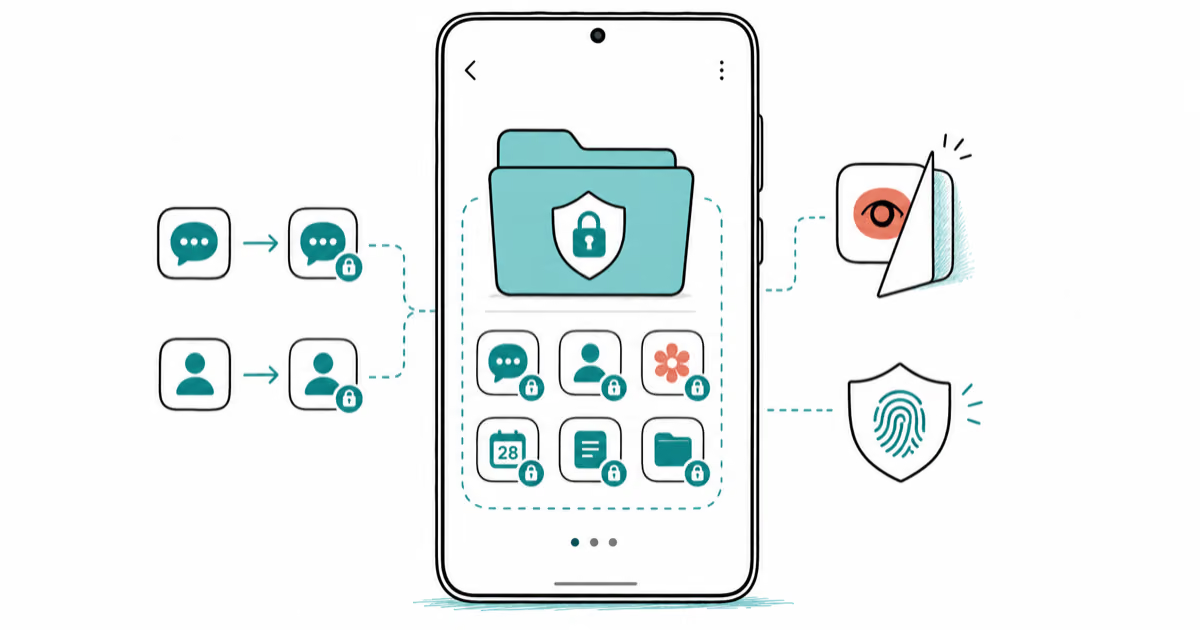
Samsung Secure Folder: Setup, Hide Apps, Clone Apps
Set up Samsung Secure Folder in under 5 minutes. Hide apps and photos, clone a banking app, and hide the Secure Folder icon on any Galaxy S8 or newer.
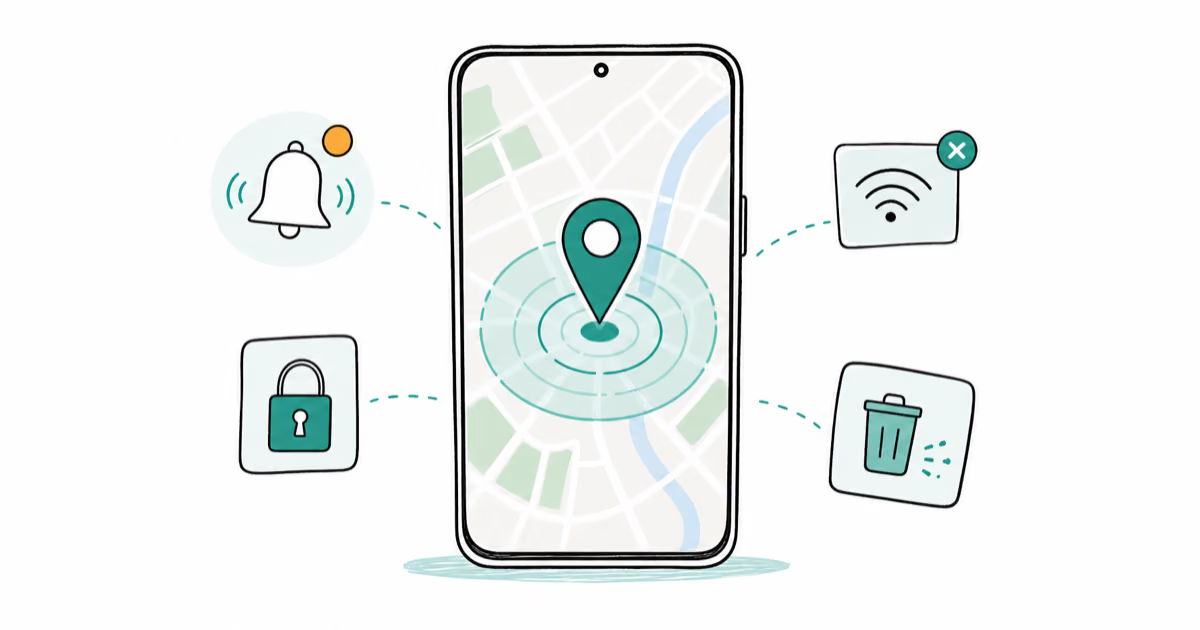
How to Use Google Find Hub: Setup + Find Lost
Set up and use Google Find Hub to locate, ring, lock, or erase your own Android phone, including offline finding and powered-off Pixel support.
Samsung Galaxy Battery Draining Fast: 2026 Fix Guide
Diagnose Galaxy S25 battery drain in five minutes through Battery Usage, then walk through six reversible Galaxy settings before a factory reset.
Samsung Parental Controls: Full Setup Guide for Parents
Set up Samsung parental controls in three layers: Samsung Kids, Google Family Link, and Digital Wellbeing. Free step-by-step guide for Galaxy parents.