How to Fix the "Error Connecting to iCloud" on iPhone
Fix the "error connecting to iCloud" on your iPhone with 7 proven methods. Works on iOS 16 through iOS 18. Step-by-step troubleshooting guide.
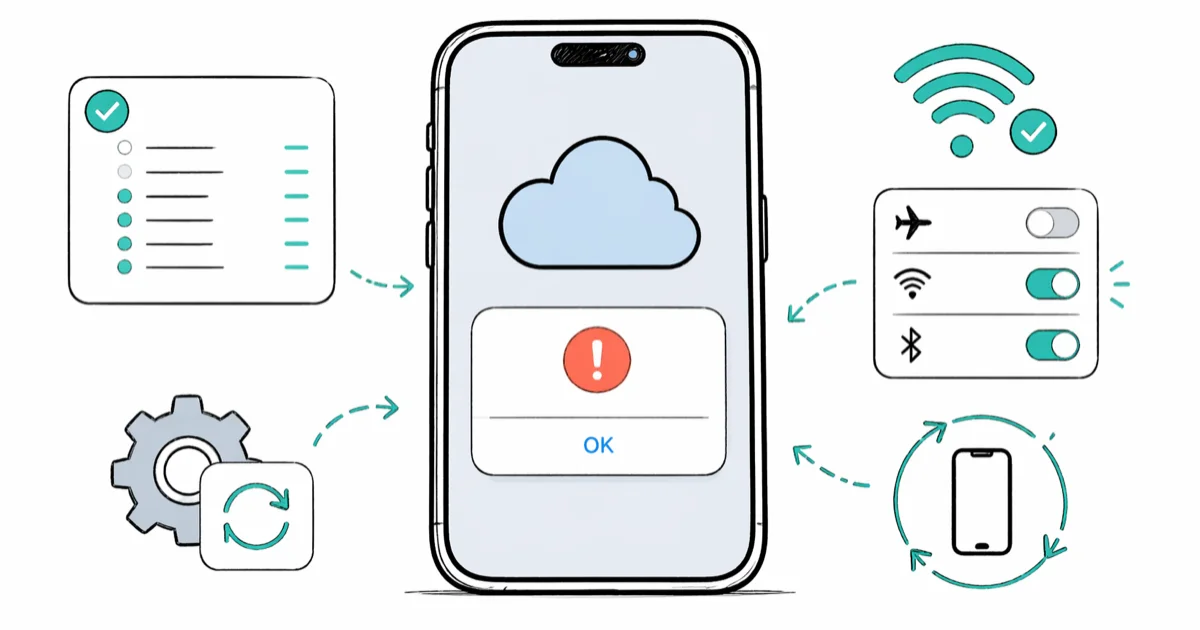
Quick AnswerStart by checking Apple System Status to confirm iCloud servers are online, then restart your iPhone and reset network settings under Settings > General > Transfer or Reset iPhone > Reset. These three steps resolve most iCloud connection errors on iOS 17 and iOS 18.
That “error connecting to iCloud” pop-up usually means your iPhone can’t reach Apple’s servers. Start by checking Apple’s System Status page, then move through network, account, software update, and date/time fixes when the services are green.
- Check Apple System Status first since iCloud outages can cause connection errors that you can’t fix locally
- Resetting network settings can clear corrupted Wi-Fi, VPN, cellular, and APN state, but it erases saved Wi-Fi passwords
- Signing out of your Apple Account and back in forces a fresh authentication token within 1 to 3 minutes
- Updating iOS patches known bugs that trigger the “verification failed” error on older builds
- A full restart clears cached DNS data and stuck background processes in under a minute
#Why Does the “Error Connecting to iCloud” Appear?
Your iPhone can’t reach Apple’s iCloud servers. That’s the short version. Apple’s system status page tracks 65 individual iCloud and Apple ID services in real time, so server downtime is the first thing to rule out before troubleshooting on your end. The page updates within minutes once Apple flips a service back to green, and a reload there usually beats five minutes of poking around in Settings.
Other common triggers: corrupted network settings, an expired authentication token, outdated iOS, or wrong date and time. VPN and DNS interference belong on the short list too, since some endpoints block Apple’s APNs servers on ports 443 and 5223.
If the message says “Verification Failed,” the problem is almost always your device or network, not Apple’s servers. The seven fixes below work in order, from quickest check to most thorough reset. Every step assumes you’re on your own iPhone signed in with your own Apple Account. Bypassing someone else’s Apple ID or Activation Lock is illegal under the CFAA and DMCA and violates Apple’s privacy terms, so we don’t cover it.
#Method 1: Check Apple System Status
Open a browser and go to apple.com/support/systemstatus. Look for green dots next to iCloud Account & Sign In, iCloud Backup, and iCloud Drive. Yellow or red means Apple already knows about the problem.
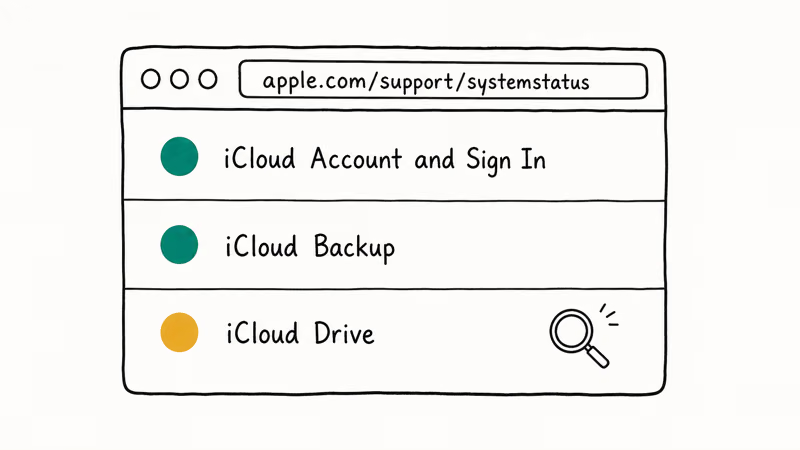
You can’t fix a server-side outage from your iPhone. Wait 30 to 60 minutes, then check again. Apple typically updates the page within minutes once a fix rolls out.
All green? Then the issue is on your device, your network, or both. Keep reading.
#Method 2: Restart Your iPhone
A restart clears temporary DNS caches and kills stuck background processes. On iPhone X or later, hold the side button and either volume button until the power slider appears. Drag to power off, wait 30 seconds, then hold the side button again.
Older models use different buttons. iPhone SE (2nd gen) and iPhone 8: hold the side button. iPhone 7: hold volume down plus the side button at the same time.
After it boots, open Settings > [your name] and see if iCloud loads. If it does, you’re all set. If it still fails on Wi-Fi, switch to cellular for a moment to see whether the error follows the network or the device.
#How Do You Reset Network Settings to Fix iCloud Errors?
This reset wipes saved Wi-Fi passwords, VPN configurations, and cellular settings, then rebuilds them from scratch.
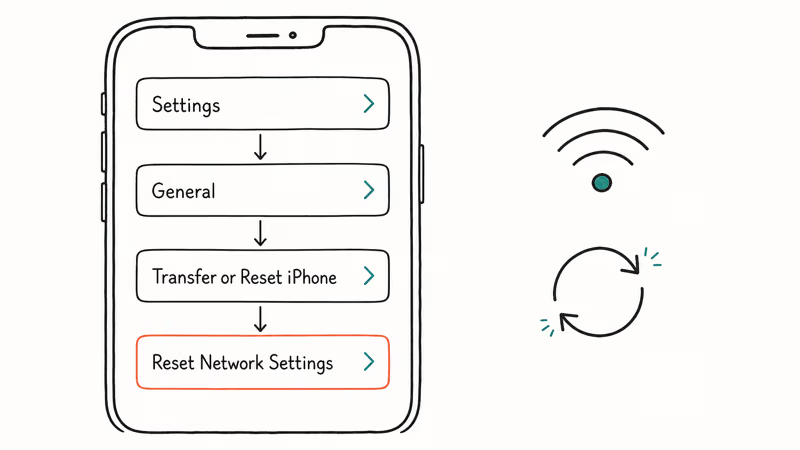
Go to Settings > General > Transfer or Reset iPhone > Reset and tap Reset Network Settings. Enter your passcode and confirm. Your iPhone restarts automatically.
Reconnect to Wi-Fi and try signing into iCloud. According to Apple’s reset network settings article, this reset clears Wi-Fi networks and passwords, cellular settings, and VPN and APN settings only. Personal data, photos, and apps stay where they’re stored. The only thing you lose is saved Wi-Fi passwords and VPN profiles, so write down anything you’ll need to reconnect later.
This same reset also helps if you’ve been dealing with iCloud notes not syncing.
#Method 4: Sign Out and Sign Back Into Your Apple Account
An expired or corrupted authentication token prevents your iPhone from verifying with Apple’s servers. Signing out and back in generates a fresh token.
Go to Settings > [your name], scroll down, and tap Sign Out. Enter your Apple Account password when prompted. Choose to keep a copy of your data on the device, then tap Sign Out again to confirm.
Wait about 30 seconds. Go back to Settings, tap Sign in to your iPhone, and enter your credentials. Depending on how much iCloud data you have, the sign-in takes 1 to 3 minutes. If two-factor authentication is on, Apple’s two-factor authentication guide confirms that a 6-digit code is sent to your trusted devices, so keep one nearby.
This fix also helps when your Apple ID is grayed out in Settings or when verification keeps failing.
#Method 5: Update iOS to the Latest Version
Apple patches iCloud authentication bugs in iOS updates regularly. If the error appeared after an older iOS build or a failed update, installing the latest available update is a sensible next step.
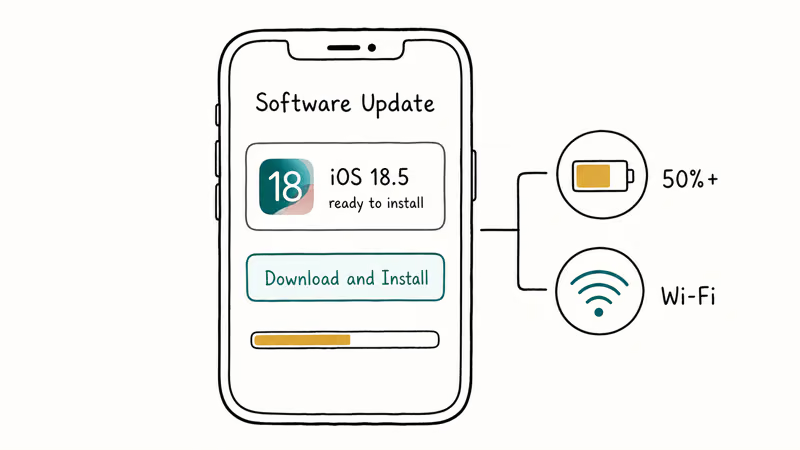
Go to Settings > General > Software Update. If an update is available, tap Download and Install and keep your iPhone on Wi-Fi with the charger connected. Keep it on power until the install finishes so the update is not interrupted.
Can’t update? If your iPhone is stuck updating iCloud settings, connect it to a Mac and run the update through Finder. macOS Catalina or later is required.
#Method 6: Check Date, Time, and Region Settings
iCloud authentication uses SSL certificates that validate against your device’s clock. According to Apple’s iCloud sign-in troubleshooting article, incorrect date and time is a known cause of sign-in failures across iPhone, iPad, and Mac. If the clock is off by even a few minutes, the certificate check fails.
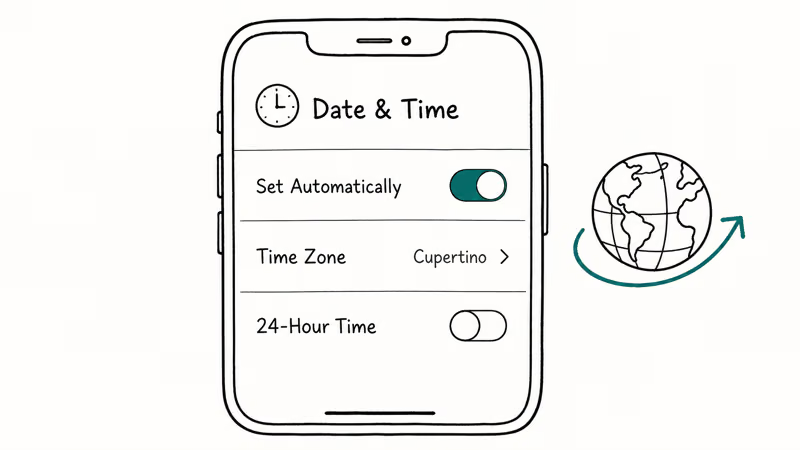
Open Settings > General > Date & Time and turn on Set Automatically.
Double-check that the time zone matches where you are right now. Traveled recently or used a VPN pointed at another country? Toggle Set Automatically off then back on to force a refresh.
If the error started after travel or a VPN location change, this single toggle is worth checking before a broader settings reset.
#Method 7: Reset All Settings or Try a Different Network
Two paths remain before contacting support. First, try a totally different network: switch from Wi-Fi to cellular, or hop on a friend’s hotspot. If iCloud connects on the new network, your home router or DNS is the culprit.
Public DNS servers like Cloudflare’s 1.1.1.1 or Google’s 8.8.8.8 fix this for most readers in under a minute.
If the error follows the device across networks, run a full settings reset. Go to Settings > General > Transfer or Reset iPhone > Reset, tap Reset All Settings, and enter your passcode to confirm. Apple’s reset support article confirms this returns every preference to factory defaults without erasing your data. Wi-Fi, Bluetooth, notifications, and display preferences need to be set up again, but photos, apps, and messages stay put.
Still locked out? Your Apple Account itself might be locked. Go to iforgot.apple.com to start the recovery flow, or book a Genius Bar appointment.
#Bottom Line
Start with Method 1 to rule out an Apple outage. Then try the network settings reset in Method 3.
If those don’t work, sign out and back into your Apple Account, then update iOS. VPN users: disable the tunnel before retrying. Contact Apple Support if everything fails across networks.
#Frequently Asked Questions
Does resetting network settings delete my photos or apps?
No. It only erases Wi-Fi passwords and VPN profiles. Your photos, apps, and messages are untouched.
Why does the iCloud error only happen on Wi-Fi but not cellular data?
Your Wi-Fi router might be blocking the ports Apple uses for iCloud authentication, specifically TCP 443 and TCP 5223 for push notifications. Try connecting to a different Wi-Fi network to confirm. If iCloud works on another network, check your router’s firewall settings or contact your internet provider.
Can a VPN cause iCloud connection errors?
Absolutely. Some VPN servers block or throttle Apple’s authentication endpoints, which prevents your iPhone from reaching iCloud at all. Turn off your VPN temporarily and try connecting. If that fixes it, add apple.com and icloud.com to your VPN’s split tunneling list so those domains bypass the tunnel.
How long do iCloud outages typically last?
Most resolve within 1 to 4 hours. Major incidents can stretch to 24 hours, but that’s rare. Apple’s system status page refreshes every few minutes during active outages.
Will signing out of iCloud delete my data from the cloud?
No. Signing out removes the local copy from your iPhone only if you choose not to keep it. Your data on Apple’s servers stays safe, and everything syncs back when you sign in again. This works the same whether you’re dealing with sign-out restrictions or a normal sign-out.
What should I do if I forgot my Apple Account password during troubleshooting?
Go to iforgot.apple.com. You can reset using your trusted phone number, a recovery key, or another Apple device on the same account. Takes about 5 minutes. See our guide on changing or deleting your iCloud account for details.
Does factory resetting my iPhone fix iCloud connection errors?
Only as a last resort. It erases everything and won’t help if the issue is account-related or server-side.
Can I use iCloud on an Android device if my iPhone has connection issues?
You can access iCloud.com through a browser on Android, but the experience is limited to iCloud Mail, Contacts, Calendar, Photos, and Notes. This can be a temporary workaround while you troubleshoot your iPhone. Check our guide on using iCloud on Android for setup steps.

Mac mini M6 vs M5 Pro: Which Model Should You Buy?
Mac mini M6 vs M5 Pro compared on price, memory, ports, displays, and real workloads. Find the better 2026 Mac mini for your desk and budget.

Apple Siri Settlement: Who Qualifies and How to Claim
Apple's $250 million Siri settlement covers iPhone 15 Pro and iPhone 16 models bought June 2024 to March 2025. See who qualifies and how claims work.

iOS 26.6.1 Security Update: What Apple Fixed and Who Gets It
Apple released iOS 26.6.1 on August 17 with 29 security fixes, including an IPSec interception bug. See what it patches, who gets it, and how to update.

iPhone Adaptive Power: How It Works and When to Use It
Learn how iPhone Adaptive Power works, which models support it, what it changes, and when Low Power Mode is still the better battery-saving choice.