How to Cancel an iPhone Update: Stop Downloads Safely
Stop an iPhone update mid-download by enabling Airplane Mode, deleting the update file, disabling auto-updates, and avoiding install-stage risks.
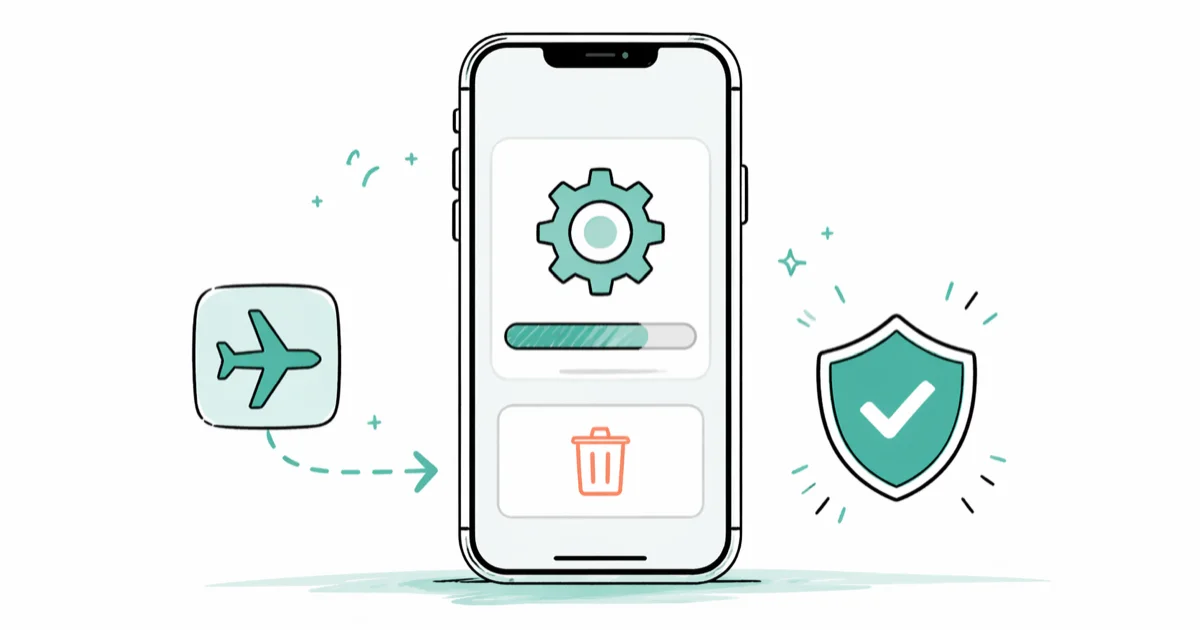
Quick AnswerTurn on Airplane Mode to stop the download, then go to Settings > General > iPhone Storage, find the iOS update, and tap Delete Update to cancel it completely.
Your iPhone started downloading an iOS update you didn’t want. The good news: you can stop it mid-download and remove the update file entirely before the installation phase starts.
- Enable Airplane Mode immediately to cut the download connection and pause the update
- Delete the update file from
Settings>General> iPhone Storage to prevent auto-install - Turn off Automatic Updates in
Settings>General>Software Updateto stop future surprises - A canceled download won’t harm your iPhone, but interrupting an active installation can cause problems
- iOS 16 and later lets you schedule updates instead of canceling them outright
#How Do You Stop an iPhone Update That’s Already Downloading?
Airplane Mode. That’s your first move.
It kills all network connections instantly, which forces the download to halt. Open Control Center by swiping down from the top-right corner of your screen (or swiping up on iPhone SE/8 and earlier), then tap the airplane icon.
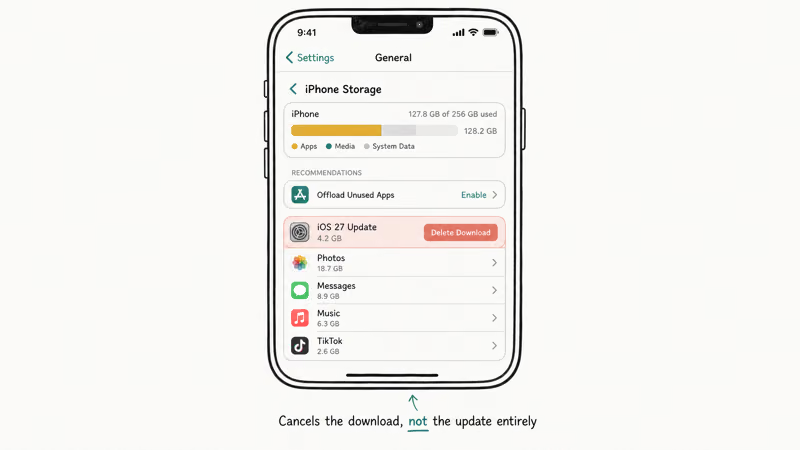
Next, go to Settings > General > iPhone Storage. Wait for the storage list to load, scroll down to find the iOS update file, tap it, and select Delete Update. Confirm when prompted. The partial download is gone.
According to Apple’s troubleshooting page for updates that won’t install, the official removal path is Settings > General > iPhone Storage: find the update in the list of apps, tap it, then tap Delete Update. If the update file doesn’t appear immediately, wait for the storage list to finish loading and check again before assuming the download can’t be removed from Settings.
#Canceling an Update After Installation Starts
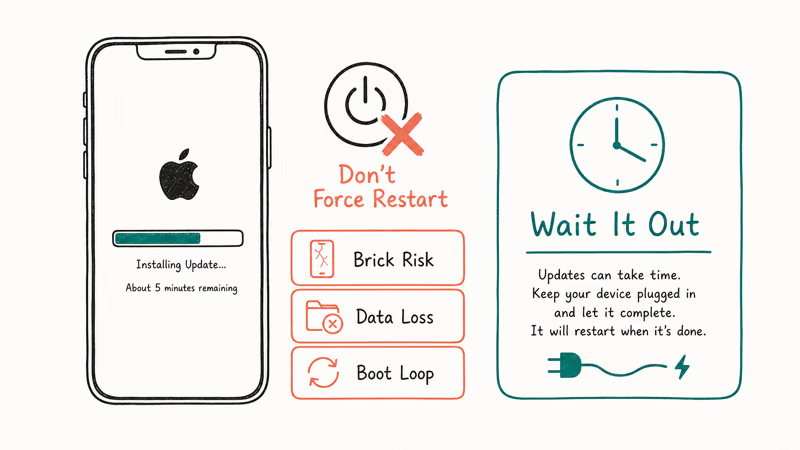
You can’t stop it at this point. Once your iPhone begins the actual installation (Apple logo with a progress bar on screen), the process modifies system files and can’t be safely interrupted.
Let it finish.
If your iPhone gets stuck on the update screen, that’s a separate issue. Based on Apple’s iOS update documentation, the process has two distinct phases: download and install. You can intervene during download, but once the phone restarts and the progress bar appears, you’re past the point of no return.
#How to Prevent Automatic iOS Updates
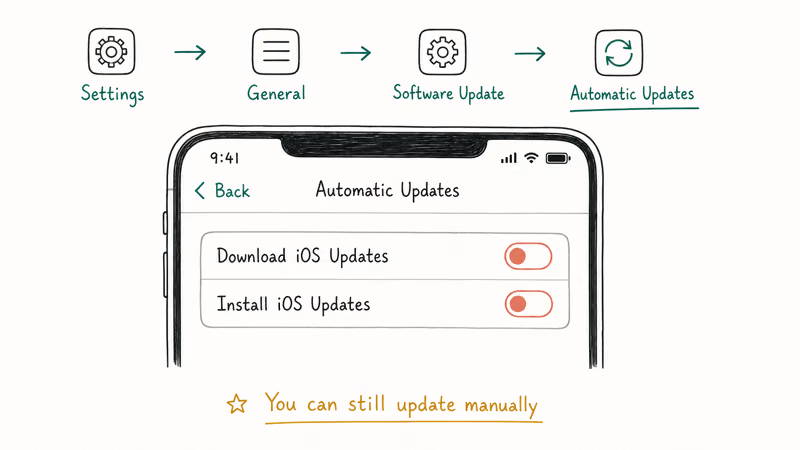
Apple turns on automatic updates by default. To disable them, open Settings > General > Software Update, tap Automatic Updates, and toggle off both Download iOS Updates and Install iOS Updates.
No more surprise downloads after that.
Worth doing. Some users who experienced cellular update failures found that disabling auto-updates helped them stay on a stable version longer, especially when they rely on apps that haven’t been tested against the newest iOS release yet.
#Risks of Interrupting an Active iPhone Update
Canceling a download? Harmless.
Interrupting an installation is a different story entirely. Force-restarting during system installation can leave an iPhone stuck in recovery mode and may require a computer-based restore.
Possible consequences of interrupting an installation:
- Recovery mode loop where the phone shows the “connect to computer” screen repeatedly
- Boot failure where your iPhone won’t get past the Apple logo
- Data loss if a full restore becomes necessary
Stuck after a failed update? Our guide on iPhone stuck on loading screen covers recovery steps, and Apple’s update and restore troubleshooting page walks through entering recovery mode with a computer when an interrupted install leaves the phone stuck.
#Should You Delay an iPhone Update?
Waiting a week or two often makes sense. According to MacRumors’ coverage of iOS 17.0.3, Apple shipped that 2023 update specifically to fix an iPhone 15 overheating bug in the initial release, which means early adopters dealt with a problem that patient users avoided entirely.
Good reasons to hold off:
- An app you depend on hasn’t confirmed compatibility yet
- It’s a .0 release and you’d rather wait for the first patch
But don’t wait forever:
- Security patches fix known vulnerabilities
- Some apps drop support for older iOS versions
- Apple stops signing old firmware, blocking downgrades
If your iPhone keeps restarting after you’ve delayed an update for months, the underlying OS issue might actually need that update to get fixed.
#How to Delete a Downloaded Update You Haven’t Installed
If your iPhone downloaded an update overnight and is now nagging you to install, it’s quick. Go to Settings > General > iPhone Storage, find the iOS update in the list (it’s usually several gigabytes), tap it, and select Delete Update.
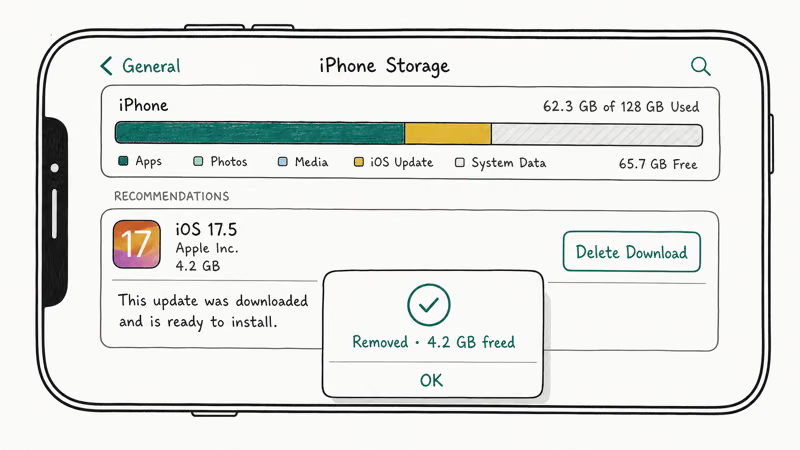
The space comes back after the update package is deleted. Downloaded iOS updates are usually several gigabytes, so this can free a noticeable amount of storage.
You can also check if background app refresh or other settings are eating into your storage or battery unexpectedly. Our guide on iPhone alarm not going off covers related notification and background process issues that sometimes overlap with update behavior, and troubleshooting one problem often reveals the other.
Quick tip: if your iPhone won’t connect to Wi-Fi after deleting an update, toggle Wi-Fi off and on. Airplane Mode sometimes leaves Wi-Fi disabled.
#Bottom Line
Airplane Mode plus deleting the update file from iPhone Storage. That’s the whole fix, and it works every time during the download phase. To prevent future surprises, turn off automatic updates.
Don’t touch an update that’s already installing. Let it finish.
iPhone tips & tricks
#Frequently Asked Questions
Does canceling an iPhone update delete any personal data?
No. The update file sits separately from your personal data. Deleting it only removes the iOS package itself, leaving your photos, apps, and messages untouched.
Can I downgrade to a previous iOS version after updating?
Only if Apple is still signing that older version. Apple typically stops signing previous firmware within a few days of a new release, and once that window closes, there’s no official way back. Third-party tools claim to handle downgrades, but they carry real risks including data loss and potential bricking, so most people are better off staying on the current version.
Why does my iPhone keep downloading the update after I delete it?
Automatic Updates is still on. Go to Settings > General > Software Update > Automatic Updates and toggle off both “Download iOS Updates” and “Install iOS Updates.”
Will my iPhone work normally if I stay on an older iOS version?
Yes, for a while. Most apps support the current iOS version and at least two previous major versions. You’ll miss new features and security patches, but your phone won’t stop working. Apple typically supports each iPhone with iOS updates for many years after its release.
How long does an iPhone update take to install?
It depends on the update size, your internet speed, and your device. Major version upgrades take noticeably longer than minor patches. Your iPhone restarts at least once during the process, and you can’t use it until installation finishes. Plugging in your charger beforehand is a good idea since updates drain the battery faster than normal use.
Can I use my iPhone while an update is downloading?
Yes. Downloads run in the background.
What should I do if my iPhone is stuck on the update screen?
Force-restart first. On iPhone 8 and later, quickly press Volume Up, then Volume Down, then hold the Side button until you see the Apple logo. If that doesn’t work, connect to a Mac or PC and restore through Finder (macOS) or iTunes (Windows).
Does deleting an update affect my iPhone warranty?
Not at all. Deleting an iOS update file is a built-in Settings feature that Apple designed for exactly this purpose.
How to Transfer Data to a New iPhone Without iCloud
Move everything to your new iPhone without iCloud: Quick Start device-to-device transfer, wired migration, and encrypted Finder or iTunes backups.
Best Wireless Earbuds for iPhone in 2026: USB-C Era Picks
Best wireless earbuds for iPhone in 2026, comparing AirPods Pro 3, Sony WF-1000XM6, Bose QC Ultra, and Anker Liberty 4 NC on the USB-C iPhone lineup.
iPhone Keyboard Lag? 7 Proven Fixes for iOS 26 (2026)
Fix iPhone keyboard lag with 7 proven fixes for iOS 26. Covers restart, storage, predictive text, third-party keyboards, and dictionary reset.
How to Block Porn on an iPhone: A Guide for Parents
Learn how to block porn on iPhone using Screen Time, DNS filtering, and safe browsers. Step-by-step guide for parents to protect kids' devices.