How to Format Your iPhone Completely: Step-by-Step
Erase an iPhone through Settings, Finder, Apple Devices, Recovery Mode, or Find My, with current backup, eSIM, and Activation Lock cautions.
Quick AnswerBack up, then open Settings > General > Transfer or Reset iPhone > Erase All Content and Settings. If locked or unresponsive, use computer Recovery Mode; Restore erases the phone and installs the latest compatible iOS.
Formatting an iPhone erases local information and settings. The route depends on whether it responds.
Use the current Settings, computer, Recovery Mode, or Find My route; older iOS releases may label menus differently.
Use these steps only on an iPhone you own or are explicitly authorized to manage. Erasing someone else’s device can destroy private data and may violate privacy or property laws; it also doesn’t remove Activation Lock without the linked owner’s authorization.
- Back up to iCloud or a Mac/PC before formatting; erasing deletes all local data permanently
- The Settings app method doesn’t need a computer when the phone is responsive
- For a handoff, follow the erase prompts and remove the device from your Apple Account so the next owner is not blocked by Activation Lock
- Recovery Mode formatting works even when you can’t access the lock screen
- Erasing the phone does not cancel the carrier account or phone number, but the erase flow can keep or remove eSIMs
#What Does Formatting an iPhone Actually Do?
Formatting (also called factory resetting) removes local information and settings. A computer-based factory Restore also installs the latest compatible iOS version; Erase All Content and Settings does not need to reinstall the operating system.
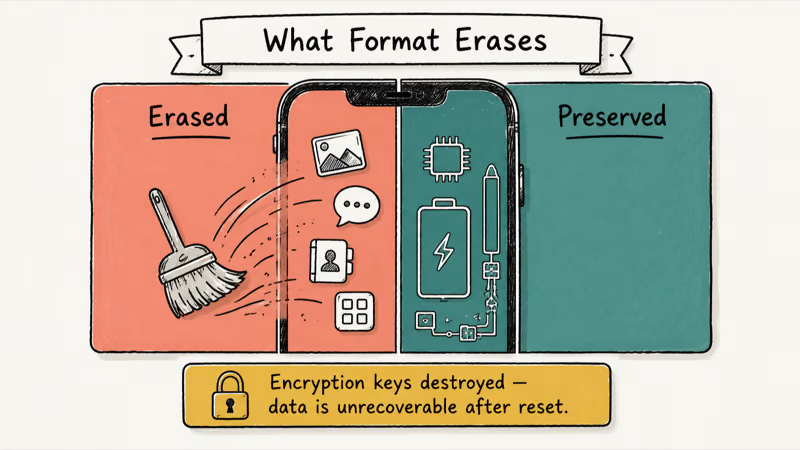
Here’s what gets erased:
- All photos, videos, and music stored locally
- Apps, app data, and game saves
- Contacts, messages, call logs, and voicemail
- Wi-Fi passwords, VPN settings, and Bluetooth pairings
- Apple Pay cards and Health data
- Safari history, bookmarks, and saved passwords
According to Apple’s support page on erasing iPhone, formatting removes your personal data and resets all settings to defaults. The process is irreversible once confirmed.
Your iCloud data stays safe in the cloud. Anything synced to iCloud (photos, contacts, notes) can be restored after you set up the phone again. But anything stored only on the device is gone for good.
If you’re unsure what restoring an iPhone means compared to formatting, the short answer is that they accomplish the same thing through different routes.
#How to Back Up Before You Format
Don’t skip this step. People lose years of photos because they assume everything is in iCloud when some files were only ever stored on the device.
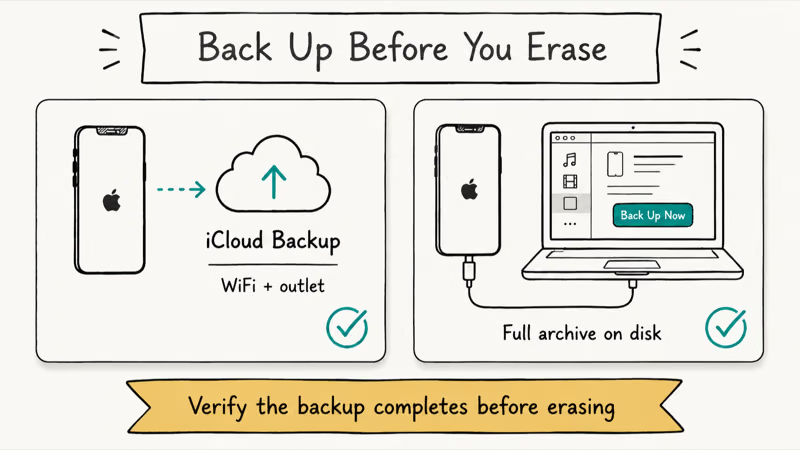
iCloud backup:
- Open Settings > [your name] > iCloud > iCloud Backup.
- Tap Back Up Now and wait until the screen reports that the backup completed.
Mac backup (macOS Catalina or later):
- Connect your iPhone to your Mac with a USB cable.
- Open Finder, select your iPhone, and click Back Up Now.
Windows backup:
- Open Apple Devices, connect your iPhone by USB, and select it in the sidebar. Use iTunes only if the PC doesn’t have Apple Devices.
- Click Back Up Now.
An encrypted computer backup can include data that an unencrypted backup does not, such as saved passwords, Wi-Fi settings, Health data, and call history. Wait for Finder, Apple Devices, or iTunes to report completion before erasing the phone.
#Format an iPhone From the Settings App
This route doesn’t require a computer when you can unlock and use the iPhone.
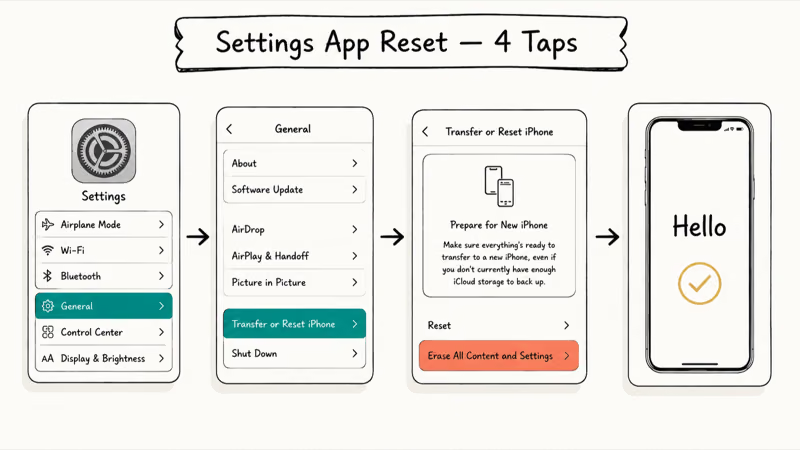
- Open
Settings>General>Transferor Reset iPhone and tap Erase All Content and Settings. - Enter your passcode and Apple Account password, then tap Erase iPhone.
Your iPhone will show an Apple logo and progress indicator while the erase runs. Let it finish without interrupting power.
After erasing, the Hello screen lets you set up as new or restore a backup.
If you’re just changing your iPhone’s location settings or troubleshooting GPS issues, a full erase is usually unnecessary. A network settings reset does not delete apps or photos, but it does remove saved network and VPN settings.
#Formatting an iPhone With a Computer
Using Finder on Mac or Apple Devices on Windows erases the phone and installs the latest compatible iOS version. Use iTunes only on a PC without Apple Devices or on macOS Mojave or earlier.
On Mac (macOS Catalina or later):
- Connect your iPhone via USB, open Finder, and select your iPhone in the sidebar.
- Click Restore iPhone and confirm when prompted.
On Windows:
- Open Apple Devices, connect the iPhone by USB, and select it in the sidebar. If the PC does not have Apple Devices, open iTunes instead.
- Click Restore iPhone and confirm.
According to Apple’s current computer factory-restore guide, the computer erases the device’s information and settings and installs the latest compatible iOS version. Apple doesn’t give one completion time; the download and device steps vary.
#How to Format in Recovery Mode When Your iPhone Is Locked
If you can’t unlock your iPhone because you forgot the passcode, Recovery Mode lets you format without entering it. This also works when your iPhone is frozen or unresponsive.
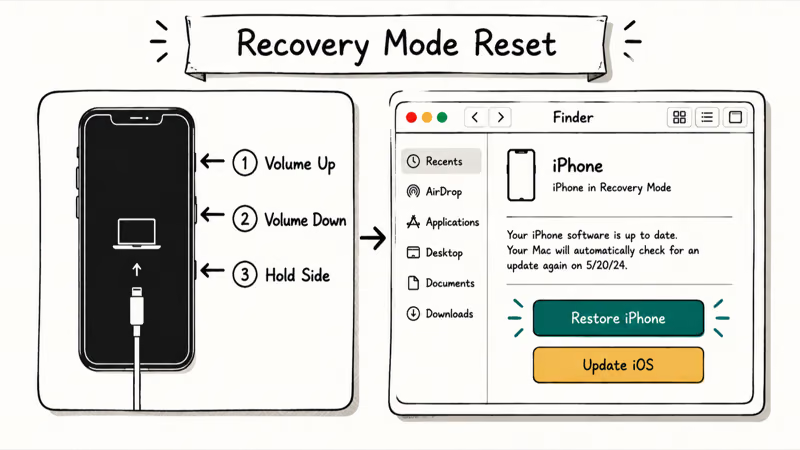
For iPhone 8 and later (including SE 2nd/3rd gen):
- Connect your iPhone to a Mac or PC, then quickly press and release Volume Up followed by Volume Down.
- Hold the Side button until the Recovery Mode screen appears, then click Restore in Finder or iTunes.
For iPhone 7:
- Connect to a computer.
- Hold the Volume Down and Side button together until Recovery Mode appears.
For iPhone 6s and earlier:
- Connect to a computer.
- Hold the Home button and Side button together until Recovery Mode appears.
Recovery Mode’s Restore option completely erases the device and reinstalls iOS. Apple’s current Recovery Mode guide says that if the software download takes more than 15 minutes and the iPhone exits the Connect to computer screen, let the download finish, then put the phone back into recovery mode. Fifteen minutes is not a promised completion time.
If you’re dealing with an iCloud-locked device, keep in mind that Activation Lock will still require the original Apple Account after formatting.
#Remote Formatting Through iCloud
Lost your phone? You can erase it remotely through iCloud.com or the Find My app on another Apple device.
Using iCloud.com:
- Go to iCloud.com/find, sign in, and select your iPhone from All Devices.
- Click Erase iPhone and confirm with your Apple Account password.
Using Find My on another Apple device:
- Open the Find My app and tap Devices.
- Select your iPhone and tap Erase This Device.
The remote erase starts the next time your iPhone connects to the internet. If the phone is offline, the erase command queues and executes when it reconnects.
This is the best option if your phone is stolen. After the erase, Activation Lock stays on (tied to your Apple Account), so nobody else can set it up. You can also locate a lost phone that’s turned off using the Find My network.
#Formatting a Used or Second-Hand iPhone
If you bought a second-hand iPhone, format it before using it. This removes the previous owner’s data and accounts.
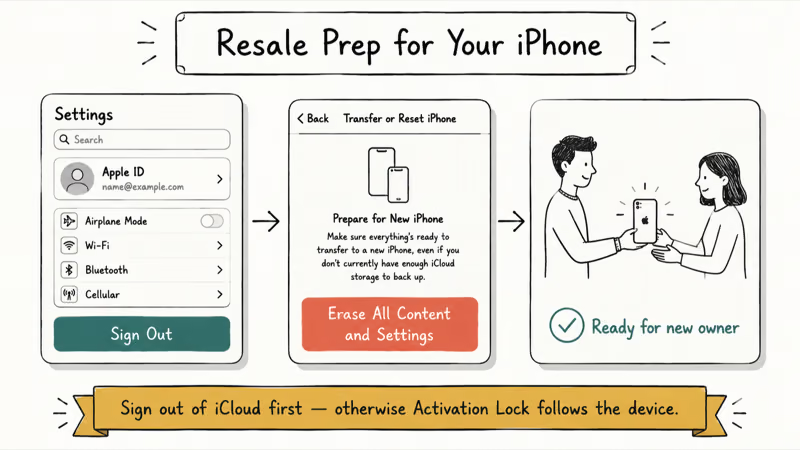
Before formatting a used phone:
- Ask the seller to sign out of their Apple Account. This disables Activation Lock so you can set up the phone after formatting.
- Check the IMEI at
Settings>General>About. A blacklisted iPhone will have limited functionality even after formatting. - Remove the old SIM card and insert your own SIM or eSIM before setting up.
After the previous owner signs out, format the phone using the Settings method described above, then set it up fresh with your own Apple Account and restore your iCloud backup if you have one from a previous device.
If you’re planning to unlock a carrier-locked iPhone, do that before or after formatting. The lock status is tied to the carrier, not the phone’s software.
#Does Formatting Affect Your Phone Number or Carrier Plan?
No. Formatting erases data stored on the iPhone itself. Your cellular plan, phone number, and carrier account are completely separate.
After formatting:
- A physical SIM remains in the tray. Erase All Content and Settings can offer a choice to keep or remove eSIMs; a computer factory Restore does not remove an eSIM, so delete it separately before a handoff if needed.
- Erasing the device doesn’t by itself cancel the phone number or carrier plan.
- You’ll need to reconnect to Wi-Fi networks because saved passwords are deleted.
If your iPhone uses a physical SIM, the card stays in the tray during an erase. The erase flow can offer a choice to keep or erase eSIMs. Apple’s computer-restore guide also states that restoring an iPhone does not delete its eSIM; erase the eSIM separately if the handoff requires it.
#Bottom Line
Start with the Settings method when the iPhone is responsive: Settings > General > Transfer or Reset iPhone > Erase All Content and Settings. If the phone is locked or unresponsive, use a computer and the appropriate recovery flow instead.
Back up first. Before handing the phone to someone else, make sure it no longer appears under your Apple Account and that Activation Lock no longer blocks setup.
iPhone tips & tricks
#Frequently Asked Questions
How long does it take to format an iPhone?
Apple doesn’t publish a universal duration. A computer factory restore must also download and install iOS, so its time depends on the software download and the device. Don’t disconnect the phone until Finder, Apple Devices, or iTunes reports completion.
Will formatting delete my iCloud data?
No. Formatting only erases local data. Everything synced to iCloud stays safe in your account.
Can I format my iPhone without a computer?
Yes. Open Settings > General > Transfer or Reset iPhone > Erase All Content and Settings. This erases everything directly from the phone. You don’t need a Mac, PC, or any cables.
Is formatting the same as factory resetting?
People often use the terms interchangeably because both routes remove personal data and settings. They’re not mechanically identical: Erase All Content and Settings erases from the iPhone, while a computer factory Restore erases the phone and installs the latest compatible iOS version. A narrower settings reset changes selected settings without deleting all user data.
Can I undo a format after it’s done?
No. Once you confirm the erase, all local data is permanently deleted. The only way to get your data back is to restore from an iCloud or computer backup that you created before formatting.
Does formatting remove Activation Lock?
It depends on the authorized flow. An erase through Settings can ask for the Apple Account password and remove Activation Lock. Apple’s standard computer-restore steps require Find My to be turned off before Restore is available. A recovery-mode Restore does not remove Activation Lock from an account-linked device.
Will formatting fix a slow iPhone?
It can rule out a software or configuration cause, but it’s not a guaranteed speed fix. A degraded battery, failing storage, or other hardware fault will remain after an erase.
What iOS versions support the Transfer or Reset option?
Current releases use Settings > General > Transfer or Reset iPhone. Much older releases may show Settings > General > Reset > Erase All Content and Settings instead. Follow the labels displayed on that device rather than assuming a current-version path.
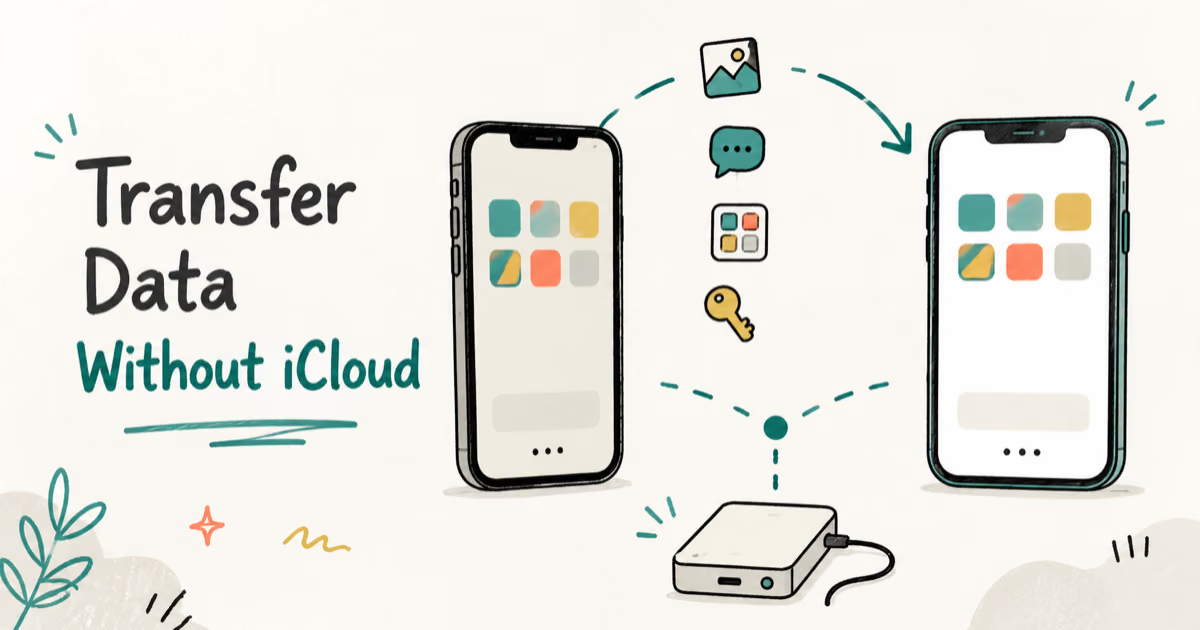
How to Transfer Data to a New iPhone Without iCloud
Move everything to your new iPhone without iCloud: Quick Start device-to-device transfer, wired migration, and encrypted Finder or iTunes backups.
Best Wireless Earbuds for iPhone in 2026: USB-C Era Picks
Best wireless earbuds for iPhone in 2026, comparing AirPods Pro 3, Sony WF-1000XM6, Bose QC Ultra, and Anker Liberty 4 NC on the USB-C iPhone lineup.

iPhone Keyboard Lag? 7 Proven Fixes for iOS 26 (2026)
Fix iPhone keyboard lag with 7 proven fixes for iOS 26. Covers restart, storage, predictive text, third-party keyboards, and dictionary reset.
How to Block Porn on an iPhone: A Guide for Parents
Learn how to block porn on iPhone using Screen Time, DNS filtering, and safe browsers. Step-by-step guide for parents to protect kids' devices.