PS5 Won't Turn On? 6 Fixes by Symptom (2026 Guide)
PS5 won't turn on? Match your symptom, no light, white light then off, or blue light loop, to the fastest fix. A clear fix ladder, Safe Mode included.
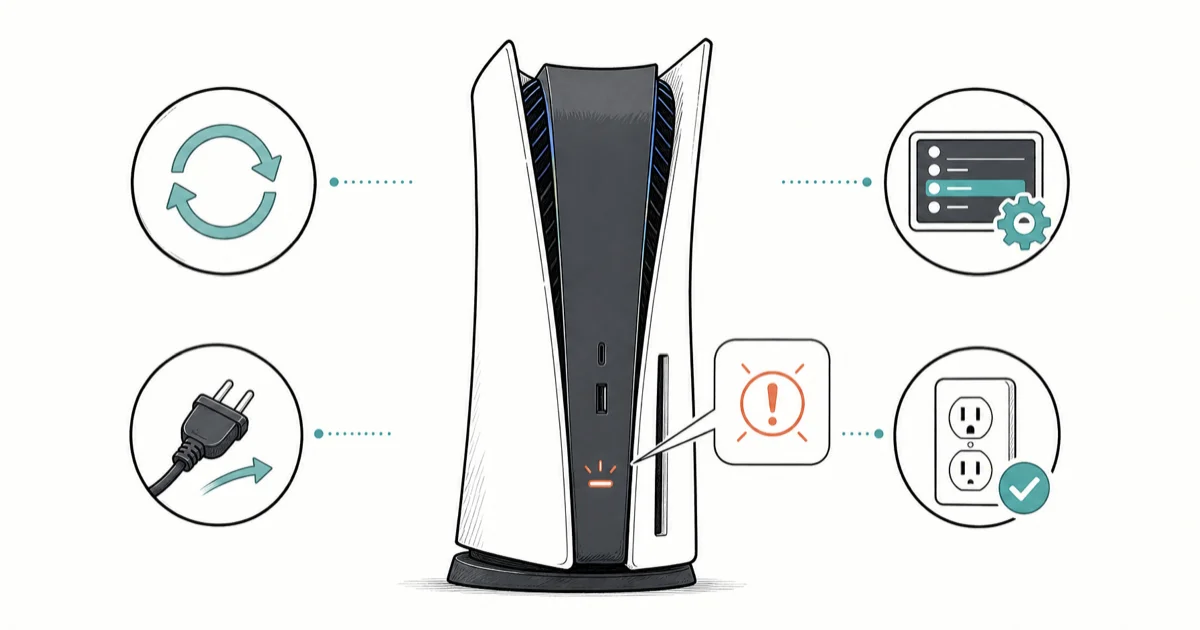
Quick AnswerHold the power button 7 seconds to the second beep, unplug 60 seconds, then replug to a different outlet. White flash then off usually needs Safe Mode; blue light loop is HDMI; no light is cable or outlet.
You hit the power button and the PS5 does the wrong thing: nothing at all, a quick white flash that dies, or a blue light that pulses then quits. Each symptom is a different problem with a different fix, and the wrong first step wastes the most time. Use the ladder below by symptom.
- Hold the power button for 7 seconds until you hear a second beep to force a clean shutdown
- A 60-second power drain plus a different outlet is the right first reset for “white flash then dies” cases
- PS5 Safe Mode has 7 options; Repair Console Storage is the safe pick that does not erase data
- A blue light loop usually means the HDMI handshake failed, not that the PSU is bad
- Try PlayStation Repairs only after cable, Safe Mode, and HDMI checks fail, sending a healthy console wastes a week
#Why Won’t Your PS5 Turn On?
A PS5 needs three things to boot: clean AC power, a working power supply and motherboard, and a video target. Any one of them failing produces a different symptom, and that symptom is your best clue.
Most boot failures trace back to the AC path. A loose cable, degraded surge protector, tripped outlet, or a brownout earlier in the day can leave the PS5 drawing current but unable to complete a clean boot. The firmware also runs a self-check on every cold start; if storage hits an error there, the console cuts power rather than corrupting more data, which looks like a flash of life then sudden shutdown.
The HDMI path is the third culprit. The PS5 negotiates HDCP and resolution with your TV at every power-on. If the handshake fails (cheap cable, wrong input, an HDMI 2.1 port the TV can’t actually sustain), the console sits with a blue light that looks broken. The console is fine; the screen is the problem.
#How Do You Match the Symptom to the Right Fix?
Three symptoms cover almost every “PS5 won’t turn on” report. Pick the closest match before unplugging anything.
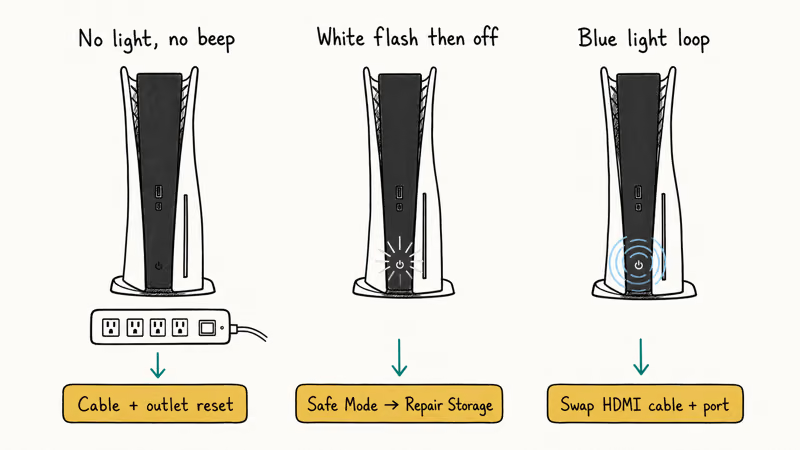
No light, no beep, nothing. The power button produces no reaction. This is almost always the power path (cable, outlet, surge protector, extension). Start with the cable reset, not Safe Mode.
White light flashes once, then off. Firmware self-check failed, usually after an interrupted update. Safe Mode next.
Blue light pulses, then off or stays pulsing. The console boots far enough to power the controller LEDs and pulse its own indicator, then dies or loops with no picture. This is a video handshake or stuck splash screen, not a hardware failure. Check HDMI.
If your console powers on cleanly but stutters during gameplay, that’s a different problem (storage and thermals, not boot).
#The Power-Cycle and Cable Reset
This is the universal first step. It takes 90 seconds and clears the most common cause across all three symptoms.
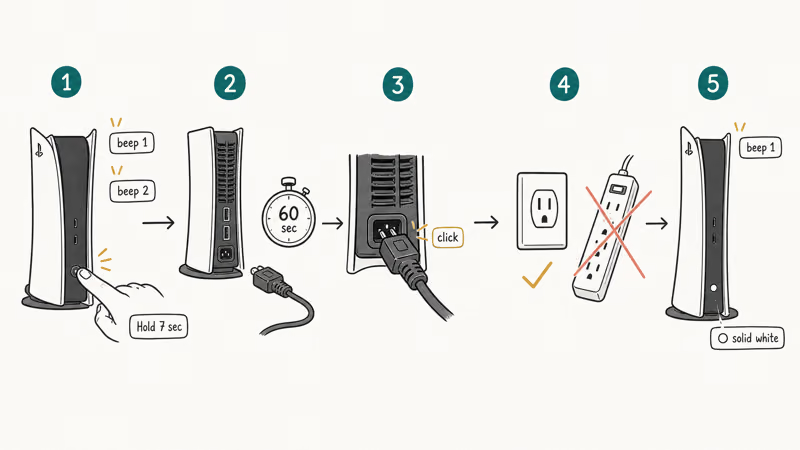
- Hold the PS5 power button for 7 seconds. You’ll hear one beep on press and a second beep around 7 seconds in, which is the signal that power has cut cleanly. PlayStation’s Safe Mode guide confirms that 7 seconds is also the force-shutdown timing for a hung console.
- Unplug the power cable from the back of the console and wait 60 seconds. That drains the capacitors and clears soft state.
- Reseat the cable on both ends. The console end has a one-way notch, but readers regularly find it half-clicked. Push until it stops.
- Plug into a different outlet, ideally a wall outlet rather than a surge protector. Surge protectors degrade after a few years and can starve a PS5 of clean current.
- Press the power button once. Listen for a single beep and watch for the white light to settle into solid white.
This reset is the right first move for “no light at all” cases when a wall outlet or surge protector may be the issue, and for “white flash then dies” cases after a power outage. If nothing changes, move to Safe Mode.
According to iFixit’s PS5 won’t turn on guide, a 20 minute unplugged drain clears the capacitors when the standard 60-second cycle isn’t enough; the guide also recommends checking the AC inlet for bent pins before any deeper diagnosis. PlayStation’s own support team recommends the same 20-minute wait before retrying Safe Mode, so use the full drain when a 60-second reset doesn’t work.
#Boot Into PS5 Safe Mode
Safe Mode uses a minimal boot path that skips the full firmware load, so it often starts on consoles that can’t complete a normal boot. It lives on the system partition rather than the storage drive, which is why it boots even when the main partition is failing.
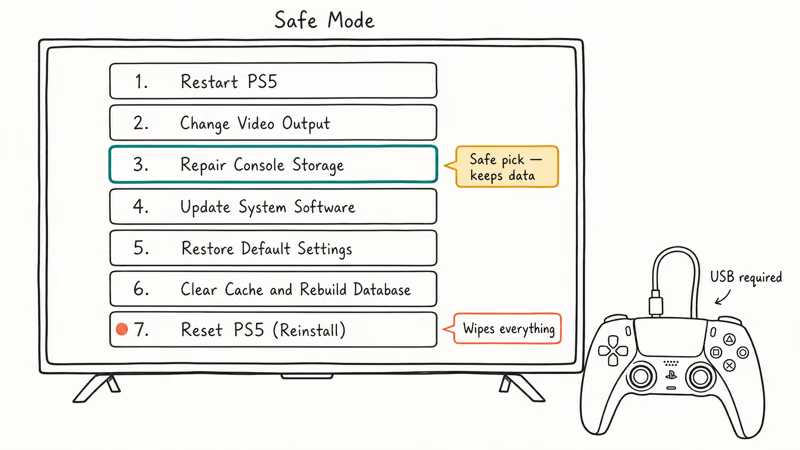
To enter Safe Mode: turn the PS5 fully off (hold power 7 seconds to the second beep). Then press and hold the power button again, releasing on the second beep about 7 seconds in. Connect a controller via USB cable (Safe Mode doesn’t accept wireless input), and press the PS button.
Safe Mode shows 7 options:
- Restart PS5. Ends Safe Mode and restarts normally. Try first.
- Change Video Output. Picks a safer resolution or HDCP setting. Useful for blank screens.
- Repair Console Storage. Scans the drive without erasing data. Safe second pick; equivalent to the option you’d use to rebuild the database on a PS4.
- Update System Software. Reinstalls current firmware. Useful after an interrupted update.
- Restore Default Settings. Resets settings to factory defaults; games and saves stay.
- Clear Cache and Rebuild Database. Full rebuild, 1 to 4 hours. Saves preserved.
- Reset PS5 (Reinstall System Software). Wipes everything. Last resort, only after offloading saves.
Run option 3 first; it’s non-destructive and clears most “flash and die” failures. If option 3 can’t complete, run option 4. Save option 7 for last.
If Safe Mode won’t start, recheck the cable. PlayStation recommends reinstalling system software from a USB drive when Safe Mode boots but can’t update over the network. The PS4 equivalent, Safe Mode on PS4, follows the same logic with different menu numbering.
#Check the HDMI Path and TV Input
Blue light loops and “no picture” symptoms are usually a TV or cable problem, not the console. The PS5 outputs HDMI 2.1 by default and tries to negotiate 4K 120Hz with HDR if your TV reports support. If the TV reports support but can’t actually sustain it, the handshake fails and the console sits with a pulsing blue light.
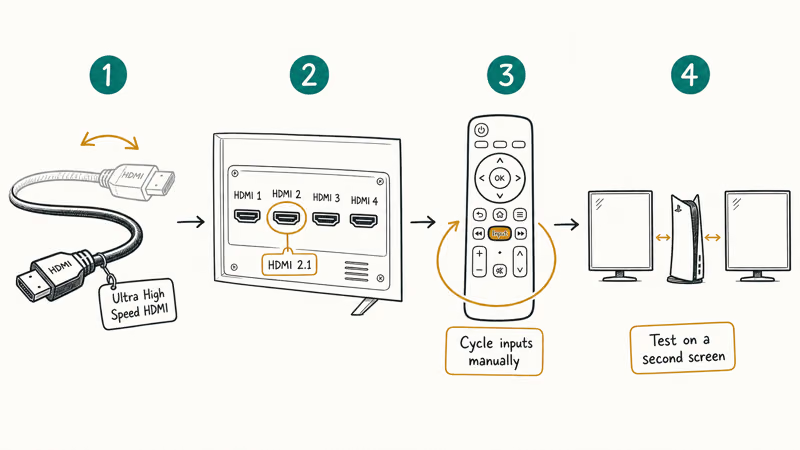
Run these four checks in order:
- Swap the HDMI cable. Use an Ultra High Speed HDMI cable; older HDMI 2.0 cables choke at 4K 120Hz.
- Try a different HDMI port on the TV. Many TVs label only one or two ports as HDMI 2.1; the rest cap at HDMI 2.0 speeds.
- Force the TV input. Cycle inputs manually rather than letting the TV auto-detect. Auto-detect on some 2024 Samsung and LG models silently drops a PS5 mid-handshake.
- Try another TV or monitor. If picture appears there, the original screen is the problem.
If the console behaves identically on a second TV, boot into Safe Mode (previous H2) and run option 2, Change Video Output, which forces a safe 1080p output. For the general no-signal case, the HDMI no-signal fixes cover Windows and Mac scenarios with the same handshake logic.
#When It’s Probably the PSU or a Repair
If the cable, Safe Mode, and HDMI sequence all fail, you’re looking at hardware. A few signs point at the power supply rather than the motherboard:
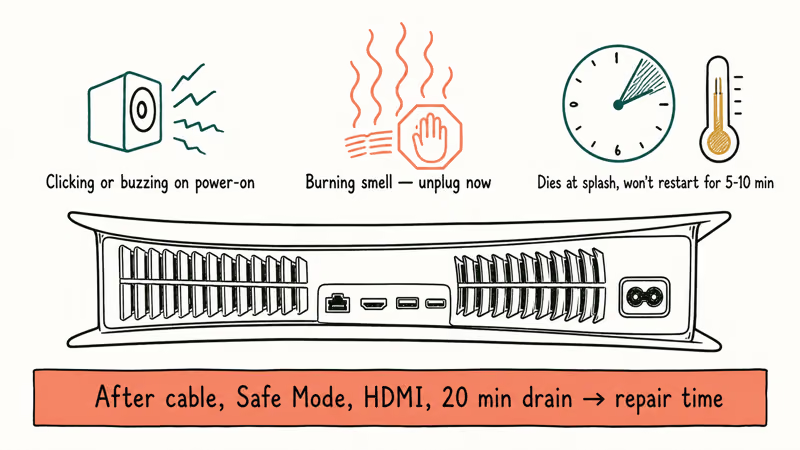
- Clicking or buzzing from the rear of the console on power-on suggests the PSU is failing to stabilize.
- Burning smell or hot air from the vents within seconds is a stop sign; unplug immediately.
- A console that dies at the splash screen and refuses to restart for 5 to 10 minutes (thermal lockout) suggests a fan or thermal paste issue.
None of these are user-serviceable without voiding warranty. File a repair through Sony’s diagnostic tool. Standard one-year warranty repairs are free; out-of-warranty runs a flat fee. Don’t open the console yourself if the warranty is active, since the void seal is checked on intake.
A reasonable cutoff: if you’ve done the cable check, Safe Mode options 3 and 4, the HDMI path, and a 20-minute drain, and the console still won’t run, it’s repair time.
#Bottom Line
Match the symptom first. No light at all is the AC path, so cable, outlet, and a 60-second drain are your first three moves. A white flash then nothing is firmware self-check, so Safe Mode’s Repair Console Storage is the right second tool. A blue light loop is HDMI, so a cable swap and TV-input check beats anything you can do on the console itself.
Save the Sony repair ticket for after the ladder. If the console actually powers on but stutters in games, the PS5 lag fixes are the better guide.
#Frequently Asked Questions
How long should I hold the PS5 power button to force a shutdown?
Hold for 7 seconds. You’ll hear one beep on press and a second beep around 7 seconds later. Release on the second beep, not before. Releasing at 3 seconds puts the PS5 into rest mode instead.
If the button itself feels unresponsive but the DualSense paired earlier, the issue is console power, not your controller; DualSense stick drift and pairing problems present differently.
Why does my PS5 turn on for a second then immediately power off?
That’s the firmware self-check failing. The PS5 boots far enough to power the indicator and fan, hits an error in the initial storage scan, and cuts power rather than risking more damage. The fix sequence is a 60-second power drain first, then Safe Mode’s Repair Console Storage option.
Can a bad HDMI cable make a PS5 look like it won’t turn on?
Yes. The screen stays blank during a failed handshake, which looks identical to a dead console. Swap to an Ultra High Speed HDMI cable and try a different TV port first.
Is the blue light of death the same as the PS4 blue light of death?
The symptoms look similar but the causes differ. On the PS4, a steady blue light usually meant a motherboard failure. On the PS5, a blue light loop is almost always an HDMI handshake or storage issue. The PS5 also pulses blue briefly during normal startup, so a few seconds of blue isn’t a problem on its own.
How do I know if my PS5 power supply is failing?
Listen and smell. Clicking or buzzing from the back of the console on power-on, a burning smell from the vents, or repeated boot attempts that die at the splash screen with a thermal lockout afterward all point to the PSU. If the cable and outlet test clean and the console still won’t power on, the PSU is the next suspect. Sony’s repair diagnostic can confirm it.
Will Safe Mode delete my saves on PS5?
Most options are non-destructive. Repair Console Storage, Update System Software, Restore Default Settings, and Clear Cache and Rebuild Database all keep games and saves. Only Reset PS5 (Reinstall System Software) wipes user data, so back up to PlayStation Plus or a USB drive first.

Fortnite Stuck on the Loading Screen? Fix It in 2026
Fortnite stuck on the loading screen? Check server status, fix the Windows N Media Pack and DirectX 11 on PC, clear the console cache, and verify files.

Minecraft Keeps Crashing? Java and Bedrock Fixes (2026)
Minecraft keeps crashing on startup or mid-game? Update your GPU driver, remove mods on Java, and reinstall Gaming Services on Bedrock. Fixes for both.

Pokemon GO Not Loading? Fix the Loading Screen 2026
Pokemon GO not loading or stuck on the Pokeball? Check server status, fix automatic date and time, grant location permission, clear the cache, and update.

PS5 Controller Not Charging? 9 Fixes That Work (2026)
DualSense not charging? Swap the cable, use a rear port in Rest Mode, clean the USB-C port, and check power settings. 9 fixes for a dead PS5 controller.