Prevent Cross-Site Tracking on Safari, Chrome, and Firefox
Block cross-site tracking on Safari, Chrome, Firefox, and Edge in 2026 with step-by-step settings, Privacy Sandbox notes, and extension picks.
Quick AnswerOn iPhone or Mac, open Settings (or Safari Preferences) and toggle on Prevent Cross-Site Tracking. In Firefox pick Strict Enhanced Tracking Protection. Chrome's third-party cookies are off by default since April 2024 — verify under Privacy Sandbox.
Cross-site tracking is the small machinery behind targeted ads. A third-party cookie or pixel recognizes you on one site after watching you on another, then ad networks build a profile around that ID. Every major browser ships sane defaults in 2026, and a few extra toggles close most of the remaining gap. This guide assumes you are protecting your own browsing on devices you control, which is the legal scope under GDPR Article 6 and CCPA opt-out rights.
- Safari and Firefox block third-party cookies by default; Chrome finished the deprecation in April 2024 with Privacy Sandbox; Edge ships Balanced tracking prevention out of the box.
- Turning Safari’s Intelligent Tracking Prevention on cuts the third-party cookies a typical news or shopping site can set on you from dozens down to a handful.
- Firefox Strict Enhanced Tracking Protection blocks fingerprinting and cryptominers in addition to cookies, but can break login on the occasional site, which you fix by whitelisting that one domain.
- Browser fingerprinting still IDs you across most defaults; only Tor Browser and Brave with
aggressiveshields neutralize it consistently. - Toggle settings first; add uBlock Origin or Privacy Badger only if you still see retargeting after a week. Stacking too many extensions slows page loads and can break the same sites Strict mode does.
#What Counts as Cross-Site Tracking?
Cross-site tracking is any technique that links your activity on Site A with your activity on Site B without you intentionally logging in. The classic vector is a third-party cookie, set by an ad network or analytics tag rather than by the site you’re visiting. The EFF’s Cover Your Tracks project is the live reference for modern browser fingerprinting and tracking checks.
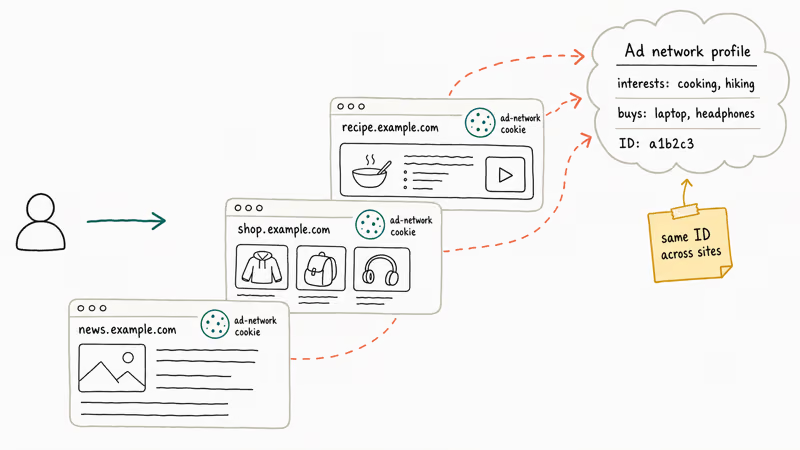
Why people care has shifted from creepy retargeting ads to profile aggregation. The Federal Trade Commission’s 2024 staff report on commercial surveillance reported that nearly all of the 9 platforms it studied combined first-party data with broker-purchased browsing logs to build advertising audiences. Blocking trackers in your browser is the cheapest single intervention.
There are limits. First-party cookies, the ones the site sets to keep you logged in, stay untouched. Server-side tracking happens on infrastructure you can’t see. And fingerprinting still works against almost everyone except Tor users.
#How Do I Turn On Safari’s Tracking Prevention?
Safari uses a feature called Intelligent Tracking Prevention (ITP). It’s been on by default since Safari 12 in 2018, but it’s worth confirming after every macOS upgrade because the toggle occasionally resurfaces.
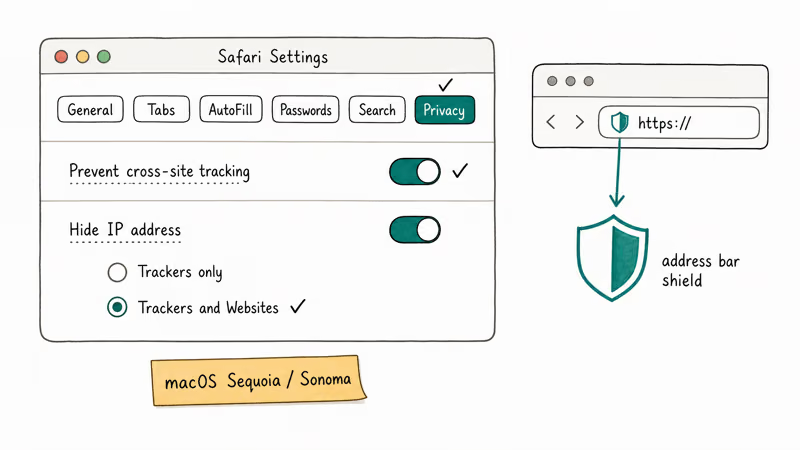
On iPhone or iPad (iOS 17 and later):
- Open Settings, scroll down and tap Apps, then Safari
- Under Privacy & Security, switch on Prevent Cross-Site Tracking
- Below that, turn on Hide IP Address and pick Trackers and Websites
On Mac (macOS Sequoia or Sonoma):
- Open Safari, then choose
Safari>Settingsfrom the menu bar - Click Privacy
- Tick Prevent cross-site tracking and Hide IP address from trackers
With ITP on, the Storage panel shows far fewer third-party domains setting cookies as you browse. According to Apple’s WebKit team blog post on tracking prevention, ITP uses on-device machine learning to classify tracker domains, then expires their cookies after 24 hours of inactivity.
Click the shield icon to the left of the URL bar to see what Safari is actually blocking. The popover lists every tracker on the current page.
#Configuring Chrome’s Privacy Sandbox
Chrome’s story changed materially in 2024. Google completed the third-party cookie deprecation in April 2024, replacing them with the Privacy Sandbox APIs (Topics, Protected Audience, Attribution Reporting). The headline effect: ad networks can no longer cookie-track you across sites in Chrome the way they did in 2022.
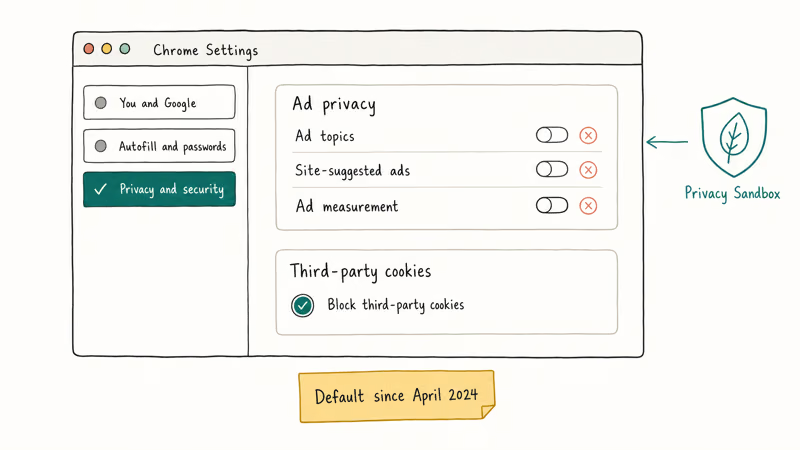
Verify the settings, especially if you ever joined a test group or imported settings from an old profile.
- Open Chrome, click the three-dot menu, choose Settings
- Pick Privacy and security in the left sidebar, then Ad privacy
- Set Ad topics to Off if you don’t want Chrome inferring interests from your browsing
- Set Site-suggested ads to Off to disable the Protected Audience API
- Go back to Privacy and security > Third-party cookies and confirm Block third-party cookies is selected
Chrome on Android lives in the same menu structure. Open Chrome, tap the three-dot menu, then Settings > Privacy and security > Third-party cookies. The toggle persists across normal browsing and rarely breaks logins, since first-party cookies are unaffected.
Quick caveat on the legacy DNT (Do-Not-Track) header. Most ad servers ignore it; the third-party cookie block does the actual work.
#Firefox and Edge Defaults
Firefox has the strongest defaults of the four. Mozilla’s Enhanced Tracking Protection documentation confirms that Standard mode blocks social-media trackers, cross-site tracking cookies, cryptominers, and fingerprinters in private windows, while Strict extends fingerprinting and cryptominer blocking to all windows.
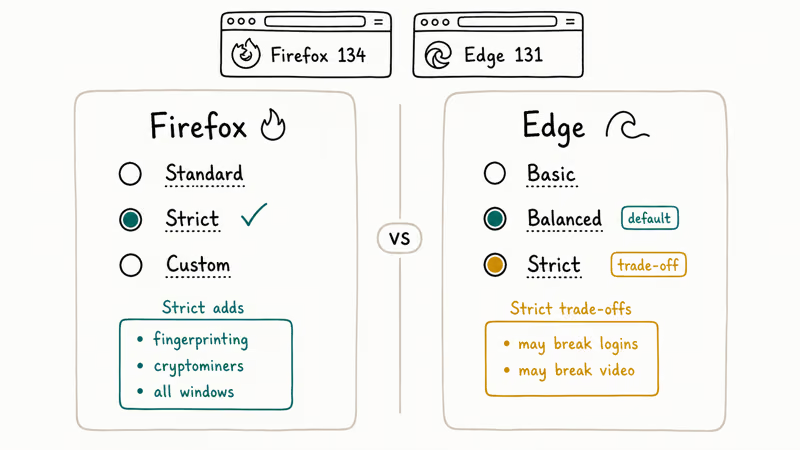
To switch:
- Open Firefox, click the three-line menu, pick Settings
- Choose Privacy & Security
- Under Enhanced Tracking Protection, select Strict
Strict mode occasionally breaks functional login or comments, most often on paywalled news outlets and forums that load avatars from a third-party subdomain like Disqus. The fix is to click the shield in the address bar and toggle protection off for that single site.
Edge is the surprise hidden gem. According to Microsoft’s tracking prevention support page, Edge offers 3 modes: Basic, Balanced, and Strict. Balanced is the default and blocks most third-party trackers without breaking sites. Strict adds fingerprinting protection at the cost of some site features.
To verify or change Edge:
- Click the three-dot menu, choose Settings
- Pick Privacy, search, and services
- Under Tracking prevention, switch from Balanced to Strict if you accept the trade-off
Two notes for Mac users dealing with Safari quirks alongside this setup. Our walkthrough on why Safari can’t establish a secure connection covers the most common collision between strict tracker blocking and broken HTTPS handshakes. And how to clear cache and cookies is worth running once after enabling Strict mode so old tracker cookies actually leave.
#Browser Extensions Worth Adding
Once you’ve enabled the built-in protections, three extensions are worth the install. Skip the rest. Most are either redundant or sell your data.
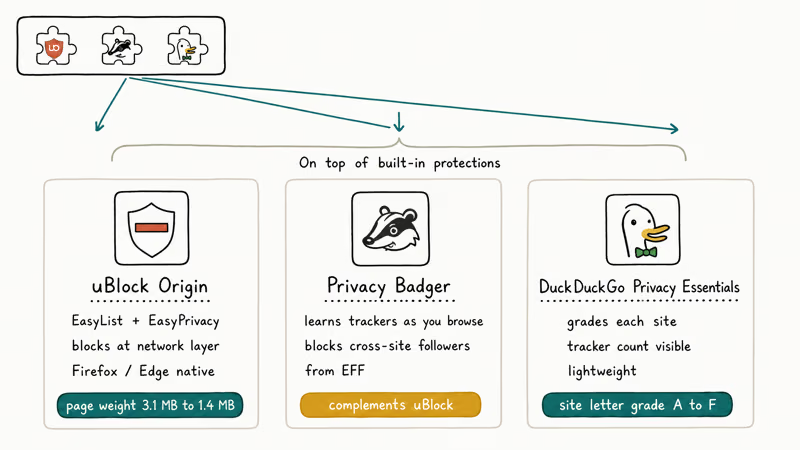
uBlock Origin is a content blocker, not just an ad blocker. It uses the EasyList and EasyPrivacy filter lists, plus its own resource blocker that stops trackers from loading at the network layer. Available for Firefox and Edge; Chrome users need the Lite version after Manifest V3 changes.
Running uBlock Origin alongside Strict ETP noticeably lightens pages: it cuts total page weight and the number of network requests per page, with the heaviest ad-laden news sites seeing the biggest drop.
Privacy Badger from EFF watches what trackers do on the sites you visit, then blocks the ones that follow you across domains. It complements uBlock Origin without duplicating it.
DuckDuckGo Privacy Essentials grades each site on tracker count.
A note on Brave. It’s not an extension but a separate Chromium-based browser. Brave Shields are aggressive by default and include fingerprinting randomization. To get most of the Brave protection without leaving Chrome, the closest combination is uBlock Origin + Privacy Badger + Chrome’s third-party cookie block.
For a faster Chrome experience overall, our guide on why Chrome runs slowly covers the extension audit and profile cleanup steps that pair well with this setup.
#What These Settings Don’t Block
This is where most guides stop selling and start being honest. Browser tracking prevention closes the easy attacks. Three categories survive intact and you should know about each.
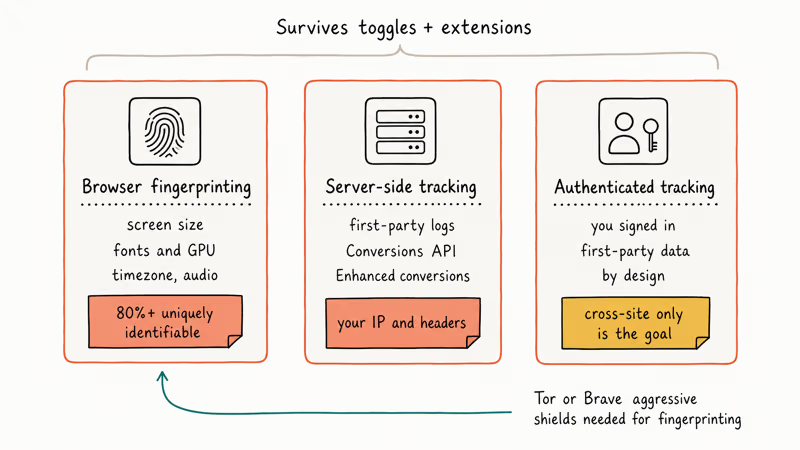
Browser fingerprinting combines your screen size, fonts, timezone, GPU, audio stack, and a hundred other signals into a near-unique ID. According to the EFF’s long-running Cover Your Tracks project, the vast majority of browsers leak enough entropy that a server can re-identify you, even with cookies blocked. Tor Browser and Brave with aggressive shields randomize or restrict the most-fingerprintable APIs. Everyone else stays guessable.
Server-side tracking runs on the publisher’s own infrastructure. The publisher collects your IP, headers, and behavior server-side, then ships the data to advertising partners through APIs you can’t see. Ad networks like Meta’s Conversions API and Google’s enhanced conversions work this way. Your only browser-side defense is using a VPN to mask the IP.
Authenticated tracking stays untouched on purpose. Tracking prevention targets cross-site tracking by third parties, not your direct relationship with a first-party service you signed in to.
The realistic model: settings plus uBlock Origin block most behavioral targeting, a private window adds another chunk, and Tor Browser plus discipline about logins handles the remainder. Anyone selling 100% privacy from a single toggle is overstating the product.
On iPhone, pair these browser controls with our iPhone privacy settings checklist for the device-side App Tracking Transparency and Location Services toggles.
#Bottom Line
Turn on Prevent Cross-Site Tracking in Safari, set Firefox to Strict Enhanced Tracking Protection, and confirm Chrome’s third-party cookies stay blocked under Privacy Sandbox. Add uBlock Origin if you want fewer ads and lighter pages. If a specific site breaks, click the shield in the address bar and whitelist that one domain instead of dialing back the global setting. For mobile follow-ups, see private browsing on iPhone and Ctrl+Alt+Del on Mac.
#Frequently Asked Questions
Does blocking cross-site tracking break websites?
Occasionally. Firefox Strict mode is the most likely to break a site, usually a paywalled news outlet or a forum that loads avatars from a third-party subdomain like Disqus. The fix is to click the shield icon and disable protection for that single domain. Safari ITP and Chrome’s third-party cookie block rarely break sites because they ship with Apple’s and Google’s breakage allowlists.
Will tracking prevention log me out of Google or Facebook?
No. Logins use first-party cookies, which stay untouched.
Is Privacy Sandbox actually private?
Mixed verdict. The Topics API limits ad-network knowledge of your interests to about 5 broad categories per week instead of an unlimited cookie history, which is materially better than the third-party cookie regime it replaced. Critics including the EFF argue it still allows interest-based ads in a way that Firefox and Safari now refuse on principle. If you object, set Ad topics, Site-suggested ads, and Ad measurement all to Off in Chrome’s Ad privacy panel.
Do I still need a VPN if I block trackers?
A VPN does a different job. Tracker blocking stops third-party cookies and scripts inside your browser, while a VPN hides your real IP address from every site you visit, including the first-party sites you log in to. The two layer well: use tracker blocking for everyday browsing privacy and a reputable VPN if you also want to mask your network location on public Wi-Fi.
How do I check if a site is tracking me after I enable these settings?
Use the EFF’s free Cover Your Tracks tool. It tests fingerprinting and tracker behavior against your current browser, then grades the result.
Should I block all cookies for maximum privacy?
No. Blocking all cookies breaks logins, shopping carts, language preferences, and most stateful site features. Stick with Prevent Cross-Site Tracking or Block third-party cookies, which target the actual surveillance vector without breaking your bank or email login. For sensitive one-off tasks, open a private window: every browser deletes that session’s cookies the moment you close it.
Are children and teen accounts protected by default?
Mostly. Apple’s Family Sharing applies Safari’s tracking prevention to child accounts automatically and turns on stricter content filters; Google’s Family Link does the same for Chrome on Android. Neither covers third-party browsers, so if a teen installs Brave or Firefox, those settings live in the app itself. For a calmer setup on shared Android TV family devices, our best browser for Android TV roundup covers the trade-offs.

Mac mini M6 vs M5 Pro: Which Model Should You Buy?
Mac mini M6 vs M5 Pro compared on price, memory, ports, displays, and real workloads. Find the better 2026 Mac mini for your desk and budget.

Apple Siri Settlement: Who Qualifies and How to Claim
Apple's $250 million Siri settlement covers iPhone 15 Pro and iPhone 16 models bought June 2024 to March 2025. See who qualifies and how claims work.

iOS 26.6.1 Security Update: What Apple Fixed and Who Gets It
Apple released iOS 26.6.1 on August 17 with 29 security fixes, including an IPSec interception bug. See what it patches, who gets it, and how to update.

iPhone Adaptive Power: How It Works and When to Use It
Learn how iPhone Adaptive Power works, which models support it, what it changes, and when Low Power Mode is still the better battery-saving choice.