Can Private Browsing Be Traced on iPhone? The Full Truth
Can private browsing be traced on iPhone? Yes, by ISPs, network admins, and Safari site data. Learn what private mode hides and doesn't hide.
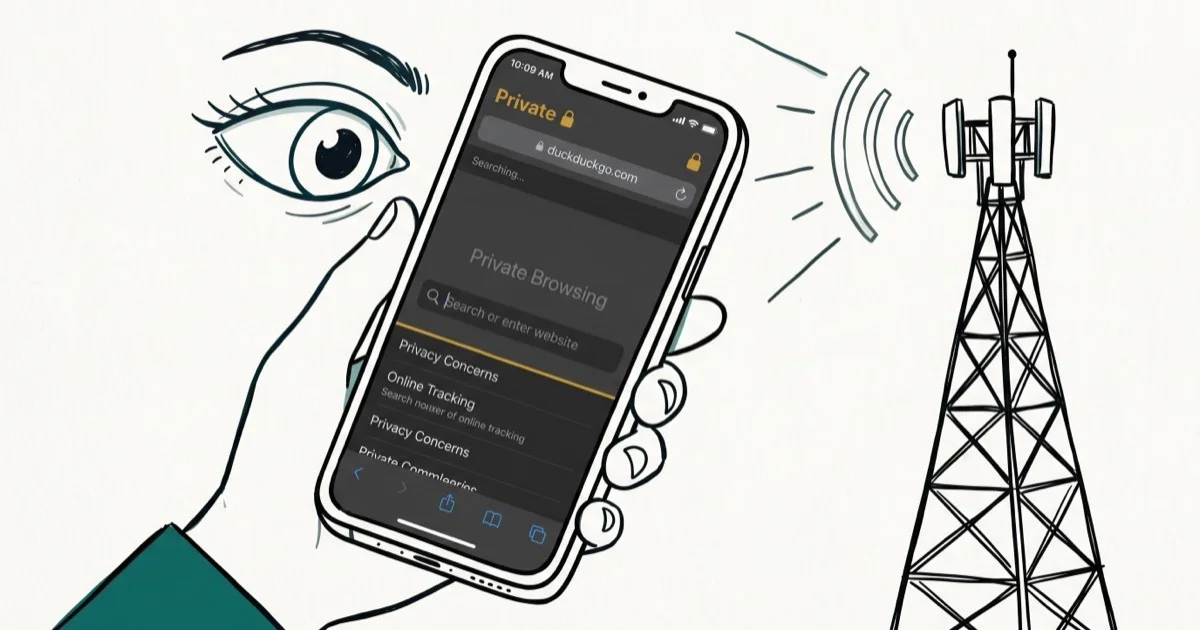
Quick AnswerPrivate browsing on iPhone hides your search history and cookies from others who use your device, but it does not make you invisible online. Your ISP, network administrator, and Safari itself can still log activity. Use a VPN alongside private mode for stronger protection on your own device.
Private browsing on iPhone prevents Safari from saving your search history, cookies, and autofill data. It doesn’t make you invisible. Private tabs don’t hide network-level data from websites, ISPs, employers, schools, or routers.
- Private browsing hides history and cookies from other users of your iPhone, but not from your ISP
- Your IP address is still visible to every website you visit during a private session
- Safari stores residual data in Site Data under Advanced settings even after private sessions
- A VPN combined with private mode provides much stronger anonymity than private mode alone
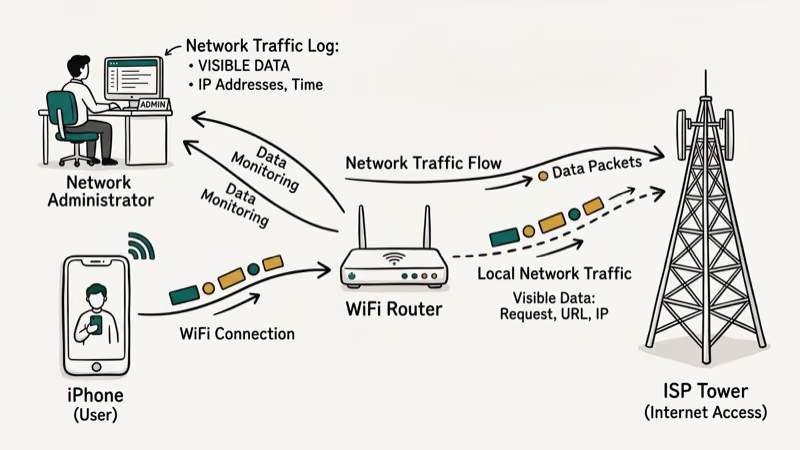
- Network administrators on Wi-Fi networks can log your traffic regardless of private mode status
#Private Browsing on iPhone: An Overview
Private browsing mode prevents Safari from saving your search queries, visited pages, and cookies after you close the tab. No autofill data is retained. Website logins you complete during a private session are also forgotten once that session ends.
Shared devices are the main use case. Closing a private tab clears that tab’s cookies and session data from Safari’s local history.
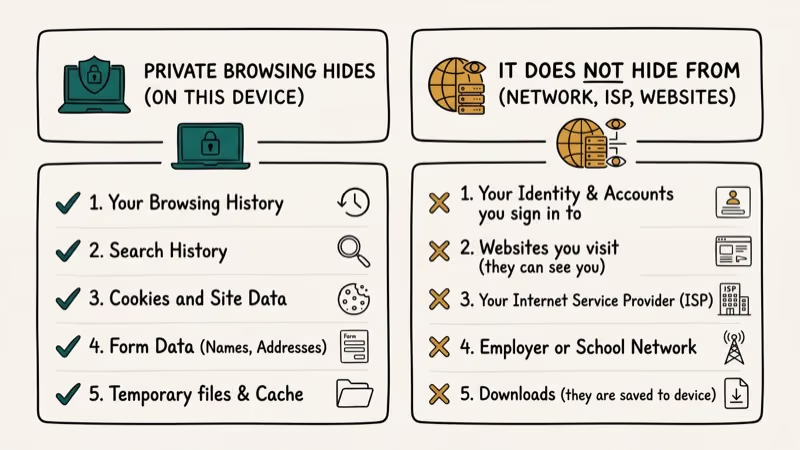
According to Apple’s support documentation, private browsing prevents Safari from remembering your history but doesn’t conceal your activity from your network or the websites themselves. Apple states that up to 5 categories of data, including cookies and browsing history, are cleared locally. Network-level logs remain intact regardless of what tab mode you use, because the data in those logs is recorded at the router and ISP level, not in Safari.
#What Private Browsing Hides on Your iPhone
What private mode hides from other iPhone users:
- Search history and visited URLs
- Cookies and site trackers from that session
- Autofill form data entered during the session
- Your current browsing window from the regular tab view
That’s the full local picture. Private mode was built for shared devices. It prevents the next person who picks up your phone from seeing your recent searches, but Apple’s documentation confirms that its scope is explicitly limited to local storage on the device itself, with no effect on external networks or remote servers.
#What Private Browsing Doesn’t Hide
Private browsing has real limits. According to Apple’s Safari security overview, private mode prevents local storage of history but doesn’t conceal your traffic at the network level.
Private mode doesn’t hide:
- Your IP address from websites and services you visit
- Your browsing traffic from your Internet Service Provider
- Activity from your employer or school if you use their Wi-Fi network
- Downloads you save to your iPhone’s Files or Photos app
- Bookmarks you create during the session
Every website you visit still sees the IP address your traffic uses. Nothing about a private tab changes how your traffic reaches the internet.
 According to Cloudflare’s research on browser fingerprinting, over 100 browser attributes can be used to fingerprint a device, and all of them remain exposed regardless of private mode status.
#Can Private Browsing Be Traced on iPhone?
Yes, in several scenarios. Private browsing is not the same as anonymity.
Your ISP sees every domain you visit regardless of whether you’re in a private tab. Network administrators at schools, workplaces, or public Wi-Fi hotspots can also log your DNS requests and traffic patterns. A company’s IT department can see which websites you contacted even if your Safari history is completely empty. According to Apple’s documentation, private tabs prevent local history storage but offer no protection against network-level monitoring of any kind.
Safari can still keep website data under Settings > Safari > Advanced > Website Data after browsing sessions.
Short answer: private browsing hides your history from anyone who picks up your phone. It offers no protection from your ISP, network admins, or any service that logs your IP.
#How to View Residual Private Browsing Data
Safari’s Advanced settings reveal stored site data even after private browsing sessions end. This data confirms which domains you visited, even if the specific URLs and timestamps are gone.
Steps to view and clear this data:
- Open Settings on your iPhone
- Scroll down and tap Safari
- Tap Advanced at the bottom
- Select Website Data
You’ll see cached files from both regular and private browsing sessions. Clear All Website Data removes everything, but this also resets saved preferences for regular browsing. Use this step if you’re concerned about residual traces on your device.
#Is a VPN Enough to Stay Private on iPhone?
A VPN is the most effective tool for hiding your iPhone’s real IP address. It routes your traffic through an encrypted tunnel and replaces your actual IP with the server’s address.
With NordVPN or another VPN active, websites see the VPN server’s IP instead of your phone’s direct IP.
Some links on this page are affiliate links, which means fone.tips may earn a commission at no extra cost to you.
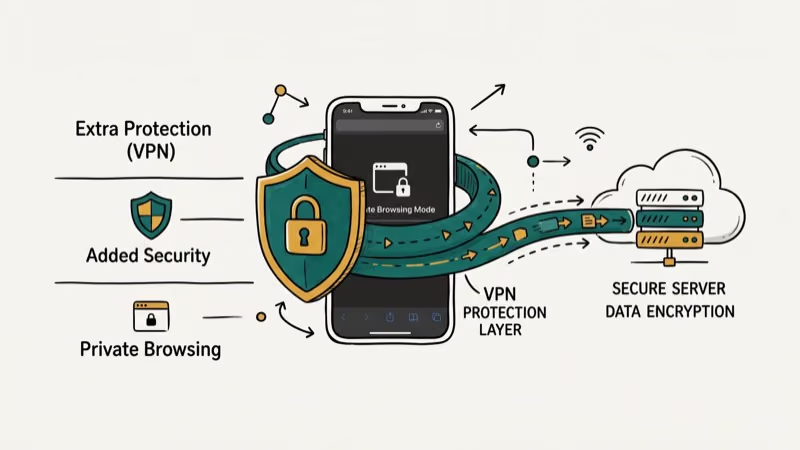 With a VPN active, websites see the VPN server address, and your ISP can see the VPN connection rather than the individual sites inside the encrypted tunnel.
VPN setup on iPhone:
- Download a reputable VPN app from the App Store
- Open the app and connect to a server location
- Go to
Settings>General>VPN and Device Managementto verify the connection is active - Browse in private mode while the VPN runs simultaneously
Two separate layers. A VPN handles network-level privacy by encrypting traffic before it leaves your device. Private mode handles local device privacy by clearing history after each session. Using both together closes the main gaps.
Content blockers address a third category. Go to Settings > Safari > Extensions and tap More Extensions. Extensions like 1Blocker stop cross-site trackers in both regular and private tabs, which neither a VPN nor private mode addresses on its own. This three-layer setup is the most practical approach to iPhone browsing privacy available without switching to a specialized secure browser.
#Additional Privacy Tips for iPhone Safari
Apple’s Lockdown Mode (iOS 16 and later) offers the highest protection level available on iPhone. Find it under Settings > Privacy and Security > Lockdown Mode. It restricts Safari significantly by blocking web technologies used for browser fingerprinting, reducing your device’s online footprint well beyond what private mode and a VPN achieve on their own. Note that Lockdown Mode disables some website features, so it’s best reserved for high-sensitivity situations rather than everyday use.
You can also manage your search filtering by learning how to turn off SafeSearch on iPhone. To understand exactly what data remains on your device, how to check history on iPhone covers every location Safari uses to record activity.
For a full walkthrough of privacy mode logs specifically, how to view private browsing history on iPhone explains what can and can’t be recovered.
If you’re dealing with Safari can’t establish a secure connection errors after enabling a VPN, check your network settings and remove conflicting VPN profiles from Settings > General > VPN and Device Management.
#Bottom Line
Private browsing on iPhone keeps your search history and cookies off the device, which is useful when you share a phone with others. It doesn’t hide your activity from your ISP, network administrators, or the websites you visit. For stronger privacy on your own device, combine private mode with a VPN and a content blocker extension in Safari.
#Frequently Asked Questions
Can private browsing hide my IP address?
No. Private browsing doesn’t hide your IP address from websites, your ISP, or network administrators. To mask your IP address, use a VPN, which replaces your real address with the VPN server’s address.
Can my ISP see what I do in private browsing mode?
Yes. Your ISP sees all DNS requests and traffic data from your network connection, regardless of private mode. Private browsing only affects what Safari stores locally on your device, not what your ISP logs on their end.
Does private mode on iPhone protect me from online tracking?
It limits local storage of tracking cookies, but cross-site trackers can still function during your session. Install a content blocker extension in Safari for more complete tracking protection throughout your browsing.
Does private browsing protect my data from Wi-Fi network admins?
No. If you’re on a corporate, school, or public Wi-Fi network, the administrator can still log the domains you visit. A VPN is required to encrypt traffic on those networks and prevent monitoring.
Can private browsing prevent websites from collecting my data?
Private browsing removes cookies after the session ends, reducing some data collection. However, websites can still log your IP address, browser fingerprint, and usage patterns during your visit. These server-side records exist regardless of private mode.
Is it possible to see deleted browsing history from a private session?
The visited URLs aren’t recoverable from Safari’s history after a private tab closes. However, website data stored under Settings > Safari > Advanced > Website Data may reveal which domains were accessed, even from private sessions.
What is the most effective way to stay private on iPhone Safari?
Combine private browsing with a VPN to mask your IP, a content blocker extension to stop trackers, and regular clearing of website data under Safari’s Advanced settings. This three-layer approach addresses local storage, network-level visibility, and third-party tracking together.

Mac mini M6 vs M5 Pro: Which Model Should You Buy?
Mac mini M6 vs M5 Pro compared on price, memory, ports, displays, and real workloads. Find the better 2026 Mac mini for your desk and budget.

Apple Siri Settlement: Who Qualifies and How to Claim
Apple's $250 million Siri settlement covers iPhone 15 Pro and iPhone 16 models bought June 2024 to March 2025. See who qualifies and how claims work.

iOS 26.6.1 Security Update: What Apple Fixed and Who Gets It
Apple released iOS 26.6.1 on August 17 with 29 security fixes, including an IPSec interception bug. See what it patches, who gets it, and how to update.

iPhone Adaptive Power: How It Works and When to Use It
Learn how iPhone Adaptive Power works, which models support it, what it changes, and when Low Power Mode is still the better battery-saving choice.