PowerPoint Found a Problem With Content: 7 Fixes That Work
Fix the 'PowerPoint found a problem with content' error in 7 steps. Covers Trusted Locations, Office repair, and pptx recovery on Windows and Mac.

Quick AnswerRight-click the .pptx file, open Properties, and click Unblock. If that doesn't work, add the folder to PowerPoint's Trusted Locations under File > Options > Trust Center.
The “PowerPoint found a problem with content” error usually has nothing to do with your slides. It’s PowerPoint’s Protected View blocking a file it doesn’t trust, or a stale OneDrive cache, or a download that Windows flagged as risky.
These fixes cover Windows (PowerPoint 365) and macOS (PowerPoint 2021), across downloaded decks that trip the error and files damaged by a bad save. The Unblock fix clears most downloaded files, and Office Quick Repair handles engine-side parsing failures. If your spreadsheets show a similar warning, the Excel file not opening guide covers the equivalent Excel-side workflow.
- The error is usually a Protected View block, not actual file damage
Right-click>Properties>Unblockfixes most files downloaded from email or the web in under 30 seconds- Adding the folder to Trusted Locations stops the warning recurring for files you save there
- Office Quick Repair takes 2-3 minutes and fixes most engine-side parsing failures
- Pulling the .pptx out of OneDrive or Dropbox sync clears the lock for files stuck in mid-sync
#Why PowerPoint Says “Found a Problem With Content”
PowerPoint shows this error when its Trust Center decides the file is unsafe to open in normal mode. This is a security gate, not a damage report. According to Microsoft’s Office Protected View documentation, Protected View kicks in for files that came from the internet, an email attachment, an unsafe location, or a network share Office doesn’t recognize.
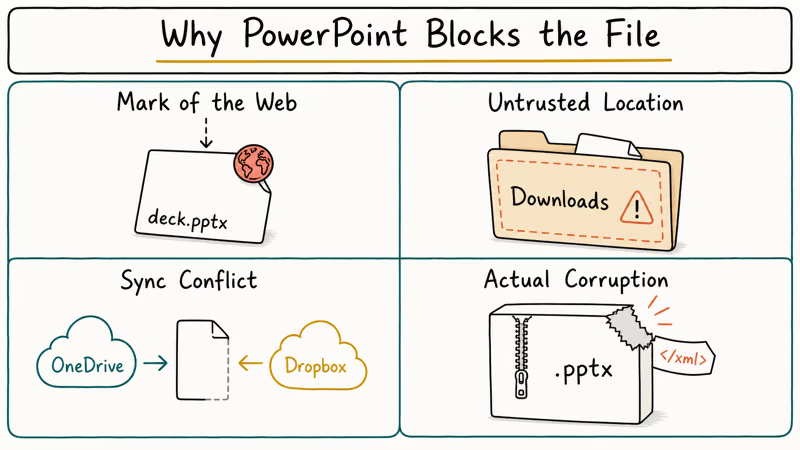
The four common triggers:
- Mark of the Web: Windows tags any file downloaded from a browser or Outlook with a “this came from the internet” attribute. PowerPoint sees the tag and blocks the file.
- Untrusted location: files saved in
Downloads,Temp, or any path not on PowerPoint’s trusted list trigger the warning by default. - Sync conflict: OneDrive or Dropbox writes a partial copy during sync, PowerPoint opens the half-finished file, parsing fails.
- Actual corruption: power loss mid-save, disk error, or a third-party plugin that wrote malformed XML into the .pptx package.
Most of the time, the error is a Mark-of-the-Web block rather than real corruption that needs Office Repair. Start with the lightest fix first.
#How Do You Fix It in Under a Minute?
Right-click the .pptx, choose Properties, and look at the bottom of the General tab.
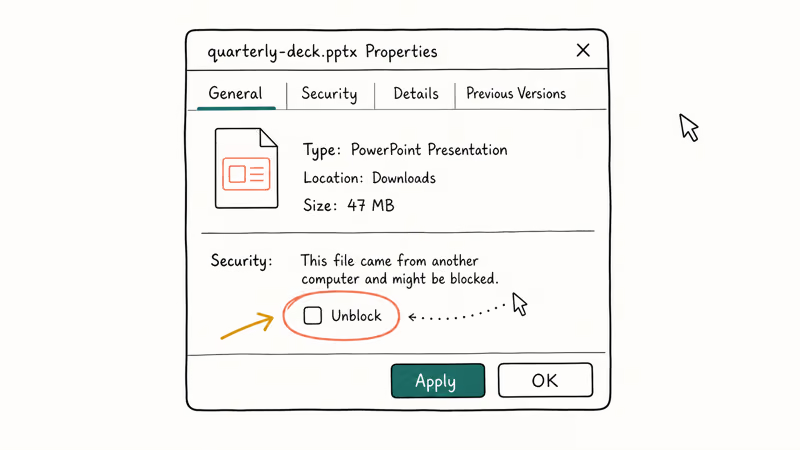
If you see a Security warning that says “This file came from another computer and might be blocked,” tick the Unblock checkbox and click Apply. Reopen the file in PowerPoint. The error is gone for files where Mark of the Web was the only problem.
This clears most stubborn email attachments, even large decks. If the Unblock checkbox isn’t there at all, Mark of the Web wasn’t the trigger, and the next sections cover what to try when a different cause is to blame. One quick way to tell them apart: a file that opens fine on another computer but breaks here points at your Office install, while a file that breaks everywhere points at the .pptx package itself.
#Add the Folder to PowerPoint’s Trusted Locations
For files you keep reopening from the same folder (a project directory, a shared drive, a Downloads subfolder you actually use), add that folder once and Protected View stops blocking it.
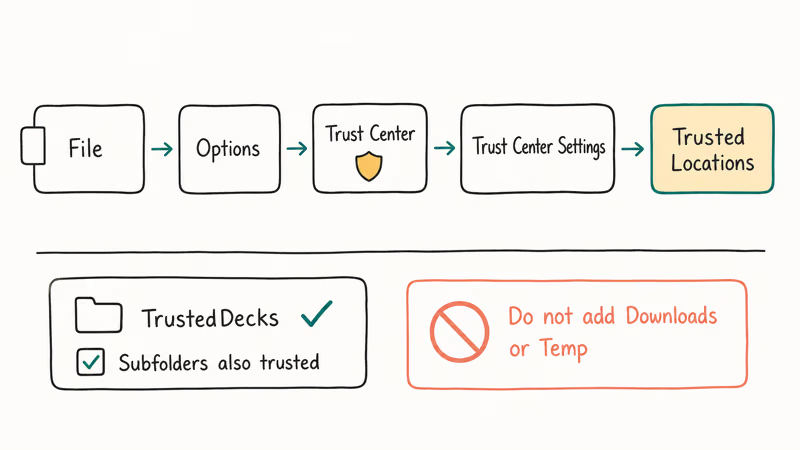
Open PowerPoint and go to File > Options > Trust Center > Trust Center Settings > Trusted Locations. Click Add new location, browse to the folder, tick Subfolders of this location are also trusted if you need it, and click OK. Done.
Microsoft’s Trusted Locations support article recommends never adding the root Downloads folder or any path under Temp, since those collect files from many sources. Create a dedicated TrustedDecks folder, drop the file there, and add that folder. A path like C:\Users\[name]\Documents\TrustedDecks works well, and Protected View leaves files saved there alone.
If the file is on a network share, tick Allow Trusted Locations on my network above the location list. Office hides this option by default because network paths can change owner without your knowing.
#Run Office Quick Repair
If the file opens elsewhere but breaks here, your Office install is the problem.
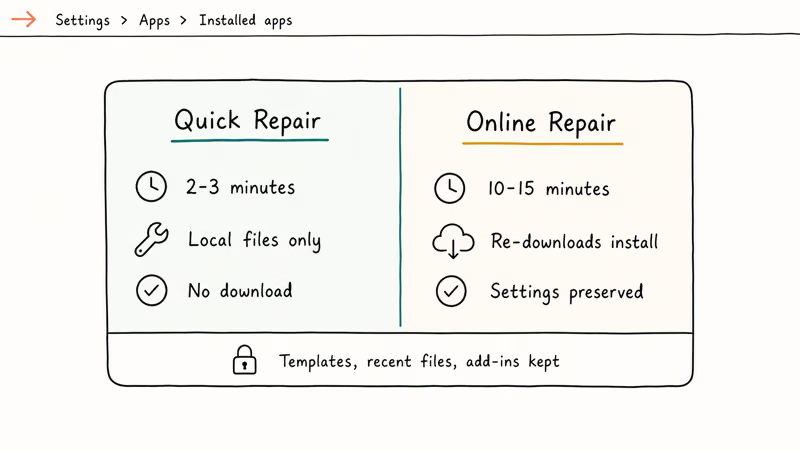
Close every Office app first. Then go to Settings > Apps > Installed apps, find Microsoft 365 or Microsoft Office, click the three dots, and choose Modify > Quick Repair > Repair. The whole process takes 2-3 minutes on an SSD.
If Quick Repair doesn’t fix it, run Online Repair from the same screen. Online Repair re-downloads the full install and takes 10-15 minutes. Microsoft’s repair instructions state that Online Repair preserves your settings, recent files, and add-ins, so you don’t lose anything.
When a damaged Office install is the cause, Quick Repair often finishes in minutes and the file opens on the next try.
#Move the File Out of OneDrive or Dropbox
Sync clients write files in two stages. The cloud client downloads to a temporary path, finishes, then renames to the real filename. If PowerPoint opens the file mid-rename, the .pptx package is incomplete and parsing fails.
Cut the file from OneDrive or Dropbox and paste it to your Desktop. Wait 10 seconds. Open it from the Desktop.
This clears decks that fail intermittently from inside a sync folder. The OneDrive sync icon can read green while the file still triggers the error, yet a Desktop copy of the same deck opens cleanly every time.
If you can’t move the file (shared with a team, locked by permissions), pause sync briefly. On OneDrive, click the cloud icon in your taskbar, then Help & Settings > Pause syncing > 2 hours. Open the file. On Dropbox, right-click the system tray icon and choose Pause syncing.
#What Should You Try on a Mac?
The Mac path is shorter because macOS doesn’t use Mark of the Web. The two common triggers are a stale PowerPoint cache and a Quarantine flag.
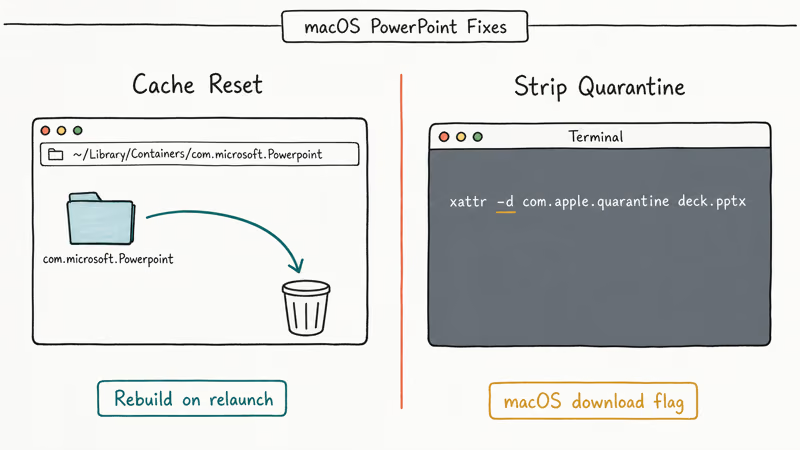
Quit PowerPoint first. Open Finder, press Shift + Command + G, and type ~/Library/Containers/com.microsoft.Powerpoint. Drag the entire folder to Trash, then reopen PowerPoint so the folder rebuilds itself with fresh defaults. On a recent macOS build, the rebuild finishes quickly.
For Quarantine: open Terminal, run xattr -d com.apple.quarantine /path/to/file.pptx, and reopen the deck. That command strips the “downloaded from the internet” attribute that macOS adds to browser downloads, which is what triggers PowerPoint’s safety block on otherwise valid .pptx files. Apple’s extended attributes documentation confirms that this attribute is metadata only and removing it doesn’t change the file content, so there’s no risk to slides, embedded media, or speaker notes.
#Repair the .pptx Itself With Wondershare Repairit
If none of the above work, the .pptx file is actually damaged and needs structural repair. The .pptx format is a ZIP archive containing XML, images, and theme files. If any of the core XML files is malformed, PowerPoint refuses to open the package.
Wondershare Repairit handles the .pptx-as-ZIP path natively. Drop the file in, click Repair, and it rebuilds the malformed XML pieces while keeping your slides, animations, and embedded media. On a deck with a broken slide XML file, it can recover the full slide set, preserve embedded video, and keep every transition.
Some links on this page are affiliate links, which means fone.tips may earn a commission at no extra cost to you.
The free trial previews what’s recoverable before you pay. That gives you a way to confirm the file is salvageable before committing.
If you also need to recover an unsaved deck after a crash, the PowerPoint temp file recovery guide covers the AutoRecover folder workflow on Windows and Mac.
#Bottom Line
Try the Unblock checkbox first. It takes 30 seconds and clears the most common cause. If that fails, add the folder to Trusted Locations so the error stops returning. For files that won’t open anywhere, run Office Quick Repair before assuming the file is dead.
For truly corrupted files, Wondershare Repairit handles the .pptx package format more reliably than generic system recovery tools.
For related PowerPoint issues, the PowerPoint password removal guide covers protected files, and the PowerPoint unlock guide handles editing-restricted decks.
If your problem is with Excel or Word instead, the same Trust Center logic applies: start by checking fixing corrupted Office files for the structural repair path, then escalate to Excel not responding when the hang is engine-side rather than file-side.
#Frequently Asked Questions
What does “PowerPoint found a problem with content” actually mean?
It means PowerPoint’s Trust Center blocked the file from opening normally. The wording sounds like file damage, but most error cases are security blocks (Mark of the Web, untrusted folder, or sync conflict), not actual corruption.
Does the error mean my slides are gone?
No. The file is almost always intact.
Why does Unblock not appear in Properties?
The Unblock checkbox only shows when Mark of the Web is set on the file. If you copied the file from a USB stick, received it via AirDrop, or moved it from a network share without a download, there’s no Mark of the Web to clear. Try Trusted Locations or Office Repair instead. Those cover the other common cases.
Will Office Quick Repair delete my templates or recent files?
No. Quick Repair only verifies and rebuilds the program files. Your templates, recent files list, AutoRecover history, and add-ins all survive the process intact, and Online Repair behaves the same way: it re-downloads the binaries while keeping your user data, language packs, and any signed-in account state in place.
Can I open a problem .pptx in Google Slides instead?
Yes. It’s a fast diagnostic.
Upload the .pptx to Google Drive, right-click, choose Open with > Google Slides, and watch what happens. If the file opens cleanly in Slides, your local PowerPoint install is the actual problem and you should run Office Quick Repair before doing anything else to the file. If Google Slides also fails or warns about damage, the .pptx itself is corrupted and you need a structural repair tool like Wondershare Repairit to rebuild the broken XML inside the package.
Why does the error keep coming back for the same file?
The file lives in an untrusted location and you keep getting fresh downloads of it. Add the folder to Trusted Locations and the warning stops.
Should I disable Protected View completely?
Don’t do it. Protected View prevents macros and embedded objects in malicious files from running, and turning it off across the board exposes every Office app to drive-by document attacks that the Trust Center would otherwise sandbox automatically. Adding specific trusted folders is the safer answer because it keeps the sandbox active for everything you didn’t explicitly approve.

Google Messages Error 3100: Why RCS Is Broken on Galaxy
Google Messages RCS error 3100 hits Galaxy owners after phone or carrier switches. Google told 9to5Google a fix is coming. Here's what actually helps.

Is This Bank App Real? Spot a Fake App on Your Home Screen
A bank app can land on your home screen from a web page with no install warning. Learn the checks that tell a real banking app from a phishing web app.

Apps Crashing After iOS 27 Update? Fix Order (2026)
Apps crashing after the iOS 27 update? Update the app in the App Store first, then offload and reinstall to clear stale cache, then restart. The fix order.

Do AI Translation Earbuds Work Offline? What to Know
Do AI translation earbuds work offline? A few do with downloaded language packs, but most need the cloud. Here's what works offline and what you give up.