Pokémon GO GPS Signal Not Found 11: 9 Proven Fixes
Fix Pokémon GO GPS Signal Not Found 11 with 9 steps: A-GPS reset, mock-location disable, VPN check, permission re-grant, plus a network reset.
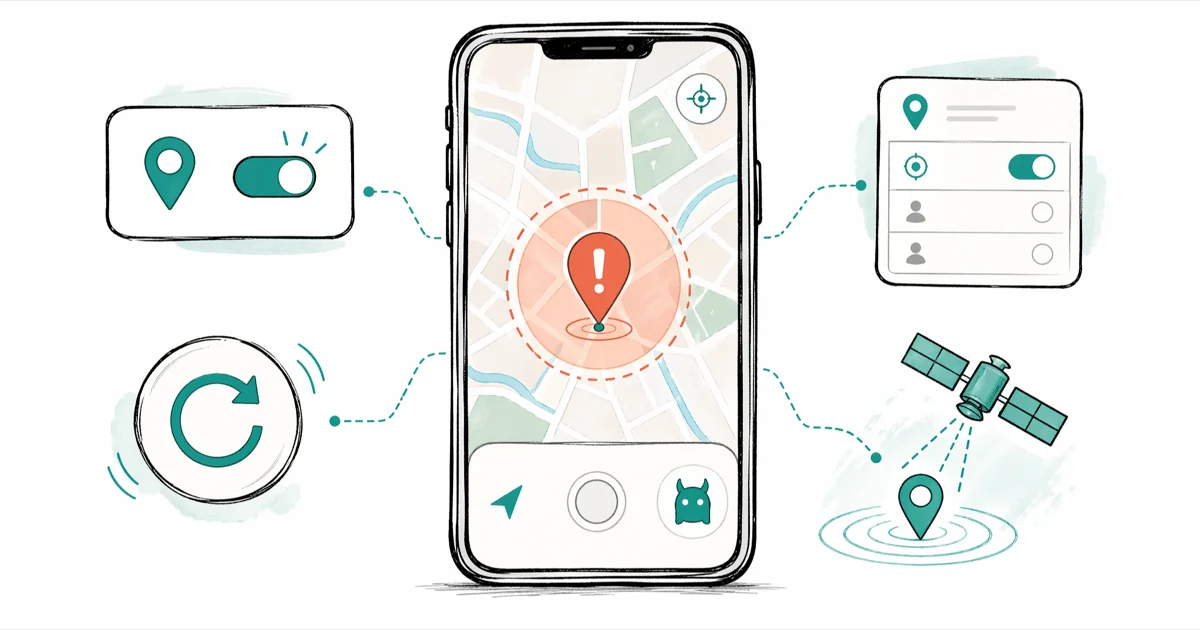
Quick AnswerGPS Signal Not Found 11 means Pokémon GO timed out waiting for a satellite fix from your phone. Toggle Location Services off and on, set Android to High Accuracy or iPhone to While Using With Precise Location, then step outside for 60 seconds. Most warm-started phones recover in under two minutes once the GPS chip pulls a fresh lock.
GPS Signal Not Found 11 in Pokémon GO almost always means your phone never handed the app a usable satellite fix, not that Niantic’s servers are down. The fixes below cover the common triggers on Android and iPhone, from indoor dead zones to parking garages to post-flight location lag. Most cases clear with the steps below.
This guide assumes you’re troubleshooting your own phone and your own Pokémon Trainer account, using settings Niantic and your phone manufacturer expose through the official UI.
- Error 11 is a GPS timeout on the device, not a server outage on Niantic’s side
- A clean satellite lock outdoors clears the error in roughly two minutes on a warm-started phone
- Niantic’s anti-cheat treats a phone with Allow Mock Locations enabled as suspicious, even when no spoofing app is currently running
- Datacenter VPN exit IPs trip the error because the IP region no longer matches the GPS coordinate
- The Pokémon GO Plus + accessory has no GPS chip and reads location from the phone, so a fob won’t fix the error
#What Causes the GPS Signal Not Found 11 Error?
Pokémon GO needs three things at the same moment.
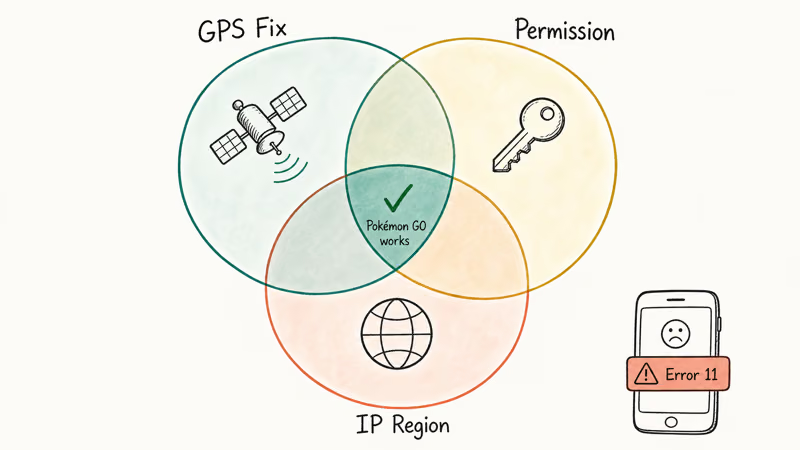
It needs a recent satellite fix from your phone’s GPS chip, a location-permission grant your operating system will honor, and an IP region that roughly matches the GPS coordinate. When any one of those three falls through, the spinning compass turns into the GPS Signal Not Found 11 modal, and the avatar refuses to load no matter how many times you tap the screen or swipe the app away or stand still and wait it out in pure frustration.
The most common single cause is a stale A-GPS cache. A-GPS (Assisted GPS) downloads almanac and ephemeris data over your cellular or Wi-Fi link so the chip can find satellites in seconds instead of minutes.
According to the official 12-minute cold-start figure documented at GPS.gov, a phone without A-GPS assistance can spend that long downloading a fresh almanac from the satellite signal alone. That long worst case is why the error feels random when you walk out of a basement and the chip has to rebuild the cache from scratch.
Indoor dead zones, mock-location flags left on from a developer test session, and active VPN connections round out the top causes. Niantic’s third-party services policy confirms that the game’s anti-cheat watches for spoofing infrastructure, and a device with mock locations enabled in Developer Options trips that watcher even when no fake-GPS app is currently in the foreground.
#First Steps to Try Before Anything Else
Run these in order. Each takes under a minute, and the first three resolve Error 11 for the majority of players.
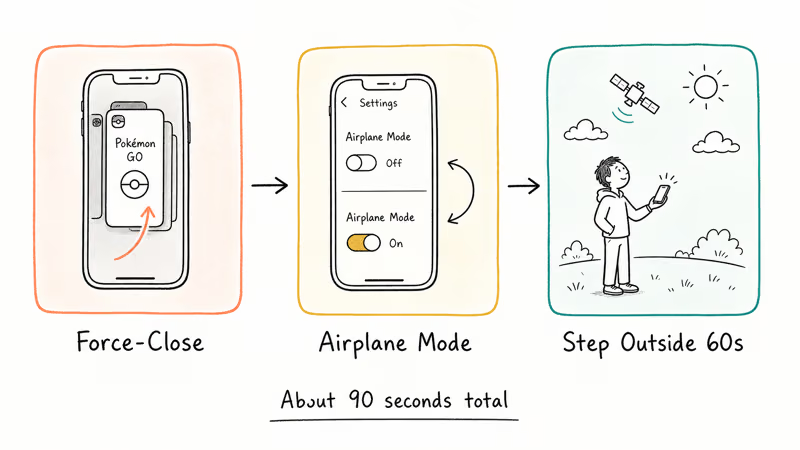
#Force-Close Pokémon GO and Reopen
On Android, swipe up from the bottom and flick Pokémon GO off the recent apps tray. On iPhone, swipe up and pause, then swipe the Pokémon GO card away. Reopen the app and let the green compass settle.
Takes 15 seconds.
This step clears any in-memory state where the app holds the failed fix and refuses to retry. It often works on the first try after the device wakes from a long sleep, before you touch a single setting on the location stack or the permissions screen or any of the half-dozen other knobs that get the blame for this error in most online threads.
#Toggle Airplane Mode On and Off
Pull down the quick settings shade, tap Airplane Mode on, wait 10 seconds, and tap it off. The cellular and Wi-Fi radios both restart, which forces the OS to refresh A-GPS data on the next request.
According to Google’s Android location documentation, location accuracy combines GPS satellite data with Wi-Fi access points and cell-tower triangulation. A radio toggle resets the network-side half of that pipeline. A clean Airplane Mode toggle outdoors often lands a fresh fix within seconds, while the same phone can still time out indoors with the same chip and the same permissions.
For deeper context on what Airplane Mode actually does to the GPS chip on each platform, our does Airplane Mode turn off GPS guide walks through the chip-level behavior on Android and iPhone separately.
#Step Outside for a Clear Sky View
GPS satellites broadcast at very low signal strength. A reinforced concrete ceiling, the inside of a parked car, or a basement office can drop the signal below the threshold the chip needs.
Walk outside, stand still for at least 60 seconds with the phone face-up, and don’t slide it into your pocket while the lock builds. A clear sky view outdoors lands a fresh fix fast, while the same device will time out in a tiled bathroom or basement.
#Android Fixes for Error 11
Android exposes more of the location stack than iOS does. More knobs to turn, more places where one switch can quietly break everything.
Work down this list when the quick fixes didn’t stick.
#Switch Location Mode to High Accuracy
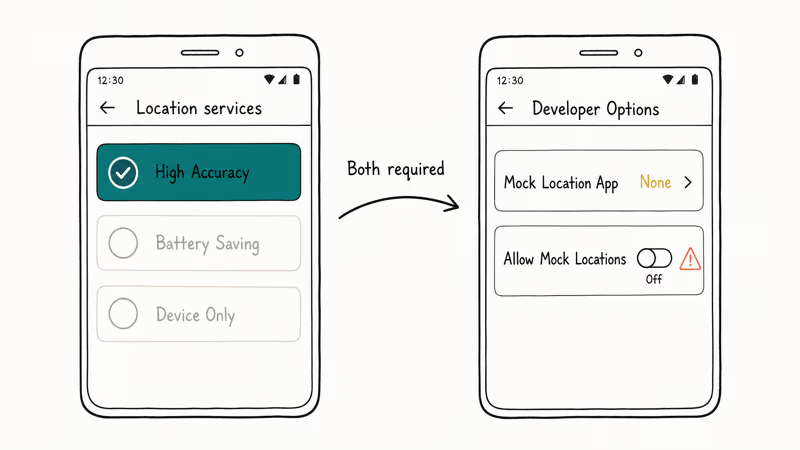
Android offers three location modes. High Accuracy combines GPS with Wi-Fi and cell triangulation, Battery Saving drops GPS and uses only Wi-Fi and cell, and Device Only uses GPS alone with no network assist. Pokémon GO needs High Accuracy.
- Go to
Settings>Location>Locationservices - Tap Google Location Accuracy and turn Improve Location Accuracy on
- Confirm Wi-Fi scanning is enabled
That’s it.
The High Accuracy mode is what gets your fix indoors near a window or in a covered patio, where GPS alone wouldn’t punch through the roof but a nearby Wi-Fi access point fills the gap.
#Disable Mock Locations and Clear the Mock-Location App
This is the fix Pokémon GO troubleshooting threads bury, and it’s the single most effective one for any player who has ever installed a fake-GPS utility, even months ago. Niantic’s anti-cheat reads the mock-location-enabled flag itself, not just whether a spoofing app is currently running.
Open Settings>About Phone andtap Build Number seven times to expose Developer Options- Go to
Settings>System>Developer Options - Find Select Mock Location App and set it to None or Nothing
- Scroll down and confirm Allow Mock Locations is off
If you no longer use Developer Options at all, scroll to the top of that menu and toggle Developer Options off entirely. Uninstall any leftover GPS-spoofing apps before you reset the slot. The recommended fix is to disable mock locations and remove the offending app, not to switch to a different spoofing tool. Our allow mock locations explainer walks through the same screens with screenshots from both Pixel and Samsung firmware.
#Clear the A-GPS Cache With a Free Tool
Most Android phones don’t expose a built-in A-GPS reset, so the standard workaround is the free GPS Test app from Google Play. Open it, tap the menu, and use Reset A-GPS, then Update A-GPS while you’re on Wi-Fi or cellular.
You can also force a warm-boot of the GPS radio on Samsung phones by dialing *#*#7378423#*#* (which spells *#*#SERVICE#*#*), tapping LTE Cell Info, then toggling the radio off and on. This helps when the radio has stalled on a stale A-GPS file from a previous trip, and a fresh fix usually lands within one walk around the block.
#Re-Grant Pokémon GO Location Permission
A permission glitch after an Android update can leave Pokémon GO with a stale grant that looks correct on paper but fails at runtime.
Settings>Apps>PokémonGO>Permissions>Location- Set to Don’t Allow, then go back in and set to Allow All The Time
- Restart Pokémon GO
This forces the next launch to re-handshake with the location framework. It often resolves Error 11 after an Android monthly patch silently resets half the app’s runtime permissions overnight without any visible warning.
#iPhone Fixes for Error 11
iOS hides most of the GPS stack behind Apple’s Location Services API. Shorter list, broader steps, less to break.
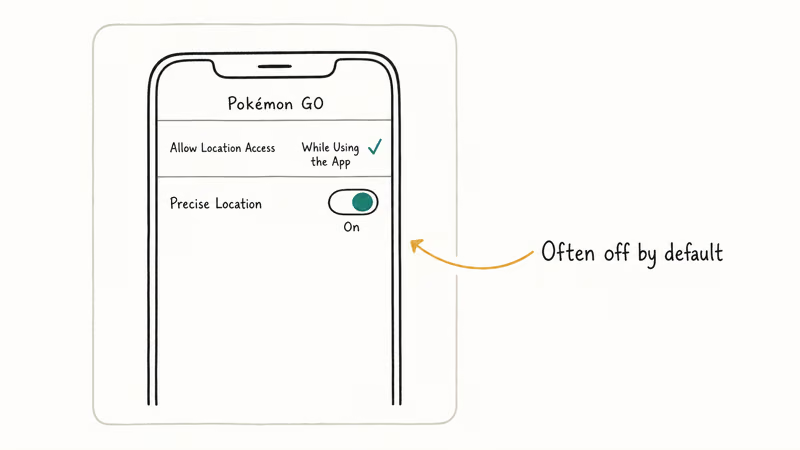
#Confirm Pokémon GO Has Location Services and Precise Location
Go to Settings > Privacy and Security > Location Services. Confirm the main switch at the top is green, scroll to Pokémon GO, set it to While Using the App, and turn Precise Location on.
Apple’s Location Services support article states that without the Precise Location toggle, an app receives only an approximate area roughly the size of a few city blocks. That’s nowhere near accurate enough for Pokémon GO to anchor your avatar on the in-game map. Precise Location is the single setting most iPhone players miss after a fresh install on iOS 14 or newer, where the toggle defaults to off.
For broader iPhone GPS issues that affect Maps and Waze too, our iPhone GPS not working playbook covers hardware-side checks alongside the OS-level ones.
#Reset Network Settings on iPhone
This refreshes the Wi-Fi and cell-tower database iOS uses to assist GPS, without erasing personal data, photos, or your Pokémon GO save.
Open Settings > General > Transfer or Reset iPhone > Reset > Reset Network Settings. The phone reboots and rejoins Wi-Fi after you re-enter the password. This often clears stuck Error 11 within one cold start, especially after a stale carrier profile or a lingering VPN config got in the way.
Write down your Wi-Fi passwords first. The reset wipes them along with paired Bluetooth devices and any VPN profiles.
#Sign Out of Pokémon GO and Sign Back In
A sign-out forces Pokémon GO to renegotiate the GPS handshake with Niantic’s servers from a clean slate. Tap the Poké Ball, then Settings, scroll to the bottom, and tap Sign Out. Sign back in with the same Trainer account.
This is often the only step that fixes an iPhone stuck on Error 11 after a transcontinental flight, when the GPS reports a lock but Niantic’s servers still see the previous airport’s coordinates. The whole sign-out and sign-in takes under a minute, and the avatar snaps to the right spot on the next map load, a server-side handshake fix more than anything the phone did on its own.
#VPNs, Wi-Fi Calling, and Why Error 11 Comes Back
Yes, a VPN can absolutely cause Error 11 on its own. Pokémon GO compares the IP region from your network connection to the GPS coordinate from the chip. A VPN routes traffic through an exit node in another country, and that mismatch is one of the most common reasons for the error.
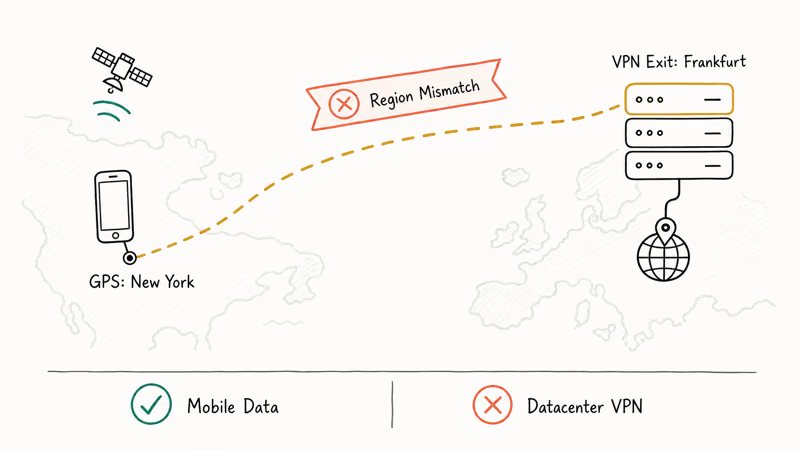
Disable the VPN.
iPhone: Settings > VPN > toggle off. Android: Settings > Network and Internet > VPN > disconnect. If your phone has an always-on VPN profile installed by an MDM or a privacy app, you may need to disable that profile too.
Niantic doesn’t publish the list of blocked VPN exit IPs. Community testing on r/pokemongo consistently finds that residential and mobile-carrier IPs work while datacenter IPs (the ones most consumer VPNs use) trigger the error. If you need a VPN for security on public Wi-Fi, the cleanest workaround is to switch to mobile data while playing instead, since cell-carrier IPs are nearly always treated as residential.
Wi-Fi Calling can also cause flickering Error 11 on iPhone. When the device hands off between Wi-Fi and cellular mid-session, the IP region briefly changes before the GPS coordinate catches up, and Pokémon GO times out. The flicker is most common on a building-edge handoff, where the phone keeps bouncing between two towers and a Wi-Fi point. Disabling Wi-Fi Calling under Settings > Phone > Wi-Fi Calling holds a steady region long enough for the GPS lock to register.
#Does the Pokémon GO Plus + Bypass Error 11?
The Pokémon GO Plus + accessory pairs over Bluetooth Low Energy and lets you spin PokéStops, throw Poké Balls, and log sleep without unlocking the phone. It contains no GPS chip. Niantic’s Pokémon GO Plus + setup guide confirms the accessory relies on the paired phone for location data.
If Error 11 appears while the Plus + is connected, the issue is on the phone, not the fob. Run the Android or iPhone fix list above. The Plus + resumes catching automatically once the phone reports a valid satellite fix.
#When None of the Standard Fixes Work
If you’ve walked through the full list and Error 11 still appears every session, three less common causes are worth ruling out before you contact Niantic Support.
A failing GPS antenna will produce intermittent fixes that drift by hundreds of meters. Open a separate utility like GPS Test or GPS Status & Toolbox and watch the satellite count. Fewer than four locked satellites for more than five minutes outdoors with a clear sky points at hardware. A repair quote for an antenna ribbon is usually $80 to $120 at an authorized service center.
A pending Pokémon GO update can also stall the location handshake, especially after Niantic ships a backend change. Open Google Play or the App Store, search Pokémon GO, and update if a button is offered.
If both checks pass, the closely related Pokémon GO failed to detect location guide covers the same root causes from a different error code’s angle, and the Pokémon GO Adventure Sync not working guide is worth a read if step counting also stopped at the same time, since both features pull from the same fitness and location pipes.
#Bottom Line
Toggle Location Services off and on first, then step outside for 60 seconds. That short sequence clears Error 11 in most cases on warm-started devices.
If you’ve ever installed a fake-GPS app, jump straight to disabling Allow Mock Locations under Developer Options before anything else. That one flag will keep Error 11 coming back no matter how many times you toggle GPS or reset the network. To avoid a Pokémon GO soft ban, keep mock locations disabled and skip any tool that promises to lift GPS restrictions, since Niantic’s anti-cheat will eventually catch it.
If the error persists after every step in this guide and a separate GPS app shows fewer than four locked satellites outdoors, book a service appointment for hardware inspection.
Pokémon GO Guide
#Frequently Asked Questions
What does GPS Signal Not Found 11 mean in Pokémon GO?
It means Pokémon GO timed out waiting for a usable satellite fix from your phone. The error is a local GPS-stack timeout, not a server-side issue with Niantic.
Can being indoors cause GPS Signal Not Found 11?
Yes, frequently. GPS signals struggle to penetrate walls, ceilings, and parked cars. Step outside, stand still for 60 seconds with the phone face-up, and the chip will usually pull a clean lock. A clear sky view lands a fast fix where the same device times out indoors.
Will resetting network settings delete my Pokémon GO data?
No. Your Trainer account, Pokémon, items, and progress are stored on Niantic’s servers, not your phone. Resetting network settings only removes saved Wi-Fi passwords, paired Bluetooth devices, and VPN configurations.
Does a VPN cause GPS Signal Not Found 11?
Often, yes. Niantic compares the IP region from your network to the GPS coordinate from the chip, and a datacenter VPN exit node almost always mismatches. Disable the VPN while playing and switch to mobile data on public Wi-Fi if you need to stay on a secure connection. Split-tunnel configurations can also leak the wrong region intermittently, which produces a flickering error rather than a constant one.
How long does the A-GPS cache stay valid?
Roughly four hours of usable accuracy and up to four days of partial assistance, based on satellite ephemeris validity. After that, the chip needs to download a fresh almanac, which is why the first fix of the day is sometimes slow and why a long flight or a week-long trip away from your usual cell network can trigger Error 11 until the cache rebuilds.
Why does the Pokémon GO Plus + still show Error 11?
The Plus + has no GPS chip. It reads location data from the paired phone over Bluetooth.
Is GPS Signal Not Found 11 the same as Failed to Detect Location?
They’re related but not identical. Error 11 is a connection timeout when the chip can’t deliver a fix in time, while Failed to Detect Location usually points to a permission block or an IP/GPS mismatch. Many of the same fixes apply to both, so start with this guide regardless of which modal you see and cross-check the failed-to-detect-location guide if the symptoms drift.
Pokemon GO GPS Signal Not Found: 7 Proven Fixes (2026)
Pokemon GO GPS signal not found? Seven ordered fixes for Android and iPhone covering precise location, permissions, mock-location, and more.
TweakBox Pokemon GO Review: Does It Still Work in 2026?
TweakBox Pokemon GO usually fails. Learn why, what Niantic's ban policy means for your account, and which official alternatives to use instead.
How to Auto Walk in Pokemon GO: Safe and Risky Methods
Learn how Pokemon GO Adventure Sync credits real activity, why fake-step and GPS tools risk account strikes, and which official options to use.
How to Find Magikarp Nests in Pokemon GO (2026 Guide)
Find Magikarp nests in Pokemon GO using community maps, water biomes, and rainy weather boosts. Plus candy farming tips to evolve Gyarados fast.