How to Enable Allow Mock Locations on Android (2026)
Enable mock locations on Android for app testing and development. Step-by-step guide for Samsung, Xiaomi, and Pixel devices running Android 6.0+.
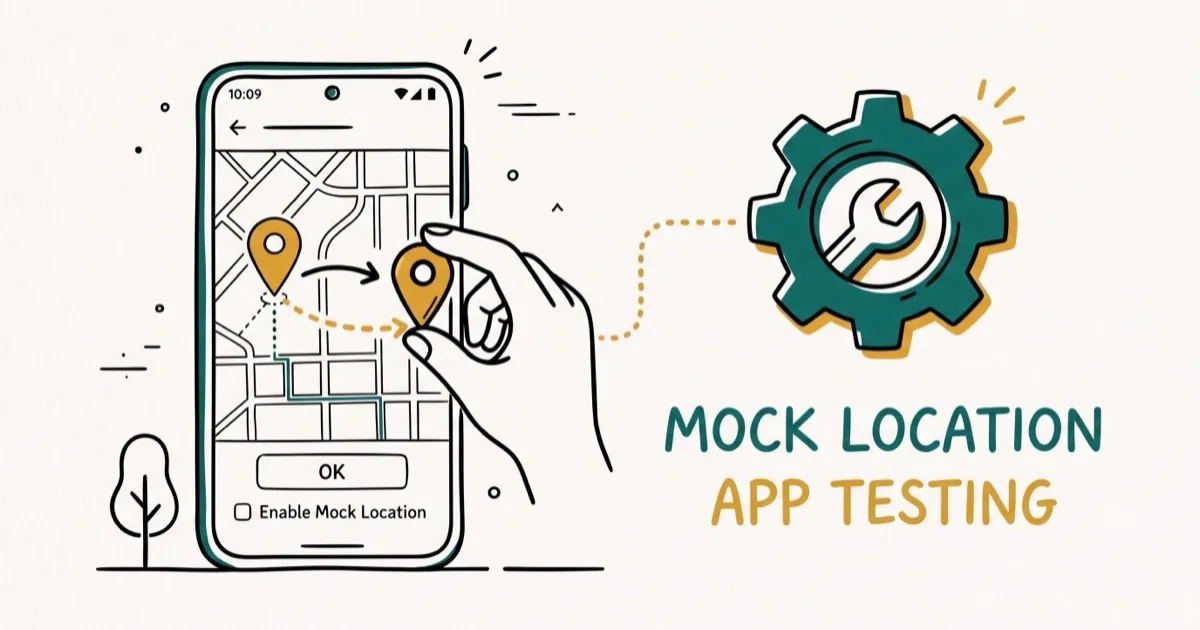
Quick AnswerGo to Settings > About Phone, tap the Build Number seven times to unlock Developer Options, then go to Settings > Developer Options and enable Allow Mock Locations or select a Mock Location App.
Mock locations let your Android phone report a GPS position that differs from where you actually are. App developers use this feature daily to test geofenced features without leaving their desk, and it ships as a built-in Android option under Developer Options.
The setup is quick on current phones like the Samsung Galaxy S24 running Android 15 and the Google Pixel 8 on Android 14, and the steps barely differ between brands once Developer Options is unlocked. Below is how to enable the setting, choose a reliable spoofing app from the Play Store, work around the per-app integrity checks that block some apps, and avoid the common pitfalls that leave your fake location silently ignored.
- Mock locations is a built-in Android Developer Options feature available on Android 6.0 and newer
- Enabling it requires tapping your Build Number 7 times to unlock Developer Options first
- On Android 6.0+, you select a specific mock location app instead of toggling a single switch
- The feature is designed for app development and QA testing on your own device
- Most GPS-dependent apps can detect mock locations, so results vary by app and Android version
#Mock Locations on Android Explained
Mock locations is a developer-facing Android feature that overrides your device’s real GPS coordinates with a location you choose. Google built it so developers could test location-based features in their apps without physically traveling.
Here’s how it works in practice. Your Android phone constantly reports GPS coordinates to apps that request location access. When you enable mock locations and select a spoofing app, that app intercepts the GPS data and feeds a fake coordinate to every other app on the device.
According to Google’s Android developer documentation, the addTestProvider API lets developers inject test locations programmatically (available since API level 1). This is the same system that consumer-facing mock location apps use under the hood.
Important: This feature is intended for testing on your own device. Using mock locations to deceive services, violate terms of service, or misrepresent your position to others may carry legal consequences depending on your jurisdiction.
#How Do You Enable Developer Options?
Before you can access mock locations, you need to unlock Developer Options. This hidden menu isn’t visible by default on any Android phone.
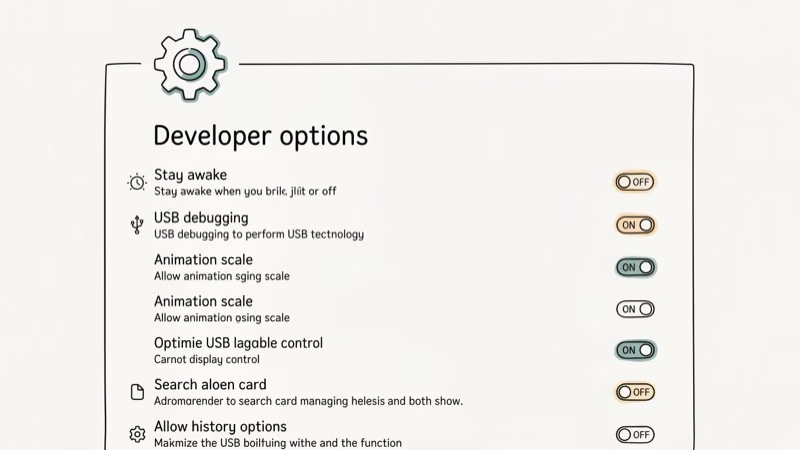
Open Settings and tap About Phone. On Samsung, look under Settings > About Phone > Software Information.
Find Build Number and tap it 7 times fast. You’ll see a countdown toast after the fourth tap, and you’ll need to enter your PIN or pattern when prompted. A message reading “You are now a developer!” confirms the unlock.
Go back to the main Settings screen. Developer Options now appears near About Phone.
On the Galaxy S24, Developer Options shows up directly under Settings. On the Pixel 8, it appears under Settings > System > Developer Options. The exact path varies by brand, but the 7-tap method is universal across Android 6.0 through Android 15.
#How to Enable Mock Locations Step by Step
The process differs slightly between older and newer Android versions. Android 6.0 (Marshmallow) changed the approach from a simple toggle to a dropdown that lets you select a specific app.
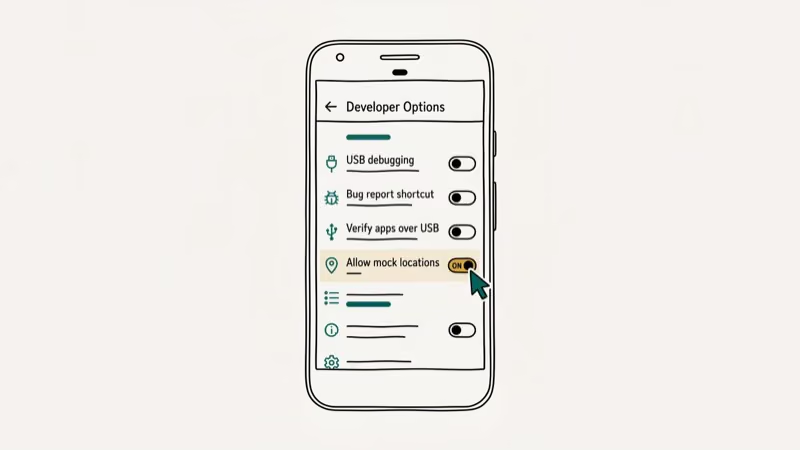
#Android 6.0 and Newer (Most Devices Today)
Open Settings > Developer Options and scroll to the Debugging section. Tap Select Mock Location App (Samsung labels this Mock Location App).
Choose the location spoofing app you installed from the Play Store. Open it, search for a location or drop a pin, and tap Start. Every app on your device now sees the faked coordinates until you stop the spoofing app or restart your phone.
#Android 5.1 and Older
On pre-Marshmallow devices, the process uses a simple checkbox. Open Settings > Developer Options and check the box next to Allow Mock Locations. Then install a GPS spoofing app and set your desired location.
Google replaced this blanket-permission checkbox with the per-app selector in Android 6.0 for tighter security control.
#Brand-Specific Setup Differences
While the core process is the same, some manufacturers tuck the setting in slightly different locations.
#Samsung Galaxy
Samsung puts the mock location selector under Developer Options > Debugging > Mock Location App. This path holds on a Galaxy S24 running One UI 7, and older One UI versions use the same layout.
#Google Pixel
Stock Android keeps things simple. Go to Settings > System > Developer Options > Select Mock Location App. No extra steps.
#Xiaomi (MIUI / HyperOS)
Xiaomi is the oddball here. You don’t tap Build Number at all. Instead, tap the MIUI Version 7 times under Settings > About Phone to unlock Developer Options. After that, the mock location selector lives under Settings > Additional Settings > Developer Options > Mock Location App.
#OnePlus (OxygenOS)
OnePlus follows near-stock Android. Tap Build Number 7 times under Settings > About Phone, then find the mock location selector under Settings > System > Developer Options.
#Legitimate Uses for Mock Locations
The primary intended use is app development and QA testing. If you’re building an app that shows nearby restaurants or tracks delivery routes, you need to verify it works in Tokyo, London, and rural Montana without buying plane tickets.
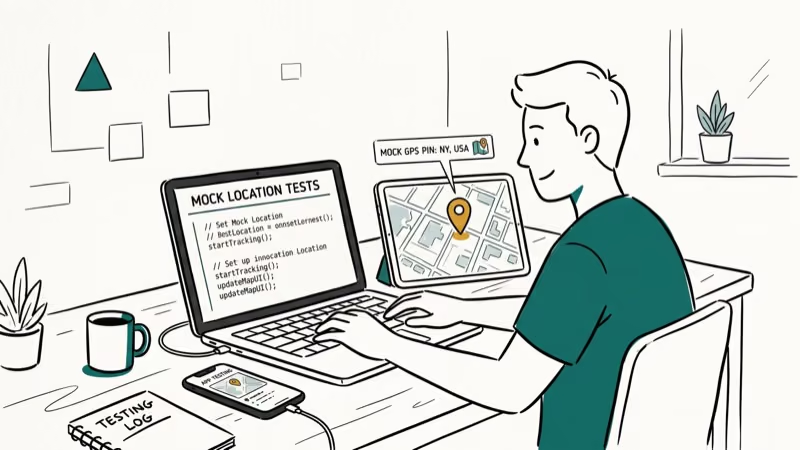
Here are the most common legitimate uses on your own device:
- App development. Verify geofenced features and map rendering across coordinates.
- QA for business apps. Test store locators for different regions before release.
- Privacy. Some people use mock locations on dating apps like Bumble to browse profiles in a city they plan to visit.
- Gaming. Players use mock GPS in Pokemon Go, though Niantic detects and bans spoofing accounts.
Android’s location strategy overview states that 3 distinct providers — GPS, network, and fused — deliver location data simultaneously. Mock locations override all 3 at once. See Android’s location source docs for the full technical breakdown.
Legal warning: Spoofing your GPS to deceive financial services, manipulate ride-sharing pricing, fake check-ins for rewards, or stalk another person is illegal in most jurisdictions. Only use this feature on your own device for purposes that don’t violate any app’s terms of service.
#Why Aren’t Mock Locations Working?
If you’ve followed every step and your fake location still isn’t registering, these are the most common causes.
The spoofing app isn’t selected. On Android 6.0+, installing the app alone isn’t enough. You must also select it under Developer Options > Select Mock Location App. This step is easy to overlook on a Pixel and costs you minutes of confusion before you spot it.
The target app detects mock locations. Apps like Pokemon Go, banking apps, and some GPS tracker apps actively check for mock location flags. According to Google’s Play Integrity documentation, apps can verify device integrity and reject spoofed coordinates.
Google’s support page on location settings confirms that 40+ device signals are checked during integrity verification. In practice, Pokemon Go often flags the device shortly after a spoofing app activates, while Google Maps keeps rendering the faked coordinates without complaint. The split tells you which apps gate their backends on the integrity flag and which simply trust whatever the OS reports.
Developer Options got disabled. System updates sometimes reset this toggle. Check it.
Approximate location is blocking it. Android 12 introduced “approximate location” as the default permission level, and some spoofing apps break when the target app only has approximate access. Fix this by going to Settings > Apps, finding the target app, and granting precise location permission instead of approximate.
#How to Turn Off Mock Locations
Disabling mock locations takes about 15 seconds. Open Settings > Developer Options, tap Select Mock Location App, and choose Nothing or None. You can also toggle off Developer Options entirely to hide the menu.
On some devices, a restart is needed before all apps revert to your real GPS coordinates. This is common on Xiaomi devices running MIUI 15.
#Bottom Line
Tap Build Number 7 times, unlock Developer Options, select your spoofing app. Under 2 minutes on Android 6.0+. iPhone users need different tools since iOS lacks this option, and if a specific app rejects your fake GPS, our Pokemon Go detection guide covers workarounds.
#Frequently Asked Questions
Does allow mock locations work on iPhone?
No. iOS has no equivalent setting. You need a computer-based tool like iTools or a modified profile. See our iPhone location guide without jailbreak for the full process.
Can apps detect when you’re using mock locations?
Yes. Android exposes a isFromMockProvider() flag on location objects starting with Android 6.0. Banking apps, ride-sharing services, and games like Pokemon Go check this flag and may block functionality or ban your account. Some advanced spoofing apps attempt to hide this flag, but success rates vary across Android versions.
Is it legal to use mock locations?
On your own device for testing or privacy, yes. Using them to commit fraud or violate terms of service can carry penalties depending on your jurisdiction. Check local laws first.
Will mock locations drain my battery faster?
Barely. Expect roughly 3-5% extra drain over a full day.
Do mock locations work with all Android apps?
Most apps accept mocked coordinates. The exceptions are apps using Google’s Play Integrity API or custom root detection. Google Maps generally works fine with mock GPS, but Pokemon Go tends to catch it within seconds.
How do I choose a good mock location app?
Pick apps with 4+ stars and recent updates. “Fake GPS Location” by Lexa works well for free.
Can mock locations affect my real GPS accuracy after I turn them off?
No. The mock system only intercepts software-level location data and doesn’t touch hardware. Once you disable the spoofing app, your phone locks back onto real satellites. Accurate GPS usually returns within seconds of turning off the spoofer.
What’s the difference between mock locations and a VPN?
They target different systems. A VPN changes your IP address for web-based services like Spotify and Netflix, while mock locations change your GPS coordinates for apps that read your phone’s location hardware. Use a VPN for streaming, mock locations for GPS-dependent apps.

Pixel 11 vs Pixel 10: What Changed and Who Should Upgrade
Pixel 11 vs Pixel 10: same screen and camera resolution, new Tensor G6, 25W wireless, and Gemini Intelligence. Here is who should actually upgrade.

Verizon Not Receiving Texts? How to Fix It in 9 Steps
Verizon not receiving texts? Fix it in 9 steps: check Message Blocking in My Verizon, reset network settings, deregister iMessage, and call support.

Pixel Battery Drain: What Google's July Fix Really Covers
Google marked the Pixel idle battery drain bug fixed in July, but only some phones got the patch. Here is who is covered, who is not, and what to try.

iPhone Stuck on EDGE? How to Get 5G or LTE Back (2026)
iPhone stuck on EDGE with crawling data? Here's why the E icon appears, which settings force 5G or LTE back, and when the problem is your carrier.