How to Fix Android Stuck on Boot Screen (7 Methods)
Fix an Android phone stuck on the boot screen with 7 methods: force restart, Safe Mode, cache wipe, Recovery, and factory reset for Android 10 and up.
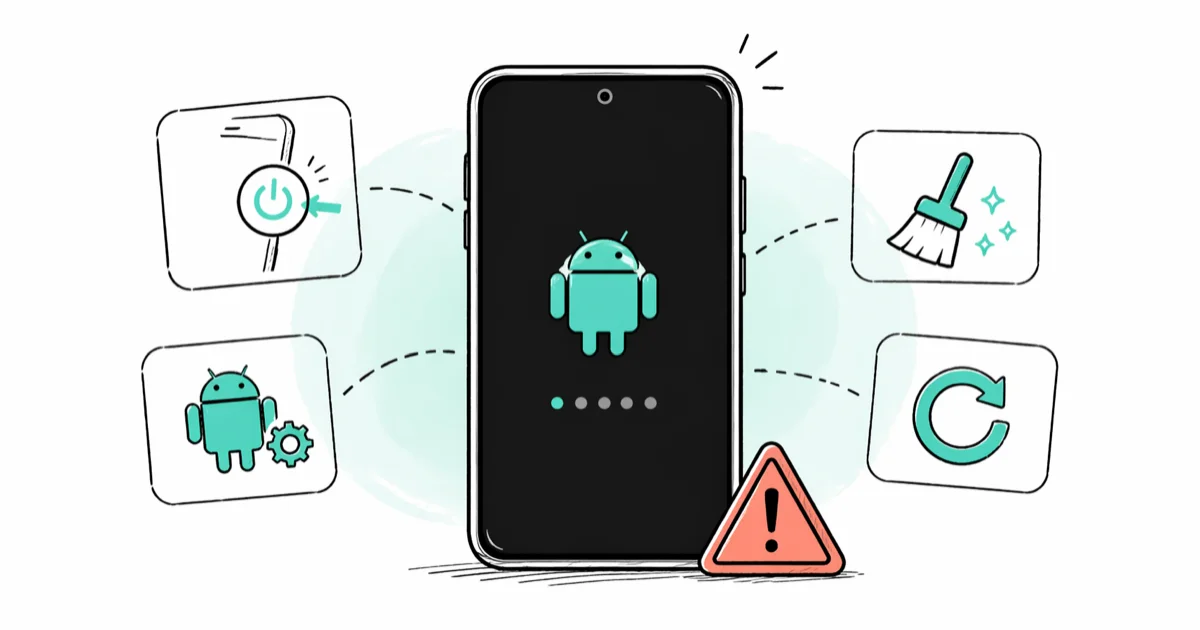
Quick AnswerForce restart your Android phone by holding Power for about 30 seconds per Google support. If the boot loop repeats, boot into Safe Mode or wipe the cache partition from Recovery to clear the frozen startup.
An Android phone stuck on the boot screen usually means the system stopped partway through startup, not that the phone’s dead. Most cases trace back to a glitched update, a buggy app, or low internal storage, and you can clear it yourself with button combos alone. The steps below work across current Samsung Galaxy and Pixel phones on Android 14 and 15.
This guide applies only to a device or account you own.
- Hold Power for about 30 seconds to force restart, the duration Google lists as standard
- Safe Mode turns off every downloaded app so you can spot which one is triggering the loop
- Wipe the cache partition before you factory reset, the order Samsung walks users through
- Google warns Android has issues when less than 10% of internal storage is free
- Recovery Mode shortcut keys differ by brand, so check your manufacturer’s combo first
#Why Is Your Android Stuck on the Boot Screen?
A phone that sits on the boot logo is stalled inside the startup sequence, not powered off. Android’s loaded the bootloader and started handing control to the operating system, but something’s blocking the next step.

Software causes cover most cases. A partial over-the-air update, a crashed system service, or a downloaded app that misbehaves at launch can all freeze the animation. According to Google’s Android troubleshooting page, your phone can start having issues when less than 10% of storage is free, and low storage is one of the most common boot-time failures.
Storage and filesystem corruption sit in second place. If the /data partition or the cache holds damaged files, Android can’t mount them during boot.
Hardware is the rarest. A failing UFS storage chip, a swollen battery pulling voltage low, or water damage will hold the phone on the logo no matter how clean the software is. You’re looking at a repair, not a fix.
#How to Force Restart Your Android Phone
A force restart cuts power to the running system and hands the bootloader a clean start. This clears most boot loops caused by a stalled process or a stuck driver.

Hold the Power button for about 30 seconds or until the screen turns off. Google’s official device restart guide states that pressing the power button “for about 30 seconds, or until your phone restarts” is the baseline method on most Android phones. Release, wait five seconds, then tap Power once to boot normally.
Samsung Galaxy phones don’t follow the same combo. Hold Side + Volume Down together for roughly 10 seconds until the screen blanks, then let go and power on again. OnePlus, Motorola, and Nothing phones use the same Side + Volume Down combo. On a Galaxy running One UI 6.1, the Power-only hold does nothing and only the Side + Volume Down combo forces the reset.
Still stuck after two tries? Move on to Safe Mode.
#How Do You Boot Into Safe Mode?
Safe Mode is Android’s built-in diagnostic environment. It loads the stock system and nothing else. No downloaded apps, no launchers, no widgets.
Google’s Safe Mode guide confirms that Safe Mode temporarily turns off all downloaded apps so you can narrow down a bad one.
On most phones the entry path looks like this:
- Hold Power until the power menu appears.
- Long-press Power off on the menu.
- When the Safe Mode prompt pops up, tap OK.
Samsung uses a different route. According to Samsung’s Safe mode instructions, holding Volume Down while the Samsung logo shows during boot drops the phone into Safe Mode, with the words “Safe mode” visible in the bottom-left corner of the home screen.
Once you’re in, uninstall the last three or four apps you added before the boot loop started. Work in install order, newest first. Restart normally after each uninstall and check whether the boot loop is gone.
Safe Mode itself deletes nothing. Your photos, accounts, and other apps are all still there when you reboot out of it.
#Wipe the Cache Partition
The cache partition holds temporary system files Android rebuilds on its own. Wiping it doesn’t touch apps, photos, or accounts. It clears the scratch pad only.
The standard path on a Samsung Galaxy:
- Power the phone off completely.
- Hold Volume Up + Side + Bixby (or Volume Up + Side without Bixby) until the Android robot appears, then release to let the Recovery menu load.
- Use Volume buttons to highlight Wipe cache partition and press Side to confirm.
- Select Reboot system now once the wipe finishes.
On Pixel phones, hold Power + Volume Down to reach the bootloader, then use Volume Up to select Recovery Mode. Pixel Recovery doesn’t expose a Wipe Cache option on newer models, so you’ll use Wipe Data on a Pixel if the cache won’t clear through normal reboots. On a Samsung Galaxy, the cache wipe and reboot finishes in a couple of minutes, and the phone usually boots cleanly afterward.
Samsung documents Safe mode as a built-in step of its own, and it’s worth exhausting that tier before a factory reset. Cache wipe fits the same tier. Try it before you erase everything.
#Recovery Mode Button Combos by Brand
Recovery Mode keys shifted when phones dropped physical Home buttons, so the combos are brand-specific now. Use the table below, hold the combo from a fully powered-off state, and release only when the manufacturer logo fades out.

| Brand | Recovery Mode Combo |
|---|---|
| Samsung | Volume Up + Side + Bixby (Bixby models) |
| Samsung | Volume Up + Side (no Bixby) |
| Google Pixel | Power + Volume Down, then Volume Up for Recovery |
| OnePlus | Power + Volume Down |
| Xiaomi | Power + Volume Up |
| Motorola | Power + Volume Down |
| Nothing | Power + Volume Down |
Two field notes. A nearly dead battery can’t always hold Recovery Mode open, so plug the phone in and let it charge for at least 30 minutes first. And if you see No command with a small Android figure instead of a menu, press Power + Volume Up once quickly to open it.
If the phone won’t enter Recovery from any combo, the bootloader or storage chip is probably damaged, and the next step is a cable-to-PC session with manufacturer tools such as Samsung Smart Switch or Google’s Android Flash Tool. That’s where warranty service starts to pay off, because the board-level work behind a bricked bootloader rarely turns out cheaper than a refurbished replacement.
If restart, Safe Mode, cache, and manufacturer recovery tools don’t work, DroidKit is a paid desktop repair option to consider before erasing the phone; it can’t fix damaged hardware.
Some links on this page are affiliate links, which means fone.tips may earn a commission at no extra cost to you.
#Factory Reset From Recovery Mode
A factory reset is the nuclear option. It erases every app, photo, account, and setting, and it restores the phone to day-one condition. Only use it after force restart, Safe Mode, and cache wipe have all failed.
If you can get into Safe Mode long enough, grab a backup first. Plug the phone into a computer, open its storage, and copy your DCIM and Download folders to disk. Once you confirm the reset, those files are gone.
The Recovery Mode path is consistent across brands:
- Boot into Recovery using the combo above, then scroll to Wipe data/factory reset with Volume buttons.
- Press Power (or Side) to confirm.
- Highlight Factory data reset, confirm, and wait two to five minutes.
- Choose Reboot system now when the wipe finishes.
The phone lands on the first-boot setup screen when it’s done. If you read our guide on how to recover contacts after a factory reset from an Android phone, you know a Google account restore pulls contacts, apps, and Wi-Fi passwords back within a few minutes once you sign in.
#When to Contact the Manufacturer
A phone that won’t boot after a factory reset has almost always crossed into hardware territory.
Software fixes stop paying off at that point, and support is your next call. Have these ready before you dial:
- Exact model (example: Galaxy S24 Ultra SM-S928U) and Android version
- Date the boot loop started and what happened right before (update, drop, water exposure)
- Every step you already tried, in order
- Photos of any physical damage
- Proof of purchase, if the phone is still under warranty
Samsung offers walk-in repair at authorized service centers across the US. Google handles Pixel repairs through mail-in or in-network walk-in locations. Samsung’s mail-in repair turnaround commonly runs about a week from pickup to return, which is a reasonable baseline to expect for storage repairs too.
Out of warranty, independent repair shops usually charge in a wide range for mainboard or storage work. Compare the quote to the phone’s current resale value before you commit. If the quote passes half of what the phone is worth used, a replacement usually wins on cost. If you’re already troubleshooting broader hardware trouble like the Android camera not working or your Android phone stuck in headphone mode, plan for one shop visit that covers everything.
#How to Prevent Boot Screen Freezes
A few small habits cut the odds of another boot loop close to zero.

Install updates on battery and Wi-Fi. A mid-update reboot is the fastest way to corrupt system partitions. Start an update when the battery is above 50% and you’re on a stable network.
Keep internal storage above 10%. Google’s troubleshooting guidance states storage below that line can cause performance and stability problems. Clear old videos, uninstall apps you never open, and move Downloads to cloud storage. Our Android screen time guide walks through spotting which apps hog the most storage and attention.
Only sideload from sources you trust. Sideloaded APKs are one of the most common sources of app-driven boot loops.
Restart once a week. Thirty seconds on Sunday morning clears accumulated memory and tends to prevent random freezes, including Google Play Services errors that can spiral into a boot hang.
#Bottom Line
Start with a 30-second Power hold. It fixes most single-instance boot loops in under a minute without touching your data.
If that fails, go into Safe Mode and uninstall the last couple of apps you added. Cache wipe next, factory reset last. Any Samsung or Pixel user should try the cache wipe before wiping data, because the cache wipe solves corrupted-update freezes without erasing the Google account restore point that would save you hours after a full reset.
#Frequently Asked Questions
How long should I wait before forcing a restart?
Give a normal boot a solid five minutes first. Some large Android updates finish setup during the first boot, and the boot screen may stay put while the system optimizes apps in the background. If nothing changes after five minutes, hold Power for 30 seconds to force the restart.
Will wiping the cache partition delete my photos?
No. The cache partition stores temporary build files the system rebuilds on its own. Photos, downloads, contacts, messages, and installed apps all stay exactly as they were.
Can a bad SD card cause boot loops?
Yes, a corrupted card used for adoptable storage can stall the boot process. Pop it out and try again, and if the phone starts normally without the card, reformat it or replace it. Our walkthrough on how to format an SD card on Android covers the reformat path.
Does Safe Mode delete anything on my phone?
No. Safe Mode only disables downloaded apps while it’s active. Nothing gets deleted.
What causes boot loops after a software update?
Interrupted downloads, insufficient free storage, and mismatched OEM firmware are the common culprits. Google’s troubleshooting guidance notes that very low free storage can cause startup problems, and an update that begins with little space left is especially prone to failing halfway and leaving system files in a mixed state.
Is it possible to recover data from a phone stuck on the boot screen?
Sometimes. Try Safe Mode first and copy files off over USB. If Safe Mode also fails, a computer USB connection can still expose the phone’s storage for transfer on some models, particularly Samsung Galaxy devices with MTP enabled before the freeze. Professional data recovery, if it comes to that, is a last resort because of cost.
Why does my phone keep boot looping after a factory reset?
Hardware, almost always. A failing UFS storage chip, corrupted modem partition, or swollen battery. Take it to an authorized repair shop.
Can I fix a boot loop without a computer?
Yes, every method in this guide runs entirely from the phone’s buttons. Force restart, Safe Mode, cache wipe, and factory reset all work without a PC. You only need a computer if you want to flash firmware with Samsung Smart Switch or Google’s Android Flash Tool, or if a restricted access changed error on Android blocked a recovery step before the boot loop started.

Pixel 11 vs Pixel 10: What Changed and Who Should Upgrade
Pixel 11 vs Pixel 10: same screen and camera resolution, new Tensor G6, 25W wireless, and Gemini Intelligence. Here is who should actually upgrade.

Verizon Not Receiving Texts? How to Fix It in 9 Steps
Verizon not receiving texts? Fix it in 9 steps: check Message Blocking in My Verizon, reset network settings, deregister iMessage, and call support.

Pixel Battery Drain: What Google's July Fix Really Covers
Google marked the Pixel idle battery drain bug fixed in July, but only some phones got the patch. Here is who is covered, who is not, and what to try.

iPhone Stuck on EDGE? How to Get 5G or LTE Back (2026)
iPhone stuck on EDGE with crawling data? Here's why the E icon appears, which settings force 5G or LTE back, and when the problem is your carrier.