How to Permanently Delete Apps on Your iPhone (4 Ways)
Delete apps on iPhone from the Home Screen or iPhone Storage, hide them from your App Store purchase list, and cancel subscriptions separately.
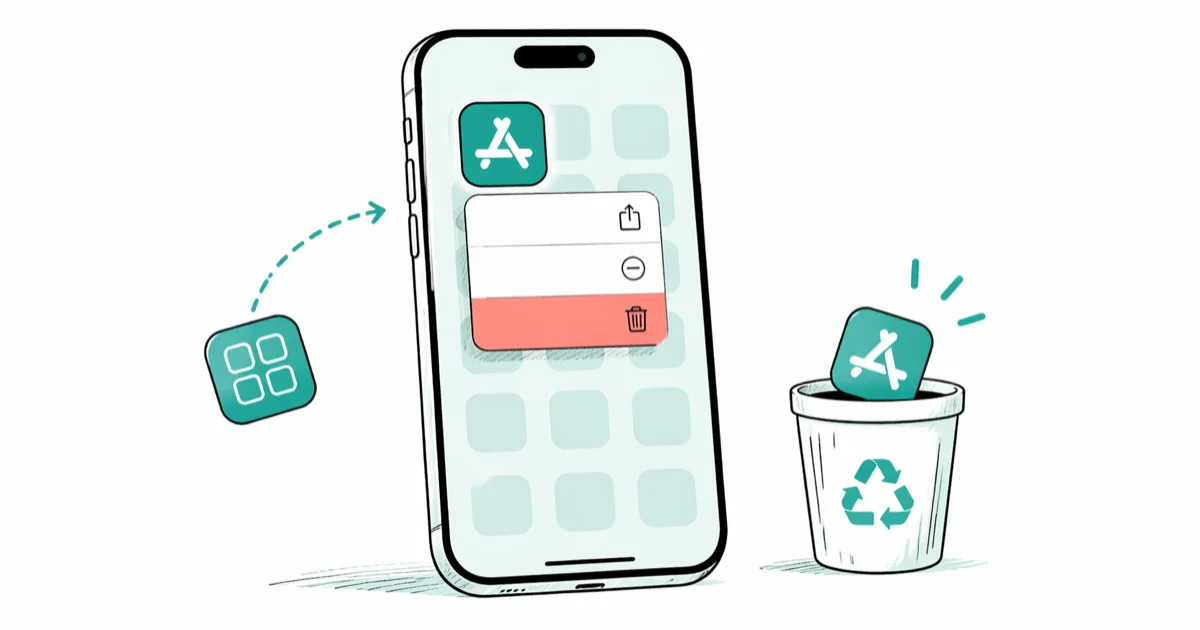
Quick AnswerTouch and hold the app, tap Remove App, then tap Delete App. Deleting an app does not cancel its subscriptions or erase its purchase record; those require separate actions.
Deleting an iPhone app is quick. The Home Screen, App Library, and iPhone Storage offer a delete route that removes the app and its related local data. The App Store purchase list is different: it lets you hide the purchase record, not delete an installed app.
- The Home Screen touch-and-hold menu is the direct path to
Remove App>Delete App. Settings>General> iPhone Storage shows how much space each app uses before you delete it.- Deleting the app doesn’t remove it from your App Store purchase history; that requires a separate swipe-to-hide step.
- Offload App frees the storage used by the app while keeping its documents and data.
- Subscriptions tied to the app keep billing after deletion until you cancel them in Settings > your name > Subscriptions.
#How Do You Delete Apps from the Home Screen?
Two taps. Done.
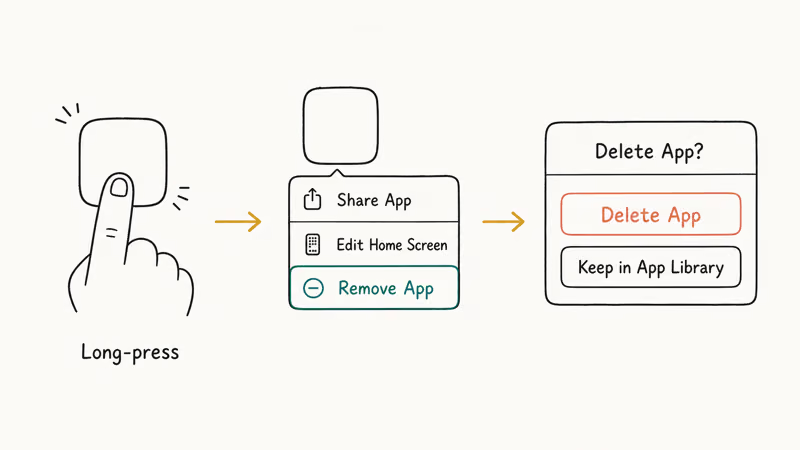
Find the app on your Home Screen or in the App Library. Long-press the icon until the contextual menu opens. Tap Remove App, then tap Delete App to confirm.
Apple’s current delete-app guide confirms the Remove App > Delete App > Delete sequence. Apple separately describes Delete App in iPhone Storage as removing the app and its related data; data held by the app provider or separately synced to a cloud account is outside that local deletion.
Need to clear several apps at once? Long-press any blank area of the Home Screen until the icons start wiggling. Tap the minus icon (−) on each app you want gone. Each tap surfaces its own “Delete App” confirmation sheet, so you can’t wipe something accidentally during a fast cleanup pass.
The Home Screen reflows automatically once you exit Jiggle Mode.
For an offloaded app, Delete App removes its remaining documents, data, and Home Screen icon.
#Deleting Apps Through iPhone Storage Settings
Settings takes a few extra taps than the Home Screen route. The trade-off is visibility: you can see how much space each app occupies before committing, which helps when you’re actively trying to free space on a nearly full iPhone.
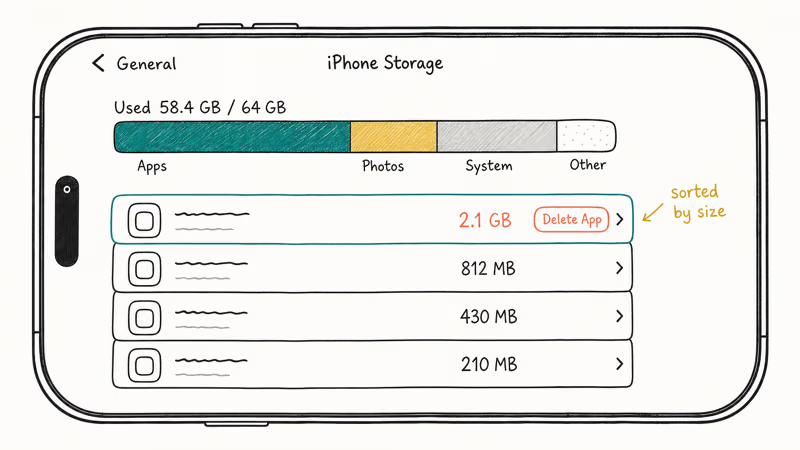
Go to Settings > General > iPhone Storage and let the list populate. Each app shows its storage use; tap the app you want to remove, then tap Delete App and confirm. According to Apple’s current iPhone storage guide, Offload App instead frees storage used by the app but keeps its documents and data.
The storage list sorts apps by size automatically, and the bar at the top updates after deletion.
That same screen exposes an Offload App option directly above Delete. Offloading removes the app binary while keeping its documents and data. The icon stays on your Home Screen with a small cloud badge; tapping it reinstalls the app, while sign-in and session behavior still depends on the app.
It’s a useful middle-ground for apps you open monthly: a flight tracker, a tax tool, a seasonal game. If you’re constantly battling iCloud storage full warnings, offloading clears local space without losing any saved progress.
#Does Deleting an App Remove It from Your Purchase History?
No. Deleting an app only removes it from the device. It stays in your App Store purchase history unless you hide it.
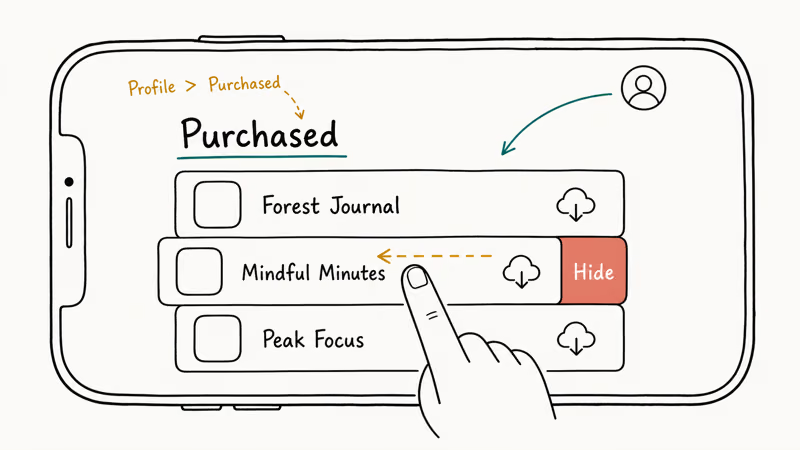
To hide it, open the App Store, tap your account button or profile image, then tap Apps. If you use Family Sharing, tap My Apps. Find the app, swipe left on it, then tap Hide.
Hiding removes the app from the Purchased view but doesn’t block redownloads. You’ll just have to search for it directly in the App Store.
According to Apple’s App Store support page, a hidden app stays in the complete purchase history and can be unhidden later from the same Apple Account. If you want a deeper explanation of that distinction, our walkthrough on how to delete purchase history on iPhone covers what Apple lets you hide versus what remains in the account record.
Deleting the app on one device doesn’t remove it from other devices signed in to the same Apple Account. Hiding is different: Apple’s guide says Family Sharing members can no longer redownload a hidden app from the shared-purchases list, although the app isn’t removed from devices where it’s already installed.
#What Happens to Your App Data After Deletion
Deleting removes the app and its related local data from that iPhone. That can include saved documents stored on-device, login sessions, app preferences, downloaded media, and other content in the app’s local container.
Data that already finished syncing to an account or cloud service can remain available there.
After reinstalling and signing in, an app can download account-hosted content that its provider still retains. The deciding factor is where the app stored the data and whether synchronization finished before deletion, not which local delete method you used.
Photo-sync apps are the blind spot most people miss. Confirm that important photos show as backed up in the service before deleting its app; a pending upload is still local data. If photo sync apps are part of your workflow, our guide on iPhone photos not showing up on Mac covers common sync failures.
According to Apple’s developer documentation, Section 5.1.1 requires developers to disclose what data their app collects and where it’s stored.
If you’re unsure whether an app backs up to the cloud, check its in-app account, sync status, export options, and provider documentation before you delete. Don’t assume that signing out forces pending changes to upload; synchronization behavior is app-specific.
#When to Offload Instead of Delete
Offloading sits between keeping and deleting. It removes the app binary but keeps the app’s documents and data. The icon stays on your Home Screen with a small cloud badge, and tapping it later reinstalls the app; whether the prior login or session resumes varies by app.
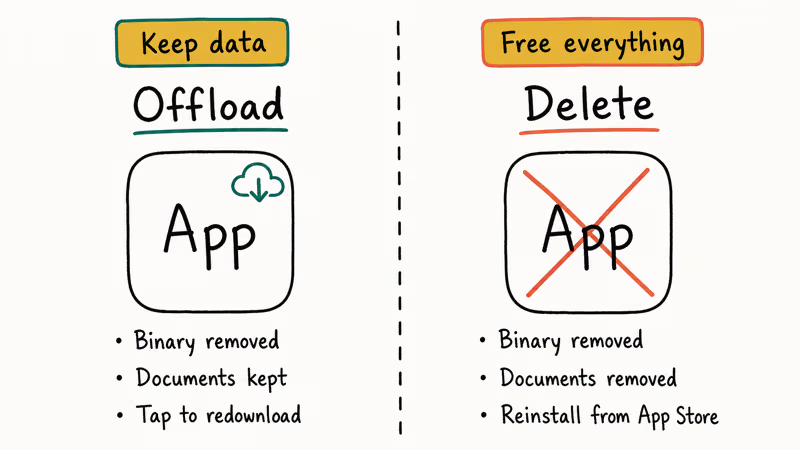
Pick offload for large apps you open occasionally, apps with local documents you want to keep, and anything with a slow setup or login flow.
Pick delete when you’re done with the app for good, when local documents themselves are eating storage, or when you just want the icon gone.
Want this to happen automatically? Go to Settings > App Store and toggle on Offload Unused Apps. iOS handles the rest in the background, offloading anything you haven’t opened in a while and re-downloading on tap.
#How to Reinstall a Deleted App
Open the App Store, search the app by name, and tap the cloud icon to redownload. Free apps come back at no cost. Paid apps can be redownloaded with the same Apple Account that originally bought them, subject to current App Store availability.
If the app is hidden, search for it directly. The same Apple Account still controls redownloads.
Stuck on “Waiting”? Tap the icon once. If that doesn’t unstick it, check the network and the App Store status before deleting the app again.
If a downloaded app you remember owning is missing entirely, our guide on what to do when an iPhone app disappeared covers the full set of causes: region-pulled apps, purged developer accounts, and apps that hide in the App Library rather than disappearing outright.
#Bottom Line
Start with the Home Screen long-press. Two taps, no menus, works on every Home Screen and inside the App Library. If you want to see how much space each app actually uses before pulling the trigger, jump into Settings > General > iPhone Storage and sort by size.
Neither route clears the App Store purchase history. Hiding is separate: open your App Store account, tap Apps, swipe left on the item, and tap Hide.
If an app keeps coming back after you delete it, go to Settings > App Store and review App Downloads under Automatic Downloads. That setting is one possible cause. If a purchase or redownload itself stalls, our walkthrough on payment not completed on App Store covers the card, region, and Apple Account checks worth trying before you delete and reinstall.
A short final note: the Storage settings list itself can stall on a sluggish iPhone. If the list never finishes loading, our piece on iPhone storage not loading walks through the cache and reboot fixes that get it responsive again.
iPhone tips & tricks
#Frequently Asked Questions
Can you permanently delete a pre-installed iPhone app?
Some built-in Apple apps can be deleted, but others can’t. Touch and hold the app and look for Remove App > Delete App; if Apple doesn’t offer that option, check Screen Time’s deletion restriction before concluding that the app is non-removable. A deleted built-in app that Apple still distributes can be downloaded again from the App Store.
Will deleting an app cancel my subscription?
No. Removing the app from your iPhone has no effect on a subscription billed through your Apple Account. Billing continues until you cancel the subscription itself.
To cancel, go to Settings > your name > Subscriptions, choose the subscription, and tap Cancel Subscription. Apple’s current subscription cancellation guide documents those exact iPhone steps.
Does deleting apps actually free up storage?
Yes. Deleting removes the app and its related local data; offloading frees the storage used by the app but keeps its documents and data. Open Settings > General > iPhone Storage after the deletion to see the updated storage use.
How do you delete multiple apps at once on iPhone?
There’s no bulk-select tool in iOS, but Jiggle Mode is the closest thing. Long-press an empty Home Screen area until icons wiggle, then tap the minus icon on each app and confirm.
The Settings > General > iPhone Storage list lets you delete apps one after another without bouncing back to the Home Screen between each, which is faster for larger cleanup runs.
Why does an app keep coming back after I delete it?
Automatic Downloads is one possible cause. When another device on the same Apple Account downloads an app, your iPhone can download it too. If you don’t want that behavior, turn off App Downloads under Settings > App Store > Automatic Downloads.
Toggle already off? Check Screen Time > Content & Privacy Restrictions > iTunes & App Store Purchases for a “Don’t Allow” on Deleting Apps.
Can someone else see what apps I deleted?
Only if they have access to your Apple Account or the relevant Family Sharing purchase list. Hiding an app removes it from the App Store purchase list but not from the complete purchase history in Settings. It’s a visibility control, not deletion of the transaction record.
Is there a way to skip the Delete App confirmation dialog?
No. The confirmation tap can’t be disabled anywhere: not in Settings, not in Screen Time, not by any third-party app or shortcut. It stops a misfired long-press from wiping a banking app or password manager.
What should I do before deleting an app to avoid losing data?
Check whether the app uses iCloud sync, account-based backup, or local-only storage. For a messaging app, use its documented backup or export feature only if that feature covers the conversations and attachments you need. For file-handling apps like PDF readers or offline maps, move anything important to iCloud Drive or the Files app first.
If the app has no export or sync option, assume its local-only data may be unrecoverable after deletion. Verify any device backup and app-specific recovery route before you tap Delete App.
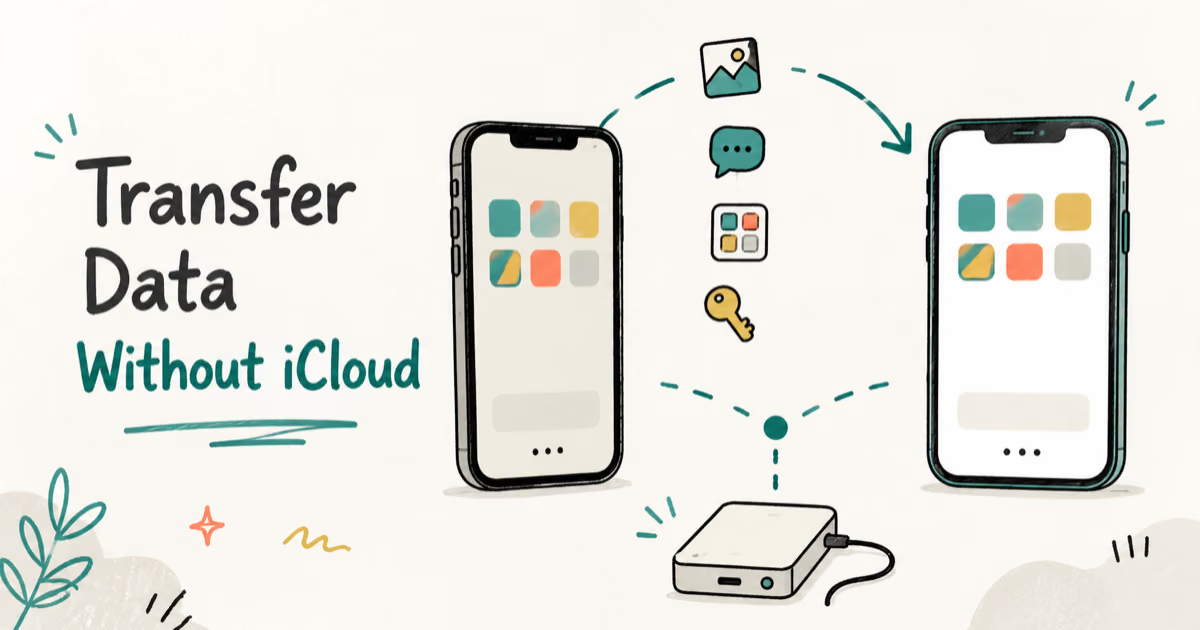
How to Transfer Data to a New iPhone Without iCloud
Move everything to your new iPhone without iCloud: Quick Start device-to-device transfer, wired migration, and encrypted Finder or iTunes backups.
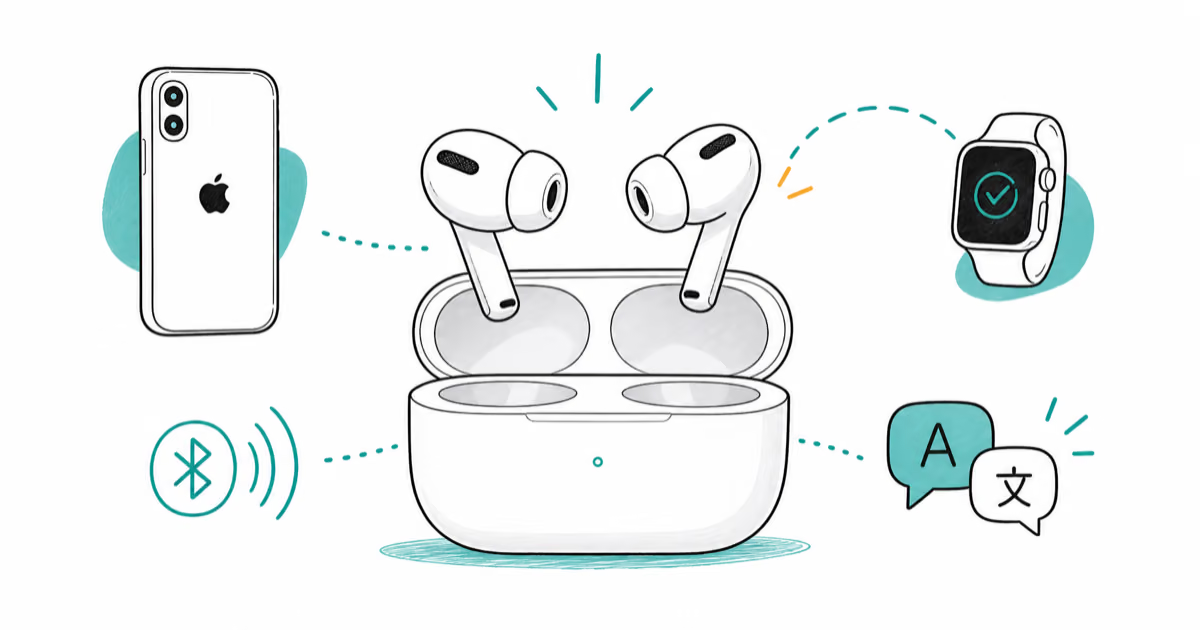
Best Wireless Earbuds for iPhone in 2026: USB-C Era Picks
Best wireless earbuds for iPhone in 2026, comparing AirPods Pro 3, Sony WF-1000XM6, Bose QC Ultra, and Anker Liberty 4 NC on the USB-C iPhone lineup.
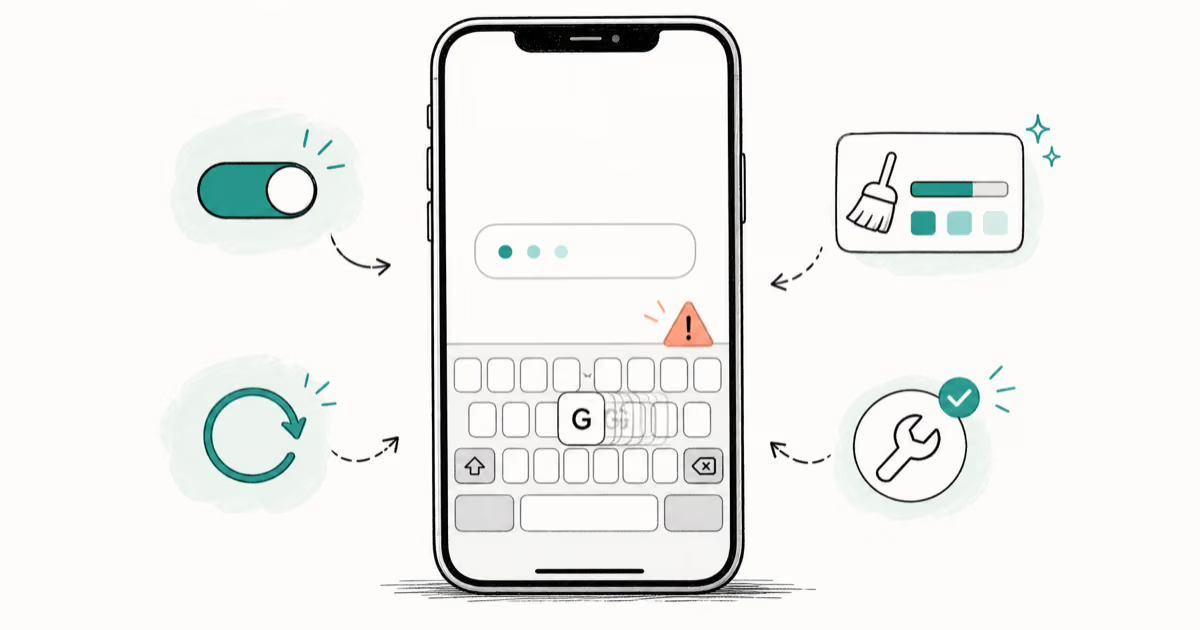
iPhone Keyboard Lag? 7 Proven Fixes for iOS 26 (2026)
Fix iPhone keyboard lag with 7 proven fixes for iOS 26. Covers restart, storage, predictive text, third-party keyboards, and dictionary reset.
How to Block Porn on an iPhone: A Guide for Parents
Learn how to block porn on iPhone using Screen Time, DNS filtering, and safe browsers. Step-by-step guide for parents to protect kids' devices.