iPhone Photos Not Showing Up on Mac: 7 Proven Fixes
Fix iPhone photos not showing up on Mac with 7 proven methods covering iCloud sync, USB Trust prompts, AirDrop, and macOS Sequoia software updates.

Quick AnsweriPhone photos not showing up on Mac is almost always an iCloud Photos sync problem. Turn on iCloud Photos on both devices, confirm both are signed into the same Apple ID, and restart each device.
iPhone photos not showing up on Mac is almost always an iCloud Photos sync problem. The toggle is off on one device, the Apple IDs don’t match, the cable is bad, or a USB Trust prompt got dismissed before the Mac could read the camera roll. Each cause has its own fix, and most take under 2 minutes once you know which one applied.
Every fix below applies to a current iPhone running iOS 18 and a Mac on macOS Sequoia. Toggling iCloud Photos is the fastest path and usually restores sync within a minute over Wi-Fi.
- iCloud Photos must be on for both iPhone and Mac before any wireless sync starts
- Both devices need the exact same Apple ID under Settings and System Settings
- Cable transfers fail until you tap Trust on the iPhone and enter your passcode
- Restarting both devices after toggling iCloud clears most stuck sync queues
- AirDrop sends original full-resolution photos in seconds without iCloud or a cable
#Why Aren’t Your iPhone Photos Showing Up on Mac?
The number-one cause is iCloud Photos being switched off on one device. When the toggle is off, photos stay locked on the device that took them and never reach the Mac. A fresh macOS reinstall is a common trigger, since it can reset the Photos preference back to off.
Other causes follow a short list. Different Apple IDs stop sync cold. A full iCloud quota blocks new uploads, and a frayed Lightning or USB-C cable charges fine but won’t carry data.
According to Apple’s iCloud Photos support page, the first sync after enabling iCloud Photos can take up to 24 hours, depending on library size and your network speed. Bigger libraries with thousands of HEIC files take the longest because every original ships to Apple’s servers before downloading to your Mac.
#Enable iCloud Photos on Both Devices
This step alone fixes most cases. Check both devices, in order.
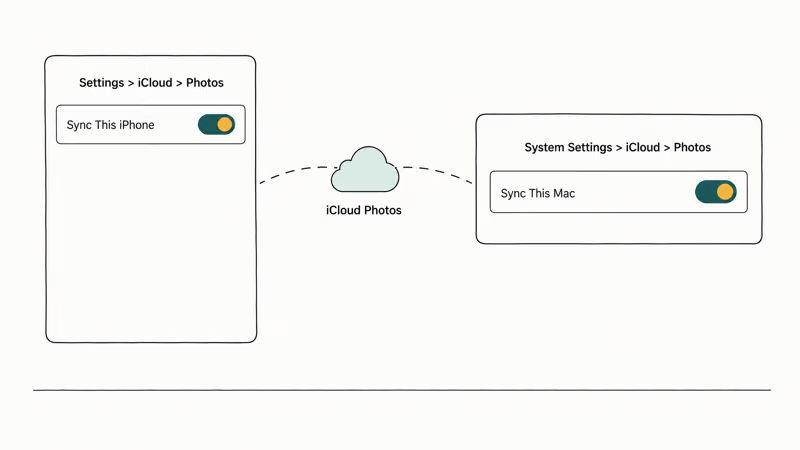
On your iPhone: Go to Settings > [your name] > iCloud > Photos. Switch on Sync This iPhone. If it already shows on, toggle it off, count to 10, and turn it back on. The forced refresh kicks the sync queue.
On your Mac: Open System Settings > [your name] > iCloud > Photos. Switch on Sync This Mac. On macOS Monterey or older, the path is System Preferences > Apple ID > iCloud, then check the Photos box.
Toggling iCloud Photos off and on again on the Mac often pulls in the missing photos within a minute on a solid Wi-Fi connection. If iCloud Photos won’t sync at all even after the toggle dance, sign out of iCloud on the Mac and sign back in to force a fresh server handshake. The re-auth is fast.
#Check Your Apple ID and iCloud Storage
Open Settings > [your name] on your iPhone. The email at the top is your Apple ID. On your Mac, check System Settings > [your name]. The two addresses must match exactly, including any plus aliases.
If your iCloud quota is full, new photos won’t upload. Check it at Settings > [your name] > iCloud > Manage Account Storage on iPhone, or System Settings > [your name] > iCloud > Manage on Mac. Apple gives 5 GB free with every Apple ID, and the cheapest paid tier is $0.99 per month for 50 GB.
According to Apple’s iCloud storage support article, photos and videos take up the most iCloud space for most users, so removing old screenshots and Live Photos clears headroom fast. If you’re chronically low, clearing old iCloud backups frees up 2 to 5 GB on most accounts. Deleting an old backup from a device you no longer use often reclaims a noticeable chunk of storage right away.
#Restart Both Devices
A restart costs you 2 minutes and clears stuck network sessions. It works more often than people expect.
iPhone: Hold the side button and either volume button until the slider appears, slide to power off, wait 30 seconds, then press the side button to power on.
Mac: Click the Apple menu and choose Restart. Don’t pick Shut Down — Restart cycles macOS daemons more cleanly.
After both devices come back, open the Photos app on the Mac and wait 5 minutes. iCloud Photos sometimes needs a clean Wi-Fi connection to resume. If thumbnails start filling in, the sync queue is moving again.
#Why Isn’t My iPhone Appearing in Finder?
Cable transfers depend on three things.
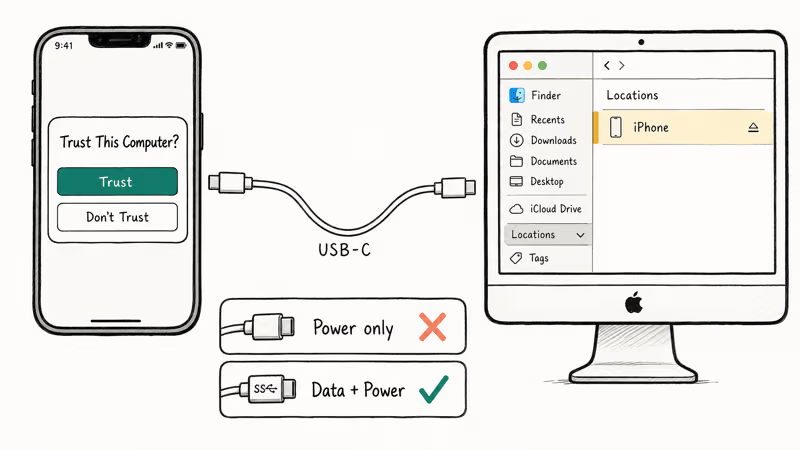
The Trust prompt comes first. When you plug your iPhone into the Mac, a “Trust This Computer?” dialog appears on the iPhone. Tap Trust and enter your passcode. If you tapped Don’t Trust by accident, disconnect the cable, go to Settings > General > Transfer or Reset iPhone > Reset > Reset Location & Privacy, then reconnect to get a fresh prompt.
Many third-party USB-C cables only carry power and never show the iPhone in Finder. An original Apple cable is the safest bet for a reliable data connection. Cheap cables often skip the data pins entirely, which explains why an iPhone charges happily but never appears as a device.
Open Finder on macOS Catalina or newer. Your iPhone shows up under Locations once Trust is granted. On macOS Mojave or older, open iTunes instead.
#Transfer Photos Using AirDrop
AirDrop is the fastest fix for a few photos. No internet, no iCloud, no cable.
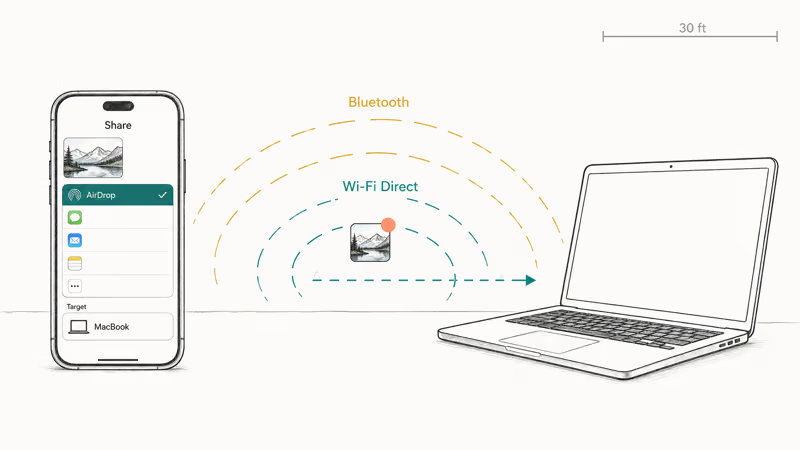
On your iPhone, open Photos, select what you want, tap the Share button, and tap AirDrop. Pick your Mac from the list. On your Mac, accept the transfer when it pops up. AirDrop sends full-resolution originals with HEIC, Live Photo, and location data intact.
Apple confirms that both Bluetooth and Wi-Fi must be on for AirDrop, and the 2 devices should sit within 30 feet for a stable transfer. If your Mac doesn’t appear as a target, toggle Bluetooth off and on.
If AirDrop is stuck on Waiting, restart both devices to clear the handshake. A small batch of HEIC photos finishes in seconds at close range, and even a short 4K Live Photo clip moves across in about a minute without any quality loss or metadata stripping. For ongoing trouble, our AirDrop not working guide covers 12 more fixes.
#Update iOS and macOS
Outdated software causes sync bugs. Apple ships fixes for iCloud Photos in nearly every iOS and macOS point release.
iPhone: Go to Settings > General > Software Update. Tap Update Now if anything is available.
Mac: Go to System Settings > General > Software Update.
Restart both devices after the update finishes. Apple recommends that you check iCloud preferences after major updates because installs occasionally reset the Photos toggle on either device. This is a known side effect of point-release updates like the macOS Sequoia 15.1 to 15.2 jump, where Photos sync can default back to off until you turn it on again.
#Try Image Capture or a Third-Party Tool
When everything else fails, fall back to Image Capture. Plug in your iPhone, accept the Trust prompt, and Image Capture lists every photo regardless of iCloud state.
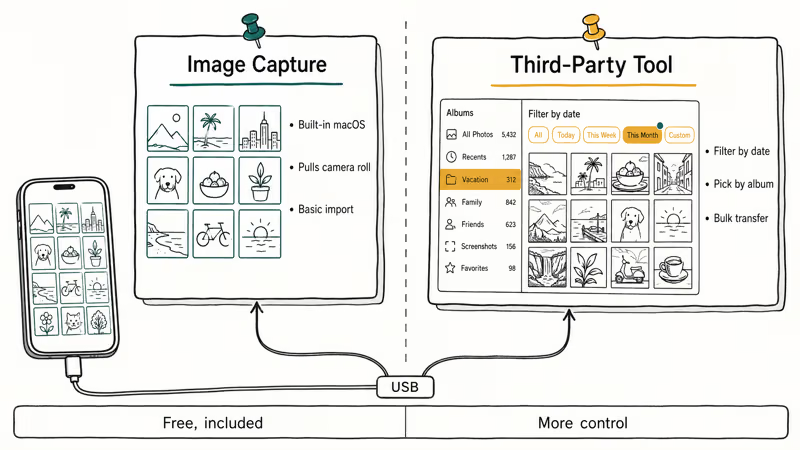
For people who shuffle photos between iPhone and Mac all the time and want to skip iCloud entirely, a USB tool like iCareFone handles bulk transfer and selective import. It pulls the camera roll over USB, lets you pick photos by date or album, and works on macOS Sequoia and Sonoma. After import, you can delete iPhone photos permanently to free local space without depending on the Recently Deleted album to clear itself.
Some links on this page are affiliate links, which means fone.tips may earn a commission at no extra cost to you.
#Bottom Line
In most cases, the fix is one toggle: turn on iCloud Photos under Settings > [your name] > iCloud > Photos on the iPhone, and System Settings > [your name] > iCloud > Photos on the Mac. Confirm both devices share the same Apple ID and you have iCloud storage headroom.
If you’re cable-bound, tap Trust on the iPhone and swap to an original Apple cable before assuming the port is broken. AirDrop is your quickest one-off transfer when sync still won’t catch up.
Mac Tips & Tricks
#Frequently Asked Questions
Why do my iPhone photos take so long to appear on my Mac?
Apple’s documentation states that the first iCloud Photos sync can take up to 24 hours when your library has 10,000+ photos or your internet upload speed is below 5 Mbps. After the first sync settles, new photos usually appear on the Mac within 2 minutes. Keep your iPhone on Wi-Fi and plugged into power until the initial upload finishes.
Do I need to pay for iCloud to sync photos?
You get 5 GB free with every Apple ID, which fills up fast on any modern iPhone. If your library is bigger than that, you need iCloud+. The 50 GB tier is $0.99 per month, the 200 GB tier is $2.99 per month, and the 2 TB tier is $9.99 per month at the time of writing on US pricing.
Can I transfer photos without iCloud or a cable?
Yes. AirDrop sends full-resolution photos over Bluetooth and Wi-Fi Direct.
Why does my iPhone keep asking “Trust This Computer” every time?
iOS resets the trusted-computers list whenever you reset network settings, install a major iOS update, or haven’t connected to that Mac for around 6 months. Tap Trust and enter your passcode each time the dialog appears.
What if my photos look blurry on the Mac?
Your iPhone probably has Optimize iPhone Storage on, which keeps small thumbnails locally and stores full-resolution originals in iCloud. They look blurry briefly while the original downloads.
Does AirDrop compress photos?
No. AirDrop sends the original file with metadata intact: HEIC format, Live Photo data, and GPS coordinates.
Will iCloud Photos sync over cellular data?
Not by default. To enable it, go to Settings > Photos > Cellular Data and turn on both the main toggle and Unlimited Updates. Cellular sync eats your data plan in a hurry on metered tiers, so flip it off when you’re traveling unless you actually need new photos to land on the Mac immediately.
Can I sync iPhone photos to a Mac that isn’t mine?
Use AirDrop, USB plus Image Capture, or an iCloud shared link. Don’t sign your Apple ID into someone else’s Mac.

macOS 27 Golden Gate: Release Date and Compatible Macs
macOS 27 Golden Gate was announced at WWDC 2026. Here is the release date, the Apple Silicon-only compatible Mac list, and every confirmed new feature.

How to Copy and Paste on a Mac: Shortcuts and Fixes
Copy and paste on a Mac with Command-C and Command-V. Learn the cut shortcut, paste without formatting, Universal Clipboard, and fixes when it breaks.

How to Use the Phone App on Mac: macOS Tahoe Setup Guide
Set up the Phone app on macOS Tahoe to relay iPhone cellular calls. Covers requirements, FaceTime setup, Call Screening, and common firewall fixes.
How to Use iPhone Mirroring on Mac: Full 2026 Setup Guide
Set up iPhone Mirroring on macOS Sequoia with iOS 18. Covers hardware requirements, the six common error messages, EU limits, and a shared-Mac privacy fix.