"No Supported App for This NFC Tag" Error: 6 Fixes
Fix "no supported app for this NFC tag" on Android and iPhone. Install NFC Tools, clear cache, disable NFC, or register a payment card to stop it.
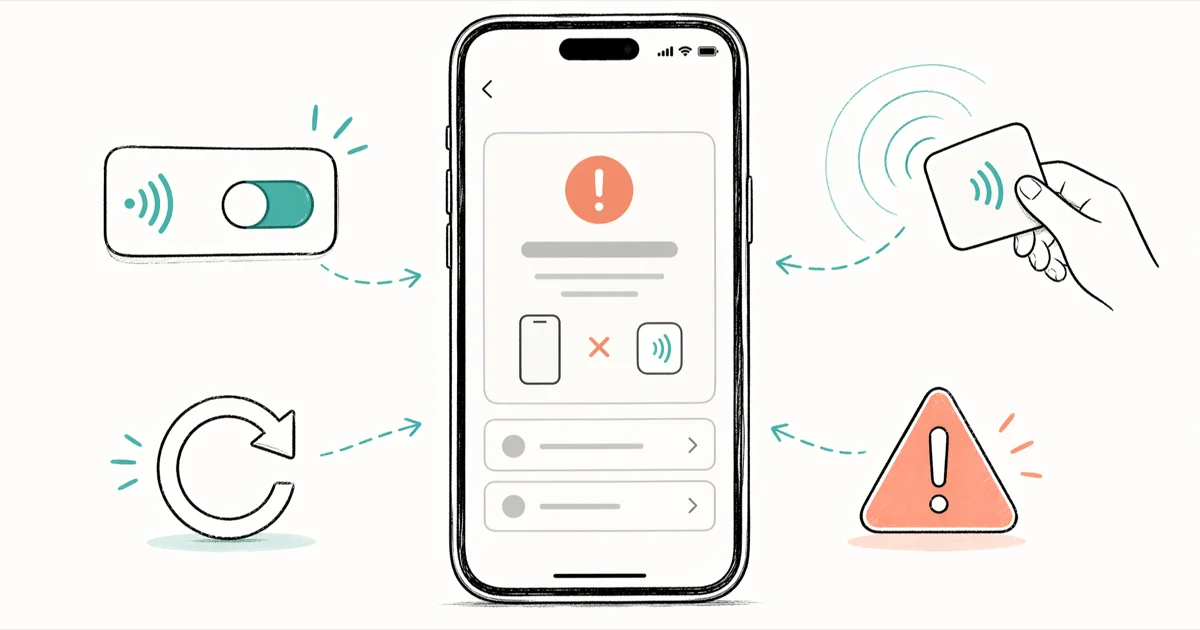
Quick AnswerInstall NFC Tools from Google Play. It handles all standard tag types and clears the missing-app error in under 2 minutes. If the popup keeps appearing from cards in your wallet, disabling NFC in Settings stops all tag prompts immediately.
Your phone scanned an NFC tag but had no app to process the data. That’s the whole error. The hardware usually works fine; the fix is to install a reader app, register the right payment app, or stop the accidental scan that is triggering the popup.
- The error fires when Android finds no installed app handler for the tag’s data format
- Android 10 and later support all five NFC Forum tag types; proprietary formats still trigger the error
- NFC Tools (free, around 8 MB on Google Play) registers handlers for every standard tag type
- Disabling NFC in quick settings stops all tag popups, including accidental pocket scans
- On iPhone XR and later, background NFC tag reading can’t be turned off through Settings
#What Causes This Error?
Android broadcast the tag’s NDEF message to every installed app, and nothing responded. Three situations lead to that outcome.
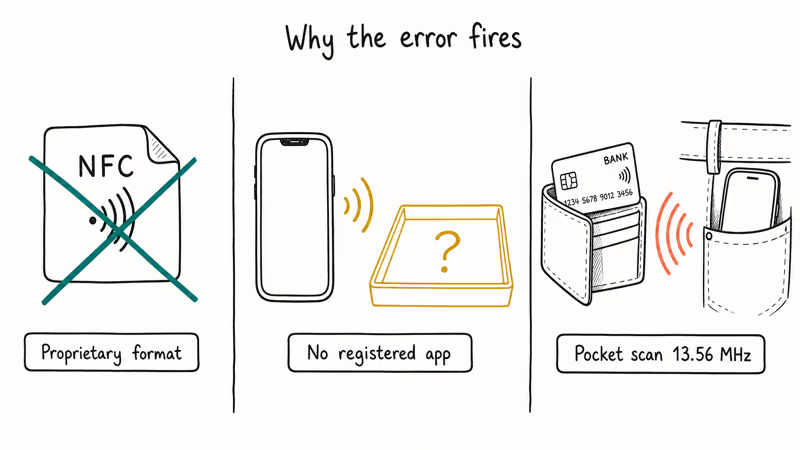
Incompatible tag type. The NFC Forum defines five tag types, plus proprietary formats from companies like HID and Sony. According to the NFC Forum’s specifications page, Type 2 and Type 4 tags are the most widely deployed in consumer products such as business cards and smart posters. If a tag uses a format your phone doesn’t support, the error fires before any app can respond.
No app registered for the intent. Android’s NFC dispatch system looks for apps that declare handlers for specific NDEF record types: URLs, vCards, plain text, or custom MIME types. If the matching app was uninstalled, nothing catches the broadcast. The error fires even though NFC detected the tag correctly.
Wallet cards triggering pocket scans. Contactless bank cards operate at 13.56 MHz, the same frequency as NFC. Your phone picks up the signal in your pocket and throws the error.
With no reader app installed, standard tag scans can produce the missing-app error even though the phone detected the NFC signal correctly. Installing a universal reader such as NFC Tools gives Android a handler for common NDEF records, while proprietary transit, office, or payment formats may still need their own wallet or dedicated reader.
#Step-by-Step Fixes
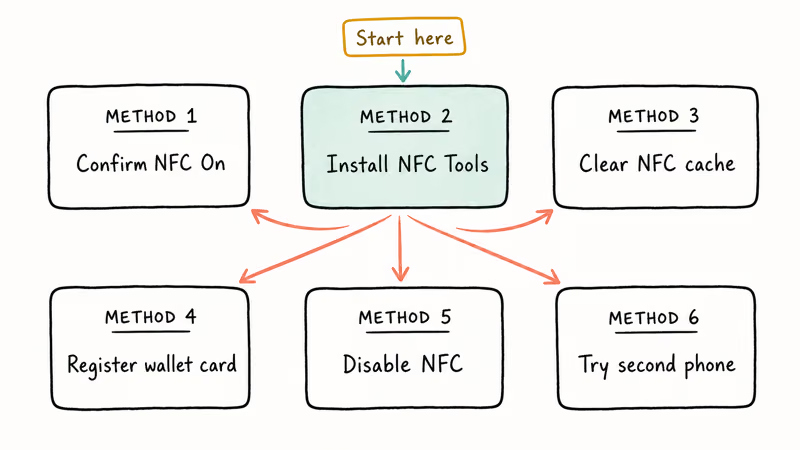
Start with Method 2. It resolves the error for most people in under 2 minutes because it gives Android a registered handler for every standard tag format. The other methods cover edge cases: payment terminals, post-update cache corruption, and damaged tags.
#Method 1: Confirm NFC Is Actually On
Pull down the quick-settings panel. Look for the NFC tile and tap it if it’s greyed out.
For a manual path: go to Settings > Connected Devices > Connection Preferences > NFC on stock Android. Samsung Galaxy phones use Settings > Connections > NFC and contactless payments. Once NFC is on, tap the same tag. If an app opens, you’re done.
#Method 2: Install a Universal NFC Reader App
NFC Tools by wakdev is free, around 8 MB, and handles all five NFC Forum tag types. Open Google Play, search NFC Tools, install it, then tap Read inside the app. Hold your phone’s NFC antenna (usually the back center) directly over the tag until it reads.
If NFC Tools reads the data successfully, you now have a registered handler and the popup won’t appear for that tag type again.
According to Google’s Android NFC developer documentation, apps must declare <intent-filter> elements for specific NDEF record types to receive tag broadcasts. NFC Tools covers all standard civilian tag types with these declarations, which is why installing it clears the error in most cases.
If NFC Tools also fails to read the tag, the format is outside what consumer Android can handle. Our Android app not installed fix guide covers related app registration issues if Play Store install fails.
#Method 3: Clear the NFC Service Cache
If NFC was working before and stopped after an OS update, a stale cache is often the cause.
Clear it: go to Settings > Apps > See all apps, scroll to NFC Service, tap Storage & Cache, then tap Clear Cache. Restart your phone and scan the tag again. On Samsung phones, the service may appear as “NFC Service” or “NFC Controller”. Check both if you don’t see either name right away.
#Method 4: Register a Card in a Payment App
If the error appears near a payment terminal rather than near physical tags, the fix is different. Register a card in Google Wallet or Samsung Wallet. The payment app won’t handle NFC signals until at least one card is enrolled.
Open Google Wallet, tap Add card, and follow the prompts. Samsung Galaxy owners can use Samsung Wallet. Our Apple Pay setup guide covers the equivalent steps for iPhone.
Google Wallet’s tap to pay page confirms that contactless payment requires at least one card enrolled before the wallet will respond at a terminal. After enrolling, hold your phone near the reader. The wallet launches instead of the error. Setup takes around 3 minutes, and you only do it once per card.
#Method 5: Disable NFC to Stop All Tag Popups
If you don’t need NFC, turn it off.
Android: Go to Settings > Connected Devices > Connection Preferences > NFC and toggle it off. On Samsung, go to Settings > Connections > NFC and contactless payments. If you still need to share files with nearby devices, Samsung Wi-Fi Direct works without any NFC handshake.
iPhone (iOS 13 and earlier): Go to Settings > General > NFC and toggle it off. This option exists on iPhone 7 through iPhone XS. On iPhone XR and later running iOS 14 and up, background tag reading can’t be fully disabled through Settings, because Apple wired it into Core NFC background mode at the system level.
#Method 6: Test the Tag on a Second Phone
Sometimes the NFC tag is the problem, not your phone. Damaged or partially written tags throw errors that look identical to the missing-app error.
Try it on a second device. If that phone also errors out, the tag is likely corrupted, uses a proprietary format, or was written with incomplete data.
A Reddit thread in r/androidquestions with 24 replies found that partially written or locked NFC tags cause this error consistently across multiple Android brands and OS versions. Office access badges and transit cards fall into this category. They’re locked to specific reader hardware and no consumer app can read them.
#NFC Tag Types and Phone Compatibility
Not all NFC tags work with all phones. The NFC Forum defines five tag types (Types 1 through 5). Most consumer products use Type 2 (small stickers, loyalty cards) or Type 4 (transit cards, smart badges). Android 10 and later support all five.
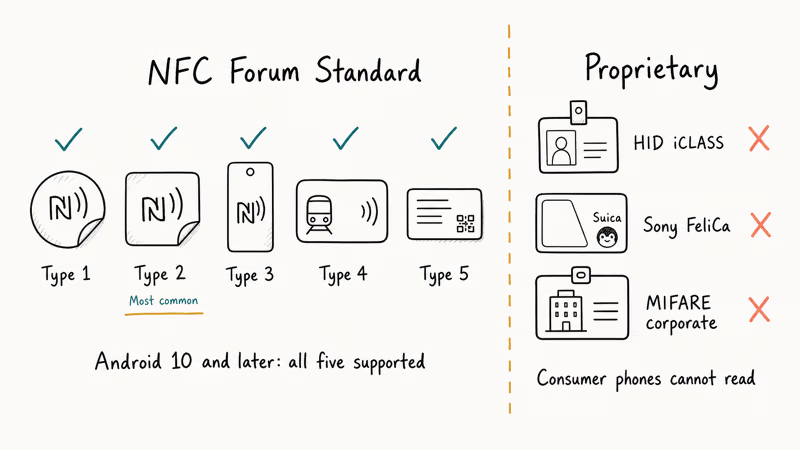
Beyond those five standard types, proprietary formats exist, and that’s where most unsolvable errors come from. HID Global’s iCLASS format (common in office access badges), Sony’s FeliCa format (used in Japanese transit cards like Suica), and MIFARE derivatives used in corporate building systems all require dedicated reader hardware. Consumer Android phones can’t read these formats. No app on Google Play changes that.
#Does This Error Happen on iPhones?
iPhones on iOS 14 and later read NFC tags in the background automatically. No setup needed.
On iPhone 7 through iPhone XS, tag reading wasn’t automatic. You had to launch the scan from Control Center or use NFC TagInfo by NXP Semiconductors (free on the App Store). That app shows raw tag data even when no action is available. It’s the best iOS diagnostic tool for figuring out exactly what format a tag uses before deciding whether a fix is even possible.
According to Apple’s Core NFC developer documentation, iPhone supports NDEF, ISO 7816, ISO 15693, FeliCa, and MIFARE tag families. Tags outside these five families won’t work on any iPhone, regardless of what app you install. Apple doesn’t expose lower-level radio access to third-party developers, so no software workaround and no jailbreak changes this at the RF layer.
#NFC Payments vs. Physical NFC Tags
NFC payments use EMV Contactless, not NDEF. They’re different standards.
Payment terminals broadcast a very specific signal. Your phone needs Google Wallet, Samsung Wallet, or Apple Pay registered to respond. If the error appears specifically near payment terminals, register a card first. Our guide on fixing Samsung Pay not working walks through card registration on Galaxy phones.
#Repeat Triggers and Stuck Loops
If the popup keeps reappearing after you installed NFC Tools, the trigger is probably not the tag you think it’s coming from. Two common patterns:
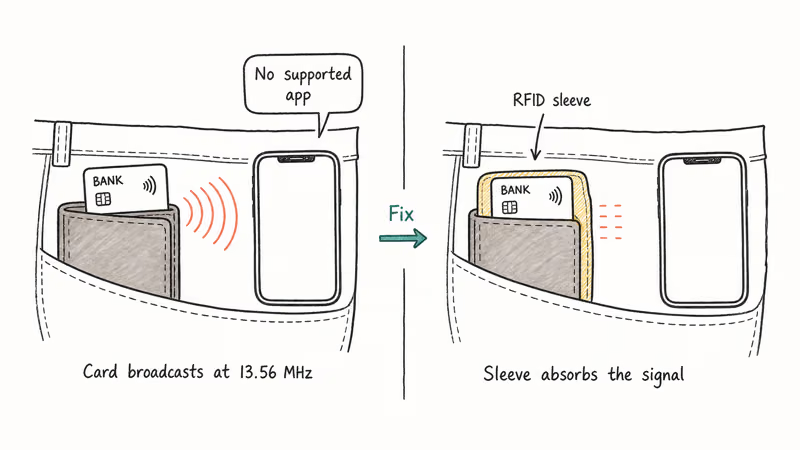
- Pocket scans from wallet cards. Contactless bank cards and transit passes broadcast at 13.56 MHz whenever they come within a few centimeters of your phone’s NFC antenna. An RFID-blocking sleeve or wallet stops this at the radio layer.
- Background-launched apps after a system update. On Android 14 and 15, a failed quarterly update sometimes corrupts both NFC and Bluetooth configuration at once. If Bluetooth is also acting up on Android, clear the NFC cache (Method 3) and restart. Both subsystems often recover together.
A transit card, a product authentication sticker, and a business card NFC chip all use different underlying standards, even though they’re all called “NFC.” NFC Tools handles the civilian NDEF types. Proprietary enterprise formats like iCLASS and corporate MIFARE variants stay off-limits regardless of what app you install. NFC TagInfo (free, NXP Semiconductors) shows the raw tag family and data format, which tells you whether any fix exists.
#Bottom Line
Install NFC Tools first. It clears the error for most readers within 2 minutes and gives Android a registered handler for every standard NDEF type.
If the tag still fails inside NFC Tools, the tag itself is the problem and no consumer app can fix it. Disable NFC if you don’t use it. That stops every popup permanently.
#Frequently Asked Questions
Why does my phone show this error randomly in my pocket?
Your wallet likely contains a contactless card that’s triggering your phone’s NFC reader. Contactless bank cards and transit passes broadcast at 13.56 MHz, the same frequency as NFC, and your phone picks up the signal even when the card is inside a wallet. Disabling NFC from your quick-settings panel stops the popups immediately. An RFID-blocking sleeve also works because the metallic shielding absorbs the 13.56 MHz signal so cards inside can’t broadcast to your phone at all.
Can I write to an NFC tag to fix the error?
Only if the tag is writable. Open NFC Tools on Android, tap the tag, and look for the Write option. If it’s locked or read-only, you can’t change it. Writable tags can be overwritten with a URL or plain text your phone handles automatically.
Does this error mean my NFC hardware is broken?
No. NFC detected the tag correctly, so the chip is working. It’s an application-layer problem. Test with a bank card near Google Pay: if the wallet opens, your NFC chip is fine.
Why does the error happen with some tags but not others?
Different NFC tags store data in different formats. Your transit card might use a proprietary format, while a business card chip stores a vCard, and an access badge might use HID or MIFARE. NFC Tools covers all standard NDEF formats, but proprietary formats tied to specific hardware systems can’t be handled by any third-party app.
Is the error the same on Samsung and Pixel phones?
Yes. Both run Android’s NFC dispatch system, so the error, the causes, and the fixes are identical. The only real difference is the settings path: Samsung uses Settings > Connections > NFC and contactless payments, while Pixel and stock Android use Settings > Connected Devices > Connection Preferences > NFC. The NFC Tools app works the same way on both, and so does the cache-clear method.
Can an RFID-blocking wallet prevent this error?
Yes. RFID-blocking wallets use a metallic layer that absorbs the 13.56 MHz NFC frequency, stopping cards inside from broadcasting to your phone. A basic RFID sleeve (around $5) works just as well as a full blocking wallet for shielding individual cards.
Does restarting my phone fix this error?
Sometimes. If the error started after a software update or after installing a new app, a restart clears temporary states and re-initializes the NFC service. If a restart doesn’t help after two tries, move to the cache-clearing steps in Method 3.
Does clearing NFC cache delete any data?
No. The NFC service cache holds temporary operational data, not your payment cards or app data. It’s safe and only removes the cached state that may be causing the error. Your Google Wallet cards, payment tokens, and NFC app settings stay intact.

Mac mini M6 vs M5 Pro: Which Model Should You Buy?
Mac mini M6 vs M5 Pro compared on price, memory, ports, displays, and real workloads. Find the better 2026 Mac mini for your desk and budget.

Apple Siri Settlement: Who Qualifies and How to Claim
Apple's $250 million Siri settlement covers iPhone 15 Pro and iPhone 16 models bought June 2024 to March 2025. See who qualifies and how claims work.

iOS 26.6.1 Security Update: What Apple Fixed and Who Gets It
Apple released iOS 26.6.1 on August 17 with 29 security fixes, including an IPSec interception bug. See what it patches, who gets it, and how to update.

iPhone Adaptive Power: How It Works and When to Use It
Learn how iPhone Adaptive Power works, which models support it, what it changes, and when Low Power Mode is still the better battery-saving choice.