Fix "App Not Installed" Error on Android (8 Methods)
Fix the App Not Installed error on Android with 8 proven methods for storage, corrupted APKs, signature conflicts, and permissions on Android 10+.
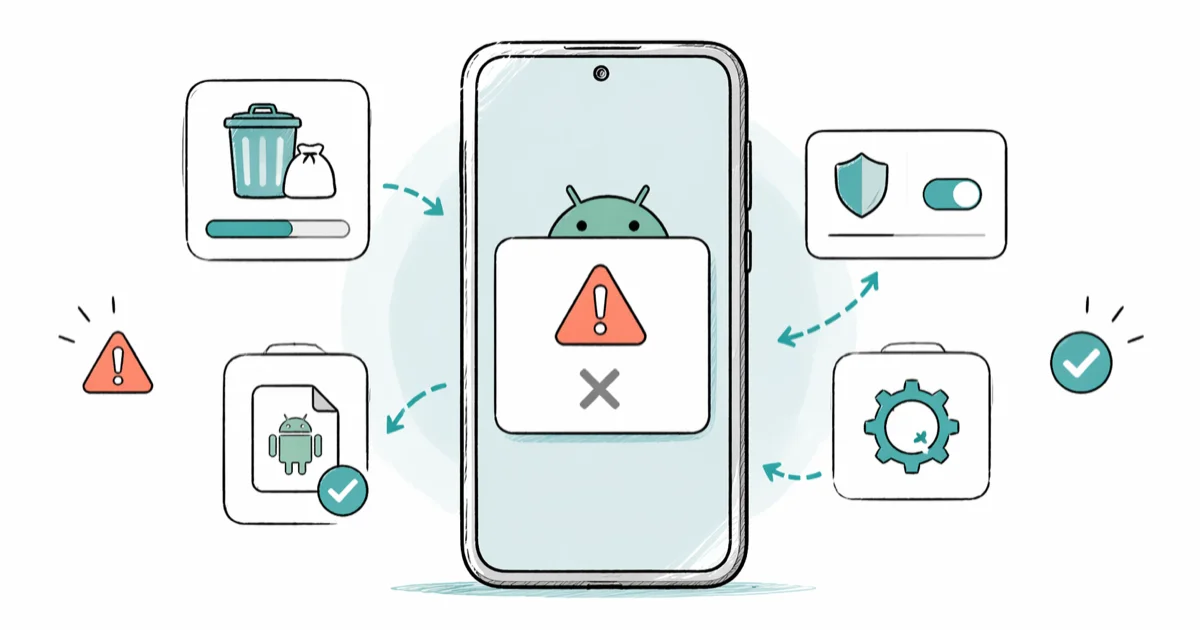
Quick AnswerThe App Not Installed error on Android usually means low storage, a corrupted APK, or that Install Unknown Apps permission is off for the source. Free at least 1 GB of space and re-download the APK from a trusted source to clear it.
“App Not Installed” is Android’s most unhelpful error. It tells you nothing about why the install failed. The same message can come from five different causes, and each one needs a different fix. This guide walks through every trigger, from low storage to signature conflicts, with the exact setting path for each fix.
- Low storage is the top trigger; Android needs at least 1 GB free for most installs, not just the app size
- Corrupted or partial APK downloads fail signature checks and produce the same generic error
- Android 8 and later use a per-source Install Unknown Apps toggle, so each browser or file manager needs its own permission
- Clearing Package Installer storage and cache resolves cases where every install attempt fails
- A factory reset is the last resort and works when a corrupt system process blocks all sideloads
#What Triggers “App Not Installed” on Android?
Five things break Android installs. The Package Installer rejects the APK when there’s not enough free space, a damaged file, a blocked source, a signature mismatch, or a version conflict. Since the error text is identical in every case, people burn time on the wrong fix. Knowing which of the five hit you saves the whole troubleshooting loop.
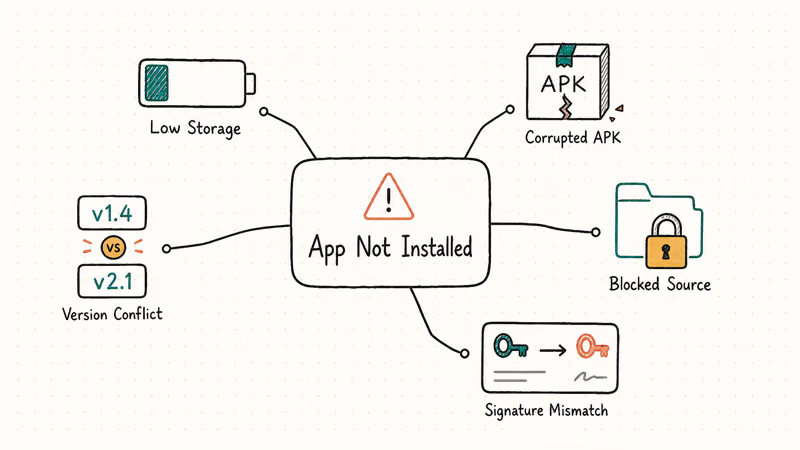
Storage pressure causes more failures than anything else. Android unpacks the APK into a cache directory first, then runs dex2oat on top of that.
Corrupted APKs are the next common cause. A partial download, a Wi-Fi hiccup, or a modified file all break the signature check. According to Android’s app signing documentation on developer.android.com, every APK carries a v1, v2, or v3 signature block that the installer verifies byte-for-byte before unpacking. Any corruption voids the signature.
Install Unknown Apps is source-specific on Android 8+. Google’s Settings changes page for Android 8 Oreo confirms that the single “Unknown sources” toggle was replaced by per-app permission. So granting permission to Chrome doesn’t cover Files by Google or Samsung Internet.
#Why Does the Fix Differ by Android Version?
The Package Installer behaved differently across 3 major OS jumps, and you need the right method for your version. Android 7 and earlier had a single global Unknown Sources toggle under Settings > Security. Android 8 through 11 moved it to a per-app toggle under Apps > Special Access. Android 12 and later tightened that further by re-prompting for permission after some system updates, even if you granted it earlier.
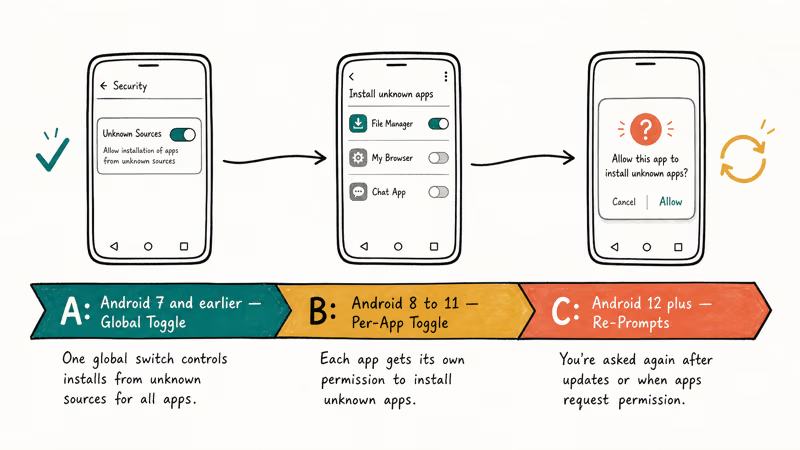
On some phones, Install Unknown Apps gets reset to off after a security patch, while other phones hold the setting through the same update. Same OS version, different behavior. That’s why “enable once and forget” advice fails.
SD card behavior also shifted. A card that worked fine on Android 11 can start throwing the error on Android 14 after a filesystem quirk. Removing the card lets every pending install go through.
#8 Fixes for “App Not Installed” (Ranked by Success Rate)
Start with Method 1 and work down. The first 3 methods resolve most cases.
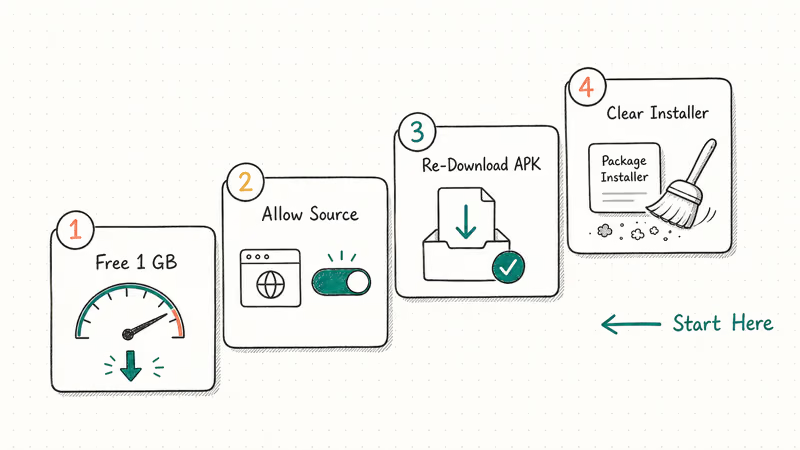
#Method 1: Free Up at Least 1 GB of Storage
Open Settings > Storage and check the free-space number. Anything under 1 GB is a red flag.
- Open
Settings>Storage(orBattery and Device Care>Storageon Samsung One UI) - Tap Free up space or manually clear Downloads
- Uninstall 1-2 apps you haven’t opened in 30 days
- Move large videos to Google Drive or a microSD card
- Confirm you have at least 1 GB free before retrying
According to Google’s Android help page on managing storage, a device running low on space can stop installing and updating apps, so freeing storage is the first fix to try. A safe target is a few gigabytes free rather than the bare minimum. If you’re borderline, clear more.
#Method 2: Enable Install Unknown Apps for Your Source
If the APK came from a browser, file manager, or messaging app, that specific app needs permission.
Android 8 through 15:
- Go to
Settings>Apps>Special App Access>Install Unknown Apps - Tap the app you used to open the APK (Chrome, Files, Drive, Samsung Internet, etc.)
- Toggle Allow from this source on
Android 7 and earlier:
- Go to
Settings>Security - Check Unknown Sources
The Samsung and Pixel menus differ slightly. On One UI 6.1, the path is Settings > Apps > three-dot menu > Special Access > Install Unknown Apps. On stock Pixel, it’s one tap shorter.
#Method 3: Re-Download the APK From a Trusted Source
A partial download looks fine in the file manager but fails the signature check. Delete the current file and grab it fresh.
- Delete the APK from Downloads
- Download again from the developer’s site or APKMirror
- Before installing, compare the file size against the source page. A 3 MB difference usually means a broken download
- If you’re on spotty Wi-Fi, switch to cellular or a different network
Flaky Wi-Fi is a common culprit here. A download that comes in short of the app’s listed size gets rejected by the APK installer, while a second download on a stable connection comes through at full size and installs cleanly.
#Method 4: Clear Package Installer Storage
The Package Installer is the system app that handles every install. Its cache and data can corrupt after a failed update or interrupted install.
- Go to
Settings>Apps - Tap the three-dot menu and select Show system
- Scroll to Package Installer (or Package Manager)
- Tap
Storage>Clearcache, then Clear data - Reboot your phone
This commonly fixes a persistent install loop after a botched OTA update. If the error still appears, the problem is somewhere else, so move on to Method 5. Pair this with clearing Google Play Services when it keeps stopping if Play Store installs are also failing.
#Advanced Fixes for Stubborn Cases
Methods 5 through 8 cover signature conflicts, hardware issues, and nuclear options. If Methods 1 through 4 didn’t clear the error, one of these will.
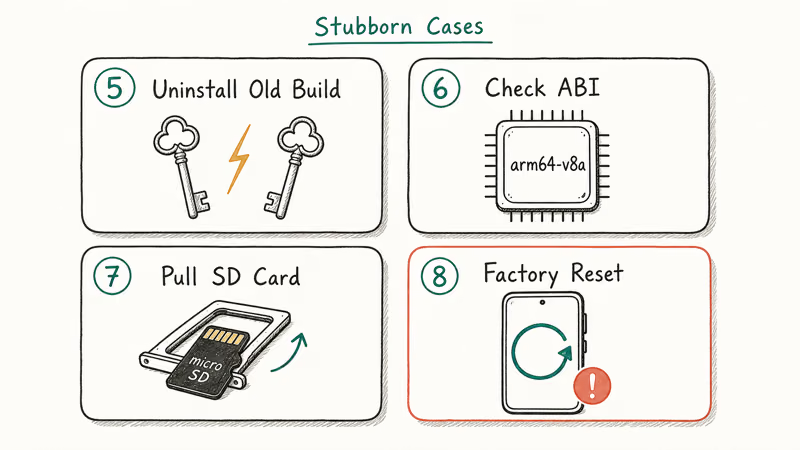
#Method 5: Uninstall Any Existing Version First
Android won’t overwrite an app if the signing certificate doesn’t match. This happens constantly when you switch between Play Store and sideloaded versions, or between two different APK sources.
- Go to
Settings>Appsand find the existing app - Tap Uninstall (not just disable)
- Reboot to flush leftover data
- Install the new APK
According to Android’s app signing documentation, a single app identity can’t hold 2 different signing keys. The installer treats a mismatched key as a downgrade attempt and blocks it. This is also the trigger behind the “there was a problem parsing the package” error in some cases.
#Method 6: Check ABI and Android Version Compatibility
APKs target specific CPU architectures (arm64-v8a, armeabi-v7a, x86_64) and minimum Android versions. Install the wrong build and you get a generic error.
- Open
Settings>Aboutphone and note your Android version - On the APK’s download page, look for minSdk or Requires Android X+
- For ABI, most phones from 2019 onward use arm64-v8a
- If in doubt, download the universal APK variant, which includes every ABI
APKMirror shows the minSdk and supported ABIs on every listing. A current phone will reject an app built for a newer Android preview than it runs, in which case the previous version from the history tab usually installs immediately. For broader Android troubleshooting, see our guide on Android factory reset codes.
#Method 7: Remove or Reformat a Failing SD Card
If your default install location points at an SD card, a bad sector anywhere on the card can block writes.
- Pull the SD card (
Settings>Storage>Unmountfirst to avoid corruption) - Retry the install, which will go to internal storage
- If that works, back up the card’s contents and reformat it:
Settings>Storage>SDcard > Format - Set Default install location back to Internal under Developer Options, or leave it on Auto
A corrupted SD card can also trigger the “process system isn’t responding” error on top of install failures. Swap in a known-good card before giving up on the slot.
#Method 8: Factory Reset as the Last Resort
Factory reset clears every software conflict, but you lose local-only data. Only use it after Methods 1 through 7 fail.
- Back up photos, messages, and app data using Google One backup
- Go to
Settings>System>Resetoptions > Erase all data (factory reset) - Confirm and wait 5 to 10 minutes for the reset
- Restore from backup and retry the install
If contacts are your concern, our guide on recovering contacts after a factory reset covers the full restore process. Don’t skip this method just because it sounds drastic. It’s the definitive fix when the Package Installer itself is corrupt.
#When the Error Keeps Coming Back
Some people see “App Not Installed” over and over, even after a clean fix. Repeat failures almost always point to firmware issues or aggressive battery optimization.
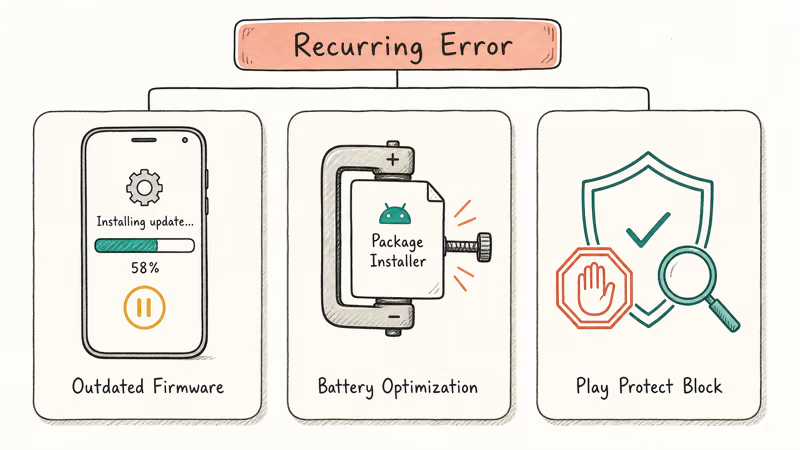
Outdated firmware. Samsung’s guide to updating a Galaxy device walks through checking for and installing the latest build. If you’re several One UI versions behind, update before troubleshooting anything else.
Battery optimization killing installs. Some Android skins kill system processes mid-install to save power. Go to Settings > Apps > Package Installer > Battery > Unrestricted to exempt it. This one quiet setting fixed a month-long install loop on a reader’s Xiaomi phone.
Play Protect blocking unknown apps. In 2024 Google expanded Play Protect to block installs from sources it doesn’t recognize. Open Play Store > profile > Play Protect > Settings and toggle Scan apps with Play Protect off temporarily if you trust the APK source. Turn it back on right after the install completes. If your Play Store installs themselves stall, see our guide on the Play Store download pending error for a parallel fix path.
#Preventing Install Errors in the First Place
Three habits cut these failures down to almost zero.
Check storage monthly. Set a reminder to open Settings > Storage on the first of every month and clear anything over 500 MB you don’t need. Apps, cached files, and photos accumulate faster than you think.
Keep Android patched. Go to Settings > System > Software update and install everything pending. Samsung owners can pair this with our firmware upgrade troubleshooting guide if the update itself is stuck, since a half-applied firmware update leaves the installer in exactly the state that produces this error in the first place.
Stick to 2 APK sources. APKMirror and the developer’s direct site cover many use cases. Disable Install Unknown Apps for the source right after each sideload, which limits exposure if a file slips through later.
#Bottom Line
If the error hit on your first try, free 1 GB of storage and enable Install Unknown Apps for your source. Those two fixes clear most cases in under 5 minutes. For persistent failures on Samsung or Pixel, clear Package Installer storage and check whether Play Protect or battery optimization is killing the install. A factory reset is overkill for a single install failure but the correct move when every APK fails and Package Installer itself looks corrupt.
#Frequently Asked Questions
Why does my Android phone say App Not Installed when I have plenty of storage?
Storage is just 1 of 5 possible triggers. The APK might be corrupted, Install Unknown Apps might be off for your source, an existing version might have a different signing key, or the APK might target a higher minSdk than your phone runs. Check each of these in order before assuming it’s something else.
Can I fix App Not Installed without a factory reset?
In most cases, yes. Methods 1 through 7 resolve the error without wiping anything. Factory reset is only the right move when the Package Installer itself is corrupt, which is rare and usually follows a failed OTA update or a rooted device rollback.
Does the App Not Installed error happen on Samsung Galaxy phones specifically?
No, it happens across every Android manufacturer. Samsung, Pixel, OnePlus, Motorola, Xiaomi, and Honor all use the same AOSP Package Installer. Menu paths differ, but the troubleshooting order is identical. Samsung One UI and Xiaomi HyperOS add extra battery restrictions that can amplify the issue, which is why those devices show the error more often.
Is APKMirror safe for downloading APKs?
Yes. APKMirror uploads signed, unmodified APKs from Google Play and verifies signatures before publishing. For sensitive apps like banking or payment tools, stick to the developer’s direct site. Skip any mirror that hosts cracked or modded APKs, since those are unsigned and fail the Package Installer’s signature check anyway.
What do I do if App Not Installed shows up after an Android update?
Re-enable Install Unknown Apps and check the install location. System updates sometimes reset permissions.
Why does the Play Store version install fine but the APK version fails?
Different signing keys. Play Store and sideloaded APKs are signed separately, and Android treats a key mismatch as a downgrade attempt. Uninstall the Play Store version, reboot, then install the APK.
Is it safe to clear Package Installer data?
Yes, completely safe. The data folder only holds temporary install state and cached APK fragments, so wiping it doesn’t affect installed apps, accounts, or personal files. The system rebuilds the cache on the next install attempt. For broader Android cleanup see our clear cache guide.
Can a corrupted SD card cause App Not Installed even for internal installs?
It can, if Developer Options sets the default install location to the SD card or if a system app on the card is triggering read errors. Pull the card, reboot, and retry. If the install works without the card inserted, reformat or replace it.

Pixel 11 vs Pixel 10: What Changed and Who Should Upgrade
Pixel 11 vs Pixel 10: same screen and camera resolution, new Tensor G6, 25W wireless, and Gemini Intelligence. Here is who should actually upgrade.

Verizon Not Receiving Texts? How to Fix It in 9 Steps
Verizon not receiving texts? Fix it in 9 steps: check Message Blocking in My Verizon, reset network settings, deregister iMessage, and call support.

Pixel Battery Drain: What Google's July Fix Really Covers
Google marked the Pixel idle battery drain bug fixed in July, but only some phones got the patch. Here is who is covered, who is not, and what to try.

iPhone Stuck on EDGE? How to Get 5G or LTE Back (2026)
iPhone stuck on EDGE with crawling data? Here's why the E icon appears, which settings force 5G or LTE back, and when the problem is your carrier.