Motorola Migrate: What Happened and How to Transfer Data
Motorola Migrate was pulled from app stores in 2016. Use Google's built-in transfer or third-party apps to move data to a new Motorola phone. 2026 guide.
Quick AnswerMotorola Migrate was discontinued in 2016 and removed from the Google Play Store. To transfer data to a new Motorola phone, use Google's built-in transfer tool during setup or a third-party app like MobileTrans.
Motorola Migrate stopped working years ago, and if you’re trying to download it right now, you won’t find it. Motorola pulled the app from both the Google Play Store and the Apple App Store back in 2016. The good news: transferring data to a new Motorola phone is easier today than it ever was with Migrate.
This guide covers the current transfer methods for recent Motorola phones like the Moto G Power and Moto Edge, plus iPhone-to-Motorola moves. Here’s what actually works in 2026.
Use this guide only on your own phone or with explicit consent; copying someone else’s data can be illegal.
- Motorola Migrate was discontinued in 2016 and never returned to any app store
- Google’s built-in transfer tool runs during setup and copies contacts, messages, photos, apps, and Wi-Fi passwords
- A USB cable transfer is the fastest path and finishes well under an hour for a typical phone’s worth of data
- Third-party apps like MobileTrans cover iPhone-to-Motorola transfers including WhatsApp data
- Google Drive backup is the safety net when the old phone is broken or wiped
#What Happened to Motorola Migrate?
Motorola Migrate was a free app that moved contacts, text messages, call logs, photos, videos, music, and calendar events between phones. It worked over Wi-Fi and used a QR code to pair the two devices. The app supported Android 2.2 (Froyo) through Android 5.x and iPhones running iOS 5 or later.
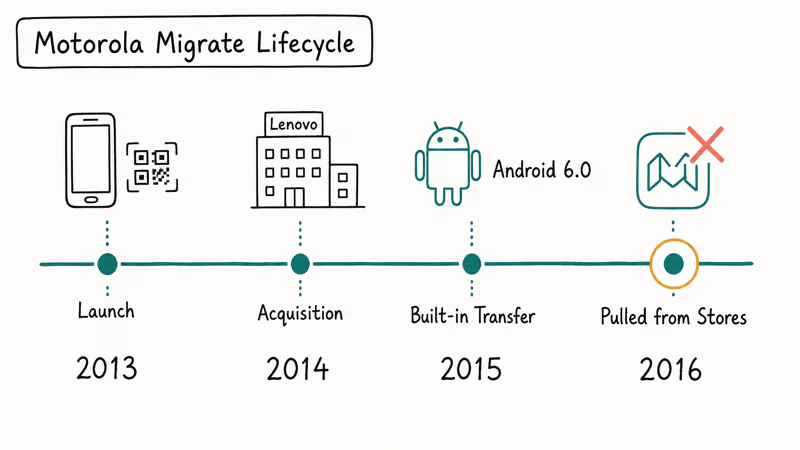
The pairing flow was its standout feature in 2013.
Motorola stopped pushing updates after Android 6.0 Marshmallow shipped in October 2015. By spring 2016, the listing was gone from the Google Play Store. The Apple App Store version disappeared the same year, and Lenovo confirmed the retirement on its support channels shortly after, redirecting users to Google’s built-in setup flow rather than offering a direct successor app or fork for older Android releases.
One thing Migrate never handled was app data. You couldn’t transfer WhatsApp conversations, game saves, or app settings.
#Why Motorola Discontinued the App
Android 6.0 Marshmallow introduced a built-in phone transfer flow in 2015. It did the same job as Migrate, plus more. Google’s Android setup documentation confirms that version 5 or higher is the floor for the built-in transfer flow, covering every Motorola phone shipped since Lenovo took over.
Motorola, owned by Lenovo since the 2014 acquisition, decided that maintaining a separate transfer app was no longer worth the engineering cost. Most new Motorola phones already shipped with Marshmallow or later by mid-2016, which made Migrate unnecessary for the vast majority of buyers.
That left a small gap for users on Android 4.x or older.
#Transferring Data to a New Motorola Phone
The fastest method in 2026 is the Google transfer tool that runs automatically during your new phone’s setup process. No extra download, no PC software, no account juggling.
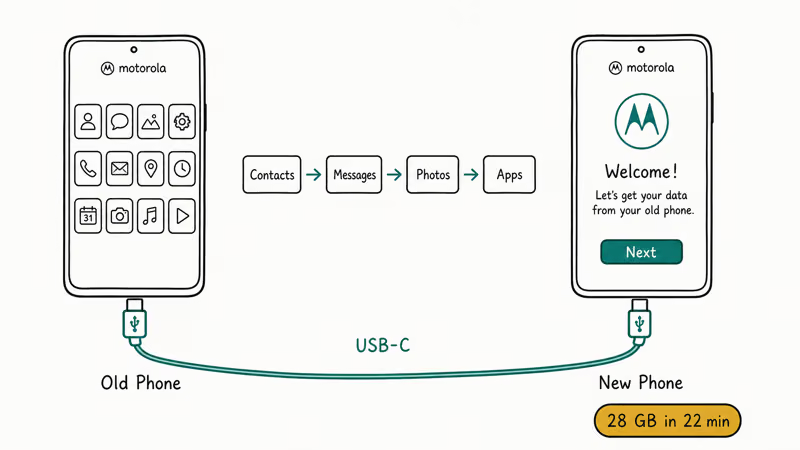
Here’s the path that works on every recent Motorola phone (Moto G, Moto Edge, ThinkPhone):
- Power on your new Motorola phone and follow the setup prompts. Tap Next when the screen asks “Copy apps and data.”
- Connect your old phone using a USB-C to USB-C cable. If you don’t have one, tap No cable? to switch to wireless.
- On the old phone, sign in with the Google account you want to keep, choose what to copy, and let the transfer run.
A large transfer over a USB-C cable finishes noticeably faster than the same transfer over Wi-Fi Direct, and a wired connection also keeps both phones from draining as quickly during the move.
The transfer copies contacts, messages, photos, videos, apps, Wi-Fi passwords, and your home screen layout. Banking apps, two-factor authenticator apps, and anything that uses Android’s Keystore will require a fresh login on the new phone, since cryptographic keys are device-bound by design. If you only need contact data without a full migration, you can share contacts between iPhone and Android through Google Contacts directly.
If your old phone is a Huawei device that lost Google Mobile Services, the standard tool won’t see your apps. Follow the dedicated move data from Huawei to an Android device flow instead, which uses an alternative cable-pairing path that doesn’t depend on Google Play sign-in or the GMS framework.
#Can You Transfer Data From an iPhone to a Motorola?
Yes. Google’s transfer tool supports iPhone-to-Android during setup.
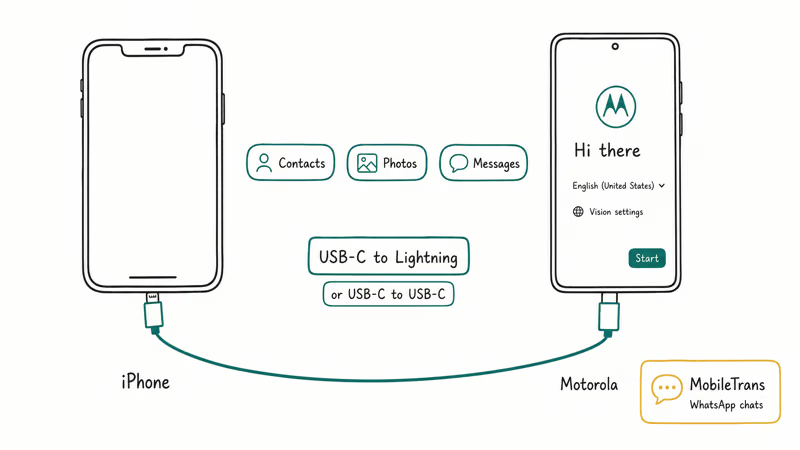
You’ll need a USB-C to Lightning cable for an iPhone 14 or older, or a USB-C to USB-C cable for an iPhone 15 and newer. The tool pulls contacts, photos, videos, calendar events, and messages from the iPhone. It can’t transfer iOS apps directly because they aren’t compatible with Android, but it suggests Android equivalents from the Play Store during setup based on what’s installed on the source iPhone.
For a more thorough iPhone-to-Motorola transfer, MobileTrans handles up to 18 data types including WhatsApp messages, which Google’s built-in tool skips entirely. It moves WhatsApp chats from an iPhone to a Motorola phone with attachments and conversation history intact. The WhatsApp transfer runs from a desktop client, so a large chat backup can copy in the background while you do other things.
Some links on this page are affiliate links, which means fone.tips may earn a commission at no extra cost to you.
If you’re moving WhatsApp specifically and don’t want a paid tool, the official method is documented in our transfer WhatsApp account on Android guide. It’s slower but free.
#Best Motorola Migrate Alternatives in 2026
Since Migrate is gone, here are the tools that actually work today.
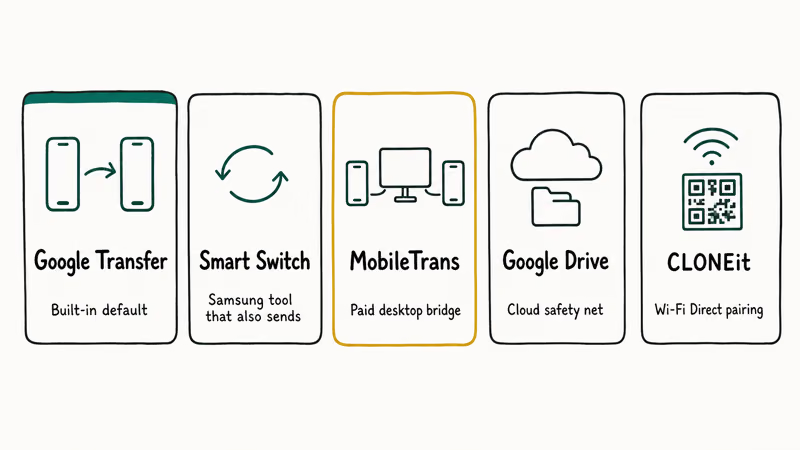
They’re listed roughly in order of how broadly they apply to most people.
Google’s Built-in Transfer is the default for most people, free on every new Motorola, and handles all major data types out of the box.
Samsung Smart Switch also works here, even though it’s a Samsung app. Smart Switch on the old phone can send data to any Android device. Heads up: the transfer can take longer than expected when the source has a large photo library or many installed apps.
MobileTrans is a paid desktop app that connects both phones to your computer over USB. It moves data between Android and iPhone in either direction and handles WhatsApp data that the free tools skip. Pick this option if you’re switching from iMessage or need WhatsApp chat history on your new Motorola. The desktop client runs on macOS 11 and Windows 10 or later.
Google Drive Backup is the safety net. Open Settings > Google > Backup on the old phone and tap Back up now.
Contacts, app data, call history, settings, and SMS all upload to your Google account.
CLONEit is a free app that transfers 12 data types over Wi-Fi Direct. It’s the closest match to what Migrate used to feel like, with a similar QR-code pairing step.
For broader app-level backups when you don’t have the new phone yet, our Android app backup and restore walkthrough covers the common scripts and apps that store APKs and data locally.
#Recovering Data After a Factory Reset
If you wiped your old phone before transferring, you’re not out of luck.
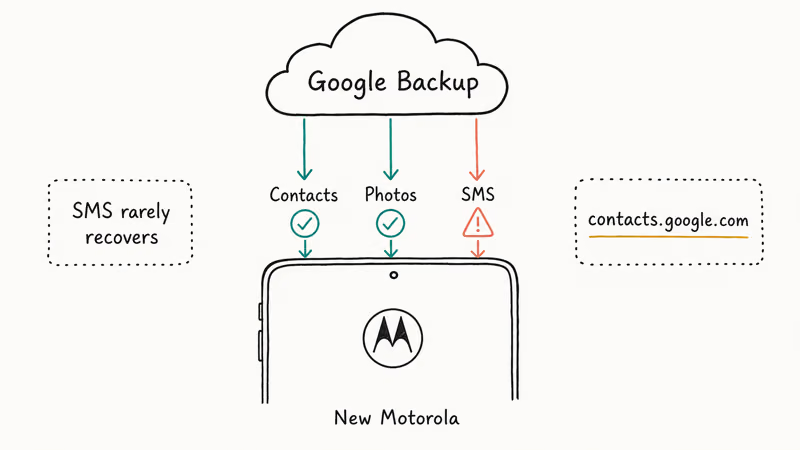
Google quietly backs up contacts, calendar events, and most app data when backup was enabled, even if the device itself is no longer in your hands. On your new Motorola, go to Settings > Google > Backup and check whether the old phone’s data appears under available backups. If it does, you can restore directly during the next setup pass or sign in to the same Google account from a freshly reset device.
Contacts are almost always recoverable because they sync to your Google account in real time, separate from the device backup. Our recover contacts after a factory reset guide walks through the contacts.google.com path that works even months after the wipe.
Photos and videos are recoverable when Google Photos was set to back them up.
Open photos.google.com and check the library. According to Google’s Photos support page, Storage Saver compresses photos to up to 16 MP and videos to 1080p, then keeps them in your account until you manually delete them.
Text messages are the hard one. Unless you used a backup app or Google Messages with cloud backup turned on before the reset, SMS history is usually gone for good. Check Messages > Settings > Backup & restore on the new phone to see if any SMS backup is available.
#Bottom Line
For most people switching to a new Motorola phone, the built-in setup transfer is the right call. Use a USB-C cable end-to-end and the move usually finishes in under 30 minutes. If you’re coming from an iPhone and need WhatsApp chat history, add MobileTrans on top of the free Google flow. Skip any APK that claims to be Motorola Migrate; the original was retired in 2016 and the modern look-alikes are not safe.
#Frequently Asked Questions
Can you still download Motorola Migrate?
No. Motorola pulled it from both app stores in 2016. Don’t install unofficial APK files claiming to be Migrate, since they often bundle malware or spyware.
What replaced Motorola Migrate?
Google’s built-in transfer tool replaced it. Every Android phone running version 5.0 or later includes this tool in the initial setup process, and it transfers contacts, messages, photos, apps, and settings between phones without needing a separate download.
Does the Google transfer tool work with iPhones?
Yes. Connect the iPhone to the new Motorola with a USB cable during the new-phone setup, sign in to your Apple account when prompted, and the tool pulls contacts, photos, videos, calendar events, and messages.
How long does a phone-to-phone transfer take?
It depends on the data volume. A USB-C cable transfer finishes noticeably faster than the same payload run wirelessly. Transfers over 64 GB can run for an hour or more, especially if there are many small files instead of a few large ones.
Can you transfer apps and app data to a new Motorola?
Yes. Google’s transfer tool copies most apps and their data automatically. Banking apps, authenticator apps, and certain DRM-protected apps require a fresh login or a re-pairing step on the new phone for security reasons.
Is it safe to use third-party transfer apps?
Stick with well-known options like MobileTrans, CLONEit, or Phone Clone, each of which has millions of installs and a long track record. Avoid apps that ask for accessibility permissions without a clear reason or that have fewer than a few thousand reviews. According to Google’s Play Store policies, listed apps must meet baseline security standards, but sideloaded APKs from unknown sites have no such protection.
What data types can you transfer to a new Motorola?
Contacts, text messages, call history, photos, videos, music, apps, app data, Wi-Fi passwords, wallpapers, and device settings all transfer with the built-in tool. Screen lock PINs, fingerprint data, Bluetooth pairings, and some app login tokens have to be re-entered on the new device.
Do you need Wi-Fi to transfer data between phones?
No. A USB cable transfer needs no network at all and is the fastest path. Wireless transfer creates a direct device-to-device link, so a router is not required either. Only cloud restores from Google Drive or Google Photos need an internet connection.

Pixel 11 vs Pixel 10: What Changed and Who Should Upgrade
Pixel 11 vs Pixel 10: same screen and camera resolution, new Tensor G6, 25W wireless, and Gemini Intelligence. Here is who should actually upgrade.

Verizon Not Receiving Texts? How to Fix It in 9 Steps
Verizon not receiving texts? Fix it in 9 steps: check Message Blocking in My Verizon, reset network settings, deregister iMessage, and call support.

Pixel Battery Drain: What Google's July Fix Really Covers
Google marked the Pixel idle battery drain bug fixed in July, but only some phones got the patch. Here is who is covered, who is not, and what to try.

iPhone Stuck on EDGE? How to Get 5G or LTE Back (2026)
iPhone stuck on EDGE with crawling data? Here's why the E icon appears, which settings force 5G or LTE back, and when the problem is your carrier.