Fix mds_stores High CPU on Mac: 6 Proven Fixes (2026)
Fix mds_stores high CPU on Mac with 6 methods including Spotlight re-index, mdutil Terminal commands, and folder exclusions for Sonoma and Sequoia.
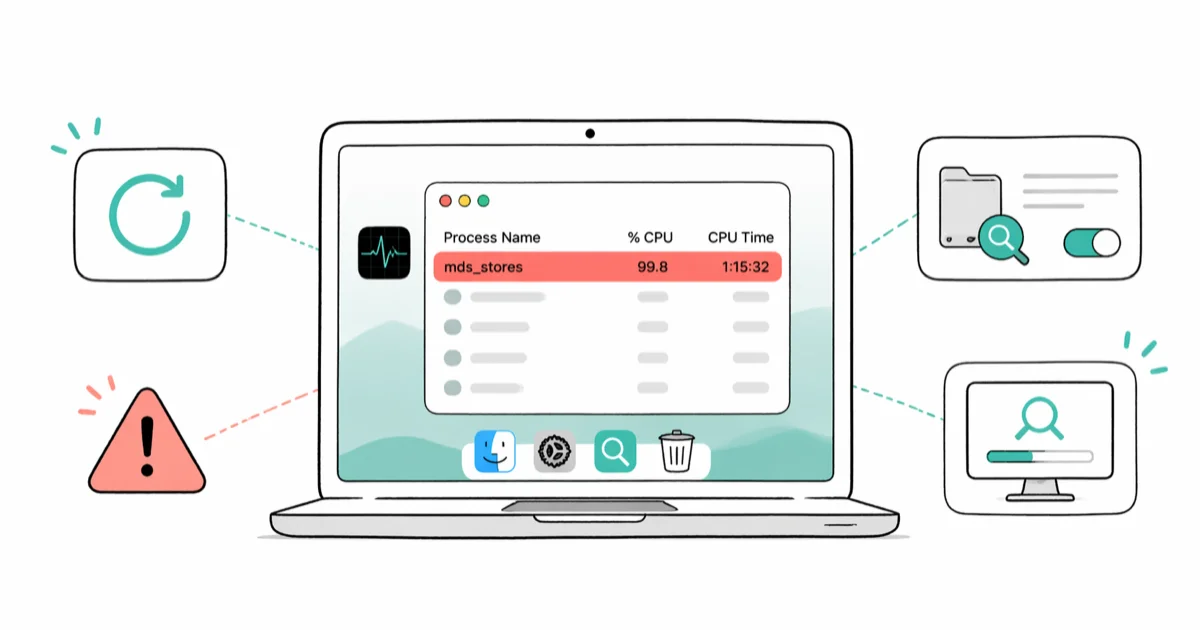
Quick AnswerOpen Activity Monitor and confirm mds_stores is the top CPU process. If it has been pinned for over 30 minutes, restart your Mac, then re-index Spotlight by adding and removing your drive from System Settings > Spotlight > Privacy.
mds_stores is the macOS Spotlight indexing process. It normally runs for under an hour after a fresh install or update, then drops below 5% CPU. When mds_stores stays pinned at 80 to 100 percent CPU for several hours, the index is stuck and needs a manual rebuild.
The six fixes below run from the simplest to the most involved. Start with Fix 1. It clears the issue in a fair share of cases fairly quickly, with no Terminal required.
- mds_stores is the Spotlight metadata server that builds a searchable index of every file on your Mac.
- High CPU during the first hour after a macOS update or fresh install is normal and expected.
- If mds_stores stays above 50% CPU for over 2 hours, the index is stuck and needs manual rebuilding.
- Re-indexing via
System Settings>Spotlight>Privacytakes 15 to 30 minutes on most Macs. - Excluding node_modules, virtual machine images, and external drives from Spotlight prevents recurring spikes.
#What Is mds_stores and Why Does It Use So Much CPU?
mds_stores stands for “metadata server stores.” It’s the part of Apple’s Spotlight search engine that builds and maintains a searchable database of every file on your Mac.
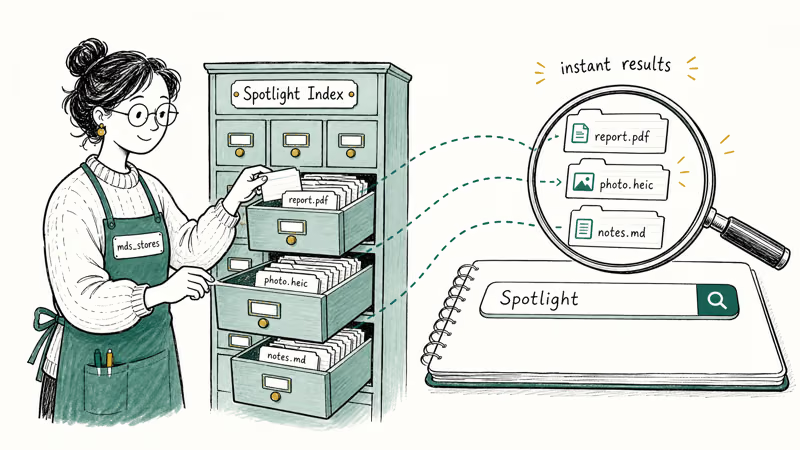
Spotlight starts indexing from scratch when you first set up a Mac, restore from a backup, or upgrade macOS. That uses significant CPU. According to Apple’s Spotlight support documentation, initial indexing is expected and finishes on its own in most cases.
The trouble starts when indexing gets stuck. A crashed update, a corrupted index file, or a flood of file changes from cloud sync can all loop the process without progress. After a botched macOS update, mds_stores can hold above 90% CPU for hours instead of finishing, which is the signal to step in with Fix 2.
If Spotlight search itself stops finding files inside Apple Mail, our Apple Mail search not working guide covers a related Spotlight database fix that runs in the same place.
#Fix 1: Restart Your Mac
A clean restart often clears stuck processes. Go to Apple menu > Restart. Check Activity Monitor again 30 minutes after you log back in.
This resolves a fair share of stuck-index cases on its own. It’s fast, has zero risk, and is worth doing first before anything Terminal-based. If your Mac feels sluggish across other apps too, our slow Mac speed-up guide covers fixes beyond Spotlight.
#Fix 2: Force Spotlight to Re-Index Your Drive
This is the most reliable fix. You temporarily add your drive to Spotlight’s Privacy exclusion list, which triggers a full index rebuild when you remove it. The rebuild takes 15 to 30 minutes on a typical Mac and is non-destructive. No files get deleted.
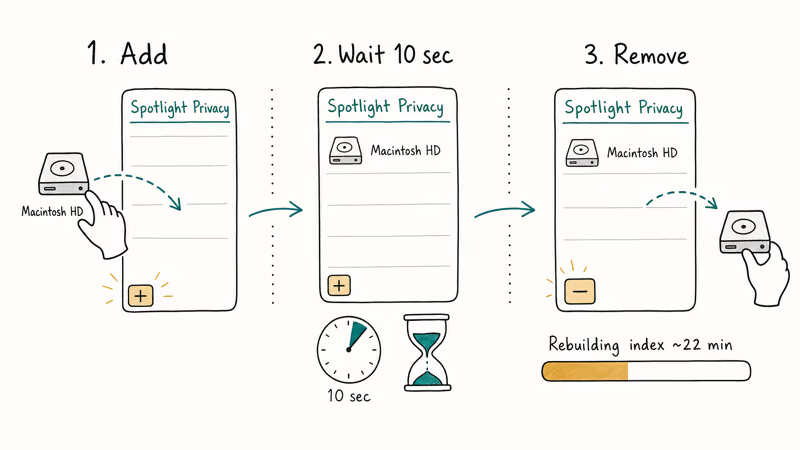
On macOS Ventura, Sonoma, or Sequoia: Go to Apple menu > System Settings, click Siri & Spotlight, then scroll to Spotlight Privacy.
Click the + button and add your main drive (usually “Macintosh HD”). Wait 10 seconds, select the drive, then click − to remove it. Spotlight starts rebuilding immediately. CPU drops back to baseline once the rebuild finishes.
On macOS Monterey or earlier: Go to System Preferences > Spotlight > Privacy and follow the same add-then-remove sequence.
Apple’s Spotlight preferences guide recommends this exact add-and-remove workflow as the standard repair path for stuck indexing because it’s non-destructive. On a typical half-full SSD, the rebuild completes in well under an hour, even after a major Sonoma update.
After a rebuild, leftover application caches can keep the metadata server busier than necessary. Our Mac cache cleanup guide walks through the safe folders to clear.
#Fix 3: Stop and Restart Spotlight via Terminal
If Fix 2 doesn’t help, stop the mds process via Terminal and reload it. This clears corrupted state without erasing the entire index.
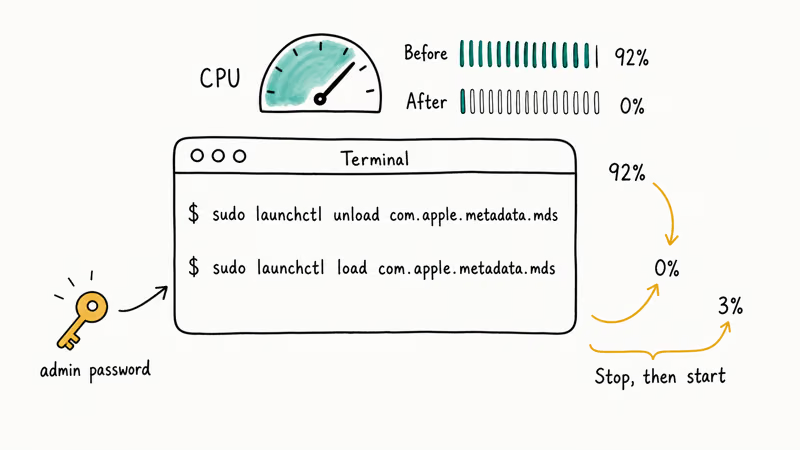
Open Finder > Applications > Utilities > Terminal. Type the following command and press Enter:
sudo launchctl unload -w /System/Library/LaunchDaemons/com.apple.metadata.mds.plistEnter your admin password when prompted, then wait 30 seconds. Restart Spotlight with:
sudo launchctl load -w /System/Library/LaunchDaemons/com.apple.metadata.mds.plistRestart your Mac and check Activity Monitor after 20 minutes.
The unload command drops mds_stores CPU usage to nothing almost instantly. The commands need admin access, so they won’t run on a standard user account.
#Folders to Exclude From Spotlight Indexing
Large folders with constantly changing files are the most common cause of persistent mds_stores activity. Excluding them cuts indexing time dramatically.
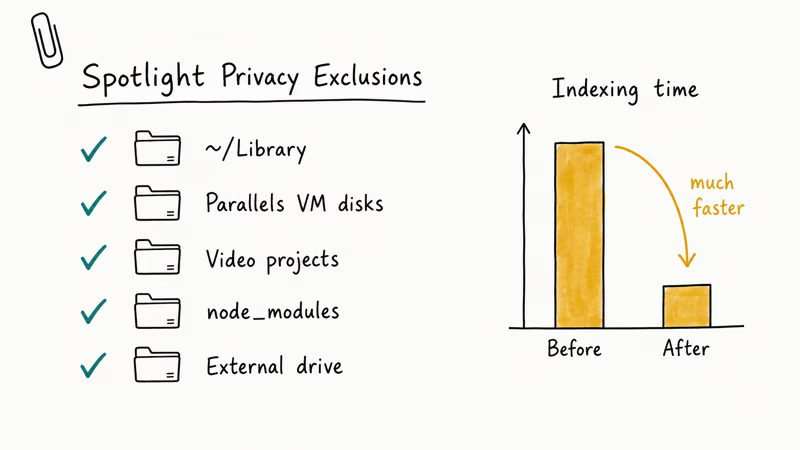
Go to System Settings > Siri & Spotlight > Spotlight Privacy and add these folders:
- Your user Library folder (
~/Library), which is large and rarely searched in practice - Virtual machine disk images (Parallels, VMware, UTM)
- Large video project folders or raw photo libraries
- Node.js
node_modulesdirectories if you do any development work - External drives you don’t regularly need to search
According to XDA Developers’ Spotlight indexing notes, node_modules directories are a common cause of mds_stores activity because they hold many small files the indexer has to walk through. On a developer’s machine, excluding them is often the single biggest fix.
This won’t fix a stuck index. It prevents the spike from coming back. If your Mac shows the spinning beach ball alongside Spotlight slowdowns, see our stop the spinning wheel on Mac guide for related fixes.
#Why Does mds_stores Keep Spiking After Updates?
If mds_stores spikes repeatedly, one of three things is happening.
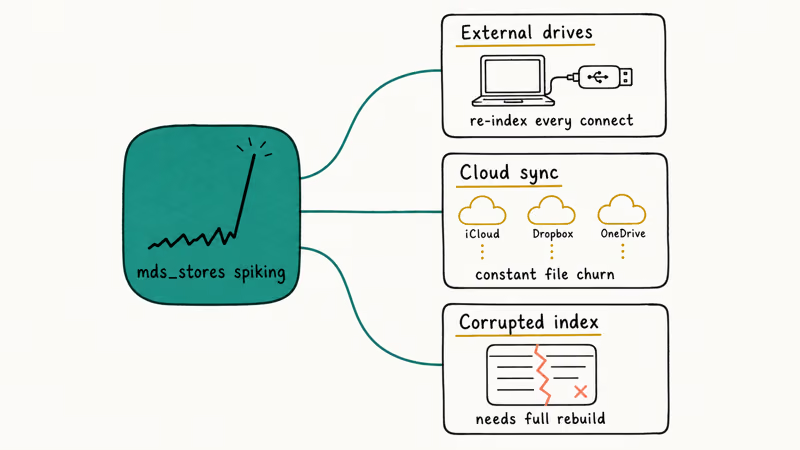
External drives trigger fresh indexing every time you plug them in. If a drive has tens of thousands of files, mds_stores stays busy until the new entries land in the index. Adding external drives to Spotlight Privacy solves this permanently.
Cloud sync folders cause the same problem. iCloud Drive, Dropbox, and OneDrive feed steady file churn into Spotlight.
A corrupted index file makes mds loop regardless of how long you wait. The fix is the same as Fix 2: force a full rebuild. If the Mac also crashes during these spikes, our Mac keeps crashing guide covers related causes that often overlap with Spotlight.
#Fix 4: Rebuild the Spotlight Index With mdutil
If the GUI method in Fix 2 isn’t working, use the mdutil command to force a rebuild directly from Terminal.
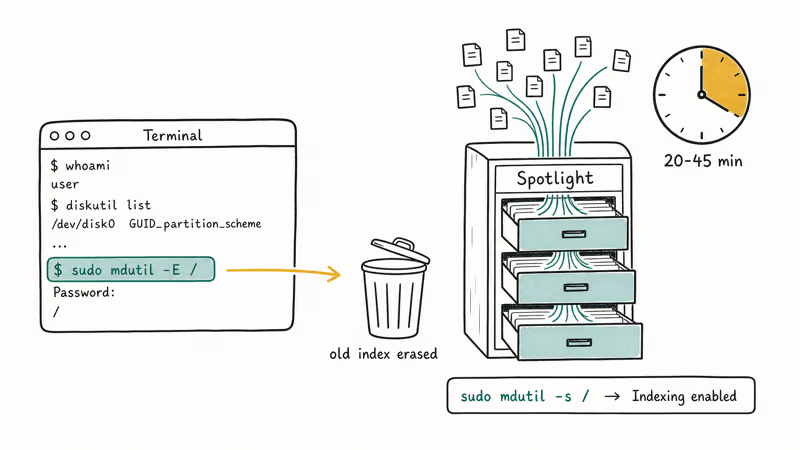
- Open Terminal.
- Run this command to erase the current index:
sudo mdutil -E /- Enter your password when prompted.
This deletes the existing index and Spotlight begins rebuilding it immediately. The rebuild takes 20 to 45 minutes on a typical SSD.
- Check indexing status with:
sudo mdutil -s /You should see “Indexing enabled.” According to the ss64 mdutil reference, the -E flag erases and rebuilds the index for the specified volume; passing / targets your main system drive.
After the rebuild finishes, recheck Activity Monitor. mds_stores should drop under 5% CPU and stay there.
#Fix 5: Disable Spotlight Indexing Entirely
Only do this if nothing else has worked and you don’t rely on Spotlight search at all. It permanently stops mds_stores from running.
- Open Terminal.
- Run:
sudo mdutil -a -i off- Restart your Mac.
Spotlight search stops working. You’ll need an alternative like Alfred or the Finder’s own search (Command + F) to find files.
To re-enable Spotlight later, run sudo mdutil -a -i on in Terminal.
Don’t do this unless the Mac is unusable. Try Fixes 1 through 4 first.
#Bottom Line
Start with Fix 1 (restart) and Fix 2 (re-index via Spotlight Privacy). That pair clears the large majority of stuck-index incidents in under half an hour. If mds_stores keeps coming back after re-indexing, exclude node_modules, virtual machine images, and external drives from Spotlight before reaching for Terminal commands. Fix 5 (mdutil -a -i off) breaks Mail, Calendar, Notes, and Alfred, so only run it after the first four fail.
For other Mac problems that often appear alongside Spotlight spikes, our Mac stuck on Apple logo guide covers related boot and update issues.
Mac Tips & Tricks
#Frequently Asked Questions
What is mds_stores on Mac?
mds_stores is the metadata server that powers Spotlight search. It builds and maintains an index of every file on your Mac so Spotlight can return results instantly. Once the initial index is built, the process normally uses very little CPU. Think of it as a librarian who catalogs every book; the cataloging is heavy work upfront, but every later search is nearly instant.
Is it safe to force-quit mds_stores in Activity Monitor?
Force-quitting it just restarts the process automatically within seconds, so it’s safe but pointless. Use Fix 2 to clear the stuck state instead.
How long should mds_stores indexing take?
On a typical Mac with a 500 GB SSD that’s about half full, initial indexing takes 30 minutes to 2 hours. After a major macOS update, expect up to 3 hours. If it runs longer without finishing, the index is probably stuck and you should run Fix 2 to force a rebuild. Older MacBooks with mechanical drives can take 4 or 5 hours; Apple silicon Macs with NVMe storage finish much faster.
Can I exclude my external hard drive from Spotlight indexing?
Yes. Go to System Settings > Siri & Spotlight > Spotlight Privacy and add your external drive to the exclusion list. This stops mds_stores from re-indexing the drive every time you connect it.
Does mds_stores slow down my Mac?
When indexing is active, mds_stores competes for CPU and disk I/O bandwidth, which slows other tasks. On older MacBooks with mechanical drives, the slowdown can make the Mac nearly unusable for 20 to 30 minutes. Apple silicon Macs with NVMe storage handle indexing in parallel with other work, so the impact is much smaller. Once the initial index is built, CPU usage drops below 5% during regular use.
Will disabling Spotlight break any apps?
Yes. Apple Mail, Calendar, Notes, Reminders, Alfred, Notion, and dozens of other apps use Spotlight’s index for their own search features. Disabling it via mdutil -a -i off breaks all of them. Treat this as a true last resort.
Why did mds_stores start spiking after a macOS update?
macOS updates often change the index schema, which forces Spotlight to rebuild the index from scratch. High CPU usage lasting 1 to 3 hours right after an update is normal and expected. If it continues past that point without finishing, run Fix 2 to trigger a clean rebuild manually.
macOS 27 Golden Gate: Release Date and Compatible Macs
macOS 27 Golden Gate was announced at WWDC 2026. Here is the release date, the Apple Silicon-only compatible Mac list, and every confirmed new feature.

How to Copy and Paste on a Mac: Shortcuts and Fixes
Copy and paste on a Mac with Command-C and Command-V. Learn the cut shortcut, paste without formatting, Universal Clipboard, and fixes when it breaks.

How to Use the Phone App on Mac: macOS Tahoe Setup Guide
Set up the Phone app on macOS Tahoe to relay iPhone cellular calls. Covers requirements, FaceTime setup, Call Screening, and common firewall fixes.
How to Use iPhone Mirroring on Mac: Full 2026 Setup Guide
Set up iPhone Mirroring on macOS Sequoia with iOS 18. Covers hardware requirements, the six common error messages, EU limits, and a shared-Mac privacy fix.