MacBook Not Charging? 8 Fixes Before You Pay for Service
Fix a MacBook not charging with an ordered checklist for charger wattage, cables, ports, Optimized Battery Charging, battery health, and Apple Diagnostics.
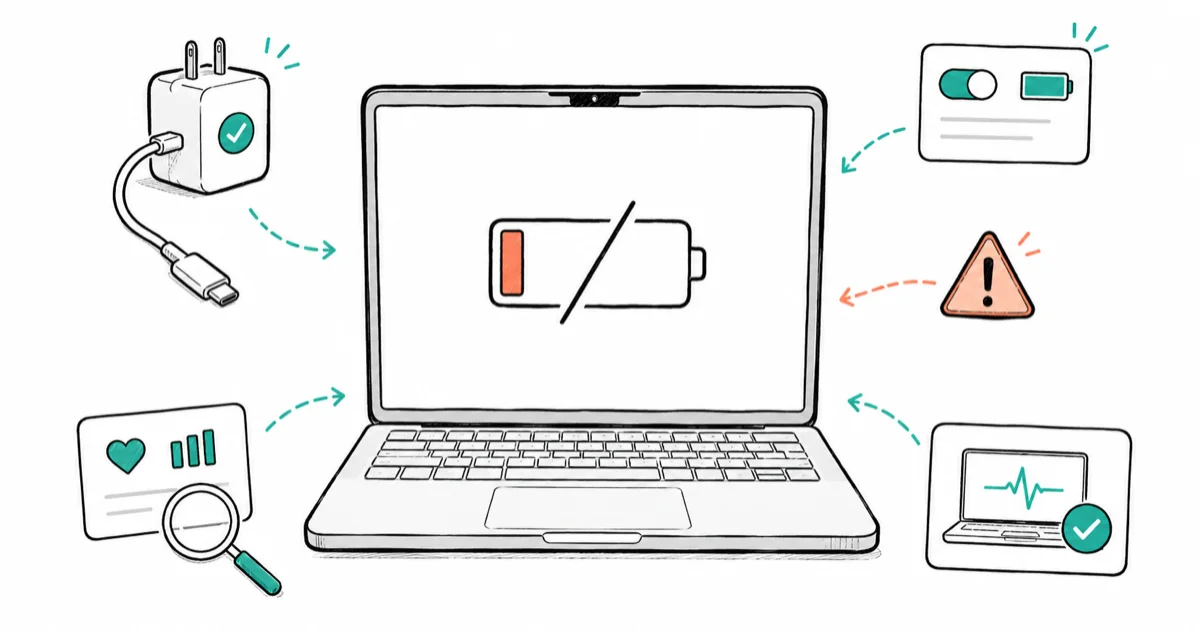
Quick AnswerA MacBook that says Not Charging often isn't broken; it can be optimized charging, heat, or battery-health management doing its job. Confirm the charger, cable, port, and wattage first, then check Battery Health and run Apple Diagnostics before assuming the battery has failed.
Your MacBook is plugged in but the battery percentage won’t climb, or the menu bar flatly says Not Charging. Before you panic about a dead battery, know this: that message is often normal behavior, not a failure. macOS deliberately pauses charging for heat, power source, and long-term battery health, and a wrong-wattage adapter or dirty port causes most of the rest.
A low-watt phone charger can keep a MacBook powered while the battery still doesn’t climb, which looks broken but isn’t. Work the order below before you book a repair.
- Not Charging is often normal: Optimized Battery Charging, heat, or a low-watt source can pause it
- Use an adapter that meets your MacBook’s wattage; a phone charger may power it but not charge it
- Test every USB-C port with the same cable to tell a port fault from a cable fault
- Battery Health showing Service Recommended means reduced capacity, not an unsafe battery
- Apple Diagnostics returns a hardware reference code before you pay for any service quote
#What Has to Be Right for a MacBook to Charge
A MacBook charges only when the power source, cable, port, temperature, and battery state all cooperate. When one is off, macOS shows Not Charging. Most of these states are recoverable without a repair.
The first thing to settle is whether you have a fault at all. A MacBook plugged into a weak charger can stay on indefinitely while the battery never climbs, like our macbook keyboard not working guide settles whether a quirk is a real failure first. So rule out the everyday causes before you suspect the battery.
#Check the Charger, Cable, Port, and Wattage
Inspect the whole power chain. Clean the port first. Look for frayed cables, bent pins, and lint packed into the USB-C port. Clean it gently with a dry, non-metallic tool, then try a different wall outlet to rule out a dead socket.
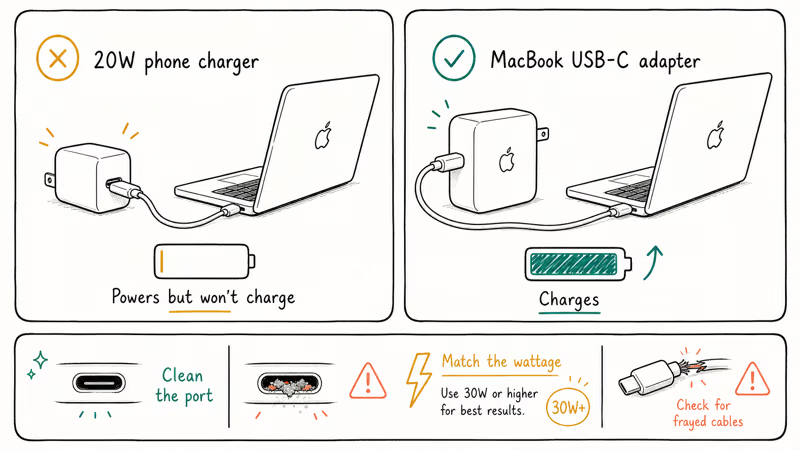
Wattage is the quiet culprit. A 20W phone charger can keep a MacBook running but won’t out-supply what the laptop draws under load, so the battery stalls or even drains while plugged in. According to Apple’s Charge your Mac laptop computer page, to charge more quickly you should use a charging solution that provides more power, measured in watts, matched to your model.
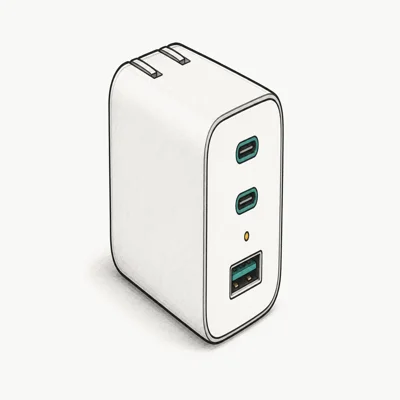
- Foldable US plug saves room in a tech pouch
- Holds 70W to a 14-inch MacBook Pro under sustained load
- Longer published warranty and a US support team
Last updated on Jun 16, 2026
As an Amazon Associate fone.tips earns from qualifying purchases. Prices and availability on Amazon are accurate as of the date above and subject to change.
Use the adapter that shipped with your MacBook, or a higher-wattage one, never a weaker one. The same debris-and-wattage check rescues phones too, as our galaxy s10 not charging guide shows.
If the right adapter and a clean port still won’t charge, find out whether the issue is one port or all of them.
#Is Not Charging Normal or a Real Problem?
Often it’s normal, and knowing the difference stops needless repairs. macOS uses Optimized Battery Charging, which learns your routine and holds the charge near 80% until you need a full battery, so a laptop that sits at 80% on the charger is working exactly as designed.
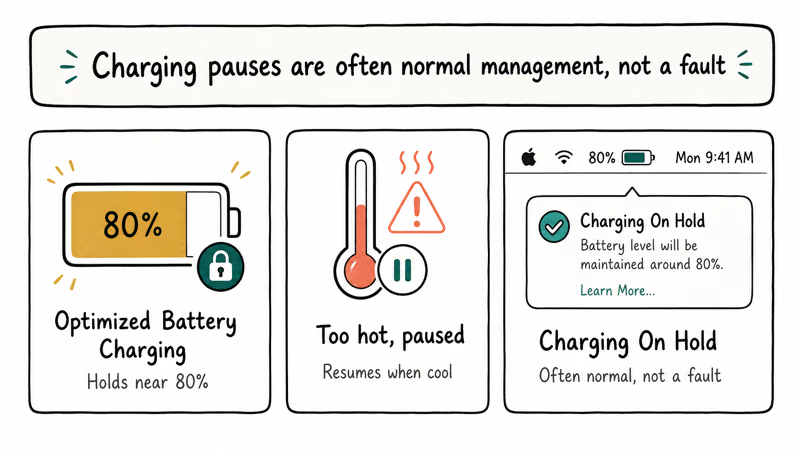
Heat triggers the same pause. If you’ve been gaming, exporting video, or charging in a hot room, macOS stops charging to protect the cells and resumes once things cool. You may also see status messages like “Charging On Hold” or “Charged to [percent] Limit,” which Apple’s charging page lists as normal management states, not faults. Let the Mac cool, close heavy apps, and watch whether charging resumes on its own before you treat this as a defect.
When the pause never lifts, or only some ports work, the next two sections narrow it down.
#What If One USB-C Port Charges but Another Does Not?
Test methodically with one known-good cable and adapter. Plug into each USB-C port in turn and watch the menu bar. Charging on one port but not another points to that specific port, not the battery or the charger, so isolate the working ports before you assume the worst about your battery’s health or the adapter you rely on every day.
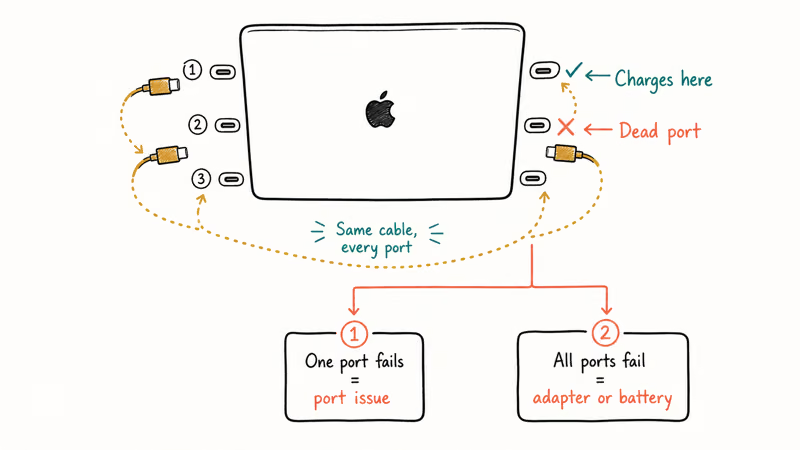
A single non-charging port can be debris, a damaged connector, or a logic-board issue. Clean it carefully first. If every port refuses to charge with a good adapter, the fault is more likely the adapter, cable, or battery than any port.
This one-port-versus-all-ports test points the finger fast. Our mac external monitor not guide uses the same logic for USB-C video that works on one port but not another, and Android owners can borrow it from our android wont charge guide.
If ports check out, look at the battery’s reported health.
#Check Battery Health and Temperature
macOS tells you the battery’s condition directly. Open System Settings > Battery > Battery Health (or hold Option and click the battery menu) to see whether it reads Normal or Service Recommended. Apple’s If you see battery Service Recommended on your Mac laptop page explains that Service Recommended means the battery holds less charge than it did when it was new, not that the battery has become unsafe to use.
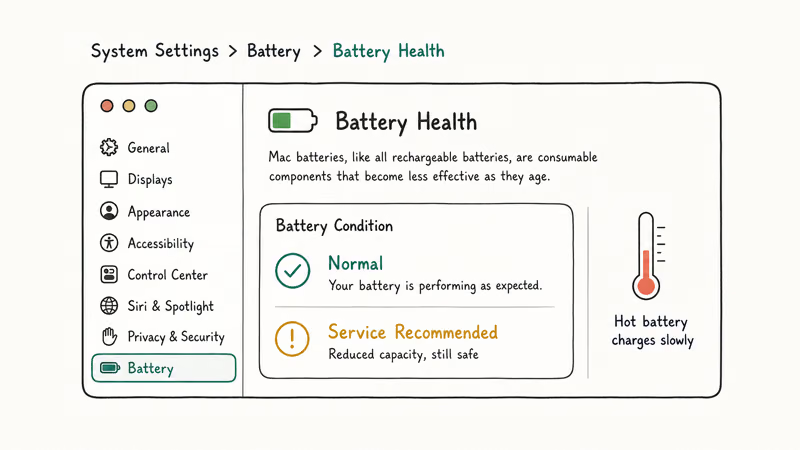
So Service Recommended doesn’t mean stop using the laptop today. It means the battery holds less charge than when it was new, and you can keep using the Mac while you decide on service. Temperature still matters here: a hot battery charges slowly or pauses, so keep the laptop ventilated and off soft surfaces that trap heat. If the battery health is fine and the temperature is normal but charging still fails, run a hardware test.
#Run Apple Diagnostics Before You Pay for Service
It’s free, fast, and gives you a code to bring to any repair shop. Apple Diagnostics checks the internal hardware, including power components, and returns a reference code you can look up or hand to a technician.
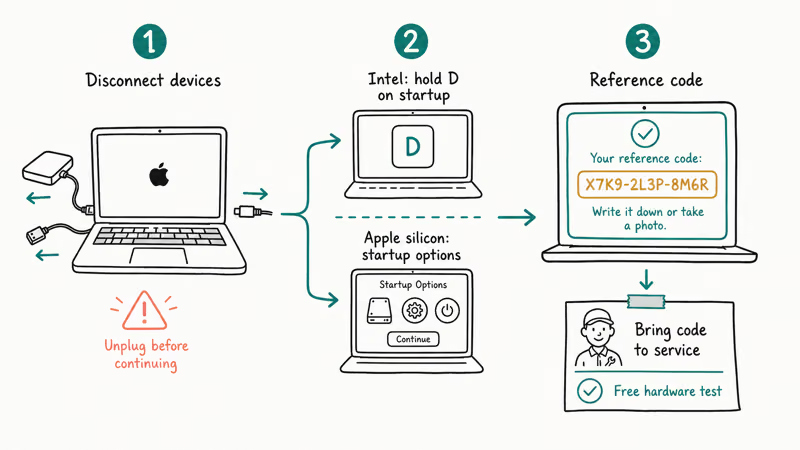
According to Apple’s Use Apple Diagnostics to test your Mac page, you start it on an Intel Mac by holding the D key as the Mac starts up, after you disconnect external devices and confirm good ventilation. Apple silicon Macs use a startup-options method instead. The test reports one or more reference codes, and Apple recommends giving that code to the technician when you take the Mac to an Apple Store or Authorized Service Provider.
Running this first means you walk into service with evidence, not a guess. Avoid cheap third-party adapters or DIY port repairs when power hardware is uncertain. The wrong fix can cost more than the original fault.
#Bottom Line
Not Charging isn’t always a failure; it can be wattage, heat, or battery-health management working as intended. Verify the charger, cable, and port with the correct wattage, then check Battery Health and let the Mac cool. If charging still fails, run Apple Diagnostics and bring the reference code to service rather than swapping parts blindly. If your Mac has other quirks after all this, like dropped connections, our mac wifi not working guide tackles those separately.
#Frequently Asked Questions
Why is my MacBook not charging?
Common causes are a low-wattage adapter, a dirty or damaged USB-C port, a bad cable, heat pausing the charge, or Optimized Battery Charging holding near 80%. Many of these are normal management states, not hardware failure, which is why the order in this guide checks the cheap, reversible causes before it ever points at the battery or the logic board.
What should I check first?
Confirm you’re using an adapter that meets your MacBook’s wattage, clean the port, and try a different cable and outlet. A phone charger may keep the laptop on without ever refilling the battery.
Can a macOS update cause charging problems?
Indirectly. Updates can reset battery-management behavior, and Optimized Battery Charging may relearn your habits afterward, so a temporary pause near 80% can look like a fault. Give it a normal charge cycle before assuming the worst.
Will resetting anything delete my data?
No. Checking Battery Health or running Apple Diagnostics never touches your files. Diagnostics only reads hardware status.
When should I contact official support?
Contact Apple if Battery Health reads Service Recommended and capacity is affecting your day, or if Apple Diagnostics returns a power-related reference code. A port that fails on every cable and adapter also warrants service.
How do I prevent this from happening again?
Use the correct or higher-wattage adapter, keep the USB-C ports free of debris, and avoid charging in hot environments or on soft surfaces. Those habits protect both the port and the battery’s long-term health.

macOS 27 Compatible Macs: Every Supported Model (2026)
macOS 27 Golden Gate runs only on Apple Silicon Macs. Here is the full list of supported M-series models and the four Intel Macs that lose support.

macOS 27 Golden Gate: Every Major New Feature Confirmed
macOS 27 Golden Gate goes Apple Silicon only, adds a Gemini-powered Siri, refines Liquid Glass, and rebuilds Spotlight. Here is every confirmed change.

macOS 27 Liquid Glass: Every Readability Fix Explained
macOS 27 Golden Gate refines Liquid Glass with an intensity slider, better contrast, cleaner window corners, and edge-to-edge sidebars to fix readability.

macOS 27 Performance: What Golden Gate Makes Faster
macOS 27 Golden Gate speeds up AirDrop, network file browsing, Safari, and Spotlight, with core system improvements on the Apple Silicon-only release.