Android Won't Charge? 10 Fixes for Slow or No Charge
Android won't charge or charging slowly? Swap the cable, match the wattage, clean the port, and check battery health. 10 proven fixes for Android phones.
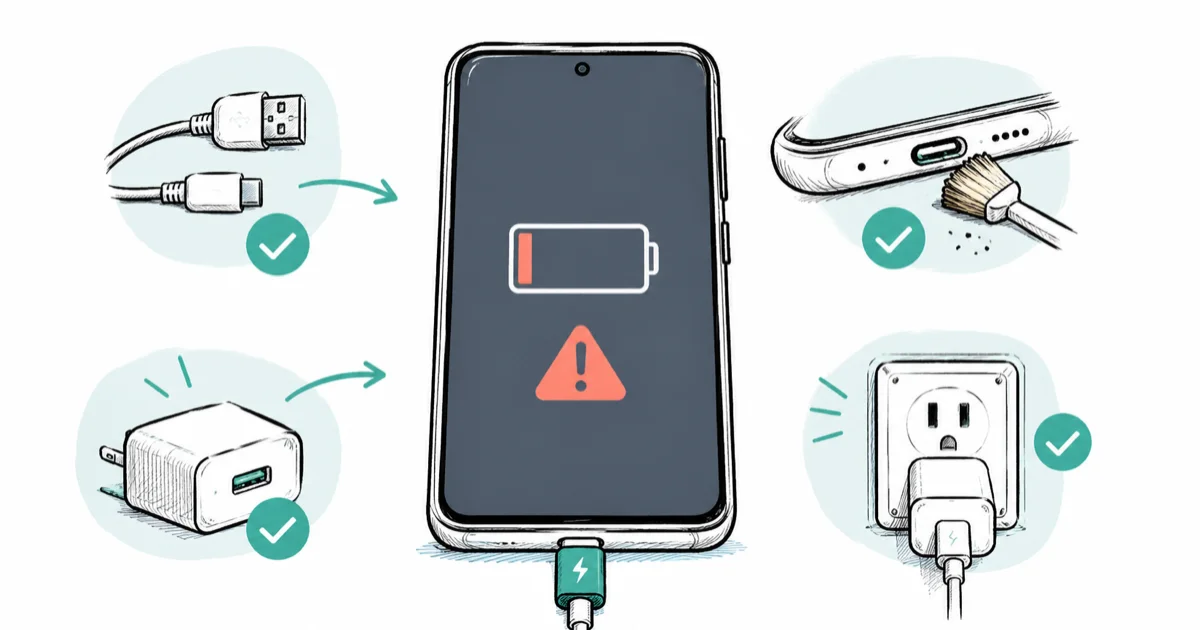
Quick AnswerWhen your Android won't charge, start with the cable and adapter, since a worn cable or weak charger causes most cases. Clean the port and charge from a wall outlet. If the phone is dead, charge it 30 minutes before expecting it to turn on. Slow charging is usually wattage, heat, or an app.
When your Android won’t charge, the instinct is to assume a dead battery, but the real cause is almost always cheaper. A frayed cable, a low-power charger, lint in the port, or a single setting accounts for most complaints. This guide works through the fixes from cheapest to most involved, and it separates a slow-charge problem from a no-charge problem, because they have different roots.
This guide applies to any Android phone you own, whether it’s a Samsung, Pixel, or another brand.
- The charging cable is the single most common point of failure, so test a different known-good USB-C cable first
- A wall outlet delivers more power than a laptop USB port or a car port, so plug into the wall to rule out underpowering
- If the phone is fully dead, charge it at least 30 minutes before expecting it to turn on
- Lint packed into the USB-C port can physically block the connector, so clean it with a wooden toothpick, never metal
- A phone that still charges slowly after two to three years with a confirmed degraded battery needs a replacement, not more troubleshooting
#Why Won’t Your Android Phone Charge?
A charging failure is really two distinct problems wearing the same symptom. A no-charge problem shows no charging indicator at all, and the cause is usually physical: a broken cable, a dead adapter, a blocked port, or a failed battery. A slow-charge problem charges, just painfully slowly, and the cause is usually electrical or thermal: a wattage mismatch, a hot battery throttling itself, or a power-hungry app.
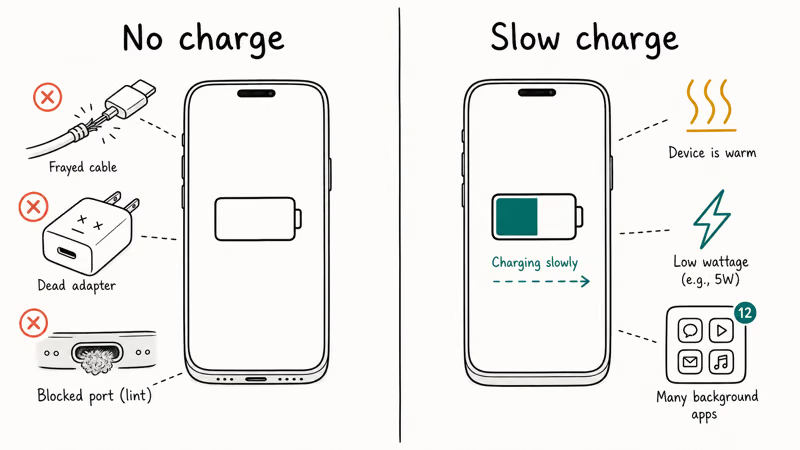
A worn or charge-only cable can make a healthy phone look broken. A known-good USB-C cable is the first swap for a reason.
Work the fixes in order. Each one is cheaper than the next, and the early steps resolve most cases. If your phone is also running hot, our guide to Samsung phone overheating covers that overlap, since the same heat can throttle both charging and performance.
#Test the Cable, Adapter, and a Wall Outlet
Start with the cable, because it fails more than any other part. The internal wires break from bending near the connectors, often invisibly. Swap in a different cable you know works, ideally a reputable USB-C cable made for fast charging a Samsung or other modern phone, and try again.
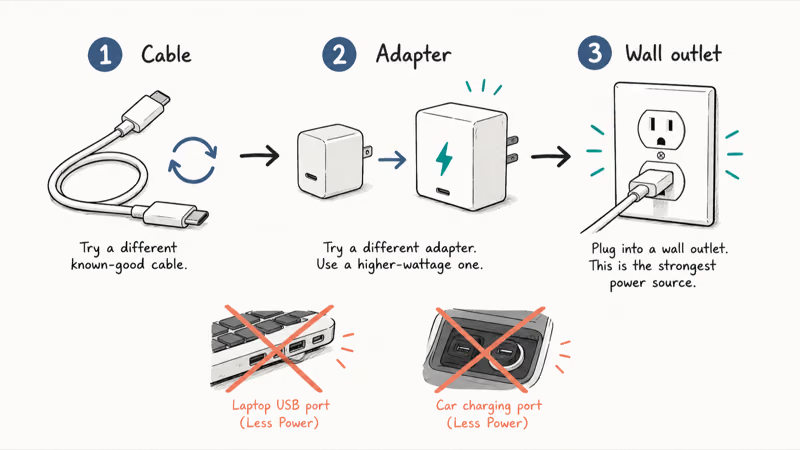
Then test your suspect cable on a second device to confirm whether the cable or the phone is at fault.
Next, change the adapter, since a weak or failing wall brick may not push enough current. Finally, plug directly into a wall outlet, because a laptop USB port, hub, or car port delivers far less power than a wall adapter, so fast charging won’t engage and charging can look broken when it’s just underpowered. Try a second outlet too, in case the first one is dead.
#Clean the Charging Port and Restart the Phone
Pockets and bags pack lint into the USB-C port over months, and a wad of debris physically stops the connector from seating. If the cable wiggles, feels loose, or only charges at a certain angle, the port is the suspect.
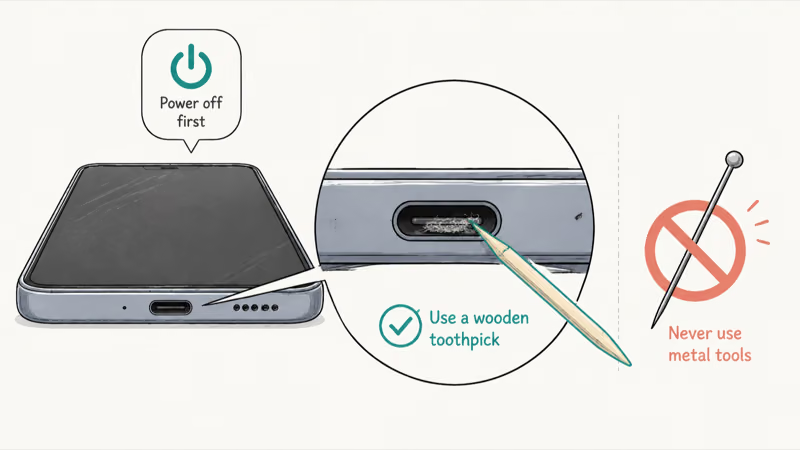
Power the phone off, then look into the port with a bright light. Gently scrape out lint with a wooden or plastic toothpick, or use short bursts from a can of compressed air. According to Samsung’s not-charging support page, checking the port for dust or debris is a core step, and you should never use a metal pin or needle, which can bend the contacts.
A simple restart resolves a surprising number of charging glitches, since a software hiccup can stop the phone from registering the charger. Hold the power button, restart, then reconnect. The same restart-first logic helps a phone stuck in other quirky states, like one wrongly stuck in headphone mode.
#What if Your Phone Won’t Turn On at All?
A dead phone needs patience: a deeply drained battery may take time before the screen lights up.
According to Google’s help for a phone that won’t charge or turn on, you should connect the original charger and give it time before assuming the phone is broken; Google’s guidance states that 30 minutes of charging may be needed before a dead phone powers on.
Watch for the charging indicator. A small battery icon, an LED, or a vibration usually appears within a few minutes if power is reaching the battery. No indicator at all after a cable, adapter, and outlet swap points to a port or battery fault. Google also warns that non-certified or damaged accessories can prevent charging, so for a dead phone, use the manufacturer’s own charger.
#Fix Slow Charging With the Right Wattage and Settings
Slow charging is usually not a fault at all. The most common cause is a mismatch between the charger and the phone. A 5-watt charger plugged into a phone that supports much faster charging will trickle power in, so use a charger rated for your phone’s speed.
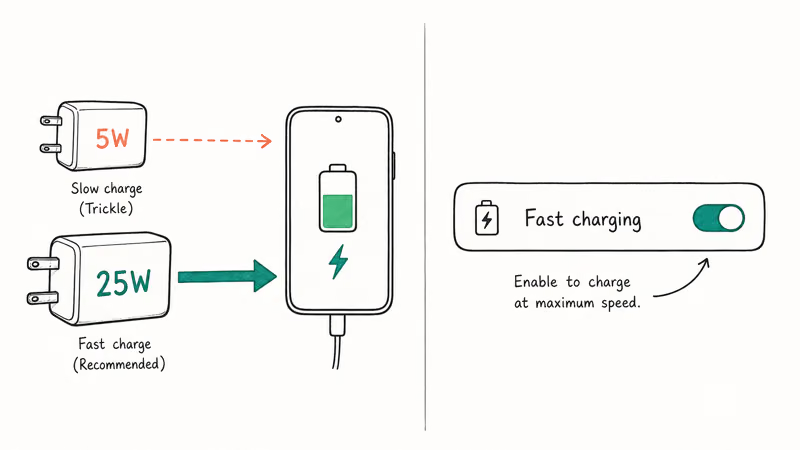
Many phones also hide a fast-charging toggle. On Samsung, the path is Settings > Battery > Charging settings, where Fast charging and Super fast charging can be switched on. If it’s off, charging will be slow by design.
Heat throttles charging too, much like it does in cases of Android system battery drain, so charge in a cool spot with the screen off and don’t game or stream while charging. A rogue app draining power as fast as the charger supplies it can also masquerade as slow charging, so check Settings > Battery for any app consuming an unusual share. A software update for a known charging bug is worth applying through Settings > System > Software updates.
#Check Battery Health and Update Software
If nothing above helps, the battery’s age matters. As a Wikipedia overview of lithium-ion batteries explains, these cells lose capacity over years of charge cycles, so after two to three years a phone may charge slowly. An app like AccuBattery estimates your real capacity over a few cycles, and Samsung phones expose a quick diagnostic in the Samsung Members app.
If a battery check confirms degradation, a replacement at an authorized service center is the realistic fix, and far cheaper than a new phone. A reputable Android phone repair shop near you can swap a non-removable battery safely.
For wireless charging trouble, the fix is usually alignment rather than the battery. Remove any thick or metal case, center the phone on the pad’s coil, and confirm the pad’s own adapter is in a wall outlet, since a misaligned coil or a weak pad supply is the typical cause of a phone that charges over a cable but not wirelessly.
#Bottom Line
Start with the cable and adapter, because a worn USB-C cable or an underpowered charger causes most charging complaints, and a wall outlet beats any USB or car port. If the phone is fully dead, follow Google’s guidance and charge it at least 30 minutes before expecting it to turn on.
Slow charging is usually a wattage mismatch, a hot battery, or a power-hungry app, not a fault. Match the charger to your phone’s speed and replace an aged battery only after a health check confirms it.
#Frequently Asked Questions
Why is my Android charging so slowly all of a sudden?
A sudden slowdown usually points to a worn cable, a weaker adapter than usual, or a hot battery throttling itself. Check that you’re using a charger that matches your phone’s supported speed and that fast charging is enabled in battery settings. If the phone is warm, let it cool, since heat makes the phone deliberately charge slower to protect the battery.
My phone is completely dead, how long should I charge it before it turns on?
Give it at least 30 minutes on a wall charger before deciding it’s broken. A deeply drained battery needs to build a minimum charge before the screen lights up. An indicator usually appears within the first few minutes if power is reaching it, and if nothing shows after you swap the cable, adapter, and outlet, the port or battery is the likely fault rather than a flat charge.
Can lint in the charging port really stop charging?
Yes, and it’s far more common than people expect. Pocket lint compacts into the USB-C port and blocks the cable from seating. Power the phone off and clean the port with a wooden toothpick or compressed air, never metal.
Why won’t my phone fast-charge anymore?
The usual reasons are a charger that doesn’t match your phone’s fast-charging spec, a toggle that got switched off, or a hot battery. Confirm the adapter is rated for your speed and check the fast-charging option under battery settings.
Does using the phone while charging slow it down?
It can. Gaming, streaming, or heavy multitasking while charging draws power at the same time the charger is supplying it, which slows the net charge and adds heat that throttles charging further still. For the fastest charge, leave the screen off, close demanding apps, and let the phone sit untouched until the battery is comfortably topped up rather than reaching for it every few minutes.
How do I check if my battery is just old?
Use a battery health app like AccuBattery, which estimates your current capacity against the original rating over a few charge cycles, or run the battery check inside the Samsung Members app on a Galaxy phone. If the check shows your capacity has dropped well below the original, especially after two to three years, the battery is aging and a replacement is the practical fix.

Pixel 11 vs Pixel 10: What Changed and Who Should Upgrade
Pixel 11 vs Pixel 10: same screen and camera resolution, new Tensor G6, 25W wireless, and Gemini Intelligence. Here is who should actually upgrade.

Verizon Not Receiving Texts? How to Fix It in 9 Steps
Verizon not receiving texts? Fix it in 9 steps: check Message Blocking in My Verizon, reset network settings, deregister iMessage, and call support.

Pixel Battery Drain: What Google's July Fix Really Covers
Google marked the Pixel idle battery drain bug fixed in July, but only some phones got the patch. Here is who is covered, who is not, and what to try.

iPhone Stuck on EDGE? How to Get 5G or LTE Back (2026)
iPhone stuck on EDGE with crawling data? Here's why the E icon appears, which settings force 5G or LTE back, and when the problem is your carrier.