Mac External Monitor Not Working? 9 Fixes That Actually Work
Fix a Mac external monitor not working with an ordered checklist for cables, adapters, Displays settings, Apple silicon limits, and dock drivers.
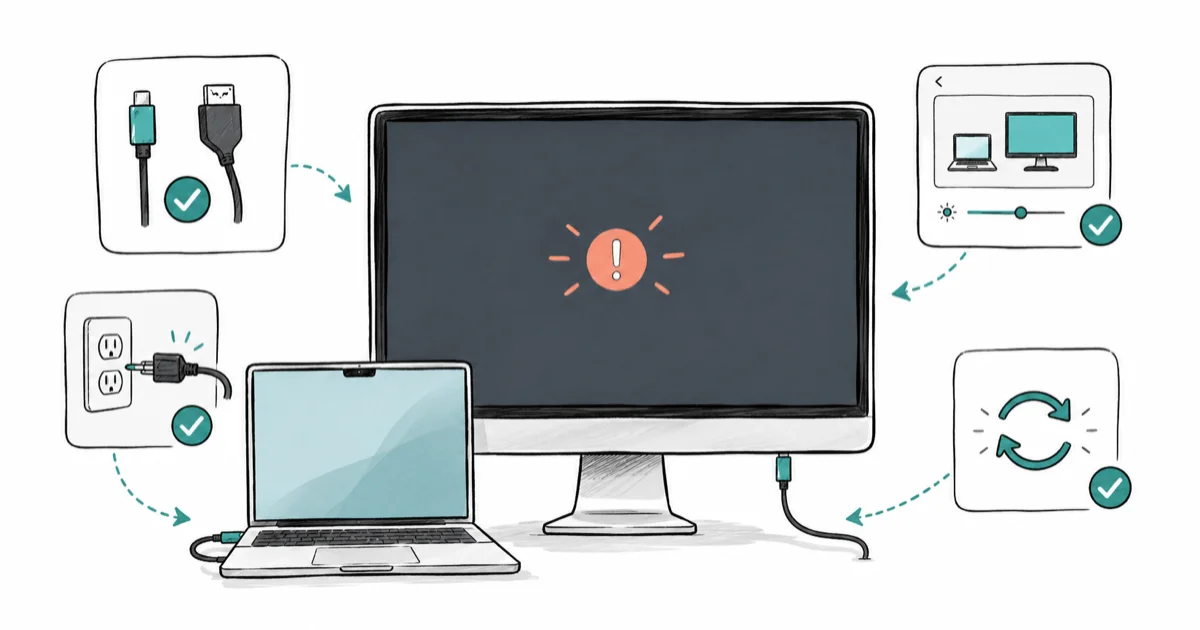
Quick AnswerA Mac external monitor that stays black is usually a cable, adapter, input, or power problem, not a broken screen. Start with the physical chain, then open Displays settings and check your Mac model's display limits before you buy new hardware.
Your Mac external monitor isn’t working, and you need the second screen back before your next call. The cause is almost always in the physical chain (cable, adapter, input source, or power) rather than a dead monitor, so this guide walks every MacBook and desktop Mac through a fix-first order: prove the hardware, adjust Displays settings, then check your model’s display limits.
Start at the top and stop the moment the screen lights up. The order matters because input, cable, and adapter problems are faster to rule out than system-level resets.
- A black external screen is usually a cable, adapter, input, or power fault, not a broken monitor
- Set the monitor’s input source to the exact port your cable uses (HDMI 1 vs HDMI 2)
- Press Detect Displays in Displays settings to force your Mac to rescan for screens
- Entry Apple silicon Macs support one external display, so a second monitor stays dark by design
- Docks and hubs that rely on DisplayLink need their own driver before they pass video
#The Four Things a Mac Needs to Drive a Display
A Mac drives an external display only when four things line up: a working cable, a port that actually carries video, the right input selected on the monitor, and a Mac model that supports the screen count you want. Break any link and you get a black screen.
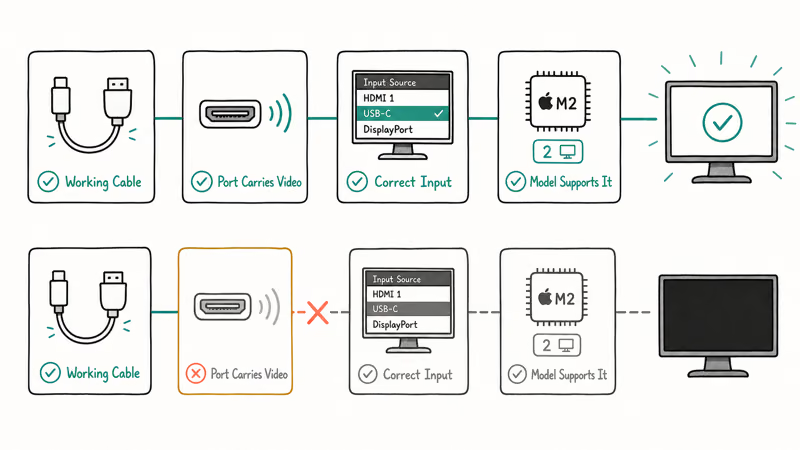
The fastest way to diagnose is to isolate. Plug the same monitor and cable into a different machine, like another laptop or a game console, and watch. If the picture comes up there, the monitor and cable are fine and the problem lives on the Mac side, the same way the mac keeps crashing guide separates a software fault from failing hardware. If the screen stays black everywhere, you’ve found the broken part.
#Check Cable, Adapter, Input, and Power First
Before you open any settings, confirm the basics. Reseat the cable at both ends, swap to a known-good cable, and make sure the monitor is on and awake. Many monitors show a plain black screen, not a “no signal” prompt, when they sit on the wrong input.
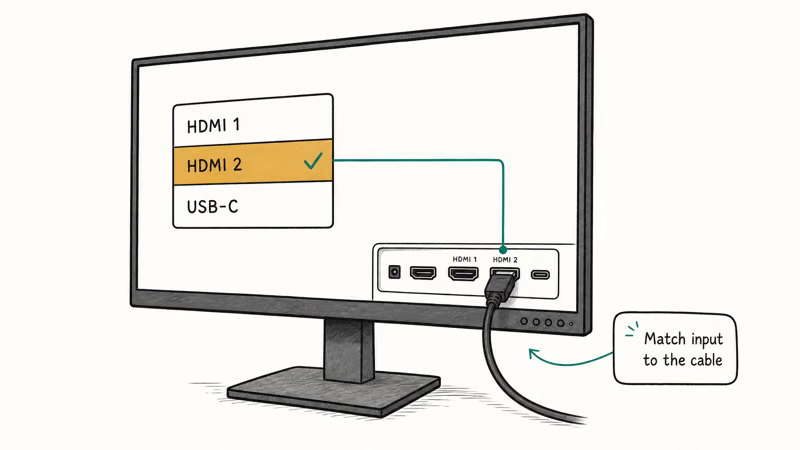
Set the correct input source. Use the monitor’s physical buttons or on-screen menu to select the exact input your cable plugs into. A monitor with two HDMI ports will sit on HDMI 1 while your Mac feeds HDMI 2, and nothing appears until you switch it.
Not every USB-C port carries video. This is the trap that catches most people. A USB-C port might handle data and charging but not DisplayPort video, and a cheap dongle may not support the alt mode your Mac needs. According to Apple’s Connect displays to your Mac guide, if your video cable needs a port your Mac doesn’t have, use a proper adapter or replace the cable with one that fits a supported port.
Match the adapter to the job. A Thunderbolt-rated adapter is safer than a generic one. If the monitor lights up on another device but your Mac shows nothing, move to Displays settings next.
#How Do You Make a Mac Detect a Connected Display?
Open System Settings > Displays. macOS usually lists every connected screen here. If your external monitor is missing, hold the Option key, and a Detect Displays button appears at the bottom of the panel. Apple’s Connect one or more external displays with your Mac page confirms that this Option-key trick reveals the Detect Displays button.
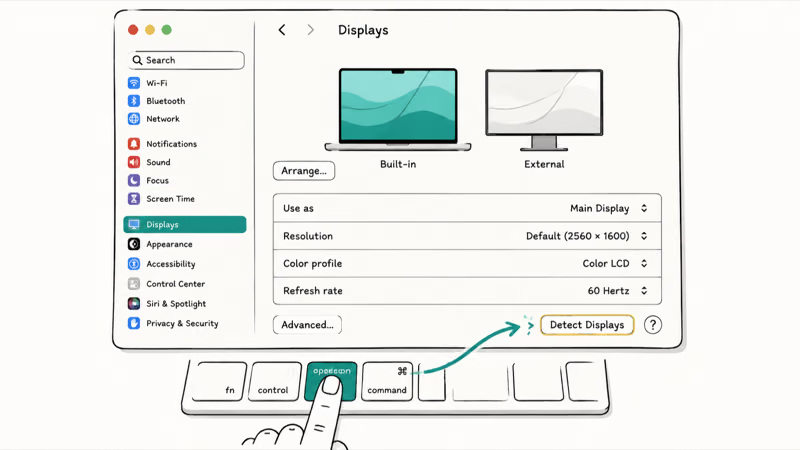
If the display shows up but mirrors the wrong screen, use the arrangement diagram in the same panel to drag the displays into the layout you want. Set which screen is primary by dragging the white menu-bar strip between them.
Clamshell mode is its own gotcha. A laptop with the lid closed needs external power plus an external keyboard or mouse to wake the display, so connect those before you assume the port failed.
When the monitor appears but looks blurry or cramped, the problem is resolution, not detection. That’s next.
#What If the Monitor Works but Resolution Is Wrong?
A detected display that looks soft, stretched, or stuck at a low refresh rate is a settings mismatch, not a hardware fault. In Displays settings, select the external screen and choose Scaled, then pick a resolution that matches the panel’s native specification (4K panels want a 3840-by-2160 option).
Refresh rate matters for newer monitors. If a high-refresh panel runs at 60Hz when it should run higher, switch the refresh-rate dropdown and confirm your cable supports that bandwidth. Older HDMI cables cap out and drop the rate. HDR can also cause a washed-out or flickering image, so toggle it off to test the panel and cable cleanly.
You change all of this from one place. Apple’s Change Displays settings on Mac page covers adjusting resolution, brightness, and color profile from the same Displays panel.
Still stuck? Your Mac model may simply be the limit.
#Check Apple Silicon Display Limits and Dock Drivers
This is the step most checklists skip, and it explains a lot of “broken” monitors. Apple silicon Macs cap how many external displays they drive, and entry-level chips are stingy.
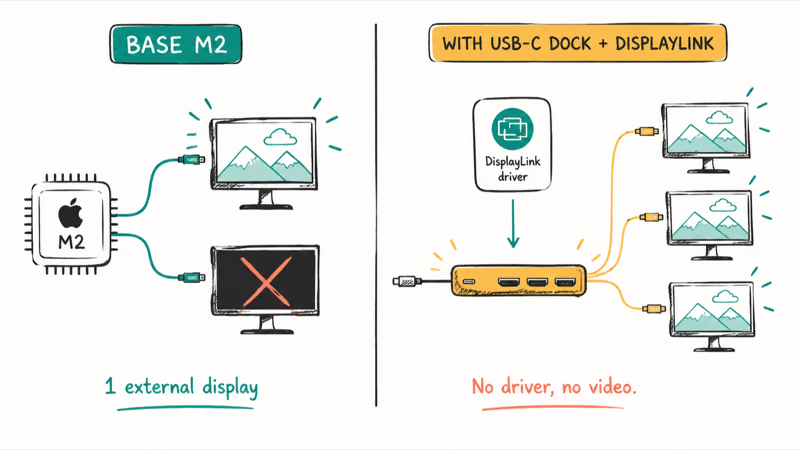
The base M1 and M2 chips in the MacBook Air and 13-inch MacBook Pro support a single external display. A second monitor stays dark by design, even when the cable and monitor are working.
Apple’s display guide states that you can connect 1 external display to many Macs, with the exact number depending on your specific model plus the resolution and refresh rate of each screen. It also notes support for 8K displays or 4K with high refresh rates. Check your model’s tech specs page for the ceiling before you assume the port is dead.
Docks and hubs are a separate story. A USB-C dock that splits one port into several display outputs often uses DisplayLink, which needs a software driver on macOS. Without that driver, the dock charges and moves data but passes no video. Install the manufacturer’s current macOS driver, then retest. The macbook not charging guide covers why one USB-C port behaves differently from another.
#Reset the Connection Order Before Replacing Hardware
Reset the connection order, not your whole system. Most stuck displays clear with a clean reconnect rather than a factory wipe.
Run this short sequence in order:
- Disconnect the monitor cable and shut the Mac down fully.
- Power the monitor off, then back on, and select the correct input.
- Boot the Mac, wait for the desktop, then plug the monitor back in.
- Open Displays settings and press Detect Displays if needed.
This forces both devices to renegotiate the connection from scratch, which can fix handshake errors that build up after sleep or an update. Connecting the same monitor to a Windows machine? The windows 11 second monitor guide handles that side.
If a connection still won’t hold, a cluttered system can be the culprit; the how to clear cache on mac guide frees things up. When a clean reconnect still fails on a known-good monitor, suspect macOS itself, like the mac wifi not working guide does.
#Bottom Line
Start with the physical chain: monitor input, cable, adapter, and power, in that order. If the monitor works on another device, the fault is on the Mac side, so open Displays settings, press Detect Displays, and confirm the resolution. Before you buy a new monitor, check your Mac model’s display-count limit, and treat any DisplayLink dock as a separate driver problem rather than a failed port.
#Frequently Asked Questions
Why is my Mac external monitor not working?
The most common causes are a cable that doesn’t carry video, a monitor sitting on the wrong input, a USB-C port that only handles data, or a Mac model that has hit its external-display limit. Work through the physical chain first, then check Displays settings.
What should I check first?
Reseat the cable, confirm the monitor is on the correct input source, and test the same monitor and cable on another device. That single isolation test tells you whether the fault is the screen, the cable, or the Mac.
Can a macOS update cause this?
Yes. Updates sometimes change how the Mac negotiates display connections, leaving a working monitor black. Disconnect the cable, restart, and plug it back in.
Will resetting Displays settings delete my data?
No. Adjusting resolution, arrangement, or pressing Detect Displays only changes how the screens behave, not what they hold. It never touches your files, apps, or documents, so you can experiment freely. If you do want a deeper system cleanup at some point, do it through Time Machine and a proper backup rather than poking at display preferences.
When should I contact official support?
Reach out to Apple or your monitor maker if the screen stays black on multiple computers, or if your Mac is within its supported display count but still refuses to detect a known-good monitor. Hardware that fails on every device needs service, not more settings changes.
How do I prevent this from happening again?
Use a Thunderbolt-rated cable or adapter that matches your monitor, keep DisplayLink dock drivers current, and confirm your Mac model supports the number of displays you connect. Those three habits stop most repeat black-screen issues.

macOS 27 Compatible Macs: Every Supported Model (2026)
macOS 27 Golden Gate runs only on Apple Silicon Macs. Here is the full list of supported M-series models and the four Intel Macs that lose support.

macOS 27 Golden Gate: Every Major New Feature Confirmed
macOS 27 Golden Gate goes Apple Silicon only, adds a Gemini-powered Siri, refines Liquid Glass, and rebuilds Spotlight. Here is every confirmed change.

macOS 27 Liquid Glass: Every Readability Fix Explained
macOS 27 Golden Gate refines Liquid Glass with an intensity slider, better contrast, cleaner window corners, and edge-to-edge sidebars to fix readability.

macOS 27 Performance: What Golden Gate Makes Faster
macOS 27 Golden Gate speeds up AirDrop, network file browsing, Safari, and Spotlight, with core system improvements on the Apple Silicon-only release.