Mac Keeps Restarting? How to Fix the Random Reboots
Mac keeps restarting on its own? Read the kernel panic report, isolate peripherals in Safe Mode, update macOS, and reset login items before reinstalling.
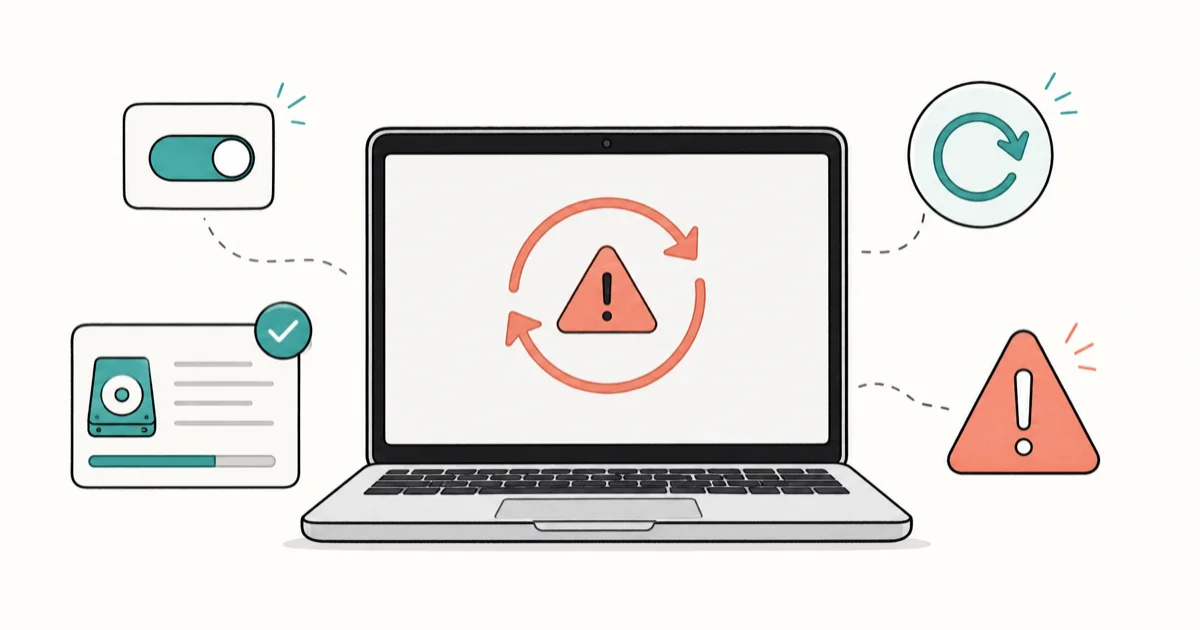
Quick AnswerA Mac that keeps restarting is often hitting a kernel panic from a faulty peripheral, login item, or driver. Read the restart report, then boot into Safe Mode and disconnect accessories to isolate the cause.
A Mac that keeps restarting on its own usually shows the “Your computer restarted because of a problem” message, which is a kernel panic. The cause is almost always a faulty peripheral, a bad login item, or a driver, and you can isolate it without wiping the machine. Start by reading the panic report, then rule out accessories and Safe Mode before reinstalling.
- The “restarted because of a problem” dialog is a kernel panic, and its report names the likely cause
- Disconnecting every peripheral isolates a faulty accessory or cable as the trigger
- Safe Mode boots without third-party login items, so it pinpoints software causes
- Updating macOS fixes restart bugs that Apple patches in point releases
- Reinstalling macOS keeps your files and should come only after isolation fails
#Why Does My Mac Keep Restarting?
Repeated restarts mean the system hit something it couldn’t recover from and rebooted to protect itself. That event is a kernel panic, and the trigger sits in one of a few places.
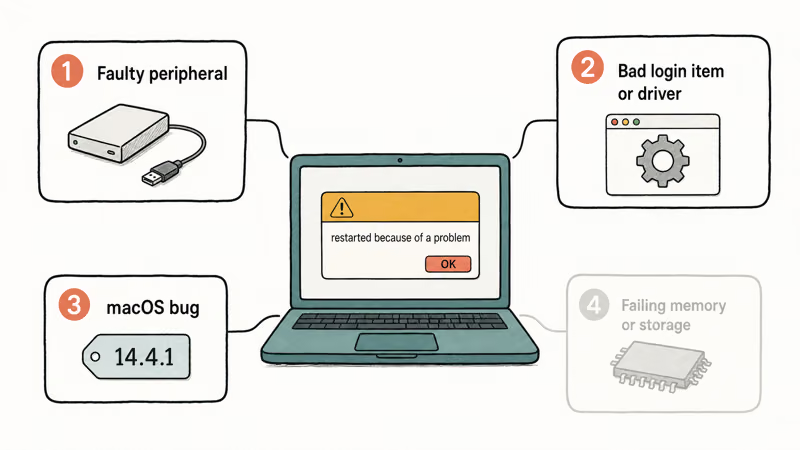
A faulty peripheral is the most common. A failing drive, a bad USB-C hub, or a frayed cable can crash the kernel.
A bad login item or driver is the second cause. Apps that load a system extension at startup, especially older antivirus or VPN tools, can panic the Mac the moment they run.
A macOS bug is the third. After a major update, a regression can cause restarts until Apple ships a point release. Failing memory or storage is the rarest cause, and it’s the one to suspect only after the others are ruled out.
#Read the Panic Report and Unplug Peripherals
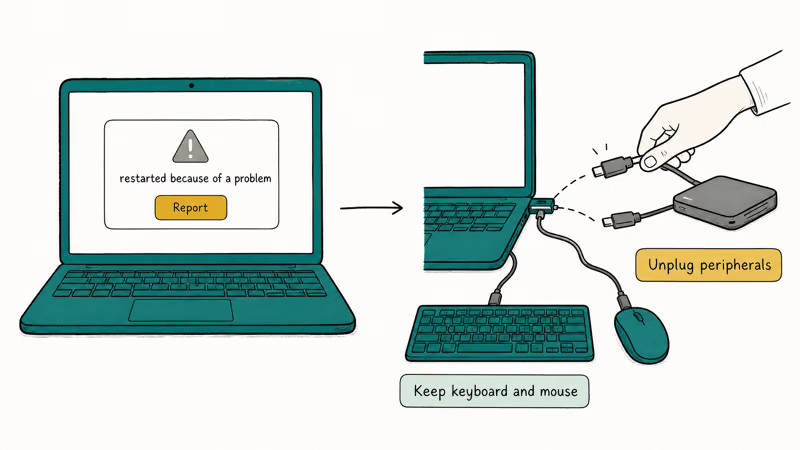
Read the report before you change anything, because it often names the cause. When the Mac reboots, click Report or More Info on the dialog. You can also open it later from Console > Crash Reports, where every panic log is stored with a timestamp so you can match a restart to what you were doing at the time.
Scan the report for a hardware or extension name. According to Apple’s guide to a Mac that restarted because of a problem, the panic log can point to the software or device involved, which tells you where to look first.
Disconnect every peripheral next. Unplug external drives, hubs, displays, and anything but the keyboard and mouse, then use the Mac normally. A flaky hub, drive, display, or dock can feed the panic. If the restarts stop, reconnect devices one at a time until the panic returns and names the culprit.
A device that draws too much power or runs hot can also restart a Mac, which overlaps with the symptoms in our guide on MacBook overheating. Rule out a thermal trigger before assuming the fault is software.
#Boot Into Safe Mode to Isolate the Cause
Use Safe Mode when disconnecting peripherals doesn’t stop the loop. Safe Mode loads only Apple’s own software and skips third-party login items, so it isolates whether your installed apps are the trigger.
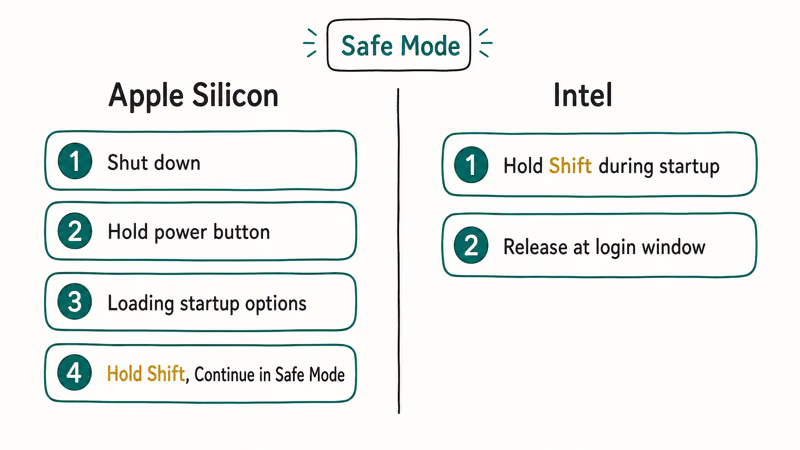
The key combo differs by chip. On Apple Silicon, shut down, then press and hold the power button until Loading startup options appears, pick your disk, and hold Shift while clicking Continue in Safe Mode. According to Apple’s Safe Mode instructions, Intel Macs instead hold Shift during startup until the login window appears.
Run the Mac in Safe Mode for a while. If it doesn’t restart, a login item or extension is the likely cause, so remove suspects in the next step.
If the Mac still restarts in Safe Mode, the cause is more likely hardware or macOS itself. That narrows your path and saves you from chasing apps that aren’t the problem.
#Update macOS to Patch Restart Bugs
Patch first, then trim startup software. Apple fixes many restart bugs in point releases, so an out-of-date Mac may be panicking over an issue that’s already solved.
Go to System Settings > General > Software Update and install everything pending, then restart. If the loop began right after a major upgrade, a point release is the most likely fix. The same update logic helps when a Mac feels sluggish, as our guide on Mac slow after a macOS update explains.
#Reset Login Items and Free Up Disk Space
Trim login items after updating. Open System Settings > General > Login Items and Extensions, then disable third-party startup apps and any allowed extensions, especially older security or virtualization tools. Re-enable them one at a time to find the one that brings the restarts back.
Clearing space helps too, since a nearly full disk can destabilize macOS. Our guide on how to clear system data on Mac frees room if storage is tight, which removes one more restart trigger.
#When Should You Reinstall macOS?
Save reinstalling for after isolation fails, and know that the standard reinstall keeps your files. It replaces the system without erasing your data, so it’s safer than people fear.
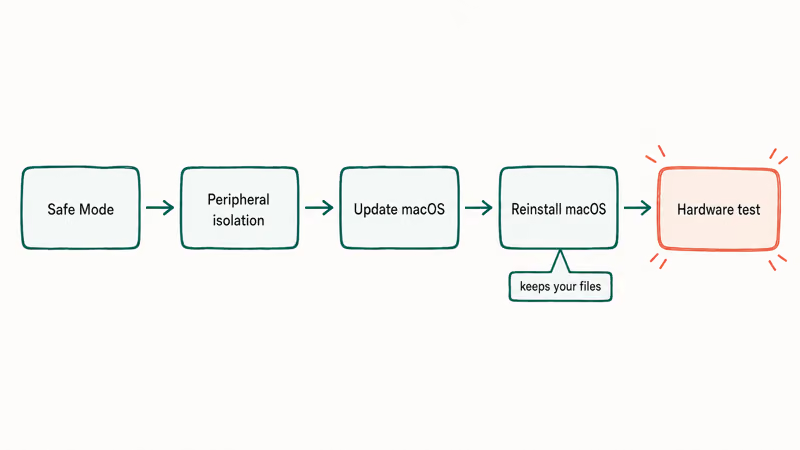
Boot into macOS Recovery to start it. On Apple Silicon, hold the power button until startup options load and choose Options; on Intel, hold Command + R during startup. Pick Reinstall macOS and follow the prompts, leaving your disk in place so your files stay.
Reinstall only after Safe Mode, peripheral isolation, and updates all fail to stop the loop. If a panic that named a clear cause keeps recurring, like a boot hang covered in our guide on a Mac stuck on the Apple logo, the reinstall addresses a corrupt system rather than a single app.
If the restarts continue even after a clean reinstall, the cause is hardware. Run Apple Diagnostics or book a Genius Bar appointment, since failing memory or storage needs a physical fix.
Apple’s guide to Apple Diagnostics states that the built-in test runs in about 2 to 3 minutes and returns a reference code that identifies the fault. Persistent app crashes that don’t reboot the whole Mac are a different problem, covered in our guide on a Mac that keeps crashing.
#Bottom Line
Read the restart report to spot a kernel panic, then boot into Safe Mode and disconnect accessories to isolate a faulty peripheral or login item. Update macOS, since restart bugs are often patched in point releases. Reinstall macOS only after Safe Mode and peripheral isolation rule out software, and treat hardware as the cause only when a clean reinstall still restarts.
#Frequently Asked Questions
Why does my Mac keep restarting?
It’s usually a kernel panic from a faulty peripheral, a bad login item, or a macOS bug. Read the restart report and test Safe Mode to find the culprit.
What is a kernel panic on a Mac?
A kernel panic is a safety shutdown the system performs when it hits an error it can’t recover from. It shows the “Your computer restarted because of a problem” dialog and writes a report that often names the software or device involved.
How do I boot a Mac into Safe Mode?
On Apple Silicon, shut down, hold the power button until startup options appear, then hold Shift and click Continue in Safe Mode. On Intel, hold Shift during startup.
Can a peripheral cause restarts?
Yes, and it’s the most common cause. A failing external drive, a bad hub, or a frayed cable can feed the system corrupt data that crashes the kernel. Disconnect everything but the keyboard and mouse, then reconnect one device at a time to find the culprit.
Will updating macOS stop random restarts?
Often, yes. Apple patches restart bugs in point releases, so installing the latest update can fix a loop that started after a major upgrade. Update before you try anything destructive.
When should I reinstall macOS?
Reinstall only after Safe Mode, peripheral isolation, and updates fail. The standard reinstall keeps your files, so it’s a recovery step rather than a wipe, and it addresses a corrupt system when nothing else does.

macOS 27 Compatible Macs: Every Supported Model (2026)
macOS 27 Golden Gate runs only on Apple Silicon Macs. Here is the full list of supported M-series models and the four Intel Macs that lose support.

macOS 27 Golden Gate: Every Major New Feature Confirmed
macOS 27 Golden Gate goes Apple Silicon only, adds a Gemini-powered Siri, refines Liquid Glass, and rebuilds Spotlight. Here is every confirmed change.

macOS 27 Liquid Glass: Every Readability Fix Explained
macOS 27 Golden Gate refines Liquid Glass with an intensity slider, better contrast, cleaner window corners, and edge-to-edge sidebars to fix readability.

macOS 27 Performance: What Golden Gate Makes Faster
macOS 27 Golden Gate speeds up AirDrop, network file browsing, Safari, and Spotlight, with core system improvements on the Apple Silicon-only release.