Liquid Detected in Lightning Connector: How to Fix It
Fix the "liquid detected in Lightning connector" alert on iPhone. Step-by-step drying methods, what to avoid, and when to use Emergency Override.
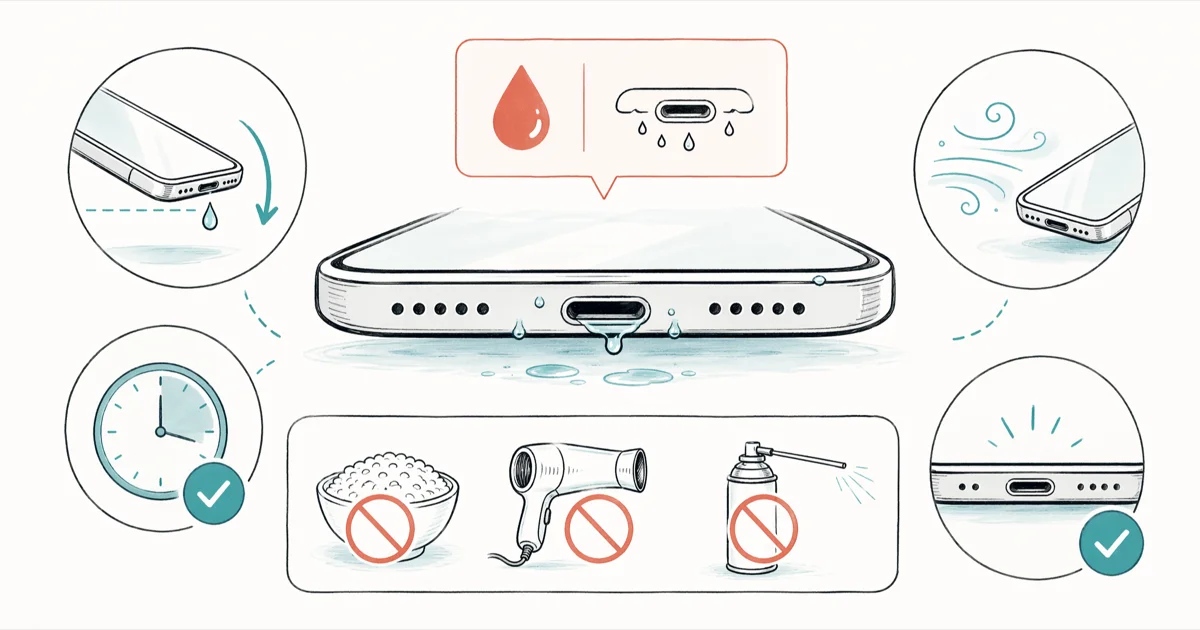
Quick AnswerUnplug the cable, hold the iPhone with the port facing down, tap it gently against your palm, and let it air dry for at least 30 minutes. Skip rice, hair dryers, and compressed air. If the alert returns after 24 hours of drying, book Apple Support.
Your iPhone is flashing “Liquid Detected in Lightning Connector” and refuses to charge. That alert is iOS cutting power to a wet port so electricity doesn’t run through the pins, which is the fastest way to corrode the connector and short the charging IC.
- iPhone XS and later read moisture inside the port; the iPhone 15 lineup and newer use USB-C, but the alert behaves the same way
- Air drying for 30 minutes clears most cases; stubborn moisture can take up to 24 hours
- Rice doesn’t pull water from a charging port and leaves starch residue between pins
- Emergency Override forces a wet phone to charge but accelerates pin corrosion
- A Qi-certified wireless charger keeps the phone running while the port dries
#What Triggers the Liquid Detection Alert on iPhone?
Every iPhone from the XS onward carries moisture sensors inside the charging connector. When the sensors read liquid between the pins, iOS disables wired charging and accessory data. Apple’s support page confirms that the feature shipped with the iPhone XS in 2018 and now covers every Lightning and USB-C model since.
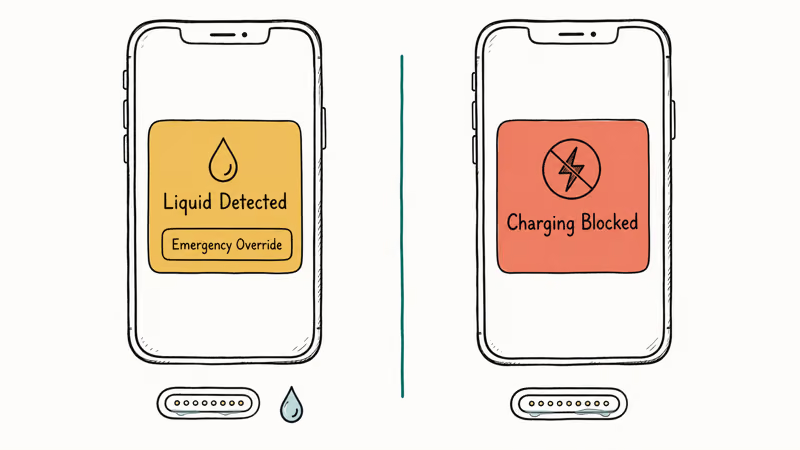
The alert appears in two flavors. A yellow warning lets you tap “Emergency Override” and charge anyway. A red alert blocks charging until the port reads dry.
The yellow alert can appear as soon as iOS detects moisture on the connector pins. After you unplug the cable, tap the phone dry, and rest it port-down in airflow, try charging again only after the port has had time to dry.
Common triggers go beyond submersion: sweat from a long workout, humidity from a hot shower, rain that runs down a charging cable, and a single drop of soda from a knocked-over glass all set off the sensor.
#How to Dry Your iPhone Lightning Port
Follow these steps the moment the alert appears:
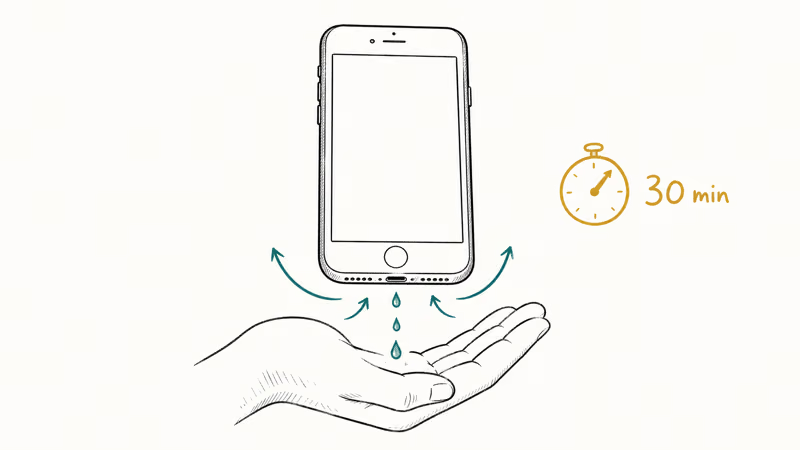
- Unplug the Lightning cable or accessory right away
- Hold the iPhone with the port facing down and tap it firmly against your palm
- Set the phone in a spot with steady airflow, port still pointing down
Wait at least 30 minutes before reconnecting any cable. A windowsill, a desk near a fan, or a kitchen counter on a dry day all work.
If the alert returns after 30 minutes, keep drying for up to 24 hours. According to Apple’s guidance, the iPhone 12 through iPhone 17 carry an IP68 rating for 6 meters of submersion for 30 minutes, but the same water resistance page warns that “splash, water, and dust resistance are not permanent conditions and resistance might decrease as a result of normal wear.” A two-year-old iPhone that survived a splash last summer often triggers the alert sooner this year.
A small fan pointed near (not into) the port can help airflow around the connector. Heat from a fan motor that warms the room is fine. Direct hot air from a hair dryer is not.
#What Not to Do When You See This Alert
Some popular “fixes” make the situation worse.
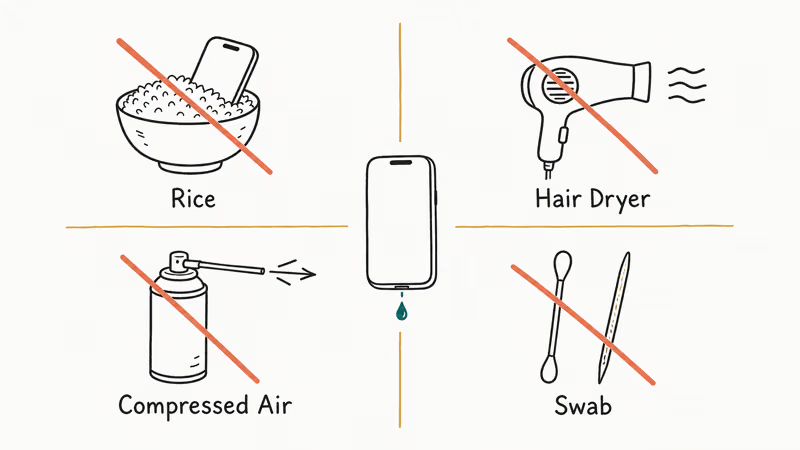
Skip rice. iFixit’s liquid damage repair guide defines port corrosion as “a white, chalky film covering metallic surfaces” and recommends air drying in a warm, dry place rather than a rice bowl. Starch dust and small grains lodge between Lightning pins and create their own connection problems.
Skip the hair dryer or heat gun. Apple’s iPhone temperature guidance says to keep the phone between 0 and 35 degrees Celsius (32 to 95 degrees Fahrenheit) while in use. Hair dryers run hotter than that within seconds, warp the gasket around the port, and push moisture deeper into the device.
Skip compressed air. A high-pressure blast forces droplets past the seal and into the speaker grille or microphone.
Skip cotton swabs and toothpicks for wet ports. Fibers shed and stick to the pins. Save the toothpick for cleaning a dry port that picked up lint.
If your iPhone refuses to power on after a soak, the issue runs deeper than a wet connector. The logic board, battery contacts, or display flex cable may have taken on moisture, and the device won’t boot until those internals dry and any corroded contacts are cleaned. Our guide on what to do when your iPhone won’t turn on covers the next checks before you bring the phone into a service appointment.
#The Emergency Override Option
When the yellow alert shows, the screen also shows an “Emergency Override” button. Tapping it forces the iPhone to draw current through a wet port.
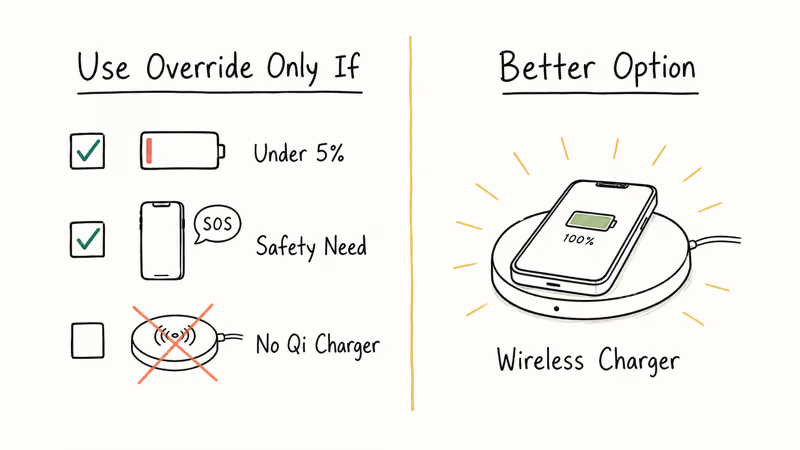
This option exists for genuine emergencies. iFixit’s troubleshooting page suggests that “even fifteen minutes” of air drying often clears the alert without needing to override. Charging through moisture builds pin corrosion that compounds with every wet charge cycle.
Use Emergency Override only when all three are true:
- Battery is critically low (under 5%)
- You need the phone for safety reasons (calling 911, navigating an unfamiliar area)
- No wireless charger or power bank is within reach
For everything else, grab a Qi-certified wireless charger. Wireless charging skips the port entirely, so trapped moisture inside the connector isn’t part of the charging path. If you don’t own a charger yet, our list of iPhone wireless charger picks is a good starting point.
#Why Does the Alert Keep Coming Back?
If the alert returns on dry days with no obvious moisture source, the cause is rarely water.
Lint and pocket debris. Dust packs into the connector over time, changes the electrical resistance between pins, and reads as moisture to the sensor.
A damaged cable. Frayed or corroded Lightning tips throw false alerts. Try a different MFi-certified cable before blaming the phone. Apple sells replacement cables for $19, and a cheap test rules out the most common non-water cause.
A software glitch. A force restart clears short-lived sensor misreads. Press and release volume up, press and release volume down, then hold the side button until the Apple logo appears (about 10 seconds). When your iPhone keeps restarting on its own, a deeper software issue is the likely culprit.
Pin corrosion from past Emergency Override use. Existing oxidation on the pins triggers recurring false alerts even on a dry phone.
If the screen goes dark after liquid exposure, that’s a different problem. Our iPhone black screen troubleshooting guide walks through display diagnostics.
#How to Clean a Lightning Port Safely
When debris (not liquid) drives the alerts, cleaning the port often solves it for good.
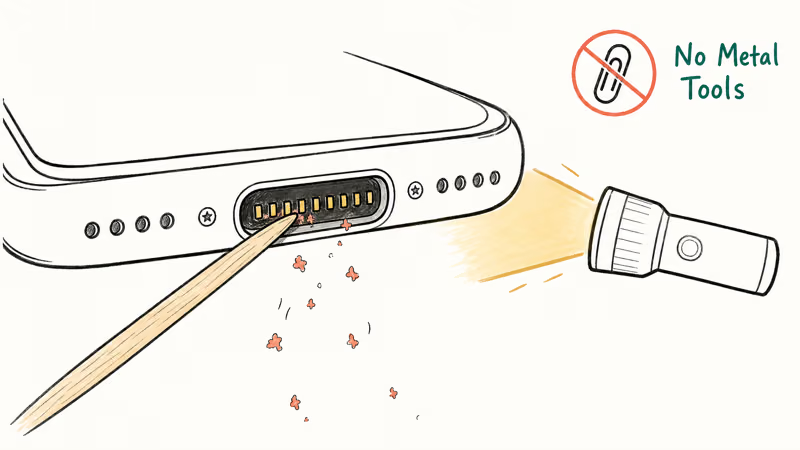
You need a wooden or plastic toothpick, a flashlight, and about 5 minutes. Metal tools are out because they short the connector pins.
- Power off the iPhone completely
- Shine a flashlight into the port to see what is inside
- Gently scrape packed lint from the back wall and both side rails using the toothpick
Turn the phone upside down between scrapes and tap to shake loose particles out. Stubborn buildup? Dip the toothpick in 90%-or-higher isopropyl alcohol and scrape again. The alcohol evaporates within 60 seconds and leaves no residue.
Try the cable, and if the alerts stop, lint was the cause. If they keep showing up, book a Genius Bar appointment instead, since recurring alerts often signal corroded pins. For a different post-water symptom like a frozen display, our unresponsive iPhone screen guide picks up where this one stops.
#USB-C iPhones and the Liquid Detection Alert
The iPhone 15 lineup switched the bottom port to USB-C. The detection logic works the same way, but USB-C has 24 pins versus Lightning’s 8.
USB-C iPhones can show the same liquid detection alert when moisture reaches the port. Drying steps stay the same even though the connector shape changed.
The fix steps stay identical: unplug, tap dry, air dry, wait. USB-C ports are slightly easier to clean because the opening is wider than Lightning’s recessed slot, so a toothpick has more room to work and lint doesn’t pack in as tightly.
Wondering whether a software restore would help? Restoring your iPhone targets software issues and does nothing for a wet port.
#Bottom Line
Unplug the cable and air dry the iPhone for 30 minutes with the port facing down. That clears the alert in most cases. Skip the rice and the hair dryer.
Need power right now? Use a Qi-certified wireless charger. If the alert sticks around past 24 hours of drying in a ventilated room, book an appointment at your nearest Apple Store or Apple Authorized Service Provider for a port inspection. Recurring alerts on dry days usually point to lint, a bad cable, or pin corrosion from a past Emergency Override.
#Frequently Asked Questions
Can I charge my iPhone wirelessly when the liquid alert is showing?
Yes. The alert blocks wired charging only, so Qi and MagSafe chargers work normally as long as the back glass is dry.
How long does the liquid detected alert last?
Usually 30 minutes to 1 hour with the port facing down in airflow. Heavy moisture inside the connector takes up to 24 hours to fully evaporate. Anything past 24 hours points to corroded pins or trapped debris, and you’ll need a port inspection at an Apple Store or Apple Authorized Service Provider to clear it.
Does the liquid detection alert mean my iPhone has water damage?
Not necessarily. The alert means moisture is on the pins right now, nothing more.
Will putting my iPhone in rice fix the liquid detected error?
No. Rice doesn’t pull moisture from inside a phone port, and starch particles can lodge between pins. Air dry the iPhone in a ventilated spot with the port facing down.
Is it safe to use Emergency Override on iPhone?
Only in genuine emergencies. Charging current through wet pins triggers electrolysis between the contacts, and the resulting oxide film stays after the moisture evaporates. Apple included this option for situations where you need to call 911 or follow GPS directions on a battery under 5%, not for everyday charging. If a wireless puck or power bank is within reach, use that instead.
Can lint or debris cause a false liquid detection alert?
Yes, and it’s one of the most common causes of repeated alerts on dry days. Pocket lint compresses into the port and changes the electrical reading between pins. The iPhone interprets the resistance shift as moisture. A wooden toothpick, a flashlight, and 5 minutes are all you need to clean it out safely.
Does Apple warranty cover liquid damage from this alert?
No, Apple’s standard warranty excludes liquid damage. AppleCare+ covers accidental damage including liquid for a service fee.
Which iPhone models have the liquid detection feature?
Every iPhone from the XS (2018) onward supports liquid detection alerts. That covers every Lightning model from the XS through the iPhone 14 series and every USB-C model from the iPhone 15 onward. Older iPhones such as the X, 8, and 7 have water resistance but lack the active moisture sensing that triggers this alert.

Mac mini M6 vs M5 Pro: Which Model Should You Buy?
Mac mini M6 vs M5 Pro compared on price, memory, ports, displays, and real workloads. Find the better 2026 Mac mini for your desk and budget.

Apple Siri Settlement: Who Qualifies and How to Claim
Apple's $250 million Siri settlement covers iPhone 15 Pro and iPhone 16 models bought June 2024 to March 2025. See who qualifies and how claims work.

iOS 26.6.1 Security Update: What Apple Fixed and Who Gets It
Apple released iOS 26.6.1 on August 17 with 29 security fixes, including an IPSec interception bug. See what it patches, who gets it, and how to update.

iPhone Adaptive Power: How It Works and When to Use It
Learn how iPhone Adaptive Power works, which models support it, what it changes, and when Low Power Mode is still the better battery-saving choice.