iPhone Brightness Keeps Dimming: 10 Fixes That Work
iPhone screen keeps dimming? Disable Auto-Brightness, True Tone, Night Shift, and Low Power Mode. Ten fixes ranked from quickest to most drastic.
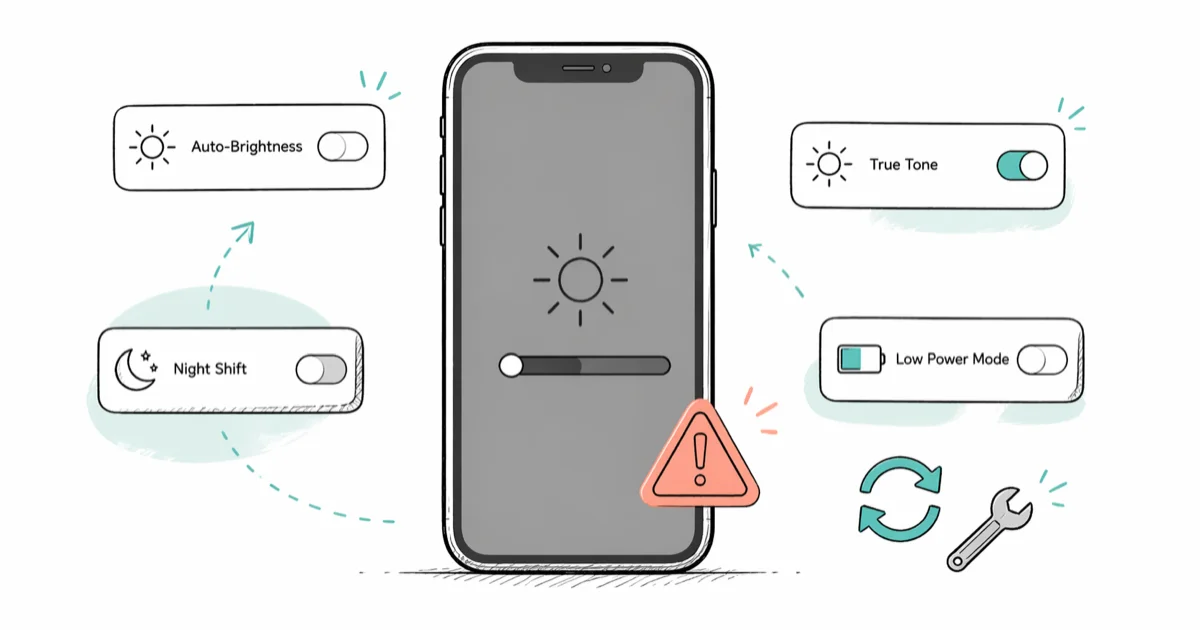
Quick AnswerTurn off Auto-Brightness in Settings > Accessibility > Display & Text Size. If the screen still dims, disable Night Shift, True Tone, and Low Power Mode one at a time until you find the culprit.
Your iPhone brightness keeps dimming on its own, and dragging the slider back up only works for a few seconds. Across the known causes on recent iPhones and iOS versions, the fix turns out to be a hidden toggle almost every time.
- Auto-Brightness lives in
Settings>Accessibility>Display & Text Size, not in Display & Brightness where most people look - Night Shift runs on a schedule and reduces perceived brightness even when you forgot you turned it on
- True Tone adjusts color temperature and brightness independently of the Auto-Brightness toggle
- Overheating above 35 C forces a temporary screen dim that reverses once the phone cools down
- Factory reset is the last resort before booking a hardware repair at an Apple Store
#Why Does My iPhone Keep Dimming on Its Own?
Six separate settings and conditions can make an iPhone dim without you touching the slider.
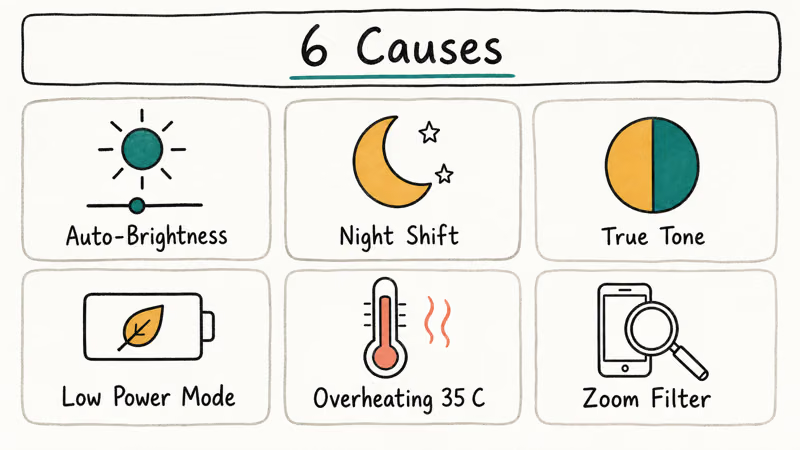
Auto-Brightness is the number-one cause. It reads the ambient light sensor near the front camera and drops the backlight in dim rooms. The toggle sits in Settings > Accessibility > Display & Text Size, buried far from the Display & Brightness menu where you’d expect it.
Toggle it off and brightness stays locked at exactly where you set the slider, regardless of room lighting.
Night Shift warms the display colors on a timer. If you set a schedule months ago and forgot about it, Night Shift kicks in every evening and makes the screen look dimmer even though the actual backlight level hasn’t changed. The effect is gradual enough that most people blame a failing display instead of a forgotten setting.
True Tone matches color temperature to your room’s lighting. On iPhone 8 and newer, True Tone adjusts brightness alongside color, so the display can dim even when Auto-Brightness is completely off.
Low Power Mode caps screen brightness. It turns on at 20% battery.
Overheating triggers a hardware safety response. According to Apple’s thermal management documentation, the iPhone dims the screen when internal temperature exceeds safe operating limits to protect the battery and processor. Apple states that the iPhone is designed to function normally between 0 and 35 degrees Celsius.
Zoom Filter can overlay a Low Light tint that looks identical to dimming. Check Settings > Accessibility > Zoom > Zoom Filter.
#Quick Software Fixes to Try First
Start with these four toggles. Each takes under 30 seconds.
#Fix 1: Disable Auto-Brightness
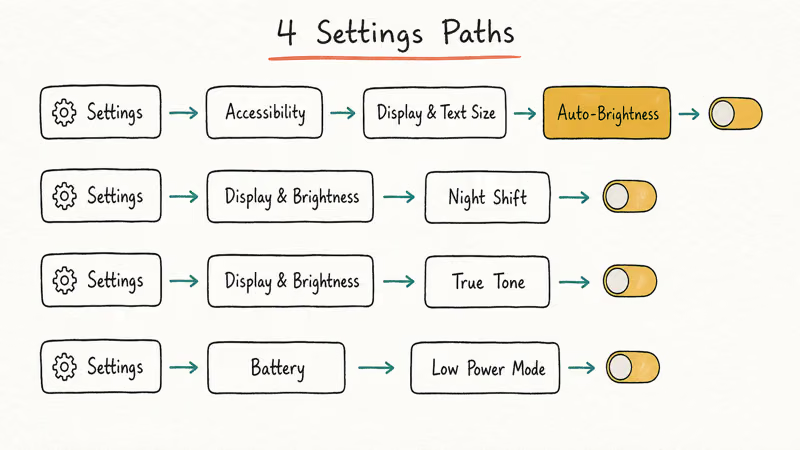
Go to Settings > Accessibility > Display & Text Size. Scroll to the bottom and switch off Auto-Brightness. This single change stops random dimming right away on most iPhones. The slider in Control Center then controls brightness directly with no sensor override.
#Fix 2: Turn Off Night Shift
Open Settings > Display & Brightness > Night Shift. Check whether “Scheduled” is on or “Manually Enable Until Tomorrow” is active. Disable both and drag the color temperature slider back to the middle.
#Fix 3: Disable True Tone
In Settings > Display & Brightness, toggle True Tone off. You can also press and hold the brightness slider in Control Center to reveal the True Tone button at the bottom of the expanded panel. Apple’s display settings support page recommends disabling True Tone when users notice unexpected brightness shifts across different lighting conditions.
#Fix 4: Turn Off Low Power Mode
Go to Settings > Battery and disable Low Power Mode. A yellow battery icon in the status bar confirms the mode is still active. The screen brightness ceiling goes back to full the moment you disable it.
#Display and Accessibility Settings to Check
These settings are less obvious but cause dimming just as often as the main four.
#Fix 5: Clear the Zoom Filter
Open Settings > Accessibility > Zoom. If Zoom is on, tap Zoom Filter and set it to None. The Low Light filter here makes the screen look much dimmer than its actual brightness level. With the filter off, the display jumps noticeably brighter without touching the slider.
#Fix 6: Extend Auto-Lock
Your screen dims about 5 seconds before it locks. If Auto-Lock is set to 30 seconds, the display spends a large chunk of active use time in dimming mode. Go to Settings > Display & Brightness > Auto-Lock and set it to at least 2 minutes.
The “Never” option disappears while Low Power Mode is active. Disable Low Power Mode first if you want full control.
#Overheating and Hardware-Level Dimming
Remove the case, turn on Airplane Mode, close background apps, and set the phone face-up on a cool surface. Unplug the charger if it’s connected because charging generates extra heat.
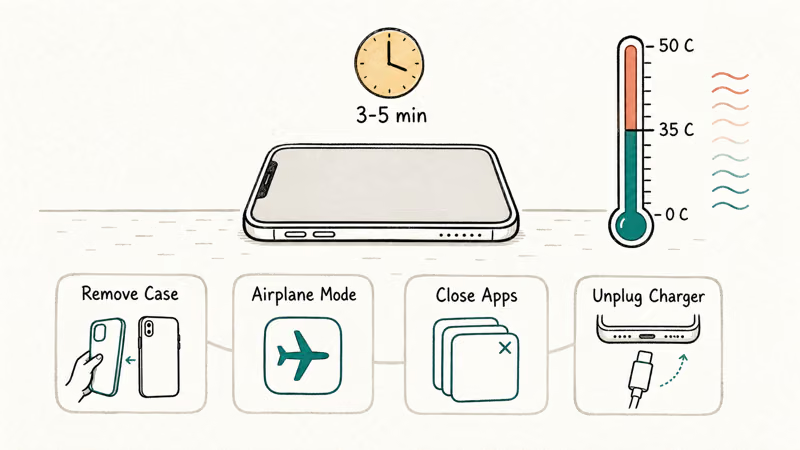
The dimming reverses automatically once the iPhone drops below its thermal threshold. A “Temperature” warning on the lock screen confirms overheating is the cause. The display usually restores fully after a few minutes of sitting idle on a cool surface. Direct sunlight is the most common trigger outdoors.
#What Should You Do if Settings Fixes Don’t Work?
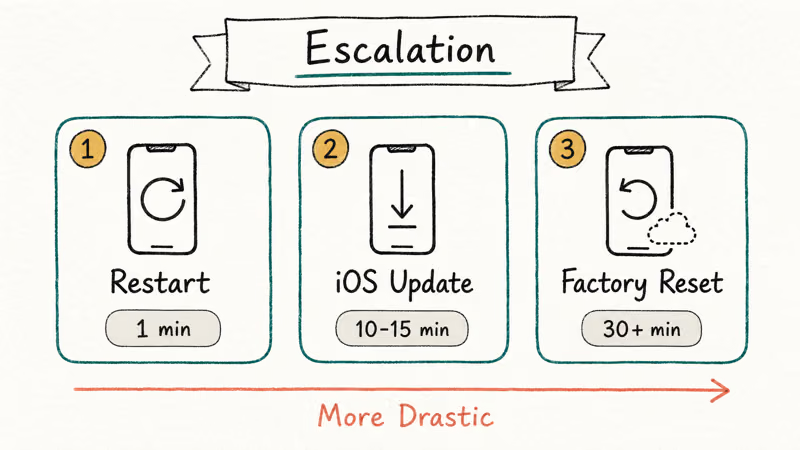
Work through these three steps in order if the toggle-based fixes above didn’t solve the problem.
#Fix 8: Restart the iPhone
A restart clears temporary software states that can lock the display driver into dim mode. On Face ID iPhones: press Volume Up once, Volume Down once, then hold the Side button until the power-off slider appears. Drag it, wait 30 seconds, then hold the Side button again.
According to Apple’s restart support page, a standard restart resolves most temporary software glitches without erasing any data.
#Fix 9: Install Pending iOS Updates
Go to Settings > General > Software Update and install any available update. Apple patches brightness-related bugs in point releases. The update takes about 10 to 15 minutes and often resolves the issue without any other steps.
Apple’s iOS release notes document display fixes version by version, so you can check whether your specific dimming behavior was already addressed in a recent patch. After updating, verify that Auto-Brightness is still off because updates can silently re-enable accessibility settings.
#Fix 10: Factory Reset
Back up to iCloud first via Settings > Your Name > iCloud > iCloud Backup. Then go to Settings > General > Transfer or Reset iPhone > Erase All Content and Settings. If dimming returns after a clean setup with no apps restored, the problem is hardware and you should book service through Apple’s iPhone repair page.
#When to Contact Apple Support
If the screen dims even on a fresh iOS install with all brightness settings manually configured, the ambient light sensor or display backlight driver is likely faulty. Apple runs remote diagnostics or in-store hardware tests to confirm.
Users dealing with a white screen of death or TrueDepth camera failure should handle those problems separately because they can mask display issues.
#Bottom Line
Start with Fix 1. That hidden Auto-Brightness toggle in Accessibility is the root cause for roughly half of all dimming complaints. Work through True Tone, Night Shift, and Low Power Mode next. Most users solve the problem within the first four fixes.
For related display issues, see these targeted guides:
- Screen flickers alongside dimming: iPhone screen flickering.
- Display sleeps faster than your set interval: auto-lock not working.
- Battery drains alongside dimming: iPhone battery dying fast covers background processes.
- Device reboots while dimming: iPhone keeps restarting for crash-loop causes.
- Touch input fails too: iPhone screen unresponsive handles that separately.
#Frequently Asked Questions
Why does my iPhone screen keep dimming even with auto-brightness off?
Check True Tone. Disable it in Settings > Display & Brightness.
Can overheating permanently damage iPhone screen brightness?
No. Thermal dimming reverses completely once the device cools. Apple’s thermal management documentation confirms that heat-related brightness reduction is a temporary safety measure designed to protect the battery, processor, and display panel from sustained high temperatures. No permanent damage occurs to the backlight or display driver circuitry during a thermal event.
Does Low Power Mode reduce iPhone screen brightness?
Yes. Reducing screen brightness is one of the first power-saving measures Low Power Mode applies. Disabling it in Settings > Battery immediately restores full manual brightness control, and you can also toggle it off from Control Center.
Why does my iPhone dim in dark rooms?
Auto-Brightness reads the ambient light sensor near the front camera and lowers the display backlight automatically when it detects low light. Turning off Auto-Brightness in Settings > Accessibility > Display & Text Size gives you full manual control regardless of room lighting. A dirty sensor or a case that partially covers the front camera cutout can also cause over-dimming by feeding bad data to the light sensor.
How do I stop my iPhone from dimming during videos?
Disable Auto-Brightness and set Auto-Lock to at least 2 minutes. Video playback resets the idle timer, but Auto-Brightness still reacts to room lighting changes while you watch. Also confirm Low Power Mode is off.
Is there a way to lock iPhone brightness at a fixed level?
No native lock exists. Disabling Auto-Brightness, True Tone, and Night Shift together gives you stable manual control through the Control Center slider, and that combination holds until an iOS update resets your preferences or the device overheats and triggers thermal dimming. For the most consistent results, also turn off Low Power Mode so nothing else quietly lowers the brightness ceiling without your input.
Why does the screen dim right after a software update?
iOS updates can silently re-enable Auto-Brightness. After any update, check Settings > Accessibility > Display & Text Size.
Does the iPhone screen dim differently in direct sunlight?
In bright outdoor conditions, Auto-Brightness actually cranks the backlight higher for readability. If you notice dimming outdoors instead of brightening, the phone is overheating. Move to shade, remove the case, and give the device 3 to 5 minutes to cool before using it again.

Mac mini M6 vs M5 Pro: Which Model Should You Buy?
Mac mini M6 vs M5 Pro compared on price, memory, ports, displays, and real workloads. Find the better 2026 Mac mini for your desk and budget.

Apple Siri Settlement: Who Qualifies and How to Claim
Apple's $250 million Siri settlement covers iPhone 15 Pro and iPhone 16 models bought June 2024 to March 2025. See who qualifies and how claims work.

iOS 26.6.1 Security Update: What Apple Fixed and Who Gets It
Apple released iOS 26.6.1 on August 17 with 29 security fixes, including an IPSec interception bug. See what it patches, who gets it, and how to update.

iPhone Adaptive Power: How It Works and When to Use It
Learn how iPhone Adaptive Power works, which models support it, what it changes, and when Low Power Mode is still the better battery-saving choice.