How to Fix the iPhone Green Screen Problem in 2026
Fix iPhone green screen with 7 proven methods. Force restart, iOS update, Night Shift fix, settings reset. Works on iPhone X, 12, 14, 15 OLED panels.
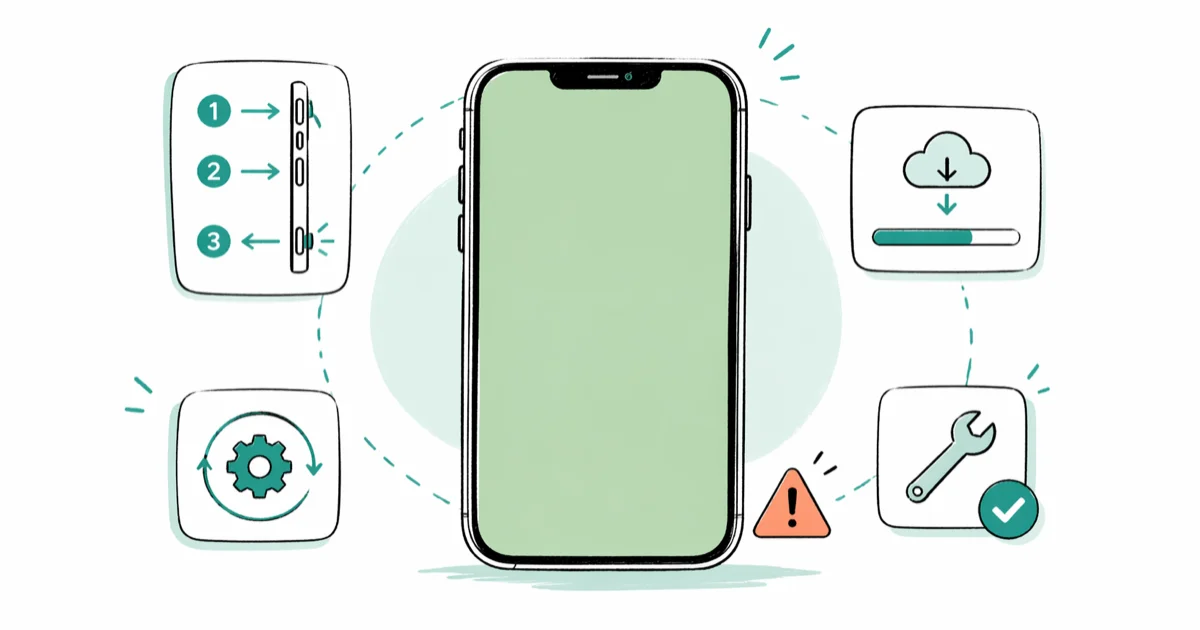
Quick AnswerForce restart your iPhone first by pressing Volume Up, Volume Down, then holding the Side button until the Apple logo appears. If the green tint persists, update iOS, disable Night Shift, and reset all settings before booking a repair.
An iPhone green screen, whether a faint tint, vertical line, or full discoloration, almost always points to a software hiccup before a hardware fault. An interrupted iOS update is a common trigger, and a force restart clears that kind of green tint in well under a minute. Hardware failures are rare on iPhones less than 4 years old, so software fixes resolve most cases on the first try.
- Force restart resolves most green tint cases on OLED iPhones in under a minute
- Green tints at low brightness usually trace back to a display calibration bug fixed by a point release
- Night Shift and Dark Mode amplify green tint on OLED panels because subpixels are not perfectly balanced
- Apple ships green-screen fixes in iOS point releases, so always update before paying for repair
- A solid vertical green line means OLED hardware failure that no software fix can repair
#Method 1: Force Restart Your iPhone
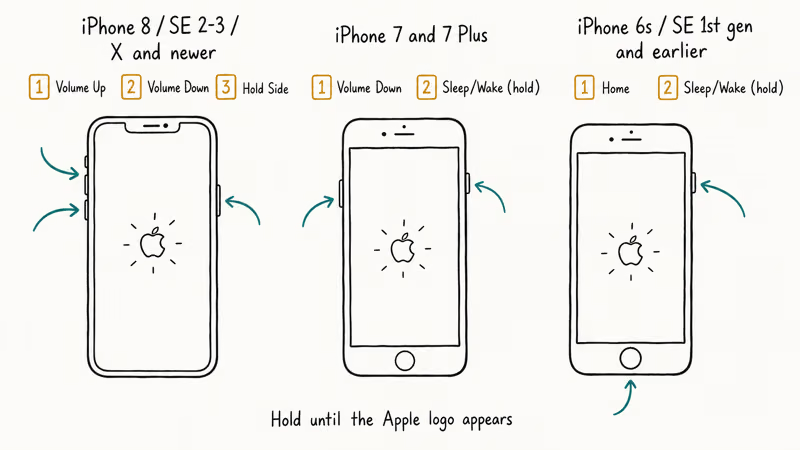
Force restarting clears volatile memory and reloads the display driver firmware. No data is touched, and you can repeat it safely without risk. This single step resolves the green tint in most software-related cases on iPhones from the iPhone 8 onward, and it’s the place every Apple support call starts.
Try it now.
iPhone 8, SE (2nd or 3rd gen), and every model from iPhone X onward: Press Volume Up, then Volume Down, then hold the Side button until the Apple logo appears.
iPhone 7 and 7 Plus: Hold Volume Down and the Sleep/Wake button together until the Apple logo appears.
iPhone 6s, SE (1st gen), and earlier: Hold the Home button and Sleep/Wake button together until the Apple logo appears.
Wait for the boot to finish. Then check the screen at 50% brightness with Night Shift off. A single force restart clears the tint in most software cases, and a green flash after an app crash like Camera usually clears within a boot or two.
If a single restart fails, try once more before moving on, since the OS sometimes finishes a queued display calibration only after the second boot.
If your phone is also frozen, our iPhone stuck on Apple logo guide covers the deeper recovery flow that pairs naturally with a stubborn green-screen reboot loop.
#Method 2: Update iOS
Apple ships quiet display fixes inside iOS point releases, and an outdated iPhone is one of the easiest green-tint causes to rule out. According to Apple’s iOS and iPadOS release notes, the company documents “improvements to display performance” and color management changes inside point releases like iOS 16.7.10 and iOS 17.6. The iPhone 11 Pro and X series received targeted color calibration patches in iOS 13.6.1 after a wave of forum reports.
Open it now.
Go to Settings > General > Software Update and tap Download and Install if anything is pending. Keep the phone plugged in and connected to Wi-Fi. The whole process takes 12 to 25 minutes on most iPhones, slightly longer on older models with smaller batteries.
Update, then restart.
After the update finishes, force restart once more before judging the result. Some calibration changes only apply on the first clean boot, which is also why Apple recommends restarting after major iOS upgrades.
#Does Night Shift or Dark Mode Cause Green Tint?
Yes, both can.
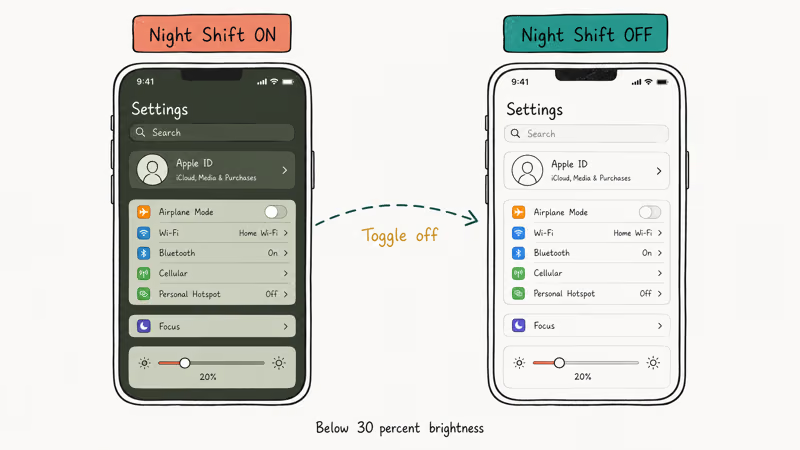
OLED iPhones use individual red, green, and blue subpixels, and warm-shifted color profiles tip the green channel above the red and blue channels at low brightness. The shift is most obvious on iPhone 12 Pro Max and iPhone 13 Pro panels, especially below 30% brightness in a dark room, where the per-subpixel calibration drift has the most visible effect on neutral grays and white backgrounds.
Disable Night Shift first: Go to Settings > Display & Brightness > Night Shift and turn off both Scheduled and Manually Enable Until Tomorrow.
Switch to Light Mode: Go to Settings > Display & Brightness and tap Light. A long-running Reddit r/iPhone thread about green tint on iPhone 11 Pro Max confirms that toggling out of Dark Mode removes the tint for many readers, especially at brightness below 30%.
Turn off True Tone: Same panel, toggle True Tone off.
True Tone shifts the white point based on ambient light, which can amplify the green cast in warm rooms. Test the screen after each change so you isolate the actual trigger. For a faint green wash that only shows up at night, disabling Night Shift alone is often enough, without needing to leave Dark Mode.
#Method 3: Reset All Settings
Corrupted display preferences, accessibility filters, or color profile flags can cause a tint that survives a restart. Reset All Settings clears all of them in one pass without touching photos, messages, or apps. Your data stays safe.
Go to Settings > General > Transfer or Reset iPhone > Reset > Reset All Settings. Confirm with your passcode. The reset takes about 2 minutes, then the phone reboots fresh with default Wi-Fi, Bluetooth, VPN, accessibility, and display preferences. You’ll need to rejoin Wi-Fi networks and re-enable Focus modes after.
If the green tint vanishes here, a stale display preference was the culprit. If it persists, move to a deeper restore and don’t waste another reset cycle.
#Why Is My iPhone Screen Turning Green?
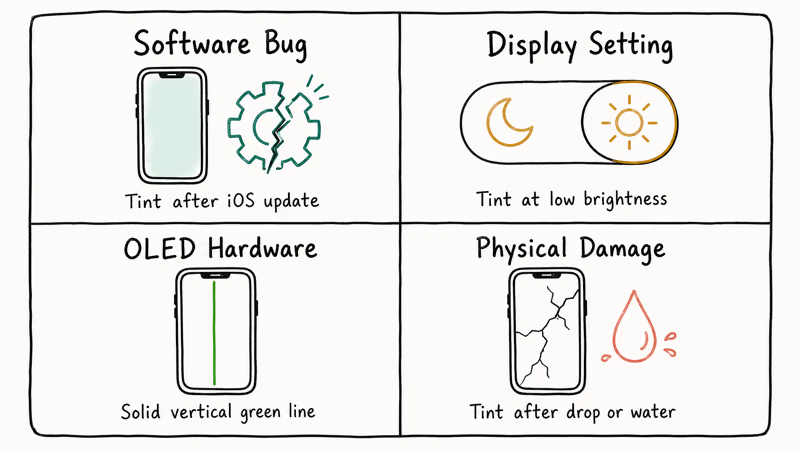
The green screen falls into one of four buckets, and the symptoms tell you which:
| Cause | Telltale sign | Fix path |
|---|---|---|
| Software bug | Tint after iOS update or app crash | Force restart, update iOS |
| Display setting | Tint only at low brightness or at night | Disable Night Shift |
| OLED hardware | Solid vertical green line | Apple repair |
| Physical damage | Tint after drop, water exposure, or impact | Screen replacement |
OLED panels live in iPhone X, every Pro model since iPhone 11 Pro, all iPhone 12 through 16 base models, and Plus or Max variants. According to iFixit’s iPhone X teardown report, each subpixel is driven independently, and miscalibration across the green channel can shift the white point even when the panel is otherwise healthy.
LCD models almost never show this symptom.
The iPhone XR, iPhone 11, and iPhone SE second and third gen all use LCD panels whose backlight handles white balance globally rather than per-subpixel, which means a calibration drift inside a single color channel can’t tilt the entire screen the way it can on an OLED display.
A solid green vertical line is different. That marks a row of dead OLED subpixels and never responds to software resets. It often follows a hard face-down drop, and only a panel replacement fixes it. Apple prices out-of-warranty display replacement by model, showing an exact estimate before you commit.
#Method 4: Restore iPhone via Finder or iTunes
A full restore re-flashes iOS firmware and rewrites the display driver bundle. Use this only after force restart, iOS update, and Reset All Settings have all failed, because it erases everything on the device.
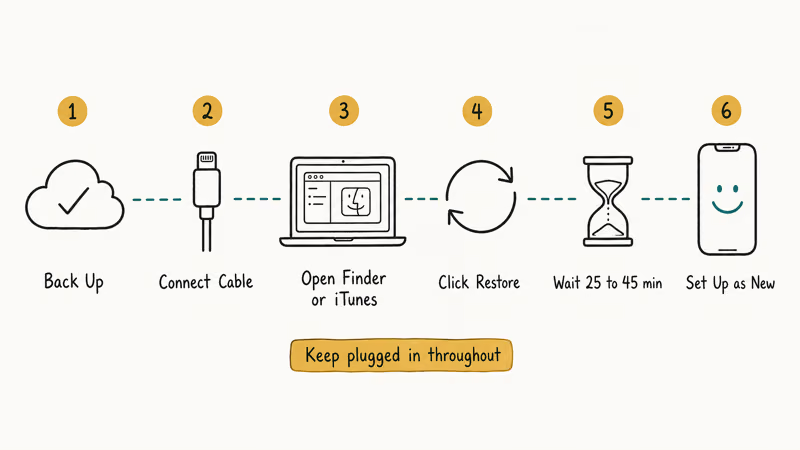
Back up first using iCloud or Finder, whichever you trust more, and confirm the most recent backup is dated today before you start. Connect the iPhone with a USB-C or Lightning cable and open Finder on macOS Catalina or later, or iTunes on Windows. Select your iPhone, click Restore iPhone, and confirm. The restore takes 25 to 45 minutes depending on connection speed and iPhone storage.
After the restore completes, set up the phone as new, not from your backup, and check the screen first. If the tint is gone on a clean install, the issue was software corruption, and you can safely restore your data. If the tint is still there on a brand-new setup, the panel itself is the suspect. You can also restore your iPhone without updating iOS if you want to keep your current iOS version while still flushing the firmware.
#What to Do When Software Fixes Fail
If the screen is still green after a clean restore, the panel is almost certainly at fault. Stop running more restores. Each one puts more wear on the storage controller for no benefit, and you’ll only delay the repair appointment you already need.
Check flicker too.
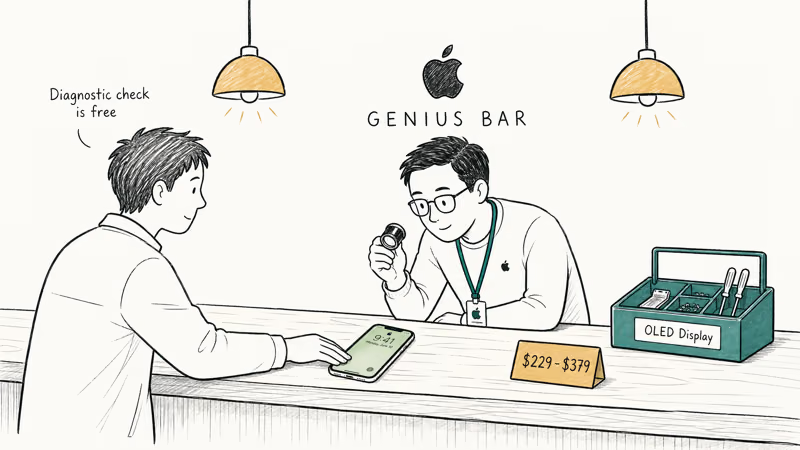
Compare your symptoms against our iPhone screen flickering guide before booking a repair. Flicker plus tint sometimes points to a loose display connector that a Genius Bar tech can reseat in 15 minutes for free.
Our iPhone black screen walkthrough covers the related panel failures that share root causes with persistent green tint, and the iPhone ghost touch guide is worth checking if your screen also registers phantom taps, since both symptoms can trace back to the same display flex cable.
Book an appointment through the Apple Support app, online at apple.com, or by walking into any Apple Store. Diagnostic checks at the Genius Bar are free even without AppleCare+. Apple’s AppleCare service fees page states that AppleCare+ screen repairs have a $29 service fee for accidental damage. Manufacturing defects, including OLED green-line failures, are usually covered at no charge under the standard limited warranty within the first year.
Want one more software pass before paying anything? Tools like Tenorshare ReiBoot re-flash iOS firmware without erasing data. They aren’t magic, but they sometimes catch driver corruption that Apple’s standard restore misses.
Some links on this page are affiliate links, which means fone.tips may earn a commission at no extra cost to you.
#Bottom Line
Run a force restart now. It clears the green tint in most software cases in under 30 seconds and risks nothing. If the tint comes back, update to the latest iOS point release, then turn off Night Shift and Dark Mode at the same time to test. Reset All Settings is the last gentle option before a full restore.
Skip straight to a Genius Bar visit if you see a solid vertical green line or the tint appeared right after a drop. Hardware failures don’t respond to software fixes, and every restore you run on a damaged panel only delays the appointment you already need.
#Frequently Asked Questions
Can a green screen happen after a normal iOS update?
Yes, and a botched or interrupted update is one of the most common triggers. A force restart clears the issue in most cases when it appears right after an update.
Does the green screen affect specific iPhone models more than others?
OLED iPhones are more prone to green tint than LCD models. Every iPhone Pro since iPhone 11 Pro, all iPhone 12 through 16 base and Plus models, and the iPhone X, XS, and XS Max use OLED panels that can shift toward green at low brightness. The iPhone XR, iPhone 11, and iPhone SE second and third generation use LCD panels and almost never show this symptom.
Will resetting all settings delete my photos or apps?
No. Reset All Settings only wipes Wi-Fi passwords, VPN profiles, accessibility settings, display preferences, and Focus modes. Photos, apps, messages, contacts, and Health data stay exactly where you left them.
What is the difference between a green tint and a green line?
A green tint covers the whole screen, sometimes only at low brightness, and it’s almost always software. A solid vertical green line points to a row of dead OLED subpixels that no reset can repair. If you see a single line that doesn’t move when you rotate the phone, plan for a screen replacement, priced by Apple per model out-of-warranty.
Can Low Power Mode help with a green screen?
Sometimes, yes. It’s a diagnostic clue, not a real fix.
Should I use a third-party iOS repair tool for a green screen?
Only after Apple’s restore fails. Tools like Tenorshare ReiBoot re-flash iOS firmware without wiping your data, which can catch display driver corruption that a normal Software Update misses. They work best when the green tint started after a failed iOS update and a full Finder restore feels too disruptive.
How long does an iTunes or Finder restore take?
Plan for 25 to 45 minutes from start to finish, depending on iPhone storage size and your USB cable speed. Keep the phone plugged in throughout. Set up as new before judging the result, then restore your backup once the screen is clean.
When should I contact Apple about a green screen?
Contact Apple if the tint appeared without any iOS update, if you see a vertical green line, if the device was dropped or exposed to water, or if every software step on this page has already failed. Diagnostic appointments at the Genius Bar are free, and OLED panel defects within the first year are usually replaced at no cost under Apple’s standard warranty.

Mac mini M6 vs M5 Pro: Which Model Should You Buy?
Mac mini M6 vs M5 Pro compared on price, memory, ports, displays, and real workloads. Find the better 2026 Mac mini for your desk and budget.

Apple Siri Settlement: Who Qualifies and How to Claim
Apple's $250 million Siri settlement covers iPhone 15 Pro and iPhone 16 models bought June 2024 to March 2025. See who qualifies and how claims work.

iOS 26.6.1 Security Update: What Apple Fixed and Who Gets It
Apple released iOS 26.6.1 on August 17 with 29 security fixes, including an IPSec interception bug. See what it patches, who gets it, and how to update.

iPhone Adaptive Power: How It Works and When to Use It
Learn how iPhone Adaptive Power works, which models support it, what it changes, and when Low Power Mode is still the better battery-saving choice.