iPhone Keeps Turning On and Off: 7 Fixes That Work
Fix an iPhone that keeps turning on and off with force restart, iOS update, storage cleanup, settings reset, repair mode, and Apple hardware checks.
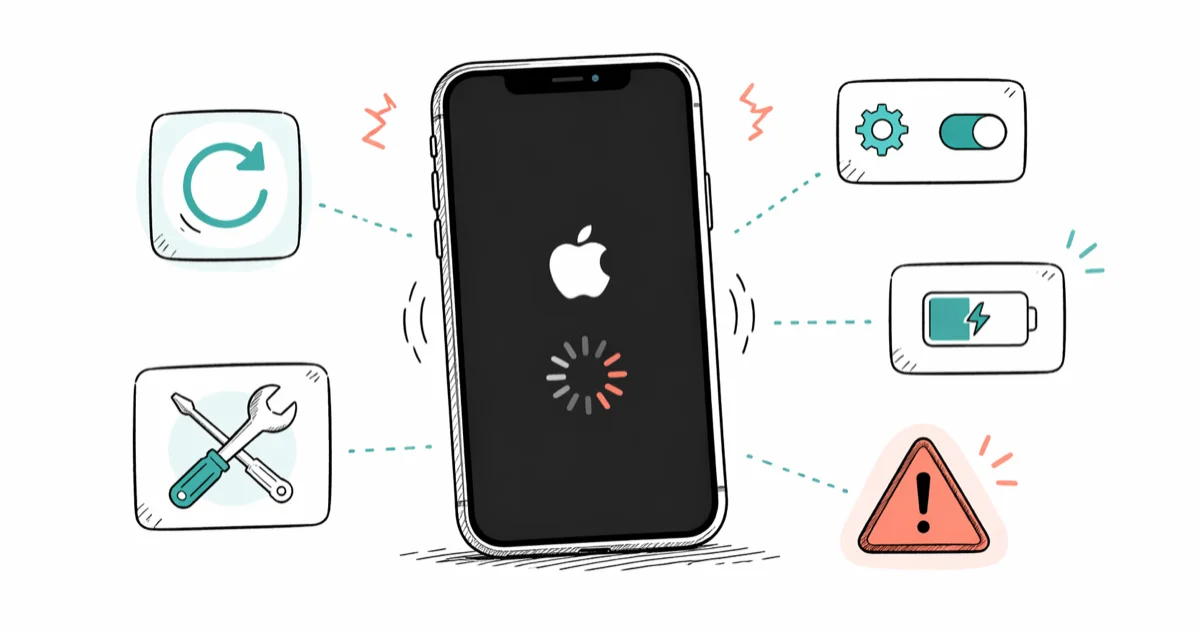
Quick AnswerForce restart your iPhone first; if it stays on, install any pending iOS update and check available storage. If it can't finish starting, use Apple recovery mode and choose Update before considering an erase.
An iPhone that repeatedly shows the Apple logo, shuts off, and starts again may have a software, storage, battery, or hardware problem. Start with the non-erasing checks below and move to recovery mode only if the phone can’t finish starting.
- A force restart does not erase personal data and is the safest first step
- If the phone stays on, install any pending iOS update and free storage before using recovery mode
- Battery warnings or visible swelling call for service, not repeated software resets
- In recovery mode, choose Update first; Restore erases the iPhone
- If the loop continues after Apple recovery steps, arrange a hardware inspection
#1. Force Restart Your iPhone
A force restart makes the iPhone restart without erasing its content. Apple publishes model-specific force-restart steps; use the sequence for your model.
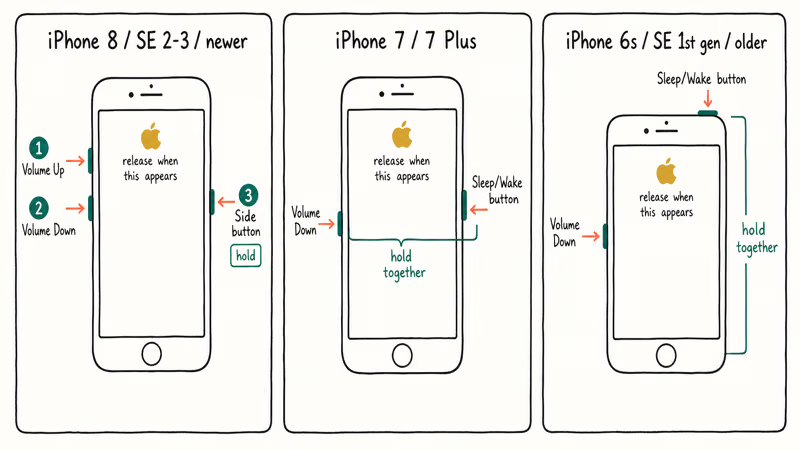
iPhone 8, SE (2nd/3rd gen), and newer:
Press Volume Up, then Volume Down, then hold the Side button until the Apple logo appears and release.
iPhone 7 and 7 Plus:
Hold Volume Down and Sleep/Wake simultaneously until the Apple logo appears, then release.
iPhone 6s, SE (1st gen), and older:
Hold the Home button and Sleep/Wake simultaneously until the Apple logo appears.
If the phone boots normally, use it long enough to confirm the restart does not repeat. Otherwise, move to Fix 2.
#2. Update iOS
If the phone remains usable, check for a pending update. According to Apple’s current iOS update guide, you can update through Settings or a computer.
If your phone is stable long enough to reach the home screen, go to Settings > General > Software Update and install any available update. Keep the iPhone plugged into power during the download.
If the phone reboots before you reach Settings, connect it to iTunes or Finder on a computer and update from there.
#Why Does an iPhone Keep Turning On and Off?
Repeated restarts have several possible causes. Use the timing and symptoms as clues rather than treating any one cause as confirmed:
| Cause | How to identify | Best fix |
|---|---|---|
| Interrupted update | Began during or after an update | Force restart, then update |
| Low storage | Storage is nearly full | Offload apps |
| App crash loop | Crash on specific app | Delete the app |
| Battery hardware | Random shutoffs | Battery replacement |
| Startup failure | Can’t reach the Home Screen | Apple recovery mode |
According to Apple’s recovery-mode guide, a computer can offer Update or Restore when an iPhone can’t start or update normally.
#3. Offload Unused Apps
If the phone stays on, check Settings > General > iPhone Storage. Offloading an unused app removes the app while retaining its documents and data.
Go to Settings > General > iPhone Storage. Tap any app you don’t use regularly and select Offload App. iOS 16 and later can also do this automatically: toggle Offload Unused Apps at the top of the same screen.
Remove or offload enough content for the storage graph to show clear free space, then restart and test again. Apple does not publish a universal free-space threshold for this symptom.
#4. Check Your Battery Health
A degraded battery can cause unexpected shutdowns that resemble a reboot loop. Check the health message as well as the capacity percentage.
Go to Settings > Battery > Battery Health and Charging. According to Apple’s battery and performance guide, cycle design targets differ by model, and iOS can show when a battery needs service. If you also notice rapid battery drain, a service message, an unexpected-shutdown notice, or physical swelling, stop here and arrange service. Pricing depends on the model, coverage, and region.
#5. Reset All Settings
If the restarting began after a settings or profile change, Reset All Settings is a non-erasing check to try before recovery mode.
Go to Settings > General > Transfer or Reset iPhone > Reset > Reset All Settings. Your photos and apps stay intact. The phone restarts once; let it boot fully before testing.
This restores system preferences to defaults. It doesn’t prove that a particular setting caused the loop, so continue to recovery mode if the problem remains.
#Is This an iPhone Boot Loop?
In a startup loop, the phone repeatedly returns to the Apple logo without reaching the Home Screen. That differs from intermittent restarts after the phone has already started. Don’t use a short fixed timer as proof that the device is stuck; an update or restore can leave the progress bar moving slowly.
If the phone never finishes starting, our iPhone boot loop fix guide covers the recovery-mode path. Also see what to do when your iPhone won’t turn on at all when there is no Apple logo or other response.
#6. Use Apple Recovery Mode
If the iPhone can’t start or update normally, connect it to a current Mac or Windows PC and follow Apple’s recovery-mode instructions. When the computer offers Update or Restore, choose Update first. That attempts to reinstall iOS while retaining personal data.
Use Restore only after you understand that it erases the device and you have exhausted the non-erasing option. Keep the phone connected until the computer finishes or gives a specific error you can troubleshoot.
#7. Contact Apple Support
If the loop continues after Apple’s recovery steps, arrange an inspection through Apple’s service and repair page. Continued restarting does not by itself identify a specific failed component.
Book service through Apple Support. Tell the technician whether the phone reaches the Home Screen, whether recovery mode offered an error, and whether iOS reported a battery service warning. Coverage and cost depend on the diagnostic result and your plan.
#Bottom Line
Force restart first. If the phone stays on, update iOS, free storage, and check battery health.
If it can’t finish starting, use Apple recovery mode and choose Update before Restore. Arrange service when the supported recovery path doesn’t resolve the loop. If restarting also leaves you with no cellular service, report that separately instead of assuming both symptoms share a cause.
#Frequently Asked Questions
Can a bad app cause my iPhone to keep restarting?
An app can be a suspect when the restarting began immediately after installing or updating it and the phone remains usable long enough to remove it. If the phone can’t finish starting, use Apple’s model-specific recovery-mode sequence rather than pressing all three buttons together. A phone that stays on the logo has a separate stuck Apple logo checklist.
Will a factory reset fix an iPhone reboot loop?
A restore can eliminate some software causes, but it erases the iPhone. In recovery mode, choose Update first. If you later choose Restore, make sure you understand what backup is available; a continued loop after restore still requires diagnosis rather than proving one particular hardware fault.
Does draining the battery help stop a restart loop?
No. Deliberately draining the battery is not part of Apple’s restart or recovery guidance. Use a force restart, update, battery-health check, or recovery mode instead.
What’s the difference between force restart and factory reset?
Force restart clears temporary memory and reboots. Nothing is deleted. Factory reset erases everything.
Does recovery mode keep my data?
Choosing Update in recovery mode attempts to reinstall iOS without erasing personal data. Choosing Restore erases the iPhone. Read the computer prompt carefully and keep the device connected while the selected operation runs.
Should I be concerned about data loss when fixing a reboot loop?
Force restart, iOS update, offloading apps, and Reset All Settings don’t erase photos and apps. Restore does erase the iPhone. If the phone remains usable, make a current backup before recovery work; the time and contents depend on the backup method and your data.

Mac mini M6 vs M5 Pro: Which Model Should You Buy?
Mac mini M6 vs M5 Pro compared on price, memory, ports, displays, and real workloads. Find the better 2026 Mac mini for your desk and budget.

Apple Siri Settlement: Who Qualifies and How to Claim
Apple's $250 million Siri settlement covers iPhone 15 Pro and iPhone 16 models bought June 2024 to March 2025. See who qualifies and how claims work.

iOS 26.6.1 Security Update: What Apple Fixed and Who Gets It
Apple released iOS 26.6.1 on August 17 with 29 security fixes, including an IPSec interception bug. See what it patches, who gets it, and how to update.

iPhone Adaptive Power: How It Works and When to Use It
Learn how iPhone Adaptive Power works, which models support it, what it changes, and when Low Power Mode is still the better battery-saving choice.