iPhone Says No Service: 9 Fixes That Actually Work
Fix iPhone No Service with 9 proven methods. Covers SIM card issues, carrier settings, network resets, and hardware signs across iOS 17 and 18.
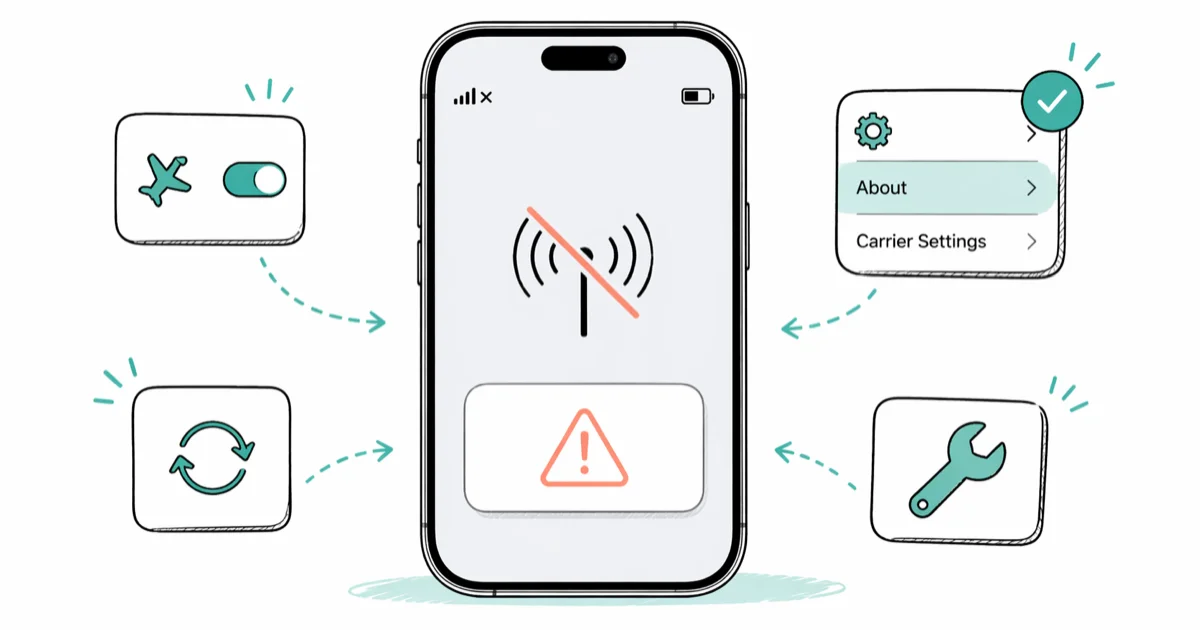
Quick AnswerForce restart your iPhone, then go to Settings > General > About to install any pending carrier settings update. Those two steps clear most No Service errors in under 5 minutes without losing any data.
iPhone No Service means your iPhone can’t reach any cellular tower it normally uses, so calls, texts, and mobile data all fail until the connection returns. A force restart plus a carrier settings refresh clears the error in most cases. Methods below run quickest to most involved.
- A force restart on any Face ID iPhone takes about 20 seconds and reinitializes the cellular modem
- Carrier settings updates live under
Settings>General>About andshould be checked after every iOS install - A SIM that shifted half a millimeter inside the tray can show No Service even with a healthy tower nearby
- Reset Network Settings clears corrupted cellular profiles but wipes saved Wi-Fi passwords and VPN configs
- Antenna damage from drops or water is the rarest cause and the only one a software fix can’t touch
#Why Does My iPhone Say No Service?
No Service appears when your iPhone fails to register on any cellular network in range. Four causes account for almost every case, and each one has a clear fix path. If your status bar shows an E rather than No Service, the phone is registered but stuck on EDGE instead, which is a different problem with its own fixes.
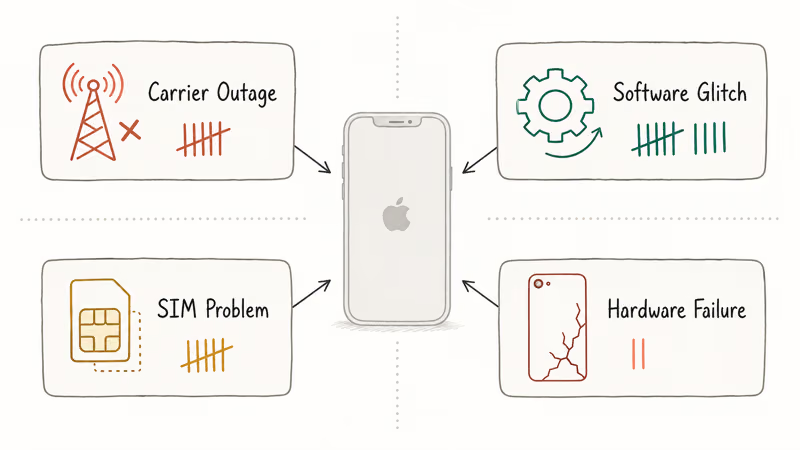
Carrier outages hit everyone on the same network at the same time. A quick check of your carrier’s status page tells you whether to keep troubleshooting or just wait it out.
Software glitches are the most common single-device cause. A corrupted network profile, a stale carrier file, or an iOS bug can stop the radio stack from registering even when the hardware is fine. Force restart and carrier updates resolve this category in most situations.
SIM problems rank third. A SIM that shifted during a drop, picked up corrosion, or got deactivated by the carrier will show No Service no matter how strong the local signal is. For related symptoms, our invalid SIM card guide covers the error variants you might also see.
Hardware failure is rare but unmistakable. No software step helps once an antenna connector is broken. The signs we list later in this guide tell you when to stop fiddling and book a repair.
This guide assumes you are troubleshooting your own iPhone. Every step below is a normal Apple-supported recovery action that involves no policy or privacy boundary. Restoring service on a device you own is fully legal; we still mention privacy implications wherever a step touches saved Wi-Fi or VPN data.
#9 Methods to Fix iPhone No Service
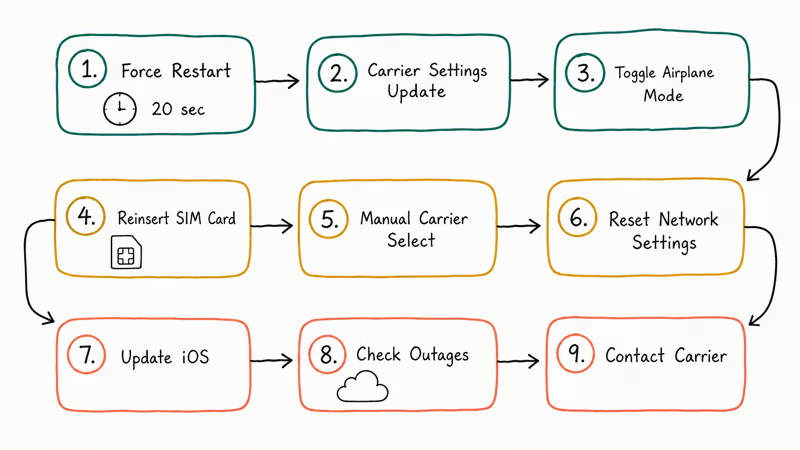
#1. Force Restart Your iPhone
A force restart cuts power to the cellular modem and reloads it without touching any of your photos, messages, or apps.
Press and quickly release Volume Up, then press and quickly release Volume Down, then hold the Side button until the Apple logo appears. The whole sequence takes about 20 seconds. Wait for the boot to finish and watch the status bar. Service often returns within a minute or two of the Apple logo reappearing.
#2. Check for a Carrier Settings Update
Carriers push small profile updates that tell your iPhone which frequencies, bands, and features to use. An iOS upgrade can leave that profile out of sync.
Go to Settings > General > About and stay on that screen for at least 10 seconds. If a new profile is available, an “Update” prompt appears. Tap Update and wait for confirmation. Apple’s carrier settings support page states that this profile ships separately from iOS, which is why the update prompt sometimes appears days after a major iOS release lands.
#3. Toggle Airplane Mode
Airplane Mode forces the iPhone to drop every cellular connection and re-register from scratch when you turn it back off, which is faster than a full restart for transient registration glitches.
Swipe down from the top-right corner to open Control Center. Tap the airplane icon, wait 15 seconds, then tap it again. Bars usually return within 30 seconds. Toggling Airplane Mode is often enough to clear a short No Service blip that appears after a Wi-Fi handover.
#4. Reinsert the SIM Card
A physical SIM that shifted even slightly inside the tray will block network registration regardless of signal.
Power off your iPhone first. Use the SIM ejection tool (or a straightened paperclip) to pop the tray on the right edge. Pull the SIM, inspect the gold contacts for visible scratches, dust, or oxidation, then reseat the card firmly and slide the tray back. Power on and let the phone search for about a minute.
If you use an eSIM, skip the tray entirely and go to Settings > Cellular. Verify the plan label says “Active.” An eSIM displaying “No Plan” or “Inactive” needs to be re-provisioned by your carrier.
#5. Manually Select Your Carrier
Automatic carrier selection occasionally misfires after roaming or after a tower comes back from maintenance.
Go to Settings > Cellular > Network Selection and turn off Automatic. Your iPhone will scan for networks. Pick your carrier from the list, wait until the bars settle, then flip Automatic back on. This forces a fresh registration handshake instead of letting the phone reuse a stale cached entry.
#6. Reset Network Settings
This step clears every stored network configuration on the device, which fixes No Service caused by corrupted cellular profiles.
Go to Settings > General > Transfer or Reset iPhone > Reset > Reset Network Settings. Enter your passcode. The phone restarts with all cellular, Wi-Fi, and Bluetooth settings returned to factory defaults. According to Apple’s reset documentation, this process erases saved Wi-Fi passwords and VPN configurations, so write those down before you proceed if privacy or work-network access matters to you.
A stuck No Service state usually clears shortly after the post-reset reboot finishes.
#7. Update iOS
Apple ships modem firmware patches and cellular stack fixes inside iOS updates. Open Settings > General > Software Update while connected to Wi-Fi and install anything pending.
Reddit and Apple Community threads from 2024 and 2025 documented the same No Service pattern on iPhone 14 and iPhone 15 devices after early iOS 17.0 builds, with the issue clearing for most posters within a day of installing 17.1. If Wi-Fi is unavailable too, plug into a Mac or PC and update through Finder or iTunes.
#8. Check for Network Outages
When every device-level fix fails, the cause is usually outside your phone.
Visit your carrier’s official status page. AT&T, Verizon, and T-Mobile each publish a real-time service map you can search by ZIP code. Downdetector’s outage tracking history can also show whether other users in your area are reporting the same problem. If an active outage is confirmed for your area, stop troubleshooting and let the carrier restore service.
#9. Contact Your Carrier
Your carrier can run remote diagnostics on the SIM and the account.
Call from another phone or visit a store. Tell the rep you’ve already restarted, toggled Airplane Mode, and reset network settings. The technician can verify your SIM is active on the account, push a fresh carrier profile over the air, and ship a replacement SIM if the original is damaged. New physical SIMs activate within about 5 minutes of insertion, and eSIM transfers usually complete during the same call.
#SIM Card and eSIM-Specific Troubleshooting
If reinserting the SIM didn’t help, the carrier may have deactivated it, often because of an unpaid bill, a port-out request, or a fraud flag. Call from a working phone to confirm the account status before you spend more time on the device side.
For eSIM users, go to Settings > Cellular and read the plan label. A plan showing “No Plan” or “Not Available” needs a 5-minute re-provisioning call to your carrier. If you recently switched from a physical SIM to eSIM, also confirm the original physical SIM’s plan was actually transferred, since a carrier can leave both records active and neither one registers cleanly.
#Does No Service Affect Wi-Fi Calls and Texts?
Wi-Fi Calling routes voice calls and SMS through your internet connection instead of the cellular network. When No Service is showing but Wi-Fi works, you can still place phone calls, send and receive SMS, use iMessage, and reach every internet-based app as long as Wi-Fi Calling is enabled.
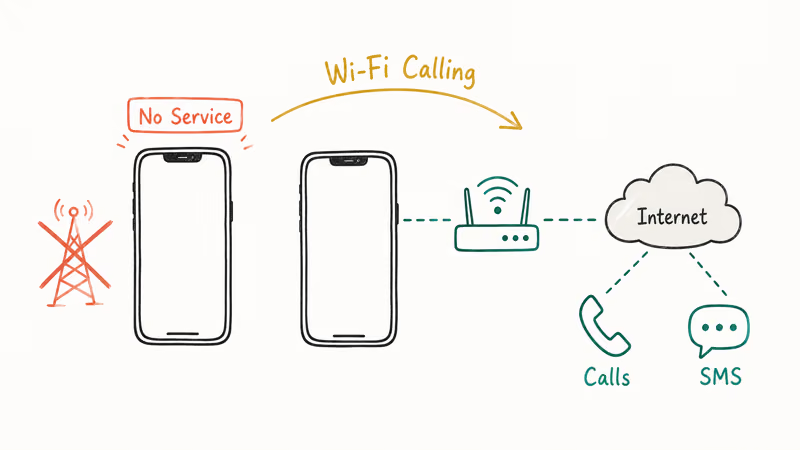
Turn it on under Settings > Cellular > Wi-Fi Calling. AT&T, Verizon, and T-Mobile all support Wi-Fi Calling at no extra charge on consumer plans. Apple’s Wi-Fi Calling support page confirms that emergency calls placed over Wi-Fi Calling pass your registered address to the dispatcher when GPS is unavailable.
Already have it on but calls aren’t going through? Our iPhone Wi-Fi Calling not working guide walks through the next layer of fixes.
#Signs of Hardware Damage Behind No Service
Antenna damage almost always follows a hard drop or water exposure. If No Service appeared the moment your phone hit the ground and no software fix moves the needle, the antenna connector inside the chassis may be physically loose or cracked.
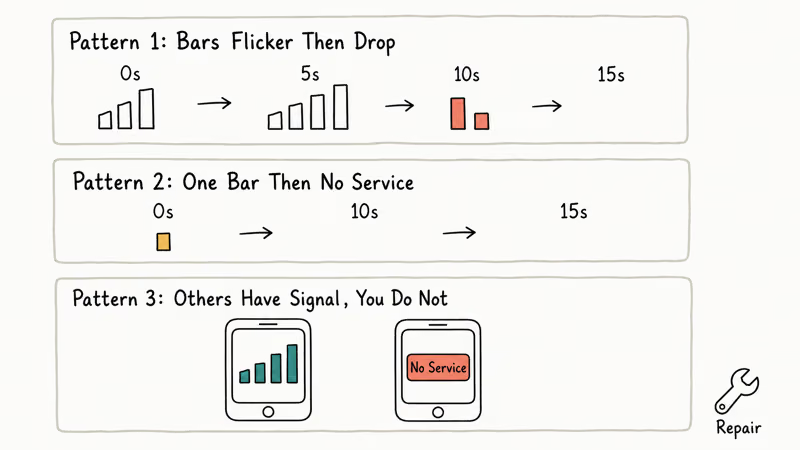
Three patterns point at hardware rather than software:
- Signal bars flicker on and off for a few seconds at a time, then drop to No Service
- One bar appears, then collapses to No Service within 5 to 15 seconds
- Other people on the same carrier nearby show full signal while your phone shows nothing
If you see any of these, software fixes won’t bring the radio back. Out-of-warranty antenna and modem repairs are priced by Apple per model, with an exact estimate shown first. AppleCare+ with accidental damage coverage drops the service fee dramatically — Apple’s AppleCare service fees page lists the other-accidental-damage fee at a flat $99 per incident.
For problems that affect cellular data only (calls and texts work, mobile data doesn’t), our cellular data not working guide handles that scenario separately.
#How to Prevent the No Service Error From Coming Back
Keep carrier settings current. Open Settings > General > About after every major iOS update. The prompt only takes 10 seconds to install and prevents the most common post-update No Service incident.
Avoid pulling the SIM unless you actually need to. Each removal risks bending the gold contacts.
For account-level issues like a carrier lock no SIM restrictions error appearing alongside No Service, the root cause sits at the carrier rather than on the device. Ask the carrier to release the lock or transfer the line cleanly. If you swap phones often, request an eSIM transfer rather than physically moving the card. Your account stays consistent and the gold contacts never see another fingerprint.
If your iPhone shows network not available instead of No Service, the steps overlap heavily but the underlying state is slightly different. Read that guide alongside this one if both messages have appeared in the last week.
#Bottom Line
For most readers, the order is: force restart, install any pending carrier settings update, then toggle Airplane Mode. Those three steps clear No Service on most iPhones running iOS 17 or iOS 18 within 5 minutes. If they don’t help, reinsert the SIM and run Reset Network Settings before calling your carrier.
If the problem started right after a drop or water exposure, skip the software ladder and book a Genius Bar visit. No software fix touches a damaged antenna.
#Frequently Asked Questions
Why does my iPhone show No Service with strong signal nearby?
Strong tower signal in your area doesn’t guarantee your specific iPhone is registered on the network. A deactivated SIM, an outdated carrier profile, or corrupted network settings can all block registration even when nearby towers are broadcasting at full power. Refresh the carrier profile under Settings > General > About, then force restart to trigger a clean reconnection attempt.
Will resetting network settings delete my photos or apps?
No. The reset only clears Wi-Fi passwords, VPN configurations, cellular settings, and Bluetooth pairings. Photos, messages, apps, and every other piece of personal data stay exactly where they were before the reset.
Can airplane mode actually fix No Service?
Yes. Toggling Airplane Mode forces the iPhone to disconnect from every cellular network and reconnect from scratch. The whole cycle takes about 30 seconds and works for short-term registration glitches without the overhead of a restart.
Does No Service mean my SIM card is broken?
Not usually. A misseated SIM, a stale carrier profile, an iOS bug, or a carrier account issue can all trigger No Service without any physical SIM damage at all. Remove and reinsert the SIM card first, then call your carrier to verify the account status before assuming the SIM itself is at fault. Most No Service cases turn out to be fixable without ever swapping hardware, so save the SIM replacement step for last.
What does “Searching…” mean on my iPhone?
Your iPhone is actively scanning every band it supports for a network to register on. If the status bar stays on “Searching…” for more than 2 minutes in an area with confirmed coverage, the phone has run out of usable options and effectively sits at No Service. Toggle Airplane Mode or force restart to break the loop.
Why does my iPhone lose service right after an iOS update?
iOS updates sometimes overwrite the carrier settings file or introduce cellular radio bugs that the next point release cleans up. According to Apple’s iOS release notes archive, each release documents known connectivity issues alongside its security fixes. Always check Settings > General > About for a carrier update prompt within an hour of finishing the iOS install.
Can I use my iPhone at all when it says No Service?
Yes, over Wi-Fi. iMessage, FaceTime, web browsing, email, app downloads, and every internet-based service work normally. You lose only SMS texts and traditional cellular voice calls. Turn on Wi-Fi Calling under Settings > Cellular > Wi-Fi Calling to route phone calls over your internet connection until cellular service returns.
Should I restore my iPhone to fix No Service?
A full restore is a last resort that wipes everything and reinstalls iOS from scratch. Back up to iCloud or a computer first. Only attempt a restore after working through all nine methods above, since the process takes 30 to 60 minutes and erases every change you’ve made since setup. Our guide on what does restore iPhone mean walks through the exact steps.

Mac mini M6 vs M5 Pro: Which Model Should You Buy?
Mac mini M6 vs M5 Pro compared on price, memory, ports, displays, and real workloads. Find the better 2026 Mac mini for your desk and budget.

Apple Siri Settlement: Who Qualifies and How to Claim
Apple's $250 million Siri settlement covers iPhone 15 Pro and iPhone 16 models bought June 2024 to March 2025. See who qualifies and how claims work.

iOS 26.6.1 Security Update: What Apple Fixed and Who Gets It
Apple released iOS 26.6.1 on August 17 with 29 security fixes, including an IPSec interception bug. See what it patches, who gets it, and how to update.

iPhone Adaptive Power: How It Works and When to Use It
Learn how iPhone Adaptive Power works, which models support it, what it changes, and when Low Power Mode is still the better battery-saving choice.