iMessage Not Working? Fix It in Minutes With These Steps
Fix iMessage not working with 7 proven methods. Covers activation errors, blue bubble issues, and Apple ID sign-in. Works on iOS 16 and later.
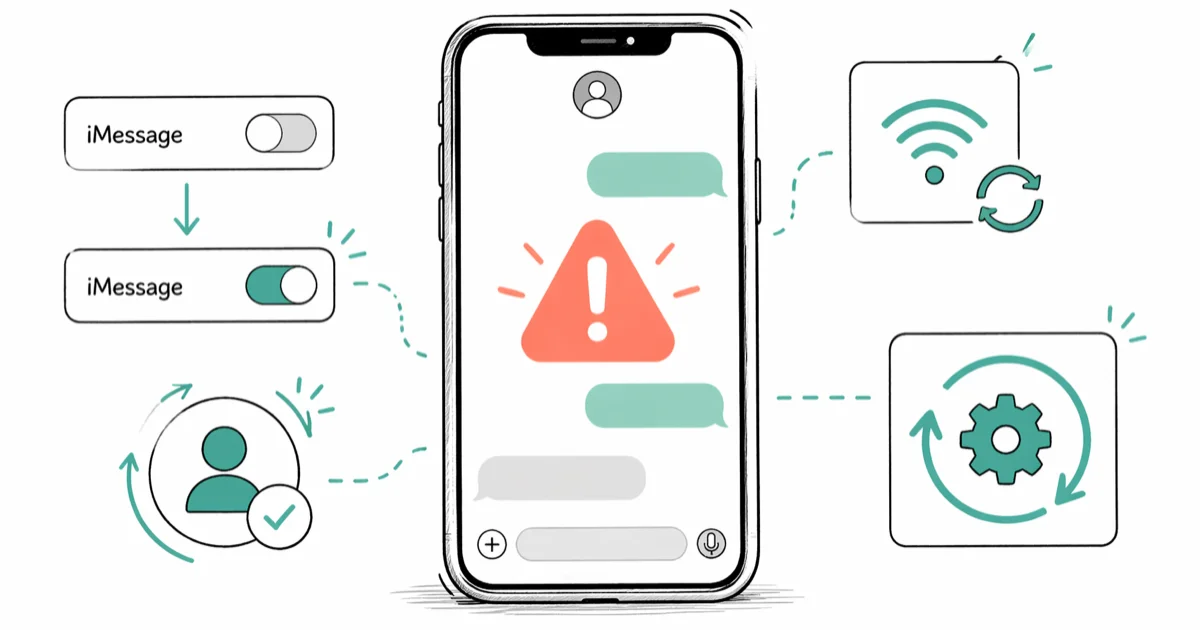
Quick AnswerToggle iMessage off and on at Settings > Messages, then sign out and back in to your Apple ID. If messages still send as green bubbles, reset network settings at Settings > General > Transfer or Reset iPhone > Reset.
iMessage breaks for a small number of predictable reasons: a stuck activation, a stale Apple ID session, a flaky internet connection, or a wrong Send & Receive setting. The fixes below are ordered from most to least common, and the first two clear the problem for the vast majority of iPhones quickly.
- Toggling iMessage off and on at
Settings>Messagesclears most stuck activations in about 60 seconds - Blue bubbles confirm iMessage is active; green bubbles mean SMS is going through your carrier instead
- iMessage needs internet, not signal bars, so any working Wi-Fi or cellular data connection is enough
- Signing out and back in to your Apple ID forces Apple to re-authenticate the iMessage activation
- If only one contact shows green bubbles, they probably switched to Android or turned iMessage off
#Why Is iMessage Not Working?
Three things have to be right.
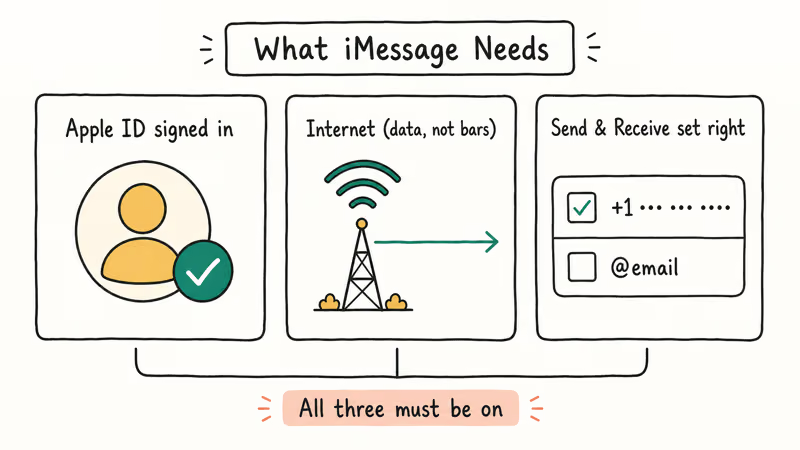
iMessage depends on three things working at once: an Apple ID that’s signed in and verified, a live internet connection, and a correct Send & Receive list. If any one of those is off, your iPhone either fails to send or quietly falls back to SMS as a green bubble.
The single most common trigger is a stuck or expired activation. According to Apple’s iMessage setup guide, iMessage activation can take up to 24 hours after a fresh setup, an iOS update, or an Apple ID password change, and toggling the switch usually pushes it to finish. In most cases the activation completes within a minute of flipping the toggle.
No internet means no iMessage. The signal bars near the top of your screen show voice coverage, not data, so a full-bars iPhone with no working data will still drop messages to SMS.
#Fix 1: Toggle iMessage Off and On
Sixty seconds, no data loss.
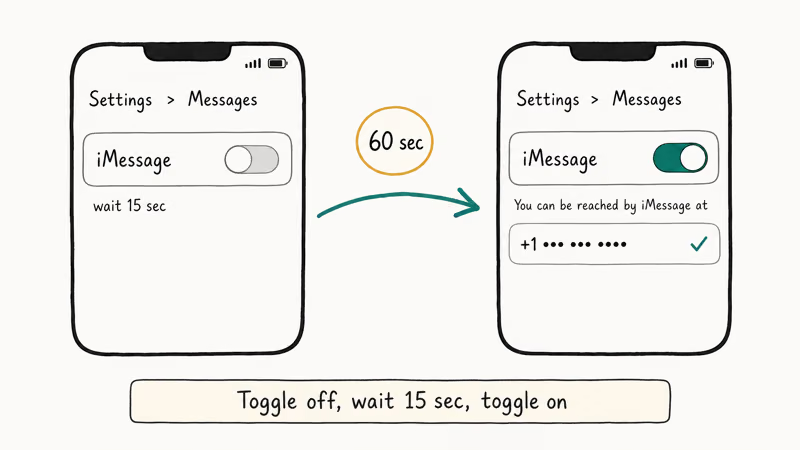
This resets the activation handshake without touching your message history. Go to Settings > Messages and turn off iMessage, wait 15 seconds, then turn it back on. Your iPhone reconnects to Apple’s servers and starts a fresh activation; after it completes, your phone number and Apple ID address show up under “You can be reached by iMessage at.”
This clears most stuck activations within a minute, and the timing is roughly the same across newer and older iPhone models. After the toggle, send yourself a test message from a friend and confirm the bubble shows blue rather than green.
If it still fails, move on.
#Fix 2: Sign Out and Back In to Apple ID
A stale Apple ID session is the second-most-common cause and the one easiest to miss. Signing out and back in refreshes the authentication token Apple uses to identify your account, and it’s the move to try whenever Fix 1 doesn’t clear things up on its own.
Open Settings > Messages > Send & Receive and tap your Apple ID at the top of the screen. Tap Sign Out, count to fifteen, then tap “Use your Apple ID for iMessage” and sign back in. Your phone number should appear in the list under “You can be reached by iMessage at” once the sign-in completes.
If you see “Apple ID verification required” pop up over and over, our guide to Apple ID verification problems walks through that specific stuck loop.
This is the fix that works when the Fix 1 toggle alone doesn’t clear things up, which usually happens after a recent Apple ID password change has silently invalidated the iMessage token. A password change forces Apple to issue a new authentication token, and until your iPhone signs out and back in, it keeps presenting the old, rejected one.
#Fix 3: Check Send & Receive Settings
Wrong Send & Receive options are common after restoring from a backup or setting up a new iPhone, and they look like a normal iMessage failure from the outside.
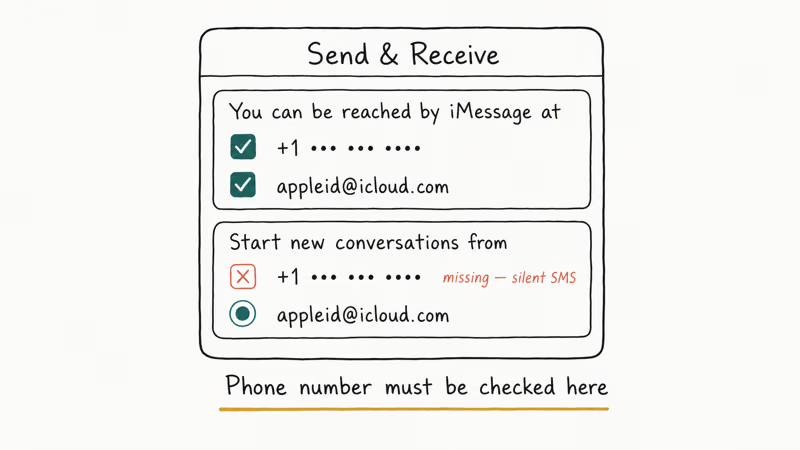
Go to Settings > Messages > Send & Receive. Under “Start new conversations from,” confirm that your phone number is checked, not just your Apple ID email. If only an email address is checked, anyone who texts the phone number on your SIM will reach you over SMS at best, never over iMessage.
Also check that your phone number is listed under “You can be reached by iMessage at.” If it’s missing, iMessage hasn’t finished activating with your number yet, so go back to Fix 1 and let the toggle finish.
#Fix 4: Check Your Internet Connection
iMessage won’t send without working internet, regardless of how full the signal bars look.
Bars show voice. Data is a separate thing.
Open Safari and load any website. If the page doesn’t load, your data path is the problem and iMessage can’t send anything. Go to Settings > Cellular and confirm Cellular Data is on. If you’re on a flaky Wi-Fi network, switching to cellular for one minute is the fastest way to test.
According to Apple’s iPhone connectivity guide, iMessage uses standard internet, so any network that loads websites should also carry iMessage. If your iPhone refuses to connect to mobile data at all, our cellular data not working walkthrough covers the carrier and SIM-side fixes.
#Does a VPN Block iMessage?
Sometimes.
VPNs that route through restricted regions or that aggressively filter Apple traffic can block iMessage activation. According to Apple’s network ports documentation, iMessage uses TCP port 5223 and TCP port 443; if either is blocked, activation either stalls or fails outright.
Disconnect from the VPN and try iMessage again. Corporate, school, and hotel Wi-Fi networks block the same ports surprisingly often. Switching to cellular data for the test is the fastest way to confirm whether the network is the bottleneck.
#Fix 5: Reset Network Settings
Network settings corruption blocks iMessage activation and silently drops messages to SMS without telling you.
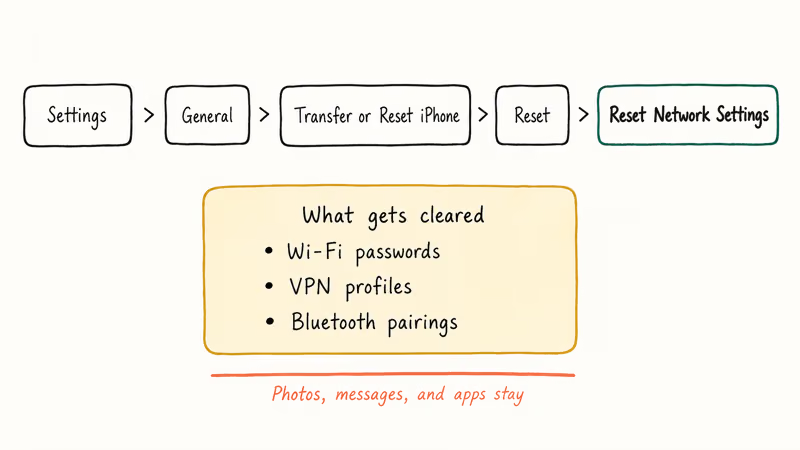
Go to Settings > General > Transfer or Reset iPhone > Reset > Reset Network Settings. On iOS 15 and earlier, the path is Settings > General > Reset > Reset Network Settings.
Your iPhone restarts. All saved Wi-Fi passwords, VPN profiles, and Bluetooth pairings are wiped. Re-enter your home Wi-Fi password after the restart, then test iMessage again. This step often brings iMessage back on the next reboot after a botched eSIM transfer leaves the network stack in a bad state.
#Fix 6: Check Date, Time, and iOS Version
A wrong system clock breaks the Apple ID handshake because the server rejects timestamps that drift more than a few minutes. Go to Settings > General > Date & Time and turn on Set Automatically.
While you’re there, check Settings > General > Software Update. Known iMessage bugs get patched in iOS updates, and Apple’s release notes regularly call out activation fixes.
iOS 16.1, for example, shipped with an activation bug for users who had recently changed their Apple ID password; Apple shipped iOS 16.1.1 a week later to fix it. If you’re several minor versions behind, update first before spending more time on manual fixes.
#Fix 7: Contact Apple Support
If iMessage still fails after Fixes 1 through 6, the problem is probably outside your iPhone. The cause is usually a server-side outage or an account-specific block.
Open the Apple System Status page in Safari and look at the iMessage row. Apple updates this page within minutes when a service goes down, and a yellow or red dot tells you the issue is on their end.
If everything is green and iMessage still refuses to work, contact Apple Support. They can pull your account record and check for activation blocks, billing holds, or carrier-side number-porting issues that no amount of toggling will fix.
#Bottom Line
For the vast majority of iMessage failures, the toggle (Fix 1) and the Apple ID sign-out (Fix 2) clear the problem together; reset Network Settings (Fix 5) is the next-best move when both fail. Keep automatic date and time on, and avoid testing through corporate or hotel Wi-Fi when activation is involved.
If only one contact shows green, they’ve switched to Android or turned iMessage off. You can manually switch a conversation to SMS so the next message goes through cleanly.
Related troubleshooting when both services break together:
- iPhone not receiving texts
- iMessage doesn’t say Delivered
- Getting iMessage on Mac
- FaceTime waiting for activation
#Frequently Asked Questions
Why is iMessage sending as green bubbles instead of blue?
Green bubbles mean the message went out as SMS through your carrier, not as iMessage. The cause is almost always one of three things: iMessage isn’t activated on your end, the recipient doesn’t have iMessage on, or one of you has no internet. Try the Fix 1 toggle first. If your messages stay green even to a friend with an iPhone, the issue is on your activation, not theirs.
Can I use iMessage without a SIM card?
Yes, on Wi-Fi only. You’ll send from your Apple ID email instead of a phone number, and friends who add you by phone number won’t see your messages until you give them the email associated with your Apple ID.
Why does iMessage say “Waiting for activation”?
Apple’s servers haven’t confirmed your number or Apple ID yet. Apple states that activation can take up to 24 hours, though it usually finishes in minutes. If a full day passes, sign out of iMessage, restart, then sign back in.
Why can’t I send iMessages to one specific person?
Delete the conversation thread and start a new one with the same contact. If the message field shows “iMessage” in blue placeholder text, they’re reachable. If it shows “Text Message” in green, they’ve either switched to Android or turned iMessage off on their end. There’s nothing you can do from your side to force iMessage to a phone that isn’t running it.
Why do my iMessages not send when on Wi-Fi?
Some networks block the ports iMessage uses. Corporate, school, hospital, and hotel Wi-Fi are the usual offenders.
Forget the network on your iPhone and switch to cellular data for one test message. If the message goes through on cellular but not on that Wi-Fi, the network firewall is the cause, and you’ll need to use cellular for iMessage on that connection or ask your IT team to open the right ports.
Does iMessage work internationally?
Yes. iMessage runs over internet, not SMS, so any Wi-Fi or cellular data connection that loads websites will also carry iMessage with no roaming texting charges. You’ll pay for the data your iPhone uses, but each iMessage is a small amount of traffic compared to an average web page.
Can iMessage run on multiple devices at once?
Yes, on every device signed in to the same Apple ID.
On each one, open Settings > Messages > Send & Receive and confirm the same phone number and Apple ID address are checked. iMessage covers iPhone, iPad, Mac, and even an old iPod touch on iOS 12 or later. A device that’s out of sync needs a sign-out and sign-back-in to catch up.
What does “Delivered” mean in iMessage?
Delivered means the message reached the recipient’s device. If you see Delivered but they say nothing arrived, the message is on their phone, but a Focus mode, DND setting, or a muted conversation is suppressing the notification on their end. SMS doesn’t show a delivery receipt by default, so the absence of Delivered is normal for green bubbles, not a sign of a block.

Mac mini M6 vs M5 Pro: Which Model Should You Buy?
Mac mini M6 vs M5 Pro compared on price, memory, ports, displays, and real workloads. Find the better 2026 Mac mini for your desk and budget.

Apple Siri Settlement: Who Qualifies and How to Claim
Apple's $250 million Siri settlement covers iPhone 15 Pro and iPhone 16 models bought June 2024 to March 2025. See who qualifies and how claims work.

iOS 26.6.1 Security Update: What Apple Fixed and Who Gets It
Apple released iOS 26.6.1 on August 17 with 29 security fixes, including an IPSec interception bug. See what it patches, who gets it, and how to update.

iPhone Adaptive Power: How It Works and When to Use It
Learn how iPhone Adaptive Power works, which models support it, what it changes, and when Low Power Mode is still the better battery-saving choice.