iPhone Disabled and You Forgot the Passcode? Fix It
Your iPhone is disabled and you forgot the passcode. Erase it from the lock screen, iCloud, or recovery mode, then restore from backup. Full guide.
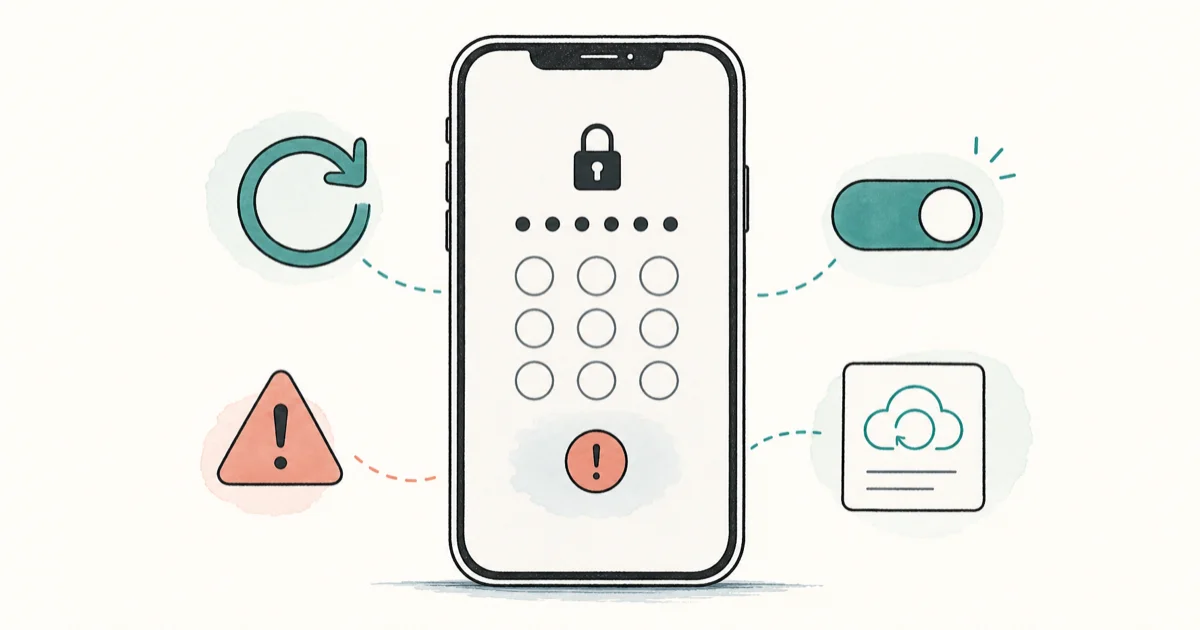
Quick AnswerStop guessing. On iOS 17 or later, tap Forgot Passcode on the lock screen to erase your own iPhone, then restore from a backup. No computer? Use iCloud or recovery mode.
When your iPhone is disabled and you forgot the passcode, no shortcut skips the lock without erasing the device. This guide covers the official ways to erase and recover your own iPhone. Use these steps only on a device you own or are authorized to reset.
- There’s no way to recover a forgotten passcode without erasing the iPhone first, so a recent iCloud or computer backup is what saves your data.
- On iOS 17 or later, the lock screen “Forgot Passcode” option erases the phone with no computer, but only if Find My was on and the phone has Wi-Fi or cellular.
- iCloud at icloud.com/find erases the phone remotely from any browser if Find My was enabled.
- Recovery Mode with a Mac or PC works on any iOS version and needs no internet on the iPhone itself.
- After any erase, you must enter the Apple Account that was on the phone to clear Activation Lock, so know those credentials before you start.
#Why Is My iPhone Showing “Unavailable” or “Security Lockout”?
The “iPhone Unavailable” and “Security Lockout” screens appear after too many wrong passcode entries. Each wrong guess stretches the lockout timer. Stop entering guesses now.
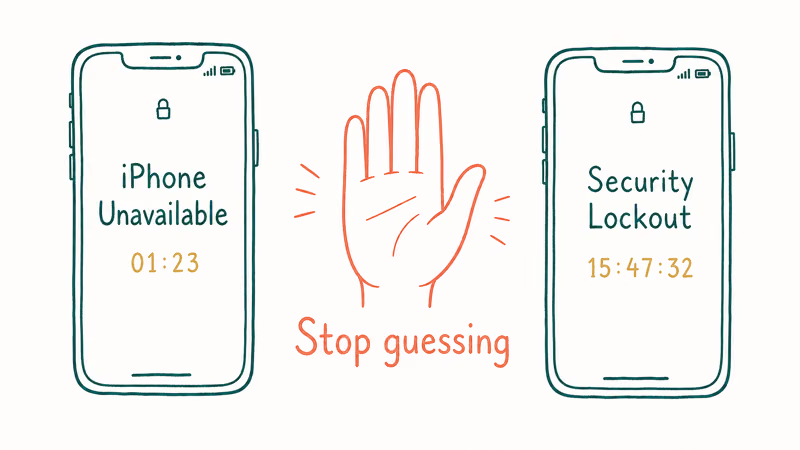
That last point matters more than it sounds.
This is a legitimate situation. You own the phone and you can’t remember the passcode.
Accessing a device you don’t own without the owner’s consent is illegal under computer-misuse and privacy laws. These methods exist for the locked-out owner, not for getting into someone else’s phone. According to Apple’s support documentation, the only path forward once the phone is disabled is to erase it. The full wipe-and-restore cycle usually takes around 20 minutes, including the backup download.
#Erasing a Disabled iPhone Without a Computer
If your iPhone runs iOS 17 or later and had Find My turned on, you can erase it straight from the lock screen with no other hardware. According to Apple’s iOS 17 documentation, this lock screen reset arrived with iOS 17 and requires Find My to have been enabled beforehand, which is the detail most people miss when the option doesn’t show up for them at the moment they need it most.
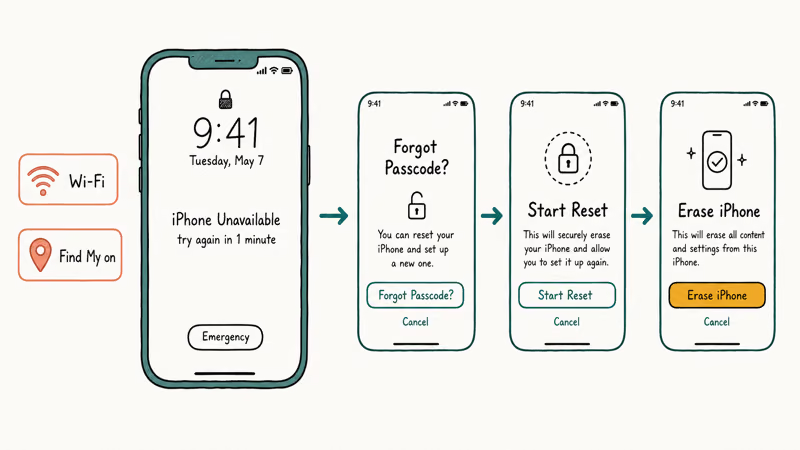
First, confirm the phone is connected to Wi-Fi or cellular, because without a network the lock screen reset option simply won’t appear no matter how many times you tap. Then enter any passcode until the “[Device] Unavailable” screen shows.
- Tap Forgot Passcode? in the corner of the lock screen.
- On the Security Lockout screen, tap Start [Device] Reset.
- Enter your Apple Account password to sign out of your account on the device.
- Tap Erase [Device] to delete all data and settings.
- If you use an eSIM, choose whether to keep or delete it during the erase.
- When the phone restarts, follow setup, restore from a backup if you have one, and set a new passcode.
You can only reach this screen with an active network connection and with Find My enabled before you got locked out. If the option is missing, jump to the recovery mode method below.
#Erasing Your iPhone Remotely With iCloud
If Find My was enabled, you can wipe the phone from any browser without touching it.
Go to icloud.com/find and sign in with your Apple Account. Select the locked iPhone, click Erase iPhone, and confirm. The phone wipes itself the next time it goes online.
The catch is the same Activation Lock requirement. After erasing, the phone asks for the Apple Account credentials that were signed in. This is the anti-theft feature working as designed, and it’s why a stolen phone can’t simply be wiped and resold. Have your Apple ID and password ready before you click erase.
#How Do I Use Recovery Mode to Restore My iPhone?
Recovery Mode is the fallback when the lock screen option doesn’t show and you can’t reach iCloud. It works on any iOS version and needs no internet on the iPhone, only on the computer. You’ll need a Mac with Finder or a PC with the Apple Devices app (or iTunes), plus a USB cable.
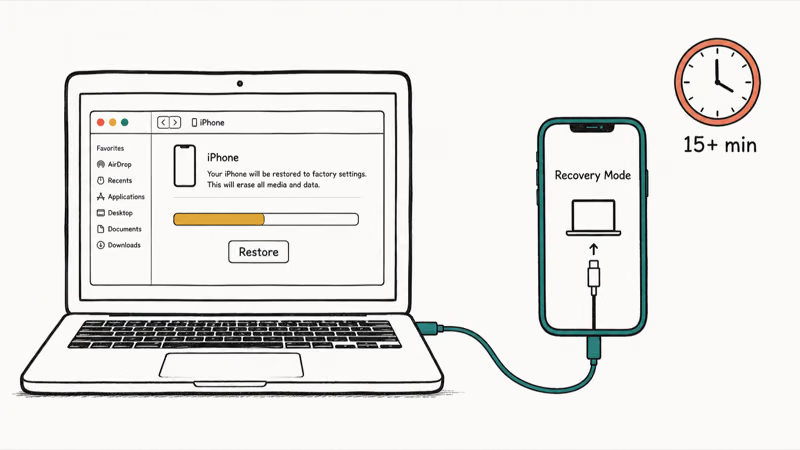
The download step is where patience matters most. Here’s the sequence:
- Power off the iPhone. Hold the side button and a volume button until the slider appears, then drag to power off.
- Enter recovery mode. Plug the cable into your computer, then into the iPhone while holding the side button. Keep holding past the Apple logo until a computer-and-cable image appears.
- Restore. In Finder or the Apple Devices app, select your iPhone, tap Trust if asked, then choose Restore.
- Wait for the download. The recovery software can take more than 15 minutes to download. If the phone exits recovery mode before it finishes, power it off and start again.
Apple’s Security Lockout support page confirms this method works even when the on-device reset option is unavailable. When the Hello screen appears, disconnect and set up the phone.
#When You Have No Computer and No Internet
Some people get stuck with a locked phone, no spare computer, and no Wi-Fi. With neither, you need outside help.
Take the phone to an Apple Store or an Apple Authorized Service Provider. Bring proof of purchase if you have it, since staff may ask you to confirm ownership before they reset anything. They can run the recovery process on their equipment.
If the phone is carrier-locked and you also need it unlocked for a different network, that’s separate from the passcode reset. Our guide on how to get AT&T to unlock an iPhone covers the carrier side. For more computer-free options, see how to reset an iPhone without a passcode and computer.
#Will I Lose Everything? Understanding Backups
Every method here erases the phone. There’s no exception, no hidden setting, no app that recovers the passcode while keeping your data. What decides whether you lose your photos and messages is your backup.
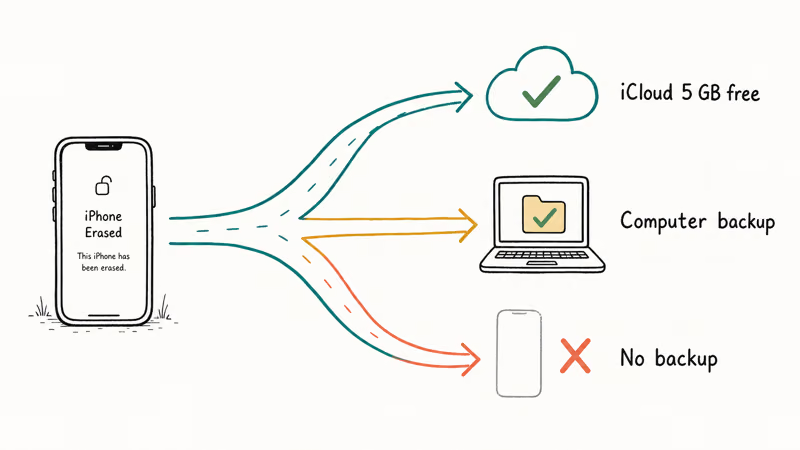
If you backed up to iCloud, your data restores during setup after you sign in. According to Apple’s iCloud storage page, every account gets 5 GB of free iCloud storage by default, so check that your last backup actually fit before you assume it’s complete. If your last iCloud backup never completed, our guide on iPhone iCloud backup not working explains why it can stall.
If you backed up to a computer instead, restore from that backup in Finder or the Apple Devices app. If you never backed up at all, the data is gone after the erase. That’s the cost of a forgotten passcode.
One narrow exception exists for recent passcode changes. Apple’s iOS 17 Passcode Reset feature lets you use your old passcode for 72 hours after changing it, which avoids erasing. That only helps if you changed the passcode in the last three days and remember the previous one. For most locked-out users, that window has passed.
If your iPad is in the same situation, our bypass iPad passcode guide walks the iPad version of these steps. And if your problem is a forgotten Screen Time code rather than the device passcode, see forgot Screen Time passcode.
If Apple’s lock-screen, iCloud, and Recovery Mode erase routes all fail on your own iPhone, AnyUnlock is a paid desktop fallback; it still erases the device and can’t remove Activation Lock.
Some links on this page are affiliate links, which means fone.tips may earn a commission at no extra cost to you.
#Bottom Line
Stop guessing the moment you see “iPhone Unavailable.” Then pick the erase method that fits: the lock screen reset on iOS 17 if Find My was on, iCloud from a browser, or recovery mode with a computer for everything else. Have your Apple Account credentials ready, because Activation Lock asks for them after the wipe. If you’re completely without a computer or internet, an Apple Store appointment is your reliable path.
#Frequently Asked Questions
Can I unlock my disabled iPhone without losing data?
No, not if you have truly lost the passcode. Erasing is the only way past a disabled lock screen, and erasing wipes the data. The one narrow exception is the iOS 17 Passcode Reset feature, which lets you use your old passcode within 72 hours of changing it. Outside that window, your only data recovery is restoring from a backup made before the lockout.
Why does my iPhone ask for an Apple Account after I erase it?
That’s Activation Lock, Apple’s anti-theft feature. It ties the phone to the Apple Account that was signed in, so a wiped phone still can’t be set up by a stranger. You must enter those exact credentials to finish setup. Confirm them before you erase.
What if the “Forgot Passcode” option does not appear on iOS 17?
This usually means Find My was off, the phone has no network connection, or the iOS version is older than 17. Connect to Wi-Fi and try again. If it still doesn’t show, use recovery mode with a computer.
How long does the recovery mode restore take?
Plan for at least 20 to 30 minutes.
The recovery software download alone can run past 15 minutes depending on your internet speed, and the restore and setup add more time on top of that. If the phone drops out of recovery mode mid-download, you have to power it off and start the whole process again, which is the single most common reason this step drags out for people.
Is it legal to reset a disabled iPhone?
Resetting your own iPhone is completely legal and is the intended use of these tools. Resetting or accessing someone else’s device without their permission is a different matter and can violate computer-misuse and privacy laws. Activation Lock also blocks anyone who lacks the original Apple Account credentials, so these methods don’t help with a phone you don’t own.
Can an Apple Store unlock my iPhone if I have no backup?
An Apple Store can erase the phone so you can use it again, but it can’t recover data that was never backed up. With no backup, you regain a working but empty phone.

iPhone Adaptive Power: How It Works and When to Use It
Learn how iPhone Adaptive Power works, which models support it, what it changes, and when Low Power Mode is still the better battery-saving choice.
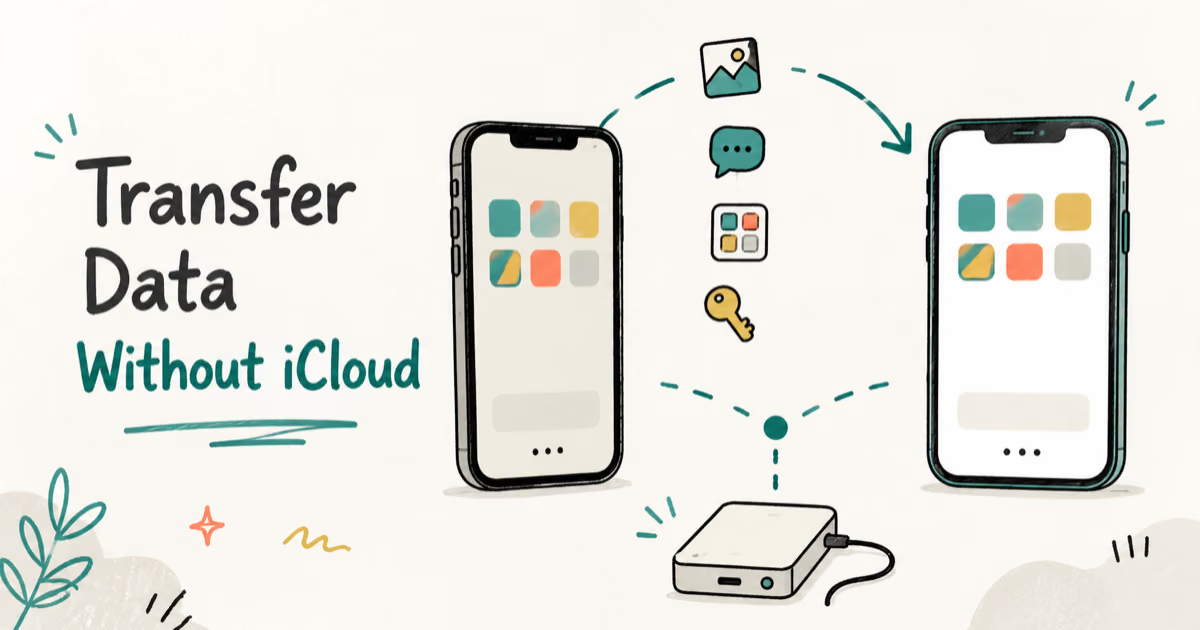
How to Transfer Data to a New iPhone Without iCloud
Move everything to your new iPhone without iCloud: Quick Start device-to-device transfer, wired migration, and encrypted Finder or iTunes backups.

Group Text Not Working on iPhone? 8 Fixes That Work
Group text not working on iPhone? Turn on MMS Messaging and Group Messaging, check iMessage vs SMS routing, and fix mixed Android group chats fast.
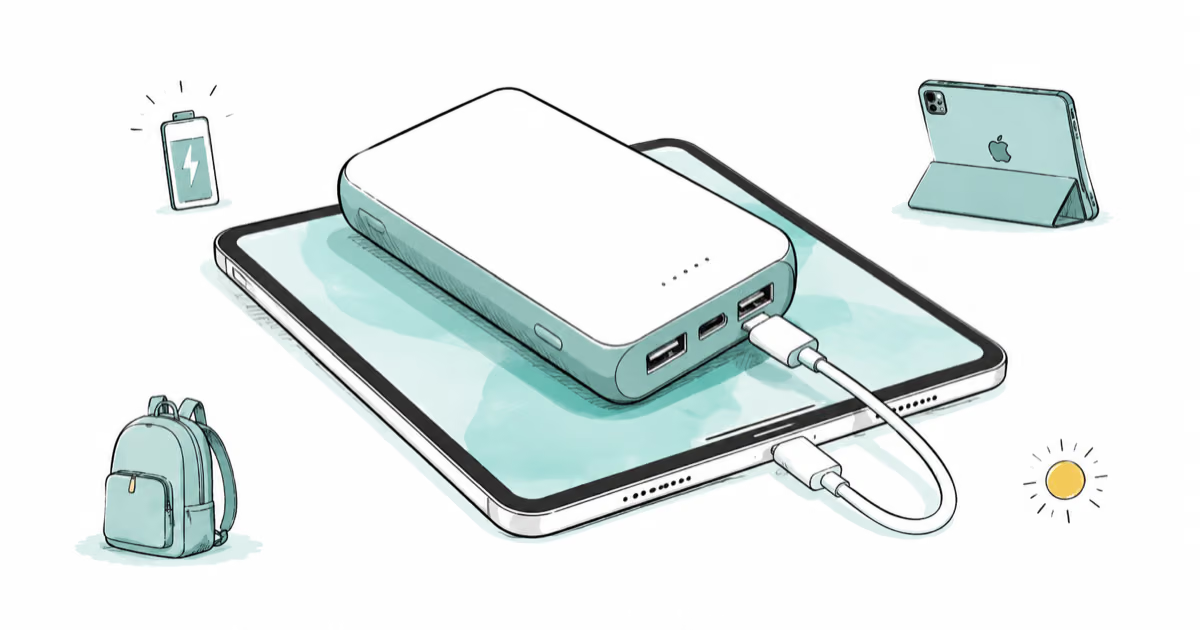
Best Power Bank for iPad in 2026: Pro, Air, and Mini
Best power bank for iPad in 2026. Compare mAh tiers and USB-C PD wattage for iPad Pro, Air, and mini, plus airline Wh math, cables, and travel tips.