iPhone Auto-Lock Not Working? 7 Settings Fixes to Try
iPhone screen stays on or Auto-Lock is grayed out? Check the timer, Low Power Mode, foreground apps, managed profiles, updates, and reset options.
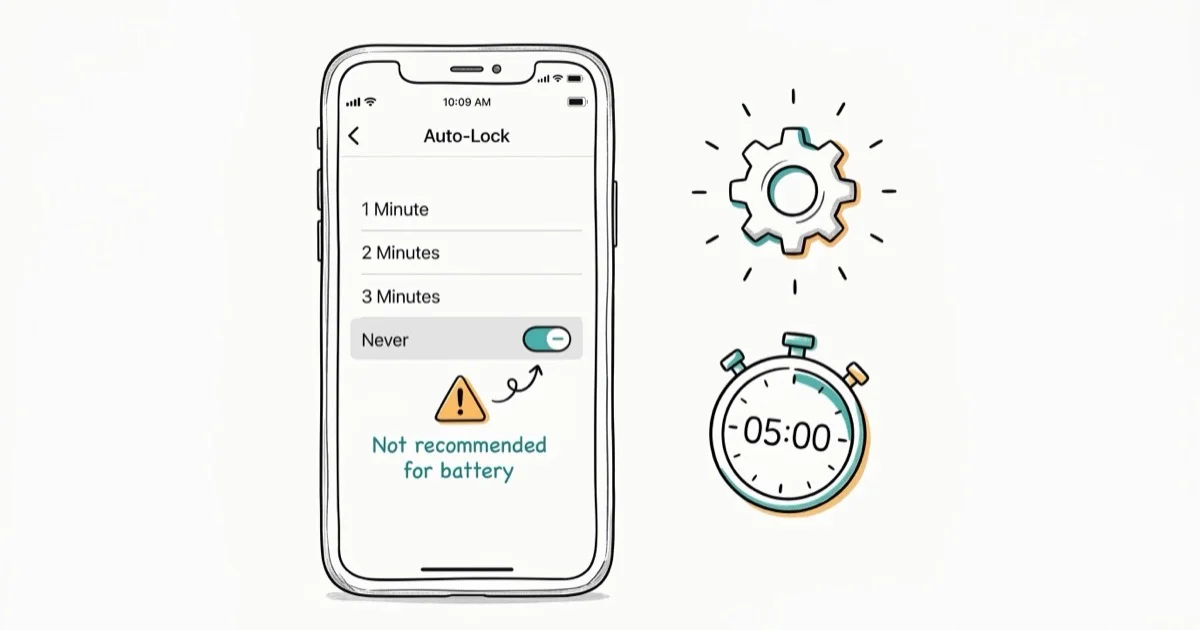
Quick AnswerOpen Settings > Display & Brightness > Auto-Lock and choose a timer. If the control is fixed at 30 seconds, turn off Low Power Mode; if it is managed by work or school, contact the administrator.
Your iPhone screen stays on, or the Auto-Lock control is unavailable. Start with the timer and Low Power Mode, then isolate foreground apps and any work or school management before resetting settings.
Use these steps only on your own device or an iPhone you are explicitly authorized to administer. If a work or school profile enforces the setting, ask the organization’s IT administrator to change the policy instead of removing or weakening its security controls.
Check Settings>Display & Brightness>Auto-Lockfirst; it may be set to Never- Low Power Mode sets Auto-Lock to 30 seconds, so turn it off if that fixed timer is the problem
- Navigation, video, and other foreground apps may deliberately keep the display awake
- A work or school policy can impose a lock interval; ask the administrator before changing it
- If the setting is available but ignored, restart, update iOS, and retest before resetting settings
#Why Auto-Lock Stops Working on iPhone
Use the state of the Auto-Lock control to narrow the problem before changing other settings.
Auto-Lock set to Never keeps the display on until you lock it manually.
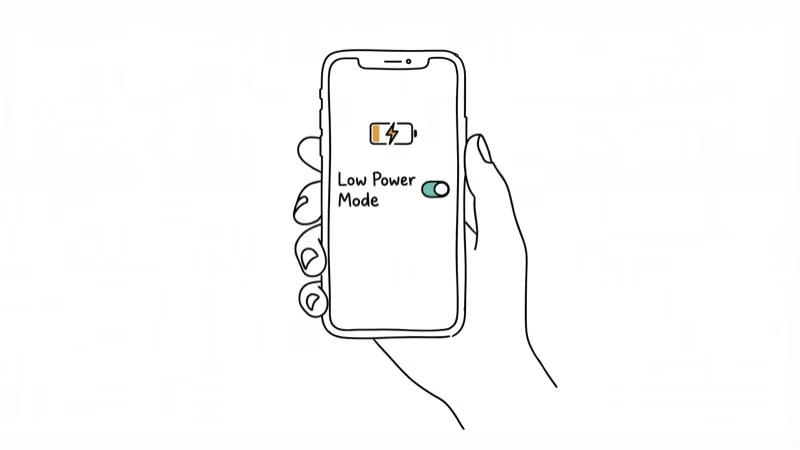
Low Power Mode changes the timer in the other direction. Apple’s current documentation says Low Power Mode defaults Auto-Lock to 30 seconds; it does not explain a screen that never locks.
A foreground app may keep the display awake. Close it and test from the Home Screen.
A managed policy can impose an inactivity interval. Microsoft documents a “Max inactivity time lock” in Exchange mobile-device mailbox policies, while broader work or school management may use a configuration profile.
Temporary software state is worth testing only after the visible settings and app behavior have been ruled out. Restart first, then update iOS before considering a settings reset.
#How Do You Fix Auto-Lock on iPhone?
Work through these in order and stop when the timer behaves normally.
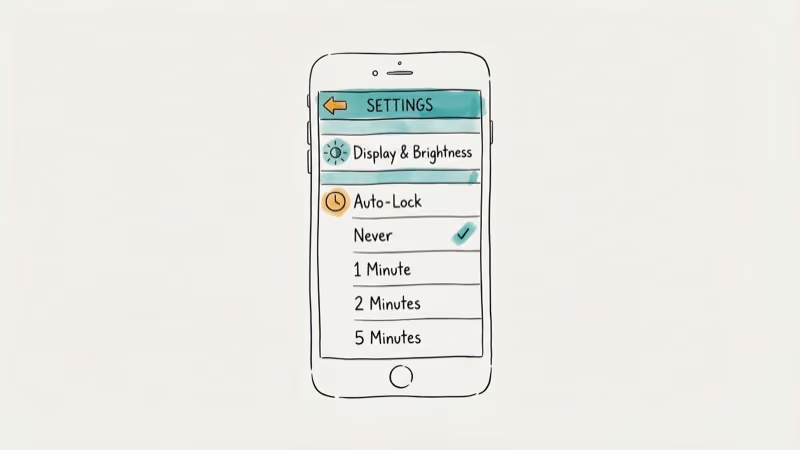
#1. Set a Specific Auto-Lock Time
Go to Settings > Display & Brightness > Auto-Lock. If this shows Never, the screen stays on indefinitely. Set it to any value from 30 seconds to 5 minutes.
If the control is fixed at 30 seconds, check Low Power Mode next. If it remains unavailable after Low Power Mode is off, check for a work or school management profile and ask its administrator before changing anything.
#2. Turn Off Low Power Mode
Go to Settings > Battery and toggle off Low Power Mode. According to Apple’s Low Power Mode guide, the mode defaults Auto-Lock to 30 seconds. Turn it off only when you need a different timer, then return to Display & Brightness > Auto-Lock and choose the interval again.
If your iPhone battery drains quickly, address that separately; battery drain alone doesn’t diagnose an Auto-Lock problem.
#3. Close the Foreground App
Return to the Home Screen and close the navigation, video, fitness, or reading app that was open when the display stayed awake. Leave the iPhone untouched for the timer you selected. If it locks from the Home Screen but not inside that app, the app is keeping the display awake for its active use case; check the app’s own display or playback settings.
#4. Force Restart Your iPhone
If the timer is available but ignored, force restart and retest. Use Apple’s model-specific force-restart guide: on a Face ID iPhone, press and release Volume Up, press and release Volume Down, then hold Side until the Apple logo appears. iPhone 7/7 Plus and iPhone 6s or earlier use different button combinations shown in the same guide.
#5. Check the Managed Policy
Open Settings > General > VPN & Device Management. If a work or school profile is present, contact its administrator rather than removing it. According to Apple’s configuration-profile guide, organization enrollment appears in Settings. For Exchange-managed devices, Microsoft’s mobile-device mailbox policy documentation confirms that administrators can set a maximum inactivity time before a password is required.
#6. Update iOS
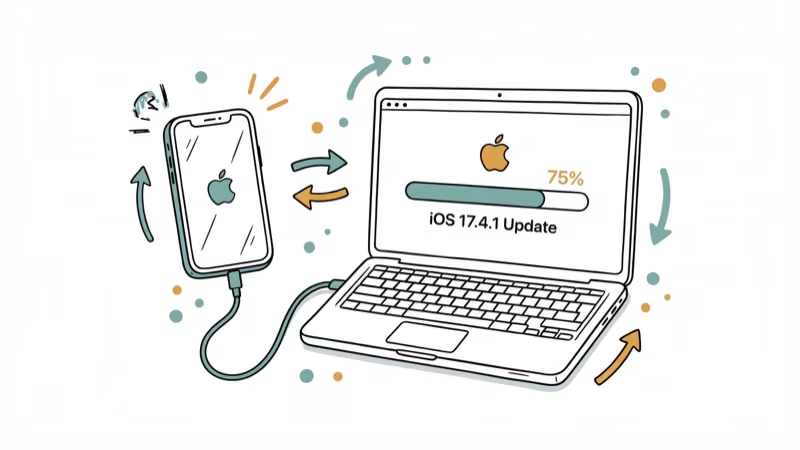
Follow Apple’s iPhone update steps: open Settings > General > Software Update, then install an update if one is available. After the iPhone restarts, test Auto-Lock again with the same timeout.
#7. Reset All Settings
Use this only after the earlier checks fail and after recording settings you need to restore. Go to Settings > General > Transfer or Reset iPhone > Reset > Reset All Settings. According to Apple’s reset guide, this resets items including network, keyboard, location, privacy settings, and Apple Pay cards, but does not delete data or media.
#What If Auto-Lock Still Doesn’t Work?
If the screen is also frozen or unresponsive, use that guide or contact Apple.
#Why Auto-Lock Security Matters
Auto-Lock limits how long an unattended, already-unlocked iPhone remains exposed. A shorter interval reduces that window; notification previews and the passcode remain separate security controls. Apple’s platform security guide explains the role of passcodes and device authentication.
A screen that never dims also drains battery significantly faster. If your battery is draining unusually quickly, checking whether Auto-Lock is set to Never is one of the first things to verify. Related display issues like iPhone brightness keeps dimming can compound the problem.
While adjusting lock settings, you can also remove the flashlight from your lock screen if you keep triggering it by accident.
#Checking for App-Related Conflicts
Some apps deliberately prevent screen lock while active. Maps keeps the screen on during navigation. Netflix and video players do the same during playback. Fitness trackers prevent lock during workouts.
If Auto-Lock works normally when no apps are open but fails when certain apps run, the app is requesting extended screen-on time. Check the app’s settings for an option to disable this. If there isn’t one, the behavior is intentional for that use case.
#When to Contact Apple Support
If Auto-Lock still doesn’t trigger after every fix above, contact Apple Support. Book a Genius Bar appointment and bring your iPhone with the issue actively happening.
If VPN & Device Management shows an organization profile, contact that organization’s administrator first because Apple can’t change the policy on the administrator’s behalf.
#Bottom Line
Start with the Auto-Lock timer, then distinguish Low Power Mode’s fixed 30-second behavior from an app that stays awake or an organization-managed policy. Restart and update iOS before using Reset All Settings, and keep the passcode enabled throughout.
#Frequently Asked Questions
Why is Auto-Lock grayed out on my iPhone?
A control fixed at 30 seconds commonly points to Low Power Mode; Apple documents that default directly. If Low Power Mode is off and the control is still unavailable, check Settings > General > VPN & Device Management and ask the listed organization administrator whether a policy imposes the timer.
Does Low Power Mode affect Auto-Lock?
Yes. Apple’s current guide says Low Power Mode defaults Auto-Lock to 30 seconds. Turn Low Power Mode off if you need to choose a different interval.
How do I access Auto-Lock settings?
Go to Settings > Display & Brightness > Auto-Lock and choose an available interval. If the control is fixed at 30 seconds, check Low Power Mode; if it remains unavailable afterward, check for device management.
Will Reset All Settings delete my photos?
Apple says Reset All Settings does not delete data or media. It does reset system preferences and removes or resets items such as network settings, location and privacy settings, and Apple Pay cards, so record anything you need to restore first.
Why does my screen stay on while charging?
If this happens only while the iPhone is charging on its side, exit StandBy and test again unplugged. Also close any navigation or media app that is intentionally keeping the display visible before treating it as an Auto-Lock failure.
Should I turn off the passcode to fix Auto-Lock?
No. Turning off the passcode weakens device protection and is not part of the troubleshooting sequence here. Keep it enabled; if an organization requires a passcode or lock interval, ask its administrator to review the policy.
What’s the best Auto-Lock time to set?
Choose the shortest interval that does not interrupt your normal use. A shorter timer reduces the unattended exposure window; Never leaves the display on until you lock it manually and can increase power consumption.

Mac mini M6 vs M5 Pro: Which Model Should You Buy?
Mac mini M6 vs M5 Pro compared on price, memory, ports, displays, and real workloads. Find the better 2026 Mac mini for your desk and budget.

Apple Siri Settlement: Who Qualifies and How to Claim
Apple's $250 million Siri settlement covers iPhone 15 Pro and iPhone 16 models bought June 2024 to March 2025. See who qualifies and how claims work.

iOS 26.6.1 Security Update: What Apple Fixed and Who Gets It
Apple released iOS 26.6.1 on August 17 with 29 security fixes, including an IPSec interception bug. See what it patches, who gets it, and how to update.

iPhone Adaptive Power: How It Works and When to Use It
Learn how iPhone Adaptive Power works, which models support it, what it changes, and when Low Power Mode is still the better battery-saving choice.