How to Use Handoff Between Your Mac and iPhone (2026)
Set up Handoff to pass tasks, emails, and browser tabs between your Mac and iPhone, share a Universal Clipboard, and fix it when Handoff won't appear.
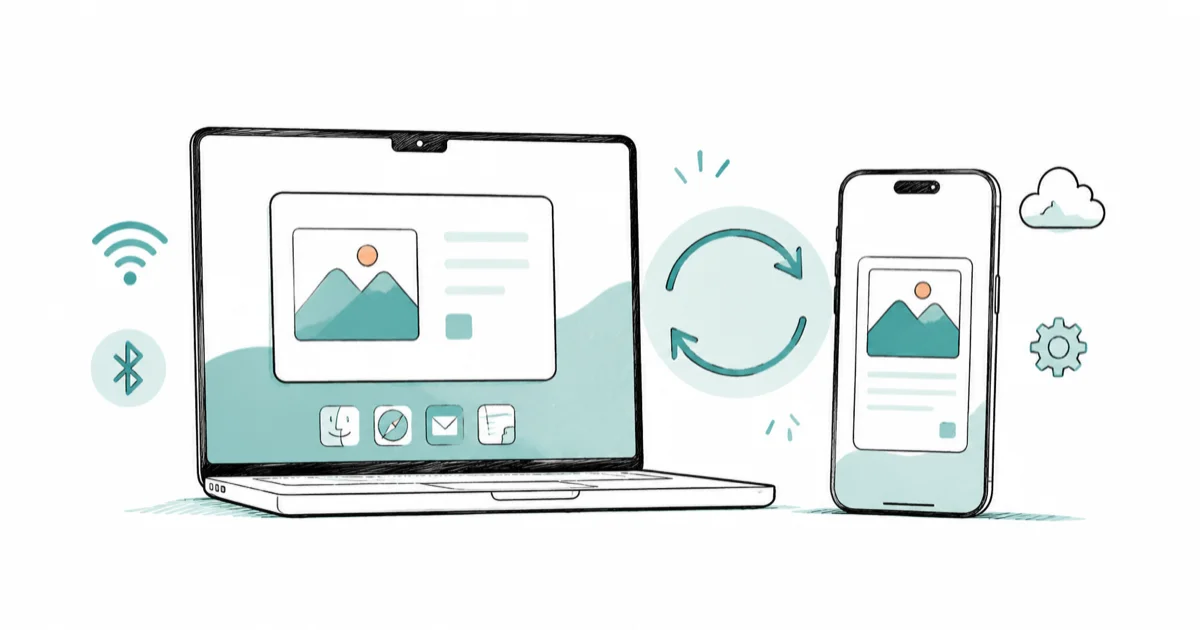
Quick AnswerSign both devices into the same Apple Account and turn on Bluetooth, Wi-Fi, and Handoff. The app you're using then appears on the other device, ready to continue.
Handoff lets you start something on your iPhone and finish it on your Mac, or the reverse, without emailing yourself a link. An email draft, a webpage, or a note simply appears on the other device. It almost always works once a few prerequisites are met.
- Both devices must use the same Apple Account with Bluetooth, Wi-Fi, and Handoff turned on.
- Handoff works with Safari, Mail, Maps, Notes, Calendar, and many third-party apps.
- The same setup powers Universal Clipboard, so you can copy on one device and paste on another.
- A Handoff icon appears in the Mac Dock; on iPhone, a banner shows at the bottom of the screen.
- Devices need to be within about 30 feet of each other for Handoff to appear.
#What Is Handoff and What Can It Pass?
Handoff carries an in-progress activity between devices. Apple’s Handoff guide confirms that Handoff is on by default and lists Safari, Mail, Maps, Notes, and Calendar among the supported apps.
Picture reading a long article on your iPhone.
Sit down at your Mac and a Safari Handoff icon shows in the Dock, ready to open that exact page where you left off. The same applies to a half-written Mail message or a Maps route. Many third-party apps support it too, so the list keeps growing. If you also move files between devices, AirDrop issues covers the sibling feature.
#What Are the Requirements for Handoff?
This is where almost every problem hides. Apple’s Continuity requirements page states that Handoff works when the devices are near each other and signed in to the same Apple Account.
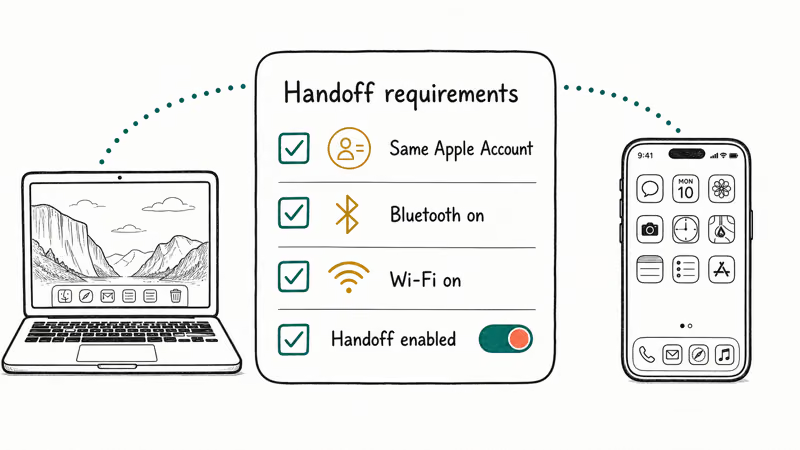
Four boxes have to be checked.
Both devices need the same Apple Account, Bluetooth on, Wi-Fi on, and Handoff enabled. Miss any one and the icon never appears. If the accounts don’t match, correcting that mismatch is the first fix to try. A VPN can also interfere, so if yours blocks local networking, that’s worth checking too.
#How to Turn On Handoff on Mac and iPhone
Turning it on is a quick settings change. On the Mac, open System Settings, click General, then AirDrop & Handoff, and switch on “Allow Handoff between this Mac and your iCloud devices.”
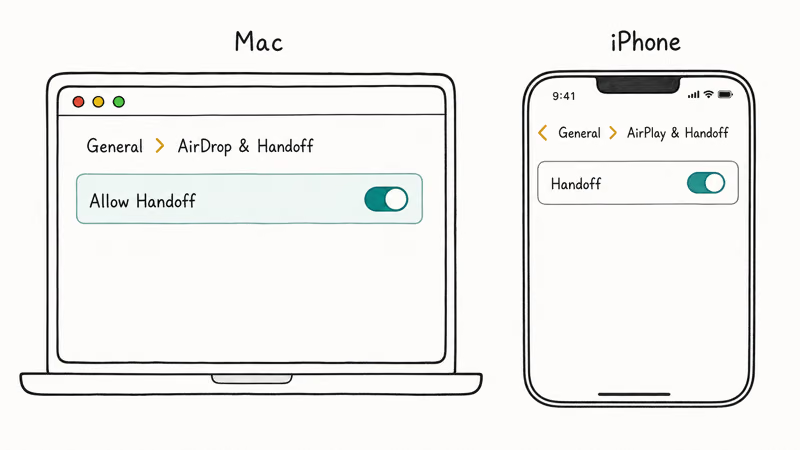
The iPhone setting lives in a similar spot.
Open Settings, tap General, then AirPlay & Handoff (older iOS labels it AirPlay & Continuity), and turn on Handoff. That’s the whole setup. After the toggle is enabled on both ends, check the Dock before restarting. If your Mac feels sluggish during setup, it can help to clear the cache on your Mac first.
#Using Handoff and Universal Clipboard Day to Day
Once it’s on, Handoff is mostly invisible until you need it. Open a supported app on one device, then look for the Handoff icon in the Mac Dock or the banner at the bottom of the iPhone, and tap or click it to continue.
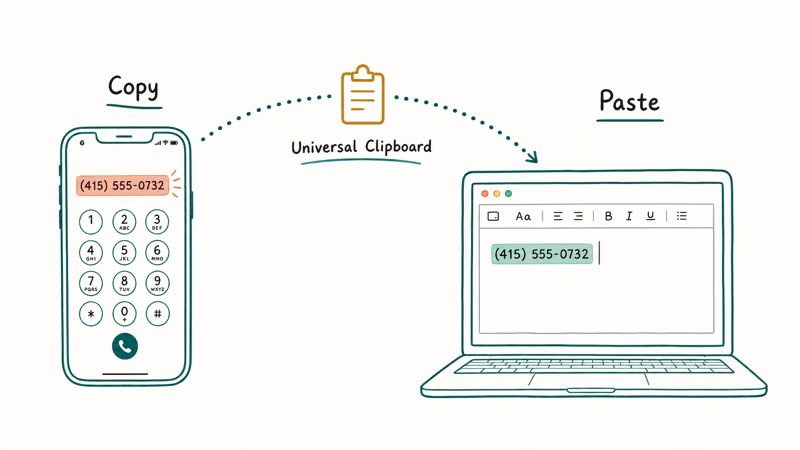
Universal Clipboard rides on the same setup.
According to Apple’s Universal Clipboard guide, the same Apple Account, Bluetooth, and Wi-Fi connection lets you copy text or an image on one device and paste it on another within moments. Copy a phone number on your iPhone, then paste it into a Mac document, and it just works. It pairs naturally with capturing content, like when you screen record on a Mac and want the clip elsewhere.
#Fixing Handoff When It Won’t Appear
When the icon refuses to show, work the checklist before assuming a fault. Confirm both devices share one Apple Account, then toggle Bluetooth and Wi-Fi off and back on.
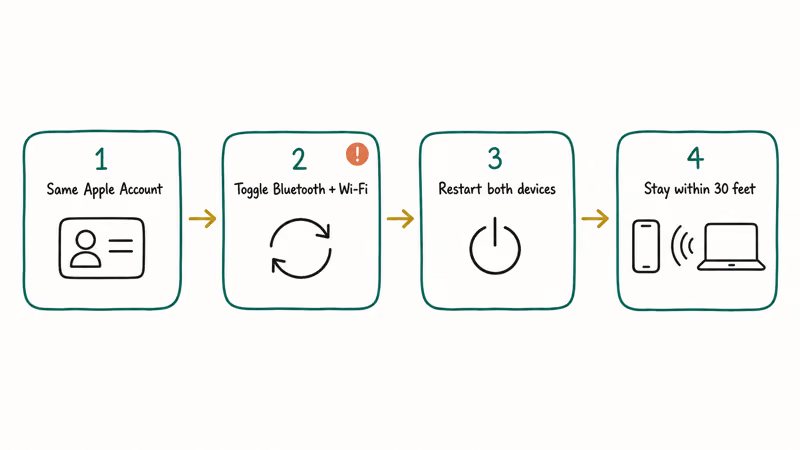
Still nothing? Restart both devices.
A quick restart clears most stuck Continuity states, and re-signing in to your Apple Account fixes the rest. Keep the two devices close together, since the roughly 30-foot range is real and walls can shorten it. If you’ve recently captured something to share, take a screenshot on your Mac shows how to grab it before handing off.
#Related Continuity Features Worth Knowing
Handoff is one piece of a larger family. The same Continuity umbrella includes Universal Control for one keyboard across devices, Sidecar for using an iPad as a second display, and iPhone Mirroring on newer systems.
They share the same plumbing.
Because they all rely on the same Apple Account and proximity rules, getting Handoff working usually means the rest fall into place too. This guide doesn’t cover each one, but knowing they exist saves a lot of searching later. For broader Apple multitasking behavior, Apple multitasking is a useful companion.
#Bottom Line
Handoff is one of the best reasons to use a Mac and iPhone together, and it almost always works once the prerequisites are met. If it doesn’t appear, don’t assume it’s broken: check that both devices share one Apple Account with Bluetooth, Wi-Fi, and Handoff turned on, and keep them close. The icon usually shows up within seconds, and the same setup hands you Universal Clipboard for free.
#Frequently Asked Questions
What can Handoff actually transfer between devices?
Handoff passes an in-progress activity, not files. That means the webpage, email draft, note, or map you’re working on moves to the other device so you can continue. Supported apps include Safari, Mail, Maps, Notes, and Calendar, plus many third-party apps that have added Handoff support.
What do I need for Handoff to work?
Both devices must be signed in to the same Apple Account, have Bluetooth and Wi-Fi turned on, and have Handoff enabled in settings. They also need to be near each other, within about 30 feet. Miss any one of those and the Handoff icon won’t appear.
How do I turn Handoff on?
On the Mac, go to System Settings, General, then AirDrop & Handoff, and switch on the Handoff option. On the iPhone, open Settings, tap General, then AirPlay & Handoff, and turn on Handoff.
Why is the Handoff icon not appearing?
The most common cause is mismatched Apple Accounts, so check that both devices use the same one. Then make sure Bluetooth, Wi-Fi, and Handoff are all on, and that the devices are close together. Toggling Bluetooth off and on, or restarting both devices, clears most stuck states. A VPN that blocks local networking can also be the culprit.
Does Handoff include copy and paste?
Yes, through Universal Clipboard. The same Apple Account, Bluetooth, and Wi-Fi setup that powers Handoff also lets you copy text or an image on one device and paste it on another. No extra toggle is needed beyond having Handoff enabled.
Do both devices need to be on the same Wi-Fi network?
Both devices need Wi-Fi and Bluetooth turned on, and Handoff uses them together to discover each other nearby. In practice, keeping them on the same network and within about 30 feet is the most reliable setup, even though Bluetooth handles much of the close-range discovery.

macOS 27 Compatible Macs: Every Supported Model (2026)
macOS 27 Golden Gate runs only on Apple Silicon Macs. Here is the full list of supported M-series models and the four Intel Macs that lose support.

macOS 27 Golden Gate: Every Major New Feature Confirmed
macOS 27 Golden Gate goes Apple Silicon only, adds a Gemini-powered Siri, refines Liquid Glass, and rebuilds Spotlight. Here is every confirmed change.

macOS 27 Liquid Glass: Every Readability Fix Explained
macOS 27 Golden Gate refines Liquid Glass with an intensity slider, better contrast, cleaner window corners, and edge-to-edge sidebars to fix readability.

macOS 27 Performance: What Golden Gate Makes Faster
macOS 27 Golden Gate speeds up AirDrop, network file browsing, Safari, and Spotlight, with core system improvements on the Apple Silicon-only release.