iPadOS Stage Manager Not Working? How to Fix It 2026
iPadOS Stage Manager not working or greyed out? Check iPad model eligibility, enable it correctly, fix external display issues, and reset window layouts.
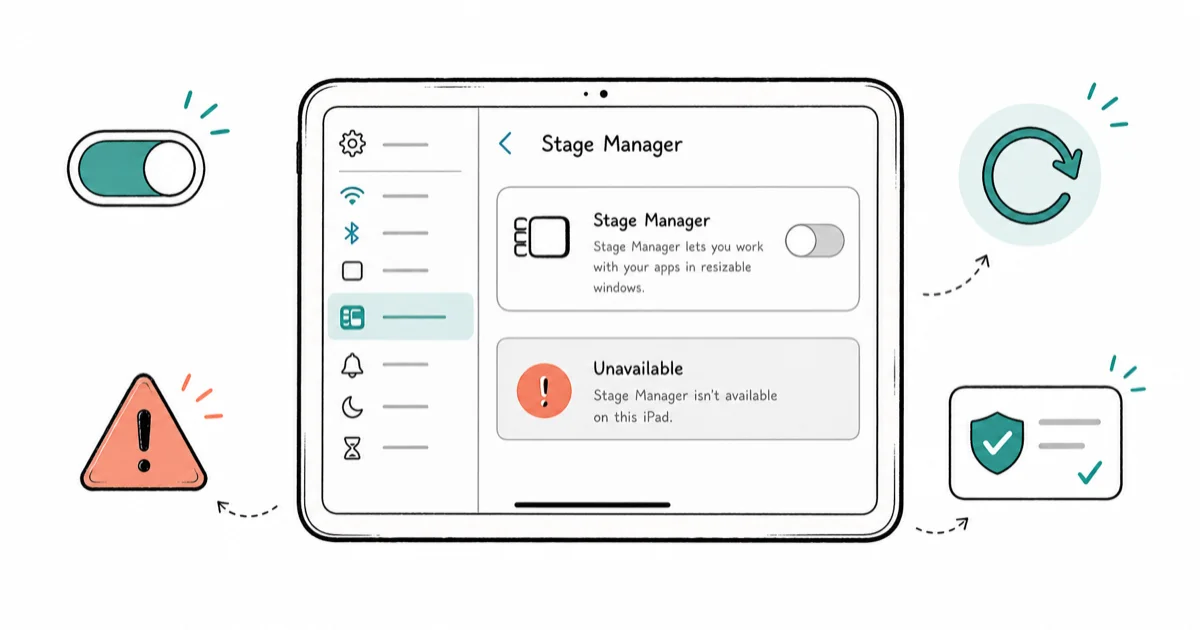
Quick AnsweriPadOS Stage Manager often fails because the iPad model does not support it, or external-display Stage Manager needs a specific chip. Confirm your iPad is supported, then enable it from Control Center.
iPadOS Stage Manager not working is most often a hardware-eligibility issue, not a bug. The feature only runs on certain iPad models, and external-display Stage Manager needs an even narrower set of iPads, so a greyed-out toggle usually means your model isn’t supported rather than something you can fix in Settings. The checks below move from model eligibility down to window-layout resets.
Using these methods on devices or accounts you don’t own may violate applicable laws and platform terms.
- Stage Manager runs only on specific iPad models, so a greyed-out toggle usually means your iPad isn’t eligible
- External-display Stage Manager needs a narrower set of iPads than on-device Stage Manager
- Enable it from Control Center or Settings, then assign apps to a window group
- A poor cable or an underpowered hub causes most external-display failures, not iPadOS itself
- Reset the window layout only when the toggle works but apps refuse to arrange properly
#Why Is iPadOS Stage Manager Not Working?
Stage Manager has strict requirements, so most failures fall into one of two buckets: your iPad model doesn’t support the feature, or it supports the basic mode but not the external-display mode. A greyed-out toggle is the classic sign that the hardware, not a setting, is the limit.
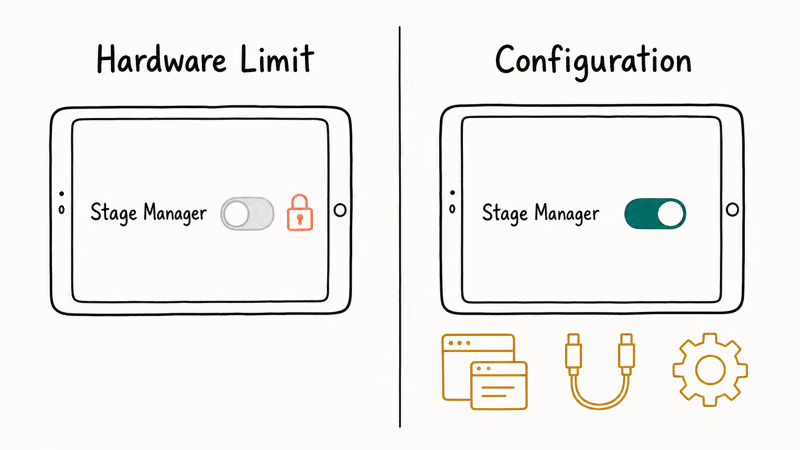
The rest are configuration issues: Stage Manager isn’t enabled, an app isn’t compatible with windowing, or an external display connection is failing. According to Apple’s Stage Manager guide, the feature is available on supported iPad models, so confirming eligibility is always the first step before you touch any settings.
#Does Your iPad Even Support Stage Manager?
Check this before anything else, because no setting unlocks Stage Manager on an ineligible iPad.
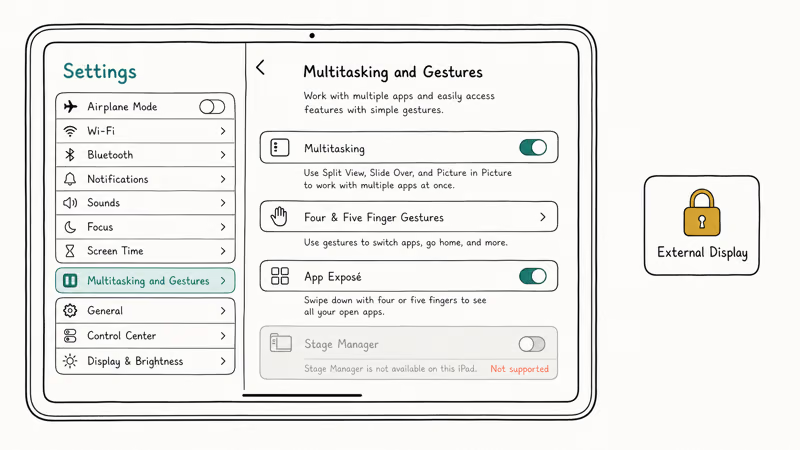
Open Settings, then Multitasking and Gestures (or Home Screen and Multitasking), and look for the Stage Manager option. If it’s missing or greyed out entirely, your iPad model likely doesn’t support it. Rather than trust a model list from memory, verify your exact iPad against Apple’s current page, since support varies by chip and generation.
External-display Stage Manager is the stricter case. Some iPads run Stage Manager on the built-in screen but can’t extend it to a monitor, because the second-screen mode requires more capable silicon. An older supported iPad can run Stage Manager internally yet show no external-display option at all, which is the expected behavior for that hardware, not a fault. Our guide to iOS 26 supported devices shows how Apple gates features by chip generation across its lineup.
#Enable Stage Manager the Right Way
If your iPad is eligible but the layout still won’t appear, make sure Stage Manager is actually turned on and used correctly.
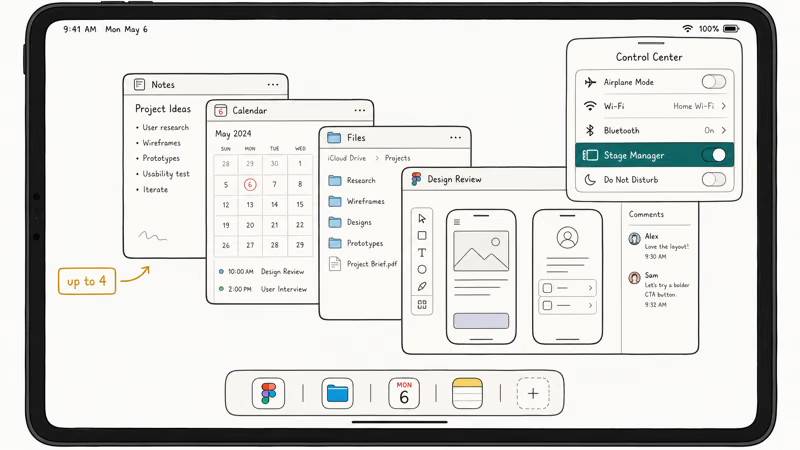
The fastest path is Control Center. Swipe down from the top-right corner, find the Stage Manager icon, and tap it on. You can also enable it in Settings under Multitasking and Gestures. Both routes do the same thing, and the Control Center toggle is handy for switching it off when you want full-screen apps back.
Once it’s on, drag apps from the dock to build a window group of up to four overlapping apps. If nothing happens, the app may not support windowing, or you may be at the four-window limit. According to Apple’s Control Center guide, you can add toggles like Stage Manager to Control Center for quick access. Try Safari or Notes first to confirm the feature works.
#Fix External Display and Layout Problems
When Stage Manager works on the iPad but breaks with a monitor, the connection is almost always the culprit.
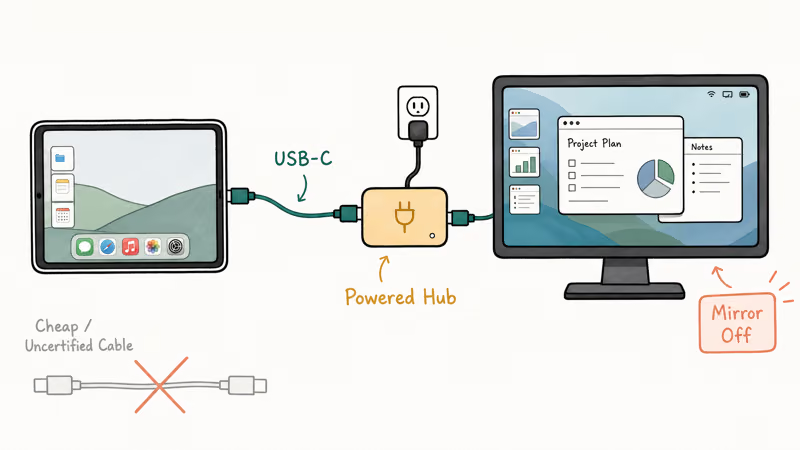
Use a high-quality USB-C cable or a powered hub rated for video, since cheap cables and unpowered adapters drop the display signal or limit resolution. According to Apple’s external display guidance, iPad supports external displays over USB-C, and the right cable matters for a stable picture. If the external session is flaky, a certified cable is the first low-risk swap.
If the display connects but the layout is wrong, open Settings, then Displays, while connected, and adjust the arrangement and resolution. Make sure “Mirror” is off if you want the extended Stage Manager workspace rather than a duplicate of the iPad screen. If your iPad mirroring acts up more broadly, our iPhone mirroring not working guide covers the related Continuity and display fixes that overlap with iPad behavior.
#Restart and Update Before You Reset
Before resetting anything, a restart and an update clear most lingering glitches.
Restart the iPad by powering it fully off and back on, which reloads the windowing system and often fixes a Stage Manager that toggles on but won’t arrange apps. A clean restart is the lowest-risk fix and costs nothing. If your iPad locks up during the process, our iPad keeps freezing guide covers the force-restart steps.
Then update iPadOS. Open Settings, then General, then Software Update, and install any pending release, since Apple ships Stage Manager and external-display fixes in point updates. Running the latest iPadOS resolves bugs that no manual setting can. If you also work across devices, our Phone app on Mac walkthrough covers the Continuity features that pair well with a multi-window iPad setup, and creative users may want our Mac vs PC for editing comparison when planning a larger workspace.
#Reset the Window Layout as a Last Step
Reset the layout only after the toggle works but windows still misbehave, since this is a narrow fix for a specific problem.
If apps open in the wrong place or refuse to resize, turning Stage Manager off and on again rebuilds the workspace. Remove apps from the group and re-add them one at a time. Rebuilding by hand fixes most stuck arrangements.
For a deeper reset, restart with Stage Manager off, then re-enable it and start a fresh window group. Avoid a full settings reset unless every other step fails, because it clears far more than Stage Manager preferences. Treat a factory-level reset as a true last resort.
#Bottom Line
Check first whether your iPad model supports Stage Manager, and specifically external-display Stage Manager, since model gating causes most greyed-out cases. Enable it from Control Center, confirm your cable and hub meet Apple’s requirements, and restart and update iPadOS before anything drastic. Reset window layouts only when the toggle works but windows misbehave, and treat a full settings reset as the last option.
#Frequently Asked Questions
Why is iPadOS Stage Manager not working?
Usually because your iPad model doesn’t support the feature, or it supports basic Stage Manager but not the external-display mode. A greyed-out toggle points to a hardware limit, while a missing layout on a supported iPad points to a setting or a bad cable.
Which iPads support Stage Manager?
Support depends on the chip and generation, and external-display Stage Manager needs a narrower set of iPads than the on-device mode. Check your exact model against Apple’s current Stage Manager page rather than a memorized list, since eligibility changes across iPad lines.
Why is Stage Manager greyed out?
A greyed-out toggle almost always means your iPad model isn’t eligible. The hardware, not a setting, is the limit.
Why does Stage Manager fail with an external display?
Most external-display failures come from the cable, hub, or display itself rather than iPadOS. Use a certified USB-C cable and a powered hub rated for video, turn off Mirror in Display settings, and confirm your iPad even supports external-display Stage Manager.
How do I enable Stage Manager?
Open Control Center and tap the Stage Manager icon, or turn it on in Settings under Multitasking and Gestures.
How do I reset the Stage Manager layout?
Turn Stage Manager off and back on to rebuild the workspace, then remove and re-add apps to the group one at a time. Restarting the iPad with Stage Manager off and re-enabling it gives a fully fresh layout. Avoid a full settings reset unless nothing else works.

iOS 26.6.1 Security Update: What Apple Fixed and Who Gets It
Apple released iOS 26.6.1 on August 17 with 29 security fixes, including an IPSec interception bug. See what it patches, who gets it, and how to update.

iPhone Adaptive Power: How It Works and When to Use It
Learn how iPhone Adaptive Power works, which models support it, what it changes, and when Low Power Mode is still the better battery-saving choice.

How to Transfer Data to a New iPhone Without iCloud
Move everything to your new iPhone without iCloud: Quick Start device-to-device transfer, wired migration, and encrypted Finder or iTunes backups.

Group Text Not Working on iPhone? 8 Fixes That Work
Group text not working on iPhone? Turn on MMS Messaging and Group Messaging, check iMessage vs SMS routing, and fix mixed Android group chats fast.