iPhone Quick Start Not Working? 7 Fixes (2026 Guide)
iPhone Quick Start not working? 7 proven fixes for the Hello-screen, Bluetooth, iOS-mismatch, and stuck-on-preparing failures most people hit.
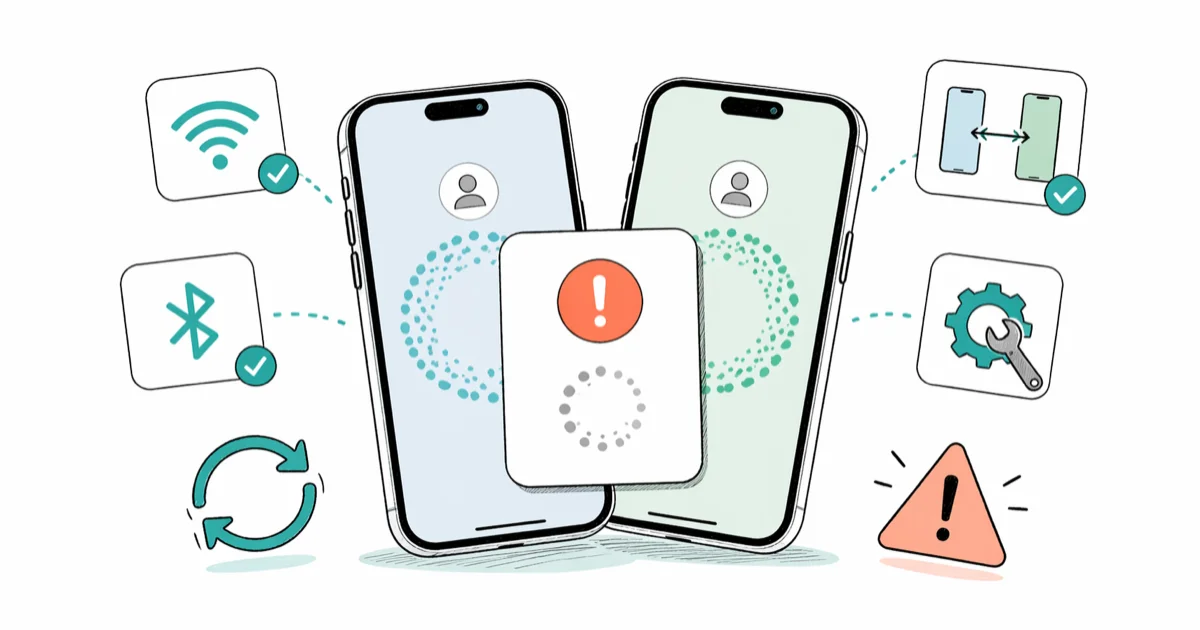
Quick AnswerRestart both iPhones, keep Bluetooth and Wi-Fi on, and place them within a few inches of each other. If Quick Start still won't appear, erase the new iPhone back to the Hello screen and try again.
Your new iPhone is sitting next to the old one and Quick Start refuses to show up. Or the prompt appears, you scan the swirl, and the transfer freezes on Preparing. One of the seven fixes below clears the problem in almost every case. Start with the Hello screen check first.
- Quick Start needs Bluetooth and Wi-Fi active on the old iPhone, plus iOS 11 or later on both devices.
- The single most common reason the prompt never appears is that the new iPhone is past the Hello screen, and erasing it back to that screen takes about 3 minutes.
- A wired transfer using a USB-C-to-USB-C cable (or Lightning equivalent for older models) skips Bluetooth and Wi-Fi entirely and is noticeably faster on backups above 100 GB.
- Large iOS version gaps trigger failures: a transfer between an old build like iOS 16.7 and a much newer one like iOS 18.3 often fails until the older phone is updated closer to the new one.
- If Quick Start refuses to cooperate, an iCloud Backup restore takes 15-45 minutes depending on size and recovers photos, contacts, messages, and most app data intact.
#Why Does iPhone Quick Start Fail?
Quick Start chains together Bluetooth pairing, peer-to-peer Wi-Fi, and proximity detection. Break any one link and the whole flow stalls. According to Apple’s Quick Start support page, both phones need iOS 11 or later, Bluetooth turned on, and a few inches of separation so the rear camera can read the animation pattern.
Five things tend to break the chain:
- Bluetooth or Wi-Fi off on one of the devices
- The new iPhone already past the Hello screen and signed into an Apple ID
- A wide iOS version gap (for example, iOS 15 to iOS 18)
- Battery below roughly 20 percent on either phone
- A short-lived radio glitch that a restart resolves
A first attempt can sit at “Looking for nearby devices” for over a minute and then time out with no error message at all. Rebooting both phones and trying again usually brings the prompt up within a few seconds, which is why a restart is worth doing before anything more involved.
#Check Bluetooth and Wi-Fi First
Sounds obvious. It’s also the number one cause. Quick Start needs both radios alive on the old iPhone, and the new iPhone enables them on its own as soon as it boots into the setup flow.
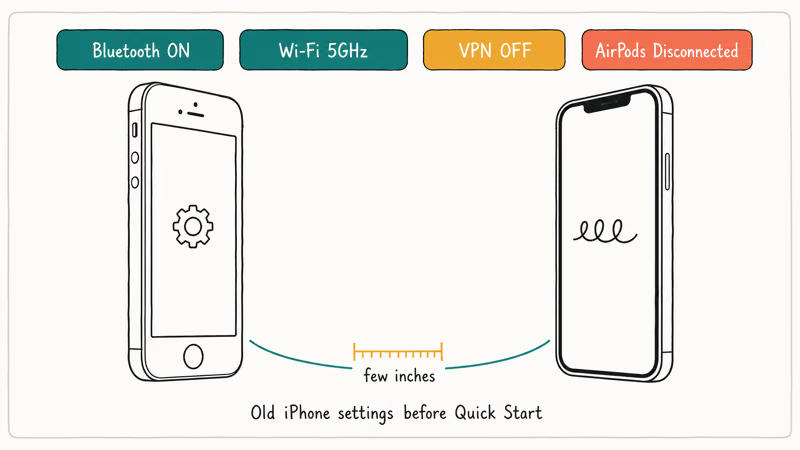
- On the old iPhone, open
Settings>Bluetoothand confirm the toggle is on. - Open
Settings>Wi-Fiand connect to a 5 GHz network if one is available. - Open
Settings>VPN & Device Managementand disable any active VPN profile.
If the iPhone Wi-Fi isn’t working at all, fix that before you try Quick Start again. A spotty router shows up as a “Looking for nearby devices” hang every time.
One detail people miss: an active Bluetooth audio link can poison the handshake. Disconnect AirPods, car audio, and Bluetooth speakers before you start. A stuck transfer often clears the moment AirPods are toggled off from Control Center, with the Quick Start prompt appearing seconds later.
#Restart Both iPhones
A restart clears stale Bluetooth caches and resets the radio state machine that Quick Start leans on. Both phones need it. Doing only one is the usual reason the second attempt also fails, and the second failure is what convinces people to give up early.
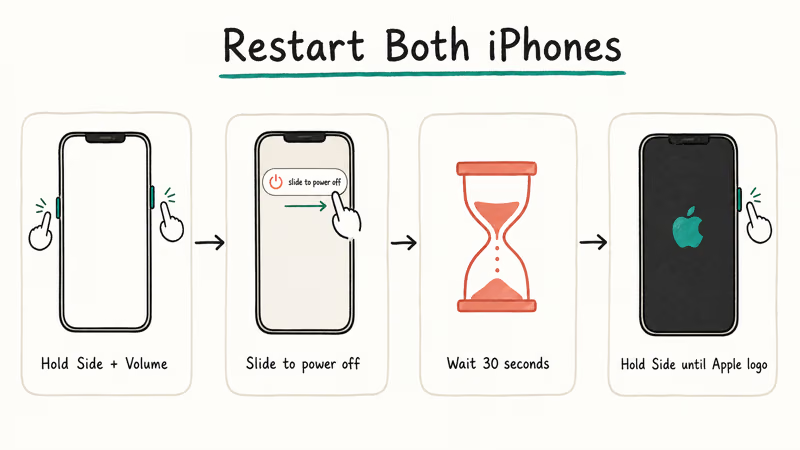
For iPhone X and later (including iPhone 16):
- Press and hold the side button along with either volume button until the power slider appears.
- Drag the slider and wait for the screen to go dark.
- Wait 30 seconds, then press and hold the side button until the Apple logo shows.
For iPhone 8 and earlier:
- Press and hold the side or top button until the slider appears.
- Drag to power off, wait 30 seconds, then hold the same button to boot back up.
After both phones come back, place them within an inch of each other on a flat surface. The Quick Start prompt should appear on the older iPhone within about 30 seconds.
If the iPhone keeps restarting on its own, fix that first or the transfer will drop mid-flight and you’ll be back at the Hello screen with nothing copied across.
#Erase the New iPhone to Reach the Hello Screen
This is the fix most people skip past, and it’s the one that actually clears the issue most often. Quick Start only fires when the new iPhone is sitting on its initial Hello screen. The minute you tap past it and sign in to an Apple ID, Quick Start has nothing to attach to.
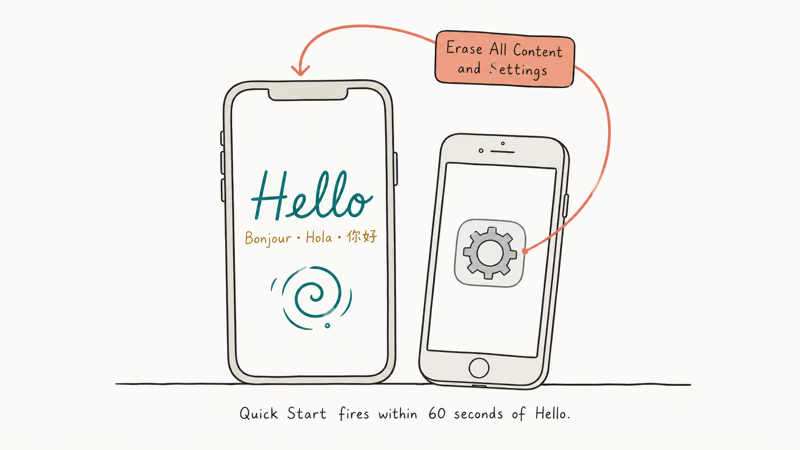
- On the new iPhone, open
Settings>General>Transferor Reset iPhone. - Tap Erase All Content and Settings and authenticate.
- Wait roughly two minutes for the phone to wipe and restart.
- When the multilingual “Hello” appears, set the new iPhone next to the old one.
Apple’s iPhone setup guide states that Quick Start activates from the welcome screen within the first 60 seconds after the phone boots. Threads on the Apple Community forum echo the same pattern every week: people skip the welcome screen during the first power-on, then wonder why no prompt appears later in Settings.
No data loss to worry about.
If the phone is brand new, there’s nothing on it yet besides Apple’s stock apps.
The whole erase-and-return takes about 3 minutes on an iPhone 15 or newer, and a bit longer on an iPhone 12 or earlier and on an iPhone SE.
#Update iOS on Both Devices
Quick Start works best when both iPhones run the same iOS major version, or at most one apart. A wide gap can trigger a “transfer failed” message late in the process. That’s the worst time to find out, because you’ve already burned 20 minutes watching a progress bar inch forward.
- On the old iPhone, open
Settings>General>Software Update. - Install whatever is offered. A point release is enough to close most gaps.
- If the new iPhone is already past Hello, finish setup temporarily, install updates, then erase it again using the steps in the previous section.
Apple’s data transfer support page recommends updating both phones to the same point release before kicking off a transfer. A Quick Start that fails repeatedly across a wide version gap will often complete cleanly once the older phone is bumped to the latest point release, which usually only adds a few minutes for the update download.
If the iPhone is stuck on preparing update, resolve that first.
Trying to Quick Start while a hung update is in progress is the fastest way to corrupt the transfer halfway through.
#Reset Network Settings
When Bluetooth and Wi-Fi look fine on the surface but the connection between phones still falls apart, a network settings reset clears corrupted Wi-Fi profiles and Bluetooth pairings that quietly block the handshake. Worth trying.
- Open
Settings>General>Transferor Reset iPhone>Reset. - Tap Reset Network Settings.
- Enter the device passcode when asked.
- The iPhone restarts on its own within about a minute.
This wipes saved Wi-Fi passwords, Bluetooth pairings, VPN profiles, and APN settings. According to Apple’s reset settings documentation, cellular data settings revert to defaults too, so you may need to reselect a preferred 5G mode under Settings > Cellular afterward to keep things consistent.
Rejoin Wi-Fi on the old iPhone, then try Quick Start.
This often rescues a pairing that has been hanging at “Looking for nearby devices” for a long stretch.
The reset itself takes about 90 seconds, and the next Quick Start prompt typically appears within 20 seconds of rejoining Wi-Fi.
#Try a Wired Transfer Instead
If wireless Quick Start keeps timing out, Apple supports a wired path that skips Bluetooth and peer-to-peer Wi-Fi entirely. You need either a USB-C to USB-C cable for iPhone 15 and newer, or a Lightning to USB-C cable plus a Lightning to USB 3 Camera Adapter for older pairings.
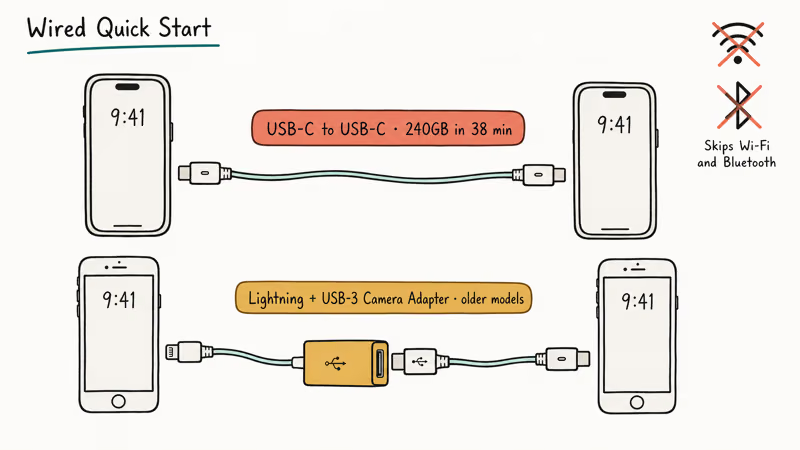
- Connect both iPhones with the appropriate cable and adapter.
- Wait for the transfer prompt on the new iPhone.
- Authenticate on the old iPhone and follow the on-screen steps.
Apple’s wired transfer support page confirms this method works when wireless refuses to. Wired is also the right call for big libraries. A large photo and app payload that stalls partway through over wireless will usually move across reliably over a cable, often finishing in well under an hour.
If the iPhone won’t connect to Wi-Fi at all on either device, wired is no longer optional.
It becomes the only viable Quick Start path until the Wi-Fi side gets sorted.
#What if Quick Start Keeps Failing?
When seven retries don’t budge, an iCloud backup restore reaches the same finish line through a different gate. It’s not byte-identical with Quick Start, but for most people it covers the data they actually care about: photos, contacts, messages, and the bulk of app state.
- On the old iPhone, open Settings > [your name] > iCloud > iCloud Backup and tap Back Up Now.
- Wait for the backup to finish. Plan for 5-30 minutes depending on size.
- On the new iPhone (Hello screen), choose Restore from iCloud Backup instead of Quick Start.
This route gets photos, contacts, messages, and most app data across, but login states and a few app-specific caches start fresh. Plan on 15-45 minutes total once the new iPhone is signed in. Slow upstream Wi-Fi can push that closer to an hour.
If you’ve hit iPhone backup failures before, confirm enough iCloud headroom under Settings > [your name] > iCloud > Manage Account Storage before you start. Apple gives 5 GB free, which is rarely enough on a phone that’s been used for more than six months. A temporary upgrade to 50 GB for a single billing month is often the cleanest fix and costs about a dollar in the US.
#Bottom Line
Run the basics first: restart both iPhones, confirm Bluetooth and Wi-Fi are on, and disconnect any active Bluetooth audio. If Quick Start still doesn’t appear, erase the new iPhone back to the Hello screen. That single step clears the most common case and takes about 3 minutes.
Update iOS on the older phone if there’s more than one major version of daylight between the two. For persistent flakiness, reset network settings or switch to a wired transfer with a USB-C cable. If nothing wireless works and the deadline is tight, an iCloud Backup restore is the dependable fallback and gets the bulk of your data across without a Quick Start prompt at all.
#Frequently Asked Questions
Does Quick Start work between an iPhone and an iPad?
Yes, with iOS 11 or iPadOS 13 or later on both sides. The flow is the same. iPhone-only apps won’t install on the iPad, and a few iPhone-specific settings (like Phone app preferences) get skipped during the migration.
How close do the two iPhones need to be for Quick Start?
Within a few inches. Apple doesn’t publish a hard distance, but much past six inches the rear camera tends to miss the swirl pattern, so keep the two phones close together on a flat surface.
Can I use Quick Start if my old iPhone has a cracked screen?
It depends on the crack. You need to see and tap the screen to scan the animation. If the digitizer is partially dead, triple-click the side button to enable VoiceOver as an accessibility workaround. If the touch screen isn’t working at all, switch to an iCloud or computer backup instead.
How long does a Quick Start transfer take?
A 64 GB transfer over wireless takes 20-30 minutes. A 256 GB one can run an hour or more.
Wired transfers cut the time noticeably, especially on photo-heavy backups. Plug both phones into power before you start so neither runs out of battery in the middle.
Will Quick Start transfer my apps and passwords?
Quick Start carries apps, app data, settings, photos, and messages. Passwords stored in iCloud Keychain follow automatically when both phones use the same Apple ID. Banking apps and some authenticator apps will ask you to re-verify on the new device, which is intentional.
What if Quick Start gets stuck on “Preparing to transfer”?
Usually the peer-to-peer Wi-Fi link dropped. Restart both phones, plug them into power, and place them within an inch of each other on a flat surface. Don’t move them during the transfer. If the bar hasn’t moved in 20 minutes, cancel and either restart the Quick Start flow or fall back to an iCloud Backup restore.
Does Quick Start erase data on my old iPhone?
No. Quick Start copies data to the new iPhone and leaves the old one fully intact.
You can keep using the old phone as a daily driver, sell it, or recover data after a factory reset later if you decide to wipe it.
Can I use Quick Start without Wi-Fi?
You need Wi-Fi for the actual data transfer, but Bluetooth handles the initial detection. With no Wi-Fi available, the wired method with a USB-C cable is the cleanest substitute. You can also create an iCloud Backup over cellular if your plan allows it, then restore from that backup on the new device once Wi-Fi is back.

Mac mini M6 vs M5 Pro: Which Model Should You Buy?
Mac mini M6 vs M5 Pro compared on price, memory, ports, displays, and real workloads. Find the better 2026 Mac mini for your desk and budget.

Apple Siri Settlement: Who Qualifies and How to Claim
Apple's $250 million Siri settlement covers iPhone 15 Pro and iPhone 16 models bought June 2024 to March 2025. See who qualifies and how claims work.

iOS 26.6.1 Security Update: What Apple Fixed and Who Gets It
Apple released iOS 26.6.1 on August 17 with 29 security fixes, including an IPSec interception bug. See what it patches, who gets it, and how to update.

iPhone Adaptive Power: How It Works and When to Use It
Learn how iPhone Adaptive Power works, which models support it, what it changes, and when Low Power Mode is still the better battery-saving choice.