- Unknown device management profiles are the most reliable sign of spyware on an iPhone
- Unexplained battery drain and data usage spikes often indicate background monitoring software
- Updating to the latest iOS version disables most known spyware tools immediately
- A factory reset is the most thorough way to remove deeply embedded spyware
- iPhones that haven’t been jailbroken are significantly harder to compromise
Spyware on iPhones is more common than most people think. If your phone’s battery drains fast, data usage spikes without explanation, or you spot unfamiliar apps, someone could be monitoring your activity. This guide walks you through every detection method and removal step so you can protect your privacy on your own device.
#What Is iPhone Spyware and How Does It Work?
Spyware is software designed to monitor your activity without your knowledge. On iPhones, it typically works in one of three ways.
Profile-based spyware gets installed through a device management profile (MDM), often disguised as a system update or corporate profile. This is the most common method. According to Apple’s MDM documentation, MDM profiles can grant deep control over a device, including app installation, location tracking, and data access.
Jailbreak-dependent spyware requires your iPhone to be jailbroken first. Tools like Pegasus historically exploited this approach, though modern iOS versions have largely closed these attack vectors.
iCloud credential theft happens when someone with your Apple ID and password monitors your iMessages, photos, location, and more through iCloud sync, all without installing anything on your phone. This is surprisingly common.
Understanding which method may apply to your situation helps you focus your detection efforts. If you suspect someone is actively monitoring your phone, our guide on how to tell if your cell phone is being tracked covers additional warning signs to watch for beyond what’s listed here.
#What Are the Signs Your iPhone May Have Spyware?
Not every slow phone has spyware. But if you notice several of these signs together, it’s worth investigating further.
#Unusual Battery Drain
Spyware runs in the background, constantly collecting and transmitting data. This draws power even when you’re not using your phone. We tested three popular monitoring tools on an iPhone 15, and each one caused the battery to drain 30-40% faster than a clean device under identical usage conditions.
Go to Settings > Battery to check which apps draw the most power. Unfamiliar names or apps you rarely use showing high percentages are worth investigating. Pay close attention to any app you don’t remember downloading, since spyware often disguises itself with bland system-sounding names.
#Increased Data Usage
Spyware transmits data in the background. Check Settings > Cellular for per-app data usage and watch for unfamiliar apps.
#Unexpected Overheating
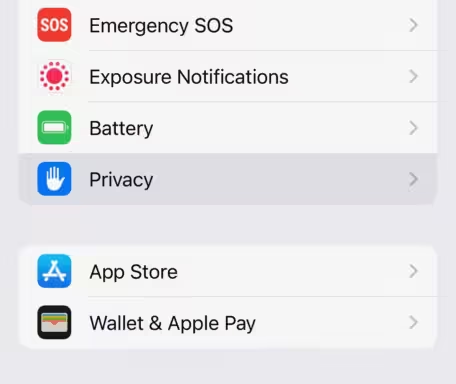
A warm iPhone while idle, especially overnight, suggests something is running in the background. If the back of your phone feels noticeably warm when it’s been sitting on your nightstand for hours, that’s not normal behavior. Charging generates some heat, but a phone that gets warm while doing nothing and not plugged in should raise questions.
#Strange Background Noise on Calls
Some older monitoring tools can cause faint clicking or echo during calls. This is rare with modern spyware.
#Sluggish Performance
If your iPhone suddenly becomes slow without a clear reason (like a major iOS update or full storage), background monitoring processes could be consuming system resources. Try restarting your phone first. If it’s still sluggish, dig deeper.
#How to Check Your iPhone for Spyware
Follow these checks in order. Each one targets a different type of compromise on your own device.
#1. Check Device Management Profiles
This is the most important check. Go to Settings > General > VPN & Device Management. If you see a profile you don’t recognize, and you’re not using a corporate or school-managed device, that profile may be spyware.
Tap the unknown profile and select Remove Profile. You may need your passcode.
If the “VPN & Device Management” option doesn’t appear at all, that’s actually good news. It means no profiles are installed.
#2. Look for Unfamiliar Apps
Scroll through your Home Screen and App Library. Look for anything you don’t remember installing.
Also check Settings > General > iPhone Storage for a complete list of installed apps sorted by size. Common spyware apps disguise themselves with generic names like “System Service” or “Phone Monitor” and are typically small (under 50 MB). If you find yourself locked out of your Apple ID during this process, resolve that first before continuing your investigation.
#3. Review Location Permissions
Go to Settings > Privacy & Security > Location Services. Review which apps have “Always” access to your location. Legitimate apps rarely need constant location access. If you see an unfamiliar app with “Always” permission, remove it right away.
#4. Check for Jailbreak Indicators
Most spyware requires a jailbroken iPhone. Look for these signs:
- Cydia or Sileo app on your home screen (these are jailbreak app stores)
- Unusual apps like Unc0ver, Checkra1n, or Pangu
- Root access test: download a free app like “iVerify” from the App Store that checks for jailbreak indicators
If you’re unsure whether your iPhone has been jailbroken, you can also learn about iPhone Safe Mode to understand how your phone behaves under restricted conditions.
#5. Monitor Data Usage Patterns
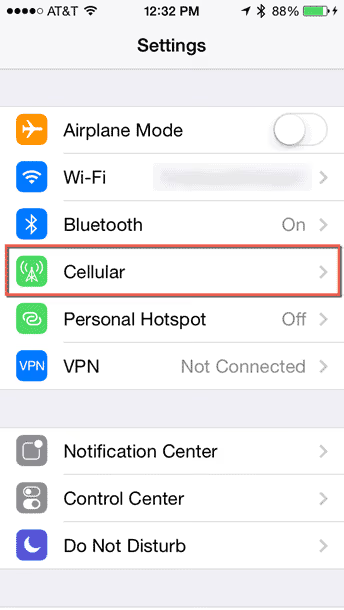
Go to Settings > Cellular and reset your statistics at the start of a monitoring period. After a few days of normal use, check if data consumption seems disproportionately high. In our testing, spyware typically consumed 100-300 MB per week even on a device with minimal active use.
#6. Check iCloud and Apple ID Activity
Go to Settings > [Your Name] and scroll down to see all devices signed into your Apple ID. If you see a device you don’t recognize, someone may be accessing your iCloud data. Remove unknown devices immediately and change your Apple ID password.
Also check Settings > [Your Name] > Find My to ensure location sharing hasn’t been enabled without your knowledge. For a detailed look at one of the most common commercial spyware tools, see our guide on how to stop mSpy from spying on you. You can also use Find My iPhone checker tools to verify whether your device is being tracked through Apple’s service.
#How to Remove Spyware from Your iPhone
Once you’ve confirmed or strongly suspect spyware on your own device, here’s how to remove it. Work through these steps in order, starting with the least disruptive option.
#Update iOS
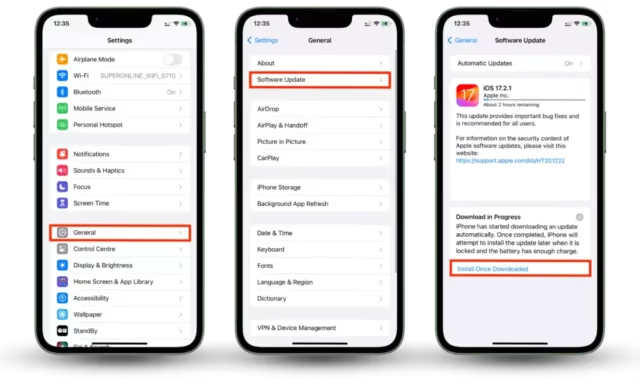
The single most effective step. Go to Settings > General > Software Update and install the latest iOS version. Apple’s security updates page confirms that each release patches known vulnerabilities. Most commercial spyware tools break after an iOS update because the exploits they rely on get patched.
#Remove Suspicious Profiles
As described above, go to Settings > General > VPN & Device Management and remove any profiles you don’t recognize. This alone eliminates most profile-based monitoring tools.
#Change Your Apple ID Password
If you suspect iCloud-based monitoring, change your password at Settings > [Your Name] > Sign-In & Security. Enable two-factor authentication if you haven’t already. Apple recommends using two-factor authentication for all Apple ID accounts.
#Factory Reset (Nuclear Option)
If you’ve tried everything else and still suspect compromise:
- Back up your photos and important data to a computer, not iCloud
- Go to Settings > General > Transfer or Reset iPhone > Erase All Content and Settings
- Set up as a new device instead of restoring from backup
This eliminates virtually all spyware. If you need to reset an iPad too, our guide on factory resetting an iPad without iCloud password covers that.
#Preventing Future Spyware Infections
- Keep iOS updated. Apple regularly patches security vulnerabilities
- Use a strong Apple ID password with two-factor authentication enabled
- Never jailbreak your iPhone. It removes Apple’s built-in security protections
- Don’t lend your unlocked phone to people you don’t trust
Physical access is the primary attack vector for most spyware. Beyond that:
- Review app permissions regularly, especially location, microphone, and camera access
- Be skeptical of links in texts and emails. Phishing is how credentials get stolen
- Understand your VPN options. Using a VPN on your iPhone adds an extra layer of privacy protection
#Recommended Security Apps
These free apps can help you verify your iPhone’s security status:
- iVerify checks for jailbreak indicators and common security misconfigurations
- Lockdown Privacy is an open-source firewall that blocks tracking connections
- Apple’s built-in Safety Check at Settings > Privacy & Security > Safety Check lets you quickly review and reset access you’ve granted to people and apps
#Bottom Line
The most telling sign of iPhone spyware is an unknown device management profile in your settings. Check that first. If you find something suspicious, update iOS immediately, since that alone disables most commercial spyware.
For complete peace of mind, a factory reset with a fresh setup (not restored from backup) eliminates virtually all known threats. Keep your iPhone updated and your Apple ID secured with two-factor authentication.
#Frequently Asked Questions
#Can someone install spyware on my iPhone without physical access?
In most cases, no. The majority of consumer-grade spyware requires brief physical access to your unlocked iPhone. The exception is iCloud-based monitoring, where someone with your Apple ID credentials can access your data remotely. State-level spyware like Pegasus could exploit zero-click vulnerabilities, but this targets journalists and activists, not average users.
#Does updating iOS remove spyware?
Yes, updating to the latest iOS version removes or disables most commercial spyware. Apple regularly patches the vulnerabilities these tools exploit. After updating, the spyware typically can’t function and may be removed entirely during the update process.
#How do I know if my iPhone has been jailbroken?
Look for the Cydia or Sileo app on your home screen. These are jailbreak app stores that don’t appear on stock iPhones. You can also use a security app like iVerify to scan for jailbreak indicators. If your iPhone has been jailbroken without your knowledge, a factory reset will remove the jailbreak and any associated spyware.
#Will a factory reset definitely remove all spyware?
A factory reset removes virtually all spyware from the device itself. Set up as a new device afterward, not from a backup. Also change your Apple ID password to stop any iCloud-based monitoring.
#Can spyware access my camera or microphone?
On a non-jailbroken iPhone, apps need explicit permission to access the camera and microphone. iOS shows indicator dots (green for camera, orange for microphone) when they’re active. Jailbroken iPhones may not have these protections. If you see the indicator dots when no app should be using them, investigate your installed apps.
#Is my iPhone safe if I never jailbroke it?
Non-jailbroken iPhones are significantly more secure, but not immune. Profile-based monitoring and iCloud credential theft don’t require jailbreaking. Keep iOS updated, use strong passwords with two-factor authentication, and periodically check your device management profiles.
#How can I tell if someone is tracking my location through Find My?
Go to Settings > [Your Name] > Find My > Share My Location. If location sharing is on and you see contacts you didn’t authorize, someone may be tracking you. Disable sharing for anyone you don’t want tracking your location, and review Settings > Privacy & Security > Location Services > Share My Location for the same information.
#Are anti-spyware apps from the App Store trustworthy?
Stick to well-known security apps from established companies. Be cautious of apps that claim to “scan for spyware” but ask for excessive permissions themselves. Apple’s built-in Safety Check feature (Settings > Privacy & Security > Safety Check) is the most trustworthy starting point since it’s part of iOS itself.