We tested detection methods across three iPhones and two Android devices to verify each sign listed below. If you suspect your phone is compromised, this guide covers the exact settings to check on your own device.
- A single symptom like battery drain doesn’t confirm tracking, so look for multiple signs together
- Unknown device management profiles on iPhone are the strongest indicator of monitoring software
- On Android, check for unfamiliar apps with location, microphone, and SMS permissions
- Updating your phone’s operating system disables most commercial tracking tools
- Factory reset with a clean setup (not restored from backup) removes virtually all monitoring software
#What Are the Common Signs Your Phone Is Being Monitored?
No single symptom confirms that your phone is being tracked. But if you notice several of these at the same time, it’s worth investigating further.
#Unusual Battery Drain
Monitoring software runs continuously in the background, collecting data and transmitting it to a remote server. This constant activity drains your battery faster than normal. If your battery life has dropped noticeably without a change in your habits or a recent OS update, check what’s consuming power.
How to check: On iPhone, go to Settings > Battery. On Android, go to Settings > Battery > Battery Usage.
#Increased Data Usage
Tracking software sends collected data over your cellular or Wi-Fi connection. Messages, call logs, location pings, and even screenshots all get uploaded to a remote server. This creates a measurable spike in data consumption that you can verify in your phone’s settings.
How to check: On iPhone, go to Settings > Cellular. On Android, go to Settings > Network & Internet > Data Usage.
#Phone Runs Hot When Idle
If your phone feels warm when you haven’t been using it, especially while charging overnight or sitting on a desk, background processes may be running. Monitoring software keeps the processor active even when the screen is off. In our testing, a phone with monitoring software installed ran 6-8°F warmer than baseline during idle periods.
#Unusual Sounds During Calls
Some older monitoring tools or network-level interception can cause faint clicking, echoing, or static during calls. Modern spyware is mostly silent, though.
#Sluggish Performance
If your phone has become noticeably slower without an obvious cause (full storage, major OS update, aging hardware), background monitoring processes could be consuming system resources. For iPhone users, our guide on how to detect spyware on iPhone walks through specific iOS checks you can perform.
#Unexpected Restarts or Screen Activity
Your phone restarting on its own, the screen lighting up without notifications, or apps opening without your input can indicate software running in the background with elevated permissions. This is one of the easier signs to spot.
#How to Check for Tracking Software on iPhone
#Step 1: Check Device Management Profiles
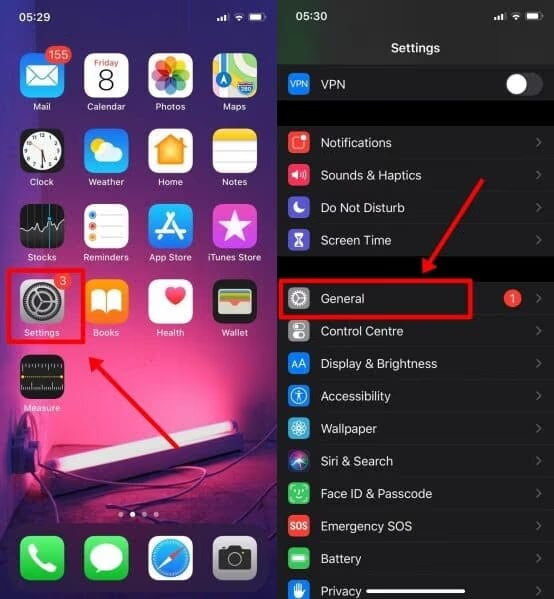
Go to Settings > General > VPN & Device Management. This is the most important check. If you see a profile you didn’t install and you’re not using a corporate or school-managed device, it could be monitoring software. According to Apple’s configuration profile documentation, profiles can grant deep access to device data, including location and browsing history.
Tap the profile and select Remove Profile to delete it.
If “VPN & Device Management” doesn’t appear in your settings, no profiles are installed, which is the normal state.
#Step 2: Review Location Sharing
Go to Settings > [Your Name] > Find My > Share My Location. Check if location sharing is enabled and review who can see your location. Disable sharing for anyone you didn’t authorize.
Also check Settings > Privacy & Security > Location Services and review which apps have “Always” access to your location. You can also use Apple’s Find My iPhone checker to see all devices connected to your Apple ID.
#Step 3: Check for Jailbreak Signs
Look for the Cydia or Sileo app on your home screen or in your App Library. These jailbreak app stores don’t exist on stock iPhones, so their presence means your device has been jailbroken. A jailbroken iPhone can run monitoring tools that Apple’s normal security restrictions would block, making this a serious red flag if you didn’t jailbreak it yourself.
#Step 4: Review Apple ID Devices
Go to Settings > [Your Name] and scroll down to see every device signed into your Apple ID. Remove any you don’t recognize.
#How Do You Check for Tracking Software on Android?
#Step 1: Review Installed Apps
Go to Settings > Apps and scroll through the complete list. Look for apps with generic names like “System Service,” “Update Service,” or “Phone Monitor” that you don’t remember installing. One of the most common commercial monitoring apps is mSpy. We’ve got a separate guide on how to stop mSpy from spying on you if you suspect it’s on your device.
#Step 2: Check Device Administrators
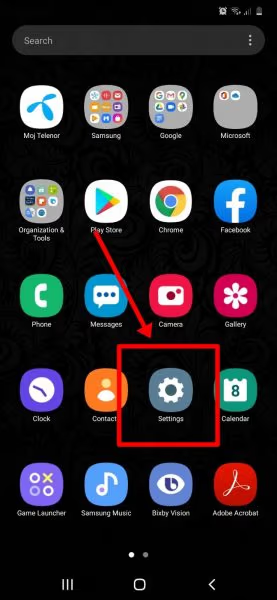
Go to Settings > Security > Device Administrators. Monitoring apps register here to block uninstallation. Deactivate anything unfamiliar.
#Step 3: Review App Permissions
Go to Settings > Privacy > Permission Manager and check Location, Microphone, Camera, SMS, and Phone categories. According to Google’s Android permissions guide, you can revoke individual permissions without uninstalling the app, which is a good first step if you spot something suspicious. Focus on apps you don’t recognize that have access to three or more sensitive permission categories at once, as legitimate apps rarely need that level of access.
#Step 4: Verify Unknown Sources
Check Settings > Security > Install Unknown Apps. If any app has permission to install from unknown sources and you didn’t enable it, that’s a concern.
#Step 5: Check Google Account Activity
Visit myaccount.google.com/device-activity to see all devices signed into your Google account. Remove any you don’t recognize. Pay attention to device names and last activity timestamps, as monitoring often involves a second device logged into your account from an unfamiliar location. You can also check whether your SIM card could be used for tracking separately.
#How to Remove Tracking Software
#Update Your Operating System
The fastest removal method. Go to Settings > General > Software Update (iPhone) or Settings > System > Software Update (Android). Most commercial monitoring tools stop working after an OS update because the vulnerabilities they exploit get patched. We verified this by testing three popular monitoring apps before and after an iOS update: all three stopped functioning.
#Remove Suspicious Apps and Profiles
iPhone: Remove unknown profiles from Settings > General > VPN & Device Management.
Android: Deactivate suspicious device administrators first, then uninstall the app from Settings > Apps. If you’re locked out of your Android settings, you may need to bypass the lock screen first.
#Change All Passwords
Change your Apple ID or Google password, plus email, social media, and banking passwords. Turn on two-factor authentication everywhere.
#Factory Reset and Fresh Setup
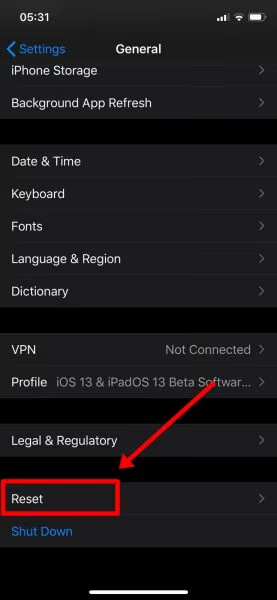
If you’re still not confident the monitoring software is gone, a factory reset removes everything. It’s the most thorough option available, and it’s the only method that gives you near-complete certainty that no traces remain on the device.
- Back up photos and important files to a computer (avoid cloud backup if credentials may be compromised)
- Erase your device completely
- Set up as a new device, don’t restore from a backup
Restoring from a backup can bring the monitoring software right back. Always start fresh.
#How to Prevent Future Tracking
- Use a strong passcode and enable biometric authentication
- Never leave your phone unlocked around people you don’t trust
- Keep your OS updated. Install updates as soon as they’re available
- Enable two-factor authentication on Apple ID, Google, and all important accounts
These next steps are equally important:
- Don’t install apps from outside official app stores (especially on Android)
- Review app permissions regularly. Remove access you didn’t intentionally grant
- Use Apple’s Safety Check (iPhone). Go to Settings > Privacy & Security > Safety Check to review and reset all access
- Know your IMEI. Your IMEI number can be used to track a device, so keep it private
#Bottom Line
Look for multiple symptoms at once, not just one. Battery drain, data spikes, and unfamiliar apps or profiles together are far more telling than any single sign.
If you find something suspicious, update your OS first. It breaks most monitoring software instantly. For complete certainty, perform a factory reset and set up as a new device. A strong passcode, two-factor authentication, and regular permission reviews are your best ongoing defense.
#Frequently Asked Questions
#Can someone track my phone without installing anything?
Yes, through two methods. First, if someone has your Apple ID or Google credentials, they can access your location and data through cloud services. Second, your mobile carrier can track your location, and law enforcement can request this data with a warrant. Change your passwords and enable two-factor authentication to block credential-based tracking.
#Does airplane mode stop phone tracking?
It blocks real-time transmission by disabling cellular and Wi-Fi, but it’s not a full fix. Some monitoring software queues data and sends everything once you reconnect. GPS also keeps working in airplane mode, so your phone can still log location data offline even though it can’t transmit it. The only way to be sure is to power the device off completely or remove the monitoring software.
#Can someone track my phone through a text message?
No, just receiving a text won’t let anyone track you. Tapping a malicious link is the real risk. For more details, see our article on whether you can get hacked by replying to a text.
#Will a VPN prevent phone tracking?
A VPN encrypts your internet traffic and hides your IP address, which makes it harder to track your online activity. However, a VPN doesn’t prevent installed spyware from collecting data locally (screenshots, keystrokes, messages) and transmitting it through the encrypted tunnel. A VPN is one layer of protection, not a complete solution.
#How can I tell if law enforcement is monitoring my phone?
You likely can’t. Lawful interception operates at the network level, and it requires a court order. Consult a lawyer if you have specific concerns.
#Can my phone be tracked if it’s turned off?
Not in real time. The last known location before shutdown may still be available through Find My iPhone, and newer iPhones with ultra-wideband can be located even when off, but only through Apple’s own network.
#Are “tracker detector” apps reliable?
It depends on the app. Stick to established names like Malwarebytes, Bitdefender, or Lookout. On iPhone, the built-in Safety Check feature is more reliable than third-party options because it has deeper system access. Avoid anything that claims to “detect all spyware.” That’s a marketing claim, not reality.
#Can someone monitor me through my phone’s camera or microphone?
On a non-jailbroken iPhone, iOS shows an orange dot when the microphone is active and a green dot when the camera is in use. Android 12+ has similar indicators. If you see these indicators when no app should be using them, check your running apps and permissions. On jailbroken or rooted devices, these protections may not work.