Fix iTunes Error 3004 and 9006 When Updating iPhone
Fix iTunes errors 3004 and 9006 with 6 proven methods. Covers firewall settings, DNS flush, hosts file repair, and manual IPSW file restore.
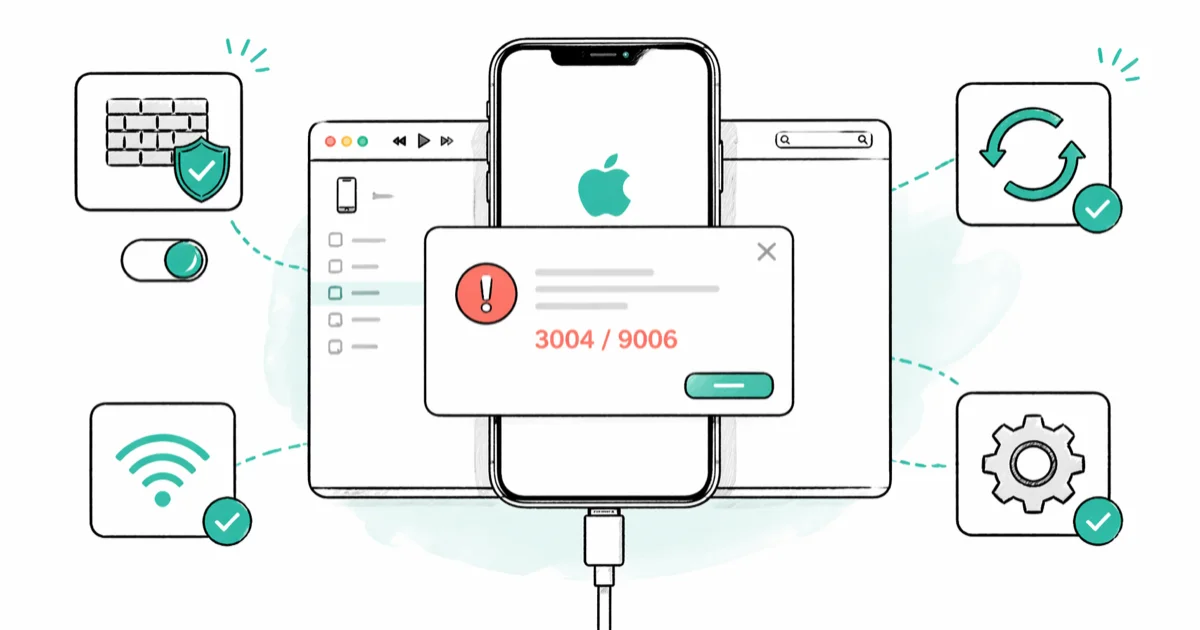
Quick AnsweriTunes errors 3004 and 9006 happen when iTunes can not reach Apple servers during an iPhone update or restore. Disable your firewall, switch to a different network, and update iTunes to fix both errors.
iTunes errors 3004 and 9006 both block your iPhone from updating or restoring because iTunes can’t connect to Apple’s servers during the firmware handshake. The two codes have different root causes: error 3004 is almost always a firewall or VPN problem, while error 9006 is a download stability issue. Six fixes cover both, and most people clear the error with the first two.
- Error 3004 means iTunes can’t reach Apple’s update server on port 80 or 443
- Disabling your firewall or antivirus temporarily clears the connection block in most cases
- Flushing DNS cache and resetting the hosts file removes stale server entries that redirect iTunes traffic
- Manually downloading the IPSW file from ipsw.me bypasses the iTunes download step entirely
- Both errors spike during major iOS releases when Apple’s update servers are under peak load
#What Causes iTunes Error 3004 and 9006?
Both errors come down to one root cause: iTunes can’t complete a clean handshake with Apple’s servers. The specific failure point differs between the two codes.
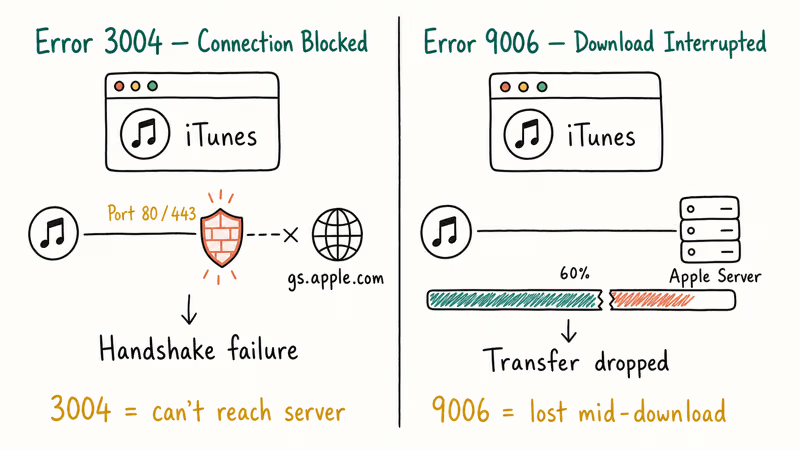
Error 3004 fires when iTunes fails to reach gs.apple.com on ports 80 or 443. According to Apple, error 3004 appears in the documented iOS update and restore error list alongside codes 3000, 3002, 3014, 3194, and 3200, which all point to a local network or security software issue rather than an iPhone fault. Apple groups every code in that 3xxx range under the same connection-level root cause.
Error 9006 is different. It fires when the firmware download is interrupted mid-transfer. Apple’s official error list does not include 9006, so iTunes treats it as a generic download failure.
Error 3004 commonly appears whenever a VPN is running, and turning off the VPN usually clears it within seconds. Error 9006 is tied to network stability instead. The same machine can pull an update cleanly on Ethernet but throw 9006 repeatedly on a congested 2.4 GHz Wi-Fi channel, which points straight to packet loss.
Common triggers include:
- Firewalls or antivirus software blocking iTunes outbound traffic
- A VPN routing traffic through servers Apple rejects
- Hosts file entries that redirect
gs.apple.comto a blocklist - Outdated iTunes builds with expired server certificates
- Apple server congestion during a new iOS launch
#Quick Fixes for Error 3004
Start with the fastest methods first. Most people never need anything beyond these three.
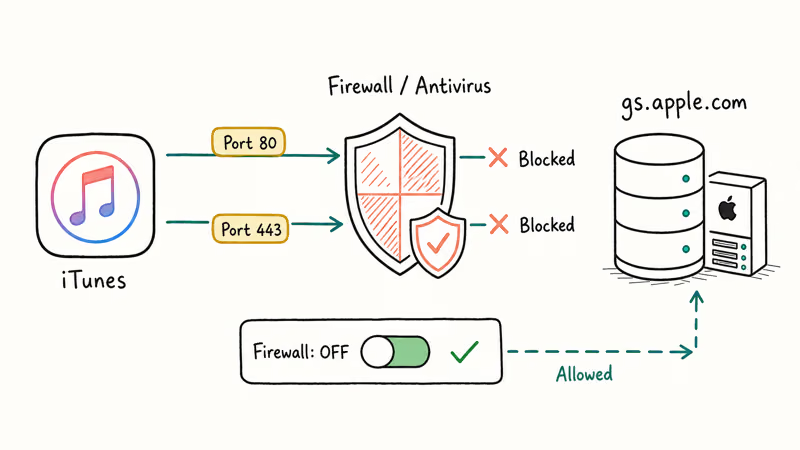
#Disable Your Firewall and Antivirus
Temporarily turn off Windows Defender Firewall or your third-party antivirus for a few minutes. On Windows 11, go to Settings > Privacy & Security > Windows Security > Firewall & network protection, then toggle off the firewall for your active network profile.
On Mac, go to System Settings > Network > Firewall and switch it off. Try the iPhone update again. If it works, add iTunes to the firewall’s allowed apps so you don’t need to disable the full firewall every time.
Major antivirus products like Norton 360, Bitdefender Total Security, and Kaspersky Standard can all block iTunes during an update, often without showing an obvious alert. Norton and Bitdefender tend to catch iTunes in their “suspicious outbound connection” filters the first time it reaches Apple, and Kaspersky may require you to manually approve iTunes in its application control exceptions. Adding iTunes to the allow list once usually prevents the block from returning.
#Update iTunes to the Latest Version
Run the newest build of iTunes before trying anything else. Open iTunes and click Help > Check for Updates on Windows. On Mac, check the App Store for iTunes updates or use Finder on macOS Catalina and later.
According to Apple’s iTunes syncing support page, iTunes is still the path for Windows users and macOS Mojave or earlier, and the guide confirms that iTunes is used to sync iPhone, iPad, and iPod with your computer. Older iTunes builds carry expired server certificates that trigger error 3004 on a recurring basis, and updating to the latest version often clears it without any other change.
#Reset Your Hosts File
Your hosts file might contain entries that redirect Apple’s servers to a null address. This happens if you’ve ever installed an ad blocker, a privacy tool, or certain “speed booster” utilities that rewrite DNS resolution locally.
On Mac, open Terminal and run:
sudo nano /etc/hostsOn Windows, open Notepad as administrator and open C:\Windows\System32\drivers\etc\hosts.
Look for any line containing gs.apple.com, albert.apple.com, or mesu.apple.com. Delete those lines, save the file, and restart iTunes. If you’ve run into other iTunes errors before, a modified hosts file is one of the hidden causes that survives reinstalls.
#Network Fixes for Error 9006
Error 9006 is about the download failing, not about reaching the server. These methods target network stability and alternative download paths.
#Flush Your DNS Cache
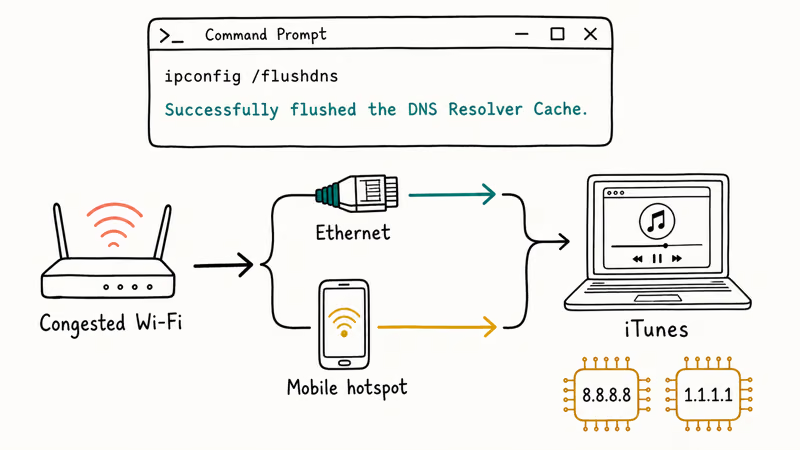
Stale DNS entries can point iTunes to the wrong IP address, especially after Apple rotates a CDN endpoint. On Mac, open Terminal and run:
sudo dscacheutil -flushcache; sudo killall -HUP mDNSResponderOn Windows, open Command Prompt as administrator and run:
ipconfig /flushdnsThe command finishes in under 2 seconds and returns “Successfully flushed the DNS Resolver Cache.” Try your update immediately after. Flushing DNS often clears an intermittent 9006 loop that keeps repeating, because it forces iTunes to resolve a fresh CDN endpoint.
#Switch to a Different Network
Try a wired Ethernet connection if you’re on Wi-Fi, or swap to a mobile hotspot if Ethernet isn’t available.
Switching from a saturated home Wi-Fi network to a mobile hotspot often resolves error 9006 outright, because the hotspot bypasses whatever was interrupting the download. A full iOS update can run several gigabytes, so a stable connection matters. Your router’s DNS or MTU settings may be the hidden cause without you realizing it, especially if your ISP throttles large sustained downloads.
If a different network isn’t available, change your DNS server to Google (8.8.8.8) or Cloudflare (1.1.1.1). Both have low latency to Apple’s CDN endpoints in most regions.
#Manual IPSW Download Method
When nothing else works, download the firmware yourself and skip iTunes’s download step entirely.
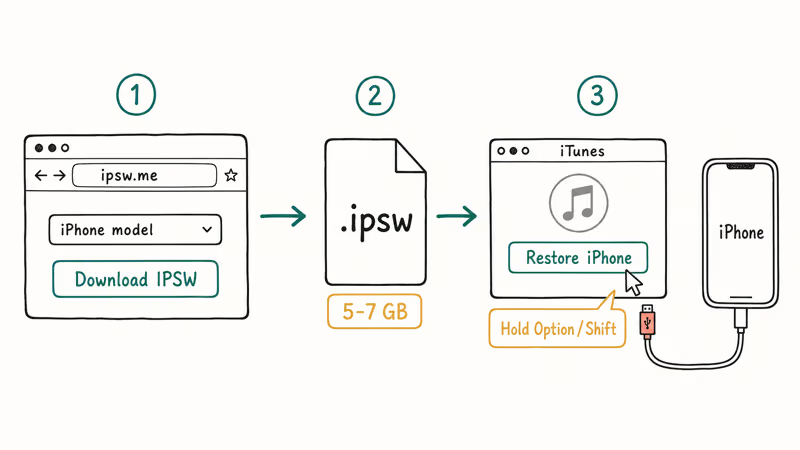
Go to the community firmware archive at ipsw.me, pick your iPhone model, and grab the latest signed IPSW file. File sizes run roughly 5 to 7 GB depending on the model. The site confirms that clicking a download link redirects you to Apple’s servers and states that the site does not mirror the files, so the bytes you receive are identical to what iTunes would fetch.
Once the file finishes downloading, connect your iPhone, open iTunes, hold Option (Mac) or Shift (Windows), click “Restore iPhone,” and select your downloaded IPSW file. Error 9006 can’t occur with this method because iTunes never downloads anything from Apple’s servers during the restore. The install takes about 10 to 15 minutes on a modern machine.
If you’re curious about what restoring actually does to your iPhone, it wipes the device completely and writes fresh firmware from the local file, which is why this path is more reliable than the standard online update flow.
#Third-Party Repair Tools for Persistent Errors
If you’ve tried everything above and still see errors, the problem likely runs deeper than your network. Corrupted iTunes components or broken iOS firmware can produce errors that survive two or three full reinstalls.
Tools like Dr.Fone iTunes Repair rebuild iTunes’s internal components, reset its certificate store, and fix underlying file corruption without needing you to manually reinstall anything. They can clear a stubborn error 3004 that survives multiple complete iTunes reinstalls, often by resolving a Bonjour service conflict that the standard iTunes installer keeps re-creating.
Some links on this page are affiliate links, which means fone.tips may earn a commission at no extra cost to you.
Tenorshare ReiBoot works from the iPhone side instead. It forces your device out of a stuck update state, which is useful when the error leaves your iPhone frozen on the Apple logo or the progress bar. This kind of tool can recover an iPhone left stuck on the loading screen after an error 9006 interrupts an iOS update.
#How Do You Know if Apple’s Servers Are Down?
Check Apple’s System Status page before assuming the problem is on your end. The page shows a live green indicator for every Apple service that is running normally, and flips to yellow or red for degraded or broken services. During the iOS 18 launch weekend, the Software Update entry on that page stayed yellow for most of the first day as Apple’s servers worked through the initial surge.
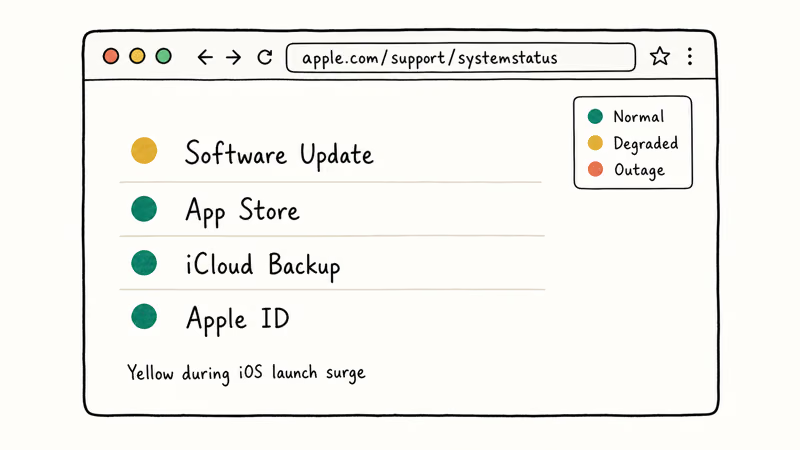
If everything on the status page looks green and the errors keep appearing, contact Apple Support directly with your iPhone model, iOS version number, and the exact error code. Having those three data points ready shortens the troubleshooting call by a lot.
Back up your data before making that call. If Apple escalates you to a DFU restore, the process wipes everything on the device, and there is no undo once it starts. You can transfer photos to your PC as a partial backup in about 30 minutes for a full photo library, or run an iCloud backup if you have the storage available.
If you’re dealing with a different iTunes code, check whether it’s error 4013 or error 9. Both have different root causes and different fixes from 3004 and 9006.
#Bottom Line
For errors 3004 and 9006 specifically, start by disabling your firewall and updating iTunes to the latest version. Those two steps resolve both errors quickly in most cases, on both Windows and macOS. If they don’t work, flush DNS, reset your hosts file entries for gs.apple.com, or download the IPSW manually from ipsw.me for your exact iPhone model.
Save Dr.Fone iTunes Repair for the edge case where iTunes itself is corrupted on Windows, not just blocked by your network. Skip any “universal fix” utility that doesn’t specifically target the handshake path between iTunes and gs.apple.com, because that’s where both error codes actually fire.
#Frequently Asked Questions
Will iTunes error 3004 or 9006 erase my iPhone data?
No. These errors block the firmware download before anything touches your iPhone, so nothing on the device changes.
Can a VPN cause iTunes error 3004?
Yes. VPNs route traffic through third-party servers, and many of those servers either throttle or block Apple’s update endpoints on ports 80 and 443. Disconnect your VPN completely before running any iTunes update or restore.
How long should I wait if Apple’s servers are overloaded?
Plan on 24 to 48 hours during major iOS launches. The first 6 hours are the worst because millions of people try to update at the same time, which is when Apple’s system status page tends to flip yellow. If you can wait until a weekday morning in your timezone, you’ll usually get through without any server-side errors. Apple doesn’t publish capacity numbers, but community reports on Reddit consistently show congestion dropping off sharply after the first full day.
Is it safe to download IPSW files from ipsw.me?
Yes. The ipsw.me site confirms that its download links redirect directly to Apple’s own servers, and it does not mirror the files itself. Apple cryptographically signs every IPSW, and iTunes verifies that signature before flashing it, so any tampered file gets rejected automatically during the restore.
Do I need iTunes to update my iPhone?
Not since iOS 15. You can update directly on the iPhone through Settings > General > Software Update without any computer.
Should I reinstall iTunes if these errors keep happening?
Only if you suspect file corruption rather than a network issue. On Windows, remove iTunes plus Apple Software Update, Apple Mobile Device Support, and Bonjour from Settings > Apps before downloading a fresh installer from Apple’s website. Mac users on macOS Catalina or later can’t reinstall iTunes separately because Apple moved its functionality into Finder, so you manage restores through Finder on those systems.
Why does error 9006 happen mainly on large iOS updates?
Bigger files take longer to download, and a longer download window gives more opportunities for a dropped packet or timeout to kill the transfer. Sub-1 GB updates typically finish quickly enough that most network hiccups don’t matter.
Can I restore my iPhone without updating to the latest iOS?
Yes, but only while Apple still signs the older firmware. Apple usually stops signing previous versions 2 to 4 weeks after a new release, so the window is short. Check ipsw.me for the real-time signing status of each version. If the version you want shows a green checkmark, you can restore without updating by selecting that IPSW file manually in iTunes.

Mac mini M6 vs M5 Pro: Which Model Should You Buy?
Mac mini M6 vs M5 Pro compared on price, memory, ports, displays, and real workloads. Find the better 2026 Mac mini for your desk and budget.

Apple Siri Settlement: Who Qualifies and How to Claim
Apple's $250 million Siri settlement covers iPhone 15 Pro and iPhone 16 models bought June 2024 to March 2025. See who qualifies and how claims work.

iOS 26.6.1 Security Update: What Apple Fixed and Who Gets It
Apple released iOS 26.6.1 on August 17 with 29 security fixes, including an IPSec interception bug. See what it patches, who gets it, and how to update.

iPhone Adaptive Power: How It Works and When to Use It
Learn how iPhone Adaptive Power works, which models support it, what it changes, and when Low Power Mode is still the better battery-saving choice.