How to Make a Welcome Channel on Discord: Full Guide
Learn how to create a welcome channel on Discord that greets new members, shares server rules, and sets the tone for your community in minutes.
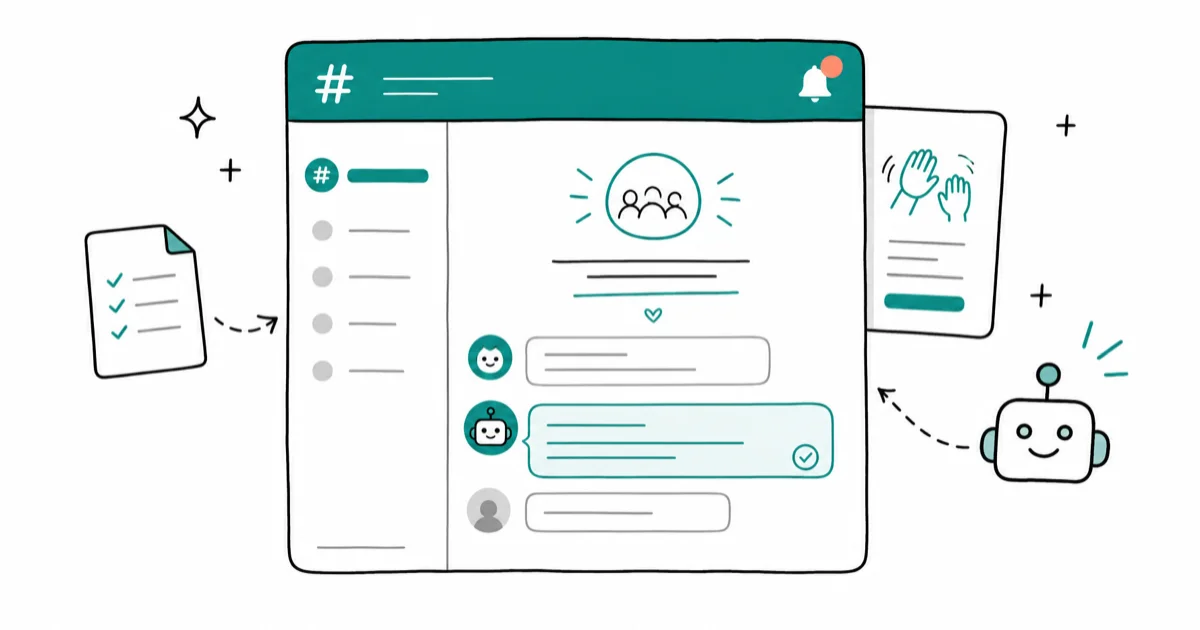
Quick AnswerTo make a welcome channel on Discord, enable the Community feature in Server Settings, then create a text channel named #welcome and configure automated welcome messages using Discord's built-in tools or a bot like MEE6.
A welcome channel is the first thing new members see when they join your Discord server. The setup works in the desktop app and web browser, and it usually takes only a few minutes from start to finish.
Before changing these settings, use the steps only on your own device, computer, or account, or with explicit permission from the owner. Unauthorized access can violate law, privacy rights, and platform terms, so don’t use this guide to bypass someone else’s controls. When available, start with the official support option, built-in settings menu, or vendor documentation before trying manual fixes, especially if the device or account belongs to work, school, or another person.
- Administrator or “Manage Channels” permission is required to create or customize a welcome channel
- Set @everyone to “View Channel” but disable “Send Messages” to keep the channel read-only
- MEE6, Carl-bot, and Dyno all send personalized automated greetings when new members join
- Discord’s Welcome Screen highlights key channels with descriptions that appear on a member’s first join
- Pin your welcome message via the three-dot menu so it stays visible at the top
#Why Does a Welcome Channel Matter?
Your welcome channel sets expectations before new members post anything. A poorly designed one leaves people confused about where to go. A well-designed one answers their questions before they ask.
According to Wikipedia’s overview of Discord, the platform had at least 350 million registered users as of 2021, which means your server is competing with thousands of others for member attention and retention. A clear welcome channel gives you a significant edge. The format matters: bullet points, pinned messages, and role-assignment reactions all help new members feel oriented quickly.
A useful welcome channel includes a rule summary, a short channel directory, and one clear next step.
#How to Create a Welcome Channel on Discord
Follow these steps on the desktop app or web browser.
#Step 1: Create the Channel
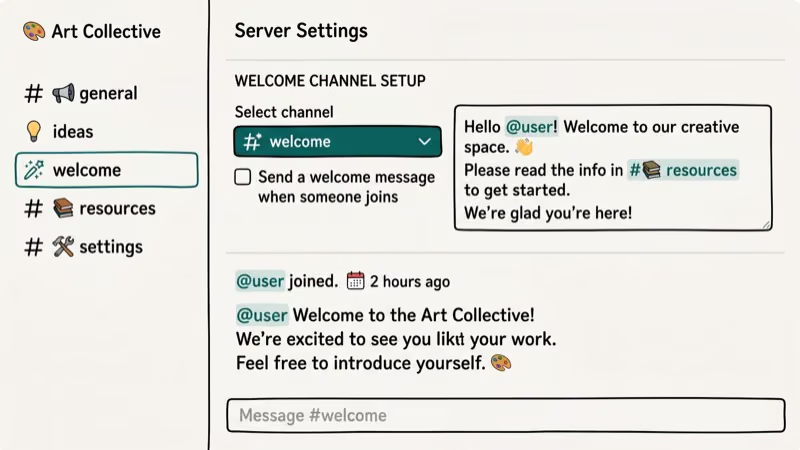
Open your server, right-click on any category, and select Create Channel. Name it welcome or new-members. Place it at the top of your channel list so it’s the first thing people see.
#Step 2: Set Permissions Correctly
Right-click the channel and select Edit Channel, then go to the Permissions tab. Set the @everyone role to “View Channel” but disable “Send Messages.” This keeps the channel read-only.
Allow your Moderator role or admin users to send messages so you can update the content when needed.
#Step 3: Write and Pin Your Welcome Message
Send your welcome message in the channel. Include a greeting, a brief server description, key rules (3-5 bullet points), and links to important channels like #rules and #introductions.
Pin it. Click the three dots and select Pin Message.
#Which Bot Should You Use for Welcome Messages?
Manual welcome messages are fine for small servers.
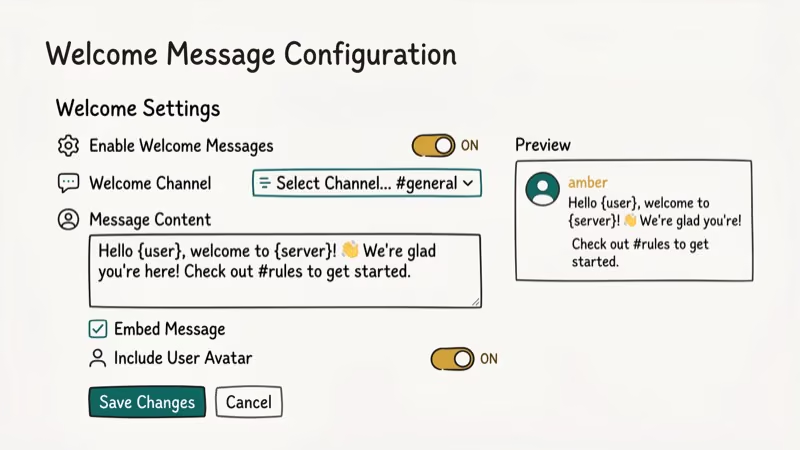 For larger ones, bots handle the job automatically and can personalize each greeting with the new member’s name.
According to MEE6’s documentation, you can include the member’s username, join date, and server name in the message template. If you’re also looking to add bots to Discord for other server functions, the process is nearly identical.
#Using MEE6
Go to mee6.xyz, click Add to Discord, select your server, and authorize the bot. Then open the MEE6 dashboard, go to Welcome, enable welcome messages, customize the template, and select your #welcome channel as the destination.
#Using Carl-bot
Carl-bot also supports embeds, reaction roles, and custom variables.
#Using Dyno
Dyno bundles moderation and welcome features in one bot. Good enough for most servers.
#Discord’s Built-In Welcome Screen
Discord has a native Welcome Screen feature that complements your welcome channel. It appears when members first join and directs them to key channels.
To set it up, go to Server Settings > Welcome Screen. Enable the feature, add a server description, and highlight 3-5 channels with brief descriptions. Upload a server banner image if you have one.
The Welcome Screen works alongside your welcome channel, not instead of it. The screen shows on first join; the channel stays accessible permanently.
#Adding Reaction Roles to Your Welcome Channel
Reaction roles let new members self-assign roles
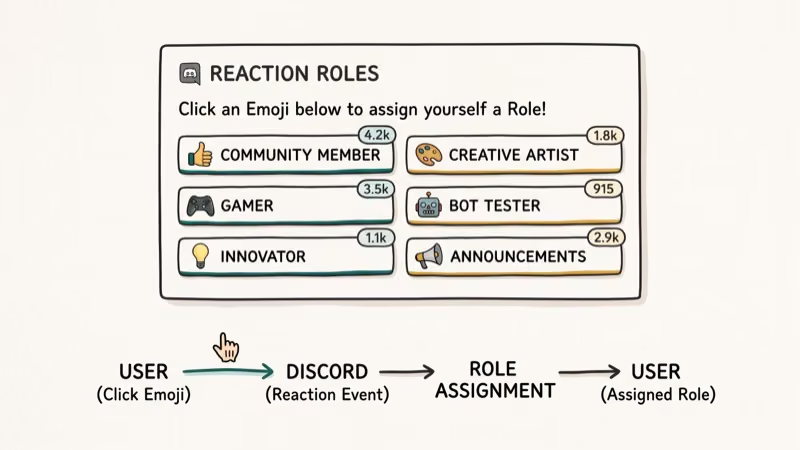 by clicking emoji reactions on a pinned message. This is popular for large servers where members select their interests.
The how to add roles in Discord guide covers this in detail. The short version: create the roles first, then use a bot like Carl-bot or MEE6 to set up reaction role assignments on a specific message.
#Tips for Managing Your Welcome Channel
Keep the welcome message updated. Outdated channel links or old rule references create confusion. Review the content monthly.
According to Discord’s safety documentation, servers that keep their rules and welcome content current report significantly fewer moderation issues because members know what’s expected.
Pin a second message linking to your #rules channel explicitly. Don’t assume people will find it on their own. And if you’re dealing with Discord awaiting endpoint errors during setup, try refreshing the app or checking your connection.
#Troubleshooting Common Issues
If your bot’s welcome message isn’t working, check that the bot has Send Messages permission in the welcome channel. It’s easy to miss because you intentionally restricted @everyone. If you’re also experiencing Discord stream no sound issues, those are permissions-related too and worth checking at the same time.
If members report they can’t see the welcome channel, verify the @everyone role has “View Channel” enabled and no override role is blocking access.
For account recovery issues, the guide on how to recover a deleted Discord account covers reinstatement options.
#Bottom Line
Create a text channel named #welcome, set it to read-only for @everyone, write a clear pinned message covering rules and key channels, and add MEE6 for automated greetings. That setup handles 95% of what a welcome channel needs to do. The Welcome Screen and reaction roles are useful additions once the basics are working.
#Frequently Asked Questions
Can I have multiple welcome channels?
Yes. Many servers use a #welcome channel for greetings, a #rules channel for server policies, and an #introductions channel where new members post their first message. Keep them grouped in a Welcome category at the top of your server list for easy discovery.
How often should I update the welcome message?
Every 3 months at minimum. Review it whenever server rules, channels, or role structures change.
Can bots automatically assign roles to new members?
Yes. Configure it once in any major bot’s dashboard. Every new member gets the role automatically.
Is it possible to personalize welcome messages?
Yes. MEE6 and Carl-bot both support template variables: {member} inserts the username, {server} inserts the server name, {count} adds the member number, and some templates also support join date. Each message looks unique even though it’s fully automated, which meaningfully improves how welcomed new members feel compared to a generic greeting.
How can I encourage new members to read the welcome channel?
Reaction-gating works best. Require new members to react to a specific welcome message before they can post in other channels; this forces at least a brief scan. MEE6 and Carl-bot both support it. Setup takes under 5 minutes: create a “Member” role, configure the reaction role in the bot dashboard, and restrict @everyone from posting until they earn that role.
What should a Discord welcome message include?
A brief server description, 3 to 5 rules, links to key channels like #rules and #get-roles, and a clear next step. Keep it under 300 words. Long welcome messages get skimmed or ignored.
Does Discord charge for the Welcome Screen feature?
No. It’s free with Community features enabled. Enable Community first in Server Settings, then the Welcome Screen option appears in the sidebar.

Google Messages Error 3100: Why RCS Is Broken on Galaxy
Google Messages RCS error 3100 hits Galaxy owners after phone or carrier switches. Google told 9to5Google a fix is coming. Here's what actually helps.

Is This Bank App Real? Spot a Fake App on Your Home Screen
A bank app can land on your home screen from a web page with no install warning. Learn the checks that tell a real banking app from a phishing web app.

Apps Crashing After iOS 27 Update? Fix Order (2026)
Apps crashing after the iOS 27 update? Update the app in the App Store first, then offload and reinstall to clear stale cache, then restart. The fix order.

Do AI Translation Earbuds Work Offline? What to Know
Do AI translation earbuds work offline? A few do with downloaded language packs, but most need the cloud. Here's what works offline and what you give up.