Fix the White Screen of Death on Android Phone (2026)
Fix the Android White Screen of Death with 6 proven step-by-step methods for Samsung Galaxy and Google Pixel phones running Android 13 through 15.
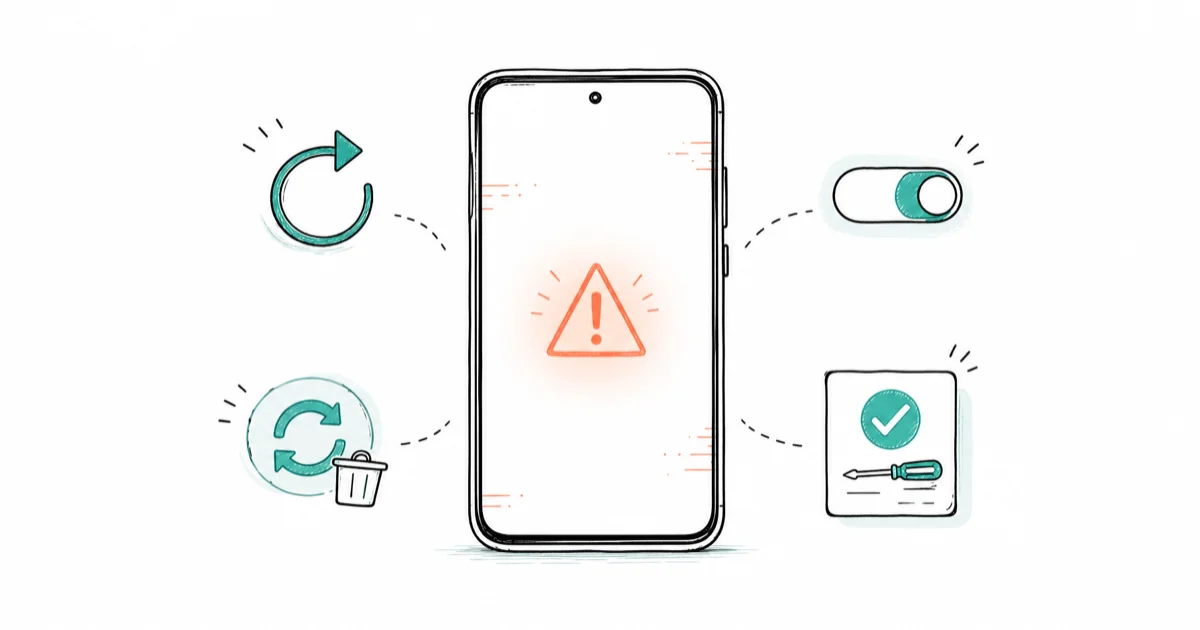
Quick AnswerForce restart by holding Power + Volume Down for 10 seconds. If the white screen returns, boot into Safe Mode to check for problematic apps, then wipe the cache partition through Recovery Mode. A factory reset resolves persistent cases tied to corrupted system files.
The White Screen of Death (WSOD) turns your Android phone completely white and unresponsive. Most software causes can be checked without erasing data, but persistent hardware faults need repair.
- Force restart with Power + Volume Down for 10 seconds fixes most white screens
- Safe Mode reveals whether a third-party app is crashing the display driver
- Wiping the cache partition clears corrupted display data without erasing files
- Keep at least 1 GB free storage to prevent system display failures
- Physical display ribbon cable damage requires professional repair
#What Causes the White Screen on Android?
The white screen appears when Android’s display compositor crashes or can’t render the UI. The screen backlight stays on, but the system can’t draw any content.
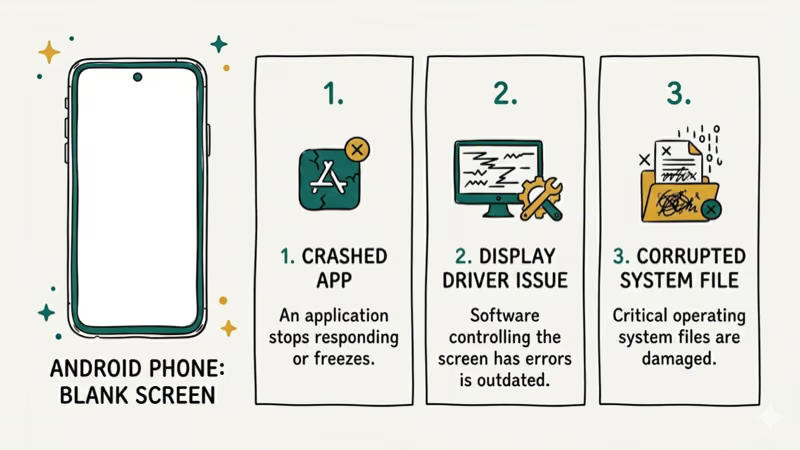
Corrupted app data is a common software cause. A buggy app update or a poorly coded widget can crash the SurfaceFlinger process that handles screen rendering, leaving the screen backlight on while Android can’t draw the interface.
Insufficient storage is the second most common trigger. When free space runs low, Android can’t create the temporary files it needs for display rendering. Samsung’s storage support page recommends clearing space through Device care, which frees memory and stops background apps from slowing the device down.
Failed system updates corrupt display drivers. If the white screen appeared right after an OTA update, the update didn’t install cleanly. This also causes System UI crashes and process system errors.
Hardware causes include a damaged display ribbon cable from drops, a faulty LCD/OLED panel, and loose internal connectors. If your phone was recently dropped or exposed to water, hardware damage is more likely than a software glitch. A white screen that appears alongside a purple screen tint usually points to LCD panel failure rather than software corruption.
#How Do You Force Restart an Android Phone With a White Screen?
A force restart terminates all processes and reloads the operating system. It works even when the touchscreen is completely unresponsive.
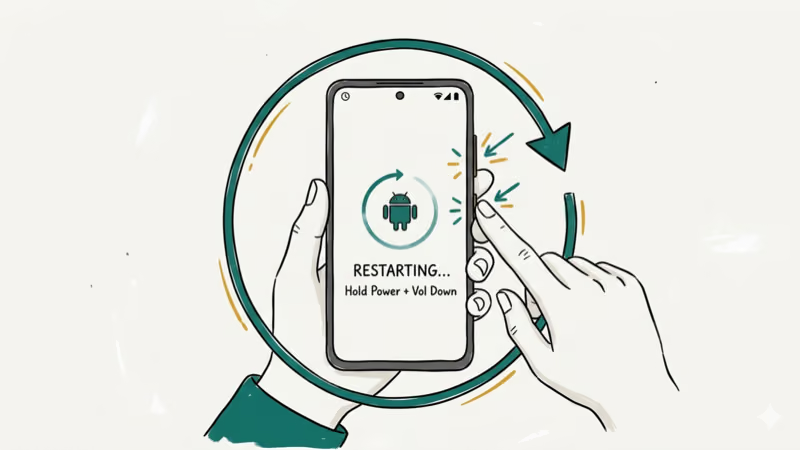
For Samsung Galaxy phones:
- Press and hold Power + Volume Down for 10 seconds
- Release when the phone vibrates and the Samsung logo appears
- Wait 30-60 seconds for the phone to boot fully
For Google Pixel phones:
- Press and hold Power for 30 seconds
- The phone will restart automatically
For other Android brands:
- Try Power + Volume Down for 10-15 seconds (works on most brands)
- Some older phones use Power + Volume Up instead
A force restart can resolve the white screen when the cause is a temporary software glitch. The whole process takes under 2 minutes. If the white screen returns within a few minutes of rebooting, a deeper fix is needed.
#Booting Into Safe Mode to Find Problem Apps
Safe Mode loads only preinstalled system apps and disables all third-party apps. If the white screen doesn’t appear in Safe Mode, a third-party app is the cause.
- Press and hold the Power button until the power menu appears
- Long-press the Power Off option on screen
- Tap OK to confirm entering Safe Mode
- “Safe mode” appears in the bottom-left corner of the screen
Test the phone for 5-10 minutes. If it runs normally in Safe Mode, start uninstalling recently added apps one at a time.
According to Google’s Android Safe Mode guide, Safe Mode is the official diagnostic step for isolating app-related crashes on Android 10 and later. If the white screen stops in Safe Mode, a third-party app or widget is likely involved. If your phone also shows screen rotation issues, the same problematic app may be interfering with the sensors too.
To exit Safe Mode, restart your phone normally.
#Wiping the Cache Partition
The cache partition stores temporary system data that can become corrupted after updates, crashes, or sudden power loss. Wiping it gives the display system clean files to work with.
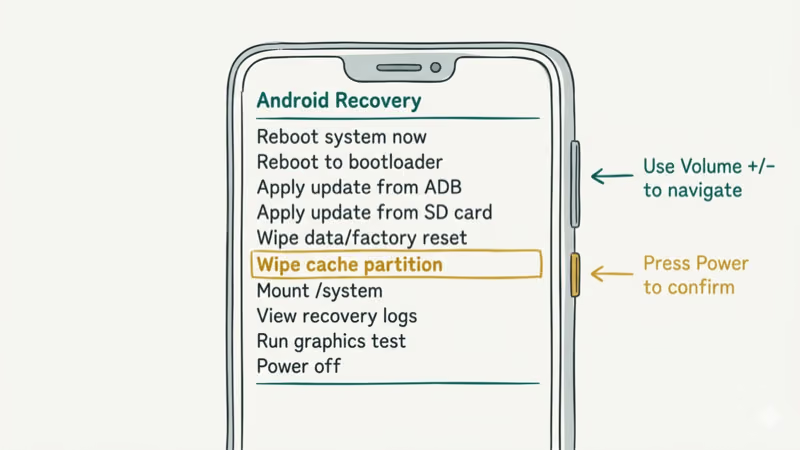
- Power off your phone completely
- Press Power + Volume Up (Samsung) or Power + Volume Down (Pixel) to enter Recovery Mode
- Use volume buttons to highlight Wipe Cache Partition
- Press Power to confirm
- Select Reboot System Now
This clears the system cache without touching your apps, photos, or settings. The process takes about 2-3 minutes and gives Android clean temporary system files on the next restart.
#Factory Reset as a Last Resort
A factory reset erases everything and restores the phone to its original state. Only use this after trying all other methods.
Before resetting, back up your data:
- Photos: Google Photos sync or USB transfer to computer
- Contacts: synced to Google account automatically
- Messages: use Samsung Smart Switch or Google’s backup
To reset:
- Go to
Settings>General Management>Reset>Factory Data Reset(Samsung) - Or
Settings>System>Reset Options>Erase All Data(Pixel) - Tap Reset and confirm
If you can’t access Settings because of the white screen, use Recovery Mode instead. Power off, enter Recovery with Power + Volume Up, select Wipe data/factory reset using volume buttons, and confirm with Power.
After the reset, set up your phone from scratch and don’t restore apps immediately. Use it for a full day to confirm the white screen is gone. Then gradually reinstall apps, watching for the problem to reappear. If your phone won’t turn on at all after attempting a factory reset through Recovery Mode, you may need professional help or a USB firmware flash through the manufacturer’s desktop tool like Samsung’s Odin or Google’s Android Flash Tool.
#Signs of Hardware Damage Behind the White Screen
If the white screen persists after a factory reset with no apps installed, the problem is hardware.
Display ribbon cable damage is the most common hardware cause. According to iFixit’s repairability scores, Pixel phones prioritize easy screen repairs while Samsung’s tightly glued screens make the same job harder, so a technician can usually reseat or replace the cable for a modest shop fee.
LCD/OLED panel failure means the panel itself can’t process the image signal from the GPU. Screen replacement runs $100-300. Most shops handle it fine.
Water damage often shows as a white or discolored screen before other symptoms appear. Power the phone off immediately if you suspect moisture exposure. Charging or restarting a wet phone can short-circuit the display controller, turning a fixable problem into permanent board-level damage that costs more than a new phone to repair, so getting it to a repair shop powered off is the safest move.
#Bottom Line
Force restart first since it fixes most software-triggered white screens in under 2 minutes. Boot into Safe Mode to check for problematic apps, and wipe the cache partition if the issue keeps returning. A factory reset handles corrupted system files that other methods can’t repair. If the white screen survives a full factory reset, it’s hardware damage and needs professional repair.
#Frequently Asked Questions
Can a white screen fix itself over time?
No. A software-caused white screen won’t resolve on its own because the crashed process stays crashed until you restart. A hardware-caused white screen will only get worse. Take action as soon as you see it.
Will a force restart delete my data?
No. A force restart is the same as a normal restart but forced through hardware buttons instead of the touchscreen. Your apps, photos, messages, and settings all stay intact. Only a factory reset deletes data.
How can I tell if the white screen is software or hardware?
Do a factory reset. If it fixes the white screen, it was software. If the screen stays white, it’s hardware.
Does the warranty cover white screen repair?
Yes, if the cause is a manufacturing defect. Standard warranties cover hardware failures for 12 months from purchase. Physical damage from drops or water exposure isn’t covered. Samsung offers mail-in repair through their support page, and Google provides similar service for Pixel phones through the Google Store, with typical turnaround times of 5-10 business days depending on your location and the extent of the repair needed.
Can low battery cause a white screen?
Not directly. But if the battery dies mid-update, corrupted files can trigger the white screen on reboot. Wipe the cache partition to fix it.
Is the White Screen of Death the same on all Android brands?
Same symptom, different button combinations for force restart and Recovery Mode. Samsung uses Power + Volume Down, Pixel uses Power for 30 seconds, OnePlus uses Power + Volume Up for Recovery, and Xiaomi uses Power + Volume Up as well but with a different Recovery Mode interface. The actual troubleshooting steps, from cache wipe to factory reset, work identically across every Android brand.
Can a screen protector cause a white screen?
No. Screen protectors don’t interact with display hardware or software at all.

Pixel 11 vs Pixel 10: What Changed and Who Should Upgrade
Pixel 11 vs Pixel 10: same screen and camera resolution, new Tensor G6, 25W wireless, and Gemini Intelligence. Here is who should actually upgrade.

Verizon Not Receiving Texts? How to Fix It in 9 Steps
Verizon not receiving texts? Fix it in 9 steps: check Message Blocking in My Verizon, reset network settings, deregister iMessage, and call support.

Pixel Battery Drain: What Google's July Fix Really Covers
Google marked the Pixel idle battery drain bug fixed in July, but only some phones got the patch. Here is who is covered, who is not, and what to try.

iPhone Stuck on EDGE? How to Get 5G or LTE Back (2026)
iPhone stuck on EDGE with crawling data? Here's why the E icon appears, which settings force 5G or LTE back, and when the problem is your carrier.