One UI Home Keeps Stopping? 8 Samsung Galaxy Fixes
Fix Samsung One UI Home keeps stopping with an ordered checklist for widgets, launcher cache, Safe Mode, and updates that keeps your Galaxy phone usable.
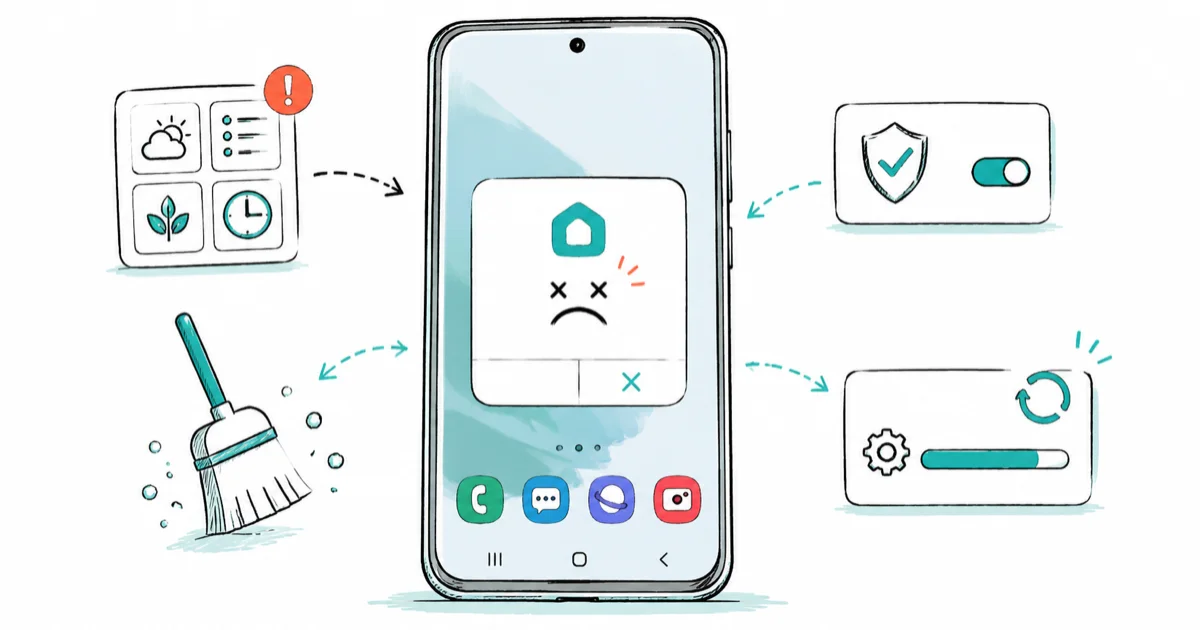
Quick AnswerWhen Samsung One UI Home keeps stopping, don't factory reset. The crash is almost always a bad widget, a corrupted launcher cache, or a recent update, so remove the newest widget or theme, clear the One UI Home cache, and boot into Safe Mode before anything drastic.
Samsung One UI Home keeps stopping, and your Galaxy phone is stuck in a loop where the home screen reloads or throws an error every few seconds. The launcher is just an app, and its crashes almost always trace back to a bad widget, a corrupted cache, or a recent update, not a hardware fault. This guide keeps your phone usable while you isolate the cause, and it puts factory reset dead last.
Start with the low-risk fixes: clear the One UI Home cache, remove recent widgets or themes, and use Safe Mode before heavier resets. Start at the top and stop once your home screen stays put.
- One UI Home is the launcher app, so its crashes are software, almost never hardware
- A recently added widget or theme is the single most common trigger of the crash loop
- Clearing the One UI Home cache fixes most loops without erasing your home-screen layout
- Clearing One UI Home data resets your layout, so treat it as a heavier step than cache
- Safe Mode disables third-party apps so you can tell whether one of them is the culprit
#Why Does One UI Home Keep Stopping?
One UI Home is the name Samsung gives its launcher, the app that draws your home screen, app drawer, and widgets. When it crashes, you see “One UI Home keeps stopping” or watch the home screen reload on its own. Because it’s an app, the fix is app-level, not a phone replacement.
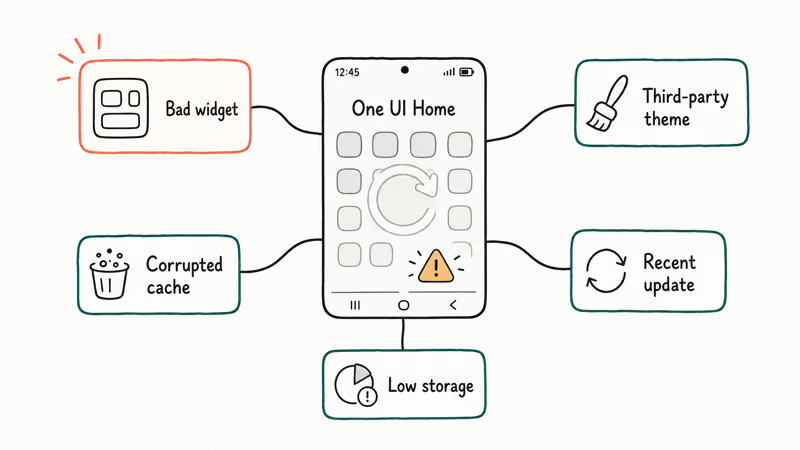
The usual triggers are short and specific. A bad widget, a third-party theme, a corrupted launcher cache, a recent update, or a phone too low on storage to load. Match yours and you’ve narrowed the fix.
#Get the Phone Usable Long Enough to Open Settings
First, you need a few seconds of stability to actually do anything. The crash loop can make the home screen unusable, so use a route that skips it.
Pull down the notification shade from the top of the screen, which works even while the launcher is crashing, and tap the gear icon to open Settings directly. From there you reach the launcher’s app info without fighting the home screen.
If the shade won’t cooperate, the standard recovery is a hard restart. Google’s Fix an installed Android app that isn’t working page states that holding the power button for about 30 seconds restarts the phone, which often buys you a calm window right after boot. Our samsung keyboard has stopped guide uses the same shade-first trick when the keyboard service crashes.
Once you can reach Settings, clear the launcher’s cache.
#Clear One UI Home Cache Without Wiping the Phone
This is the fix that resolves most crash loops, and it costs you nothing. Clearing the cache deletes temporary launcher files without touching your home-screen layout, apps, or data.
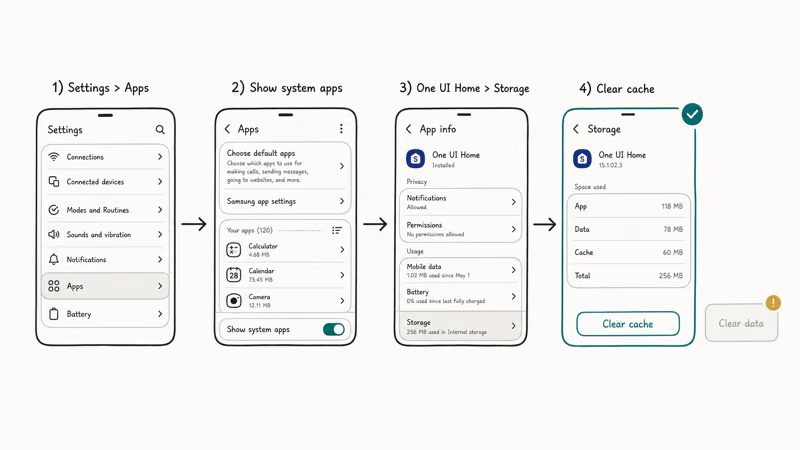
Go to Settings > Apps, tap the three-dot menu and choose Show system apps, then find and open One UI Home. Tap Storage, then Clear cache. Reopen the home screen and watch for the crash. The same cache-then-data order rescues other stuck system apps, as our google play services keeps stopping guide shows.
If clearing the cache doesn’t hold, you have a tougher choice: clearing One UI Home data. That resets your home-screen layout, widgets, and folders to defaults, so only do it if you accept rebuilding your home screen. Nothing else is lost, but the layout work is real.
When even a data clear doesn’t help, suspect what you added recently.
#What If a Widget or Theme Is Causing the Crash?
A single bad widget is the most common trigger of a One UI Home loop, full stop. Widgets run live code on your home screen, and one that pulls broken data or references a deleted app can take the whole launcher down.
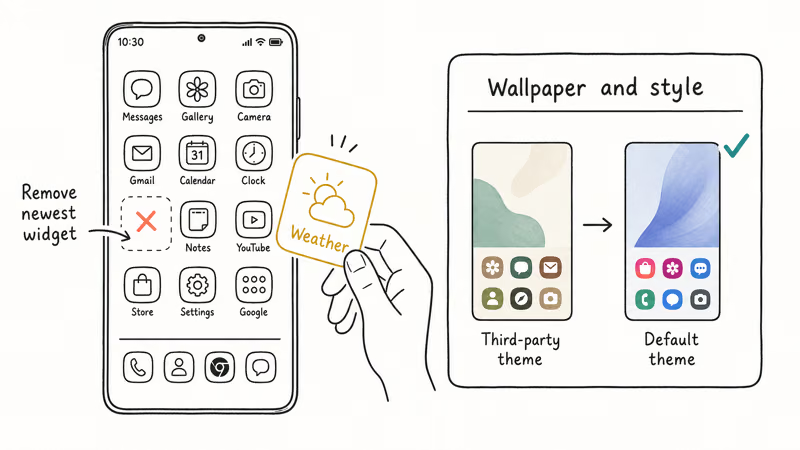
Think back to what changed right before the crashes started. Did you add a weather widget, a new clock, a third-party theme, or an icon pack? Remove the most recent addition first.
Long-press an empty area of the home screen, remove suspect widgets one at a time, then switch back to the default Samsung theme under Settings > Wallpaper and style. Themes and icon packs from outside the Galaxy Store are frequent offenders, and reverting to stock often ends the loop. This is the same isolate-recent-changes logic our instagram keeps stopping guide uses for a crashing app.
If you can’t tell which add-on is to blame, let Safe Mode find it.
#Use Safe Mode to Find Bad Apps
Safe Mode is Samsung’s built-in isolation tool, and it’s the cleanest way to prove whether a third-party app is the problem. In Safe Mode, the phone runs only its system apps.
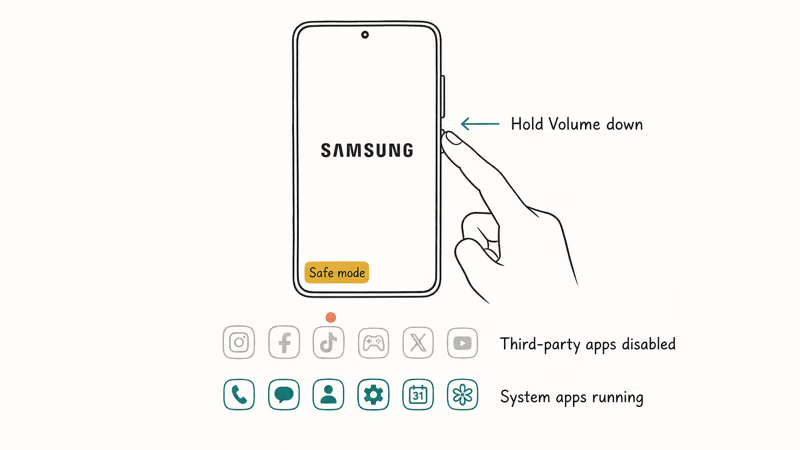
According to Samsung’s Safe Mode support page, no third-party apps run in Safe Mode, which lets you identify and remove the app causing the problem. You enter it by holding the Volume down button as the device powers on past the Samsung logo, and “Safe mode” appears in the bottom corner when it works.
If One UI Home stops crashing in Safe Mode, a downloaded app is the culprit, so restart normally and uninstall recently added apps one at a time. Start with anything that customizes the home screen.
If the launcher still crashes in Safe Mode, the cause is more likely the system itself, so update and free up space next.
#Update One UI and Free Critical Storage
A buggy One UI build and a near-full phone both crash the launcher, and both have clean fixes. Updates often patch launcher bugs that a previous release introduced.
Check Settings > Software update > Download and install, and update the launcher in the Galaxy Store if an update is offered there. Then look at storage. A phone with almost no free space can’t load the launcher reliably, so clear room using our clear other storage on samsung guide.
Did the loop start after a major One UI update? Samsung recommends contacting support through its Galaxy phone support hub, which can flag a known build issue for your model, the same way our samsung phone overheating guide escalates. Factory reset is the genuine last resort, after a backup.
#Bottom Line
Don’t factory reset a Galaxy phone just because One UI Home crashes. Remove the most recent widget or theme, clear the One UI Home cache, and boot into Safe Mode to find a bad app. Clear One UI Home data only when you accept losing your home-screen layout, and update One UI plus free storage before you ever consider a reset. Firmware flashing sits outside this safe, consumer fix path entirely.
#Frequently Asked Questions
Why does Samsung One UI Home keep stopping?
One UI Home is your launcher, and it crashes when something it relies on breaks: a bad widget, a third-party theme, a corrupted cache, a buggy update, or critically low storage. It’s a software problem, so an app-level fix almost always resolves it.
What should I check first?
Clear the One UI Home cache. It’s the fastest fix and leaves your layout, apps, and data untouched.
Can a One UI update cause this?
Yes. A new One UI build sometimes ships a launcher bug, and the loop starts right after the update. Check for a newer patch in Software update, and if none exists yet, report it to Samsung so they’re aware of the build issue.
Will clearing data delete my home screen?
Clearing One UI Home data resets your home-screen layout, widget placement, and folders to their defaults, so every app icon and folder you arranged goes back to a stock grid. Your installed apps and personal files stay completely safe, but you’ll rebuild the home screen by hand afterward. That’s exactly why clearing the cache comes first in this guide; cache clearing leaves your whole layout intact while still fixing most crash loops.
When should I contact Samsung support?
Contact Samsung if the launcher keeps crashing even in Safe Mode, after a cache and data clear, with storage freed and One UI updated. A crash that survives all of that may be a firmware bug or a deeper fault that needs official help.
How do I prevent this from happening again?
Stick to widgets, themes, and icon packs from the Galaxy Store, keep a healthy buffer of free storage, and install One UI updates promptly. Avoiding heavy third-party launchers and unvetted theme apps stops most repeat crashes.

Pixel 11 vs Pixel 10: What Changed and Who Should Upgrade
Pixel 11 vs Pixel 10: same screen and camera resolution, new Tensor G6, 25W wireless, and Gemini Intelligence. Here is who should actually upgrade.

Verizon Not Receiving Texts? How to Fix It in 9 Steps
Verizon not receiving texts? Fix it in 9 steps: check Message Blocking in My Verizon, reset network settings, deregister iMessage, and call support.

Pixel Battery Drain: What Google's July Fix Really Covers
Google marked the Pixel idle battery drain bug fixed in July, but only some phones got the patch. Here is who is covered, who is not, and what to try.

iPhone Stuck on EDGE? How to Get 5G or LTE Back (2026)
iPhone stuck on EDGE with crawling data? Here's why the E icon appears, which settings force 5G or LTE back, and when the problem is your carrier.