What Is Android Safe Mode and How Do You Use It Right?
Android Safe Mode loads your phone with only built-in apps so you can find what's causing crashes. Here's how to enter it, use it, and turn it off.

Quick AnswerSafe Mode starts Android with only the built-in system apps and disables everything you installed. If a crash, freeze, or battery drain disappears in Safe Mode, a downloaded app is the cause. You exit it with a normal restart.
When your Android phone keeps crashing, freezing, or draining its battery for no obvious reason, Safe Mode is the diagnostic trick that points straight at the culprit. It boots your phone with only the apps it shipped with, so if the problem vanishes, you know a downloaded app is behind it. The built-in enter-and-exit steps make it a temporary diagnostic mode, not a reset.
- Safe Mode boots Android with only built-in system apps, disabling everything you downloaded
- If a crash or freeze disappears in Safe Mode, a third-party app is the cause
- You’ll see “Safe mode” labeled at the bottom corner of the screen
- Safe Mode never deletes your apps or data, it only pauses your installed apps temporarily
- A normal restart exits Safe Mode, and a stuck button is the usual reason it returns
#What Safe Mode Does on Android
Safe Mode is a stripped-down boot state. It loads only the apps that came pre-installed with Android and temporarily disables every app you added from the Play Store or elsewhere.
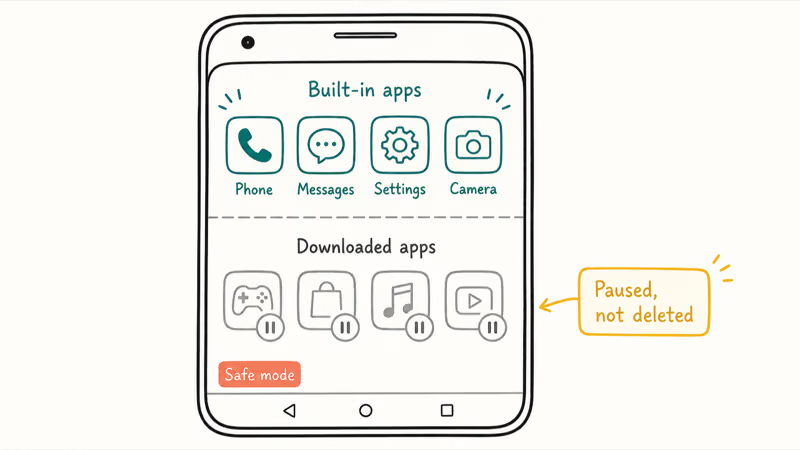
That isolation is the whole point. Normal in Safe Mode but broken otherwise? A downloaded app is the cause.
According to Google’s Safe Mode guide, this lets you “find problem apps by rebooting to safe mode,” which is the fastest way to separate an app bug from a deeper fault. Crucially, nothing gets deleted, so it’s a completely safe test to run.
#How Do You Turn On Safe Mode?
The exact buttons vary by phone, but the idea is the same on every Android. You trigger a restart and tell the phone to boot into Safe Mode instead of normal mode.
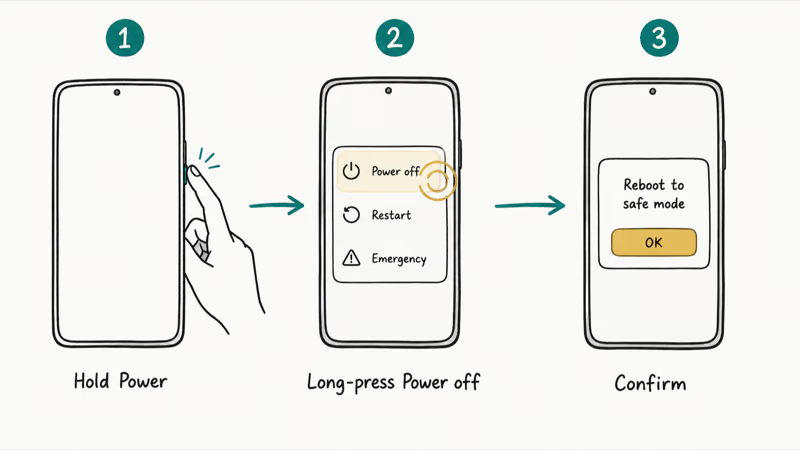
On most phones, press and hold the power button, then touch and hold the Power off option until a “Reboot to safe mode” prompt appears, and confirm. Google states that on older Pixels you hold the power button for about 30 seconds, while newer Pixels use the power and volume-up buttons together, then Restart.
You’ll know it worked because “Safe mode” appears in a corner, usually the bottom. One quirk: airplane mode switches on automatically, so toggle it back off if you need Wi-Fi.
#Using Safe Mode to Find a Problem App
This is where Safe Mode earns its keep. Once you’re in, use your phone exactly as you normally would, run the apps you suspect, and watch closely to see whether the crash, freeze, or drain you were chasing still happens or quietly disappears.
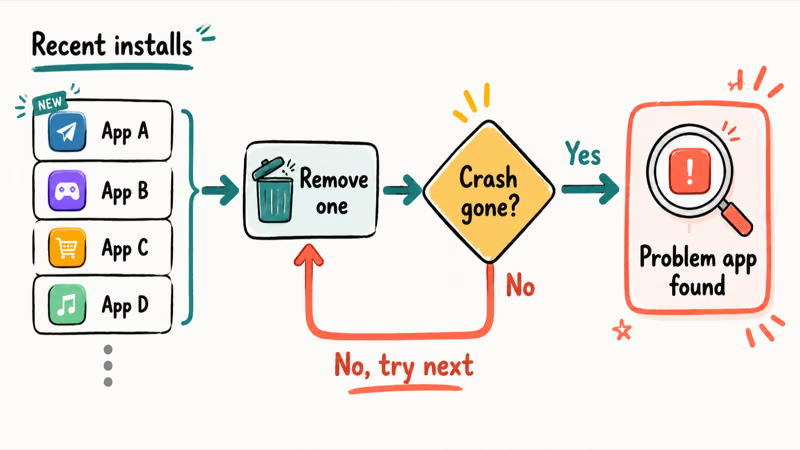
If the crashing stops, a downloaded app is confirmed as the cause. Restart normally, then remove your most recent installs one at a time, checking after each until the problem is gone for good and you’ve pinned down the exact app responsible. If a phone keeps restarting even in Safe Mode, that points to a deeper issue.
Once you uninstall the bad app, reinstall the rest. The approach is tedious but reliable, and it beats wiping the phone. It also works for odd symptoms like Bluetooth not working on Android or missed Android notifications when an app interferes.
#How to Turn Off Safe Mode
Leaving Safe Mode is the easy part. A simple, normal restart almost always does it.
Press and hold the power button, then tap Restart and let the phone boot up as usual. When it comes back, the “Safe mode” label should be gone and your downloaded apps will be back to normal.
If the label keeps reappearing after a restart, something is forcing it on. The next section covers that.
#Why Did My Phone Boot Into Safe Mode by Itself?
An unexpected Safe Mode is almost always a stuck button. A jammed power or volume key, often caused by a tight case, makes the phone think you’re requesting Safe Mode every time it starts.
Start by removing your case and pressing each physical button a few times to free anything sticking. Then restart. If a swollen or worn button is the issue, freeing it usually stops the loop.
Occasionally a badly behaved app forces the boot instead. If cleaning the buttons doesn’t help, the same uninstall-one-at-a-time approach from above applies, since a corrupt app can repeatedly crash the phone into its safe state. A failing battery that causes erratic power signals can do it too, much like an Android that won’t charge reliably.
#Safe Mode on Samsung and Other Brands
Button combinations differ across manufacturers, which trips people up. A Galaxy uses a different sequence than a Pixel.
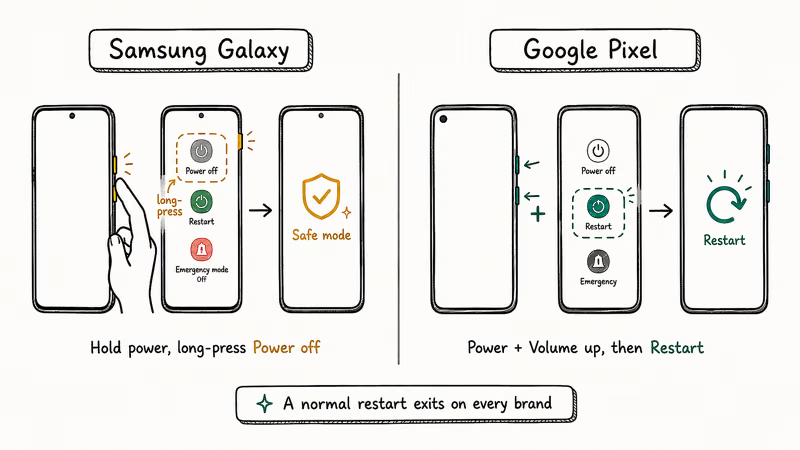
On a Galaxy, you typically hold the power button, then long-press the Power off icon until “Safe mode” appears, and tap it. According to Samsung’s guide to powering on in Safe mode, the Galaxy method centers on that long-press, while Google’s Pixel Safe Mode help covers Google’s own phones. Pixel instructions vary by model, so follow Google’s documented button sequence for that device.
A normal restart exits Safe Mode on every brand. If a stubborn app was draining power, Android’s battery saver mode buys you time while you sort it out.
#Bottom Line
Safe Mode is the single most useful diagnostic tool on Android, and it costs nothing but a reboot. If the trouble vanishes in Safe Mode, a downloaded app is to blame, so remove your recent installs one by one.
Remember that Safe Mode never deletes anything, so it’s completely risk-free to try whenever you’re stuck. And if your phone keeps booting into Safe Mode on its own without you asking, suspect a stuck button or a tight case first, because a jammed key is the cause far more often than any real fault.
#Frequently Asked Questions
What does Safe Mode do on Android?
It boots your phone using only pre-installed apps, disabling everything you downloaded. If the problem stops, a downloaded app is the cause.
How do I get my Android into Safe Mode?
Press and hold the power button, then touch and hold the Power off option until a “Reboot to safe mode” prompt appears, and confirm. The exact steps vary by phone, so some models use a power and volume-button combination instead, but you’ll always see “Safe mode” appear in a corner of the screen once it works correctly.
Will Safe Mode delete my apps or data?
No. Safe Mode only pauses your downloaded apps temporarily; it never removes them or touches your data. Everything reappears the moment you restart.
How do I turn off Safe Mode?
Restart your phone normally. Press and hold the power button, tap Restart, and let it boot back up. The “Safe mode” label disappears and your apps return. If it keeps coming back, a stuck button is usually forcing it.
Why does my phone keep starting in Safe Mode?
Most often a stuck power or volume button, frequently caused by a tight case. Remove the case, press each button a few times, then restart.
Can Safe Mode fix a virus or hardware problem?
Not directly. Safe Mode helps you identify whether a downloaded app is the problem, and you then remove that app yourself in normal mode. It won’t repair hardware, but if the trouble persists even in Safe Mode with all third-party apps disabled, that strongly suggests a hardware or system fault rather than an app.

Pixel 11 vs Pixel 10: What Changed and Who Should Upgrade
Pixel 11 vs Pixel 10: same screen and camera resolution, new Tensor G6, 25W wireless, and Gemini Intelligence. Here is who should actually upgrade.

Verizon Not Receiving Texts? How to Fix It in 9 Steps
Verizon not receiving texts? Fix it in 9 steps: check Message Blocking in My Verizon, reset network settings, deregister iMessage, and call support.

Pixel Battery Drain: What Google's July Fix Really Covers
Google marked the Pixel idle battery drain bug fixed in July, but only some phones got the patch. Here is who is covered, who is not, and what to try.

iPhone Stuck on EDGE? How to Get 5G or LTE Back (2026)
iPhone stuck on EDGE with crawling data? Here's why the E icon appears, which settings force 5G or LTE back, and when the problem is your carrier.