AllCast for PC on Windows: 3 Methods That Work in 2026
No native AllCast for PC on Windows exists, but BlueStacks and a few smart alternatives still cover the same casting jobs. Here is what works in 2026.
Quick AnswerAllCast has no native Windows installer. The cleanest path is to run the Android app inside BlueStacks, or replace it with a web-based caster like LocalCast or Chrome tab casting on PC.
AllCast for PC on Windows isn’t a product you can download from a vendor page. Koushik Dutta, the developer who created AllCast, only ships the app on Android, and the old AllCast Chrome receiver was retired years ago.
What still works is running the Android version inside an emulator, or switching to a Windows-friendly caster that does the same job. The emulator route can still install the Android app through the Play Store, while native alternatives avoid the overhead of booting Android inside Windows.
- No native AllCast for PC exists in 2026; Koushik Dutta ships AllCast on Android only, and the AllCast Chrome receiver was discontinued
- BlueStacks 10 can install the AllCast APK from the Play Store, but it adds emulator overhead before you can cast
- The free AllCast version caps each photo or video session at 5 minutes; a one-time premium upgrade removes that ceiling
- LocalCast in BlueStacks, Chrome tab casting, and Windows Miracast cover most AllCast use cases without an emulator
- The PC, the emulator, and the receiver must all share the same Wi-Fi subnet for AllCast to discover the TV
#What Is AllCast and Why Use It on PC?
AllCast is a media casting app for Android phones and tablets. It scans your local network for compatible receivers and streams photos, videos, music, and even files saved in Google Drive or Dropbox directly to those screens.
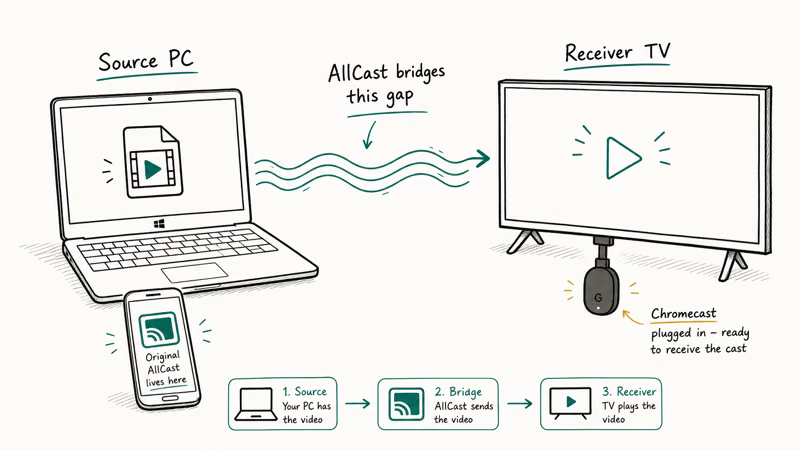
Supported receivers include Chromecast, Apple TV, Roku, Fire TV, Xbox, and most smart TVs from Sony, Samsung, LG, and Panasonic. AllCast can still be useful when its current store listing is available, but don’t rely on old Google Play pricing or session-limit details.
People want AllCast on PC for one of two reasons. The first is convenience: you already have media on a Windows laptop and want to push it to the living-room TV without bouncing through a phone first. The second is troubleshooting: an Android phone’s AllCast install keeps crashing, so users hope a Windows port will be more stable. Neither reason changes the fundamental answer, which is that the app doesn’t exist on Windows in any form Koushik Dutta supports.
If you want a tour of cleaner casting options before going down the emulator road, the Best Screen Mirroring Apps for Android and iPhone round-up covers the modern alternatives.
#Is There an Official AllCast for PC on Windows?
Short answer: no. There’s no Windows installer, no UWP build in the Microsoft Store, and no AllCast desktop client on Koushik Dutta’s GitHub. The AllCast Chrome receiver app, which used to turn a Chrome window into a Cast target, was pulled when Google retired Chrome apps in 2022. Anything labeled “AllCast for PC” outside the Play Store is repackaged emulator bundles or unrelated software piggybacking on the brand.
The three workable paths in 2026 are:
| Method | What you install | Best for | Startup feel |
|---|---|---|---|
| Android emulator | BlueStacks 10 plus AllCast APK | Users who specifically want the AllCast UI on a PC | Slowest |
| Web-based caster | LocalCast in Chrome or Edge | Quick casts of local video files and YouTube links | Faster |
| Native Windows cast | Built-in Miracast or Chrome tab casting | Mirroring a Windows screen or browser tab to the TV | Fastest |
Caption: Comparison of the three practical ways to get AllCast-style casting on a Windows PC, using installation complexity and startup friction rather than precise timing claims.
#How to Install AllCast on Windows With BlueStacks
This is the method most readers searched for, so it gets the full walkthrough. The flow is install emulator, sign in to Google, install the AllCast app, and pair with a receiver.
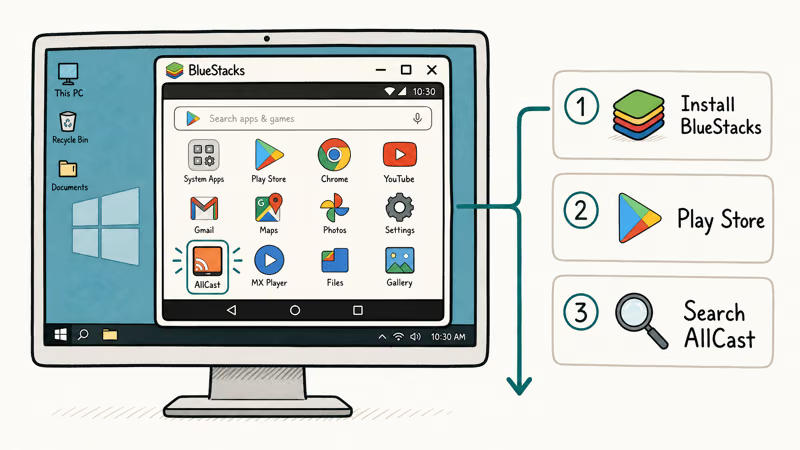
- Visit the BlueStacks download page and grab the latest BlueStacks 10 installer. The installer is about 700 MB and pulls a larger Android image on first run.
- Run the installer with default options. BlueStacks states that the emulator requires Windows 7 SP1 or later, 4 GB of RAM minimum (8 GB recommended), and 5 GB of free disk space.
- Launch BlueStacks, accept the EULA, and sign in to your Google account through the bundled Play Store. This is the same account that owns any AllCast premium purchase you’ve already made on a phone.
- Search the Play Store inside BlueStacks for “AllCast” by ClockworkMod, then install it. The download is small (under 30 MB).
- Connect the Windows PC to the same Wi-Fi network as the receiver. If your router separates the 2.4 GHz and 5 GHz bands into different subnets, pick the band your TV is on.
- Open AllCast, pick a receiver from the list, choose a media file, and cast.
BlueStacks can run AllCast through the bundled Play Store when Google sign-in and virtualization are working. First launch may be slow because the emulator has to start Android before AllCast opens.
One real downside: BlueStacks demands hardware virtualization (Intel VT-x or AMD-V) enabled in BIOS. Older office laptops sometimes ship with this turned off. If BlueStacks reports a virtualization warning, the JioTV emulator guide walks through the BIOS toggle since the requirement is identical. Skip this fix and BlueStacks falls back to a software image that stutters every AllCast video.
#Installing AllCast via APK Inside BlueStacks
When the Play Store is blocked, sideload instead: drag an AllCast APK from APKMirror onto the BlueStacks window. Sideloaded APKs won’t auto-update.
Sideloading is the only route when the Play Store stays out of reach. Some users also prefer it because the older AllCast 3.x interface groups receivers by type rather than by signal strength. Skipping the Play Store isn’t recommended unless you have to: official store downloads are signature-verified by Google before they land on disk.
#Top Windows Alternatives to AllCast
Honestly, in 2026 most people don’t need AllCast on Windows at all. The casting features it provides are now bundled into Chrome, Edge, and Windows itself. These options work without an emulator and start in seconds.
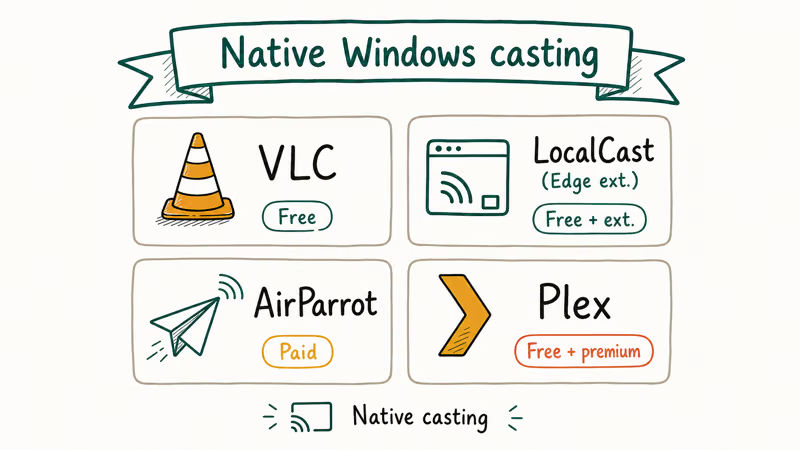
LocalCast for Chrome and Edge. LocalCast is a browser-based caster that talks to Chromecast, Roku, Fire TV, and DLNA devices the same way AllCast does on Android. It doesn’t need an emulator and runs as a normal browser tab.
Chrome tab casting. Open Chrome, click the three-dot menu, and pick Cast. Google recommends Chrome’s built-in Cast feature for casting browser tabs, the entire desktop, or local media files dragged into a Chrome window. This is the simplest option when the content already plays in Chrome.
Windows 11 Miracast. Press Windows + K to open the Cast panel built into Windows 11. Miracast mirrors the entire desktop to any Miracast-certified TV or Roku Streambar. Microsoft confirms that built-in Miracast support depends on the wireless display driver shipped by your laptop OEM in its Windows support article, so check Device Manager if Windows + K does nothing. For Windows 7 holdouts, the Miracast on Windows 7 workarounds guide covers the third-party path.
When the PC and TV sit on separate networks, neither AllCast nor LocalCast will see the receiver. The screen mirroring without Wi-Fi guide covers HDMI, Wi-Fi Direct, and Bluetooth fallbacks for that case.
Still shopping for a receiver? The Chromecast alternatives round-up compares price and ecosystem.
If your end goal is Plex playback specifically, AllCast is overkill. Plex has an official client on every major TV platform, including Roku, Apple TV, Fire TV, Chromecast, and most Samsung and LG smart TVs from 2018 forward. The Plex on Roku setup guide walks through linking the server, signing in, and tuning hardware acceleration so video transcodes don’t choke the Roku’s CPU.
#AllCast Compatibility With TVs and Receivers
AllCast claims compatibility with Chromecast, Apple TV (third generation and later), Roku, Fire TV, Xbox 360 and Xbox One, plus smart TVs from Sony, Panasonic, Samsung, and LG that advertise DLNA support.
In practice, Chromecast and Roku are usually the most straightforward receivers. Apple TV requires the user to be running a paid AllCast Premium key, since AirPlay output is gated behind the upgrade. Xbox receivers can work, but console sleep states and network discovery can interrupt longer playlists.
One quick gotcha for legacy TVs: older Sony Bravia and Panasonic Viera sets need DLNA explicitly enabled in their network menu.
#Permissions AllCast Asks For
When AllCast runs (whether on phone or inside BlueStacks), it asks for a fairly long permissions list. Granting them is required for casting to work end-to-end. Here’s the practical breakdown:
| Permission | Why AllCast asks | Risk if denied |
|---|---|---|
| Network Connection Status | Detects Wi-Fi vs cellular for cast eligibility | Receivers won’t appear in the list |
| Change Network State | Multicast discovery on the local subnet | Chromecast and Roku discovery fails |
| Read and Write Storage | Reads local photo and video files | Can’t cast files from BlueStacks storage |
| User Credentials | Authenticates Google Drive and Dropbox | Cloud sources stay grayed out |
| Wake Lock | Prevents Android from sleeping mid-cast | Streams drop after about 30 seconds |
| Read Phone State | Validates the premium license token | App stays on the free tier |
Caption: AllCast permissions commonly requested when the Android app runs inside BlueStacks.
Skip the Wake Lock permission and streams can drop when Android sleeps. Skip Read Phone State and your paid premium key may not validate inside the emulator. Both matter in practice.
#Bottom Line
If you want to keep using the actual AllCast UI on Windows, install BlueStacks 10, add AllCast through the Play Store, and cast over the same Wi-Fi as your receiver. Expect extra startup time and disk use because the emulator has to boot Android first.
If you just need the casting outcome, skip AllCast entirely. LocalCast in Chrome or Edge, Chrome tab casting, or Windows 11 Miracast avoid the emulator overhead.
Reserve the BlueStacks route for the specific case where you’ve already paid for AllCast Premium on Android and want to reuse the license on a desktop. For everyone else in 2026, LocalCast is the faster, lighter pick.
#Frequently Asked Questions
Can I cast from AllCast inside BlueStacks to multiple TVs at once?
No. AllCast is a one-receiver-at-a-time app on Android, and the emulator inherits the same limit. If you need a single source playing to two TVs together, look at multi-room casting features inside Google Home or Roku’s media player, which support speaker groups but don’t handle full video mirroring.
Is AllCast safe to install through the Play Store inside BlueStacks?
Yes, as long as you install through the bundled Play Store rather than a random APK mirror. Play Protect scans the package the same way it would on a phone, and Koushik Dutta has shipped AllCast under the ClockworkMod publisher account since 2013. Sideloaded APKs from third-party sites are riskier and can carry repackaged adware.
Does AllCast for PC work with DRM-protected content like Netflix or Disney Plus?
Not officially. Streaming services use Widevine or PlayReady protection that strips when content is rerouted through a generic caster. Netflix, Disney Plus, Hulu, Apple TV Plus, and Max detect AllCast as an unauthorized output and refuse playback, usually showing a black screen on the receiver. Use the service’s own Cast button inside Chrome instead, which honors the DRM handshake by passing the encrypted stream straight to the receiver firmware.
Will my AllCast Premium purchase carry over from Android to BlueStacks?
Yes, if you sign BlueStacks into the same Google account that bought the upgrade. The premium license is tied to the Play account, not the device, so it activates automatically the first time AllCast launches in the emulator. You won’t need to buy it twice.
Why does AllCast inside BlueStacks not find my Chromecast?
Almost always a network issue. BlueStacks routes traffic through a virtual network adapter, and some Windows firewalls block the multicast packets AllCast uses for discovery. Check that the BlueStacks adapter is allowed through Windows Defender Firewall, and confirm both the PC and the Chromecast are on the same Wi-Fi band (some routers split 2.4 GHz and 5 GHz into separate subnets).
Is there a lighter alternative to BlueStacks for running just one Android app?
Yes. Google Play Games on PC is a free Microsoft-signed Android runtime aimed at gamers, but it accepts most apps that pass its sideload check. The footprint is smaller than BlueStacks and it can be a lighter option for a single Android app.
Can I cast files from a Windows-only drive to my TV without copying them first?
Yes. Both LocalCast and Chrome tab casting read files directly from a local Windows path, including network shares. Drag the file onto the LocalCast tab or open it in Chrome, then trigger Cast. AllCast inside BlueStacks can only read what the emulator’s Android storage sees, so you’d have to copy the file into the BlueStacks shared folder first.

Google Messages Error 3100: Why RCS Is Broken on Galaxy
Google Messages RCS error 3100 hits Galaxy owners after phone or carrier switches. Google told 9to5Google a fix is coming. Here's what actually helps.

Is This Bank App Real? Spot a Fake App on Your Home Screen
A bank app can land on your home screen from a web page with no install warning. Learn the checks that tell a real banking app from a phishing web app.

Apps Crashing After iOS 27 Update? Fix Order (2026)
Apps crashing after the iOS 27 update? Update the app in the App Store first, then offload and reinstall to clear stale cache, then restart. The fix order.

Do AI Translation Earbuds Work Offline? What to Know
Do AI translation earbuds work offline? A few do with downloaded language packs, but most need the cloud. Here's what works offline and what you give up.