How to Connect Alexa to Wi-Fi: Setup Guide and 8 Fixes
Connect Alexa to Wi-Fi through the Alexa app in 8 steps, then fix common errors like wrong band, weak signal, or stuck setup. Works for every Echo model.
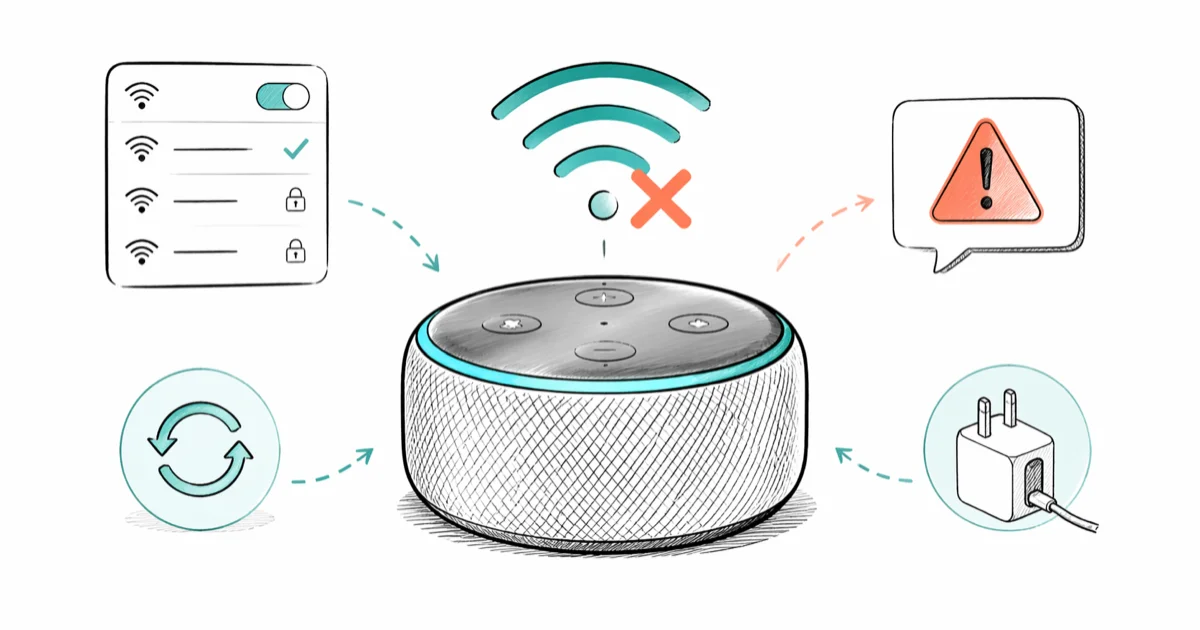
Quick AnswerOpen the Alexa app, tap Devices, then the plus icon, choose Add Device, pick your Echo model, and follow the prompts. When the light ring turns orange, select your 2.4 GHz Wi-Fi network and enter the password. Setup finishes in under three minutes for most users.
Learning how to connect Alexa to Wi-Fi is the first thing you do after unboxing an Echo, and it usually takes less than three minutes when everything cooperates. The hard part is what happens when it doesn’t: the orange light never appears, the network list shows your router but the password gets rejected, or the app freezes at “preparing your Echo.”
This guide walks through the standard setup and then runs through eight common fixes for Wi-Fi failures, including the 2.4 GHz band mismatch that catches almost everyone with a new mesh router.
- Echo speakers run setup over 2.4 GHz Wi-Fi; some newer models also support 5 GHz, but the initial pairing always uses 2.4 GHz.
- The Action button on top of an Echo Dot must be held for 20-25 seconds to force the orange light ring that signals setup mode.
- Echo speakers don’t support enterprise, captive-portal, or peer-to-peer Wi-Fi, which is why hotel and dorm networks often fail.
- A single 2.4 GHz channel can carry an Echo plus dozens of other smart-home devices, so the issue isn’t usually “too many gadgets” but a band or password mismatch.
- After eight fixes, contacting Amazon support is the next step; replacement Echo units are commonly issued for hardware-level Wi-Fi failure.
#How Do You Connect Alexa to Wi-Fi for the First Time?
The Alexa app is the only sanctioned way to put a stock Echo on your home Wi-Fi. You’ll need an Amazon account, a phone or tablet with the app installed, and the Wi-Fi password handy before you start.
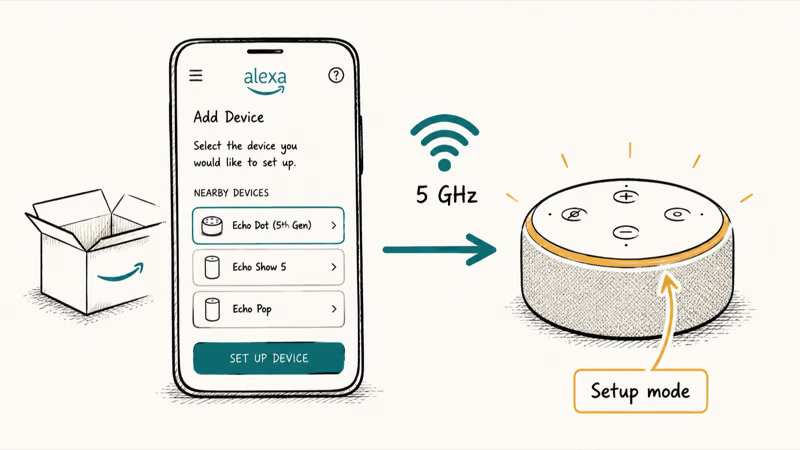
- Install the Amazon Alexa app from the App Store (iOS) or Google Play (Android), then sign in with the Amazon account you want tied to the speaker.
- Plug the Echo into a wall outlet and wait for the light ring to cycle blue and then orange. If it doesn’t go orange on its own, press and hold the Action button on top of the device for about 25 seconds.
- In the Alexa app, tap Devices at the bottom right, then the + icon, then Add Device.
- Choose Amazon Echo, then pick your specific model from the list (Echo Dot, Echo Show, Echo Studio, Echo Pop, and so on).
- Tap Continue once the app confirms the device is in setup mode. The app will try to detect a nearby Echo broadcasting its setup network; on iOS you may be prompted to leave the app and join the temporary “Amazon-XXX” network in iOS Settings.
- After the phone connects to the Echo, return to the Alexa app. The app loads a list of available home Wi-Fi networks pulled from the Echo’s radio.
- Pick your home network, enter the password, and tap Connect. The Echo will join the network and a progress bar appears.
- When you hear Alexa’s voice say “Your Echo is ready,” setup is done. The light ring goes off and you can ask your first question.
For Echo Dot owners who can’t get the orange light to appear, the timing trick is documented in our walkthrough on how to put Echo Dot in setup mode for every generation.
According to Amazon’s support documentation, Echo devices need a Wi-Fi network on the 2.4 GHz or 5 GHz band and won’t connect to enterprise, ad-hoc, or peer-to-peer networks. If your office uses 802.1X authentication, the speaker can’t pair without a travel router. The full Wi-Fi 4/5/6 spec background lives on Wikipedia’s IEEE 802.11 page if you want to dig into why band steering matters here.
#How to Switch Your Echo to a New Wi-Fi Network
If the Echo is already paired to an old network (say you’ve moved, changed ISPs, or rotated your Wi-Fi password), you change the network from inside the app rather than re-running first-time setup.
- Open the Alexa app and tap Devices at the bottom.
- Tap Echo & Alexa, then the specific device whose network you want to change.
- Scroll to the Wireless section and tap Wi-Fi Network, then Change.
- The app puts the Echo back into setup mode. Follow the prompts from step 5 in the first-time setup above.
- Enter the new SSID and password when prompted.
If the Change option is grayed out, the Echo has lost contact with the old router and you’ll need to manually trigger setup mode with the Action button.
#Why Won’t Alexa Connect to Wi-Fi?
Most Alexa Wi-Fi failures fall into one of four buckets: wrong band, wrong password, weak signal, or unsupported network type. The light ring tells you which.
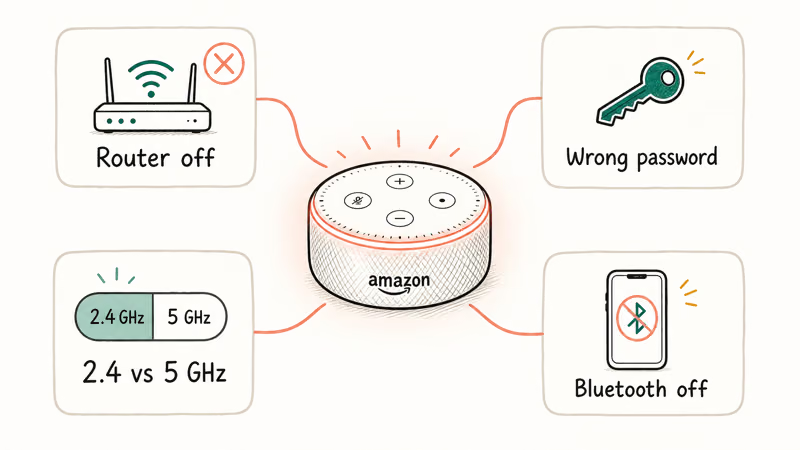
- Solid red ring: the microphone is muted. The Echo is on Wi-Fi fine but won’t respond to your voice. See our guide on the Alexa red ring if this is your symptom.
- Spinning orange ring: the Echo is in setup mode but can’t reach a network. This is a setup-side issue.
- Pulsing purple ring: the Echo joined Wi-Fi but can’t reach Amazon’s servers. Restart the router first.
- No ring at all after plugging in: power supply issue, not a network problem. Try a different outlet and cable.
Amazon’s troubleshooting guide states that pressing the Action button for 20 to 25 seconds resets an Echo Dot to its initial setup state, and that the device must be in setup mode before the Alexa app can find it.
If the setup mode works but the network list never loads, the problem is usually one of the eight issues below.
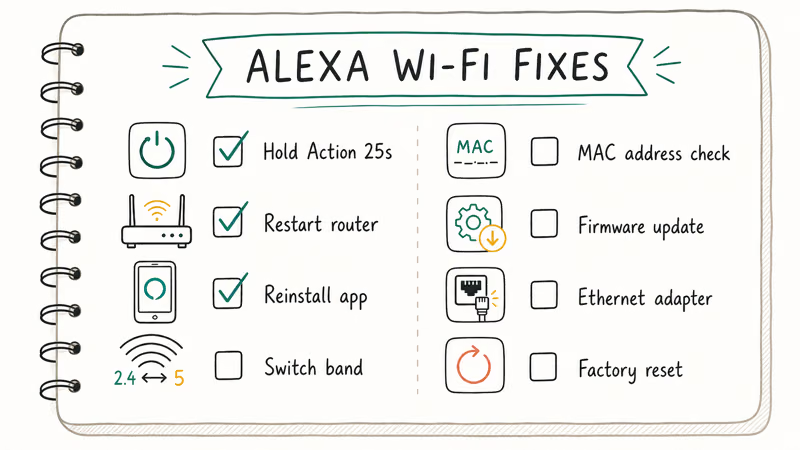
#8 Fixes for Alexa Not Connecting to Wi-Fi
These are ordered from fastest to most disruptive. Stop as soon as the Echo connects.
#1. Switch the Phone to 2.4 GHz Before Setup
Modern routers broadcast both 2.4 GHz and 5 GHz on the same SSID (band steering). During Echo setup, your phone often sits on 5 GHz while the Echo’s temporary setup network is 2.4 GHz only, so the handoff can fail. Manually joining the 2.4 GHz SSID on the phone before opening the Alexa app gives the setup process the cleanest path.
If your router has split SSIDs (like MyHome and MyHome-5G), pick the 2.4 GHz one. If both bands share one name, log into the router admin page and temporarily disable 5 GHz, then re-enable it after Echo setup is done.
#2. Verify the Wi-Fi Password Character by Character
Echo speakers don’t always show a clear “wrong password” error; they may show a generic “could not connect” message for password typos or signal-strength problems. Type the password into a phone’s notes app first, verify it, then paste or retype it carefully into the Alexa app. Watch for O (letter) vs 0 (zero) and l (lowercase L) vs 1 (one).
#3. Restart Both the Router and the Echo
Unplug the Echo for 30 seconds. While it’s unplugged, unplug the router for 60 seconds. Plug the router back in first, wait two minutes for it to fully boot, then plug the Echo in. This sequence (router first, Echo second) prevents the Echo from cached-binding to a stale DHCP lease.
#4. Move the Echo Closer to the Router
Echo speakers use the same 2.4 GHz spectrum as cordless phones, microwaves, baby monitors, and most Zigbee hubs. Concrete walls, refrigerators, and metal cabinets attenuate the signal hard. The Wi-Fi Alliance states that 2.4 GHz signals propagate further than 5 GHz but are also more crowded with non-Wi-Fi interference. Move the Echo within 15 feet of the router and re-run setup; if that works, the original location was simply too far.
#5. Forget the Old Network in the Alexa App
If the Echo previously connected to a different Wi-Fi (a guest network, an old ISP) and you’ve since changed routers, the speaker can hang trying to rejoin the old one. In the Alexa app go to Devices > Echo & Alexa > [your device] > Wi-Fi Network > Change and walk through setup with the new SSID. If the app refuses to forget, factory-reset the Echo (fix 8 below).
#6. Check the Alexa App Itself
Sometimes the Echo is fine and the app is the broken piece. If the app shows “Looking for your Echo” forever, force-close and reopen it. If that fails, see our walkthrough on Alexa app stuck on setup for phone-side fixes including clearing cache and switching off mobile data during setup.
#7. Disable VPN, Firewall, and Mobile Data on the Phone
A VPN on the phone breaks the local handshake between the Alexa app and the Echo’s temporary setup network. Turn off any VPN apps before running setup. Mobile data is the second culprit: when the phone briefly leaves Wi-Fi to join the Echo’s setup SSID, Android in particular often falls back to LTE for the Alexa app’s API calls, which then fail because the local handshake never completes. Turn off mobile data for the duration of setup.
If the router has client isolation or AP isolation enabled (common on guest networks), the Echo connects to Wi-Fi but can’t talk to the phone, so the app never sees it. Either disable isolation in the router admin page or move the Echo to your main network instead of the guest network.
#8. Factory Reset the Echo
This is the last resort for a stuck Echo speaker.
- Echo Dot 4th and 5th gen: hold the Action button for 25 seconds until the light ring turns orange, then blue, then off. Release. The device powers off; on power-on it enters setup mode.
- Echo Dot 3rd gen: same procedure as 4th gen.
- Echo Dot 2nd gen: press and hold Volume Down + Microphone Off at the same time for 20 seconds until the ring turns orange.
- Echo Dot 1st gen: use a paperclip to press the reset pinhole on the bottom until the ring goes orange.
- Echo Show: swipe down on the screen, tap
Settings>Device Options>Resetto Factory Defaults.
After the reset, the Echo broadcasts a fresh setup network. Run the Alexa app setup from step 1 of this guide.
Amazon’s official support page recommends a factory reset to resolve persistent connectivity problems before contacting customer support, and confirms that resetting doesn’t unlink the device from your Amazon account (you’ll see it as offline in the app until you re-pair it).
#Wi-Fi Standards Each Echo Model Supports
The exact Wi-Fi standards Alexa supports depend on the Echo model. Older Echo Dots from 2017-2019 are 2.4 GHz only (Wi-Fi 4). Newer models including the Echo Dot 5th gen, Echo Studio, Echo Show 10, and Echo Pop all support dual-band 2.4 / 5 GHz Wi-Fi 5. The Echo Hub adds Wi-Fi 6 support.
| Echo model | Wi-Fi standard | Bands |
|---|---|---|
| Echo Dot 1st-3rd gen | Wi-Fi 4 (802.11n) | 2.4 GHz only |
| Echo Dot 4th-5th gen | Wi-Fi 5 (802.11ac) | 2.4 / 5 GHz |
| Echo Studio | Wi-Fi 5 (802.11ac) | 2.4 / 5 GHz |
| Echo Show 5, 8, 10 | Wi-Fi 5 (802.11ac) | 2.4 / 5 GHz |
| Echo Pop | Wi-Fi 5 (802.11ac) | 2.4 / 5 GHz |
| Echo Hub | Wi-Fi 6 (802.11ax) | 2.4 / 5 GHz |
Table: Wi-Fi standards by Echo model based on Amazon’s product specifications.
Even on dual-band models, the initial setup handshake happens on 2.4 GHz. Once paired, the speaker is free to roam to 5 GHz if the network supports it. This is the same reason many smart-home devices (smart plugs, video doorbells, robot vacuums) trip up on modern mesh routers: the setup phase needs 2.4 GHz exposed and reachable.
If you suspect router-level issues rather than Echo-side ones, our guide on Verizon router blinking white covers the ISP-router failure modes that block every device on the LAN, not just your Echo. For phones that won’t even see the network, see iPhone Wi-Fi not working on the iOS side.
#Common Mistakes That Block Echo Setup
A few patterns trip up new Echo owners again and again, and almost every one of them looks like a hardware bug at first glance.
- Skipping the 25-second button hold: tapping the Action button briefly puts the Echo into Wake mode, not setup mode. The light ring must turn solid orange, not just blink blue.
- Trying setup over a guest Wi-Fi: most consumer routers ship with guest networks that isolate clients, so the Echo joins but never sees your phone.
- Using a phone in low-power mode: iOS in particular suspends background networking on low-power mode, which kills the Alexa app’s discovery scan halfway through.
- Special characters in the password: ampersands, hash signs, and Unicode characters trip up older Echo firmware. Re-key the password to alphanumeric for setup, then revert.
- Hidden SSID: Echo speakers can’t see hidden SSIDs during setup. Un-hide the network during pairing.
#Bottom Line
For most stuck Alexa setups, the fix is forcing your phone onto the 2.4 GHz SSID before opening the Alexa app and holding the Action button for the full 25 seconds. If that doesn’t work, the rest of the failures are almost always router policies (band steering, AP isolation, captive portal) rather than hardware faults.
Reach for a factory reset only after you’ve verified the network itself is healthy from another device. Call Amazon support if your Echo still won’t pair after a clean reset on a known-working 2.4 GHz network; speakers under warranty are replaced quickly for genuine Wi-Fi-radio failures, which are rare but real. If your Echo joins the network but then refuses to play audio, the issue is service-side, not Wi-Fi; see our walkthrough on Alexa won’t play music.
#Frequently Asked Questions
Can Alexa work without Wi-Fi at all?
No. Echo speakers depend on Amazon’s cloud servers to interpret voice commands, so they need an active internet connection to do anything beyond bluetooth speaker mode. A few features (bluetooth audio playback, alarms set in advance) keep working briefly during a Wi-Fi outage, but voice control stops the moment the connection drops.
What Wi-Fi password requirements does Alexa have?
Alexa supports WPA2 and WPA3 personal networks. It does not support WPA-Enterprise, captive-portal networks (most hotel and airport Wi-Fi), or networks with special characters that some older Echo firmware can’t parse. If your password contains symbols like & or # and setup fails, change the password temporarily to alphanumeric-only and try again.
Why does the Alexa app keep saying “Looking for your Echo”?
The app can’t find the temporary setup SSID broadcast by your Echo. The two most common reasons are that the phone is connected to mobile data instead of Wi-Fi during the handshake, and that the Echo never entered setup mode (the light ring should be solid orange). Turn off mobile data, force the orange ring with a 25-second button hold, and reopen the app.
How long should an Echo stay in setup mode?
About 10 minutes. If you don’t complete setup within that window, the Echo drops out of setup mode and you’ll need to hold the Action button again for another 25 seconds. This timeout is intentional to keep the temporary setup network from staying open indefinitely.
Can I connect Alexa to a hotspot from my phone?
Yes, and it’s a common workaround when home Wi-Fi is down. Enable the hotspot on the phone you are not using for the Alexa app (you need two phones: one as hotspot, one running Alexa), join the Echo to the hotspot SSID through the Alexa app on the second phone, and you’re online. Trying to run setup from the same phone that hosts the hotspot fails because the Echo and the Alexa app can’t share one radio cleanly.
What should I do if the Echo connects to Wi-Fi but doesn’t respond to voice?
That’s a separate problem from Wi-Fi setup. Once the Echo is online, voice issues come down to muted microphones, software bugs, or server outages. Our guide on Alexa not responding covers the seven fixes that work, from unmuting the microphone to a clean device restart.
Does Alexa work on 5 GHz Wi-Fi?
Echo Dot 4th gen and newer support 5 GHz, but the initial pairing always happens over 2.4 GHz. Once paired, the speaker can use 5 GHz for normal operation. Older Echo Dots (1st through 3rd gen) are 2.4 GHz only and won’t see 5 GHz networks at all, which is why a brand-new mesh router with a hidden 2.4 GHz band often breaks legacy Echo speakers.
Why does my Echo keep disconnecting from Wi-Fi after setup?
Repeated drops usually point to weak signal at the Echo’s location, router-side band-steering that’s bouncing the speaker between 2.4 and 5 GHz, or a DHCP lease conflict. Move the Echo closer to the router as a first test. If signal is fine, log into the router admin page and assign a static DHCP reservation for the Echo’s MAC address so it doesn’t keep renegotiating an IP.

Pixel 11 vs Pixel 10: What Changed and Who Should Upgrade
Pixel 11 vs Pixel 10: same screen and camera resolution, new Tensor G6, 25W wireless, and Gemini Intelligence. Here is who should actually upgrade.

Verizon Not Receiving Texts? How to Fix It in 9 Steps
Verizon not receiving texts? Fix it in 9 steps: check Message Blocking in My Verizon, reset network settings, deregister iMessage, and call support.

Pixel Battery Drain: What Google's July Fix Really Covers
Google marked the Pixel idle battery drain bug fixed in July, but only some phones got the patch. Here is who is covered, who is not, and what to try.

iPhone Stuck on EDGE? How to Get 5G or LTE Back (2026)
iPhone stuck on EDGE with crawling data? Here's why the E icon appears, which settings force 5G or LTE back, and when the problem is your carrier.