Alexa Won't Play Music? 7 Proven Fixes for Your Echo
Fix Alexa not playing music with 7 proven methods. Covers Wi-Fi troubleshooting, music service re-linking, default service changes, and Echo resets.
Quick AnswerRestart your Echo by unplugging it for 30 seconds, then check your Wi-Fi connection and re-link your music service in the Alexa app under Settings > Music & Podcasts.
Your Echo stopped playing music and all you get is a blue ring spinning in silence. These fixes work across Echo Dot and Echo Show models, and a plain restart clears the problem most of the time.
- Unplugging your Echo for 30 seconds clears temporary glitches that block playback
- Wi-Fi congestion from 10+ connected devices is the second most common cause
- Re-linking a music service skill fixes silent playback and “music not available” errors
- Changing the default service prevents Alexa from pulling songs from the wrong platform
- A factory reset erases all routines and connections, so only use it as a last resort
#Why Won’t Your Alexa Play Music?
Alexa relies on three things to stream audio: a stable Wi-Fi connection, a linked music service, and up-to-date device software. When any one of those breaks, your Echo sits there doing nothing.
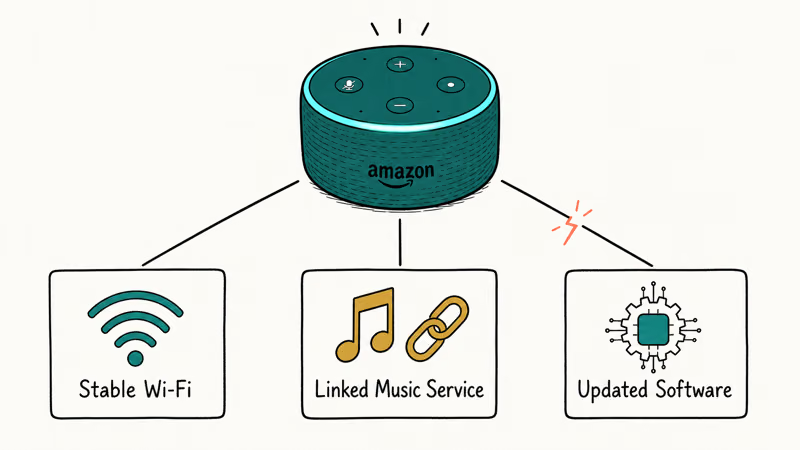
Wi-Fi dropouts top the list. Your Echo loses internet for a couple of seconds, the stream dies, and it never recovers on its own. This happens most often when a router is juggling a dozen or more devices at once. Amazon’s support team states that 3 connectivity checks, device online status, Wi-Fi signal, and router reachability, resolve most cases; see Amazon’s troubleshooting guide for details.
A broken music service link is the next most likely cause. Spotify, Apple Music, and Amazon Music all require active skill connections inside the Alexa app. Those links break whenever you change your password, let a subscription lapse, or update the streaming app on your phone.
Other triggers worth checking: an expired Amazon account, a muted microphone (red light on top), or firmware that failed a recent update.
#How Do You Restart an Echo Device?
Restarting fixes most playback failures. Unplug the power adapter from the back of your Echo, wait a full 30 seconds, then plug it back in. Amazon’s own troubleshooting page lists this as the first step, and it resolves playback issues on most attempts without any other changes. The blue ring lights up, fades, and the device reconnects to your network automatically.
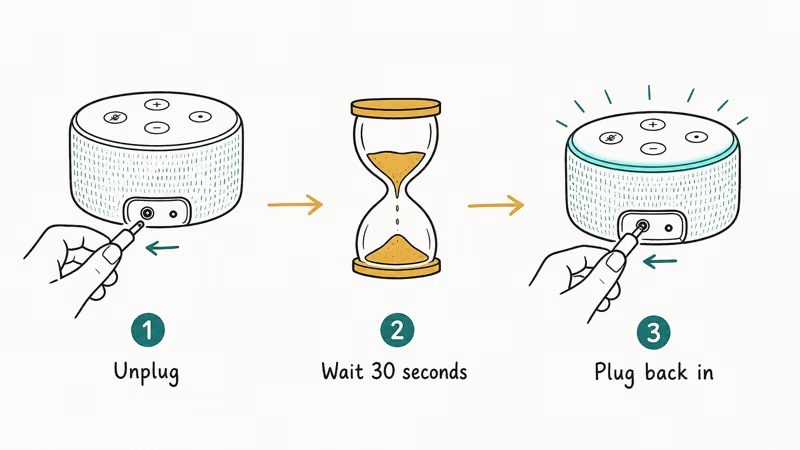
Say “Alexa, play music” once the ring disappears. The whole process takes about 90 seconds. Done.
For Echo Show devices, hold the mute button and volume down button together for 15 seconds to force a restart without pulling any cables. This shortcut helps when the Show sits on a shelf where the power cord is hard to reach.
#Check Your Wi-Fi Connection
Poor Wi-Fi causes more Alexa responsiveness problems than anything else. Music streaming needs a steady connection, and even a two-second dropout kills playback mid-song without any recovery attempt from the Echo.
Open the Alexa app on your phone, tap Devices, select your Echo, and look at the Wi-Fi status. If it says “Offline” or shows a weak signal, your network needs attention first.
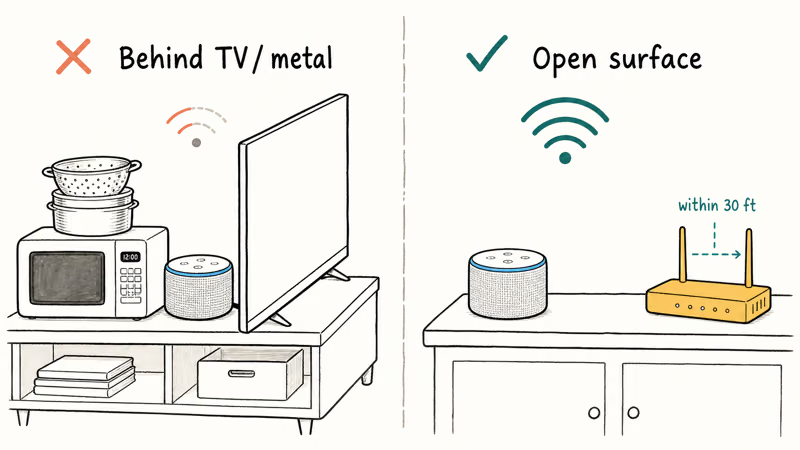
Unplug your router for 60 seconds and plug it back in. Move the Echo away from walls, microwaves, and metal shelves that cause interference. Keep it within 30 feet of your router. Based on Amazon’s device support documentation, placing the Echo on an open surface away from metal objects improves signal reception significantly.
Moving an Echo Dot from behind a TV on a low shelf to an open countertop can turn a connection that drops every few hours into one that stays rock-solid.
If your Wi-Fi works fine on other devices but your Echo still won’t connect, go to Devices > your Echo > Wi-Fi Network in the Alexa app and reconnect from there.
#Re-Link Your Music Service
When Alexa announces a song title but plays nothing, the skill link between the app and your streaming service is broken.
Open the Alexa app and go to More > Settings > Music & Podcasts. Find the service that stopped working, tap Disable Skill, wait 10 seconds, then tap Enable Skill and sign back in with your credentials. This takes under a minute.
Also check that your subscription is actually active. A lapsed Spotify Premium or expired Amazon Music Unlimited account causes Alexa to fail silently. No error on the Echo, no notification in the app. This often catches people off guard when a credit card expires and Spotify quietly downgrades the account to the free tier without telling Alexa.
#Change the Default Music Service
Alexa defaults to Amazon Music out of the box. If you don’t have an Amazon Music Unlimited subscription, that’s probably why nothing plays when you say “Alexa, play some music.”
Changing the default takes about 30 seconds. Open the Alexa app, go to More > Settings > Music & Podcasts > Default Services, pick your preferred provider, and tap Done. According to Tom’s Guide’s walkthrough on setting default music services, this change applies immediately to all voice requests on that Echo.
Test it by saying “Alexa, play some music.” Your Echo should now pull from the correct service.
You can also skip the default entirely on any command by naming the service directly. Say “Alexa, play jazz on Spotify” or “Alexa, play my playlist on Apple Music” to target a specific provider. According to XDA’s guide to Echo music services, the Echo supports Spotify, Apple Music, Deezer, Pandora, iHeartRadio, and several other platforms simultaneously.
#Check Overlooked Device Settings
A few buried settings can block music playback without showing any error. Work through this list.
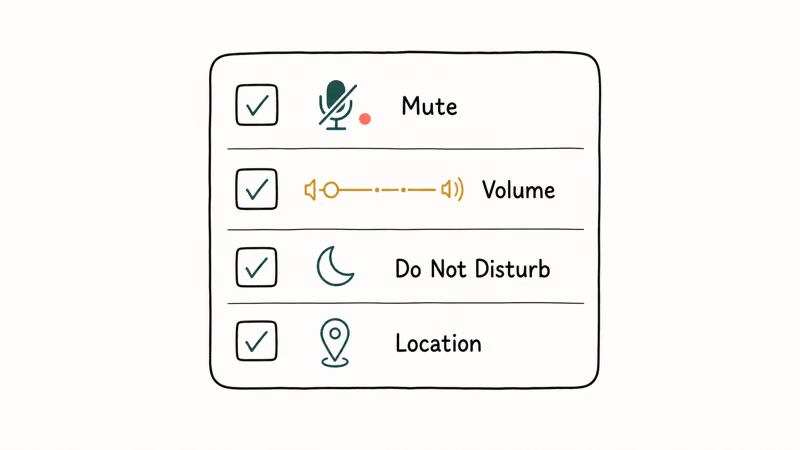
Mute button. Red light on top of the Echo? The microphone is muted. Press the mute button once to toggle it off.
Volume level. Say “Alexa, set volume to 5” or press the physical volume up button. The Echo might actually be playing music at volume zero. This trips people up when someone accidentally says “Alexa, volume zero” and then spends ten minutes thinking the speaker is broken.
DND mode. Go to Devices > your Echo > DND in the Alexa app. Turn it off. This mode can interfere with music playback on older firmware versions.
Location and timezone. Go to Devices > your Echo > Device Location and verify your address is correct. Location mismatches trigger regional content restrictions that silently block certain songs and albums.
If you see a red ring on your Alexa while troubleshooting, that points to a separate microphone or hardware problem.
#Factory Reset Your Echo
A factory reset wipes everything. Your routines, smart home connections, Wi-Fi credentials, and preferences all disappear. Only try this after every other fix has failed.
For Echo Dot (3rd Gen and later), press and hold the Action button for 25 seconds. The light ring turns orange, then blue. Wait for the device to enter setup mode.
For Echo Show, open Settings on the screen, tap Device Options, then tap Reset to Factory Defaults.
After the reset, open the Alexa app and walk through the setup process. Reconnect your Wi-Fi, re-link your music services, and test playback before you rebuild any routines.
When an Echo has corrupted firmware from a failed update, a factory reset is sometimes the only method that works. If the device refuses to play Amazon Music no matter what else you try, the full reset clears the corruption and restores normal playback within a few minutes.
#Bottom Line
Start with the restart. Unplug your Echo for 30 seconds and plug it back in. That alone fixes the problem most of the time.
If music still won’t play, check your Wi-Fi connection next, then re-link your music service in the Alexa app. Save the factory reset for last. If your Echo still won’t respond to any commands even after you put the Dot back into setup mode, contact Amazon support directly because it’s likely a hardware defect at that point.
#Frequently Asked Questions
Why does Alexa say “something went wrong” when I ask for music?
Your Echo lost its connection to the streaming server. Unplug it for 30 seconds, plug it back in, and check that your Wi-Fi is working on other devices. If the error keeps coming back, disable and re-enable the music service skill in the Alexa app.
Can Alexa play music from multiple streaming services at the same time?
Yes. You can link Spotify, Apple Music, Amazon Music, Pandora, iHeartRadio, Deezer, and others all at once. Say something like “Alexa, play my Daily Mix on Spotify” to pick a specific service. Set your most-used one as the default in the Alexa app under Settings > Music & Podcasts > Default Services so you don’t have to name it every single time you ask for a song.
Why does Alexa play music on the wrong speaker?
Your Echo is probably part of a multi-room speaker group. Say “Alexa, play music here” to force playback on the device you’re standing next to.
Does Alexa need a paid subscription to play music?
Not necessarily. Amazon Music Free comes with every Amazon account and gives you a limited catalog with ads. For on-demand playback of specific songs and artists, you need Amazon Music Unlimited, Spotify Premium, or another paid subscription. The free tier only lets you request genres and stations, not individual tracks.
How do I fix Alexa when it plays one song and stops?
This usually happens on Amazon Music Free, which limits on-demand requests to shuffled playlists. Either upgrade to Amazon Music Unlimited or switch your default to Spotify or Apple Music if you already pay for one of those services. Outdated firmware can also cause playback to cut out mid-song, so check for updates in the Alexa app under Devices > your Echo > About.
Why does Alexa respond to commands but won’t play music?
The music service link is broken. Go to Settings > Music & Podcasts in the Alexa app, disable the skill, and re-enable it.
Can I play music on Alexa without Wi-Fi?
No. Every Echo model requires an active internet connection. There’s no offline mode. If your internet goes down frequently, pair a Bluetooth speaker with your phone as a backup instead.
How much does an Echo cost if I want to replace mine?
The Echo Dot (5th Gen) starts at $49.99 and the full-size Echo goes for $99.99 at regular price. Amazon runs frequent sales during Prime Day and Black Friday that cut those prices by 40-60%. Check our Alexa cost breakdown for current pricing on every model.

Google Messages Error 3100: Why RCS Is Broken on Galaxy
Google Messages RCS error 3100 hits Galaxy owners after phone or carrier switches. Google told 9to5Google a fix is coming. Here's what actually helps.

Is This Bank App Real? Spot a Fake App on Your Home Screen
A bank app can land on your home screen from a web page with no install warning. Learn the checks that tell a real banking app from a phishing web app.

Apps Crashing After iOS 27 Update? Fix Order (2026)
Apps crashing after the iOS 27 update? Update the app in the App Store first, then offload and reinstall to clear stale cache, then restart. The fix order.

Do AI Translation Earbuds Work Offline? What to Know
Do AI translation earbuds work offline? A few do with downloaded language packs, but most need the cloud. Here's what works offline and what you give up.