How to Cancel a BET Plus Subscription: Step-by-Step Guide
Learn how to cancel a BET Plus subscription on the website, Roku, Apple TV, Amazon Prime Channels, or Google Play in under five minutes flat.
Quick AnswerTo cancel a BET Plus subscription, sign in at bet.plus, open Settings > Subscription, click Manage Subscription, then choose Cancel Subscription. If you signed up through Roku, Apple, Amazon Prime Channels, or Google Play, you must cancel from that platform instead, since BET will not stop a billing cycle managed by another store.
Cancelling a BET Plus subscription takes about three minutes if you click in the right place. The catch is the right place depends on where you originally signed up. The steps differ across the bet.plus website, Roku, Apple, Amazon, and Google Play. This guide walks you through each path and flags the traps that cause double-charges.
- BET Plus billing runs $9.99 per month or $99.99 per year, with a 7-day free trial for new accounts.
- Cancel from the same platform you signed up with: bet.plus, Roku, Apple, Amazon, or Google Play.
- Once cancelled, your access continues until the end of the current billing period, then ends automatically.
- BET+ does not issue prorated refunds for the unused portion of a paid month or year.
- The Roku star button on the BET+ tile is the fastest way to reach Manage Subscription on a TV.
#How Much Does BET Plus Cost?
BET Plus uses two simple price tiers: $9.99 monthly or $99.99 annually, with a 7-day free trial for first-time subscribers.
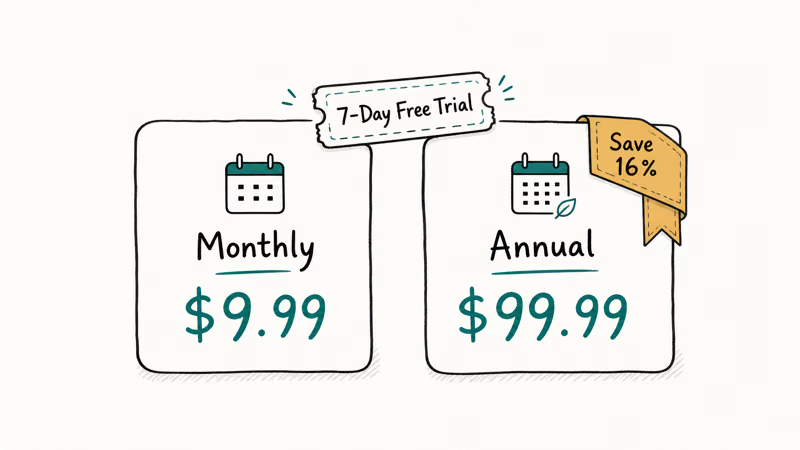
According to BET Plus’s pricing page, every plan unlocks the same catalog of films, original series, and titles from BET, Paramount, and Tyler Perry Studios. There is no premium tier, no ad-free upgrade, and no add-on bundle, which means the choice really comes down to monthly flexibility versus the roughly 16% discount on the annual plan.
Heads up: if you signed up through Roku, Apple, Amazon, or Google Play, your bank statement may show a slightly different amount because of local sales tax. The plan itself is identical.
#How to Cancel BET Plus on the Website
The website path works for anyone who signed up directly at bet.plus or bet.com using an email address.
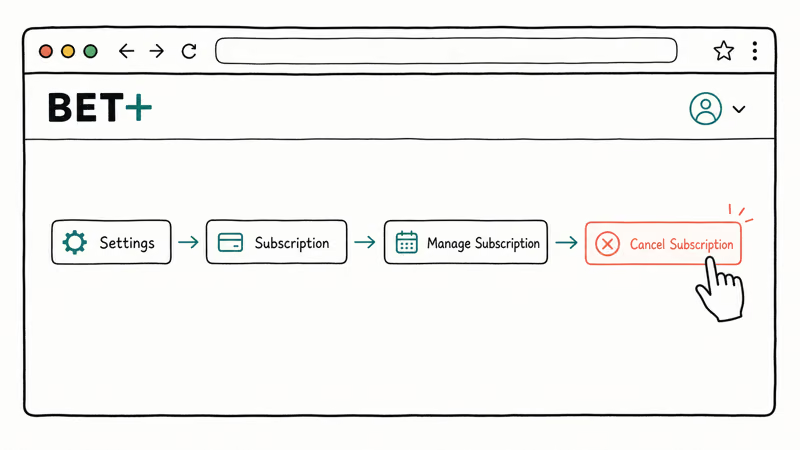
- Open a desktop browser and go to bet.plus, then click Sign In in the top right.
- Enter the email and password tied to your account, then finish any captcha or 2FA prompt.
- Click your profile icon in the upper-right corner and choose Settings.
- Open the Subscription tab on the left menu.
- Click Manage Subscription, then Cancel Subscription, and confirm on the pop-up.
On both Chrome and Safari, the confirmation screen shows the exact end-of-access date, which is the day your current period runs out. Take a screenshot before closing the tab. BET Plus doesn’t always email a cancellation receipt, and that screenshot is your only proof if a charge slips through.
If Manage Subscription is greyed out, your billing runs through Roku, Apple, Amazon, or Google Play. Skip ahead to that section.
#How to Cancel BET Plus on Roku
Roku is the most common path because so many people add BET+ as a Roku channel directly from the home screen. The good news: Roku’s star-button shortcut makes this fast.
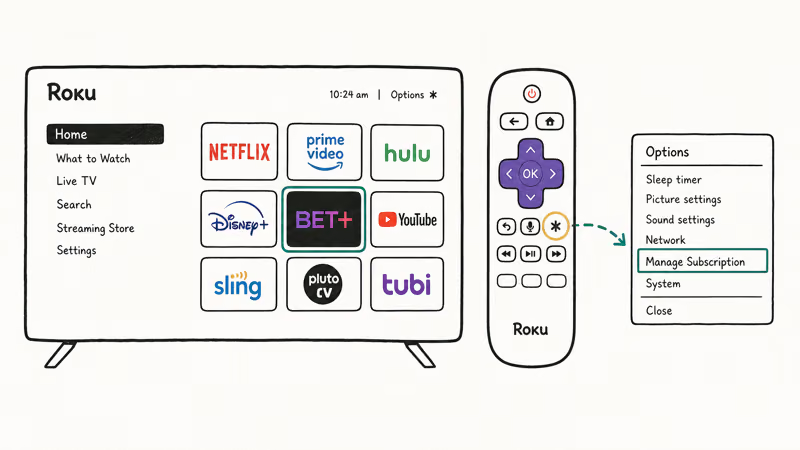
- From the Roku Home screen, use the remote to highlight the BET+ tile (don’t open it).
- Press the asterisk button (★) on your remote to bring up the Options menu.
- Choose Manage Subscription, then Cancel Subscription.
- Confirm on the next screen, then press Done to return to the home grid.
The cancellation typically shows up under my.roku.com > Manage Subscriptions shortly, so you can confirm it landed before you walk away from the TV. You can also cancel directly from that same web page if your remote is missing, lost, or out of batteries, which is the faster route when the physical remote isn’t handy.
According to Roku’s subscription help center, every Roku-billed subscription stays watchable through the end of the current billing cycle, then stops auto-renewing automatically. So if you cancel on day 12 of a 30-day period, you still get 18 more days of BET+, the channel keeps loading on your TV during that window, and the BET+ profile stays signed in until the cycle ends. After that final day, the tile turns into a re-subscribe prompt and the catalog locks.
One trap: if you cancel BET+ but leave the channel installed, Roku won’t re-bill you, but the tile stays on your home screen until you remove it. Long-press the asterisk button again and pick Remove channel to clean things up.
#How to Cancel BET Plus on Amazon Prime Channels
Amazon Prime Channels is its own billing system, separate from a regular BET+ account.
- Sign in to primevideo.com in a browser.
- Hover over your profile icon in the top right and click Account & Settings.
- Open the Channels tab.
- Find BET+ in the list and click Cancel Channel next to it.
- Pick Turn off auto-renew & watch until [end date] and pick a reason (or “Prefer not to answer”).
Amazon’s Prime Video Channels help page confirms that you’ll keep watching the channel through the rest of the paid period, then it falls off automatically. Amazon usually emails a cancellation confirmation within about 5 minutes, which is handy proof if a charge shows up later.
If you ran into a different Prime Video issue while signing in, our guide on Amazon Prime Video error code 5004 covers the common login failures and fixes them in a few minutes.
#How to Cancel BET Plus on Apple TV or iPhone
When you tap “Subscribe” inside the BET+ app on iPhone, iPad, or Apple TV, Apple bills you through your Apple ID. The cancel switch lives in the Apple Settings app, not inside BET+ itself.
On iPhone or iPad:
- Open Settings and tap your name at the top.
- Tap Subscriptions.
- Pick BET+ from the list of active subscriptions.
- Tap Cancel Subscription and confirm.
On Apple TV (tvOS 17 or later):
- Open Settings > Users and Accounts > your Apple ID.
- Choose Subscriptions, then select BET+.
- Pick Cancel Subscription.
According to Apple’s subscription support page, every subscription stays active until the end of the current billing period, with up to 24 hours of buffer past the cancel time before access actually ends. The BET+ app keeps playing for the full remainder of the month after you tap cancel.
If you’d rather pause and resume a streaming sub instead of fully cancelling, the same Subscriptions menu lets you switch plans (annual to monthly, for instance) without losing watch history. Apple won’t refund partial months, though.
#How to Cancel BET Plus on Google Play
If you subscribed through the Google Play Store on an Android phone or Android TV, Google handles the billing.
- Open the Google Play Store app on your Android device.
- Tap your profile icon in the top right.
- Pick Payments & subscriptions > Subscriptions.
- Tap BET+ in the list.
- Tap Cancel subscription and select a reason.
Google’s Play Store cancellation help states that the subscription stays active until the next billing date, which can be up to 30 days away depending on when you cancel. Google does not issue prorated refunds either.
If your Android phone has multiple Google accounts, double-check that you’re inside the same account you used to subscribe. Cancelling under the wrong profile is a common mistake that leaves the charge in place for the next month, and chasing the refund through Google Play support often takes 5 to 10 business days to resolve.
#What Happens After You Cancel BET Plus?
Cancellation never cuts off viewing immediately on any platform.
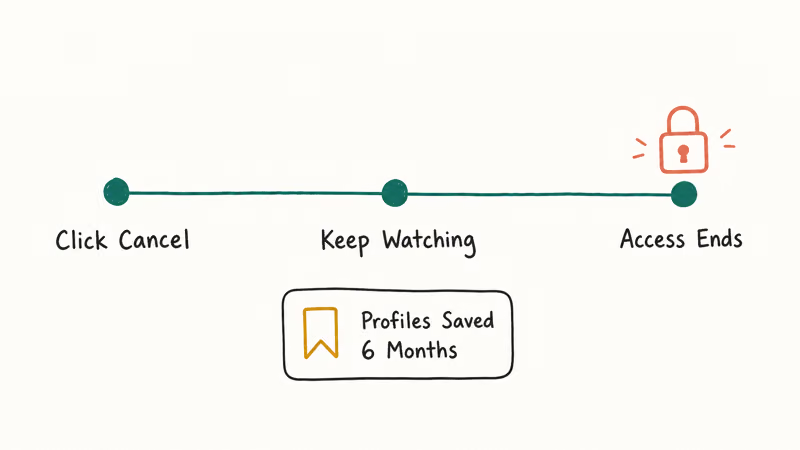
Across the website, Roku, and Apple TV paths, here is what happens:
- Access ends at midnight local time on the last paid day, not the moment you click cancel.
- Profiles and watchlists stay saved on the BET+ servers for around 6 months before deletion.
- Re-subscribing within that window restores everything, while signing up later starts fresh.
- No refunds apply, regardless of platform, even if you only watched once.
Cleaning up other streaming bills this month? The same logic applies anywhere: find the billing platform first, then cancel there. Our guides for cancelling Starz and cancelling CBS All Access walk through it for each service, and cancelling Twitch Prime follows the same Amazon-managed flow described above.
The same principle works on non-streaming subscriptions too. If you’re trimming food-delivery or creator-platform fees, our guides for DoorDash and OnlyFans cover those billing paths in the same step-by-step format.
#Bottom Line
If you signed up at bet.plus directly, cancel through Settings > Subscription > Manage Subscription on the website. That path is the cleanest because the confirmation screen shows your exact last day of access. If you signed up via Roku, the star-button shortcut on the BET+ tile beats logging into my.roku.com.
For Apple, Amazon, or Google Play subscribers, cancel from that store’s account page. BET won’t stop those bills directly. Either way, expect to keep watching through the current billing cycle, with no refund for unused time.
#Frequently Asked Questions
Can I cancel BET Plus anytime?
Yes. There’s no contract, no early-termination fee, and your access keeps working until the current billing period ends.
Will I get a refund after cancelling BET Plus?
No. BET Plus does not issue refunds for unused time on a monthly or annual plan, and the third-party billing platforms (Roku, Apple, Amazon, Google) follow the same policy. The fairest move is to cancel right after the renewal date so you use the full period you paid for.
Can I still watch BET Plus content after cancelling?
You’ll keep watching until the end of the billing cycle, then the catalog locks.
How do I cancel BET Plus if Manage Subscription is greyed out?
A greyed-out Manage Subscription button on bet.plus means your billing actually runs through Roku, Apple, Amazon, or Google Play. Find the receipt or recurring charge on your bank or card statement to identify which platform owns the subscription, then follow the platform-specific steps in this guide. Trying to cancel from the wrong place is the most common reason people see a second charge after they thought they had cancelled, so verify the source before clicking anything else.
Does cancelling BET Plus delete my account?
Cancelling stops the next charge but keeps your account, profiles, and watch history on BET’s servers for around six months. To fully delete the account, contact BET+ customer support through the help link in your account settings and request account deletion in writing.
How do I contact BET Plus customer support?
Sign in at bet.plus and open the Help link at the bottom of any page. Submit a ticket through the contact form. The support team typically responds within 24 to 48 hours.
Can I pause BET Plus instead of cancelling?
BET Plus does not offer a built-in pause option, unlike Showtime or Hulu. The only choices are to cancel and re-subscribe later, or to switch from monthly to annual (or vice versa) when the next renewal hits. Re-subscribing within six months keeps your old watch history intact.

Google Messages Error 3100: Why RCS Is Broken on Galaxy
Google Messages RCS error 3100 hits Galaxy owners after phone or carrier switches. Google told 9to5Google a fix is coming. Here's what actually helps.

Is This Bank App Real? Spot a Fake App on Your Home Screen
A bank app can land on your home screen from a web page with no install warning. Learn the checks that tell a real banking app from a phishing web app.

Apps Crashing After iOS 27 Update? Fix Order (2026)
Apps crashing after the iOS 27 update? Update the app in the App Store first, then offload and reinstall to clear stale cache, then restart. The fix order.

Do AI Translation Earbuds Work Offline? What to Know
Do AI translation earbuds work offline? A few do with downloaded language packs, but most need the cloud. Here's what works offline and what you give up.