Google Assistant Lock Screen: Setup, Disable, Fix Guide
Set up, disable, or fix Google Assistant on the Android lock screen in 2 minutes. Step-by-step menus for Personal Results, Voice Match, and recovery.
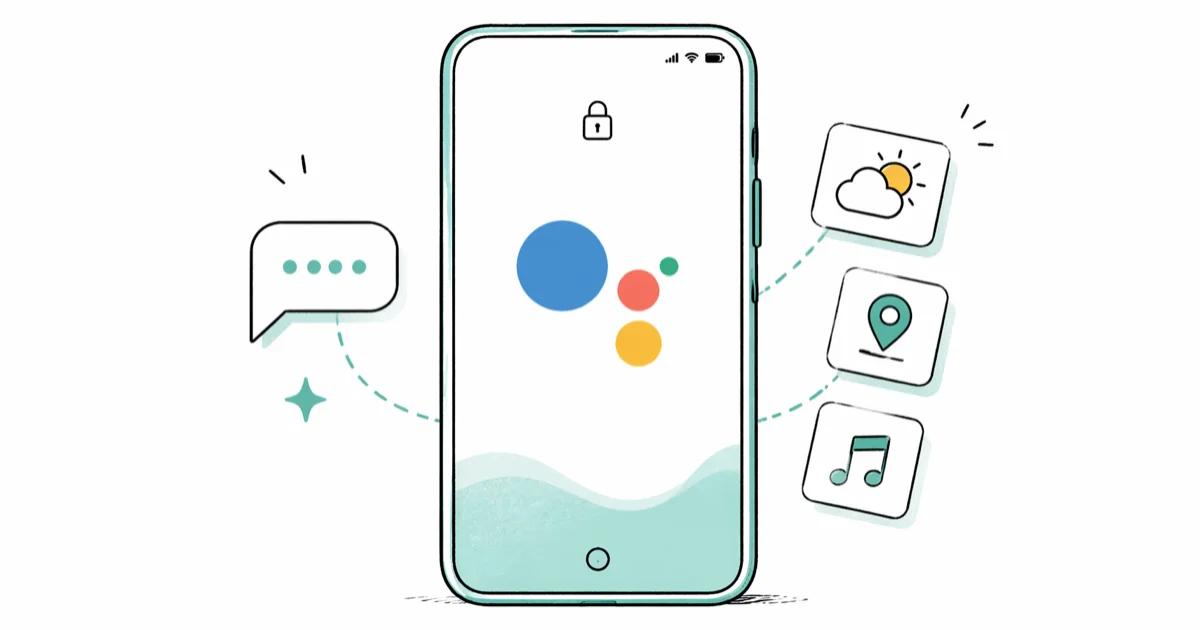
Quick AnswerGoogle Assistant on the Android lock screen lets you ask questions, hear caller names, and see calendar events without unlocking. Turn it on under Settings > Google > Settings for Google apps > Search, Assistant & Voice > Google Assistant > Personalization > Lock screen personal results.
Google Assistant lock screen access turns an idle Android phone into a hands-free helper. Ask a question, hear an incoming caller’s name, or peek at your next calendar event without typing a PIN. Setting it up takes about 2 minutes once you know which sub-menu owns the toggles.
- Google Assistant on the lock screen handles voice queries, calendar reads, and caller names, but it can’t bypass your PIN, fingerprint, or face unlock.
- Enable the feature under
Settings>Google>Settings for Googleapps > Search,Assistant & Voice>Google Assistant>Personalization>Lockscreen personal results. - Voice Match decides whether “Hey Google” wakes the phone from a locked state; the toggle lives under
Google Assistant>Hey Google & Voice Match>Lockscreen. - If Assistant ignores you when the screen is off, retrain Voice Match and confirm the Google app has microphone permission. Those are the two highest-value checks before deeper troubleshooting.
- For a forgotten Android lock screen on your own phone, Google’s Find My Device factory reset is the official recovery path and works on any device signed into your Google account.
#What Does Google Assistant Show on the Lock Screen?
Google Assistant on the lock screen mostly serves up “personal results,” meaning items tied to your Google account that Assistant decides are safe to surface without an unlock. According to a 2018 Google rollout documented in the Assistant Personal Results help, the feature pulls from Google Calendar, Reminders, Notes, contact lookups, and shopping or grocery lists tied to your account.
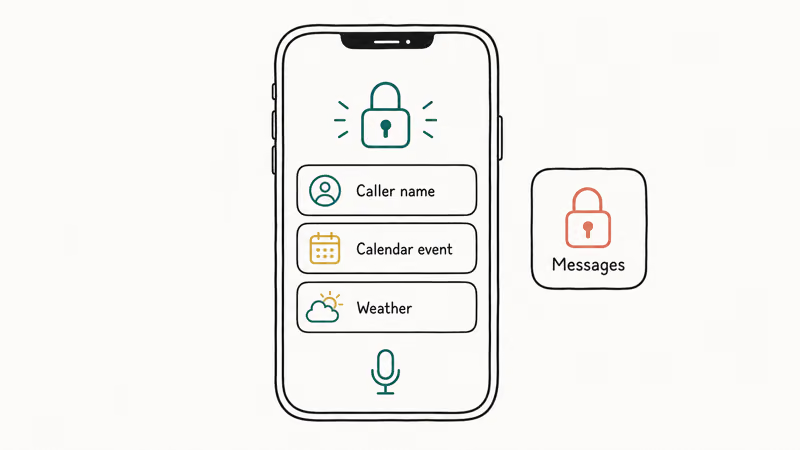
What you typically see when the feature is on:
- Caller names from your contacts instead of just a phone number
- Spoken or on-screen calendar event reminders
- Voice-replied reminders and grocery list items
- Quick weather and traffic readouts via “Hey Google”
- Smart home routines that don’t need sensitive control
What it won’t do is unlock the phone. Assistant can wake the screen and read a result, but anything that opens a protected app, like messages, photos, or a banking app, still hits your PIN, pattern, fingerprint, or Android face unlock prompt.
That’s the design, not a bug.
Voice Match handles the wake word. It decides whether “Hey Google” works while the screen is off. Without it, you’ll press and hold the home button or use a gesture before Assistant listens.
#How Do You Enable Personal Results on the Lock Screen?
The path is buried, but it’s the same on stock Android 12 through Android 15 and on One UI 6 and newer. Google split Assistant settings out of the standalone Google app years ago, so you’re really configuring a different surface than the on-screen Assistant pop-up — which is why the toggles aren’t where most users start looking. Open Settings on your phone and follow these steps:
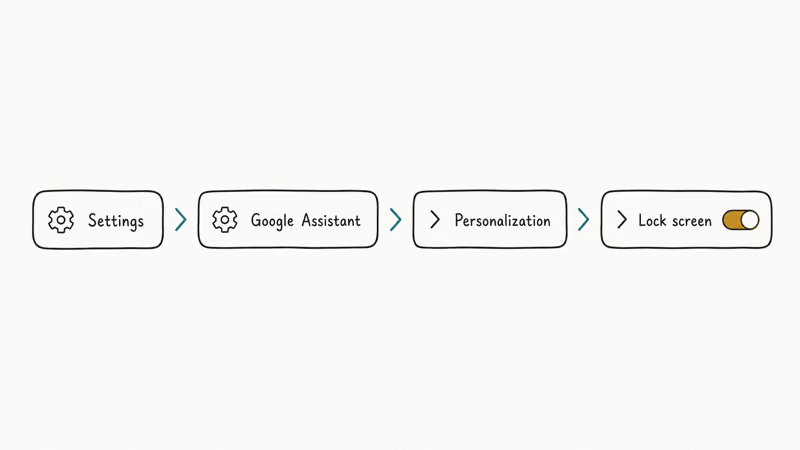
- Open Settings, then tap Google.
- Tap Settings for Google apps, then Search, Assistant & Voice.
- Tap Google Assistant.
- Scroll to Personalization (some phones list it as Personal results).
- Toggle Personal results on.
- Toggle Lock screen personal results on. This is the one that exposes calendar, reminders, and notes on a locked phone.
- Back up one screen and open Hey Google & Voice Match. Turn on Hey Google and the Lock screen sub-toggle so the wake word works without unlocking.
On a Pixel, you can shortcut to the same menu by long-pressing the home button to summon Assistant, tapping your profile picture, and choosing Assistant settings.
On recent Samsung builds, the toggles may also live under Settings > Google > Settings for Google apps > Search > Personalization. Samsung often shortens the stock path by one step. After both toggles are on, locked-screen voice queries about calendar events and contacts can return specific results without unlocking.
A retraining step usually helps if Assistant only half-works. Tap Voice model > Retrain voice model, then say “Hey Google” and “OK Google” four times in a quiet room. This refreshes the voice model Assistant uses before it accepts lock-screen wake-word prompts.
Train in the environment you actually use.
Background noise from a fan, a TV, or a busy room teaches the model to filter ambient sound. Retraining in dead silence and then trying to wake the phone in a noisy kitchen is a common reason the wake word seems to randomly stop working after a flawless setup.
#Turning Off Voice Match and Lock Screen Assistant
Maybe you’re tired of Assistant pinging during meetings, or you don’t want personal info read out loud near other people. Disabling the lock-screen behavior takes about a minute. To switch the assistant off everywhere, see our longer walkthrough on how to turn off Google Assistant.
To stop Assistant from waking the locked phone:
- Open the Google app and tap your profile picture in the top-right corner.
- Tap Settings, then Google Assistant.
- Tap Hey Google & Voice Match.
- Turn off the Lock screen toggle. “Hey Google” still works on the unlocked phone but no longer wakes the device from a black screen.
- To stop “Hey Google” entirely, also turn off Hey Google.
To stop personal info from showing while locked:
- Open Google Assistant settings (same path).
- Tap Personalization or Personal results.
- Turn off Lock screen personal results.
For a clean slate, tap Voice model > Delete voice model under the same menu. Google’s Voice Match support article confirms that 1 voice model per Google account stores the audio recordings used to recognize your wake phrase, and deleting it removes those recordings.
#Fixing Common Google Assistant Lock Screen Issues
The fix order below starts with the settings most likely to block lock-screen Assistant: toggles, voice model, microphone permission, and battery controls.
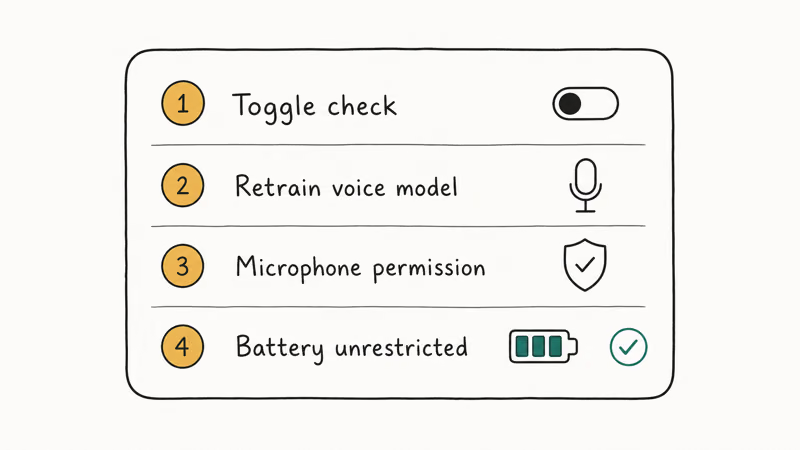
“Hey Google” doesn’t wake the phone when the screen is off. Reopen Hey Google & Voice Match. Confirm both the master toggle and the Lock screen sub-toggle are on. If they’re already on, retrain the voice model. On Samsung devices, also check Settings > Apps > Google > Battery and switch the Google app to Unrestricted so the OS doesn’t kill background listening.
Personal results never appear. Verify Personal results is on, then go to your Google Account > Data & Privacy > Web & App Activity and confirm the setting is on. Assistant pulls calendar, reminders, and contact suggestions from this stream; with it off, nothing personalized shows up. Web & App Activity also feeds Google Search and Maps personalization, so turning it on for Assistant lock-screen results means broader account-level tracking, not just lock-screen reads.
Assistant says “you’ll need to unlock” before reading every result. Inside Personalization, turn off Require unlock for personal results to let Assistant read messages and emails without unlocking. We leave it on in shared environments since anyone holding the phone can hear those previews.
Calendar events are missing. Open the Google Calendar app, pull down to sync, and confirm the calendar account matches the Google account signed in to Assistant. A Galaxy phone with both a personal and a work Google account loaded only reads from one, usually the default selected under Settings > Accounts.
Always-listening drains the battery. Voice Match keeps a low-power listening model warm. If you don’t use voice triggers, turn Hey Google off entirely.
Notifications keep reading out. Turn off Spoken notifications under Hey Google & Voice Match.
If none of those land, factory-reset-style options take over. A code-driven wipe via Android factory reset codes clears stuck Assistant data along with everything else.
#Voice Match Versus Smart Lock for Hands-Free Convenience
Voice Match and Smart Lock both reduce how often you tap a PIN, but they protect different surfaces. Voice Match only recognizes your wake phrase and gates lock-screen Assistant queries. Smart Lock unlocks the phone outright under conditions you trust (a paired smartwatch, a saved home Wi-Fi, on-body detection).
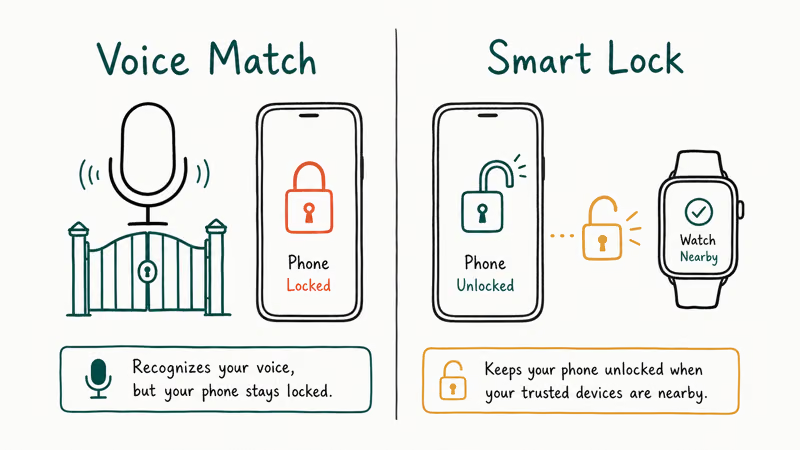
Pair them carefully. If Smart Lock is on for “trusted places” and you also enable Lock screen personal results, anyone in your home can ask “Hey Google, what’s my next meeting” and get a real answer. The trusted-places radius defaults to roughly 80 meters, which often covers neighbors’ apartments in dense buildings, so the “trusted” surface is bigger than most users assume when they first turn the toggle on.
In shared spaces, Smart Lock is the riskier setting because it can unlock the whole phone. Voice Match plus Lock screen personal results is narrower: fast voice answers, while protected apps still require the normal lock screen.
#Recovering Access to a Locked Android Phone You Own
Google Assistant won’t open a phone secured with a PIN, pattern, password, or biometrics. Read that as a feature, not a missing toggle. For your own device, work through these official routes before anything else, since each one keeps you inside the Android security model rather than relying on third-party tooling that may not work on your specific OEM build.
One reminder before any reset attempt: these methods are for a phone you own. Unlocking a device that isn’t yours is illegal in most U.S. states and most countries.
Keep proof of purchase if you bought the phone secondhand. Use the original owner’s Google account credentials if the device came with a previous account attached. After any factory reset, you may hit Factory Reset Protection — our Samsung bypass Google verify guide covers what that looks like for your own device.
Option 1: Google Find My Device factory reset. This is the official path for any Android signed into a Google account with Find My Device on. Google’s Find My Device support page states that Android 5.0 and newer can use the Erase device option to wipe the phone’s settings, content, and any screen lock.
Visit android.com/find from any browser, sign in with the same Google account, pick the device, and select Erase device. The phone reboots into a fresh setup screen with no lock attached.
Option 2: Samsung Find My Mobile (Galaxy only). Samsung recommends Find My Mobile for 2017+ Galaxy phones tied to a Samsung account, since it can lift a forgotten screen lock without a full wipe. Sign in at findmymobile.samsung.com, choose your device, and tap Unlock. Unlike the Google route, this can lift the lock without erasing your data.
Option 3: Manufacturer recovery wipe. Hold power + volume up during boot to reach recovery. Select Wipe data / factory reset. This works without a Google account but erases everything.
Option 4: Commercial recovery tool. When the routes above don’t apply, say Find My Device was off before you got locked out, the device isn’t on a Samsung account, or the manufacturer recovery menu won’t boot, a desktop tool like Tenorshare 4uKey for Android can drive the same wipe-and-reset flow over USB. You’ll still lose data, but the tool walks through the recovery-mode steps for you on Windows and Mac.
Some links on this page are affiliate links, which means fone.tips may earn a commission at no extra cost to you.
For developer-comfortable users with an unlocked bootloader, the ADB FRP bypass guide covers command-line recovery, though it’s narrower in device coverage and only useful when USB debugging was enabled before the lockout. Most users won’t be in that camp, since Android keeps USB debugging off by default and the developer options menu has to be unlocked first, a setting most people never touch on a daily-driver phone.
If your phone won’t even boot far enough to show the lock screen because the home button isn’t working, fix the input issue first. None of the recovery flows above will accept button combos if the hardware is dead.
#Bottom Line
Turn on Lock screen personal results plus the Hey Google > Lock screen sub-toggle if you want fast voice answers without unlocking. Keep Require unlock for personal results on if anyone else handles your phone.
For a locked-out Android you own, start with Google Find My Device or Samsung Find My Mobile. Both are free, work in any browser, and don’t need a USB cable. Reach for Tenorshare 4uKey for Android only when those routes don’t fit your situation, and plan to restore from a backup either way because every reset path wipes your data.
#Frequently Asked Questions
Can Google Assistant unlock my phone?
No. Assistant can wake the screen and read non-sensitive results, but it won’t bypass a PIN, pattern, fingerprint, or face unlock. Any action that opens a protected app still hits your normal lock screen.
Why doesn’t Hey Google work when my screen is off?
Three toggles need to line up. Hey Google must be on, the Lock screen sub-toggle under Hey Google & Voice Match must be on, and your voice model needs to be trained. If those look correct, retrain the voice model from Voice Match settings. On Samsung devices, also set the Google app’s battery profile to Unrestricted so the OS doesn’t kill background listening.
Does Personal Results on the lock screen drain battery?
Voice Match keeps a small low-power listening model active, which uses a tiny amount of extra battery. If you don’t use voice triggers, disable Hey Google and the Lock screen sub-toggle.
Can Google Assistant read incoming texts on the lock screen?
Yes, if you enable Spoken notifications under Hey Google & Voice Match and pair a Bluetooth headset. Assistant reads message previews aloud through the headset while the phone stays locked. Disable Spoken notifications if you’d rather not have messages broadcast through audio gear. The same toggle also gates email previews and calendar alerts read aloud, so if you keep Spoken notifications on you’ll hear everything the Google account considers a notification, not just texts.
How do I stop Google Assistant from showing calendar events on the lock screen?
Open the Google app, tap your profile, then Settings > Google Assistant > Personalization. Turn off Lock screen personal results. Calendar events, reminders, and notes stop appearing on the locked screen but still show up once you unlock. The change applies immediately on the next lock cycle.
Is it safe to leave Lock Screen Personal Results turned on?
It’s safe for personal use in a private environment. Assistant only reveals items Google classifies as low-sensitivity by default, and anything tied to messages or finance still asks for unlock. The risk is environmental: a passerby could ask Assistant about your next meeting if your phone sits on a desk. Turn the setting off if your phone is regularly out of sight.
What’s the fastest way back into an Android phone with a forgotten PIN?
Try Google Find My Device first at android.com/find. The Erase device option removes the lock and takes a minute or two once the phone receives the wipe command. For Samsung phones tied to a Samsung account, Find My Mobile can remove the lock without wiping. If neither account is set up, you’ll need a manufacturer recovery wipe via power + volume buttons, and any path here erases data, so plan to restore from a cloud or PC backup.

Google Messages Error 3100: Why RCS Is Broken on Galaxy
Google Messages RCS error 3100 hits Galaxy owners after phone or carrier switches. Google told 9to5Google a fix is coming. Here's what actually helps.

Is This Bank App Real? Spot a Fake App on Your Home Screen
A bank app can land on your home screen from a web page with no install warning. Learn the checks that tell a real banking app from a phishing web app.

Apps Crashing After iOS 27 Update? Fix Order (2026)
Apps crashing after the iOS 27 update? Update the app in the App Store first, then offload and reinstall to clear stale cache, then restart. The fix order.

Do AI Translation Earbuds Work Offline? What to Know
Do AI translation earbuds work offline? A few do with downloaded language packs, but most need the cloud. Here's what works offline and what you give up.