How to Fix iCloud Notes Not Syncing Across Devices
Fix iCloud Notes not syncing across iPhone, iPad, and Mac with 7 practical methods. Toggle sync, confirm Apple ID, check storage, restart devices.
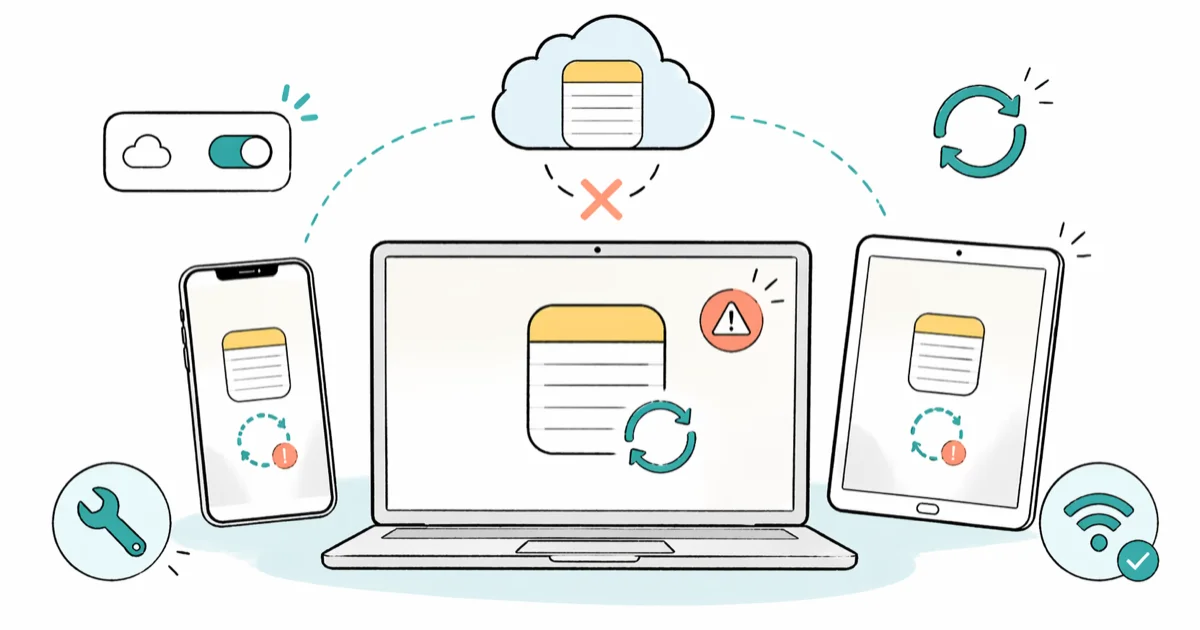
Quick AnsweriCloud Notes stop syncing when the Notes toggle gets switched off in iCloud settings, your devices are signed into different Apple IDs, or the network connection drops mid-sync. Turn the Notes toggle off and back on in Settings, wait 30 seconds, and restart every device.
iCloud Notes not syncing across your iPhone, iPad, and Mac almost always traces back to one of three things. The Notes toggle drifted off after an update, the devices signed into mismatched Apple IDs, or the sync connection dropped mid-edit. Start by turning Notes sync off and back on, then restart the affected devices so iCloud gets a clean connection.
- Flipping the Notes toggle off, waiting 30 seconds, then on forces a fresh sync handshake with iCloud
- Every device must be signed into the exact same Apple ID for notes to appear everywhere
- A 60-second router power-cycle clears stale iCloud connections that a device restart alone misses
- Full iCloud storage blocks new notes from uploading, even when sync looks active in Settings
- iCloud.com lets you confirm whether a missing note lives in the cloud or only on one device
#Why Do iCloud Notes Stop Syncing?
iCloud Notes travels through Apple’s servers on its way between your devices. Break any link in that chain and a note strands itself on whichever device you typed it on.
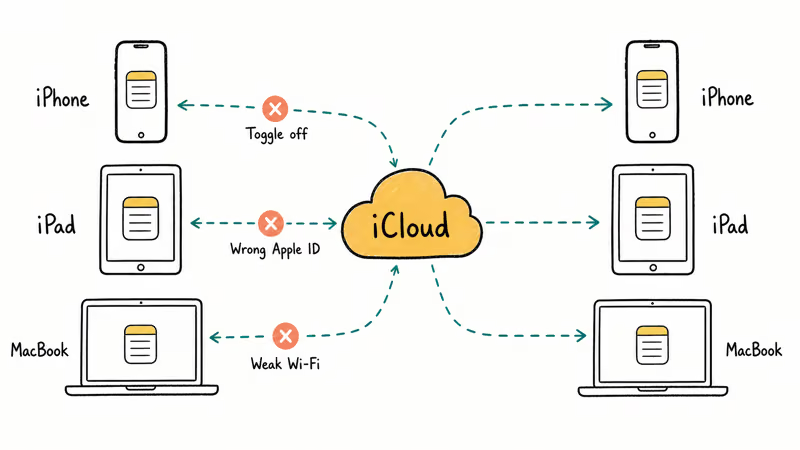
According to Apple’s iCloud guide for setting up Notes, Notes won’t sync across devices unless each device is signed into the same Apple Account and has the Notes toggle enabled in iCloud settings. iOS and iPadOS point releases can leave sync settings disabled after an update, which is why this check belongs first.
The other usual suspects are quiet ones. A weak Wi-Fi handoff, an iCloud storage quota at 100%, a mismatched Apple ID on one device, or a local “On My iPhone” account that intercepts new notes before they ever reach iCloud. Each one hides behind a different setting, so the fixes below work through them in the order that solves the most cases first.
#How Do You Toggle Notes Off and Back On in iCloud Settings?
This is the single fix that resolves many sync complaints, and it’s the best first move on any device.
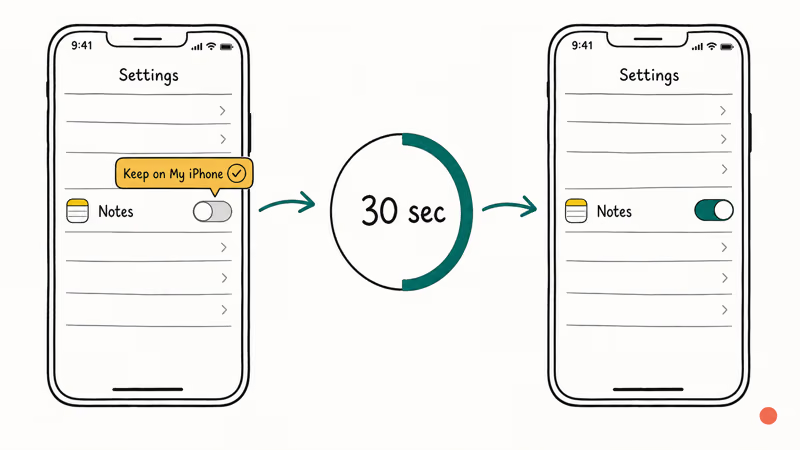
On iPhone or iPad: Open Settings, tap your name at the top, tap iCloud, then tap Show All under Apps Using iCloud. Find Notes, turn the toggle off, and choose Keep on My iPhone if prompted. Wait a full 30 seconds so iCloud closes the sync session cleanly, then turn the toggle back on.
On Mac: Open the Apple menu, choose System Settings, click your name, click iCloud, then click Show More Apps. Uncheck Notes, wait 30 seconds, and check it again.
Give the device a couple of minutes before checking, because the first sync batch after a fresh handshake can lag slightly behind the UI. If you run into iCloud contacts not syncing at the same time, the identical toggle-off-and-on routine can help there too.
#Confirm You’re Using the Same Apple ID Everywhere
Mismatched Apple IDs are the quietest cause, and the one most users miss.
On iPhone or iPad, open Settings and tap your name. The email shown directly under your name is the Apple ID driving iCloud on that device. On Mac, click the Apple menu, open System Settings, and check the Apple ID shown at the top of the sidebar.
If the emails don’t match, sign out on the odd-one-out device and sign back in with the Apple ID you use everywhere else.
If you recently changed or deleted your iCloud account, you may need to set iCloud back up from the beginning. Users who can’t sign out of Apple ID should open Settings > Screen Time > Content & Privacy Restrictions first, because a leftover restriction is usually what’s blocking the button.
#Restart Your Devices and Your Router
Restarting drops every stale network socket your devices are holding onto. Simple but almost always effective.
On iPhone, press and hold the Side button along with either Volume button, drag the power slider, wait 30 seconds, then hold the Side button to turn it back on. On Mac, click the Apple menu and choose Restart.
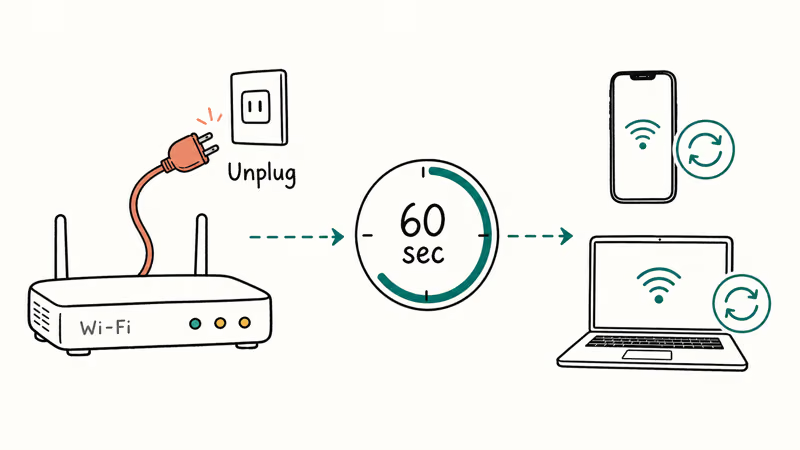
Here is the part most guides skip: restart your router too. Unplug it from the wall for a full 60 seconds, then plug it back in and wait for every indicator light to go steady. A router power-cycle can clear a stale local connection that device restarts alone don’t touch. Give iCloud about five minutes after the router is back up before you declare the fix a failure.
If your iPhone gets stuck on the Apple logo during the restart, force restart it by pressing Volume Up, pressing Volume Down, then holding the Side button until the Apple logo flashes on again.
#Rule Out an Outage on Apple’s End
Before you spend another hour troubleshooting your own gear, rule out an Apple-side outage.
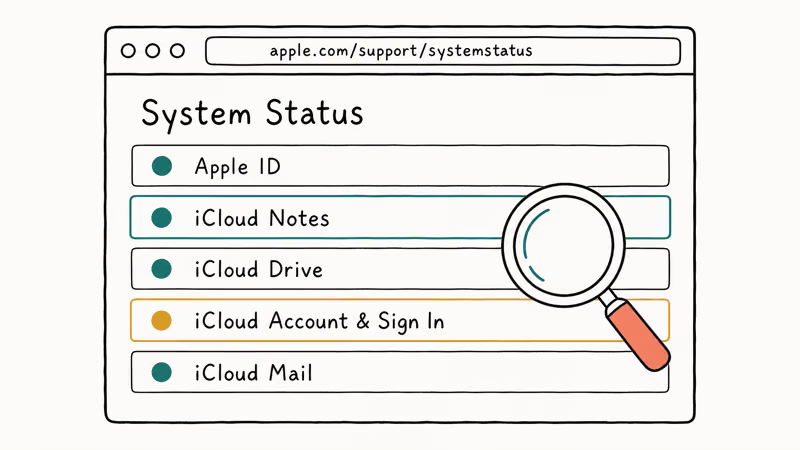
Open Apple’s System Status page in any browser. Scroll to iCloud Notes and iCloud Account & Sign In. A green dot next to both lines means you can keep troubleshooting locally. A yellow or red indicator means Apple’s already working on it and your fixes won’t stick until the service recovers.
You can cross-check by signing into iCloud.com and opening Notes. If the note you’re missing shows up there, the cloud copy is fine and the problem lives on the device that can’t see it. If the note is missing from iCloud.com too, check the Recently Deleted folder before you assume it’s gone for good. Apple keeps deleted notes for 30 days and restoring one is a single tap.
#Update iOS, iPadOS, and macOS on Every Device
Apple patches iCloud sync bugs quietly in point releases.
On iPhone or iPad, open Settings > General > Software Update and install anything that shows up. On Mac, open System Settings > General > Software Update and do the same. Install updates on every device that’s supposed to share your notes, not just the one that’s acting up.
After updating, restart the device and retry Notes before moving on to storage or account fixes. If your iPhone gets stuck during the update itself, our walkthrough on fixing an iPhone stuck on preparing update will unblock it before you try Notes again.
#Check That iCloud Storage Isn’t Full
iCloud rejects new uploads silently once your storage is at 100%. Notes syncing looks healthy in Settings, but nothing new actually lands in the cloud.
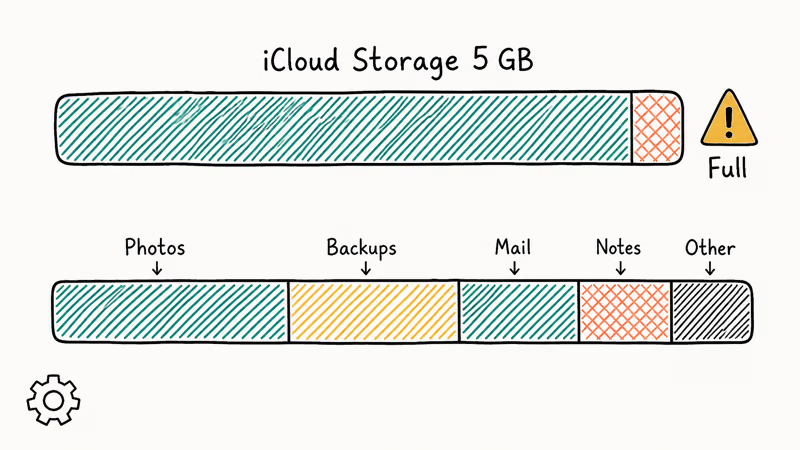
Open Settings > your name > iCloud > Manage Account Storage on iPhone or iPad. Apple’s iCloud product page states that every Apple Account includes 5 GB of iCloud storage for free, which fills up fast once Photos and iPhone Backups are in the mix. Apple also recommends reviewing which apps are consuming the most space before you decide whether to upgrade or clean up.
Start with old device backups you no longer need, large Mail attachments, and any shared albums you have already archived. If you want to keep everything you already have, downloading your iCloud backup files to a computer is a cleaner long-term play than deleting in place.
#Use iCloud.com as a Temporary Workaround
While you are working through the fixes, keep a browser tab open on iCloud.com so your notes stay in reach.
Sign in with the Apple ID you use on your iPhone, click Notes, and you have full read and edit access to every note already in the cloud. Anything you type here syncs back to your devices the moment the local sync handshake recovers.
One caveat worth knowing: notes stored in the On My iPhone local account never appear on iCloud.com, because they don’t live in iCloud at all. If an important note is missing online, open Notes on the device it was written on, tap the back arrow to see the account list, and check whether the note is sitting under On My iPhone.
Move it into the iCloud folder and it’ll sync from there. For other cloud-sync patterns, our Dropbox not syncing guide uses the same diagnosis path for a different service.
#Bottom Line
If you only have time for one fix, toggle Notes syncing off and on in iCloud settings, wait 30 seconds between flips, and restart both the device you’re using and your router. If your notes are still stranded after all seven fixes, call Apple Support and ask them to check your iCloud account for a server-side database flag.
#Frequently Asked Questions
Why are my notes syncing between iPhone and iPad but not my Mac?
Your Mac is almost certainly either signed into a different Apple ID or has the Notes toggle disabled in iCloud settings. Open System Settings, click your name, click iCloud, and confirm Notes is checked. Also update macOS to the latest point release, because older versions had sync bugs that Apple has since fixed.
Will toggling Notes syncing off delete my notes?
No. Choose Keep on My iPhone when prompted, and the cloud copy stays untouched either way.
How long does it take for iCloud Notes to sync?
Under a minute on a healthy connection is common for short text notes, while attachment-heavy notes take longer. Past 10 minutes, start with the toggle fix.
Can I force iCloud to sync my notes right now?
There’s no dedicated sync button in the Notes app, but the toggle trick functions as the closest equivalent Apple exposes. Turn Notes syncing off in iCloud settings, wait 30 seconds, and turn it back on. Your device re-handshakes with iCloud and pulls everything fresh — usually in under a minute on stable Wi-Fi.
Why did my notes disappear after an iOS update?
iOS point releases occasionally reset iCloud sync settings during install. Check Settings > your name > iCloud and re-enable Notes if the toggle flipped off. Your notes are almost certainly still in the cloud and will reappear within a minute or two.
Do iCloud Notes sync over cellular or only on Wi-Fi?
Both, by default. Low Data Mode under Settings > Cellular > Cellular Data Options pauses sync on cellular to save bandwidth, so check that setting if your notes only catch up once you’re on Wi-Fi.
What should I do if none of these fixes work?
Call Apple Support. A handful of sync failures are account-level issues that only Apple can clear, and their phone support can check for a corrupted iCloud database flag on your account in a few minutes. Before the call, back up your device using the method in our how to reset iPhone guide so you’re covered no matter what Apple ends up recommending.
iPhone 17 Cellular Data Not Working on iOS 26? 9 Fixes
iPhone 17 cellular data still dropping on iOS 26? Apple fixed the launch bug in iOS 26.0.1, but recovery failures persist. Here's the fix ladder.
iPhone Cellular Data Not Working Abroad? eSIM Fixes
Travel eSIM showing no data abroad? Fix iPhone roaming with the data-line check, Data Roaming toggle, APN settings, and network selection steps.
iPhone Cellular Data Not Working for Some Apps? 8 Fixes
Some iPhone apps refuse to load on cellular while others work fine. Check the per-app cellular toggle, Low Data Mode, VPN profiles, and Screen Time.

iPhone Stuck on EDGE? How to Get 5G or LTE Back (2026)
iPhone stuck on EDGE with crawling data? Here's why the E icon appears, which settings force 5G or LTE back, and when the problem is your carrier.