Valorant FPS Drop Fix: 6 Real Steps That Actually Work
Valorant FPS drops fixed in order of impact: GPU driver update first, Windows power plan, the two settings that matter, and the Vanguard post-update quirk.
Quick AnswerUpdate your GPU driver, set Windows to High Performance, then turn Multithreaded Rendering on and Shadows to Low. That order fixes most Valorant FPS drops.
Valorant’s supposed to run on almost anything, so an FPS drop feels personal. The fixes below are ordered by impact across common hardware like a GTX 1660 Super, an RTX 2060, and an Iris Xe laptop. Most lost frames come back before you touch a single in-game setting.
- Update the GPU driver first. Stale NVIDIA or AMD drivers are the single most common silent cause of Valorant FPS drops, even when nothing else has changed.
- Set Windows to the High Performance power plan. Balanced quietly downclocks the CPU and GPU and steals frames you already paid for.
- Multithreaded Rendering ON and Shadows on Low are the two in-game settings that actually move the needle. Most other Valorant settings cost almost nothing to leave alone.
- Disable overlays before uninstalling anything. Discord, Xbox Game Bar, GeForce Experience, and Razer Synapse overlays each add a measurable hit, and you can shut them off in seconds.
- After a Windows feature update, FPS drops are often Vanguard reinit. Reboot once with Vanguard’s tray icon visible, and if the drop sticks, reinstall Vanguard.
#Why Is My Valorant FPS Dropping?
The game itself rarely changes. Valorant runs on a custom Unreal Engine 4 build with modest hardware floors, so when FPS drops on a machine that was happy yesterday, the cause is something around the game: a stale GPU driver, a Windows power state, a background overlay, or Vanguard re-handshaking with the kernel after an update.
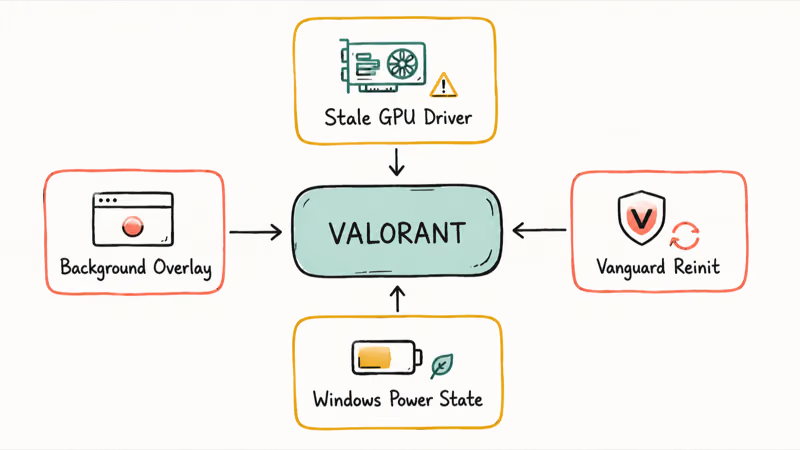
Order matters. People grab the settings panel first and stop when something seems to work — that hides the real culprit further up the stack. Riot’s official Valorant support page confirms that step 1 of any FPS troubleshooting is updating to a current GPU driver, before any in-game setting changes. Settings tinkering usually helps a little, the driver update helps a lot, and the power plan tends to help most on a laptop.
If the drop arrived suddenly, the trigger is almost always 1 of 3 events: a Windows feature update landed overnight, Valorant patched, or NVIDIA / AMD pushed a new driver. The fix order below covers all three.
#Update Your GPU Driver First
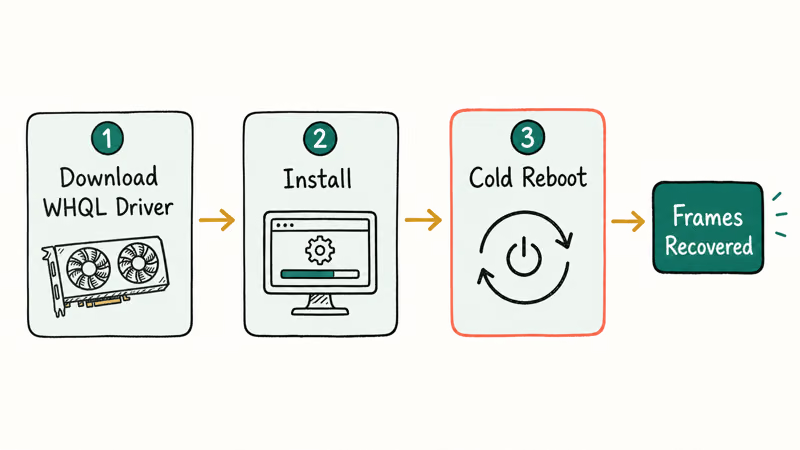
This is the highest-impact single move, and the one most guides bury at the bottom. NVIDIA’s official GeForce driver download page recommends installing the current Game Ready or WHQL driver for your card; AMD’s Radeon driver download page does the same. GeForce Experience or AMD Adrenalin surface the same driver, but the “you’re up to date” badge can be days behind.
The NVIDIA stack controls GPU scheduling and the overlay hooks; we cover what the NVIDIA backend process does separately. AMD’s equivalent stack does the same job.
Sanity-check the driver isn’t failing in a louder way. A drop that ends in a black screen is usually a thread stuck in device driver crash. A stutter that bluescreens is often the video scheduler internal error. Either pattern means a clean driver reinstall, not just an update.
After the install, reboot. The new driver doesn’t fully take over the GPU scheduling path until the next cold boot, and some machines only recover the lost frames after that restart, not immediately after the driver finishes installing.
#Switch Windows to High Performance Power Plan
This is the second-highest-impact move, and on integrated graphics like Iris Xe it can be the biggest single jump. Windows ships Balanced by default, and Balanced throttles the CPU whenever it judges the workload “light”, which Valorant’s low CPU floor can trip into. Microsoft’s official power plan documentation states that the built-in High Performance plan disables CPU parking and holds the processor at higher P-states, both of which matter for a CPU-light, latency-sensitive game.
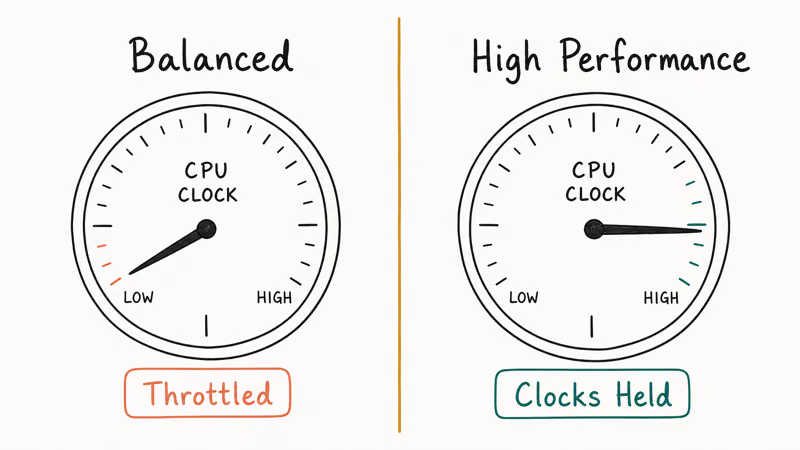
Open Control Panel → Hardware and Sound → Power Options and pick High Performance. On Windows 11 the GUI sometimes hides the option. Open an elevated Command Prompt and run powercfg /setactive 8c5e7fda-e8bf-4a96-9a85-a6e23a8c635c to force the built-in plan.
On a laptop, plug it in. The thermal envelope tightens on battery no matter what plan is active. If you must play on battery, set the Windows Graphics setting for VALORANT-Win64-Shipping.exe to High Performance under Settings → System → Display → Graphics, which forces the discrete GPU when Windows would punt the game to integrated.
Desktops usually gain less than laptops here, but neither loses anything. On a card like the GTX 1660 Super the average tends to feel steadier in long rounds.
#Which Valorant Settings Actually Give You More FPS?
The settings panel is bigger than it needs to be. Most sliders cost almost nothing on default. Two settings matter. A third matters only if you’re VRAM-limited.
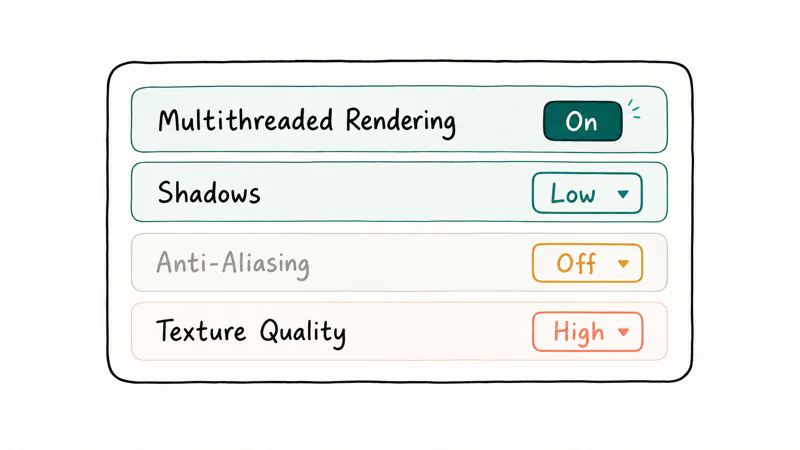
Multithreaded Rendering ON. This is the in-game switch with the biggest FPS return. Off, the renderer is single-threaded and leaves most CPU cores idle while one does everything. On, it parallelizes across cores. On any modern CPU, leave it on.
Shadows = Low. Shadow rendering is the biggest visual setting hit. Medium or High to Low gives back real frames on integrated graphics, older NVIDIA cards, and AMD APUs. Low to Off saves very little extra and removes a competitive cue. You can sometimes spot a player by their shadow.
Anti-Aliasing off is a cheap win on Intel iGPUs and older GPUs, so disable it there. On RTX 30-series and newer it costs almost nothing on MSAA 2x.
Texture Quality only matters if you’re VRAM-bound. With at least 4 GB of GPU memory free in-match (open Task Manager → Performance → GPU and check the Dedicated GPU memory graph mid-round), leave it on High. Dropping it without that data costs visual clarity for zero FPS recovery on most cards, and you only need to lower it if the graph stays pinned at the top.
Valorant sits in the wider tactical-FPS category where the same setting philosophy applies; see games like Counter-Strike for the same logic across the genre.
#Close Background Apps and Overlays That Drag Frames Down
Every overlay hooks into the render pipeline. Every hook costs frames. Disable overlays first; uninstall the app only if disabling doesn’t help.
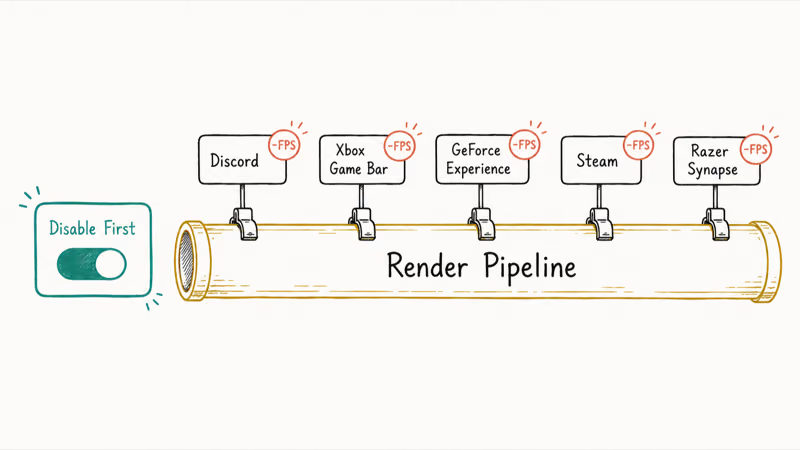
Disable in this order:
- Discord: User Settings → Game Overlay → off.
- Xbox Game Bar: Settings → Gaming → Xbox Game Bar → off, plus Captures.
- GeForce Experience: Settings → In-Game Overlay → off. NVIDIA renamed it “NVIDIA App Overlay” in late 2024, but the toggle is the same.
- Steam: Settings → In-Game → uncheck the Steam Overlay.
- Razer Synapse: Customize → Overlay → off. If Synapse won’t open and you suspect interference, see our Razer Synapse not opening walkthrough.
Then close the background apps you don’t need while playing. Chrome with 30 tabs and a video autoplaying costs real CPU and RAM bandwidth. So does OBS recording, or a backup utility scanning your drive. Task Manager → Processes, sorted by CPU then Memory, shows what to close.
One related Windows aim setting worth toggling off is enhance pointer precision in Windows, the standard recommendation for any FPS where aim consistency matters.
#Fullscreen vs Borderless and the Post-Update Stutter
Valorant has 3 display modes: Fullscreen, Windowed Fullscreen (Borderless), and Windowed. For FPS recovery the answer is Fullscreen.
Fullscreen owns the GPU’s swap chain, so frames go straight to the display. Borderless looks identical but routes every frame through Windows’ Desktop Window Manager, which composites it with everything else on your desktop first. DWM compositing costs GPU time and adds latency. Pick borderless only if you stream and need OBS to capture without a fullscreen handoff.
The other case is the post-update stutter. If FPS was fine yesterday and Valorant now stutters after an overnight Windows update, that’s almost always Vanguard left half-loaded.
The fix is mechanical, and it commonly follows a Windows 24H2 cumulative update. Reboot, wait for Vanguard’s tray shield to appear, then launch the game. If the stutter’s gone, you’re done. If not, uninstall Vanguard from Settings → Apps → Riot Vanguard → Uninstall and launch Valorant, which reinstalls Vanguard cleanly.
#Bottom Line
Update the GPU driver, switch Windows to High Performance, flip Multithreaded Rendering on, and drop Shadows to Low. Those 4 moves close the gap.
#Frequently Asked Questions
Why is my Valorant FPS dropping?
Most sudden Valorant FPS drops trace back to one of three culprits: a stale GPU driver after a NVIDIA or AMD release, a Windows Balanced plan throttling the CPU during a “light” workload, or Vanguard re-handshaking the kernel after a Windows feature update. Hardware is rarely the cause on a machine that was running Valorant fine days earlier.
What Valorant settings give the most FPS?
Multithreaded Rendering ON and Shadows on Low. Those 2 give back most of the headroom you can recover from the settings panel itself. Anti-Aliasing off helps on Intel iGPUs and older GPUs. Texture Quality stays on High unless you’re VRAM-limited (under 4 GB free GPU memory in-match, by Task Manager → Performance → GPU).
Does the Windows power plan affect Valorant FPS?
Yes. Balanced downclocks the CPU during “light” workloads, which Valorant’s low CPU floor easily trips into. High Performance keeps the clocks pinned up.
Why does Valorant stutter after an update?
After a Windows feature update or cumulative, Vanguard sometimes reinitializes in a half-state on the first boot. A reboot with Vanguard’s tray icon visible before launch usually fixes it. If the stutter sticks, uninstall Vanguard from Settings → Apps and let the Valorant launcher reinstall it for a clean handshake.
Fullscreen or borderless for Valorant FPS?
Fullscreen, always. Borderless adds Desktop Window Manager compositing overhead, while Fullscreen owns the swap chain.
Do overlays lower Valorant FPS?
Yes. Discord, Xbox Game Bar, GeForce Experience, Steam, and Razer Synapse all hook the render pipeline and stack small hits on each other. Toggle the overlays off first. Uninstalling the apps is rarely needed; the disable alone recovers the frames.

Bluetooth Not Working on Snapdragon X? Fixes for 2026
Bluetooth not working on your Snapdragon X Copilot+ PC? Generic audio, mice, and keyboards work, but vendor apps often lack an ARM build. Fixes inside.

Docker Desktop and WSL2 Not Working on Snapdragon X? Fix It
WSL2 runs fine on Snapdragon X, but Docker Desktop ARM is Early Access and throws WSL errors. Use WSL2 plus native ARM64 Ubuntu and Docker Engine.
Does iTunes Work on Snapdragon X? ARM Windows 11 Guide
Yes, iTunes runs on Snapdragon X laptops through Prism emulation, but the Apple Devices app is the smoother route. Here is what to install on ARM.

Does OBS Studio Work on Snapdragon X? ARM64 Build Guide
Yes, OBS Studio has an experimental ARM64 build since version 31.1, but x64 plugins won't load and hardware encoding is missing. Here is what works.