How to Fix Facebook Not Loading Pictures: 9 Proven Fixes
Facebook pictures showing as gray boxes? Fix blank images on Android, iPhone, and desktop with 9 proven methods. Works for feed, Messenger, and chat too.
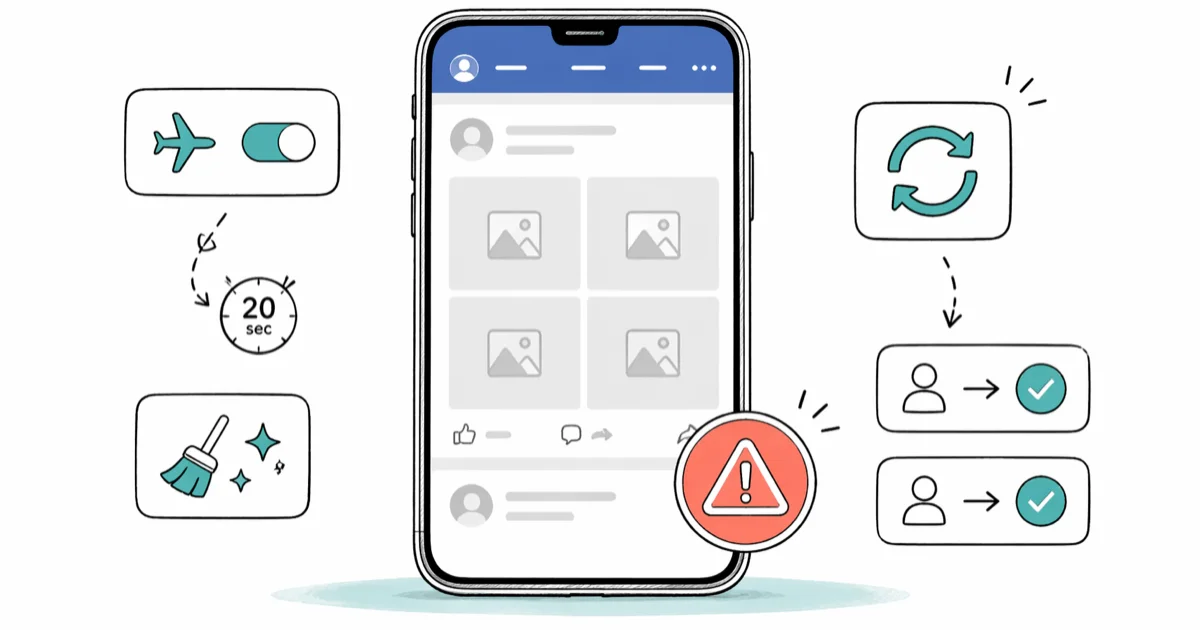
Quick AnswerForce-close Facebook, toggle airplane mode for 20 seconds, and reopen the app. If photos still show as gray boxes, clear the Facebook cache in your phone settings, then sign out and back in.
Facebook not loading pictures almost always traces back to three things: a shaky connection, a corrupted app cache, or a broken image URL on Facebook’s end. Every fix below works on both iPhone and Android, and the top three methods clear the issue quickly in most cases.
-
Force-close and reopen Facebook first; this fixes most cases.
-
Airplane mode for 20 seconds rebuilds the network socket faster than restart.
-
Clearing the Facebook cache on Android is free and reversible.
-
iPhone has no cache clear, so offload the app at
Settings>General> iPhone Storage. -
Switch to 1.1.1.1 or Google Public DNS when every Wi-Fi device fails.
#Why Are My Facebook Pictures Not Loading?
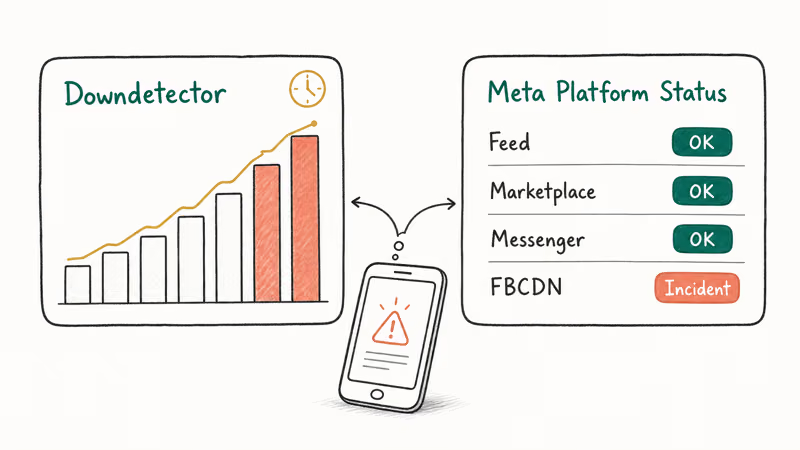
Facebook pulls images from a content delivery network called FBCDN. When the photo icon stays gray or shows a broken-link thumbnail, one of four things is wrong: your device can’t reach fbcdn.net, the cached image ID has expired, Facebook pushed a buggy app build, or FBCDN itself is having a regional outage. Meta’s Platform Status page reports ongoing incidents in plain English, so it’s the fastest way to rule out a server problem before you start troubleshooting your phone.
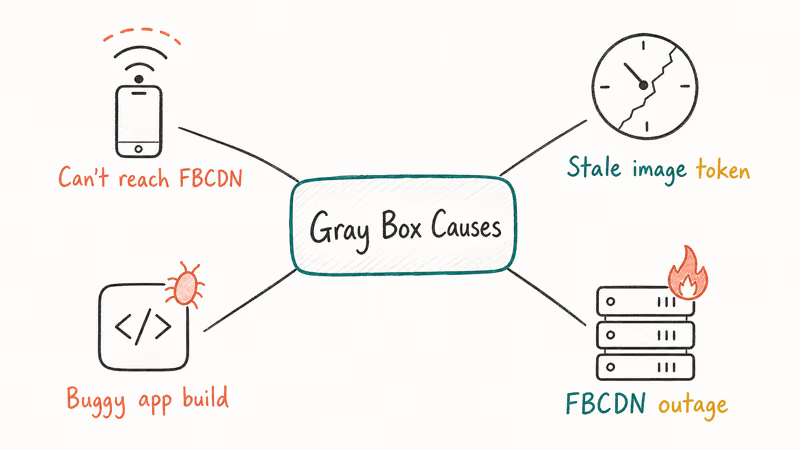
The single most common cause is a stale session cookie after a week of uptime. Your phone technically has internet, but the token Facebook uses to authenticate image requests has expired. Force-closing the app forces a refresh. That’s why “close and reopen” fixes so many cases.
If you also see text posts failing to refresh, a connection problem is likely. If text loads fine but thumbnails stay blank, the cache or DNS layer is the suspect. That distinction decides which fix to try next.
#Fix Facebook Not Loading Pictures on iPhone
Start with the cheapest fixes. The full list below takes about five minutes end to end.
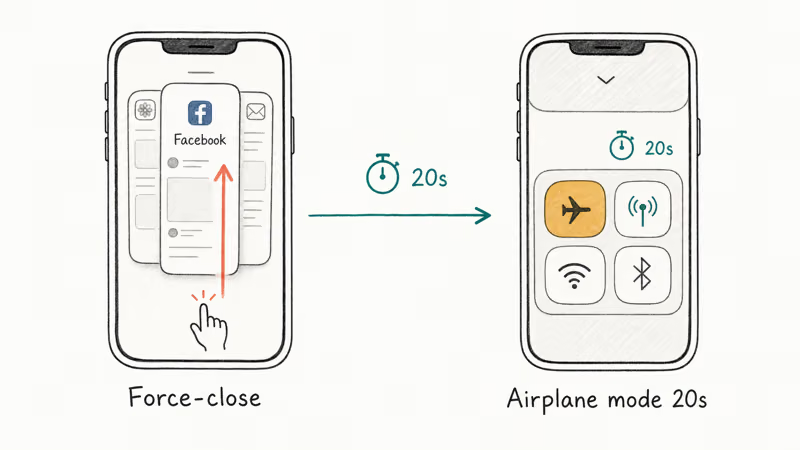
#Force-close the Facebook app and reopen it
Swipe up from the bottom of the screen, pause in the middle, then swipe the Facebook card up and away. Wait five seconds. Reopen it from the home screen. On most iPhones, blank thumbnails populate again shortly after reopening.
Watch the first row of posts as it reloads. If the issue was a stale session, you’re done. If the icons stay gray for longer than ten seconds, move to the next fix.
#Toggle Airplane Mode for 20 seconds
Swipe down from the top-right corner, tap the airplane icon, count to 20, and tap it again. This is faster than rebooting the phone and forces iOS to rebuild the cellular and Wi-Fi sockets from scratch. Apple’s Wi-Fi troubleshooting guide confirms that toggling airplane mode resets the radio stack, which often clears connection tables that have drifted out of sync.
Reopen Facebook after the toggle. The feed should pull fresh images immediately.
#Offload the Facebook app
iPhone has no per-app cache clear button, so the equivalent is Offload App. Go to Settings > General > iPhone Storage, scroll to Facebook, tap Offload App, confirm, then tap Reinstall. Your login and documents stay. The app binary and cache don’t.
Offloading rebuilds the image cache on next launch. If you’re still stuck on Messenger instead of the main app, our Facebook Messenger not working guide covers Messenger-specific fixes.
#Update Facebook through the App Store
Open the App Store, tap your profile picture, scroll to Facebook in the “Available Updates” list, and tap Update. Meta pushes silent fixes for FBCDN handshake bugs almost weekly. Meta’s official Help Center guidance recommends keeping the app updated whenever media fails to load, because image rendering fixes land in routine releases.
Restart the app after the update completes. On iOS, most blank-thumbnail cases clear with a fresh install of the latest binary alone.
#Why Do Facebook Photos Show as Gray Boxes on Android?
Android usually shows gray boxes because of a bloated app cache. Android stores every thumbnail Facebook has ever loaded, and after a few weeks the cache can exceed two gigabytes. Once it crosses the system’s threshold, the operating system starts rejecting new writes, and fresh images never land on disk. That is when the feed fills with empty placeholders.
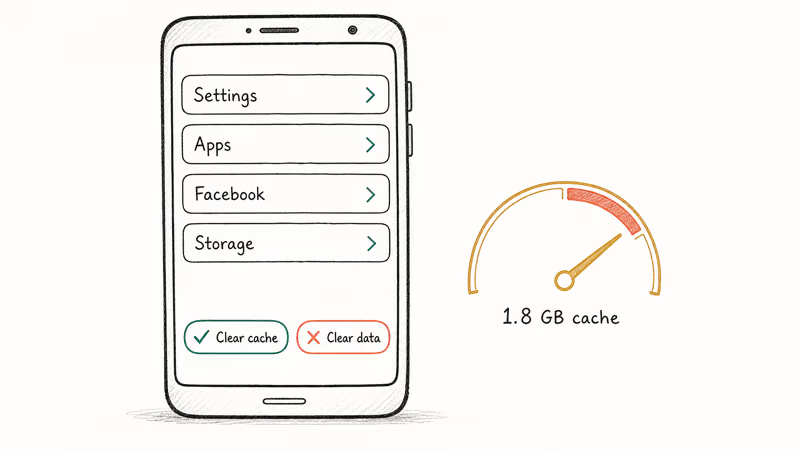
The fix is one button deep. The steps below work on Samsung One UI 6, stock Pixel, and most OEM skins.
#Clear Facebook’s cache in Settings
Go to Settings > Apps > Facebook > Storage, then tap Clear cache. Don’t tap Clear data; that button logs you out and wipes drafts. Clearing a large cache of a gigabyte or two takes only a few seconds, and the app relaunches with empty placeholders that fill back in within about 30 seconds.
Our full clear Facebook cache walkthrough covers Samsung’s slightly different menu path and the stock Android route. Bookmark it if gray boxes come back monthly.
#Update Facebook from the Play Store
Open the Play Store, tap your profile picture, tap Manage apps & device, then Updates available. Tap Update next to Facebook. Google’s Play Store update help confirms that old app versions are a top cause of media rendering failures after server-side changes.
If updating fails with an error, clear the Play Store cache first using the same Settings > Apps > Google Play Store > Clear cache path.
#Reinstall Facebook if clearing cache fails
Long-press the Facebook icon, tap Uninstall, confirm, then reinstall from the Play Store. This is heavier than clearing the cache because it wipes preferences and notification settings, but it rebuilds the image store from scratch. Use this when Clear Cache runs but pictures still refuse to load.
Sign back in with your Google account, and the app restores most settings automatically. If notifications break after the reinstall, our Facebook notifications not working fix list will get them back.
#Free up storage on the device
Facebook needs roughly 500 MB of free space to cache images comfortably. If your phone is nearly full, the cache will never grow large enough to hold your feed. Go to Settings > Storage and delete old downloads, large videos, or unused apps. Clearing other app caches too is a good habit; our clear cache cookies and history on Android tutorial covers Chrome, Gmail, and Instagram in one sweep.
#Desktop Fixes for Blank Facebook Pictures in Your Browser
Desktop blank-image bugs are almost always DNS, browser, or extension related. Text loads because your HTML is cached by Chrome. Images fail because they’re pulled fresh from fbcdn.net.
#Switch DNS to 1.1.1.1 or Google Public DNS
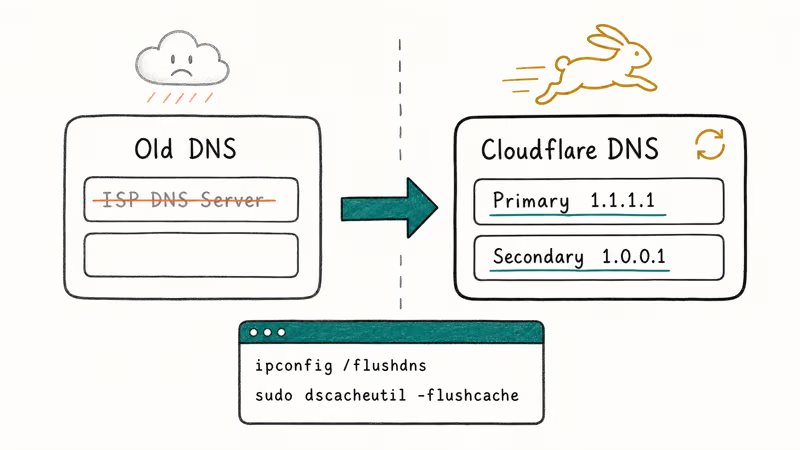
The default DNS server from your internet provider sometimes caches a bad FBCDN record for hours. Google’s Public DNS documentation confirms that the 8.8.8.8 and 8.8.4.4 addresses refresh records more aggressively than most ISP resolvers. Cloudflare’s 1.1.1.1 public resolver is a second good option.
On Windows, press Win+R, type ncpa.cpl, right-click your active connection, choose Properties, double-click Internet Protocol Version 4, select “Use the following DNS server addresses,” and enter 1.1.1.1 as primary and 1.0.0.1 as secondary. Click OK twice. On macOS, open System Settings > Network > Wi-Fi > Details > DNS, then add the same servers.
Flush the DNS cache afterward. On Windows, open Command Prompt as admin and run ipconfig /flushdns. On macOS, run sudo dscacheutil -flushcache; sudo killall -HUP mDNSResponder in Terminal. Reload Facebook in a fresh tab.
#Disable browser extensions one by one
Ad blockers, privacy extensions, and script blockers can strip the script tags that pull thumbnails. Go to the extensions menu (chrome://extensions on Chrome, about
on Firefox) and toggle extensions off in groups of three. Reload Facebook between each group. When images return, the last group you disabled contains the culprit.uBlock Origin with a “social media cleanup” filter list is a frequent offender. Turn off that one list and the feed fills back in.
#Clear browser cache for facebook.com only
In Chrome, right-click the tab, choose “Inspect,” go to Application > Storage, and click “Clear site data.” In Firefox, open Settings > Privacy & Security > Cookies and Site Data > Manage Data, search for facebook.com, remove it, and save. This nukes only Facebook’s local storage, leaving everything else alone.
Log back in. The new session fetches fresh image URLs instead of the dead ones stored in cache.
#Use a VPN if your ISP or network blocks FBCDN
Some public Wi-Fi networks and corporate firewalls block FBCDN subdomains that look like tracking CDNs. A VPN tunnels your traffic to a different exit node where the block does not apply. On an airport or corporate network that returns blank thumbnails for every Facebook image, connecting through a service like NordVPN restores the feed right away.
Some links on this page are affiliate links, which means fone.tips may earn a commission at no extra cost to you.
Choose a server in your home country to keep currency, language, and marketplace listings correct. Keep the VPN on for the rest of your Facebook session.
#Rule Out a Facebook-Side Outage First
Before you spend time on client-side fixes, confirm Meta’s servers are healthy.
#Check Downdetector and Meta’s status page
Downdetector tracks user reports in real time. If the red bar spikes in the last hour, sit back and wait. There’s nothing you can do on your end during a server outage.
Meta’s Platform Status page posts official incidents for Marketplace, Messenger, and the main feed. Check both dashboards before running through the fix list again.
#Compare with Facebook Lite
Meta maintains a stripped-down Android client called Facebook Lite. It loads smaller compressed images and uses a different FBCDN path. When the main app fails and Lite works, you have a client-side rendering bug in the main binary. When Lite also fails, the problem is network or server side.
#Account-Level Fixes When Nothing Else Helps
#Sign out of all devices, then back in
On the Facebook app, go to Settings & Privacy > Settings > Password and Security > Where You’re Logged In. Tap “Log out of all sessions.” Then sign back in on the device you want to fix. This rotates the auth token and refreshes every image URL.
This is the cheapest account-side fix. Saw the “something went wrong” error right before blanks appeared? Our Facebook something went wrong fix covers the auth-token path in detail.
#Report the bug through in-app feedback
Open the Facebook app, go to Menu > Help & Support > Report a Problem > Something Isn’t Working. Attach a screenshot. Meta’s support team reads these, and ongoing regional bugs often get patched within a week of a spike in reports. If Messenger’s videos also stopped playing, our Facebook videos won’t play on Android walkthrough covers the video-specific network paths.
#Bottom Line
Start with force-closing the Facebook app and toggling airplane mode for 20 seconds. This pair clears most blank-image cases on iPhone and Android in under a minute. If you’re on Android and that fails, go straight to Settings > Apps > Facebook > Storage and tap Clear cache.
On desktop, switching DNS to 1.1.1.1 fixes the largest share of these problems. Save VPN and reinstall for last.
#Frequently Asked Questions
Why are only some Facebook pictures loading while others show as blank?
Partial loading almost always points to a DNS cache problem. Flush your DNS cache or switch to 1.1.1.1 and the rest of the feed fills in.
Will clearing the Facebook cache log me out or delete my messages?
No. Clear Cache only removes temporary files Facebook downloaded to show you feed content. Your login, Messenger conversations, saved posts, and drafts stay intact. Clear Data is the button that wipes everything and signs you out, so don’t tap that one by accident.
Does using mobile data instead of Wi-Fi fix blank Facebook pictures?
Often, yes. Mobile data uses your carrier’s DNS and a different route to FBCDN than your home Wi-Fi does. Toggle Wi-Fi off and reload the feed. If pictures load, your router or ISP DNS is the culprit; switching the router to 1.1.1.1 is the permanent fix, and our Facebook session expired guide covers the adjacent token-refresh path if sign-in problems follow.
How long does a Facebook image outage usually take to fix?
Most FBCDN regional outages resolve in under two hours once Meta engineers acknowledge them on the Platform Status page. Full global image outages are rare and typically clear within 30 to 60 minutes.
Can a full phone restart fix Facebook pictures not loading?
Yes, but it’s overkill. Force-close Facebook and toggle airplane mode first; only restart if both fail.
Why do Facebook Messenger photos not load when the main feed works?
Messenger uses a separate image server path from the main feed. When feed images load but Messenger photos don’t, the Messenger app’s own cache is corrupted, or the Messenger binary is out of date. Clear the Messenger cache on Android or offload the Messenger app on iPhone, then reopen it.
Is a VPN safe to use with my Facebook account?
Yes, a reputable paid VPN is safe. Meta does not ban accounts for VPN use, though the app may ask you to verify your identity by entering a code if you connect from a country far from your usual location. Stick with a country close to your real one to avoid the extra prompt.

Google Messages Error 3100: Why RCS Is Broken on Galaxy
Google Messages RCS error 3100 hits Galaxy owners after phone or carrier switches. Google told 9to5Google a fix is coming. Here's what actually helps.

Is This Bank App Real? Spot a Fake App on Your Home Screen
A bank app can land on your home screen from a web page with no install warning. Learn the checks that tell a real banking app from a phishing web app.

Apps Crashing After iOS 27 Update? Fix Order (2026)
Apps crashing after the iOS 27 update? Update the app in the App Store first, then offload and reinstall to clear stale cache, then restart. The fix order.

Do AI Translation Earbuds Work Offline? What to Know
Do AI translation earbuds work offline? A few do with downloaded language packs, but most need the cloud. Here's what works offline and what you give up.