Discord Screen Share No Audio? Fix the Sound in 2026
Discord screen share has no audio? Isolate window vs full-screen capture, the soundshare permission, output-device mismatch, and the Android WebView bug.
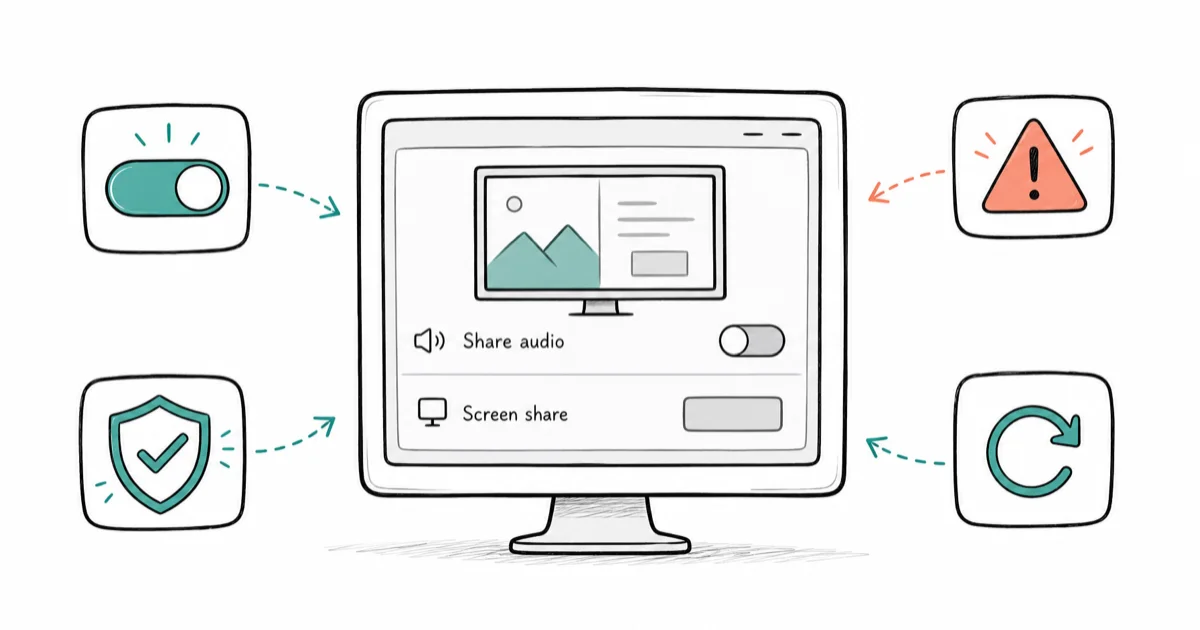
Quick AnswerDiscord screen share has no audio most often because you shared the full screen instead of an app window, or denied Share Audio. Share a single window with Share Audio on and approve the prompt.
Discord screen share no audio almost always traces back to what you picked in the share menu, not your hardware. Switching from a full-screen share to a single application window with Share Audio toggled on is the main desktop fix. The other big culprit in mid-2026 is an Android System WebView bug that silences app audio on phones.
- Sharing a whole monitor often captures no app audio; sharing a single application window with Share Audio enabled captures it.
- The Share Audio (soundshare) toggle must be on at the moment you start the stream, not flipped afterward.
- An output-device mismatch sends sound to a different speaker than Discord is capturing, so viewers hear nothing.
- On Android, a May 2026 System WebView bug breaks screenshare audio system-wide until you uninstall WebView updates.
- The legacy audio subsystem under Voice and Video settings can rescue older hardware when standard routing fails.
#Why Does My Discord Screen Share Have No Audio?
Discord screen share no audio means your viewers see the video but hear silence, even though sound plays fine on your own end. The split happens because Discord captures app audio through a separate pipeline from the video, and that pipeline is fragile. It depends on which capture source you picked, whether you granted the audio permission, and which output device the app is actually playing to.
The most common cause is simple. You shared a full screen, so Discord grabbed video but not audio.
According to Discord’s audio troubleshooting guide, screenshare audio depends on the Share Audio toggle and your capture source, so check the share menu before you touch any driver, reinstall the app, or change a single Windows sound setting.
#Share a Window, Not the Whole Screen
This is the single most important check. When you click Share Your Screen, Discord shows two tabs: Applications and Screens. Pick a whole monitor and you often get video with no per-app audio.
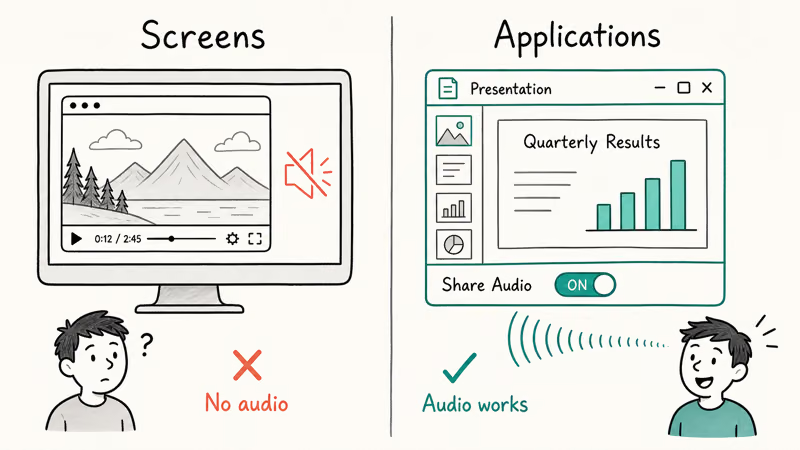
Pick the Applications tab instead. A small Share Audio toggle appears at the bottom of that window picker. Turn it on before you confirm. Single-window sharing with Share Audio enabled is the path that passes game or app sound to viewers.
If the app isn’t listed, it may be minimized. Open it, bring it to the foreground, then reopen the share picker. For a full walkthrough, see our Discord Screen Share guide.
#Grant the Discord Soundshare Permission
Even with the right capture source, Discord needs permission to grab the app’s audio. The first time you enable Share Audio for a window, Discord may prompt you to allow audio capture. If you dismissed that prompt, sound stays off.
To reset it, stop the stream completely. Then start a fresh share from the Applications tab with Share Audio on, watch for the permission prompt, and approve it. On Windows, also confirm Discord has microphone and audio access under Settings, Privacy, then Microphone, since Discord’s capture stack ties into that permission group.
If you keep getting a black or silent share after granting the permission, our guide on Discord Screen Share Black Screen covers the video-capture side of the same feature. That issue and the no-audio issue often share a root cause in graphics or capture permissions, so it’s worth a read when both video and sound behave oddly during the same stream session.
#Fix the Audio Output Device Mismatch
Discord captures the audio from whatever output device the shared app is playing through. If your app is set to play through one device while Discord is capturing a different device, viewers hear nothing.
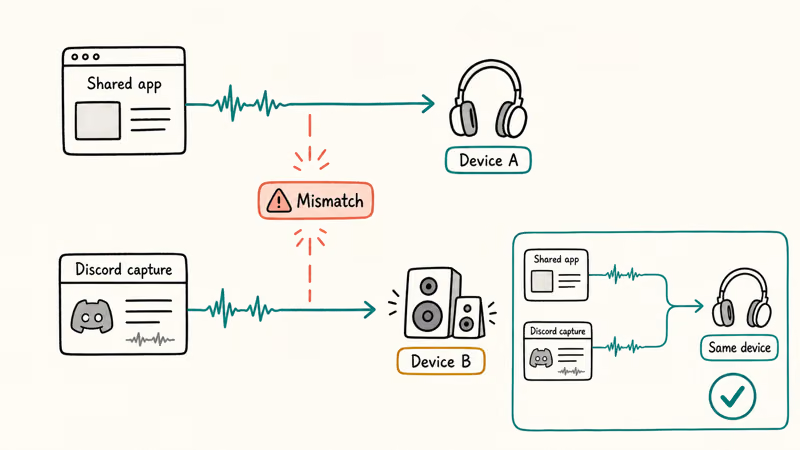
Open Discord, go to User Settings, then Voice and Video, and check the Output Device. Set it to the same device your shared app actually plays through. On Windows, you can verify per-app routing in Settings, System, Sound, Volume mixer, which shows which output each running app is using right now. Line them up.
If you recently changed headphones, plugged in a USB DAC, or updated Windows, the default output can silently move. If sound is wrong across all of Discord and not just the share, our Discord Stream No Sound guide walks through the broader voice-and-video reset. For unrelated startup failures, see Discord Not Opening.
#Switching to the Legacy Audio Subsystem
Discord has two audio backends: Standard and Legacy. The Standard subsystem works for most modern setups, but older audio chipsets, virtual audio cables, and some pro audio interfaces route better through Legacy.
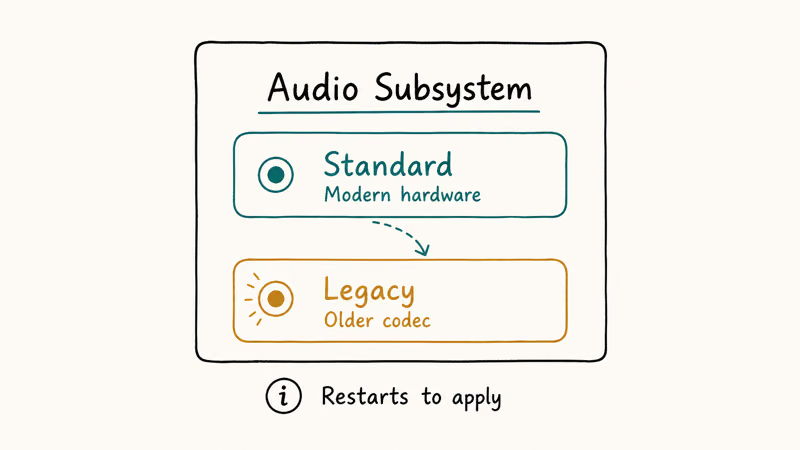
Go to User Settings, Voice and Video, scroll to Audio Subsystem, and switch to Legacy. Discord restarts to apply it. After the restart, start a fresh single-window share with Share Audio enabled and test. Use Legacy only after the routing fixes above fail, especially on older onboard codecs, virtual audio cables, or unusual audio interfaces.
#Why Is Discord Screen Share Audio Broken on Android?
If you’re on Android and getting silent screenshares right now, the fix is different from desktop. According to Discord’s known-issue notice, on May 4, 2026 a bug in Android System WebView began breaking the audio capture pipeline during screenshare.
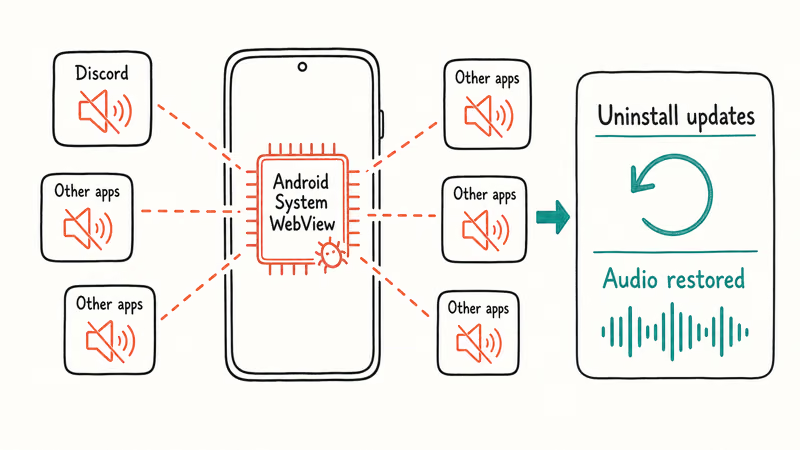
The temporary workaround Discord documents in its Android screenshare audio notice is to uninstall Android System WebView updates under Settings, Apps, Android System WebView, then the three-dot menu, then Uninstall updates.
Discord states this affects every screenshare-capable app on Android, not just Discord, and that a permanent fix has no ETA. WebView is the shared engine that draws web content inside apps. According to Google’s Android System WebView listing, it powers web content for apps using Chrome, which is why one broken WebView build can ripple across many apps at once.
The overlay-related quirks documented in Discord Overlay Not Working are a separate issue and won’t fix audio.
#Bottom Line
Re-share a single application window with Share Audio enabled and approve the permission prompt first. That resolves most no-audio cases on desktop in under a minute. If sound still drops, line up your output device so the shared app and Discord capture the same device, then try the Legacy audio subsystem only on older hardware. On Android, uninstall Android System WebView updates as a temporary measure until Google ships the patch.
#Frequently Asked Questions
Why can viewers see my Discord stream but hear nothing?
Discord captures video and app audio through separate pipelines. The video works while the audio fails when you shared the full screen or skipped Share Audio. Share a single window with Share Audio on.
Does sharing the whole screen break Discord audio?
Often, yes. Full-screen monitor captures on Windows frequently grab video but no per-app audio. Switch to the Applications tab, choose the specific window, and enable Share Audio.
What is the soundshare permission and where do I grant it?
Share Audio, sometimes called soundshare, is Discord’s toggle that lets it capture the audio of the window you’re sharing. It sits at the bottom of the window picker on the Applications tab. Enable it before you start the stream, and approve the prompt.
Why is Discord screen share audio broken on Android right now?
Discord confirmed on May 4, 2026 that an Android System WebView bug can break screenshare audio capture. Because the bug lives in WebView, it hits every screenshare-capable app on Android, so the workaround is to uninstall Android System WebView updates from the Settings app and then retry your stream once the older build is restored.
Will switching to the legacy audio subsystem help?
It can, but only on older or unusual hardware. Legacy changes how Discord routes audio and sometimes fixes aging codecs. Modern setups should stay on Standard.
When should I reinstall Discord?
Reinstall only after the share-source, permission, output-device, and audio-subsystem checks all fail. A reinstall clears corrupted settings and cache that can block audio capture, but it also wipes your local configuration, so treat it as a later step rather than a first move. Quit Discord fully, remove it, clear any leftover app-data folder, then install a fresh copy and test a single-window share with Share Audio enabled before you assume the problem is gone for good.

Is This Bank App Real? Spot a Fake App on Your Home Screen
A bank app can land on your home screen from a web page with no install warning. Learn the checks that tell a real banking app from a phishing web app.

Apps Crashing After iOS 27 Update? Fix Order (2026)
Apps crashing after the iOS 27 update? Update the app in the App Store first, then offload and reinstall to clear stale cache, then restart. The fix order.

Do AI Translation Earbuds Work Offline? What to Know
Do AI translation earbuds work offline? A few do with downloaded language packs, but most need the cloud. Here's what works offline and what you give up.
How to Set Up Translation Earbuds (Pairing and Modes)
How to set up translation earbuds: charge, install the app, pair over Bluetooth, pick two languages, and choose a mode. A step-by-step first-use guide.